
高级设计搜索
To locate, list and highlight design objects in a hardware design project the Altium Workspace includes a powerful search engine based on a flexible query-based syntax. Accessed within the Web Viewer, the search system streamlines the task of finding the exact information you need, from the simple isolation of a specific component to the complex relationship between objects, data and connectivity.
The Web Viewer search features a context-aware user interface that provides suggestions based on the available design data and the active query keyword. Built on a familiar field:value syntax structure, the Advanced Search includes sets of operators for constructing sophisticated queries formed around logic, class, range and connection attributes. See the Search Query Reference for more information.
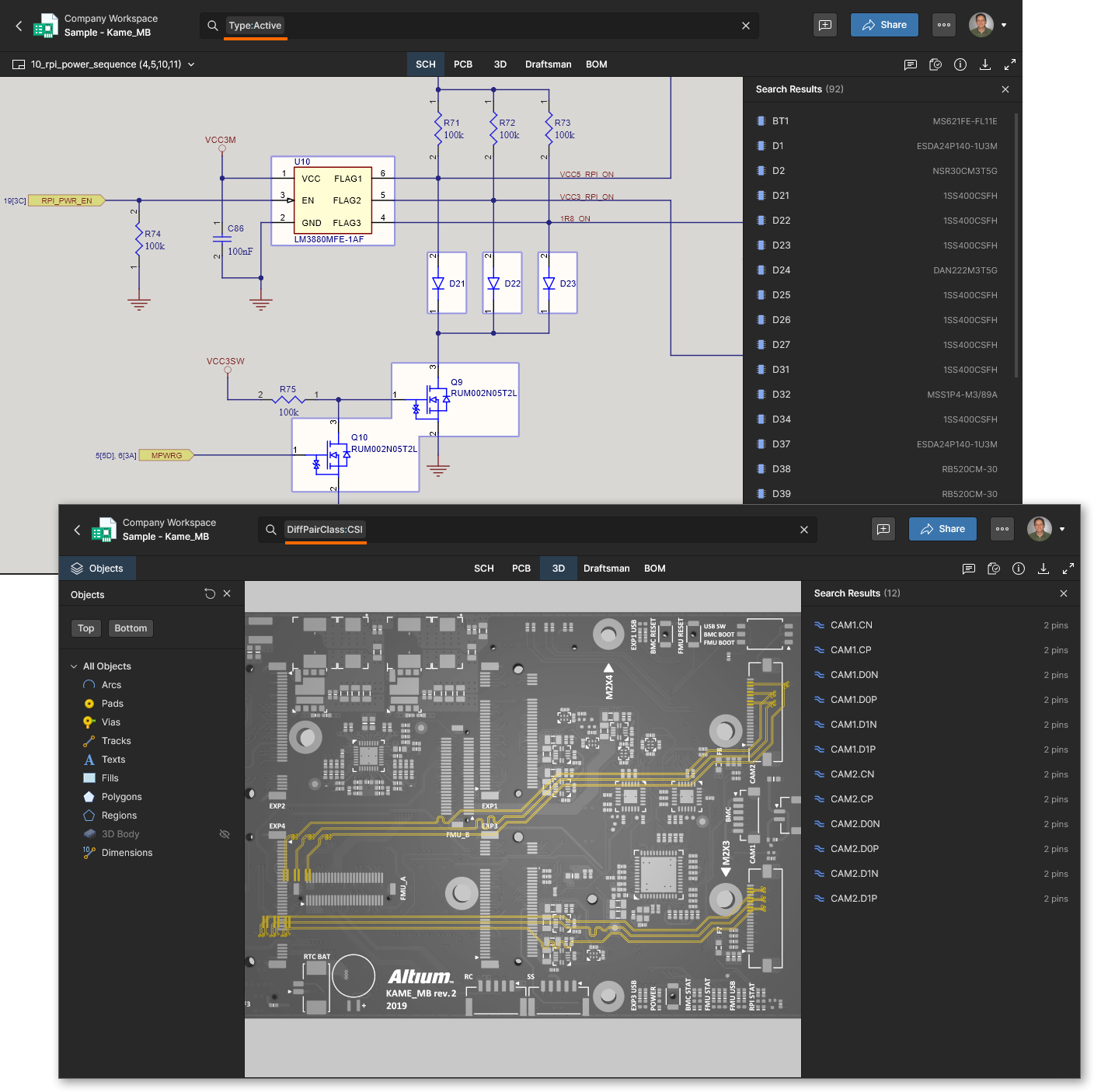
Access the search command interface from the Web Viewer’s upper Search field (Ctrl+K/Cmd+K). Search results are shown by object selection and highlighting, and for multiple object results, as a selectable list in the Search Results pane on the right. Select an item in the list to locate and highlight that object.
Search results are active in all main data views (SCH, PCB, 3D, and BOM). Use the related tabs in the viewer or the results pane to cross-probe between each view.
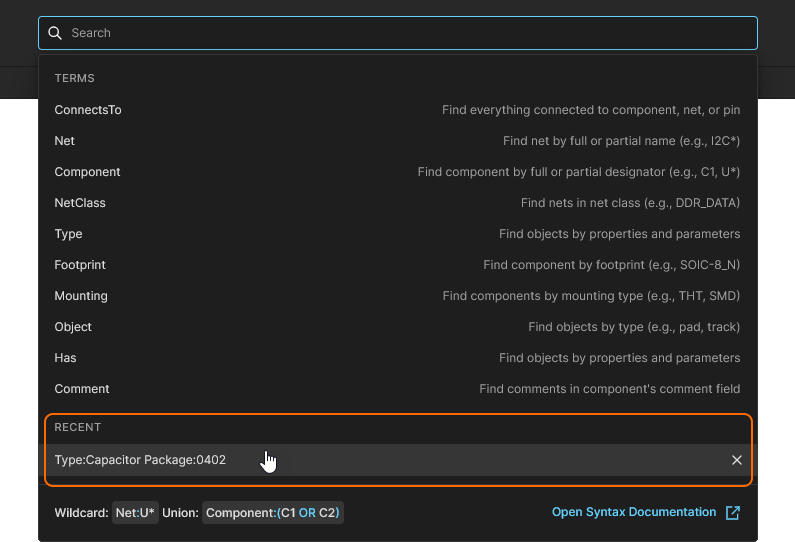
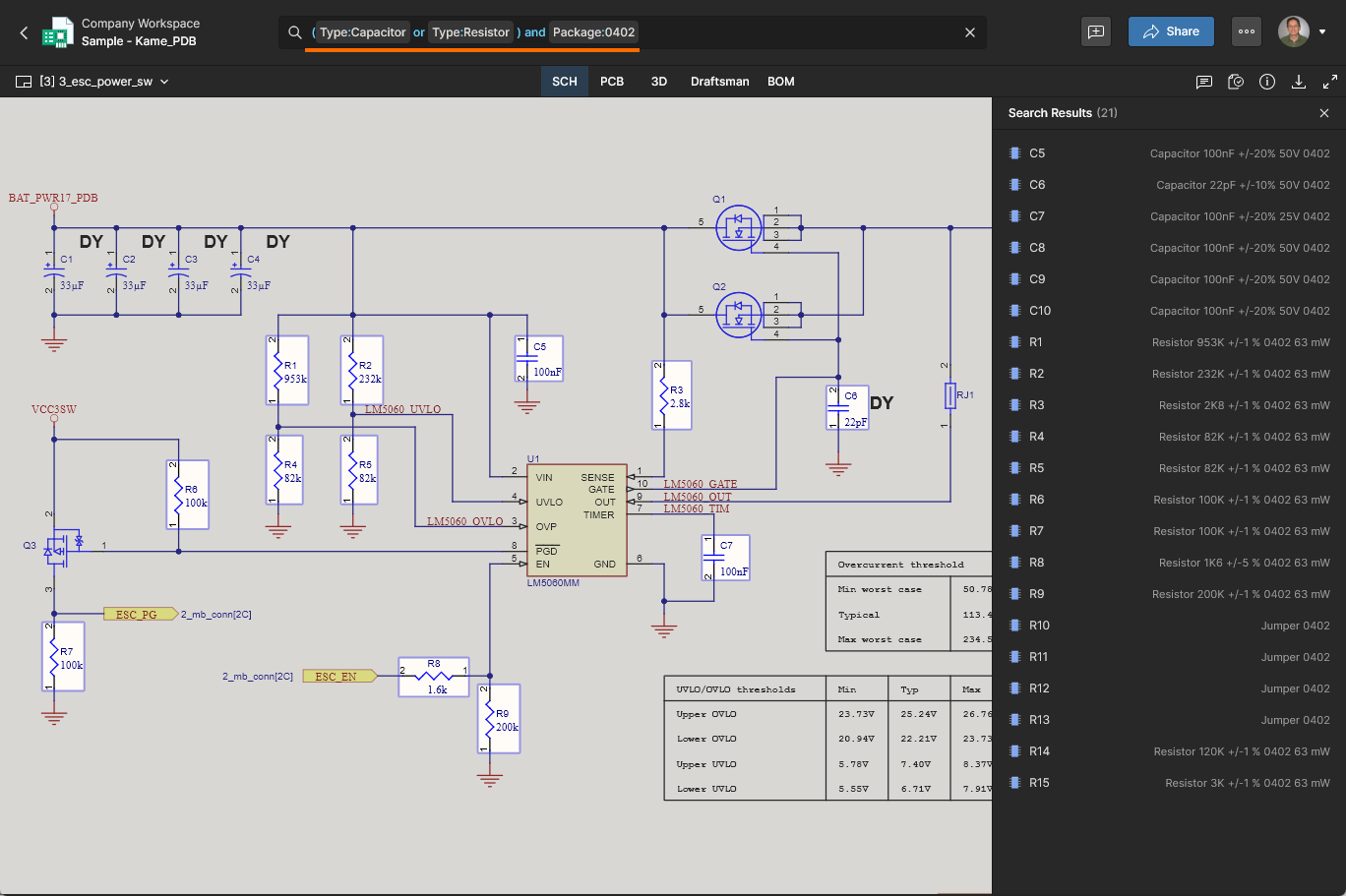
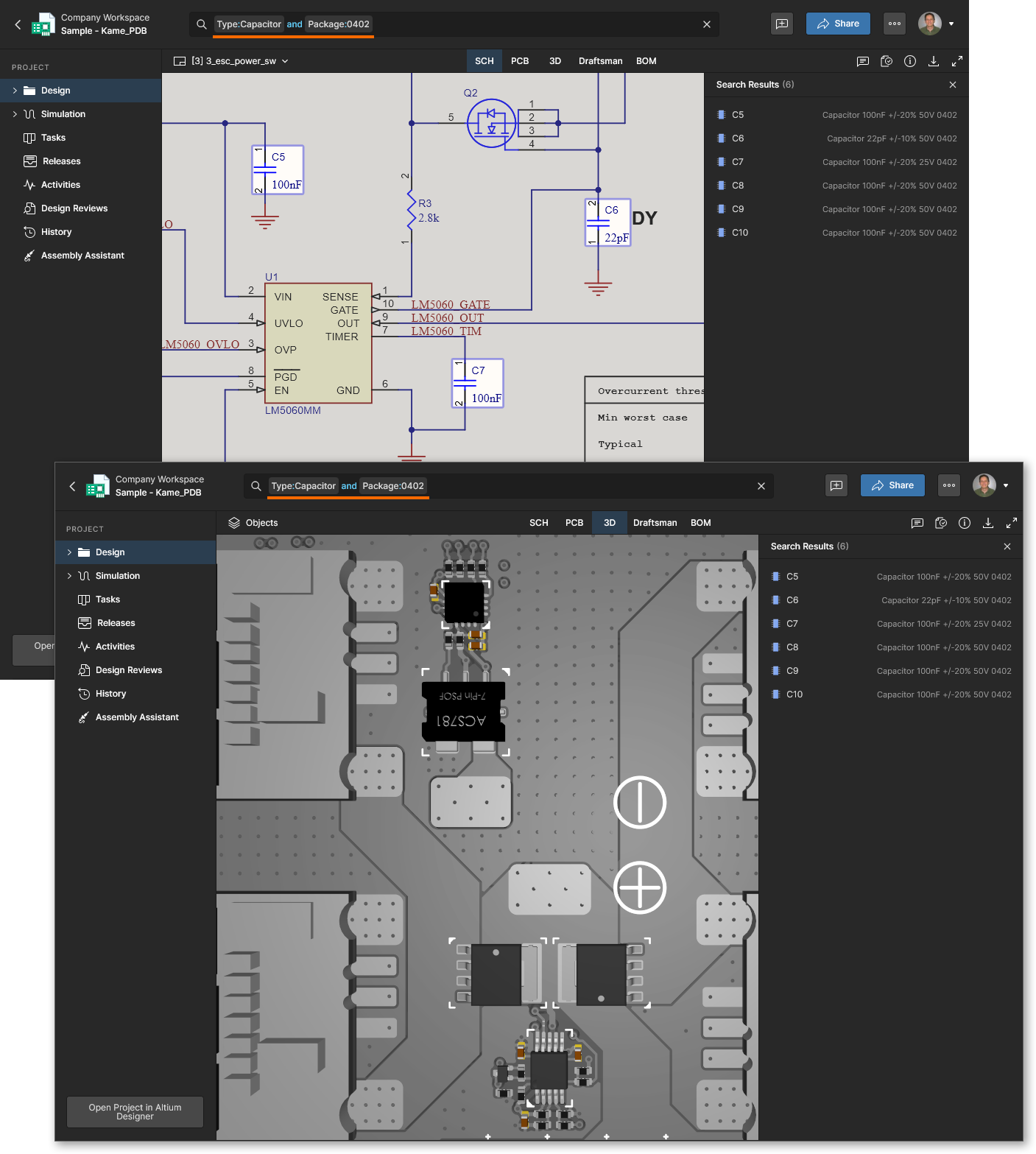 The Advanced Search results for a query that finds capacitor components (
type:capacitor) that have a specific package style (Package:0402).
Search Query Syntax
More information: Search Query Reference
At the most fundamental level, direct terms (values) can be entered to perform basic searches such as locating a component or net – typing r1 followed by Enter will locate and select component R1, and any other element that matches the search term. Note that the search field drop-down menu also will offer suggested entries, based on elements detected in the design data, as you type:
-
Suggestions include related terms, objects, and types with associated hints and object data on the right.
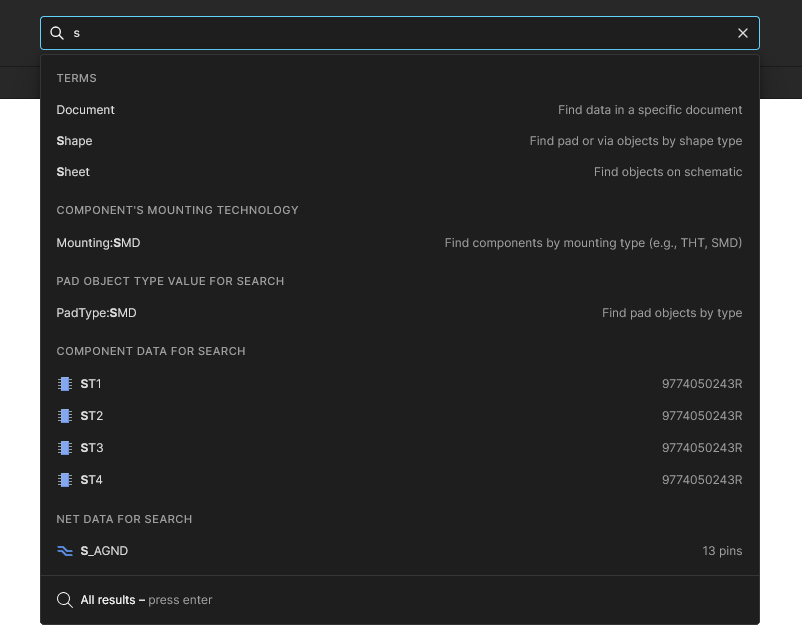
-
Typed search entries are case-insensitive.
-
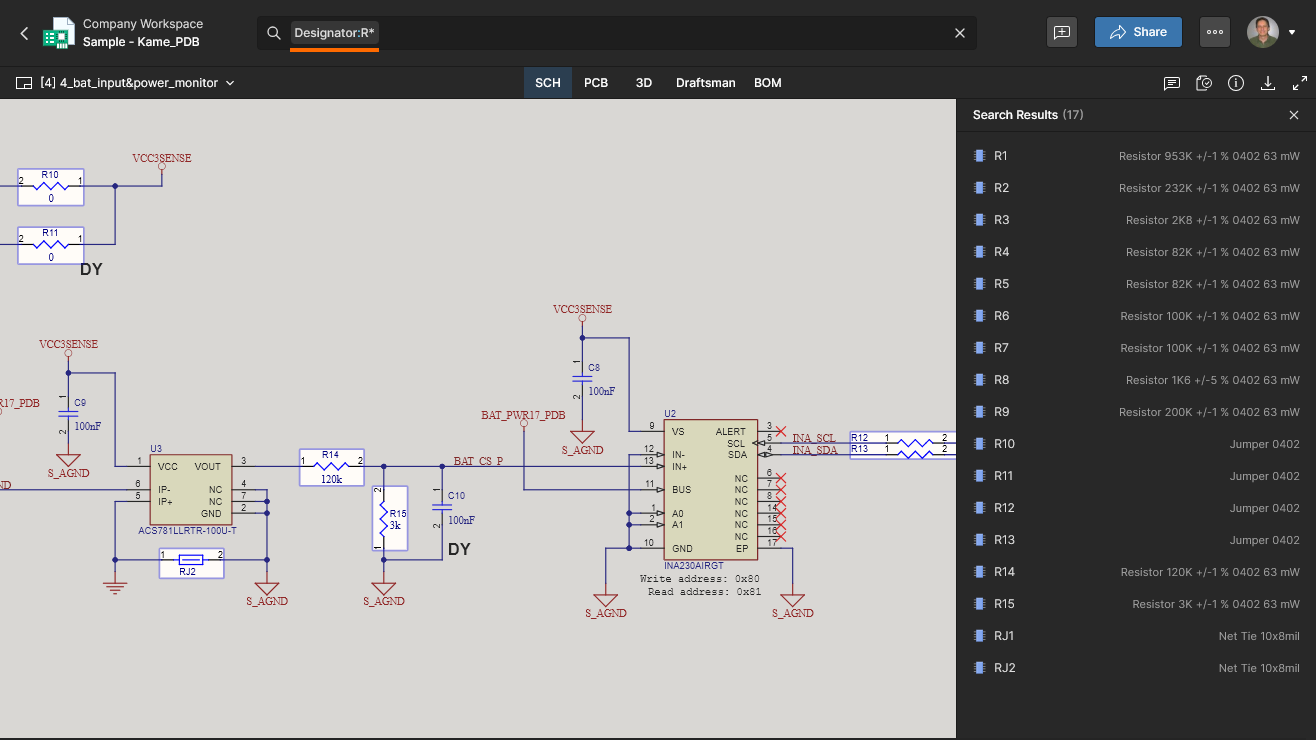
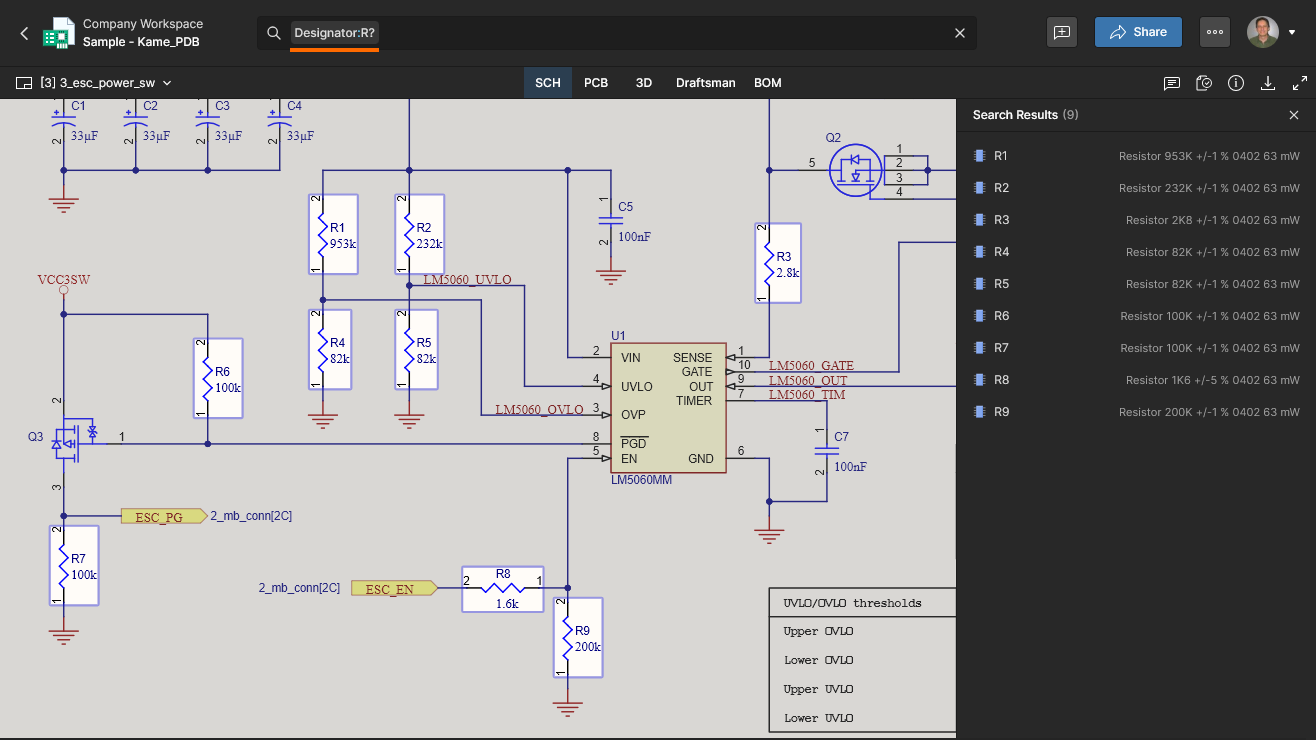
Wildcards are supported for matching partially entered search terms. An asterisk suffix (
*) equates to any number of following characters while a question mark suffix (?) detects any single following character.
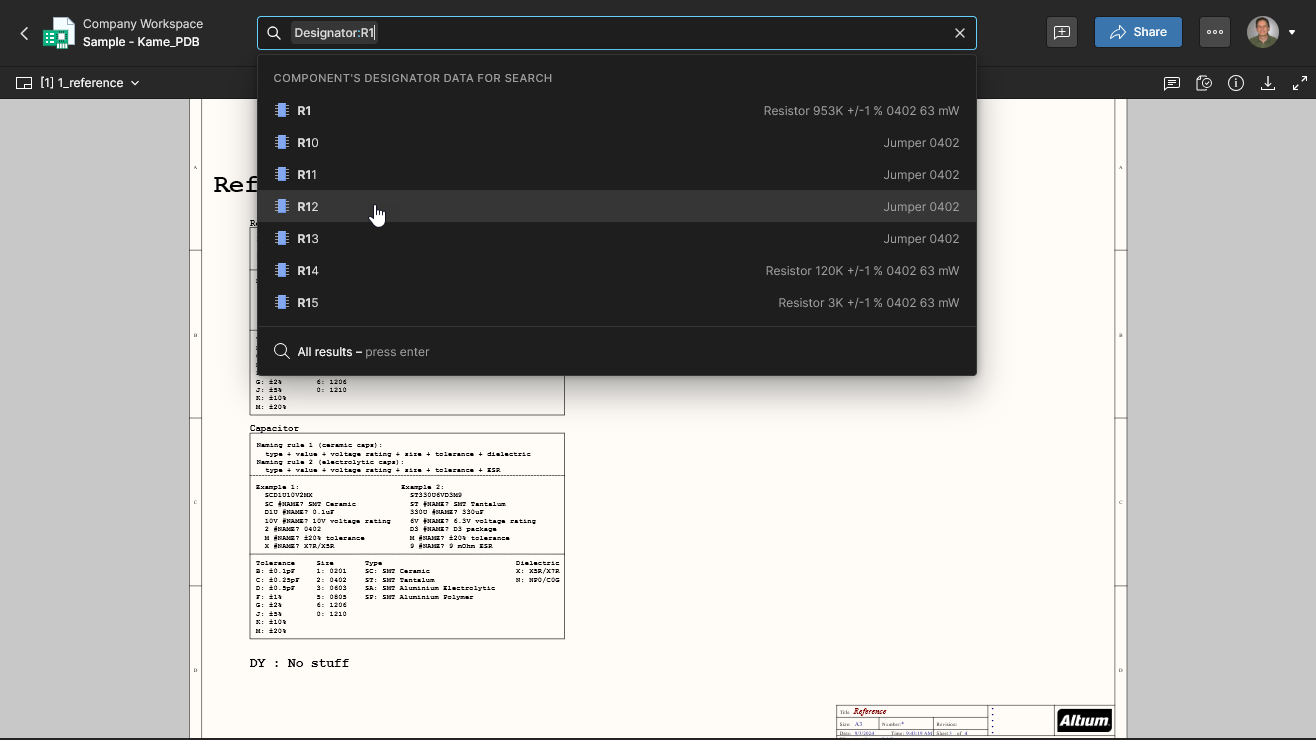
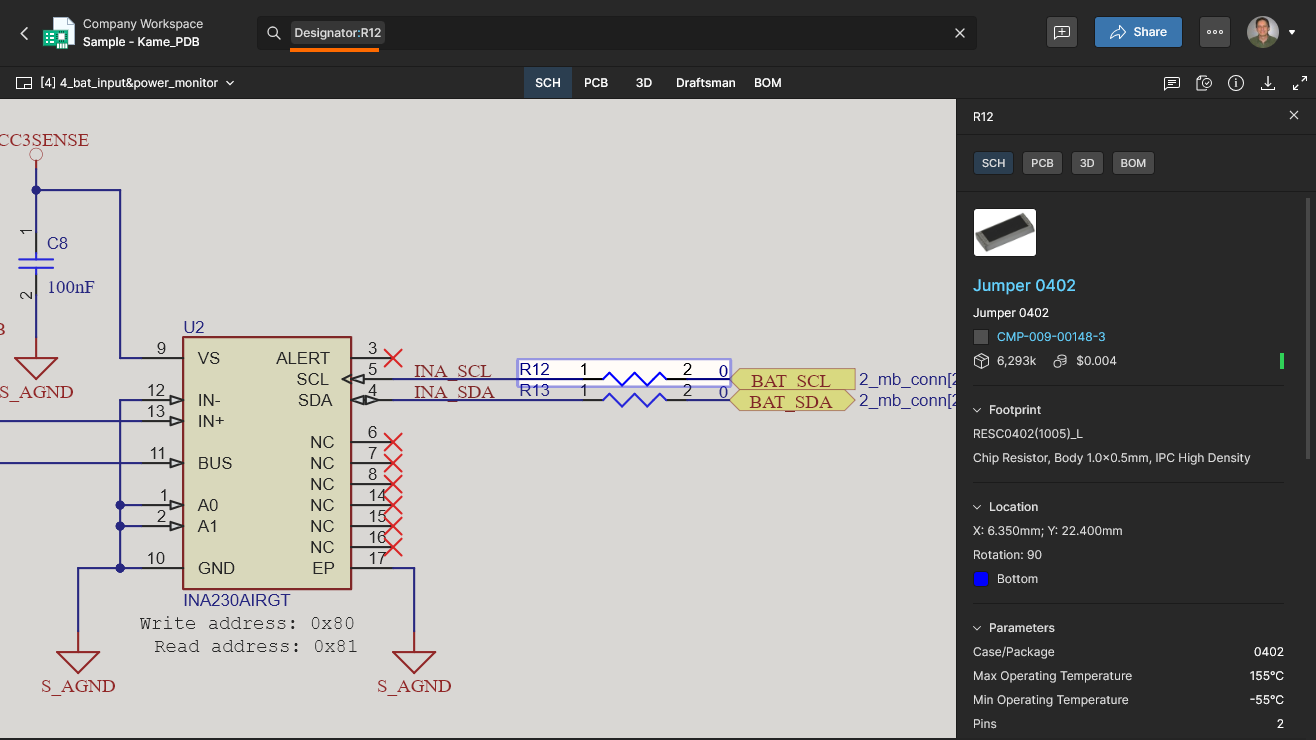
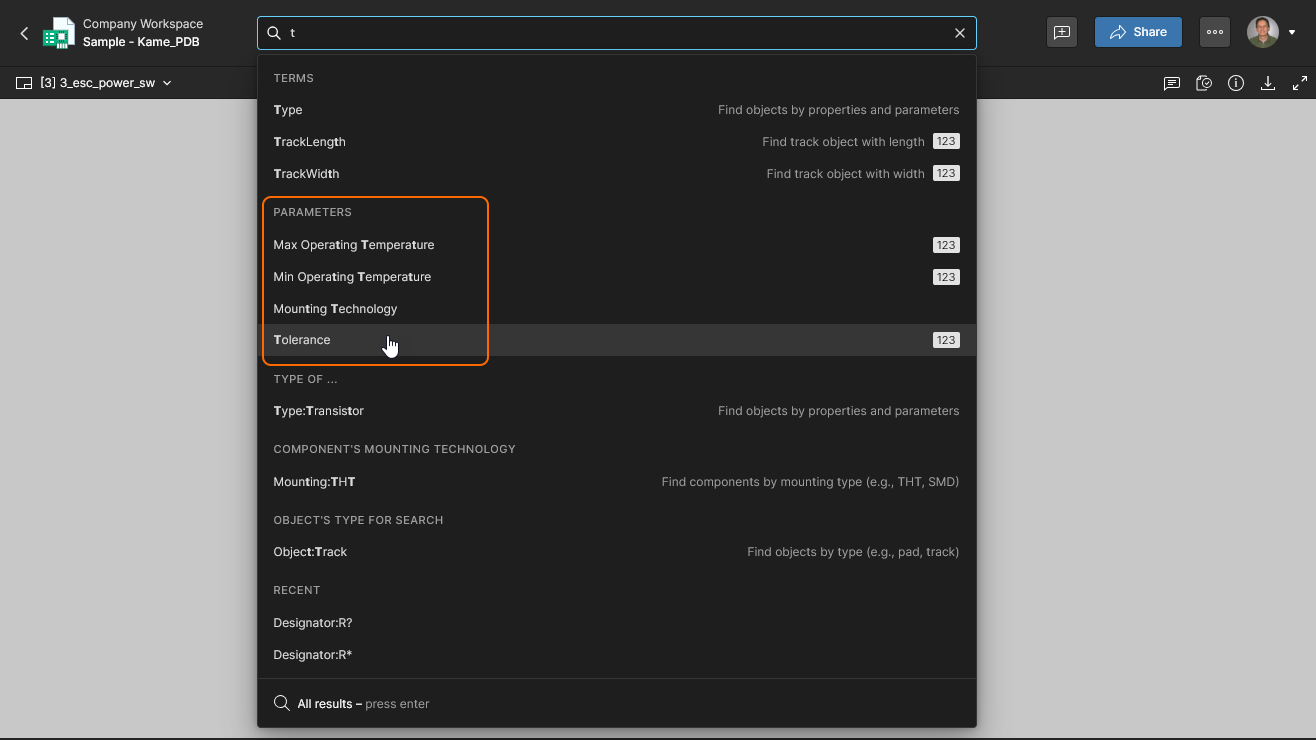
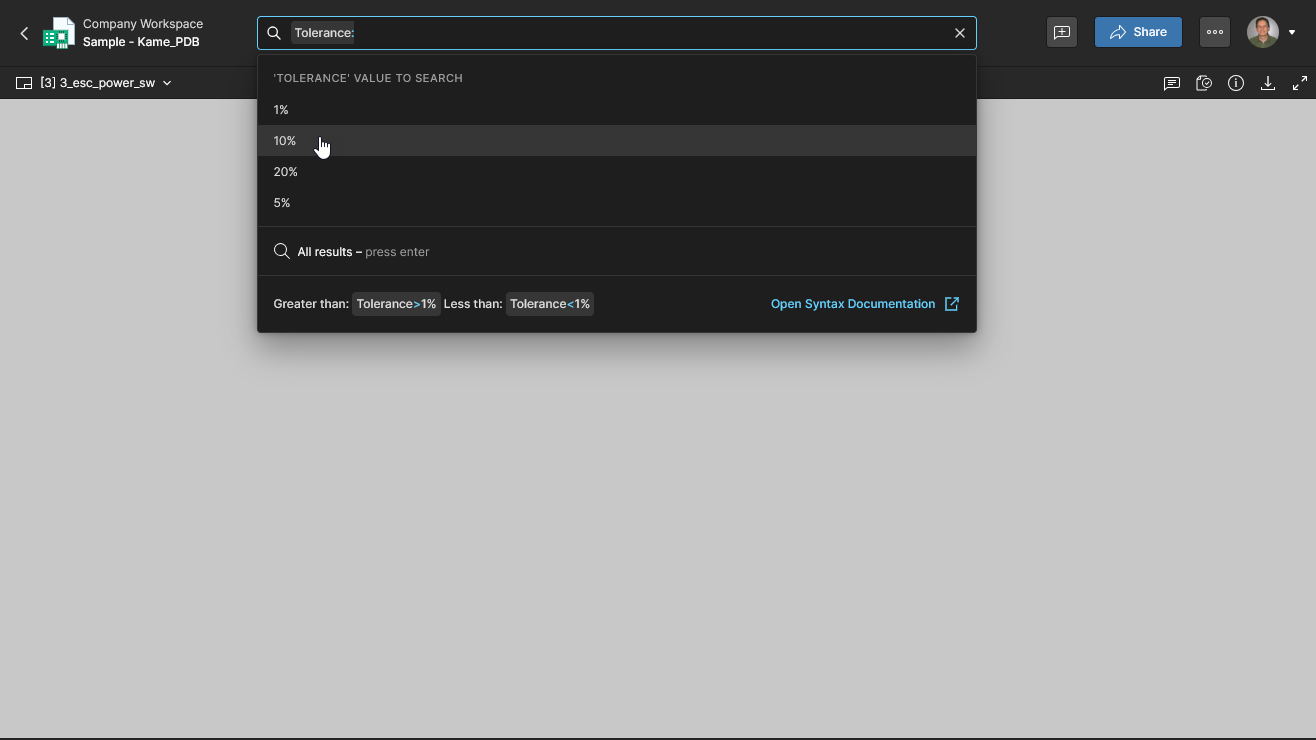
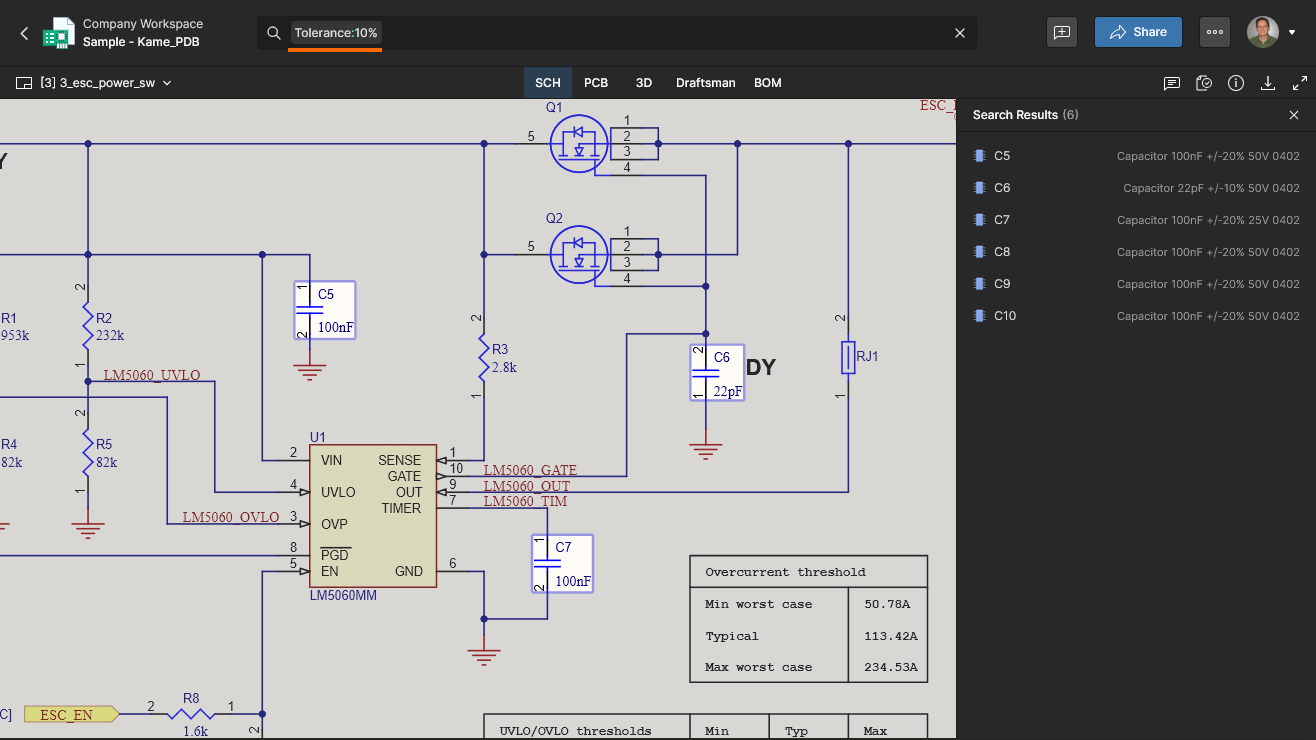
Along with populating the search drop-down with available components and nets (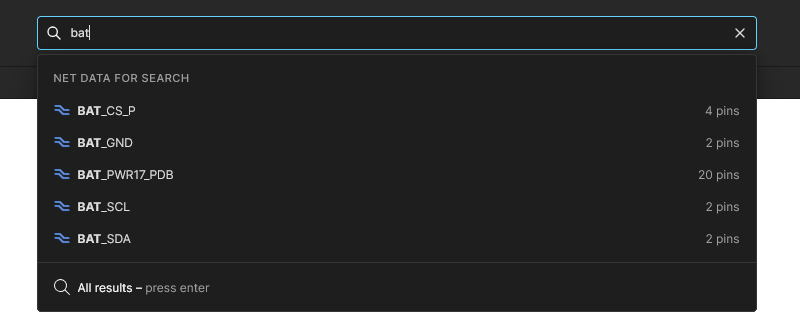 ), the system will also offer available component Parameters. Select a parameter and then the desired value from the list to locate all matching components. The following example finds components with the
 Tolerance parameter set to 10% – another example might be finding components with a specific number of pins. 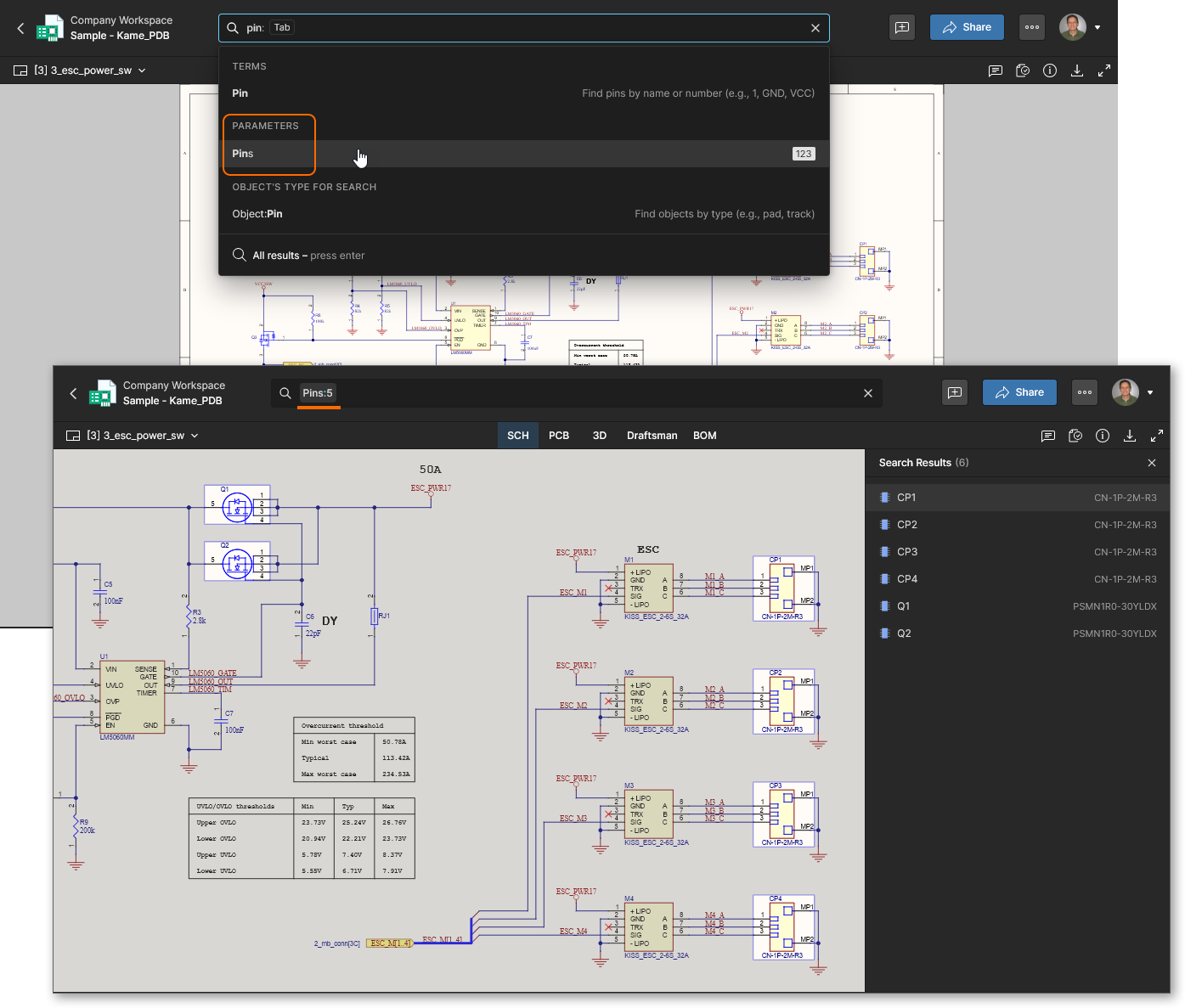
Advanced Query Keywords
Prior to entering any search terms, the Search drop-down will offer an applicable set of default query keywords (search Terms) for performing advanced searches. These include keywords for finding specific objects, such as searching by component Designator, Comment (Name), and Footprint, or for targeting a search to a specific Document, Layer or Object type. Note that the list includes a maximum of 10 entries – other Terms are listed as you type. 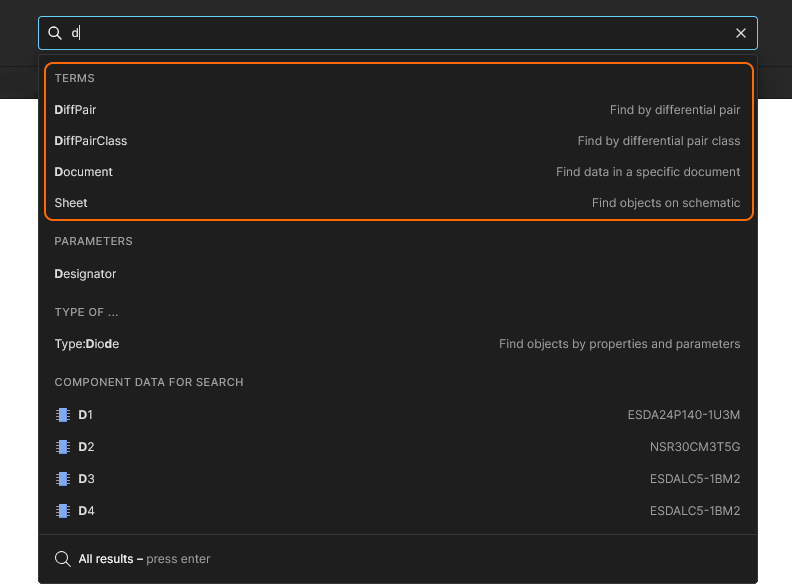
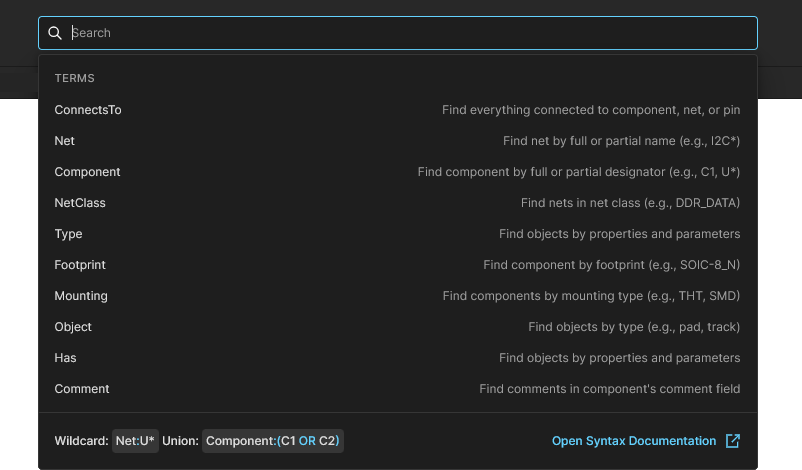 Selecting the Search field invokes its drop-down list of available query keywords, grouped as Terms.
The options also include query words for finding groups of objects defined by type, attributes or classes. Particularly useful for refining existing queries using logic operators, they include:
-
the
typequery word for specifying sets of component types (Type:Passive,Type:Active,Type:Resistor,Type:Mechanical, etc). -
the
hasquery for finding components with particular attributes or parameters (Has:Model3D,has:"Dropout Voltage", etc). Note that when finding components with a specified parameter, the results will also include entries with blank parameter values. -
class keywords for locating objects that are grouped by an applied design class, such as components, nets, differential pairs, etc
(ComponentClass,NetClass,DiffPairClass, etc). Such terms are available only if they are present in the current project.
 icon appears while typing a partial search term, pressing the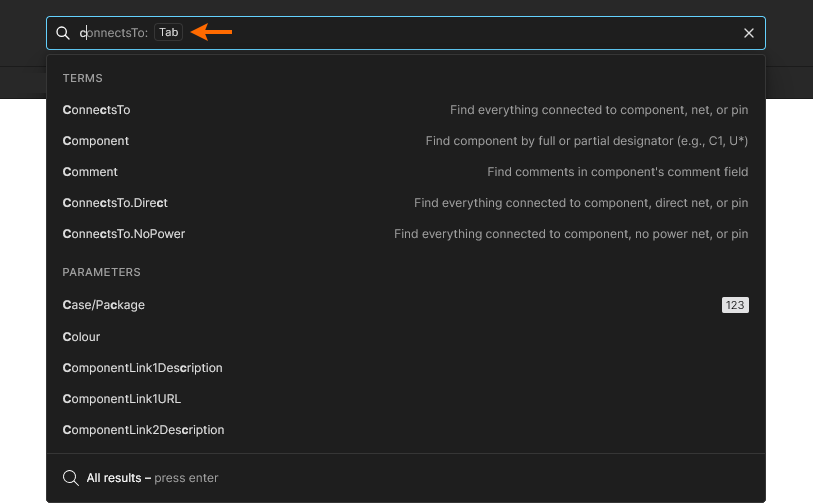
Design Connectivity
One of the most useful functions of a search system is the ability to locate specific electrical connections, particularly in complex designs. Replacing the need to correlate individual connections and nets to deduce a full visual understanding, the Advanced Search provides the ConnectsTo query keyword that (literally) locates and highlights all electrical connections to the target object. See the related reference for more information.
An example of this might be finding all components, pins and nets connected to a component, or selecting the complete connectivity of a circuit section based on an active device. Power nets can be excluded from the search results using the alternative ConnectsTo.NoPower search term.
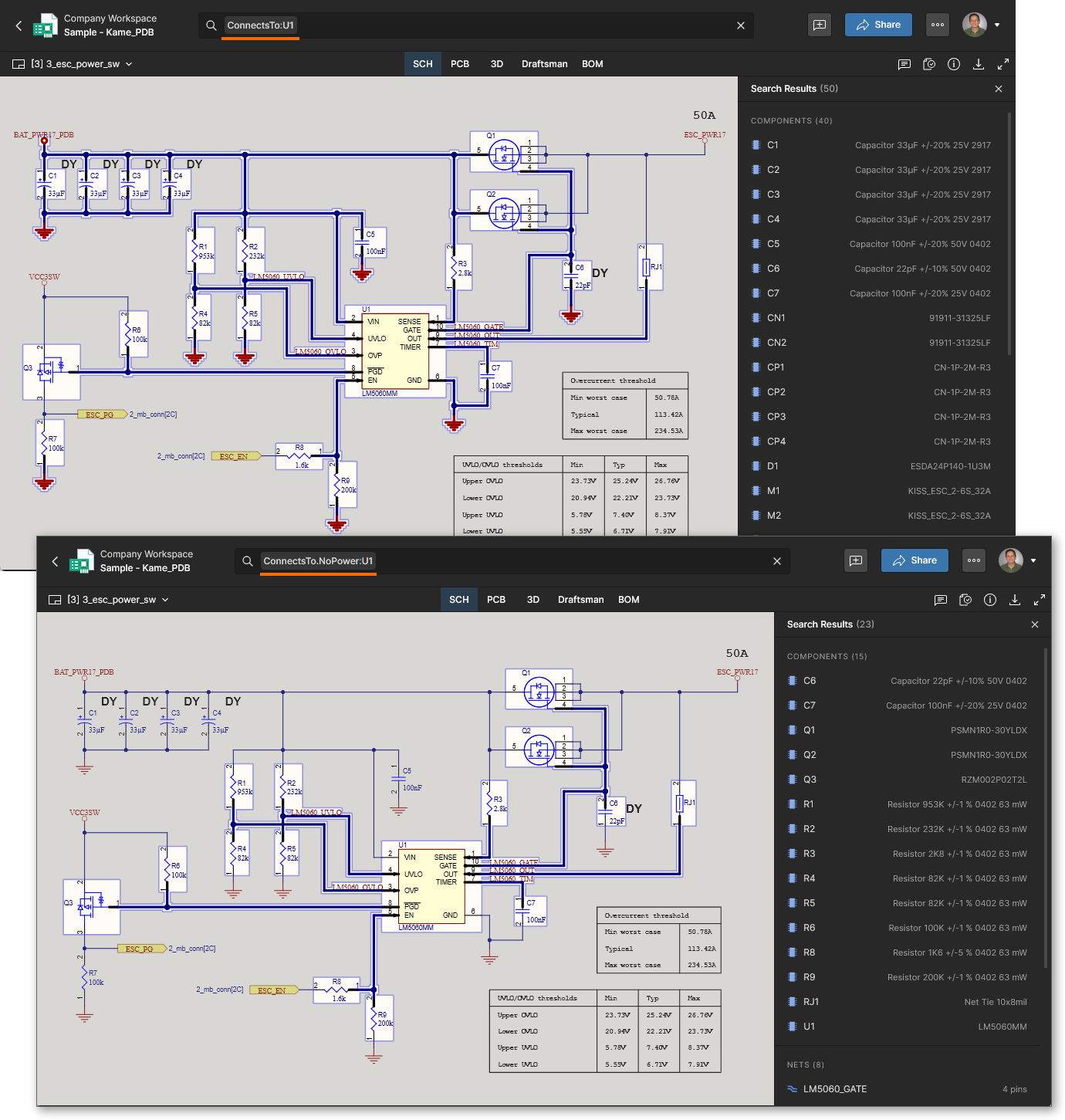 A
A ConnectsTo search will return all connections to the target object, while the ConnectsTo.NoPower alternative will ignore all power nets.
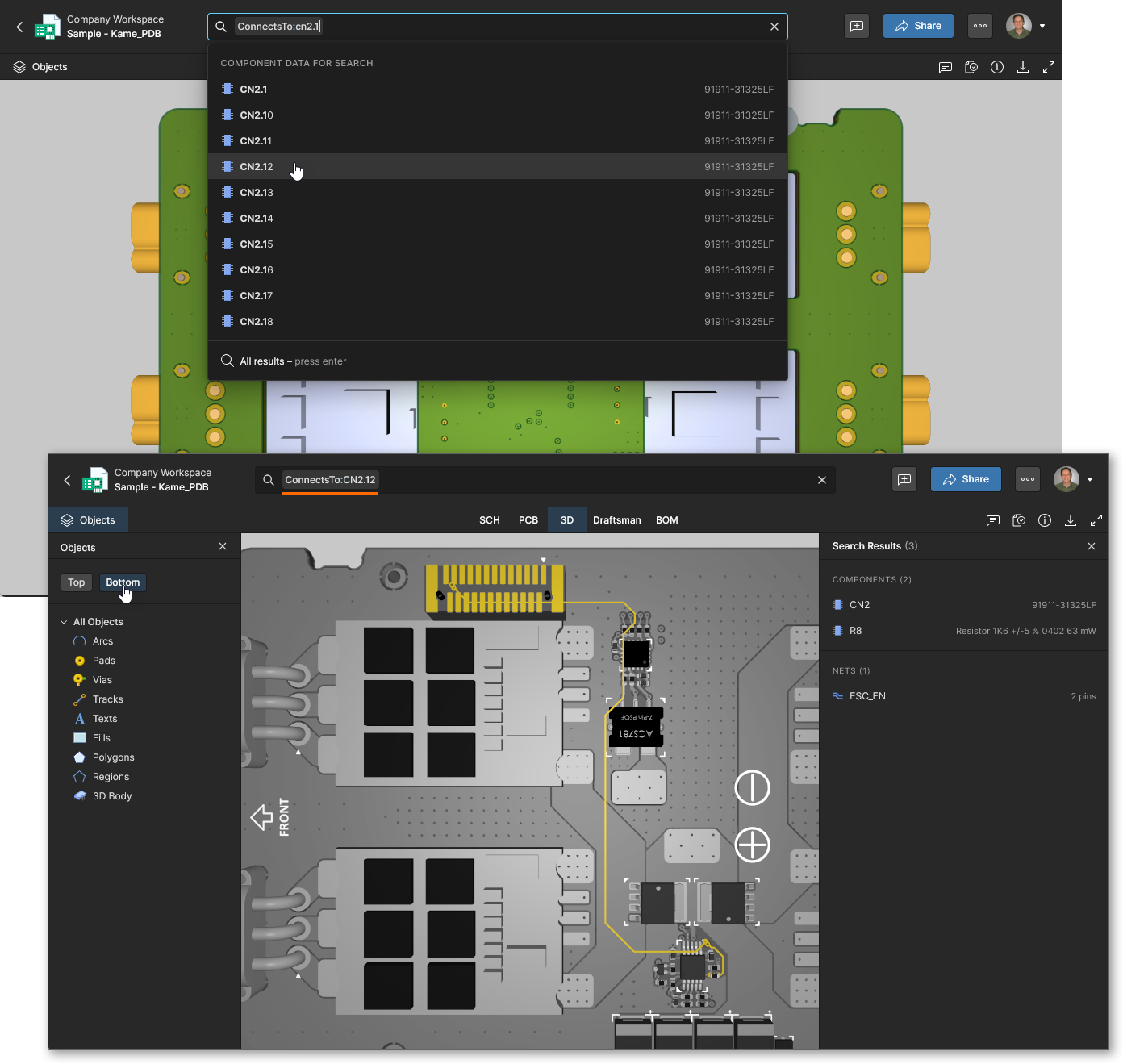
The ConnectsTo search expression will return logical signal path connections between active devices by default. This aids tracing of signal flows through active circuitry by bypassing passive devices between active device component pins – the nets on either side of the passive device are logically linked. This default search connectivity can be disabled using the ConnectsTo.Direct search term, which will return only the physical (same Net) paths rather than logical (signal) paths described.
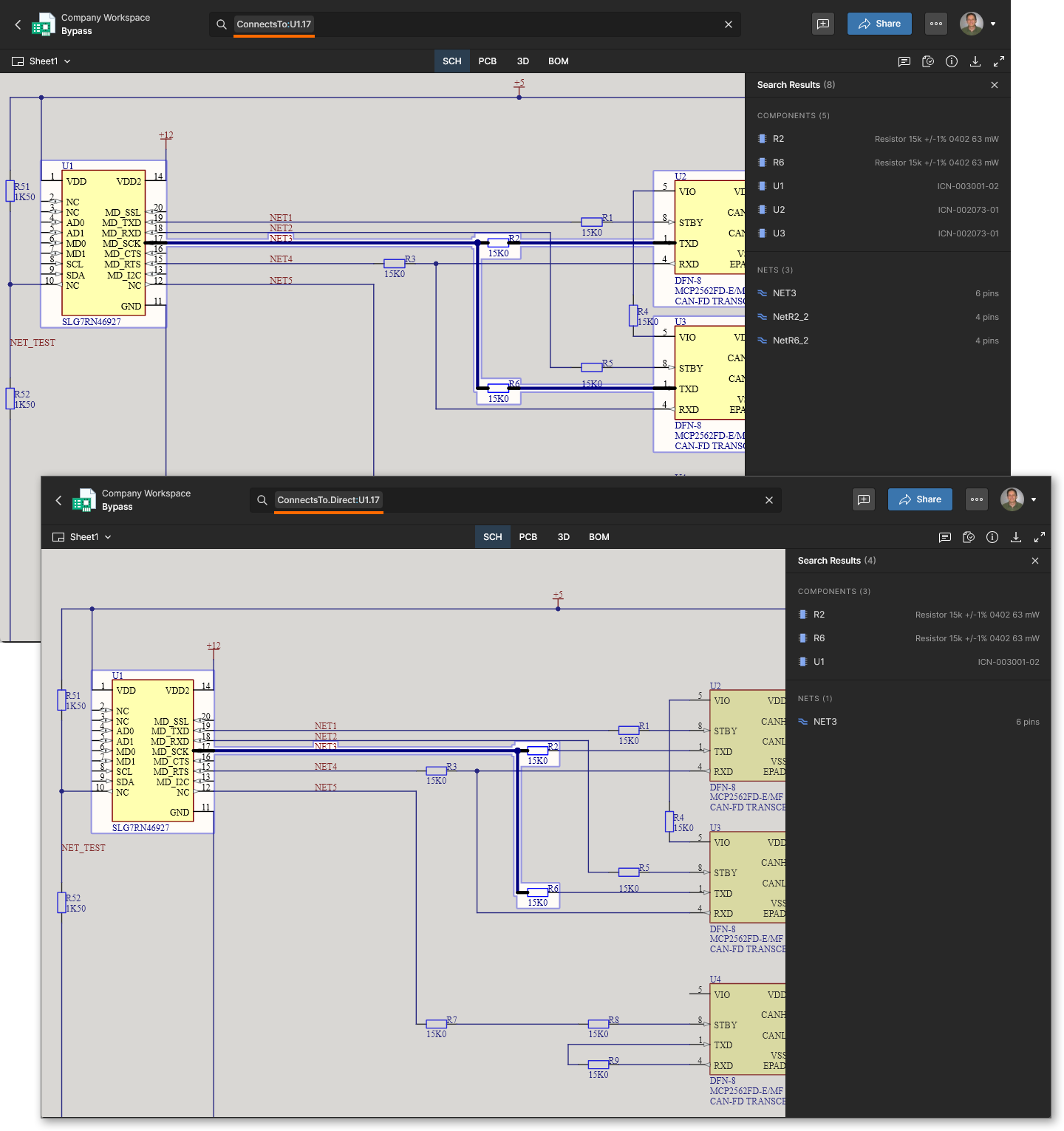 A
A ConnectTo search will show logical signal paths by bypassing a passive device between active device pins. Use the ConnectTo.Direct option to show physical paths only.
Logic Operators
A powerful capability of the Advanced Search is support for cascading query terms with logic expressions to create precise search structures. The Logic operators AND, OR and NOT allow you to combine multiple search terms to tailor a query for a specific result, or by addition, to refine an existing search query. Context-aware search Terms are suggested when creating logic-based search expressions. For example, when refining a Pin search, only Terms that could be applied to Pin objects are offered in the Search drop-down. 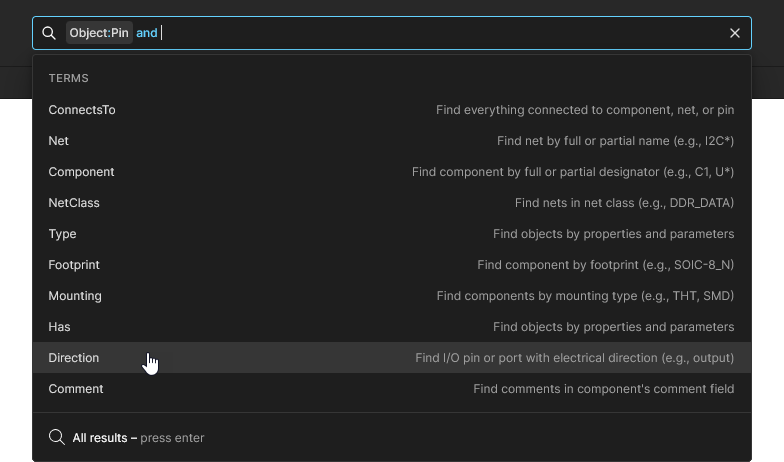 Values are then suggested for the selected Term.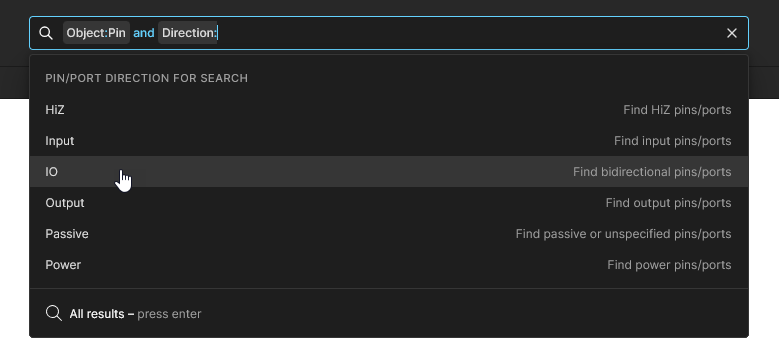
-
AND operator – will return results that match all included search terms. Note that the
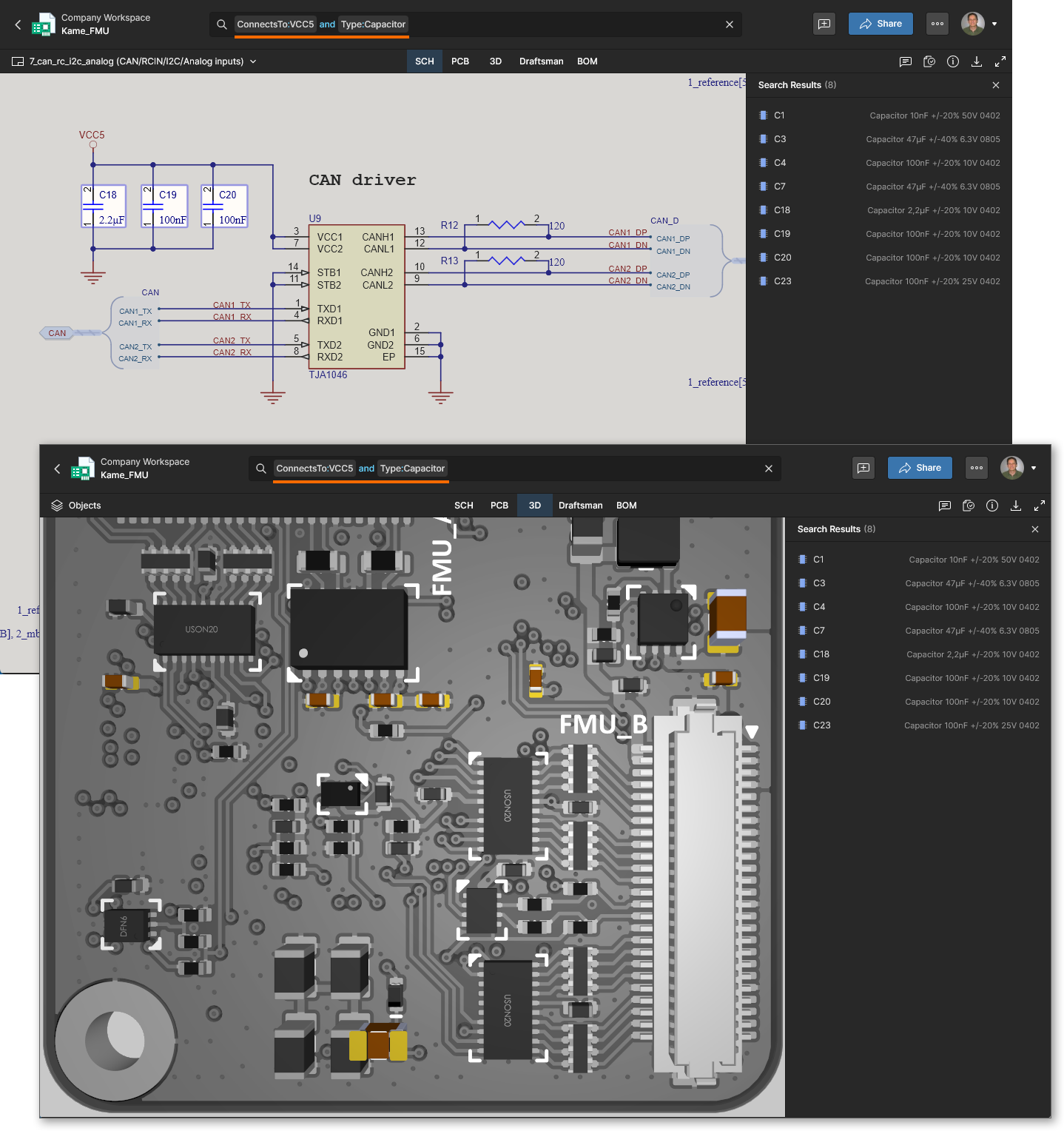
ANDoperator is implied when a space is included between search terms (term1 AND term2orterm1 term2).Example. Locating bypass capacitors for a specific supply rail:
ConnectsTo:VCC5 Type:Capacitor. The supply rail net itself also can be included using the OR operator.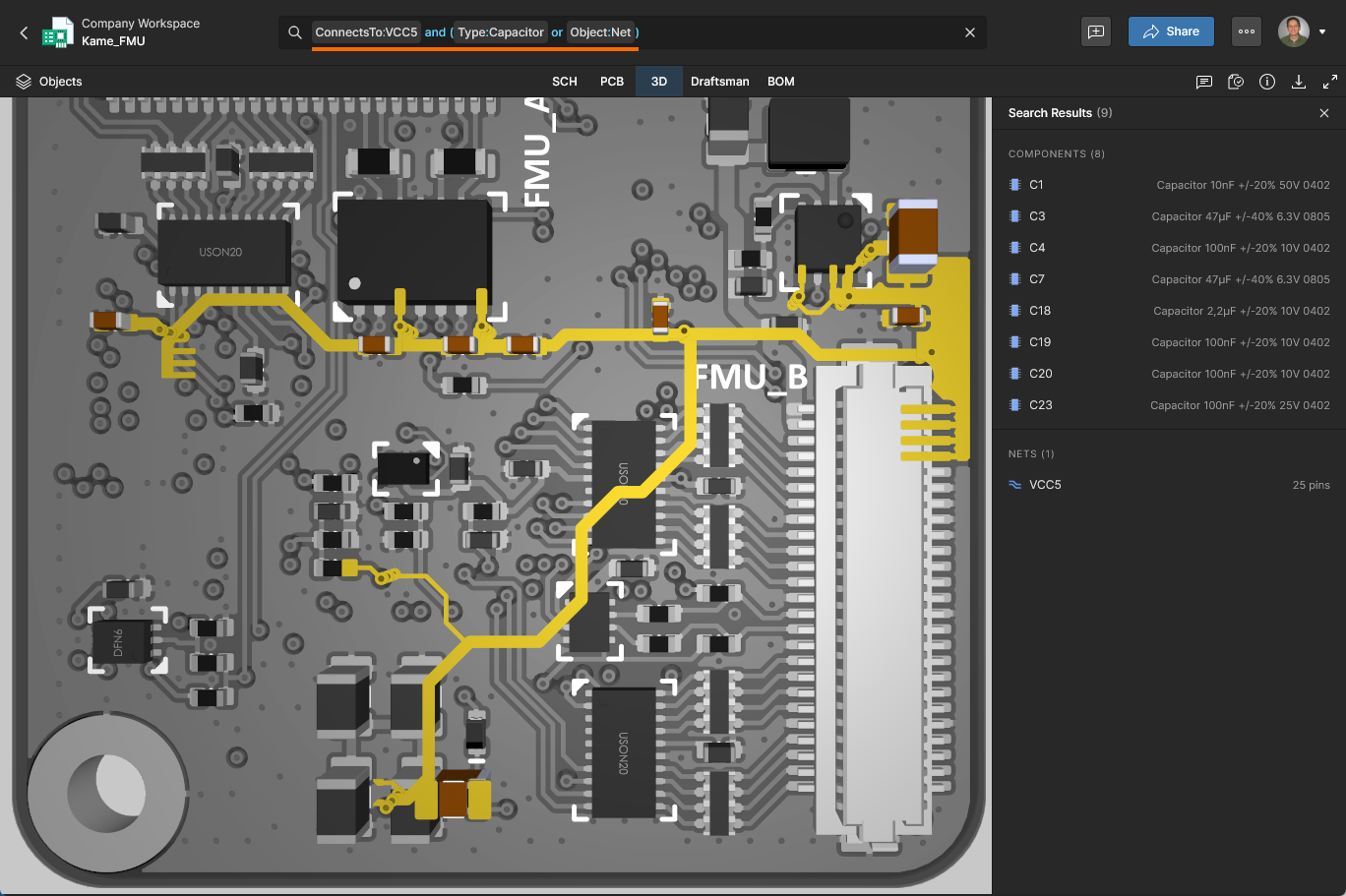
Example. Finding all 100nF capacitors on the Bottom layer (constructed with three search terms):
Layer:"Assembly Bottom" Type:Capacitor Value:100nF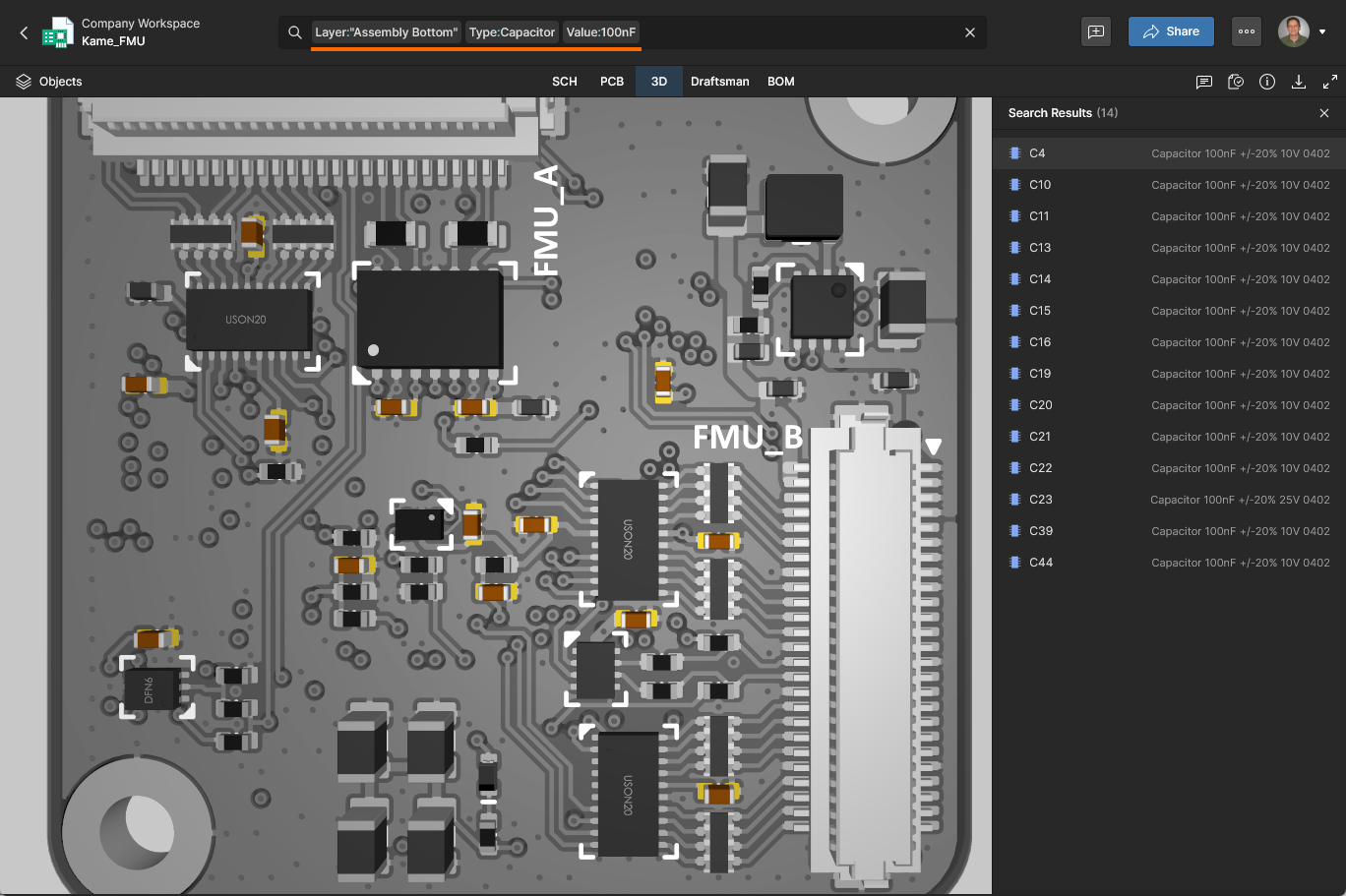
-
OR operator – will return results that match any of the included terms. Note that grouping parentheses are needed when combined with
ANDoperators, sinceORhas a lower precedence thanAND.Example. Finding resistor or capacitor type components:
Type:Capacitor or Type:Resistor. The equivalent search using parentheses is:Type:(Capacitor or Resistor).Example. Refining the above search to include only those components with a 0402 package style:
(Type:Capacitor or Type:Resistor ) and Package:0402. Note that the search will return undesired/invalid results if the parentheses are omitted, since all capacitors are then included in the search results.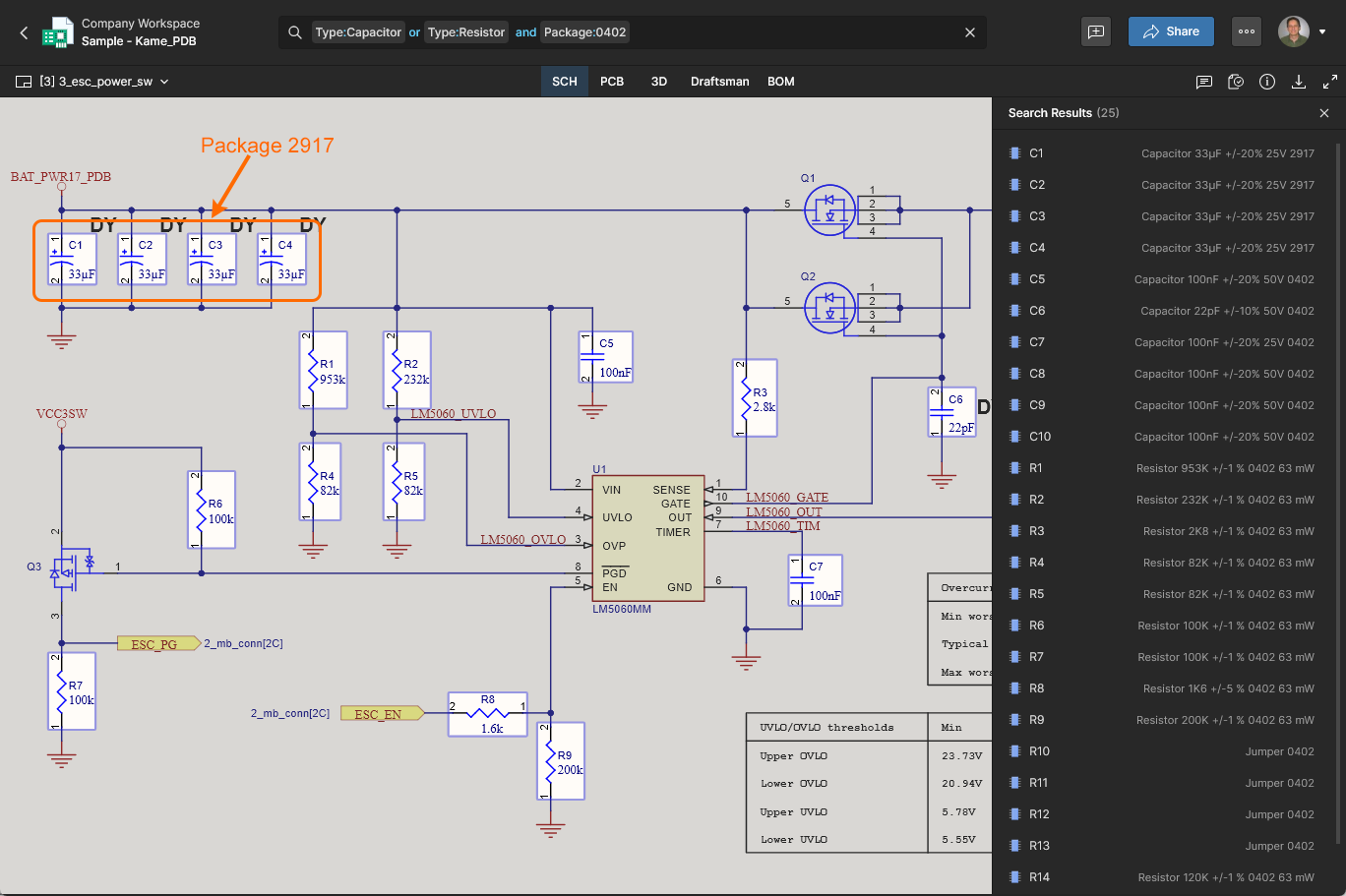
-
NOT operator – will return results that exclude the specified term(s).
Example: Locating 0402-packaged resistors on a board's Top layer while excluding their connected nets:
Type:Resistor Package:0402 Layer:Top not Object:Net.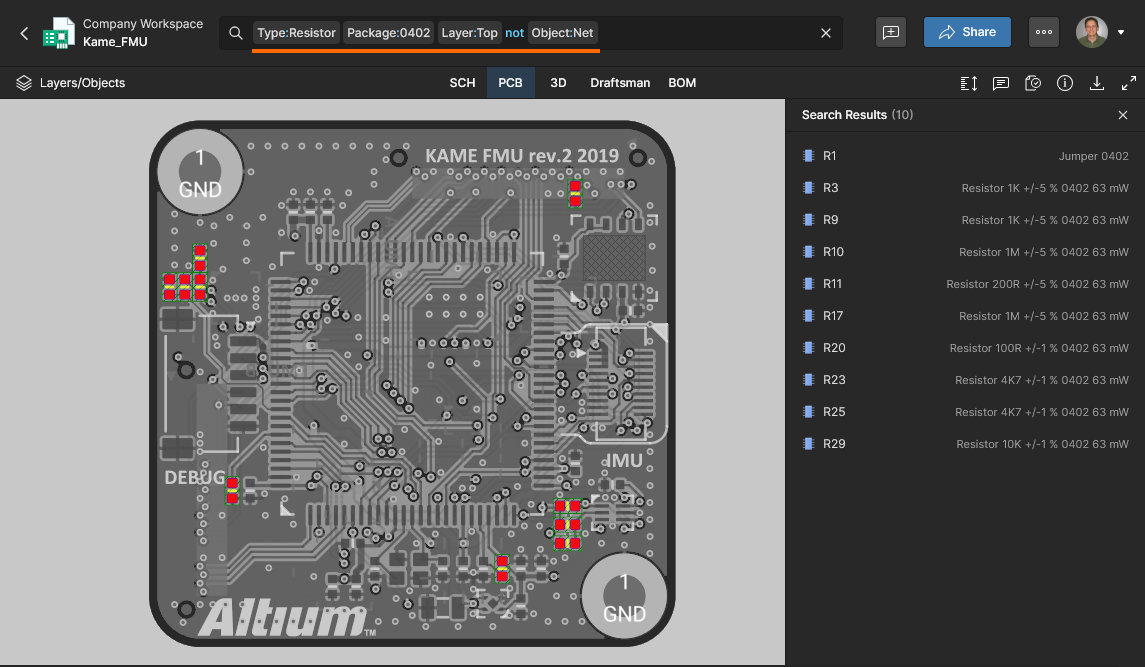
Example. Finding all connections to a circuit section based on component U1 while excluding power/ground nets and also connected components (using the
NOToperator):ConnectsTo.NoPower:U1 not Component:*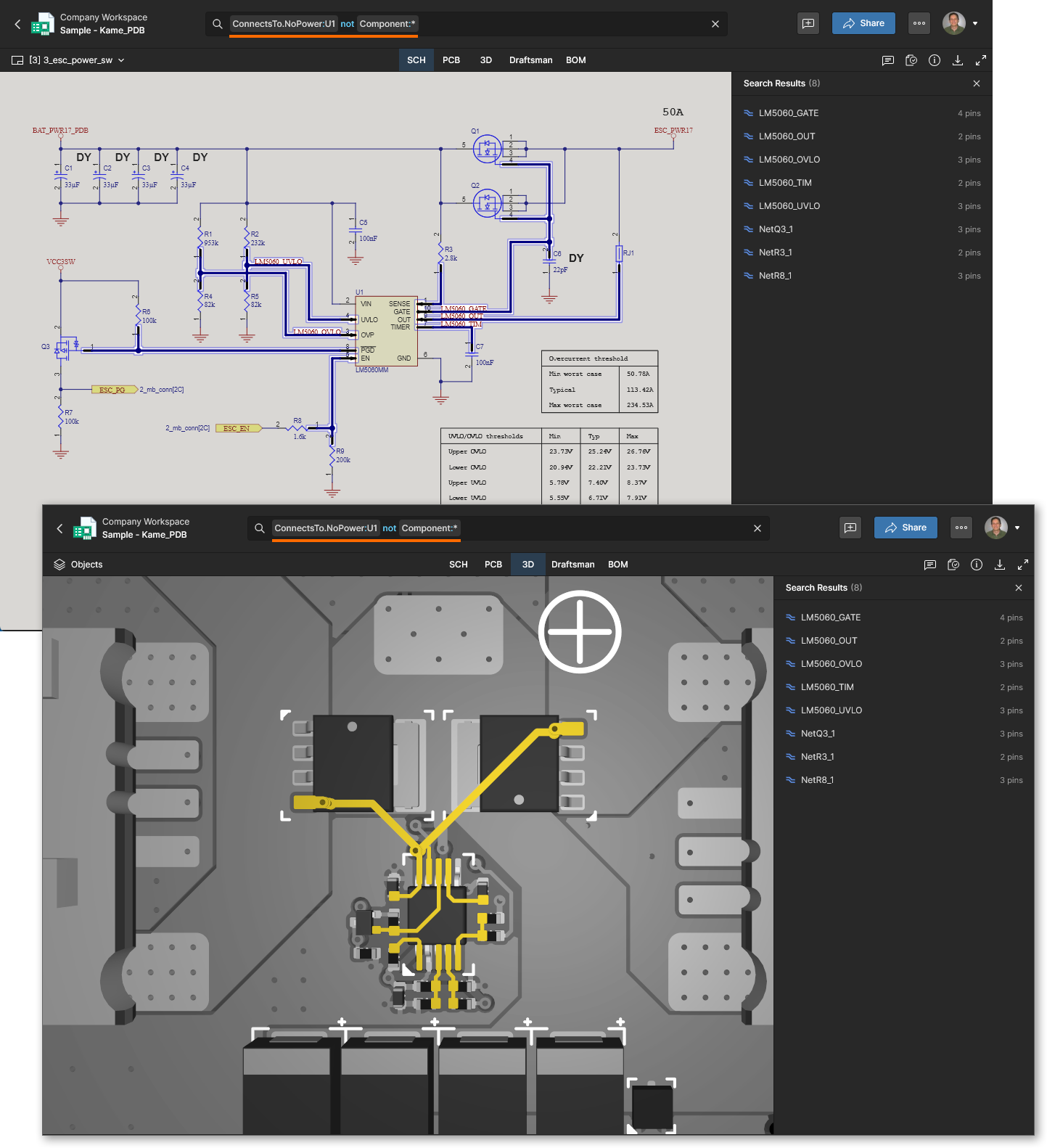
Relational and Range Operators
Additional flexibility for query-based searches is provided by relational and range operators, which allow searches to return results covering a span of (usually numeric) value data.
-
Relational operators – will return results that match greater than, less than, and equal to value data comparisons. The available operators (
>,<,>=,<=) are inserted before a numeric/date value in thefield:valuesyntax.Example. Isolating a board's largest power net tracks (here, those greater than 0.3mm wide):
TrackWidth>0.3mm. Note that relational operators are not preceded by a colon character.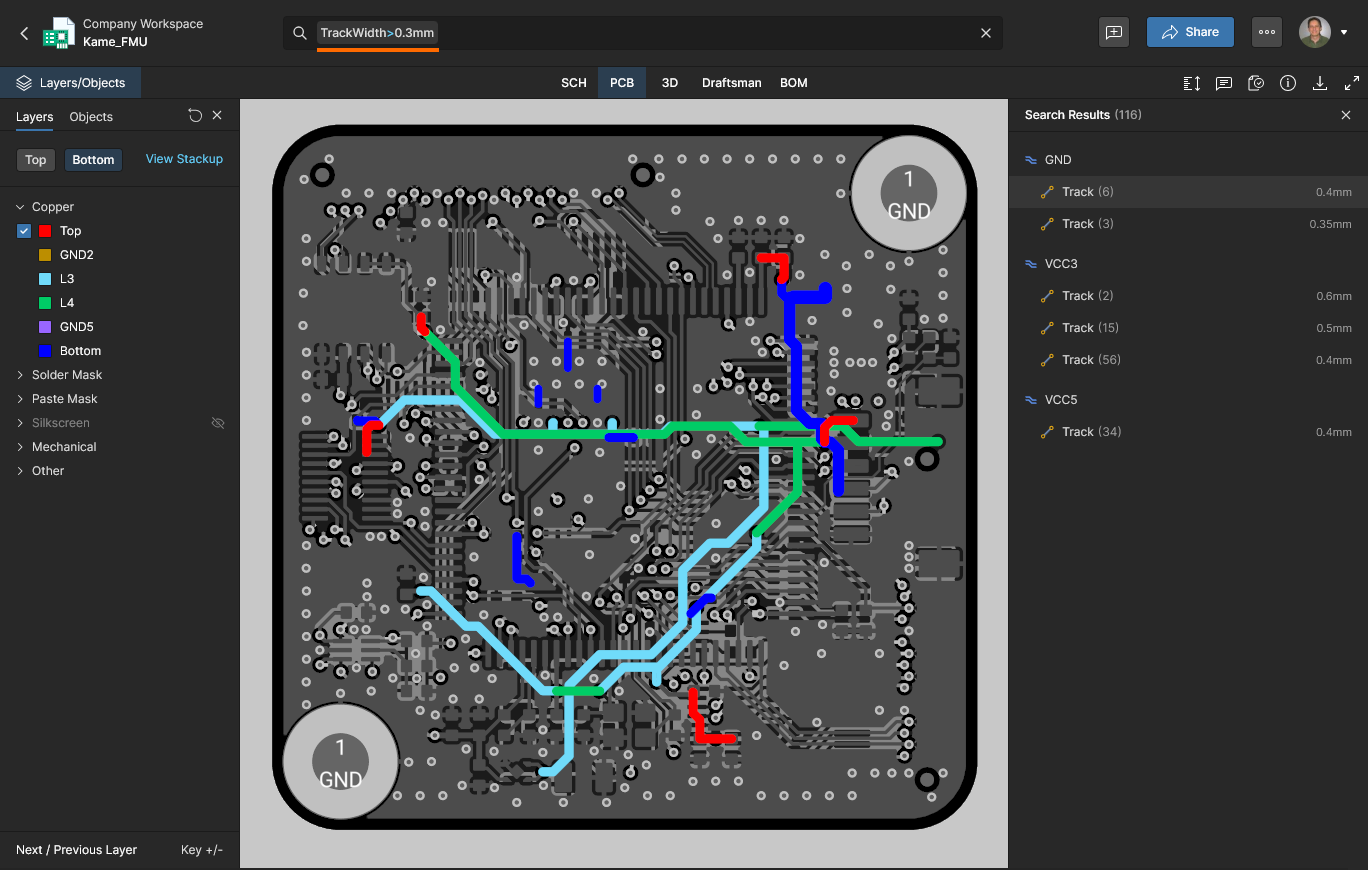
-
Range operator – will return results that inclusively match a specified from-to value range. The value term in the
field:valuesyntax is expressed as a minimum to a maximum figure within square brackets[min to max].Example. Finding objects with a Value between 10k and 100k:
Value:[10k to 100k]. The applied units will implicitly target Resistors without the need to define them as the search target:Type:Resistor Value:[10k to 100k].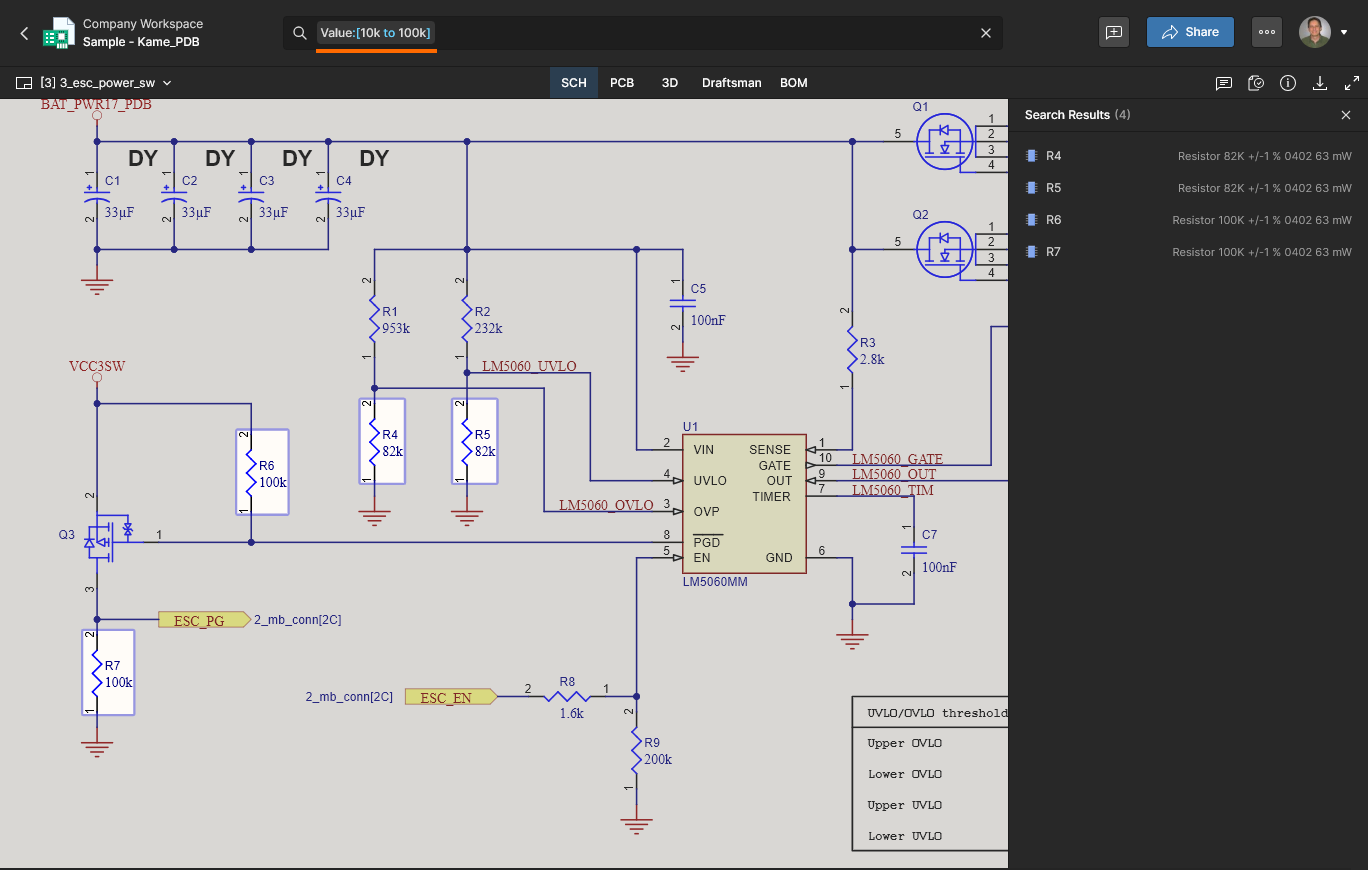
 AI 翻译
AI 翻译