
Setting Up a Requirements Project
In order to make establishing a requirements project easier and make the required features and functionalities available as the project evolves, the concept of Simple Start is supported in Requirements Portal.
When a newly created requirements project is accessed, it has only the Requirements Module enabled, which it reflected in the left-hand side project tree by displaying only the Requirements structure entry that includes project specifications, folders, sections, and subsections (for a new project, only one requirement named after the project presents by default).
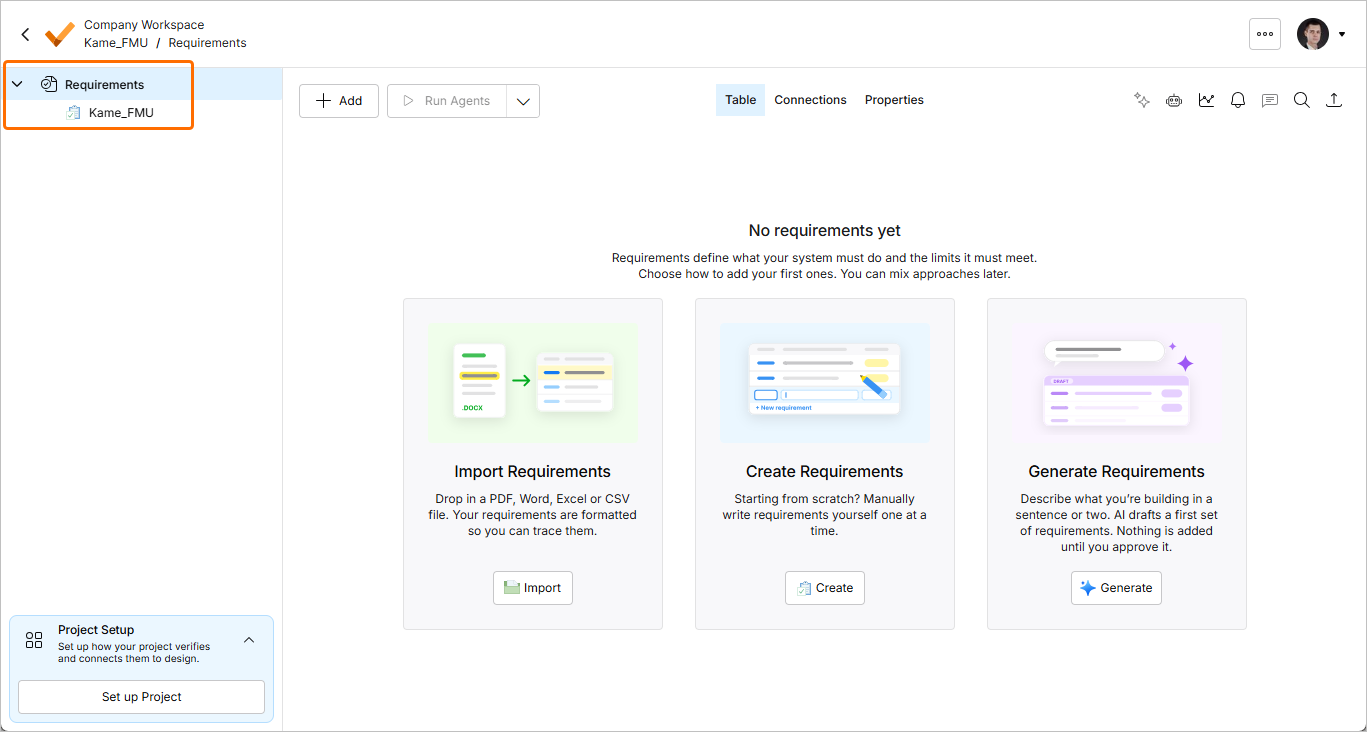
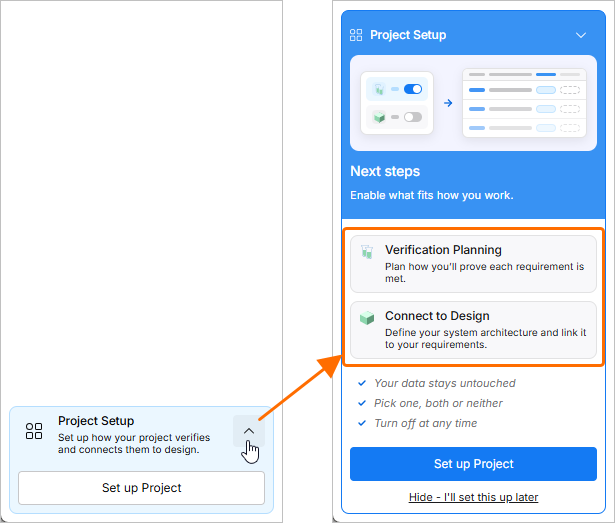
As the project evolves and you need access to functionality of other modules, you can manage availability of the Verification & Validation and Blocks modules for the project from the Project Setup window accessed by clicking the  button in the Project Setup region at the bottom of the project tree.
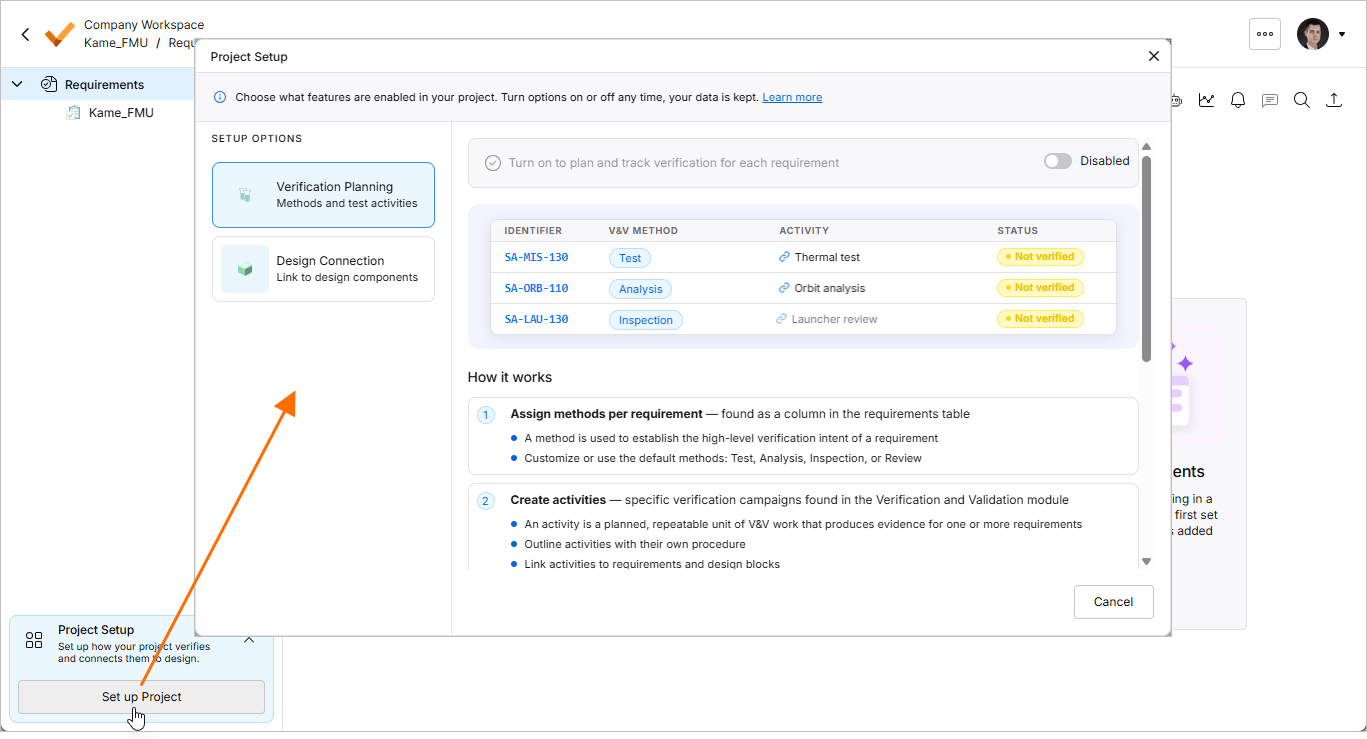
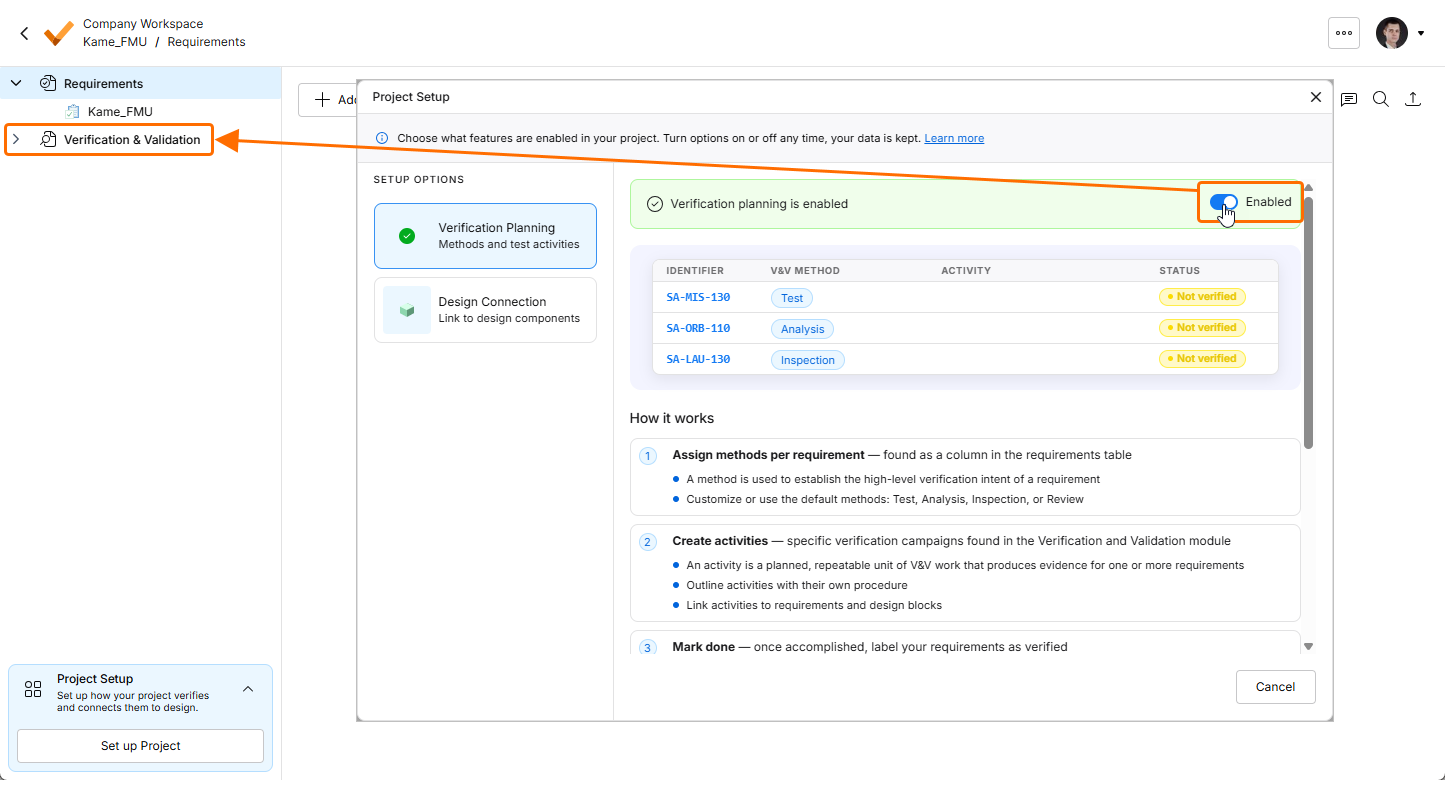
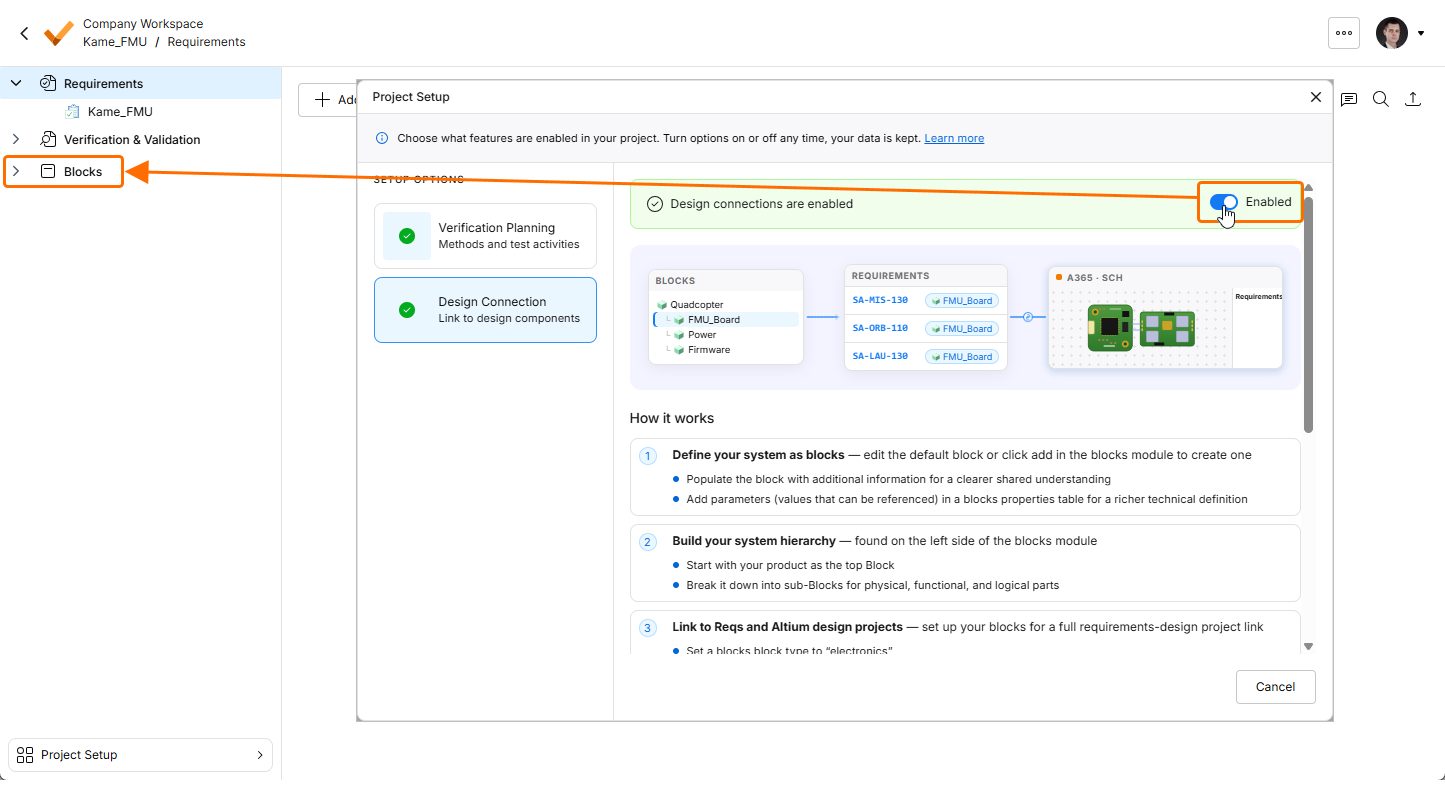
Use the option on the Verification Planning tab of the window to enable/disable the Verification & Validation module and the option on the Design Connection tab to enable/disable the Blocks module. When a module is enabled, the corresponding entry is shown in the project tree, and the module's functionality is available for the project.
Alternatively, click the  control in the Project Setup region to expand it and use Verification Planning and Design Connection buttons to open corresponding tabs of the Project Setup window.
When both Verification & Validation and Blocks modules are enabled, the Project Setup region at the bottom of the project tree is shown in minimized state (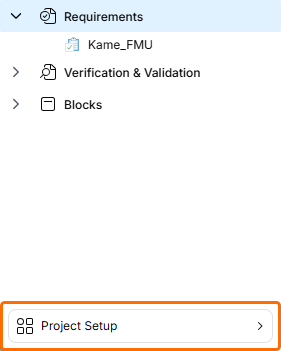 ). Click it to access the Project Setup window.