Hybrid Agent Integration
Hybrid Integration applies to the situation where a company using Altium 365 wishes to integrate their Workspace with a PLM system that is hosted on-premises, inside the company's network, which does not have a public IP address – it is not exposed to the internet.
To achieve this, a small program called Hybrid Agent is run inside the company's network. This program communicates with Altium 365, relaying information between the Altium 365 Workspace and the PLM system inside the closed network. Communication with the Hybrid Agent is through HTTPS and there is no need to open any network ports for incoming traffic from the internet. Standard HTTPS port 443 is required for outbound traffic only.
Set up Hybrid Integration

Download the Agent archive ( ) and unpack its contents to a known location. It contains a Java application (
hybrid-agent.jar) that needs to be run on a machine inside the company's network, from where the on-premises PLM system and Altium 365 are reachable.
That machine does not need to be publicly accessible from the internet, but does need to be capable of connecting with the Altium 365 environment that your company uses.

Once the Hybrid Agent application is in place:
-
Generate the API key in the Altium 365 Workspace Hybrid Agent page (
 ).
).
-
Create a
HYBRID_AGENT_API_KEYenvironment variable with the API key as its value. -
Run
agent.batusing the following command context, where the URL parameter argument should be that of your Altium 365 Workspace:
agent.bat https://acme.365.altium.com
When active, the Hybrid Agent will generate a log file in the application's hybrid-agent\logs folder.
It is highly recommended to run the Hybrid Agent as a Windows service in the production environment rather than directly in the terminal, although the latter can be used for testing.
An example approach to running the Hybrid Agent as a Windows service using the NSSM service manager:
-
Run the command:
nssm install HybridAgent. -
In the NSSM dialog window (under the Application tab), enter the
agent.batfile path in the Path field and your Workspace URL in the Arguments field, and click Install service.-
You can set the service startup behavior with the Startup type option under the NSSM dialog's Details tab. If needed, run
nssm edit HybridAgentto make such changes. -
As an alternative to creating standard
PATHandJAVA_HOMEenvironment variables for Java, they can be added under the NSSM Environment tab. With this approach the variables will be active only when theHybridAgentservice is running. -
Similar to above, the
HYBRID_AGENT_API_KEYvariable also can be moved to the NSSM environment setup so it is active when the service is running.
-
You can set the service startup behavior with the Startup type option under the NSSM dialog's Details tab. If needed, run
-
Start the
HybridAgentservice with the Windows Services management tool, or with the NSSM command:nssm start HybridAgent. This is not required (after a PC restart) if the service is set for automatic startup. -
Ensure the
HybridAgentservice is running in the Windows Services management tool, or with the NSSM command:nssm status HybridAgent.
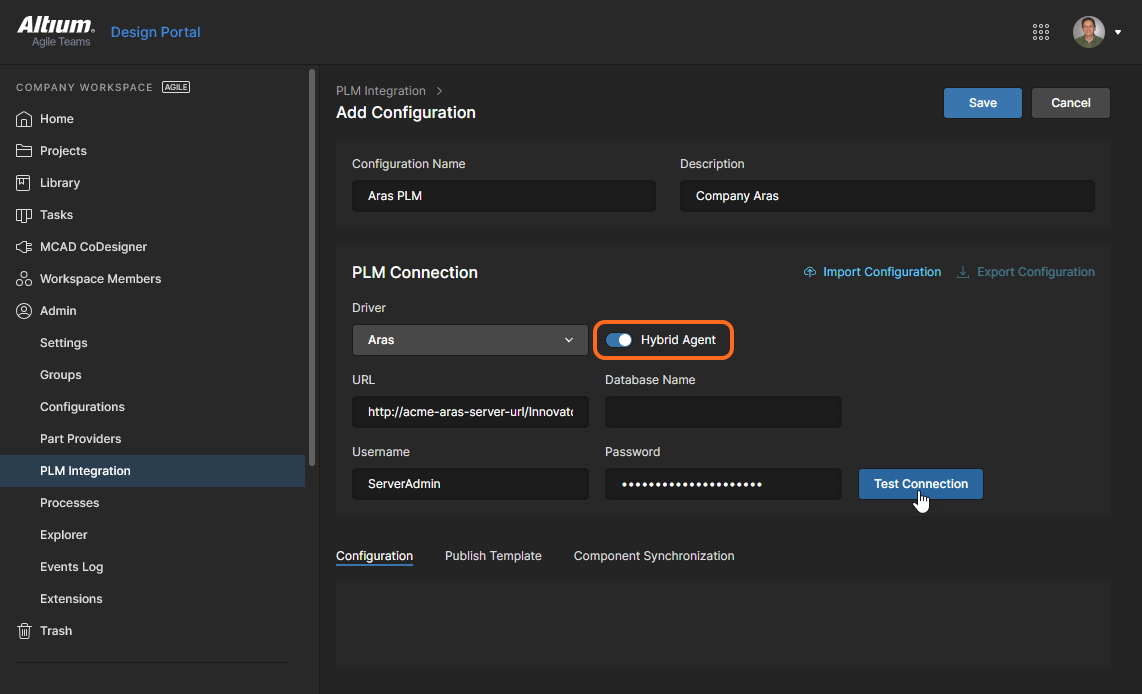
Once the Hybrid Agent has connected to your Altium 365 Workspace (refresh the browser window to check its status), you can proceed to configure PLM Integration in the Altium 365 Workspace. In the Add Configuration page, enable the Hybrid Agent connection option and enter the URL of your on-premises PLM, as seen within your closed network, in the URL field.