
Creating a Block
To create a new Block, click on the “+ Add Block” button under the project tree as in the figure Adding Blocks.
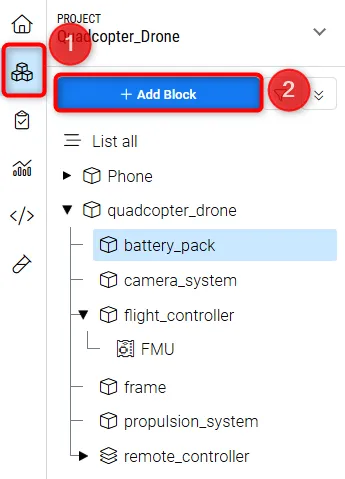 Adding Blocks
A popup will appear with two options as per the figure Creating Blocks:
-
Create & add new (1): creates a new Block, and the popup stays to add more Blocks
-
Create (2): This creates a new Block. To add more Blocks, you need to click on the “+ Add Block” button under the project tree again.
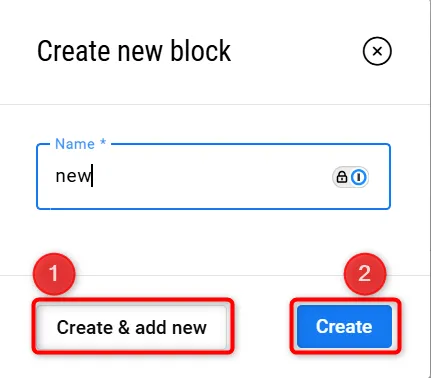 Creating Blocks
Adding sub-Blocks: to add a sub-Block to an already added Block, as seen in Figure Adding a Sub-Block, right-click on the Block and select “+ Add Block” (1) in the dropdown menu.
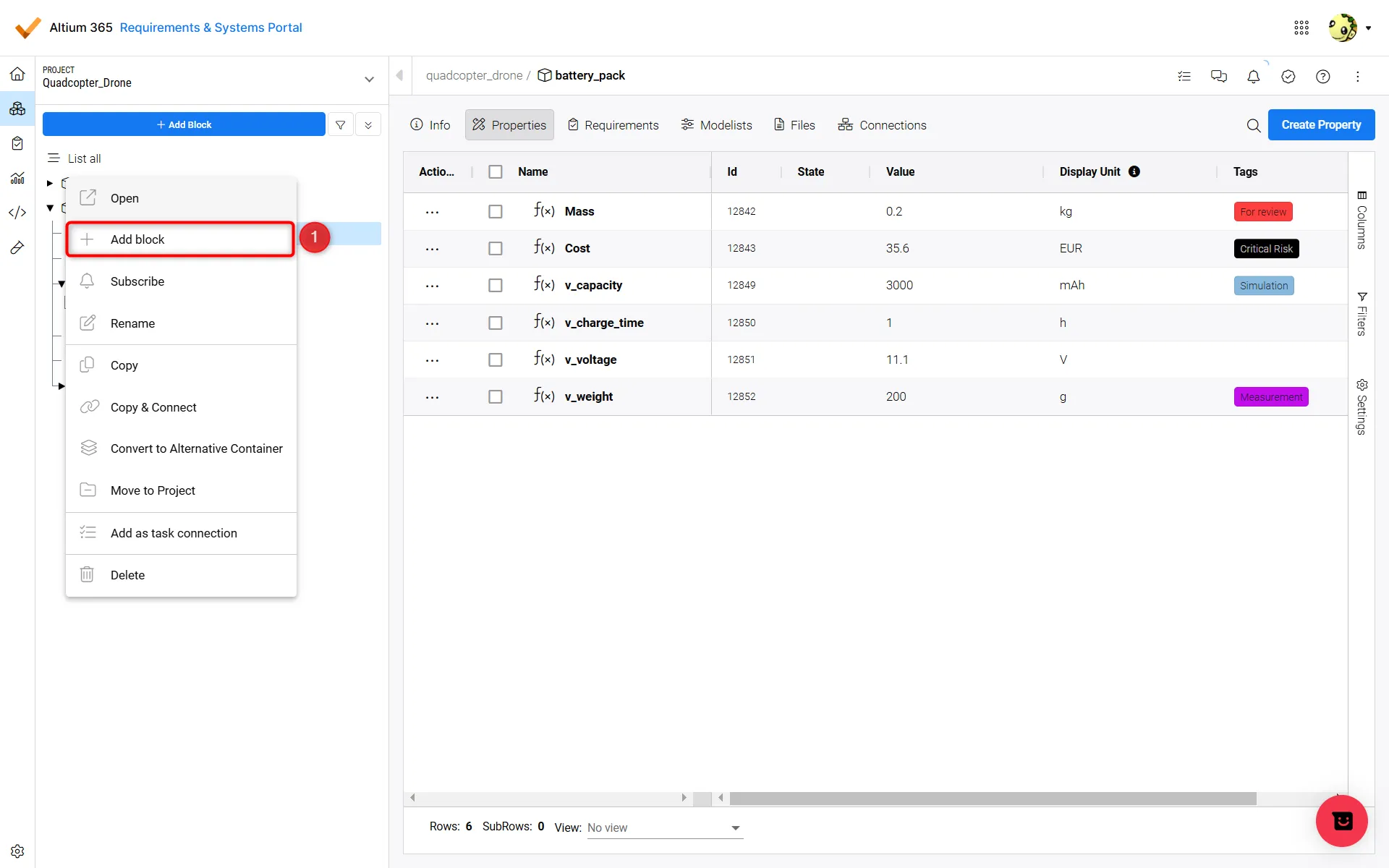 Adding a Sub-Block
Naming convention
While naming the Blocks, here are a couple of things to keep in mind:
-
The block name cannot contain the following characters:
\ / ? % * : | " < >. Also, leading and trailing spaces will be ignored. -
The block names have to be unique on the same level in the tree, but they can have the same name on different levels.