
Custom Columns and Units
Defining Custom Fields
Requirements Portal already offers a great variety of columns to describe your Requirements. However, if your use-case requires a specific column with a specific name, you can add additional columns called Custom Fields or Custom Columns.
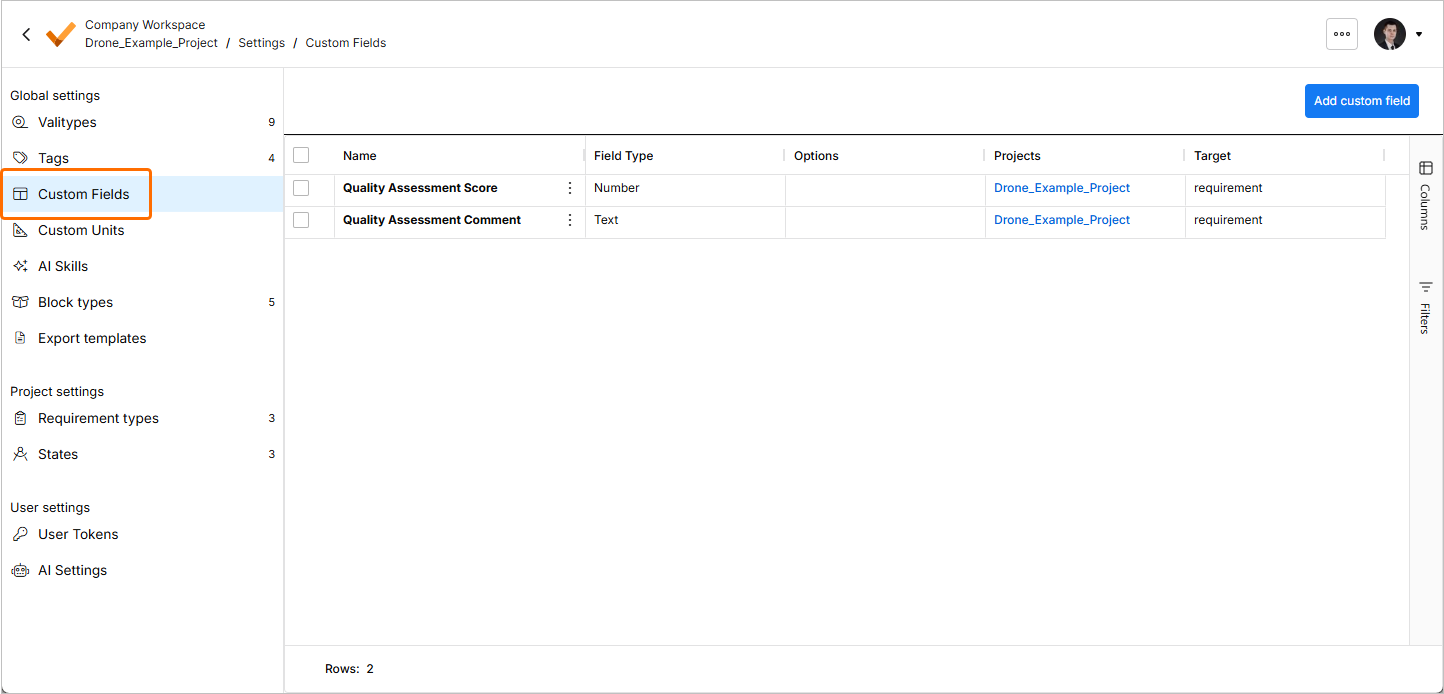
Workspace Administrators can review defined custom fields and create new ones on the Settings – Custom Fields page (accessed by clicking the  icon at the top right, selecting Settings from the menu that appears, and then selecting Custom Fields from list in the left-hand pane).
 icon, and then click the
  icon in the popup that appears to access filter options.
To create a new custom field, click the  button at the top right. The Create Custom Field window will open.
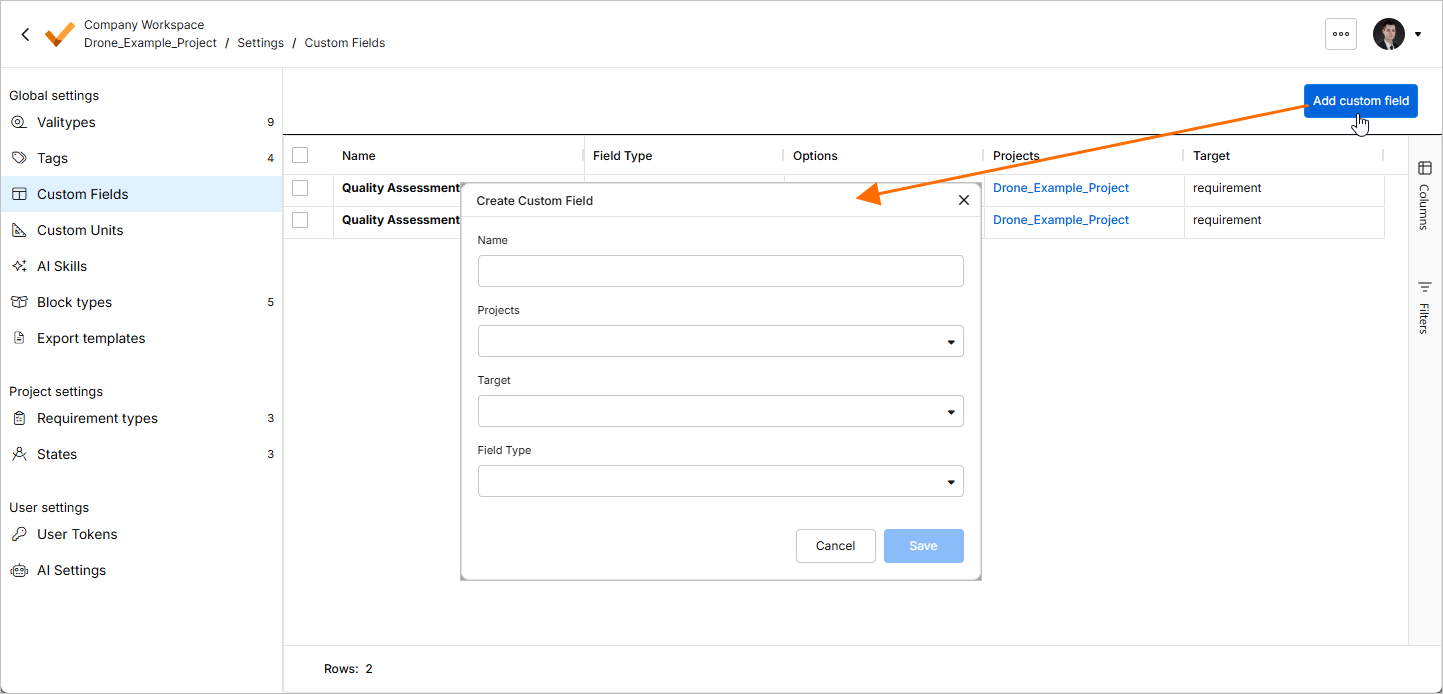
The Create Custom Field window provides the following options:
-
Name – the name of the column that will appear as a header in the table.
-
Projects – the project(s) where the custom field can be used.
-
Target:
-
Requirements – a custom field in the Requirements Module is created.
-
Activity – a custom field in the Activity is created.
-
Activity Run – a custom field in the Activity Run is created.
-
-
Field Type:
-
Text – Rich Text field column.
-
Select – single select from a drop-down menu.
-
Date – date/time select from a calendar pop-up.
-
Number – only allows numeric entries to the column.
-
Multi Select – multi-select from a drop-down menu.
When selecting Select or Multi Select as the Field Type, you will be prompted to define the individual Field Options from which to choose in the drop-down menu.
-
Once the options are configured as required, click the  button. An entry of a newly created custom field will appear on the Settings – Custom Fields page.
Defining Custom Units
The calculation engine of Requirements Portal already comes with a well-defined set of units, which are clearly defined by the employed Pint Library. However, there might be a situation where very specific units need to be defined that are not yet handled by the calculation engine. A specific use-case would be a currency with a specific conversion.
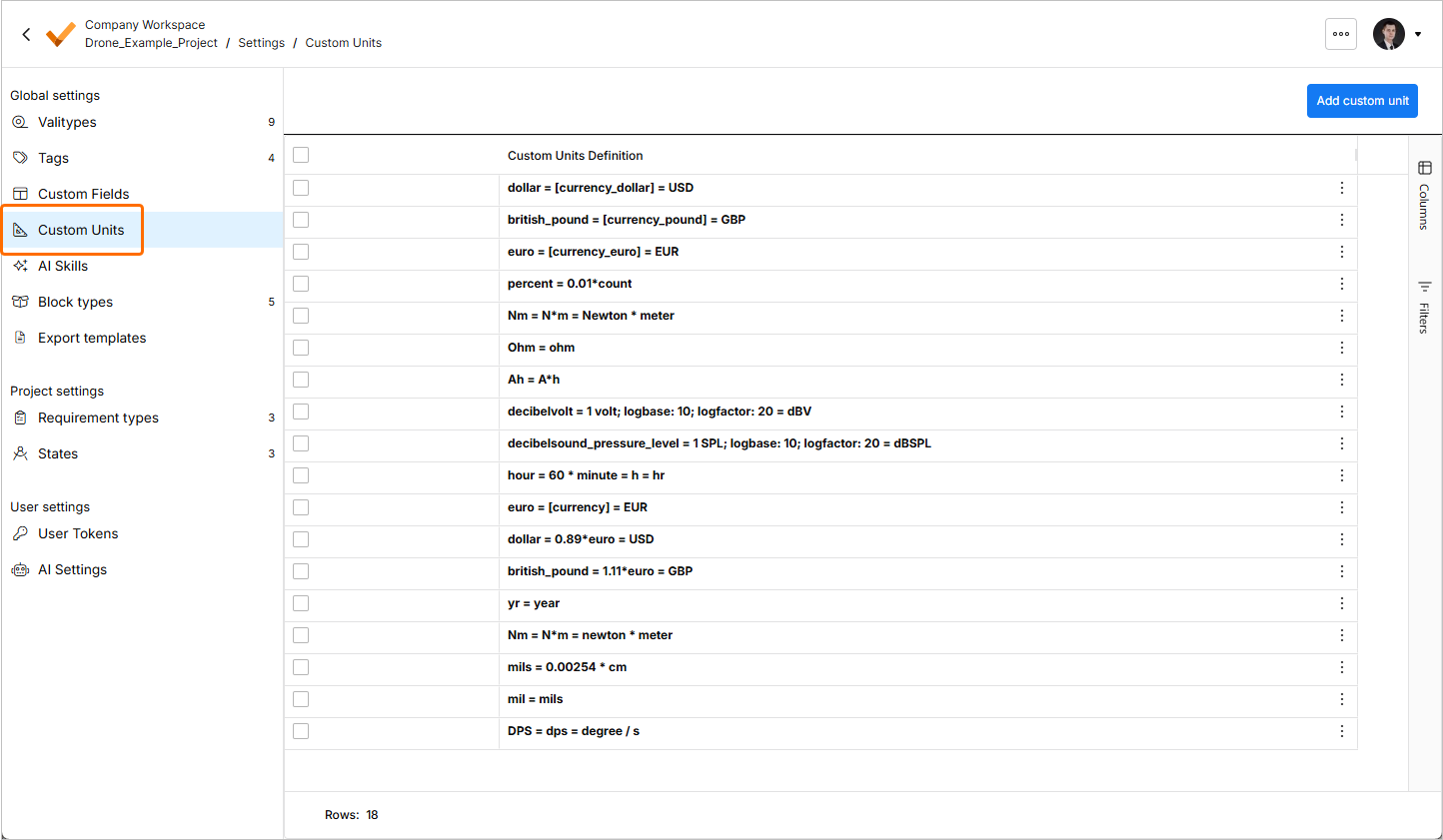
Workspace Administrators can review defined custom fields and create new ones on the Settings – Custom Units page (accessed by clicking the icon at the top right, selecting Settings from the menu that appears, and then selecting Custom Units from list in the left-hand pane).
To create a new custom field, click the  button at the top right. The Create Custom Unit window will open.
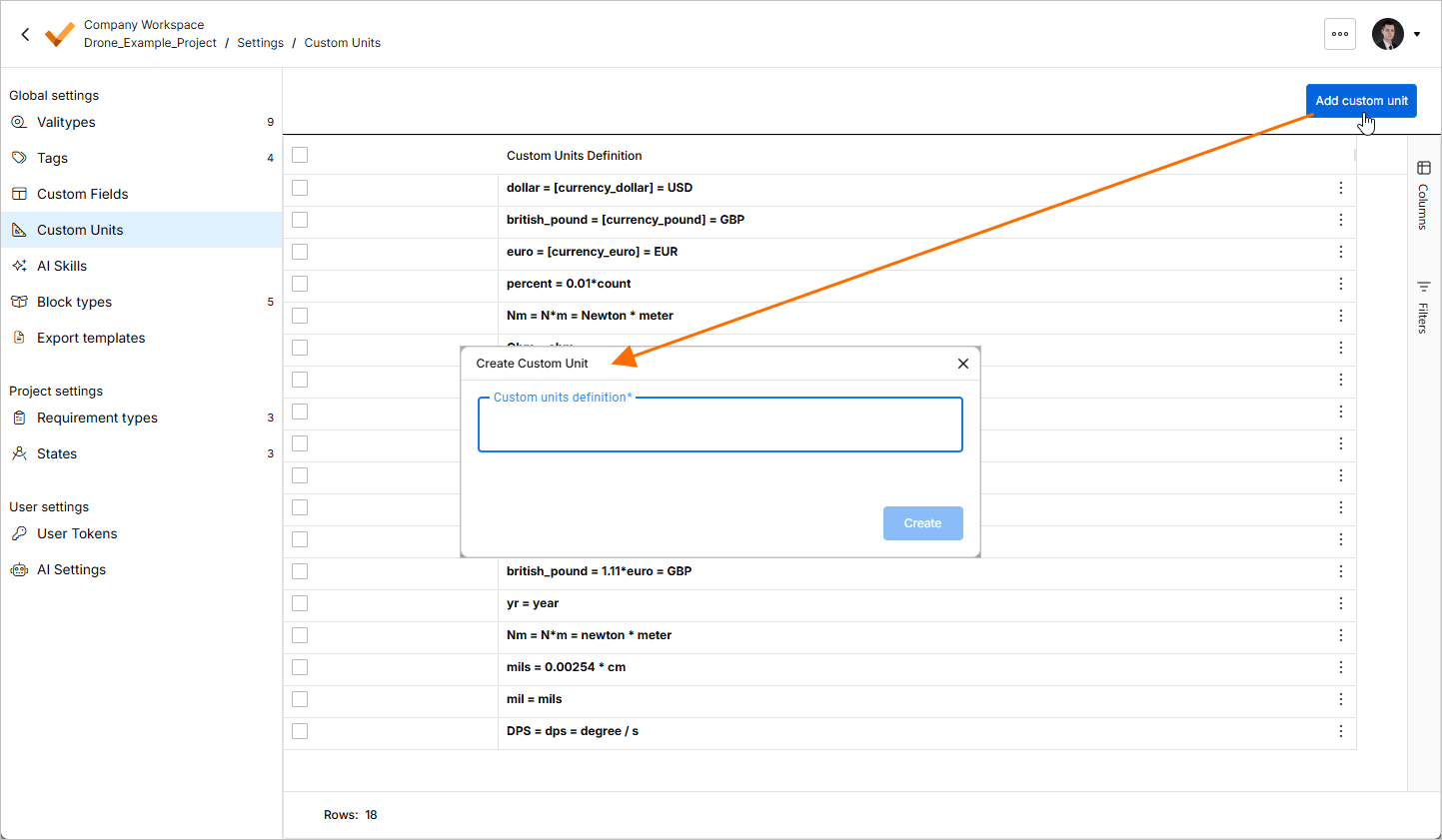
A custom unit must always be defined based on an already existing unit, for instance:
apple = 0.5 * kg = ap
This entry creates a unit called apple which converts to half a kilogram. With this entry the calculation engine will recognize apple and ap as units that can be used for Valis.