
New in Requirements Portal
Requirements Portal is under continuous development. This page outlines new features and enhancements made to Requirements Portal in key updates.
Update - 3 November 2026
AI Skills Improvements
In this release, a number of improvements have been implemented for AI skills management:
-
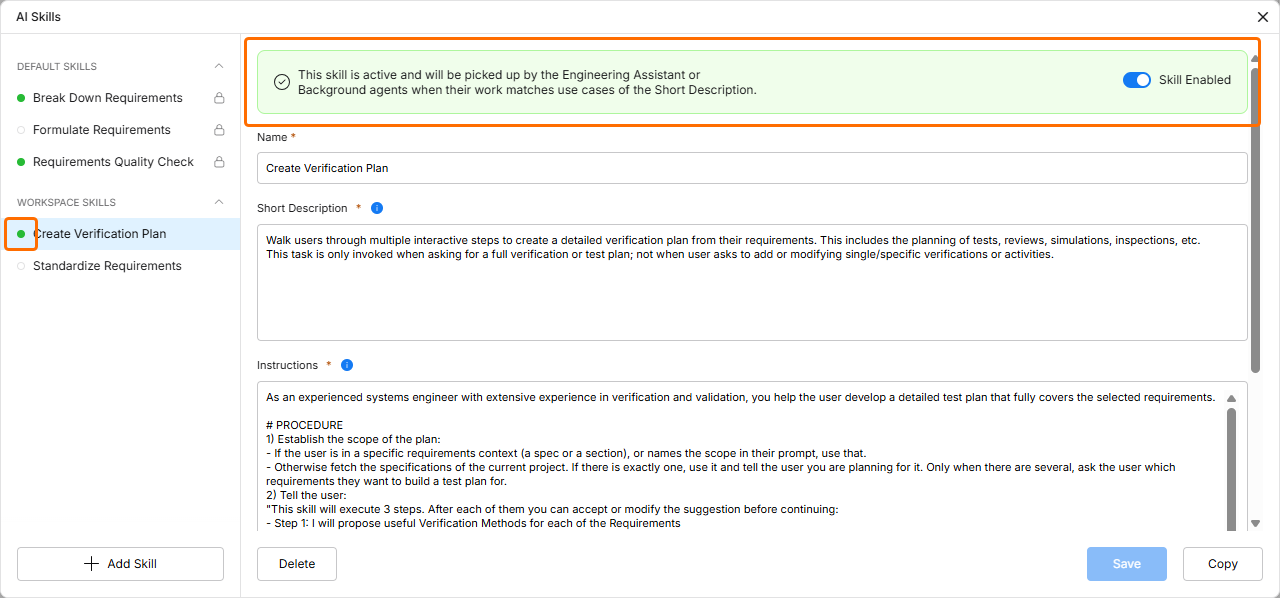
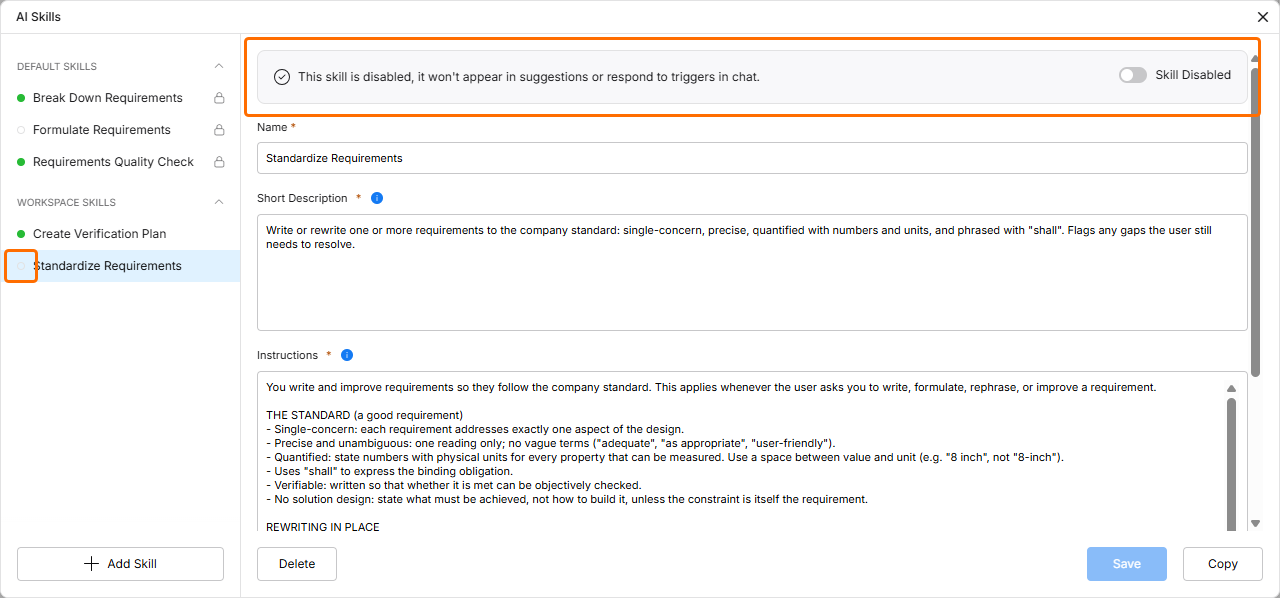
Ability to enable and disable skills – use the new Skill Enabled / Skill Disabled option in the banner at the top of the AI Settings – Skills page of Settings or the AI Skills window when a skill is selected to enable/disable this skill. When a skill is disabled, it will not be used by the Engineering Assistant.
Enabled skills are distinguished in the list at the left by a green dot (
 ), while disabled skills are listed an empty circle (
 ).
-
Ability to copy a skill – you can now make a copy of skill by selecting it in the AI Settings – Skills page of Settings or the AI Skills window and then clicking the
 button at the bottom left. The original skill name will be used with the suffix
COPY.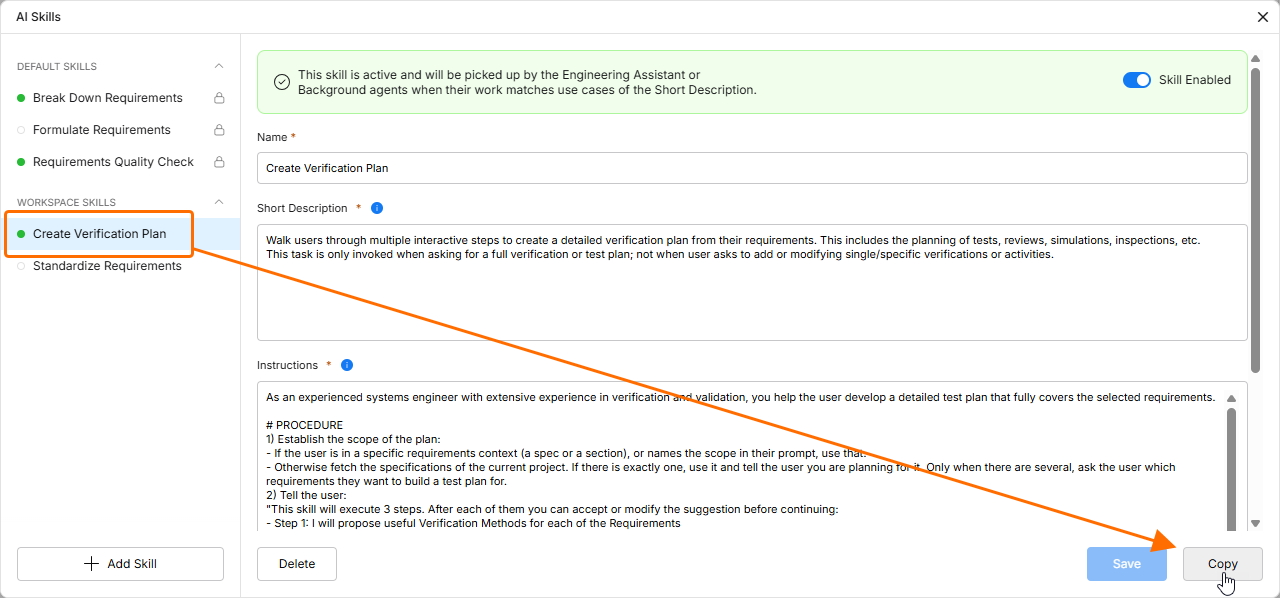
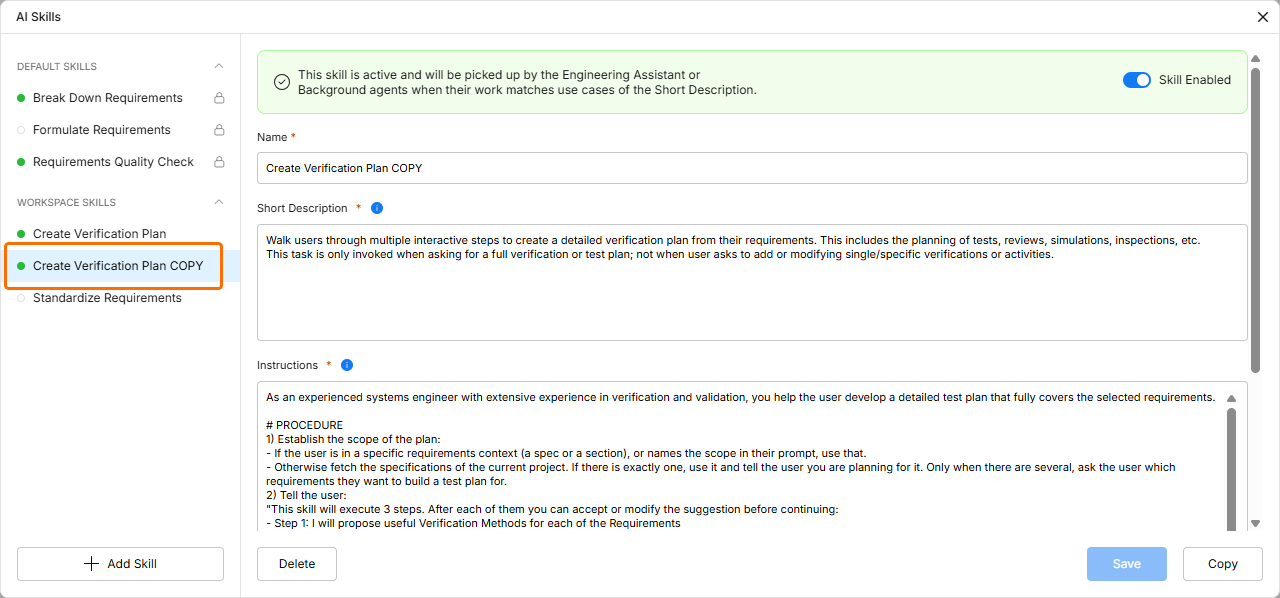
Copying is available for both default and custom skills. Note that when a default skill is copied, the original skill becomes disabled; when a custom skill is copied, the original skill stays enabled.
-
Default skills are read-only now – default skills cannot be edited or deleted now. You still can enable/disable and copy the default skills. Default skills are distinguished in the list at the left by a lock icon (
 ).
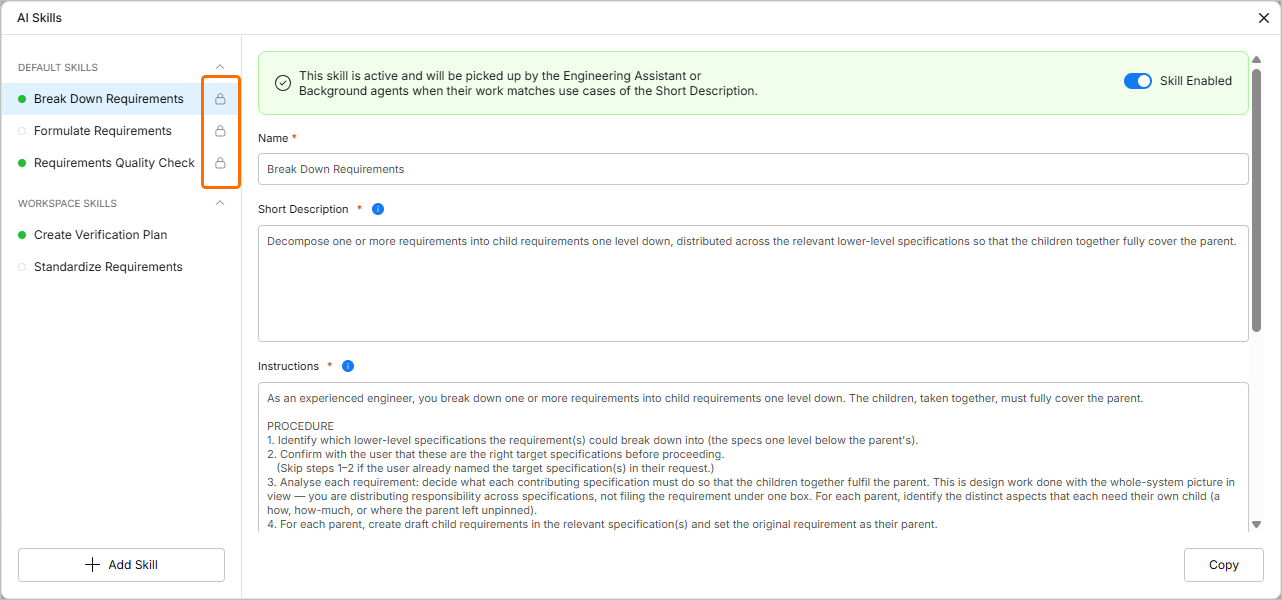
For more information about AI skills, refer to the Using and Managing AI Skills page.
Sharing of Requirements Projects
Requirements projects are now shown on the Projects page of the Workspace browser interface. From here, you can open requirements projects available to you and share requirements projects to determine which users can actually access them.
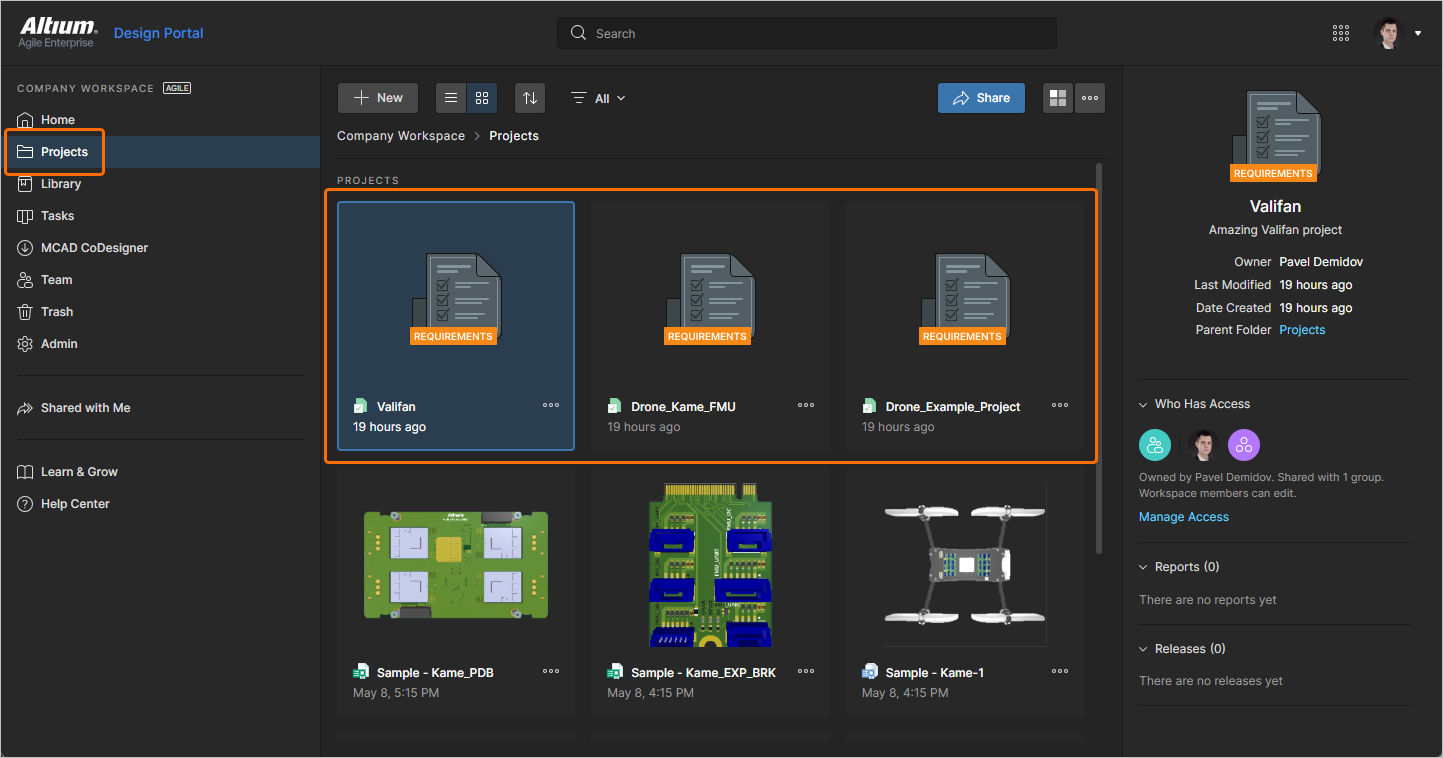
A requirement projects can now be accessed not only from the Home page of Requirements Portal but also from the Projects page of the Workspace browser interface by clicking the project's name or by clicking the  control for the project and selecting the Open command from the associated menu.
To share a requirements project, clicking the control for the project on the Projects page of the Workspace browser interface and select the Share command from the associated menu. Alternatively, select the project's tile (in graphical view of the page) / entry (in the list view of the page) and click the  button at the top right. The Share window that opens includes the controls necessary to share the project with other users.
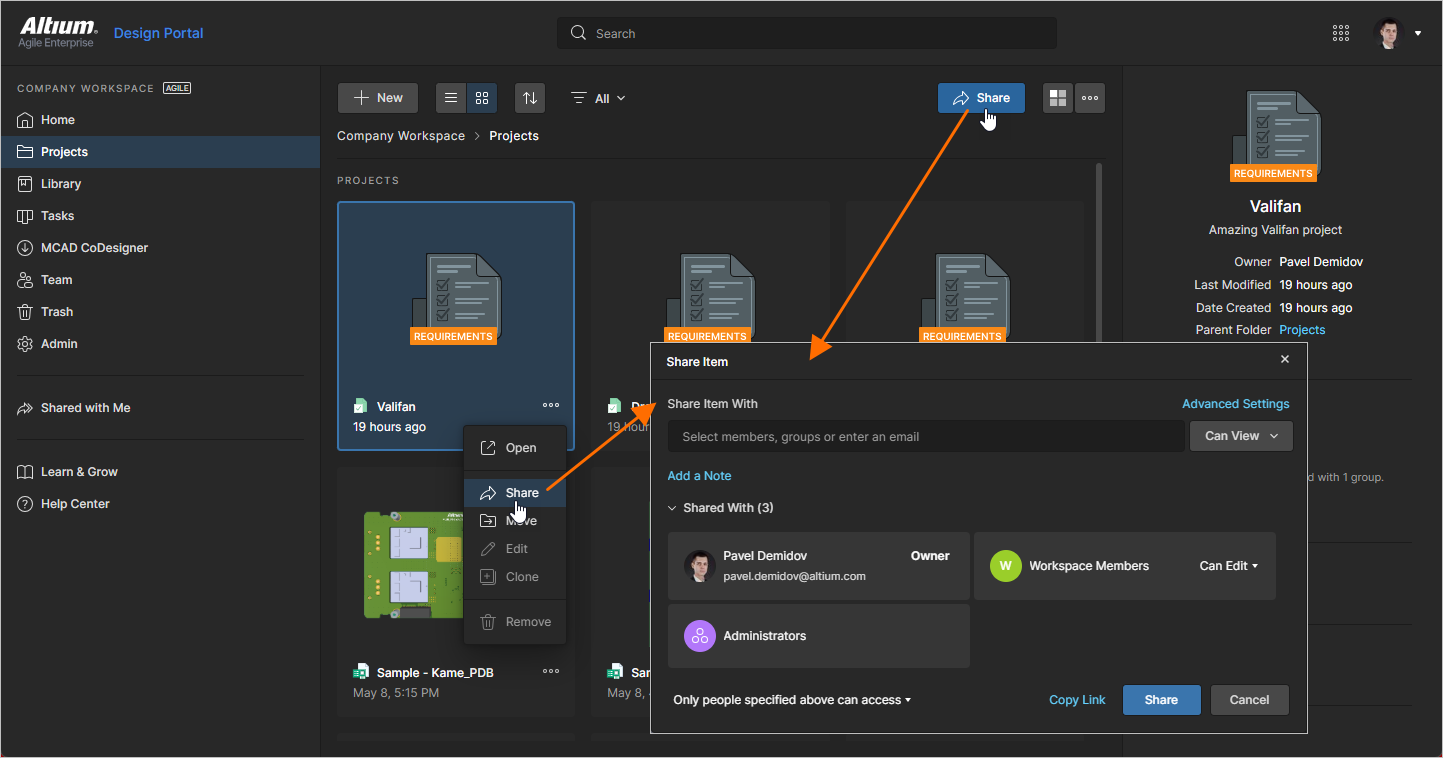
For more information about sharing a project, refer to the Workspace Projects page.
Update - 15 October 2026
Key Highlights
Support for the Engineering Assistant in the Verification & Validation Module
The Engineering Assistant functionality has been extended to the Verification & Validation Module, enabling you to leverage Requirements Portal's AI capabilities to review and modify verification activities within your requirements projects.
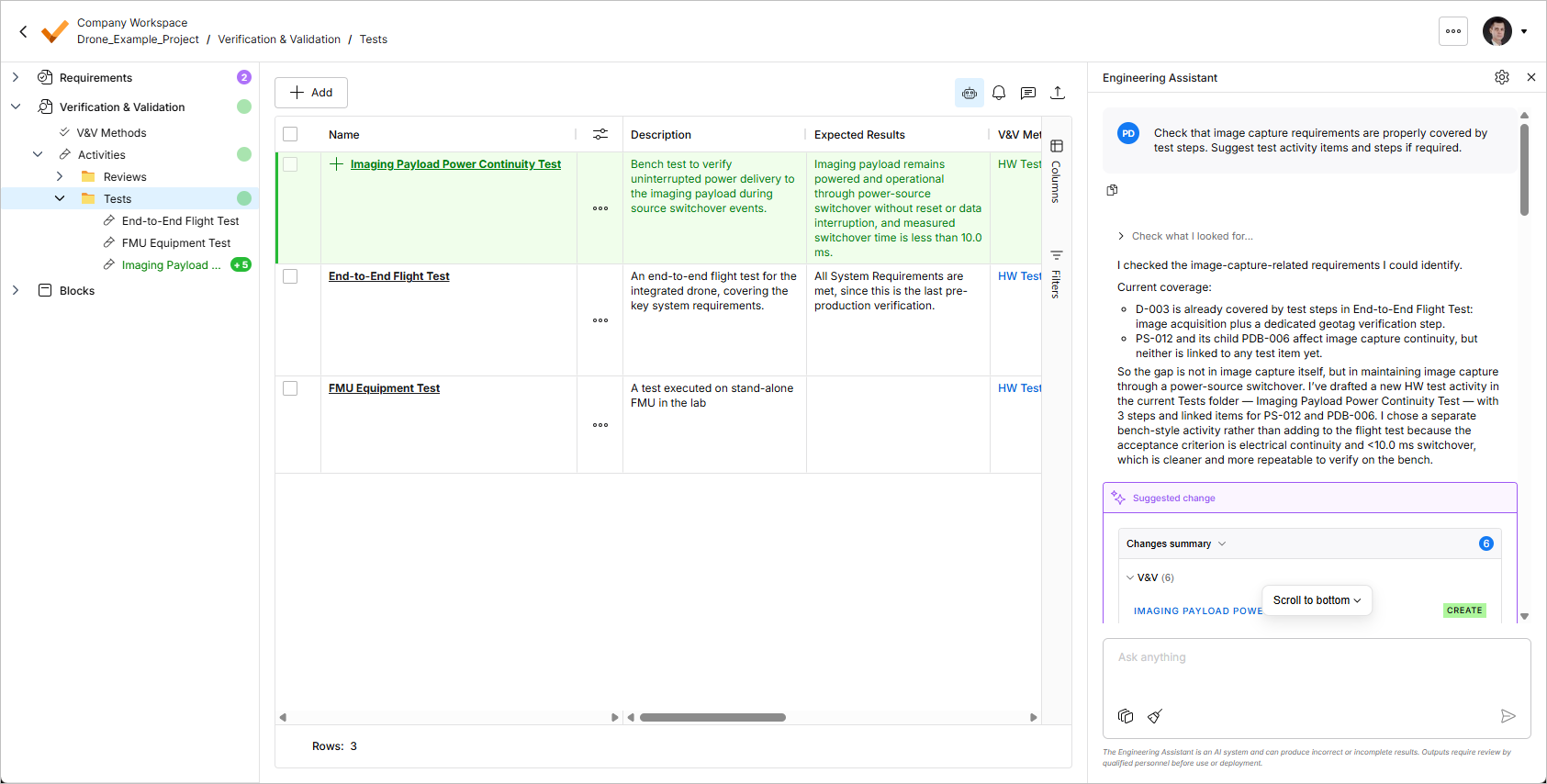
A new default Create Verification Plan AI skill has also been added for consistent execution of actions related to verification and validation.
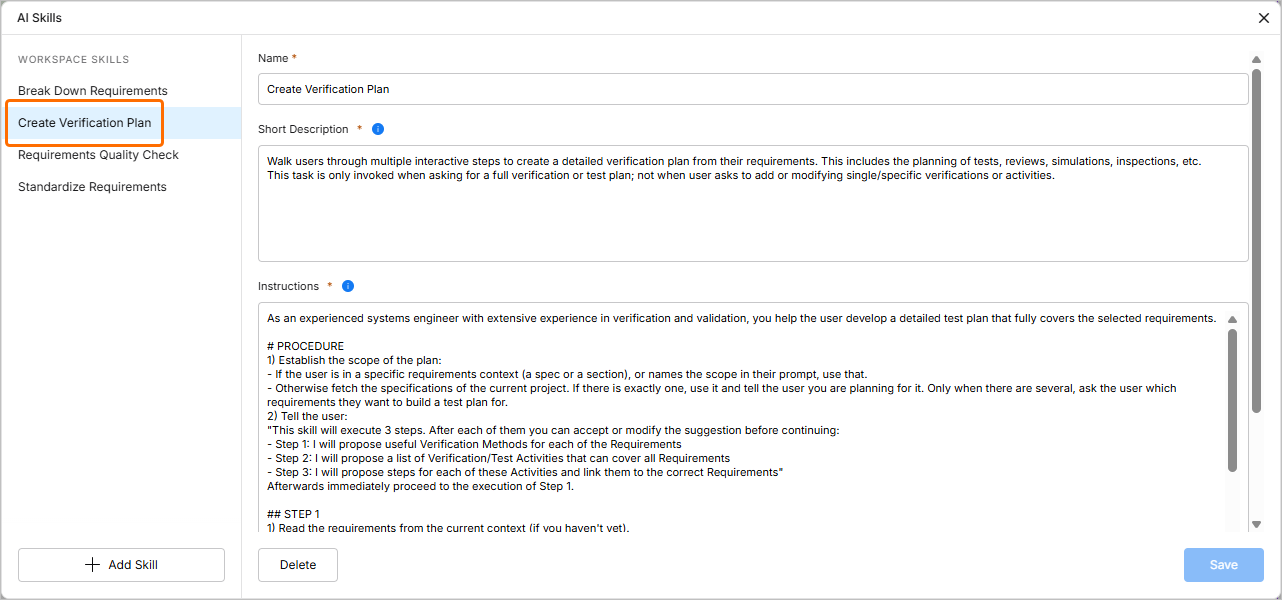
For more information about the Engineering Assistant, refer to the Engineering Assistant page.
Support for Commenting on Specifications, Sections, and Blocks
In this release, support for commenting of the following entities within requirements projects has been added:
-
Specifications and sections
-
Verification & Validation activities
-
Blocks
To add a comment, click the  button in the Comments and Tasks pane and then click the required specification, section, V&V activity, or block entry in the left-hand side tree of the requirement project. Alternatively, right-click the entry in the tree and select the Comment command from the context menu. Added comments are presented in the Comments and Tasks pane and can be replied to and managed using a contextual commenting window.
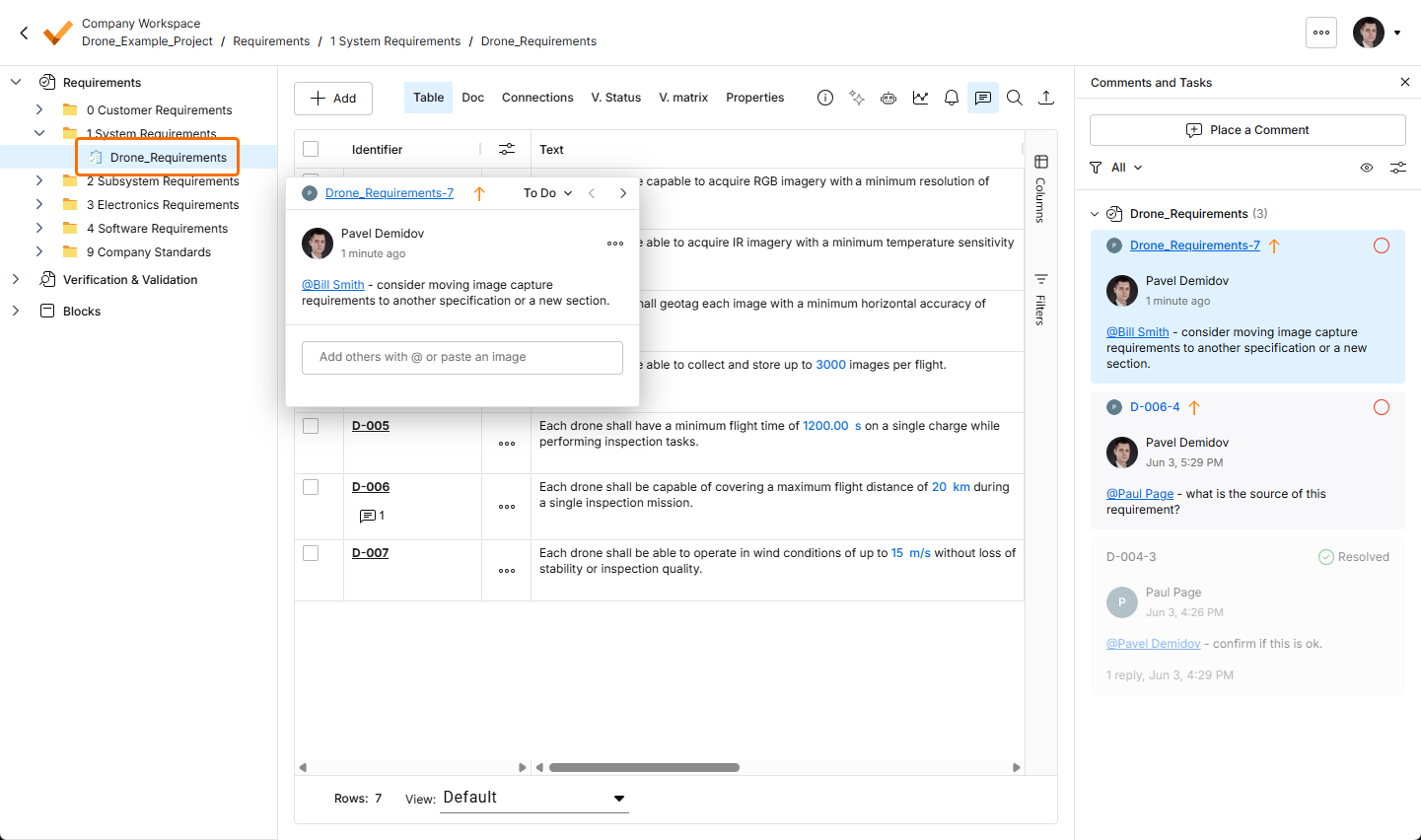
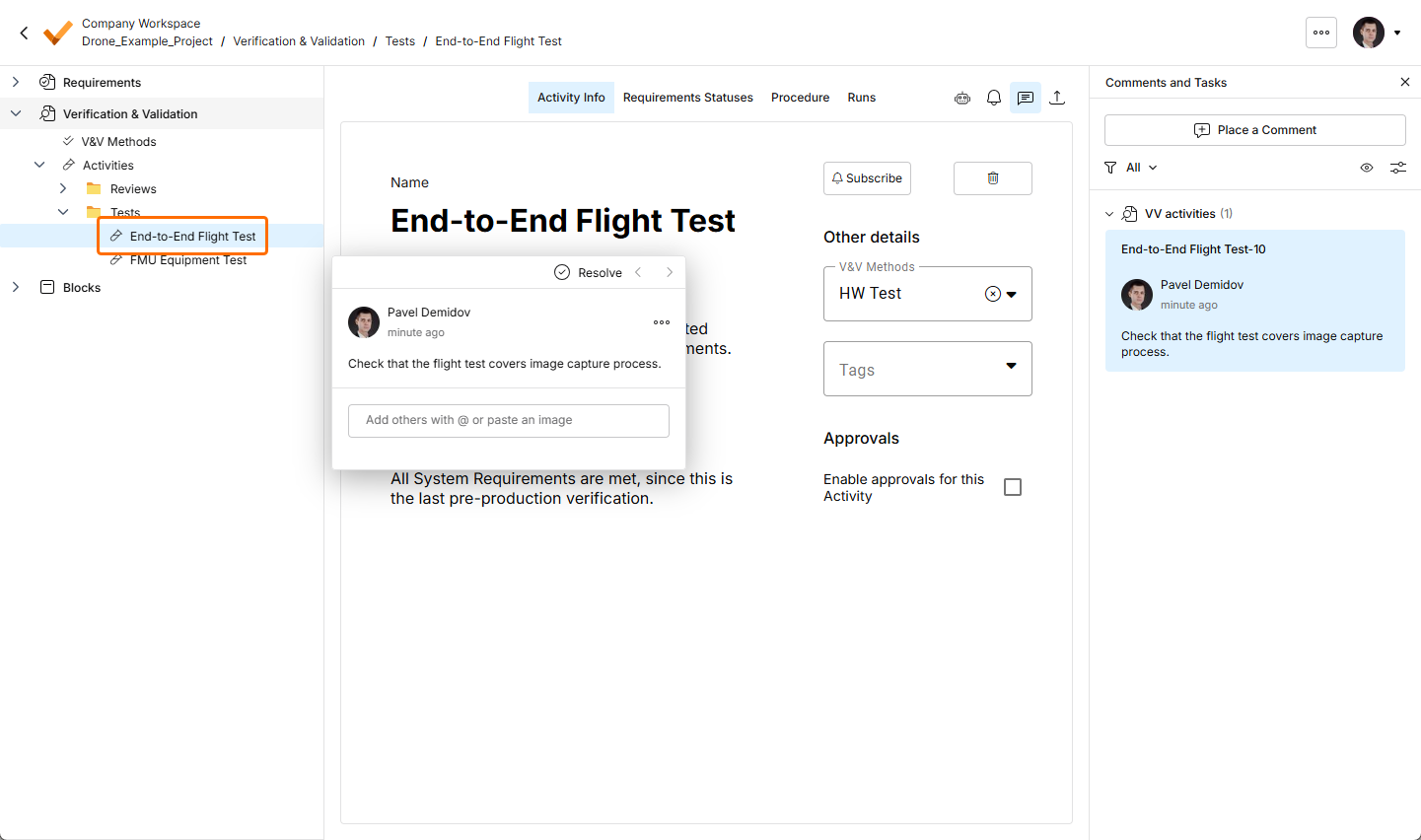
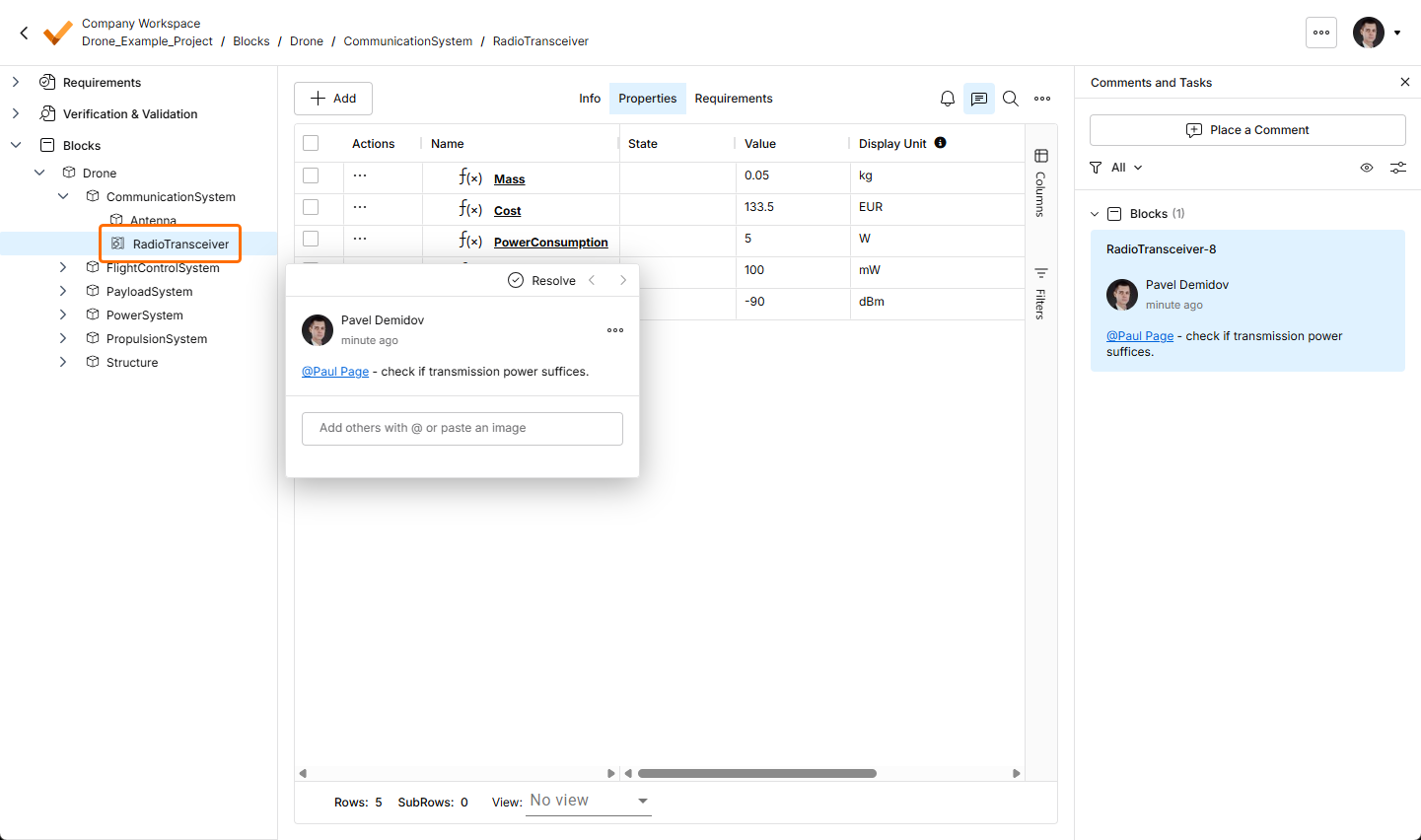
For more information about commenting in Requirements Portal, refer to the Commenting page.
Update - 1 October 2026
Key Highlights
This release includes bug fixes to enhance the overall functionality and user experience.
Update - 21 September 2026
Key Highlights
This release includes bug fixes to enhance the overall functionality and user experience.
Update - 3 September 2026
Key Highlights
Enhanced Highlight of Changes Suggested by the Engineering Assistant
Highlight of changes suggested by the Engineering Assistant has been enhanced in this release. Now, the bubbles in the left-hand project tree reflect the type of changes in the corresponding specifications, folders, and sections:
-
Green bubble – requirement(s) are added.
-
Red bubble – requirements(s) are removed.
-
Purple bubble – requirement(s) are changed (or there are changes of different types – adding, changing, removal).
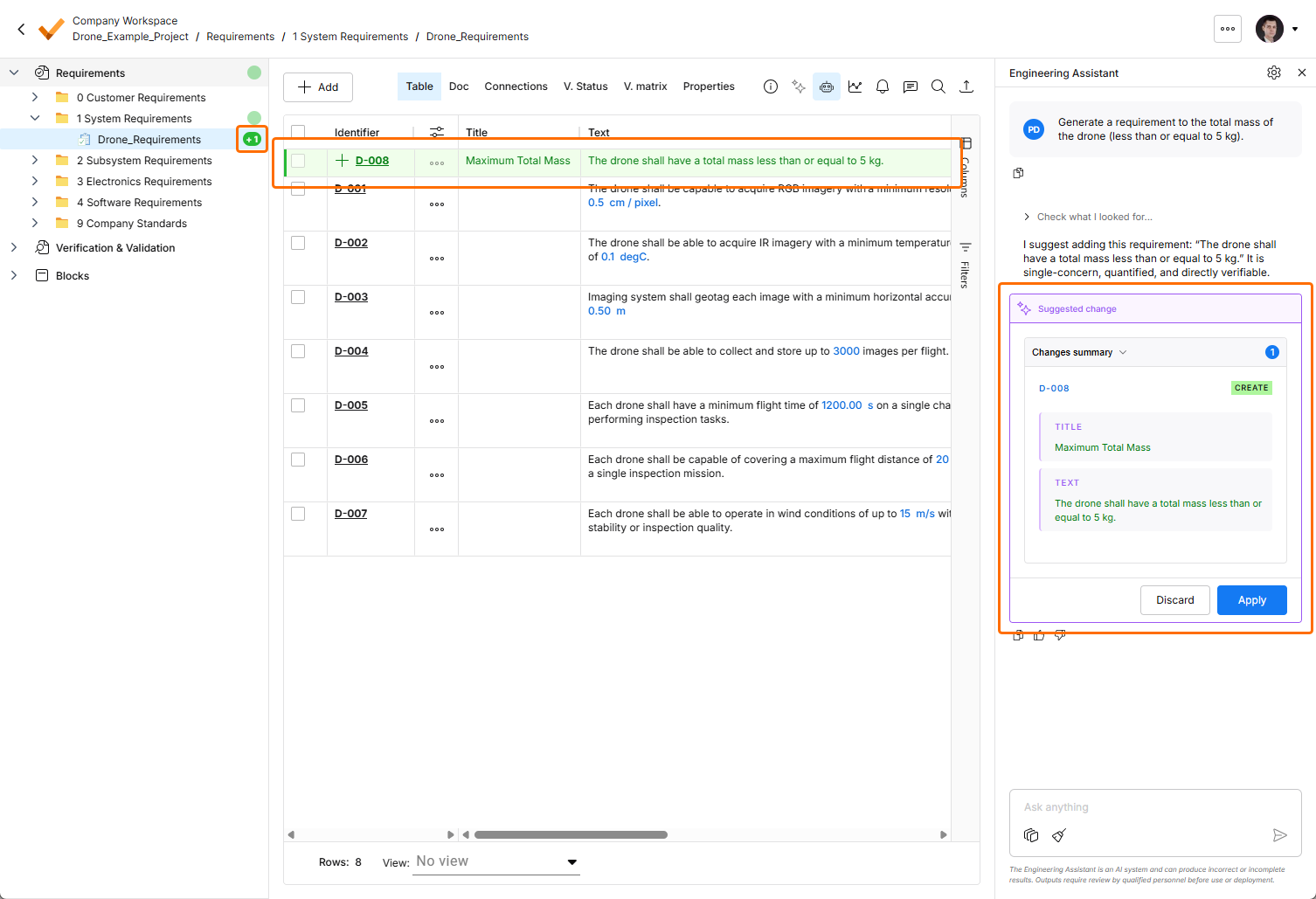
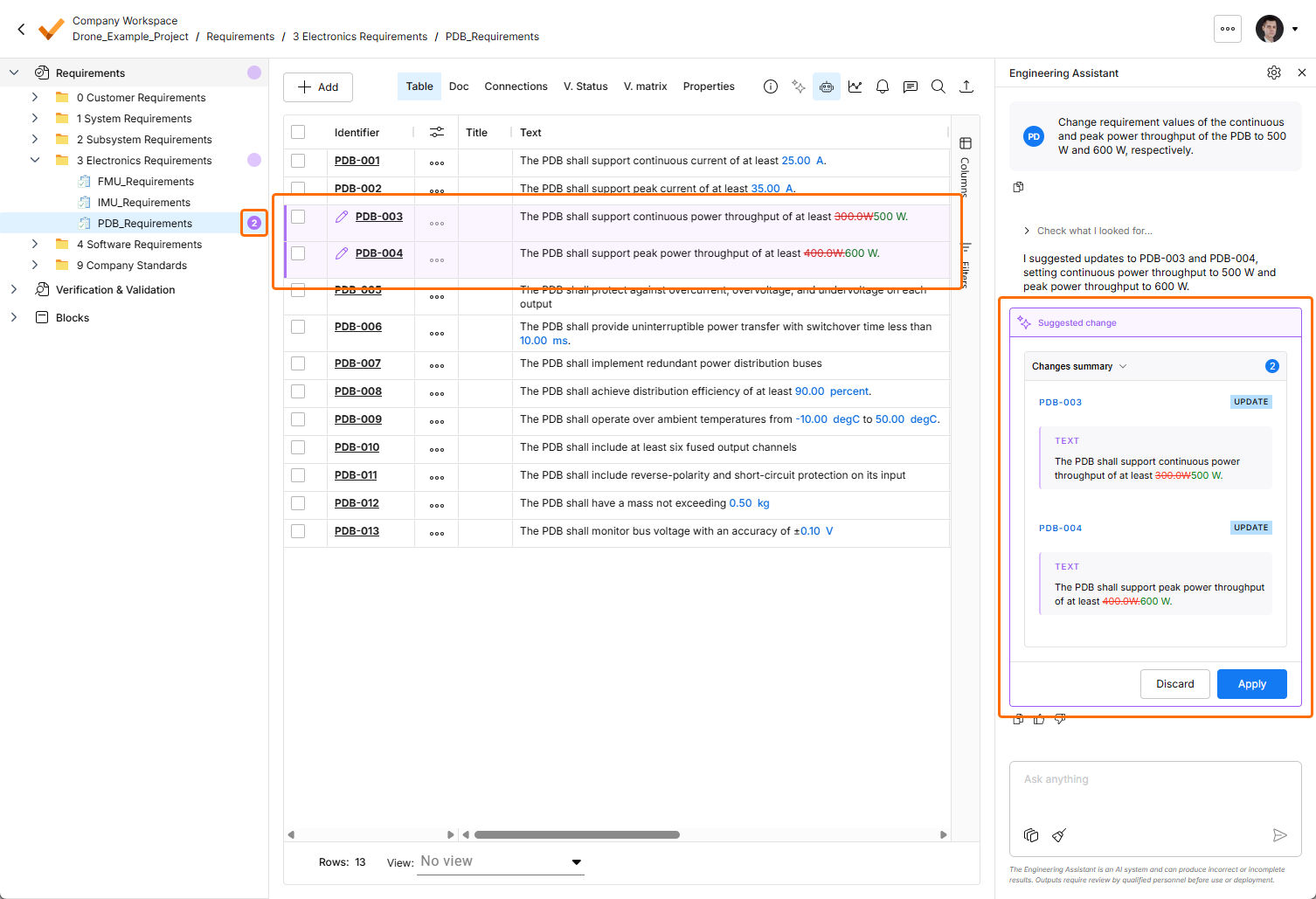
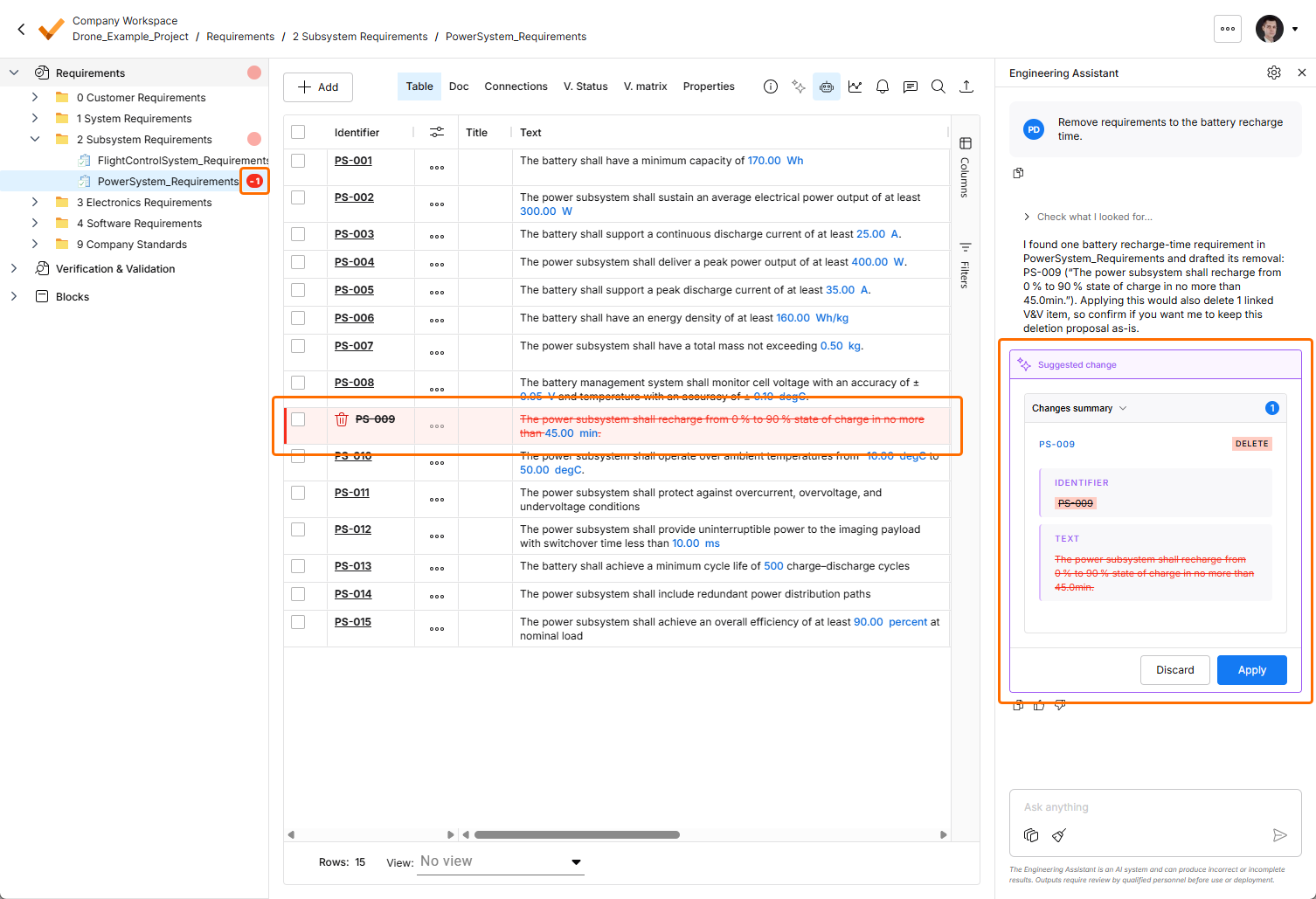
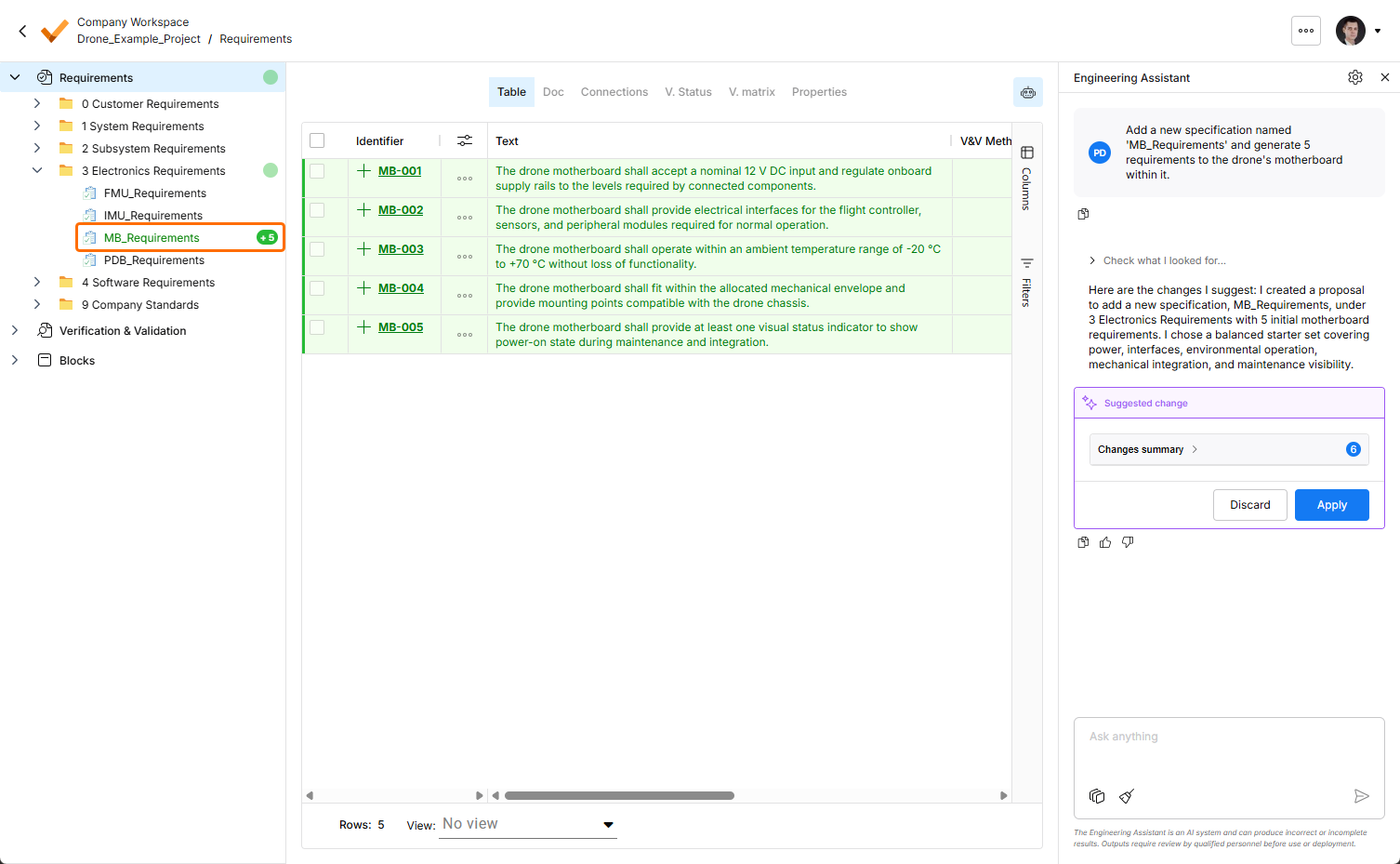
Also, adding, moving, renaming, and removal of folders, specifications, and sections within the requirements tree are highlighted in the tree now.
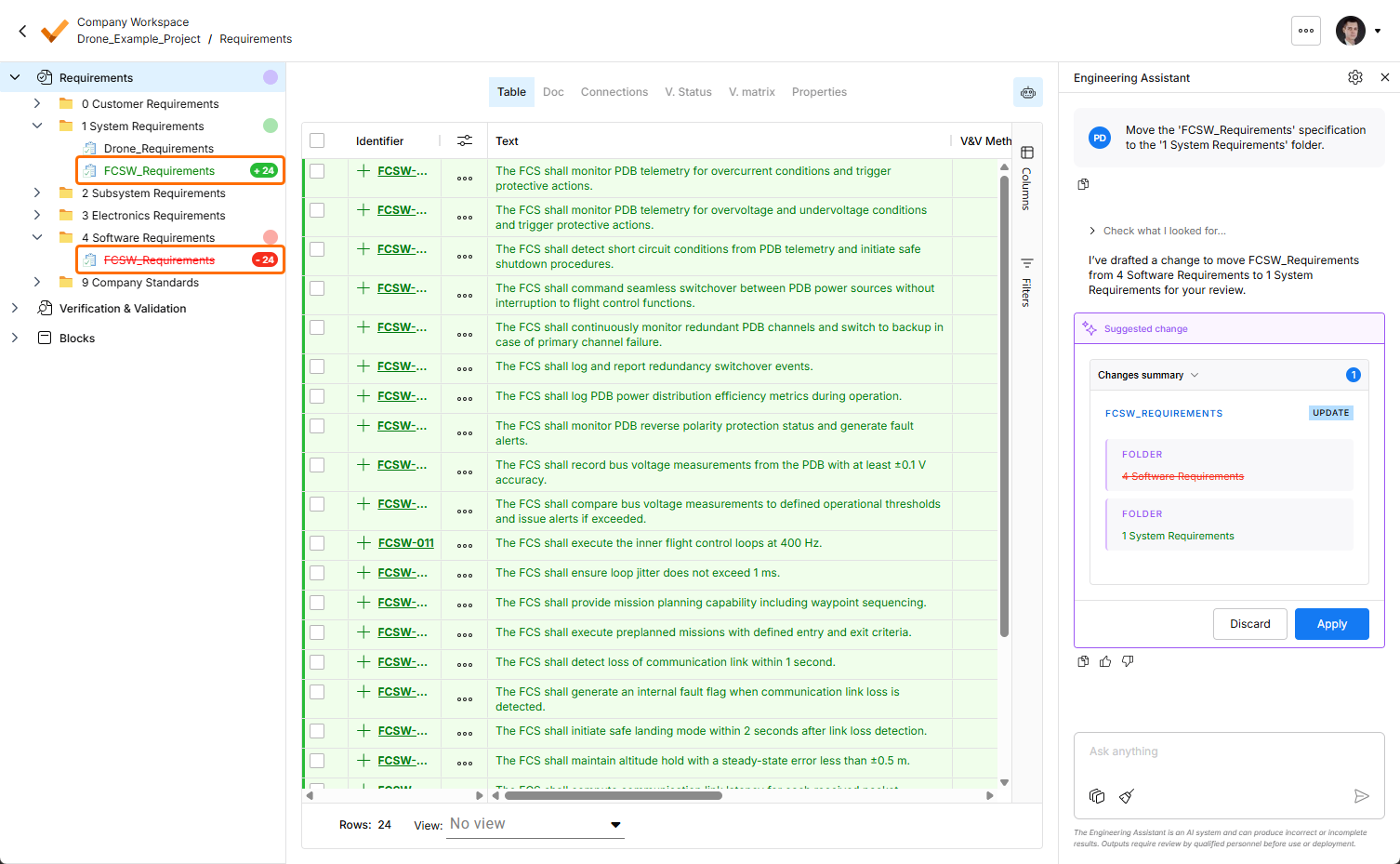
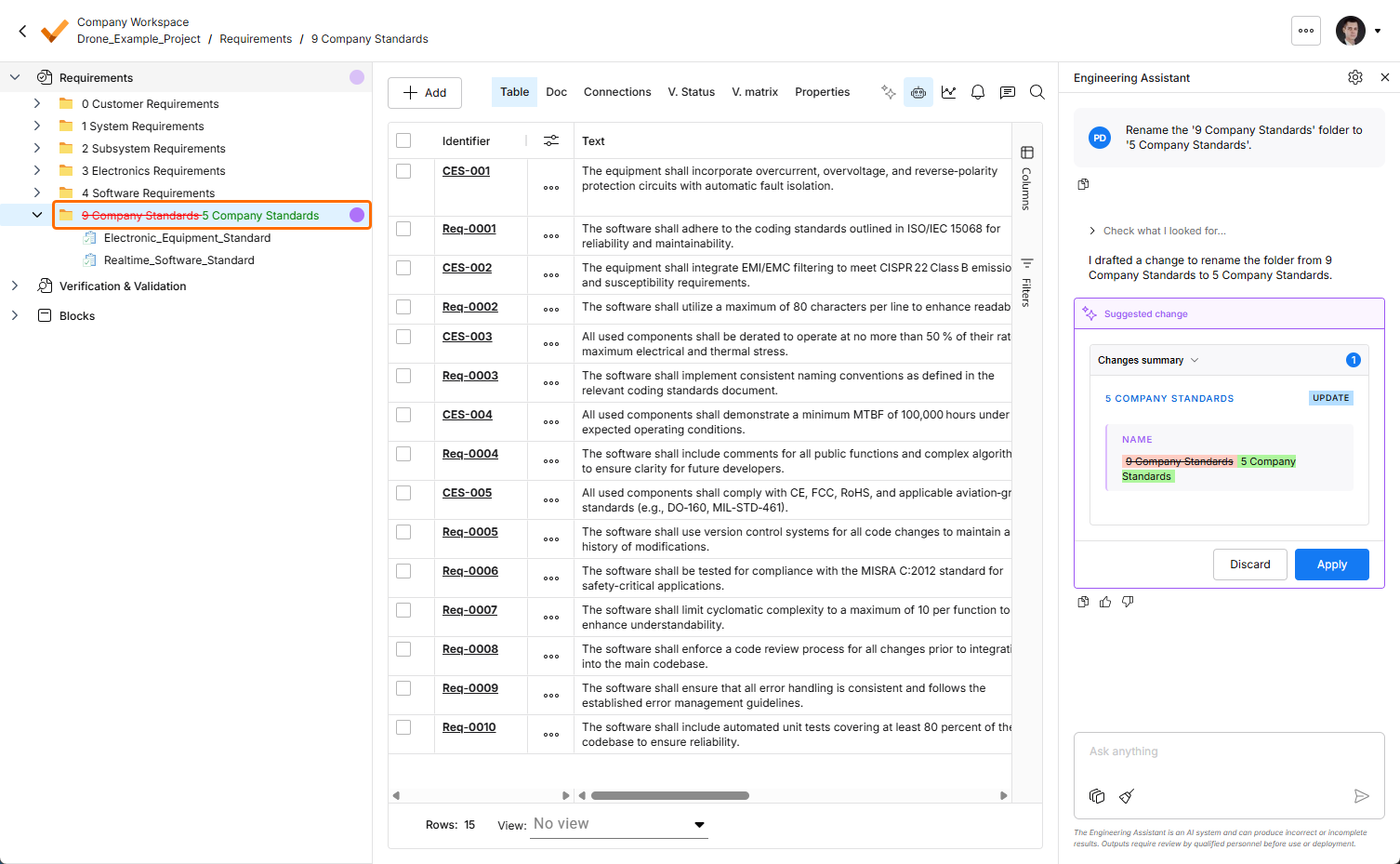
For more information about the Engineering Assistant, refer to the Engineering Assistant page.
Update - 20 August 2026
Key Highlights
Ability to Express Satisfaction with the Engineering Assistant Responses
In this release, the ability to express your satisfaction with the Engineering Assistant responses has been implemented. Use the thumbs up/down icons below a response in the Engineering Assistant pane to provide your positive or negative reaction to it.
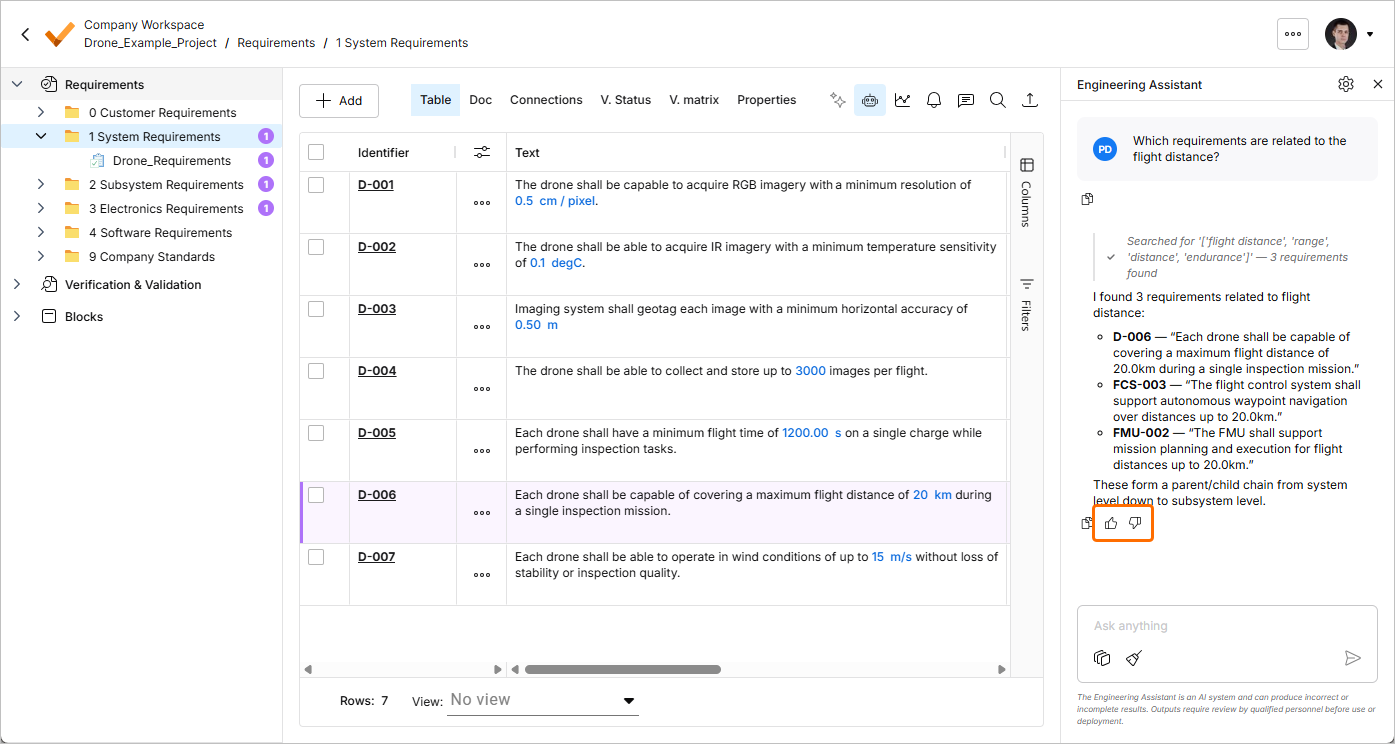
For more information about the Engineering Assistant, refer to the Engineering Assistant page.
ValiAssistant Has Been Deprecated
Starting from this release, the ValiAssistant functionality is no longer available in Requirements Portal. AI-based engineering task automation is now performed by the Engineering Assistant.
-
The ValiAssistant button is no longer available at the top right of the Requirements Module.
-
The ValiAssistant sub-menu of the Actions menu (
 ) has been renamed to Assistant. Selecting an action from the menu opens the Engineering Assistant pane with a corresponding prompt for the selected requirement(s) (
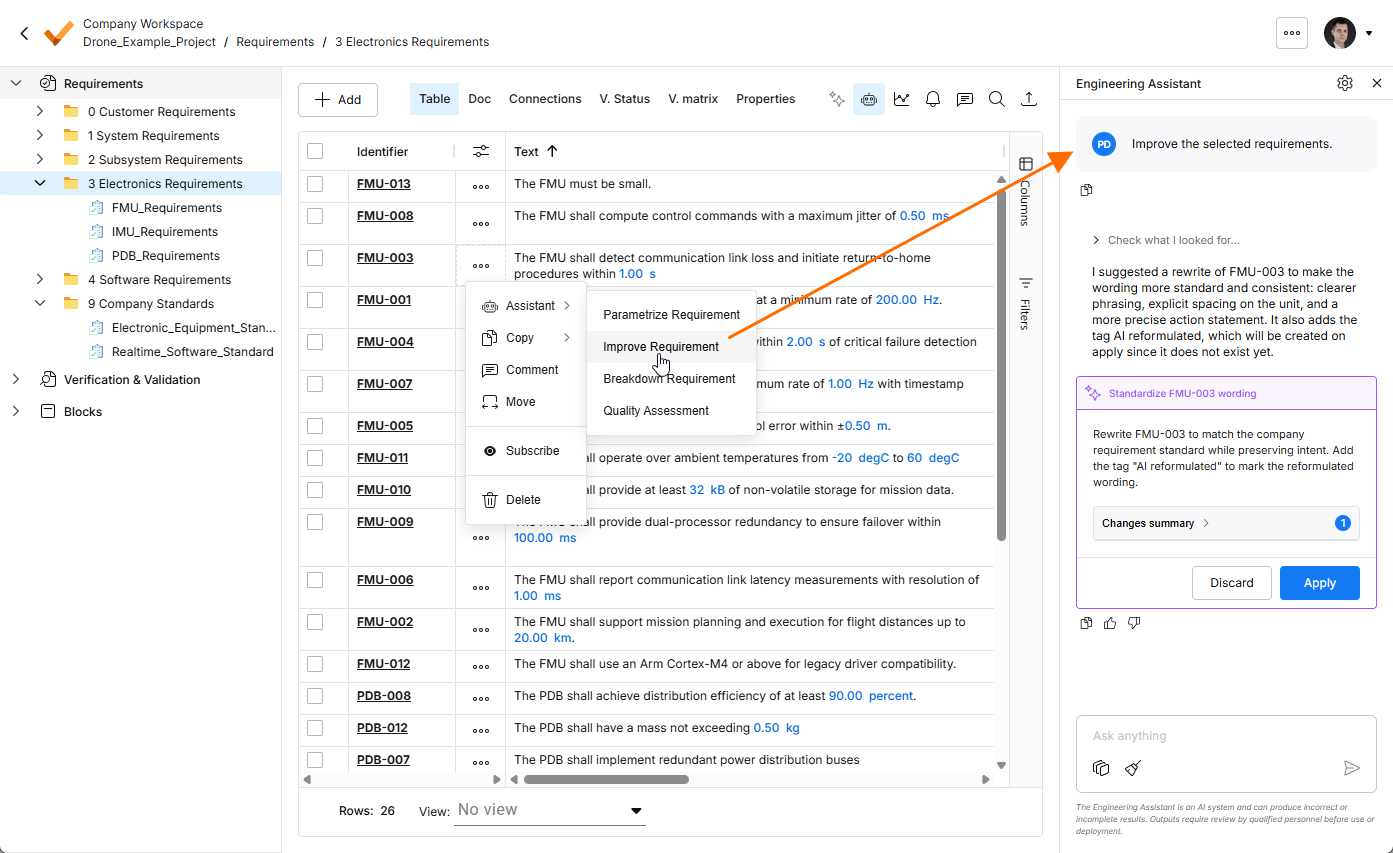 ).
-
Clicking the Generate button (available when viewing an empty specification) also opens the Engineering Assistant pane with a prompt to guide you through the process of defining requirements (
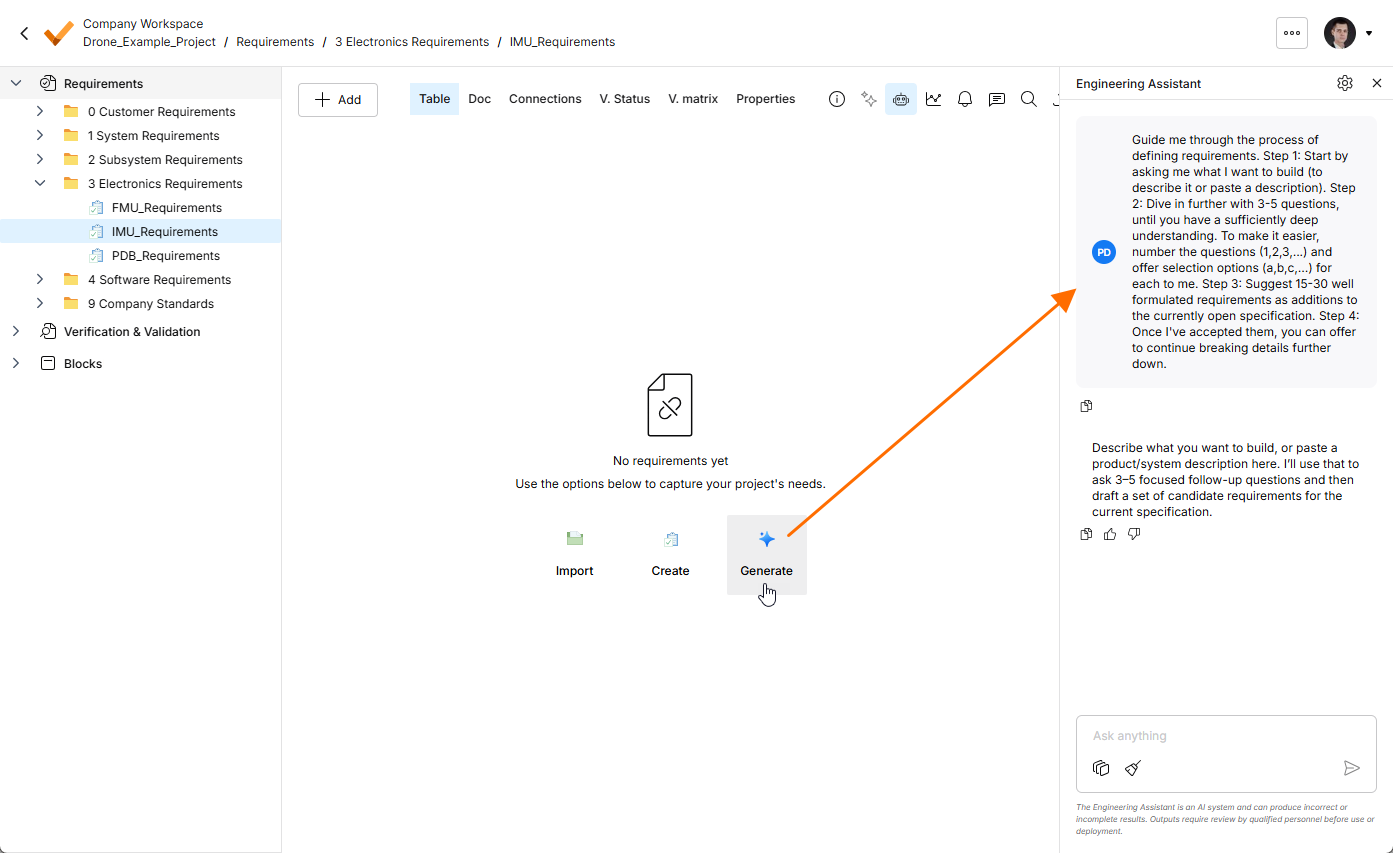 ).
Update - 6 August 2026
Key Highlights
Consolidated UI of the Importer
In this release, the Import Wizard used to import requirements to your projects has been updated to consolidate the user interface of the AI importer and the classic (formerly legacy) importer.
When accessing the Import Wizard, it will now suggest you uploading a file of a supported type (*.pdf, *.docx, *.xlsx, or *.csv).
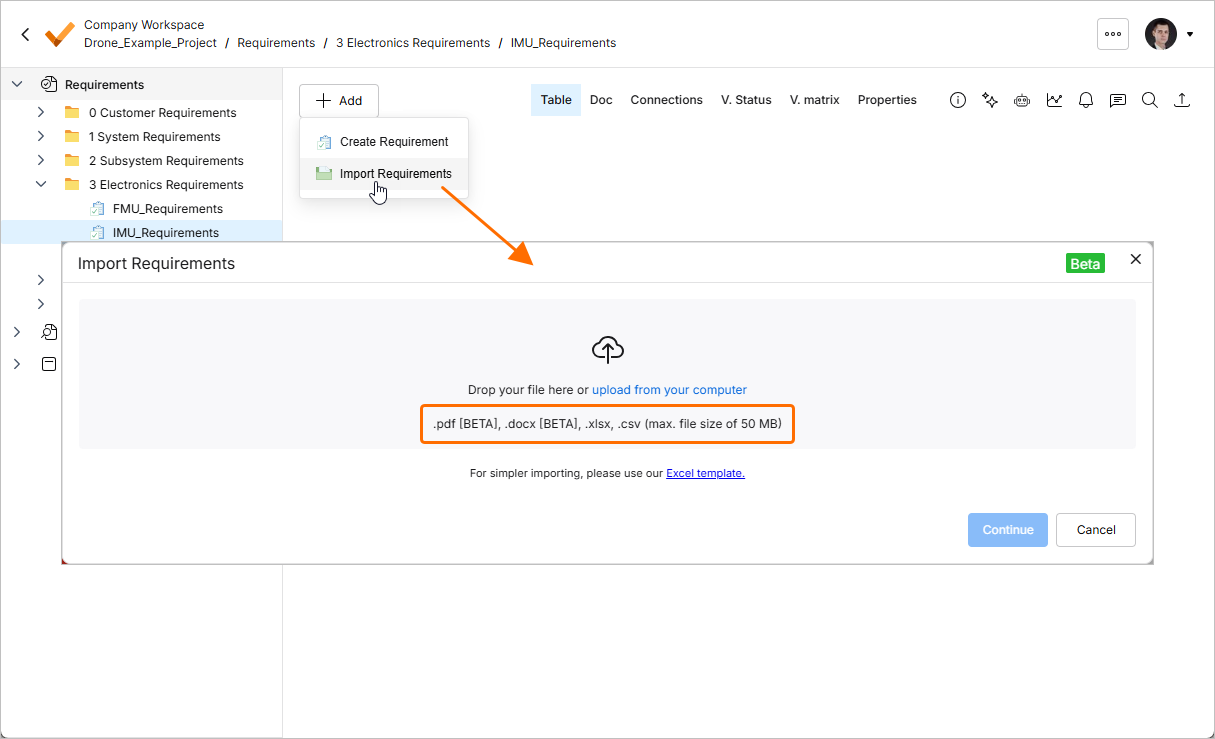
Files in *.pdf and *.docx formats can only be imported using the AI importer. If you upload a *.xlsx or *.csv file, you can choose to use the classic importer by enabling the Classic Import (Non-AI) option.
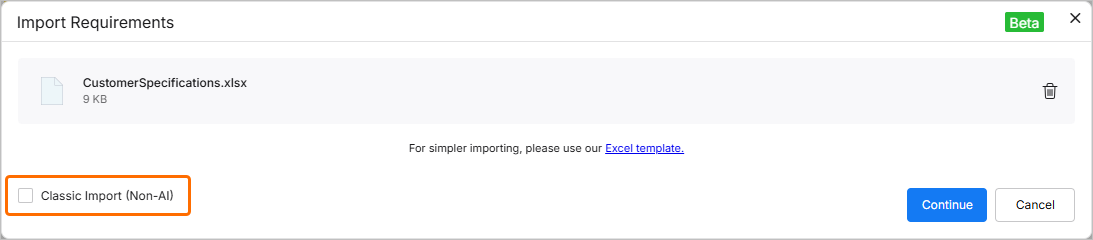
The user interface of both AI and classic importers shares similar controls.
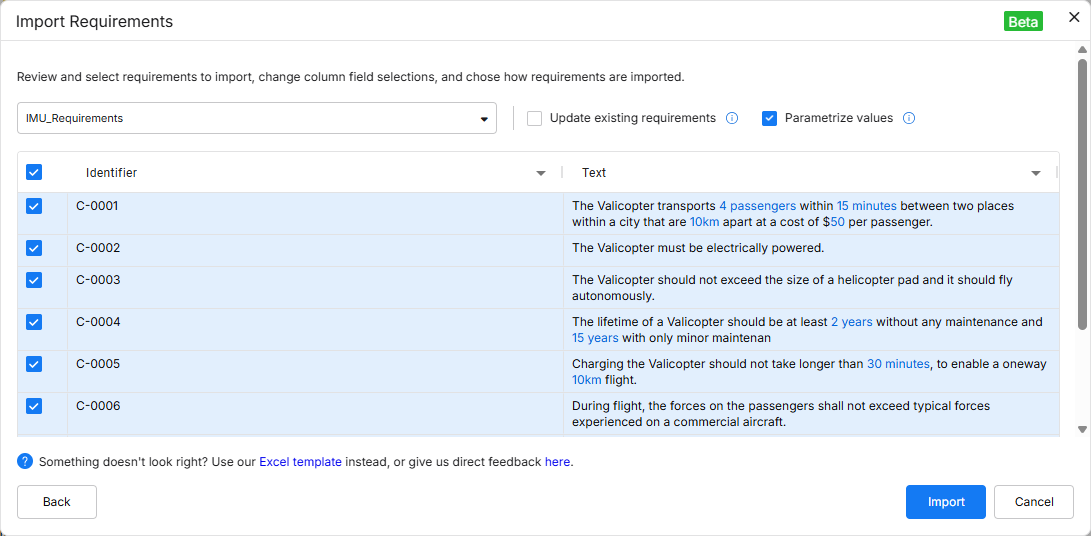
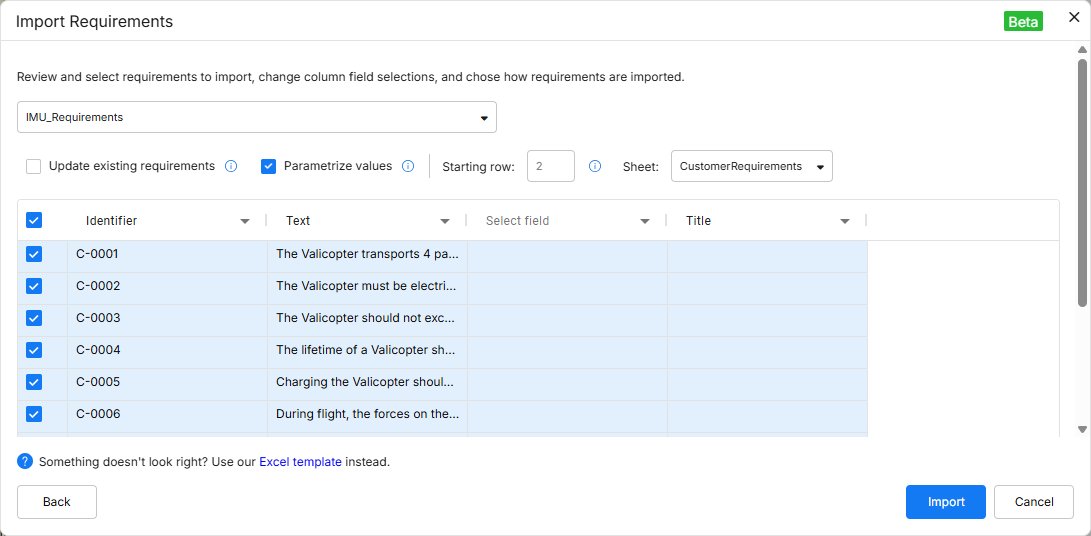
A number of improvements has been added to the AI importer:
-
Custom columns (including creating custom columns directly on the review page).
-
The ability to remap fields.
-
The ability to update existing requirements with the imported data.
For more information, refer to the Import Requirements page.
Engineering Assistant Improvements
The following improvements have been implemented to the Engineering Assistant functionality in this release:
-
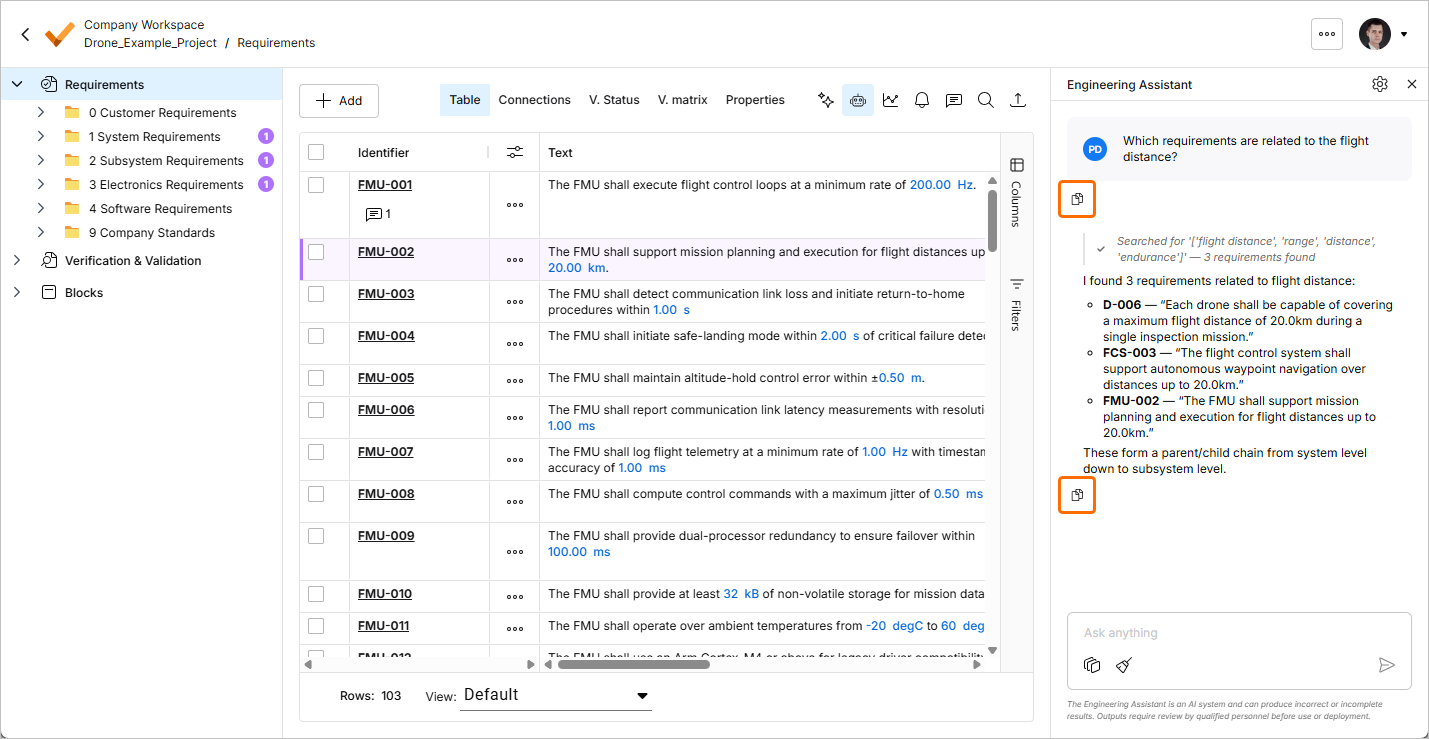
You can now copy your previously sent request or a response from the Engineering Assistant. Click the
 button in under a request or response to copy its content to the clipboard.
-
You can now scroll through previously sent prompts by using the
Arrow UpandArrow Downkeys when the cursor is inside the text field in the Engineering Assistant pane.
For more information about the Engineering Assistant, refer to the Engineering Assistant page.
Support for the REST API
In this release, support for the REST API has been added to Requirements Portal. Using the REST API, you can get and modify data from Requirements Portal or even write data back into Requirements Portal and thus update information. Additionally, this gives you the possibility to connect/integrate with other applications.
For more information, refer to the Rest API and Python API Documentation page.
Update - 27 July 2026
Key Highlights
-
The Engineering Assistant functionality has been updated with the ability to use Skills. A skill is a reusable instruction set that the Engineering Assistant can execute in to perform a specific task more consistently. A skill packages how a specific engineering task should be done – the intent, the boundaries, the inputs it needs, the steps to follow – so that the same outcome is produced consistently, regardless of who runs it or when and without each user having to explain the same instructions every time.
A skill can be treated as:
-
A repeatable engineering workflow
-
An organizational standard made executable
-
A way to package expertise and make it reusable
A set of available skills is managed using the AI Skills window accessed by clicking the
 button at the top right of the Engineering Assistant pane. From this window, you can add new and change and delete existing skills.

Skills are invoked automatically by the AI which selects and applies them automatically based on your intent. You do not need to memorize commands or manually select skills. For example, when you send
Rewrite these requirements using our company writing standard, the Engineering Assistant detects the intent (requirement standardization), identifies the skill whose short description best matches that request, executes the instructions defined in that skill, and returns the improved requirements.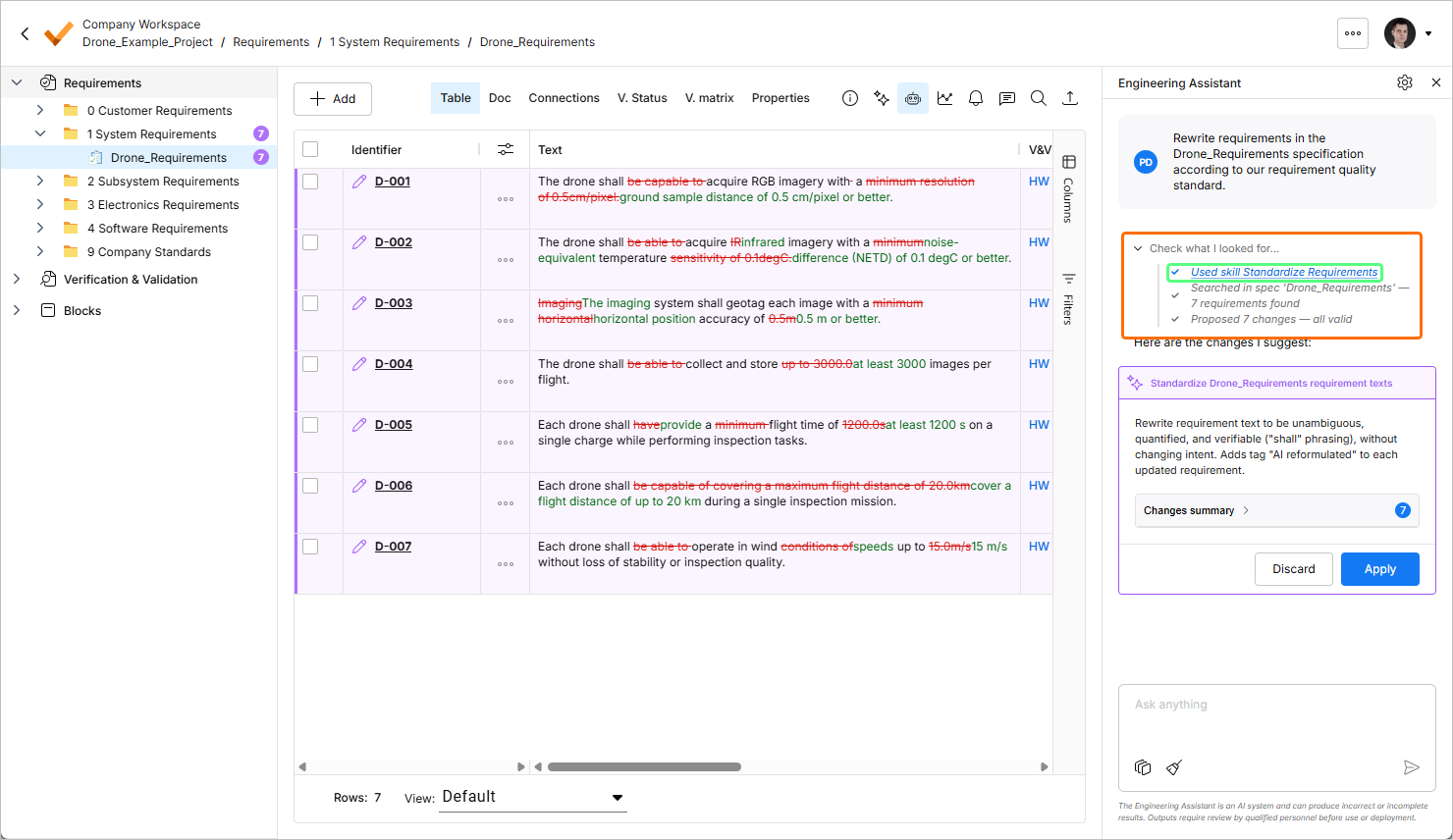
For more information about AI skills, refer to the Using and Managing AI Skills page.
-
-
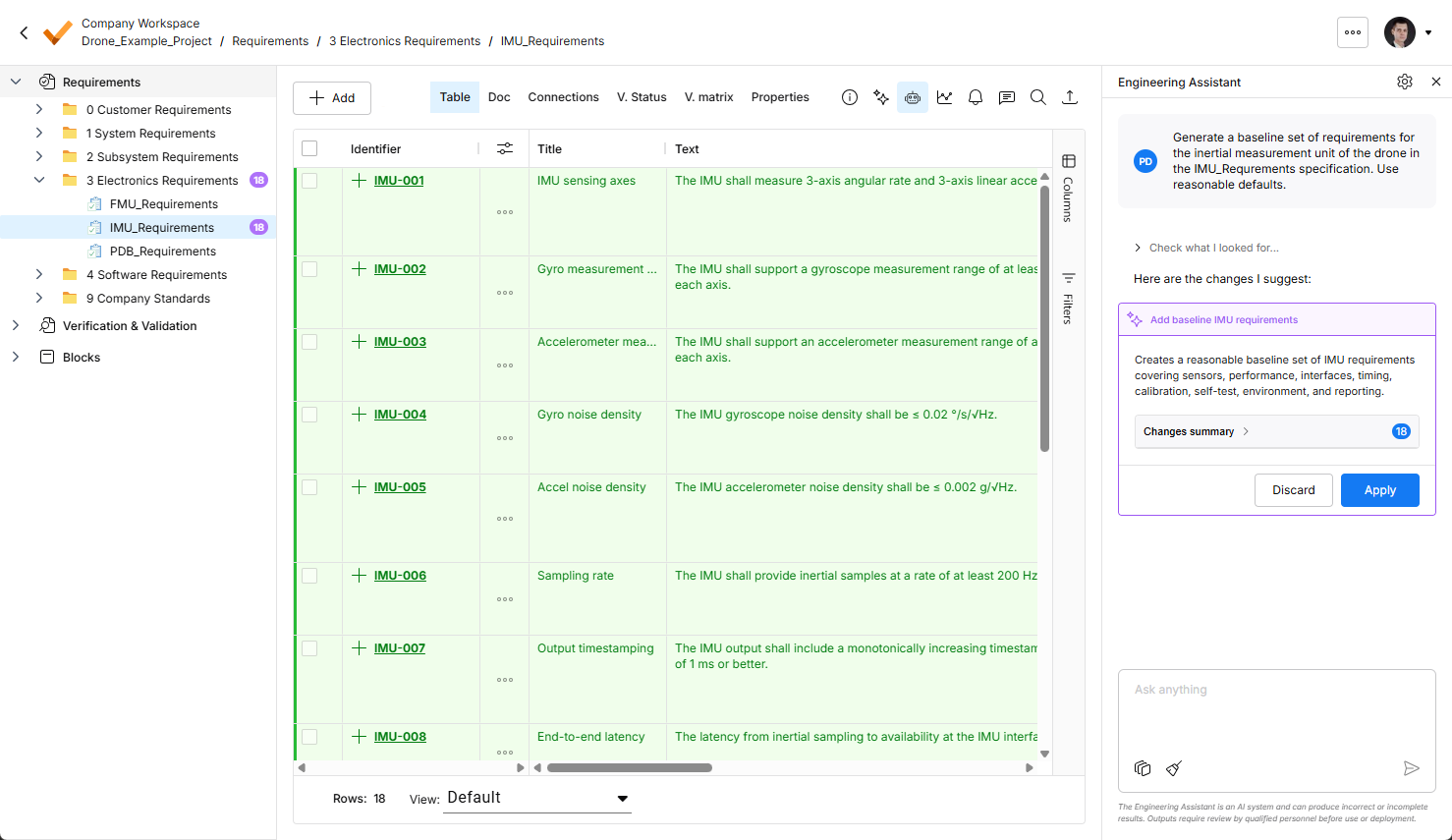
Highlight of changes suggested by the Engineering Assistant has been enhanced in this release. Now, all suggested changes are visible in the requirements table.
-
New requirements are highlighted in green, with the icon in the
 icon in the Identifier column.
-
Changed requirements are highlighted in purple, with the
 icon in the Identifier column. Actual changes are also highlighted in the table.
-
Requirements suggested for removal are highlighted in red, with the
 icon in the Identifier column.
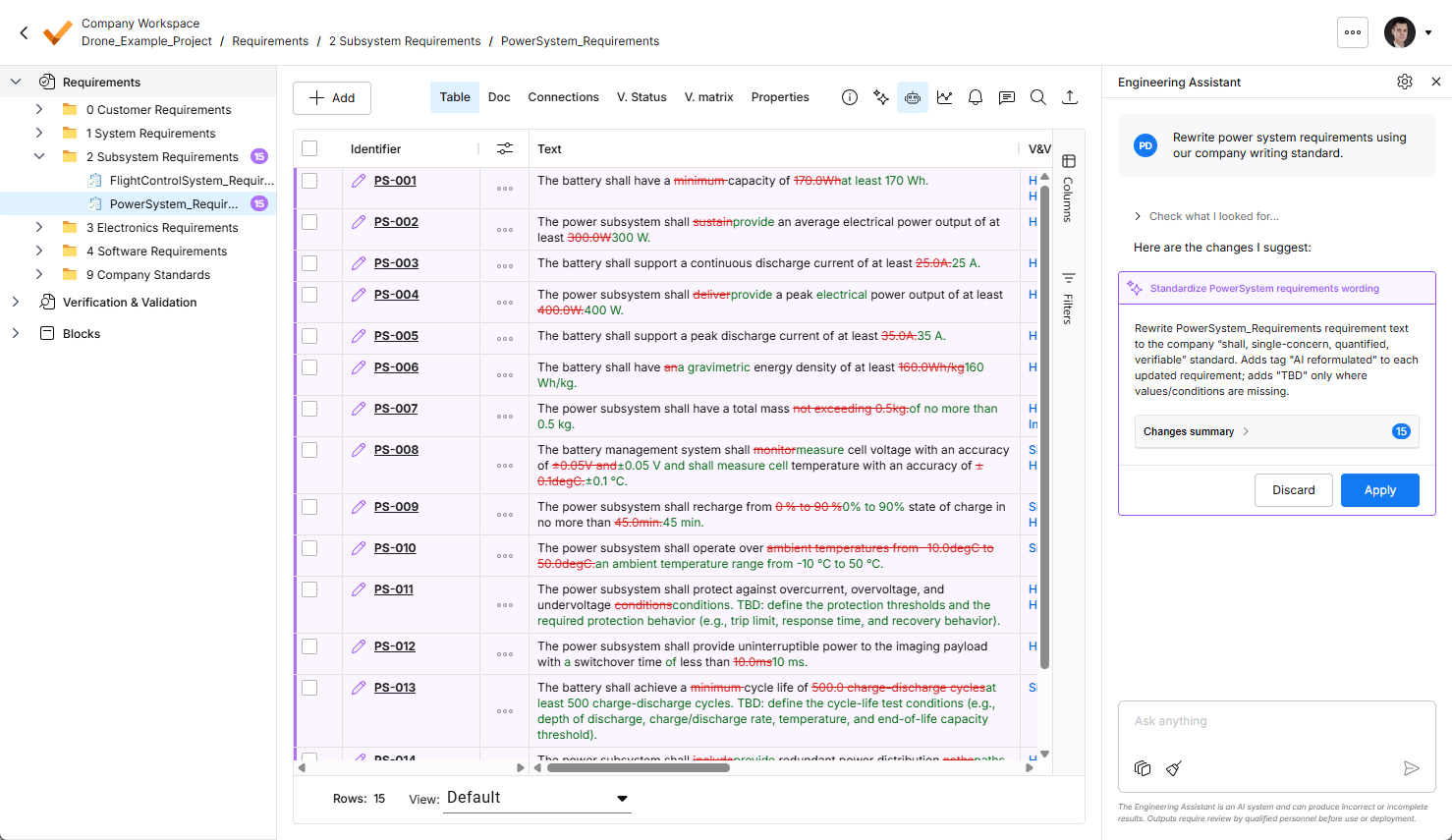
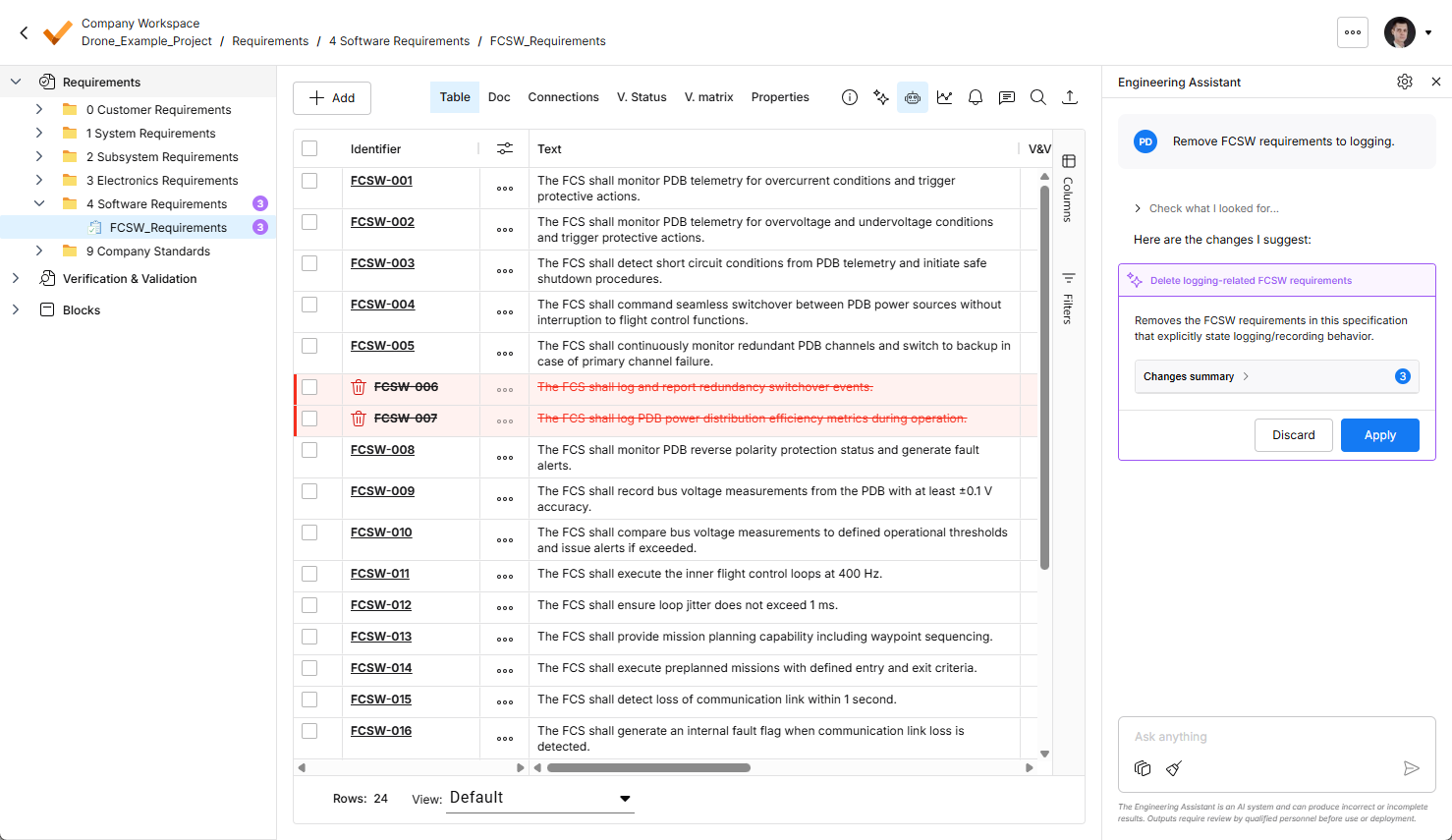
For more information about the Engineering Assistant, refer to the Engineering Assistant page.
-


Update - 9 July 2026
Key Highlights
-
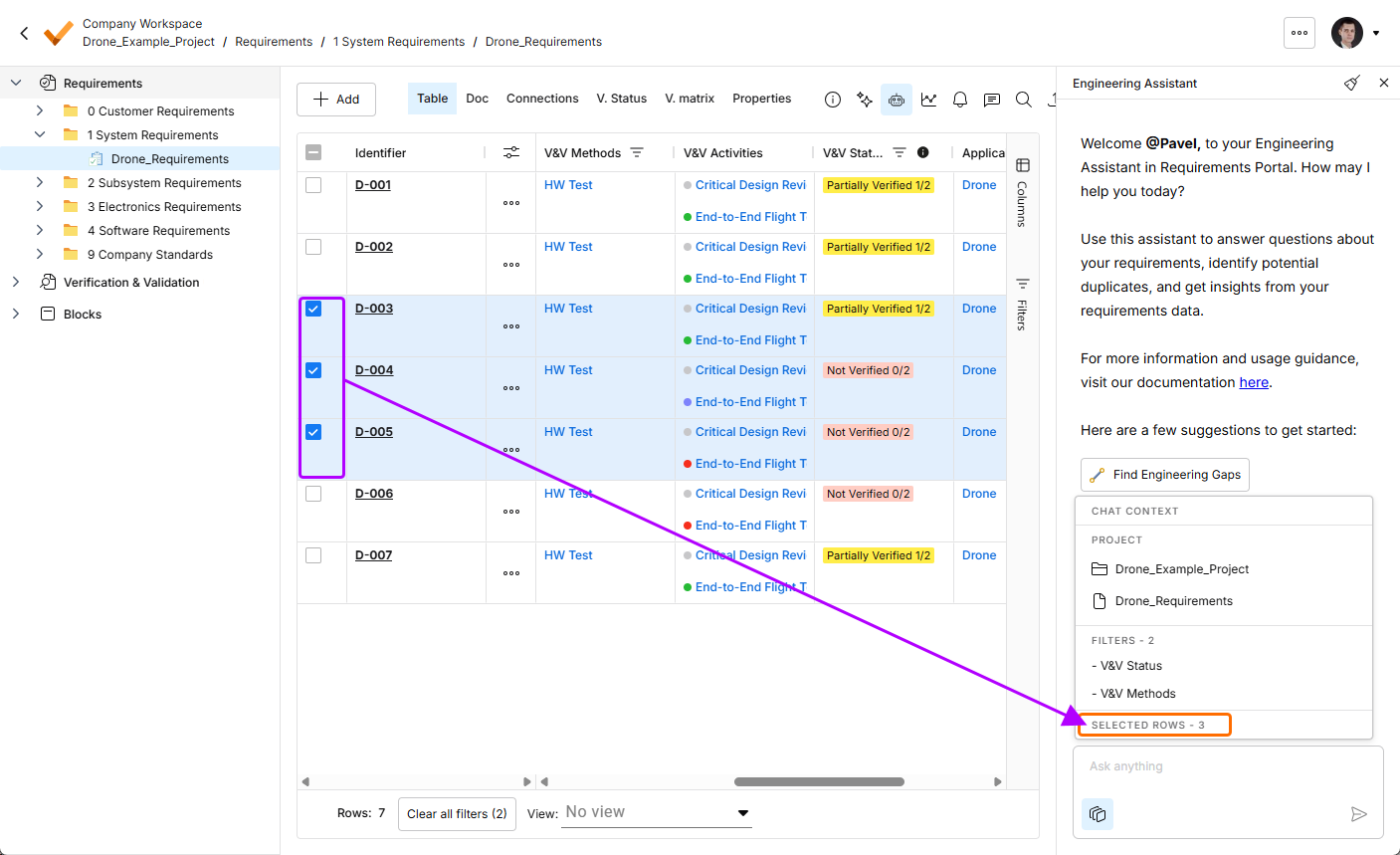
The Engineering Assistant functionality has been updated with the ability to show the current chat context. Click the
 button at the bottom of the Engineering Assistant pane to display the Chat Context pop-up presenting the following information:
-
Project – shows the name of the current project and the name of the currently selected folder, specification, or section.
-
Filters – shows the number of filters currently applied to the table and the list of columns to which the filters are applied.
-
Rows selected – shows the number of currently selected requirement rows.
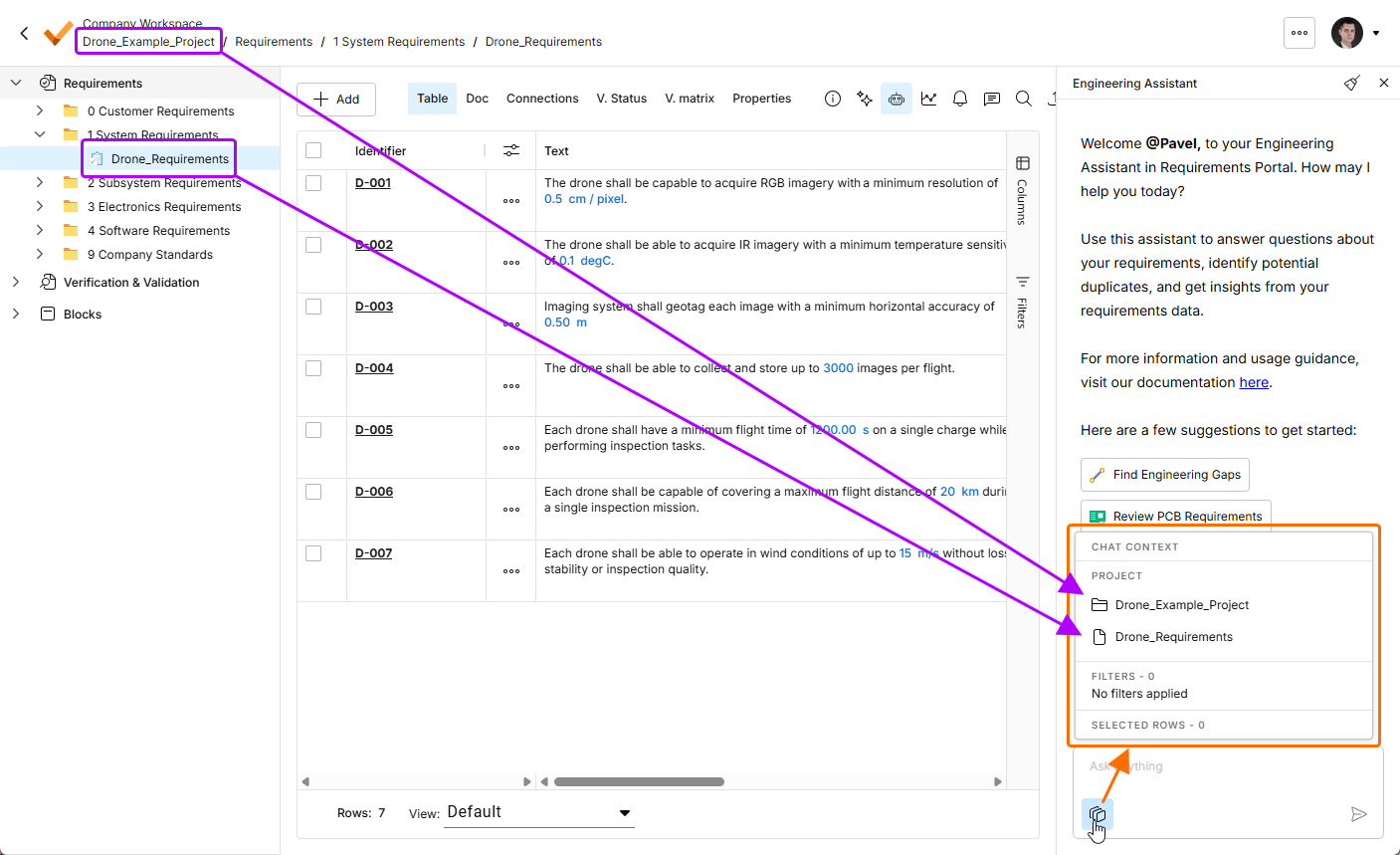
Click the
button to open the Chat Context pop-up. In this example, the Project region shows the name of the current project (Drone_Example_Project) and the name of the currently selected specification (Drone_Requirements).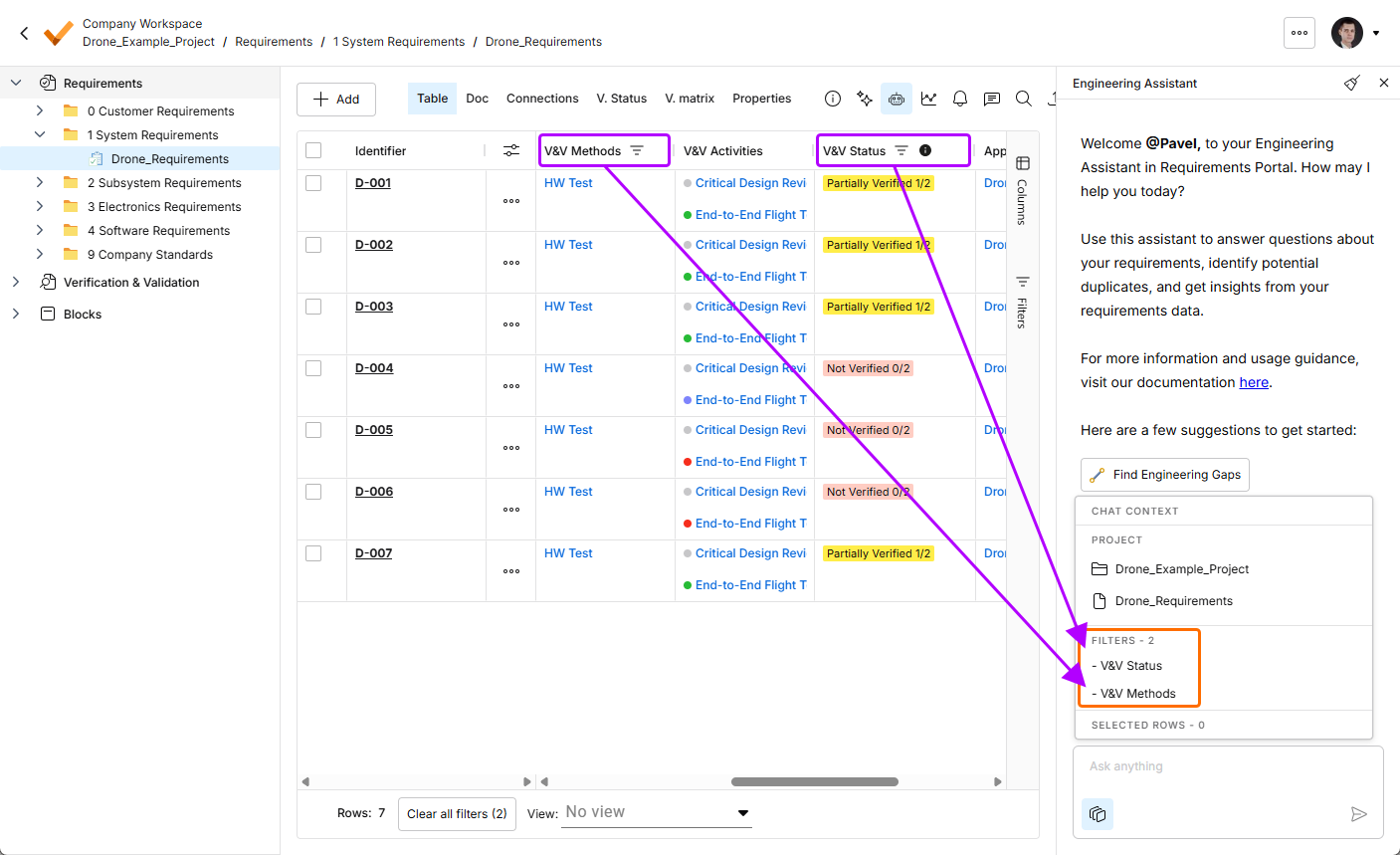
-
-
The Engineering Assistant functionality has been updated with the ability to perform a search in a specific folder.
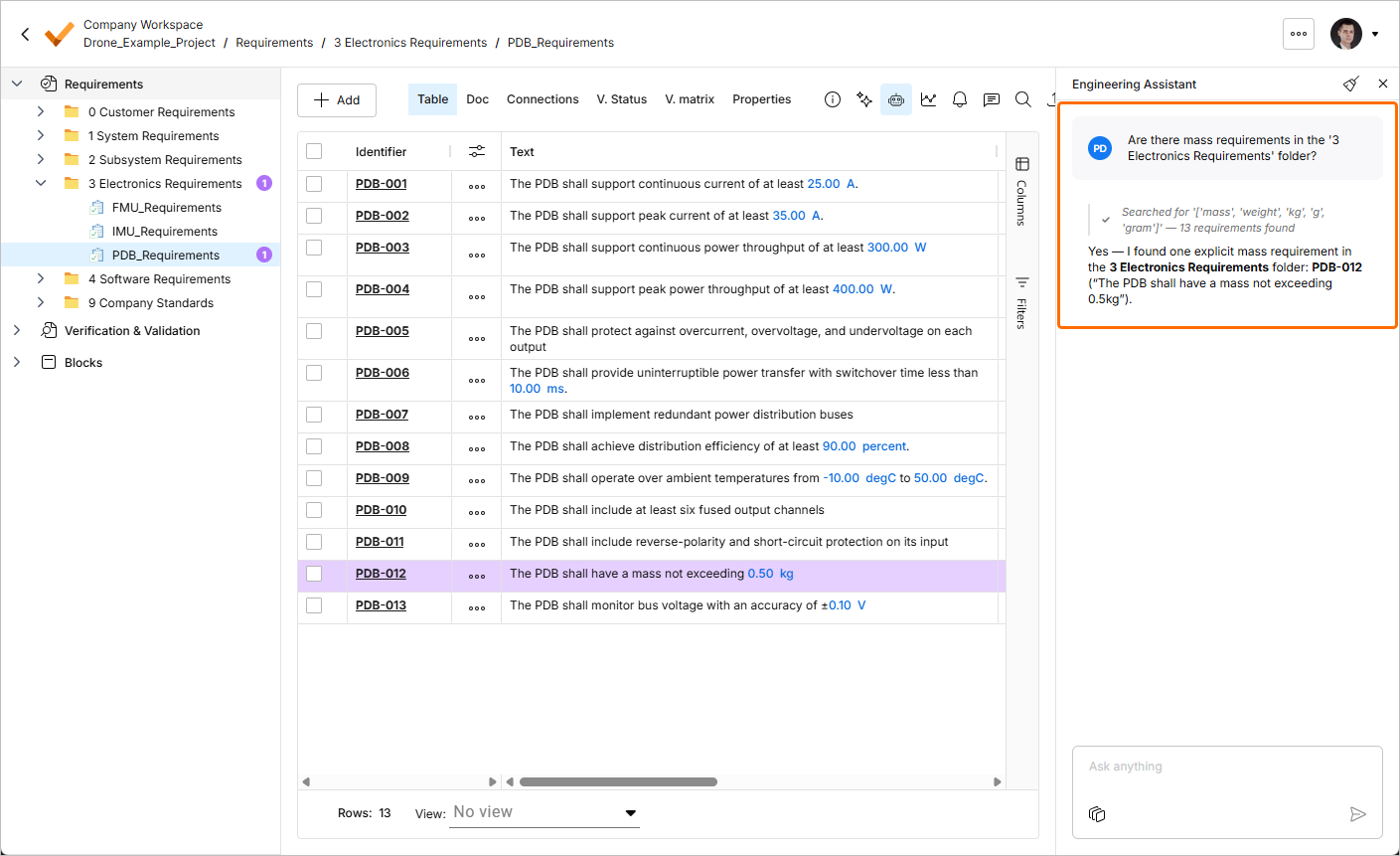
For more information about the Engineering Assistant, refer to the Engineering Assistant page.
Update - 6 July 2026
Key Highlights
This release includes bug fixes to enhance the overall functionality and user experience.
Update - 23 June 2026
Key Highlights
-
The Engineering Assistant functionality has been extended with the ability to modify, create, or delete requirements. Now, you can submit requests such as:
-
Generate requirements for a lightweight drone power supply that takes a 6S LiPo input, provides regulated 5 V / 5 A and 12 V / 3 A outputs, and weighs under 150 g. It should handle vibration and -10°C to +50°C operation, with protection for short circuit, reverse polarity, overtemperature, and low battery.
-
Change the required maximum operating temperature for all parts to 60°C.
-
Can you identify all requirements that affect the sizing of the power system and ensure they are verifiable?
-
In the new design, I've replaced the camera with an IR sensor. Remove all requirements that were related to the camera.
When you submit a request to the Engineering Assistant to create a new or change or delete an existing requirement, suggested changes will be shown in a dedicated tile within the Engineering Assistant pane where you can review them (by expanding the Changes summary collapsible region) and then either apply or discard the changes.
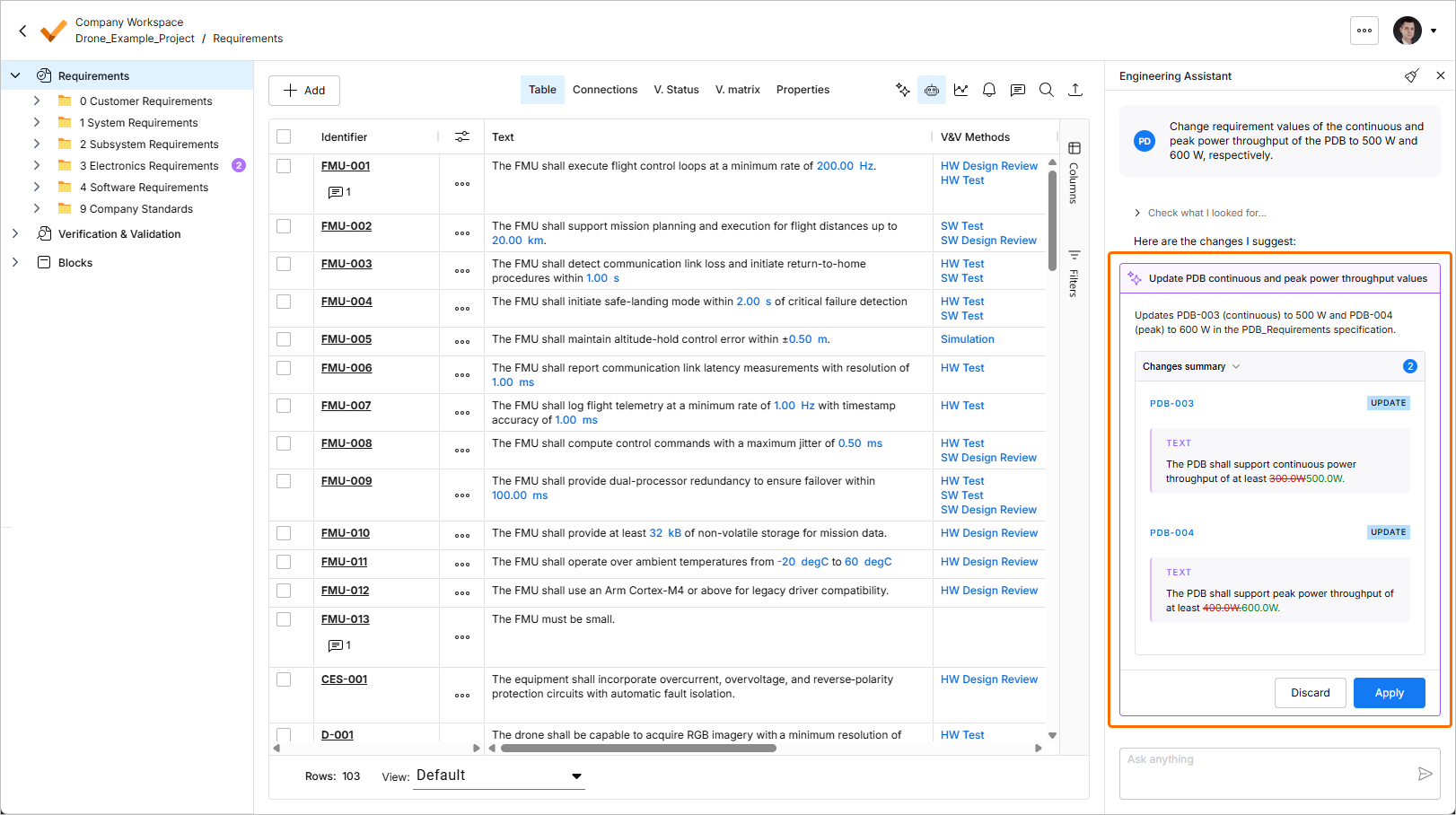
Also, the requirement(s) related to the latest query are now highlighted in the requirements table, and the number of related requirements is shown in the project tree next to the corresponding specifications, sections, and folders.
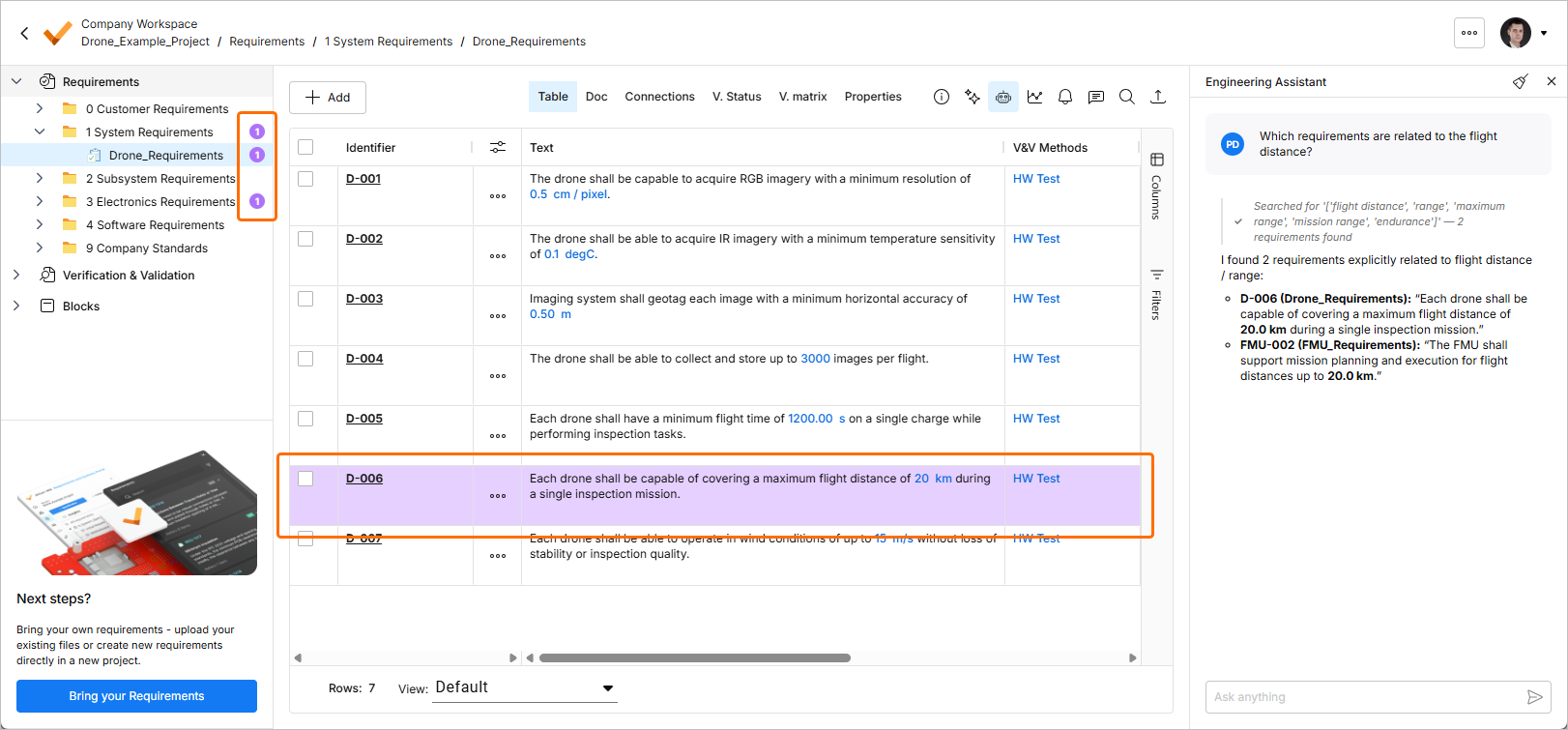
For more information about the Engineering Assistant, refer to the Engineering Assistant page.
-
-
The ability to delete a requirements project has been added. In Requirements Portal's Home page, click a project's
 control and select the Remove command of the menu that appears to remove that project. Before the deletion is complete, you will be asked to confirm.
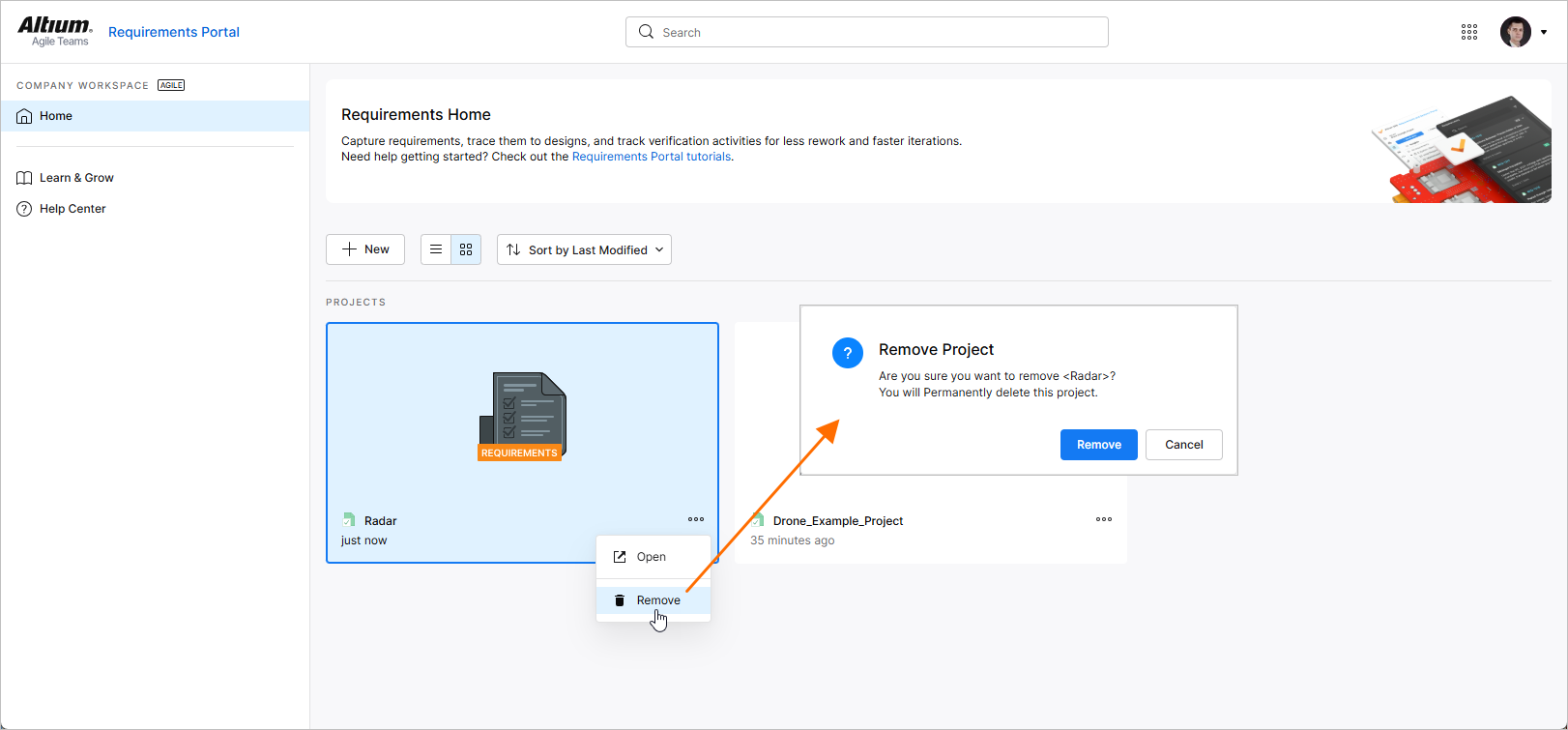
For more information about working with projects, refer to the Project Module page.
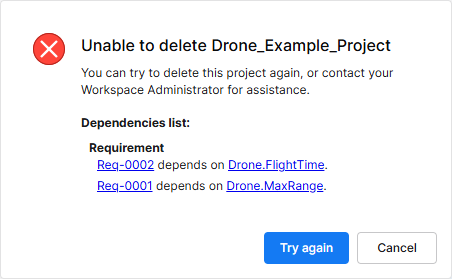 ).
Update - 10 June 2026
Key Highlights
In this release, support for commenting within your requirement projects has been added to Requirements Portal. A comment is a user-added note that is assigned to a specific requirement and may be replied to by other users. Comments promote collaboration between users without altering the shared data itself, because comments are stored by the Workspace independently of that data. You can mention one or more people or groups in the comment. A comment can also be assigned to a Workspace member.
Comments are posted, replied to, and managed directly within the requirements table using a contextual commenting window. Comments are also presented on the Comments and Tasks pane, which is presented on the right-hand side and provides more of an overview/navigational instrument, rather than the operational interface. Use the  control at the top right to toggle the display of the Comments and Tasks pane.
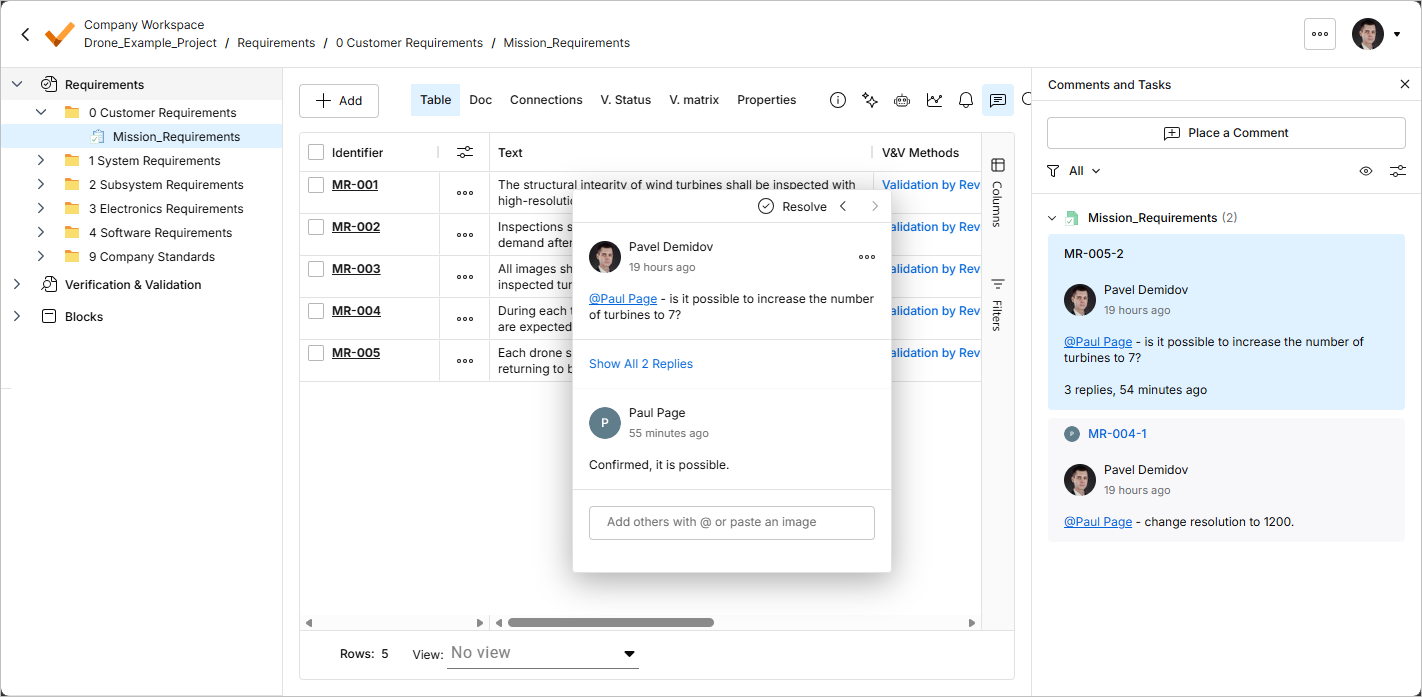
For more information, refer to the Commenting page.
Update - 29 May 2026
Key Highlights
AI agents provide substantial advantages for engineering tasks like requirements capturing by significantly enhancing efficiency and automating complex, repetitive workflows. In Requirements Portal, the Engineering Assistant functionality is now available. It leverages AI technologies to provide you with fast, automated review tool for your requirements that allows you to ask questions about requirements in your current project in free-form, natural language and get quick answers without manually filtering or searching through the requirements, for example:
-
How many requirements are not verified?
-
Are there any engineering gaps in these requirements?
-
Show me all requirements about the power supply.
-
Which requirements need to be taken into account for PCB design?
-
Do any requirements conflict with each other?
-
Give me an overview of all battery-related requirements.
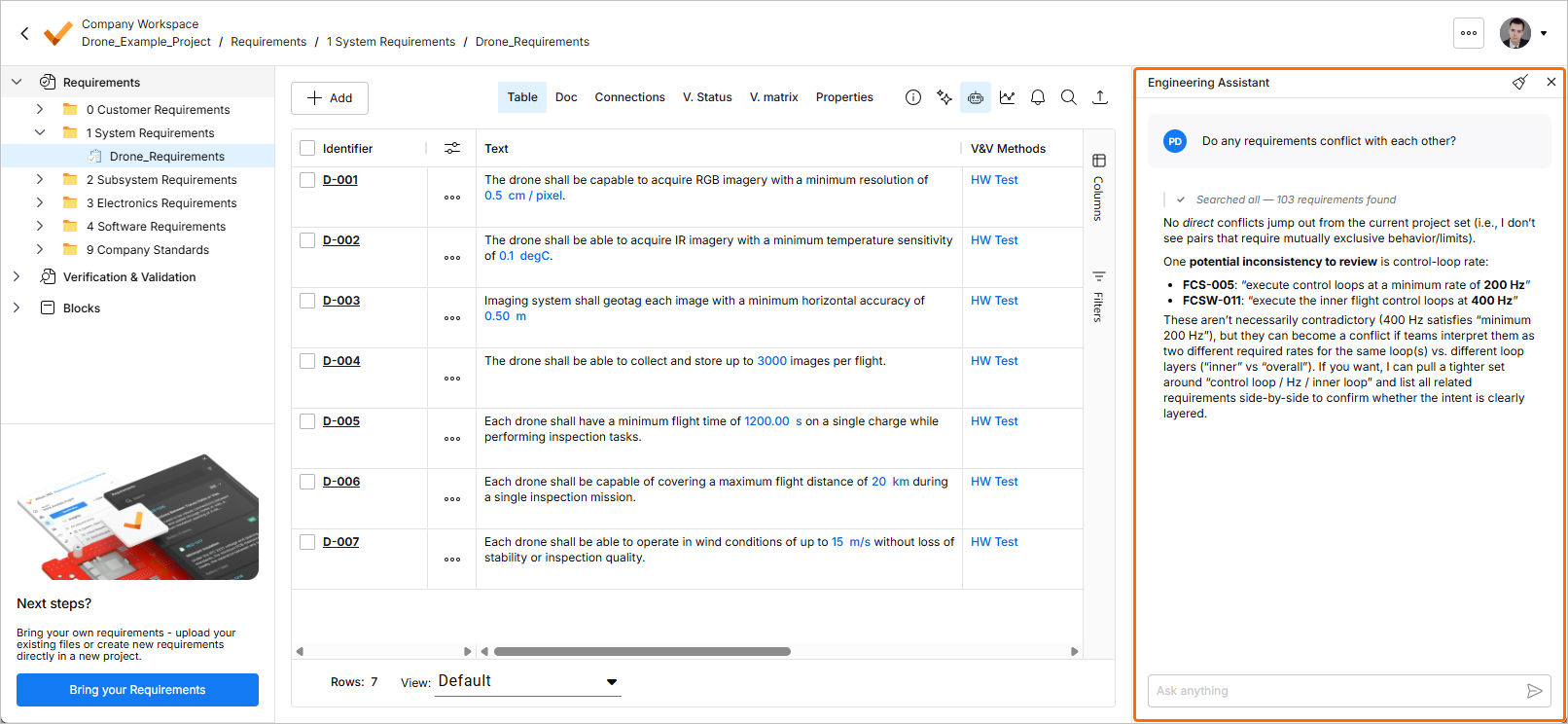
For more information, refer to the Agentic Requirements Engineering page.
Update - 13 May 2026
Key Highlights
This release includes bug fixes to enhance the overall functionality and user experience.
Update - 27 April 2026
Key Highlights
This release includes bug fixes to enhance the overall functionality and user experience.
Update - 14 April 2026
Key Highlights
Requirements Verification Improvements
-
For requirements that have no assigned V&V activities, you now have the ability to manually define their V&V status. Double-click the requirement's V&V Status cell and select either Verified or Not Verified from the menu that appears.
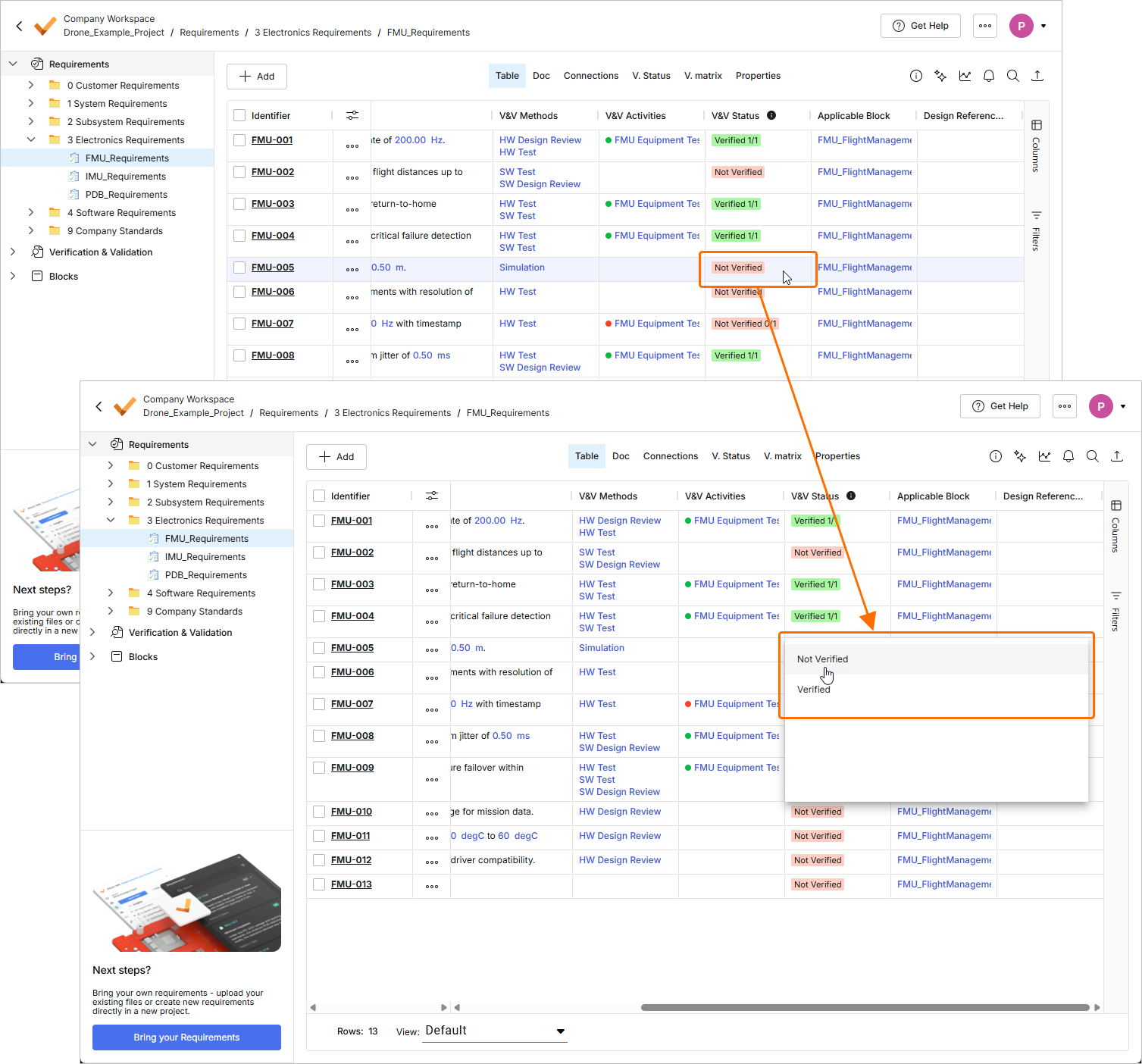
The V&V status of requirements that have linked V&V activities is set based on the status of these activities.
Additionally, V&V rules no longer affect the V&V Status of requirements.
For more information about requirements verification, refer to the Flow 4: Manual and Rules Verification Flow page.
-
When adding an applicable block to a requirement which V&V Status was manually set to Verified, you will now get a warning that the requirement was already verified. Use the warning window to choose either to keep the V&V status of the requirement or reset the status (set it to Not Verified) while adding the block.
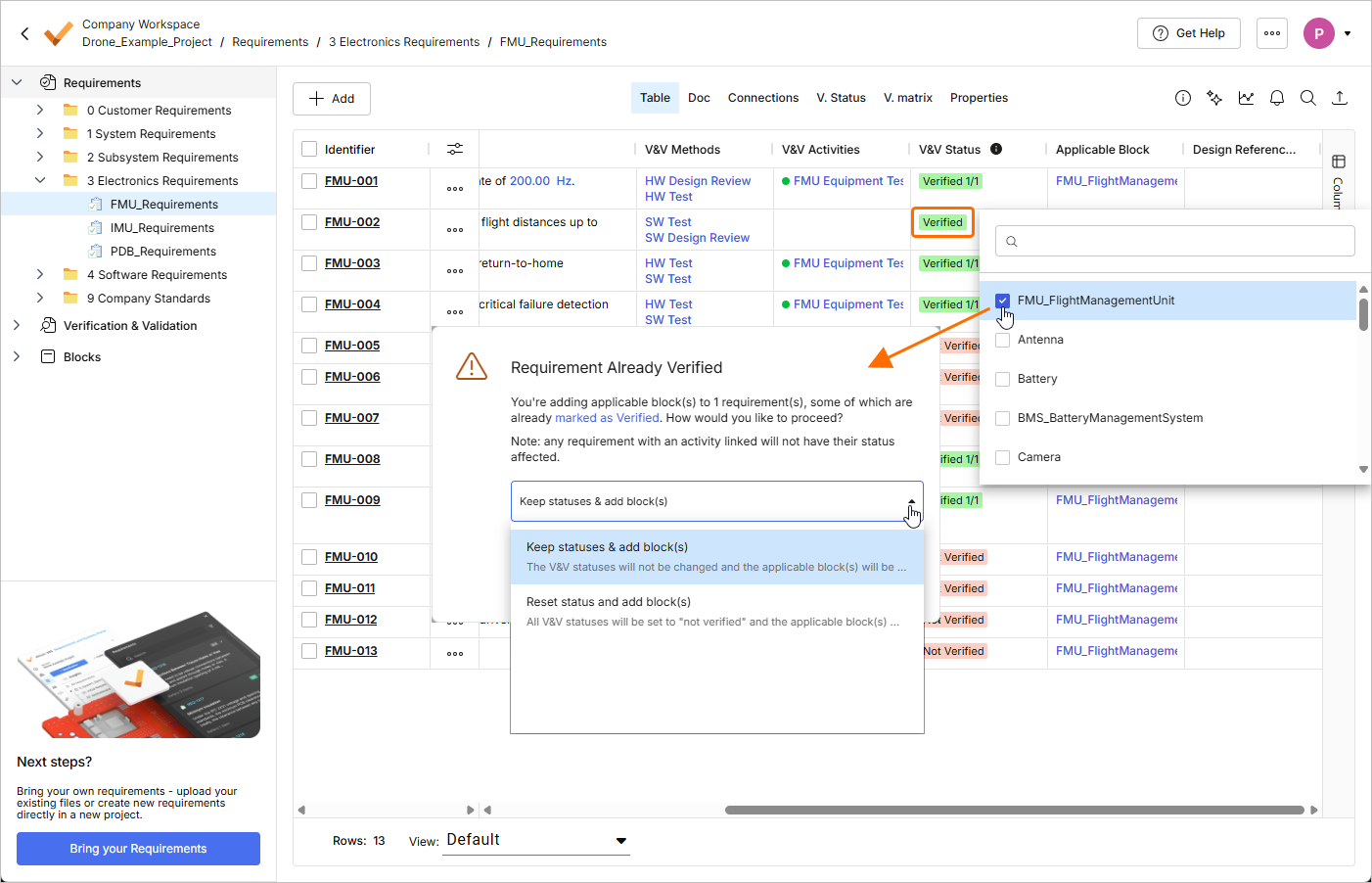
For more information about available requirement fields, refer to the Requirement Fields page.
-
When you copy requirements using the Custom Copy method and some of the requirement being copied have assigned V&V activities, a warning is now shown next to the V&V Status field of the Reuse Requirements window at the Select Fields to Copy & Synchronize stage.
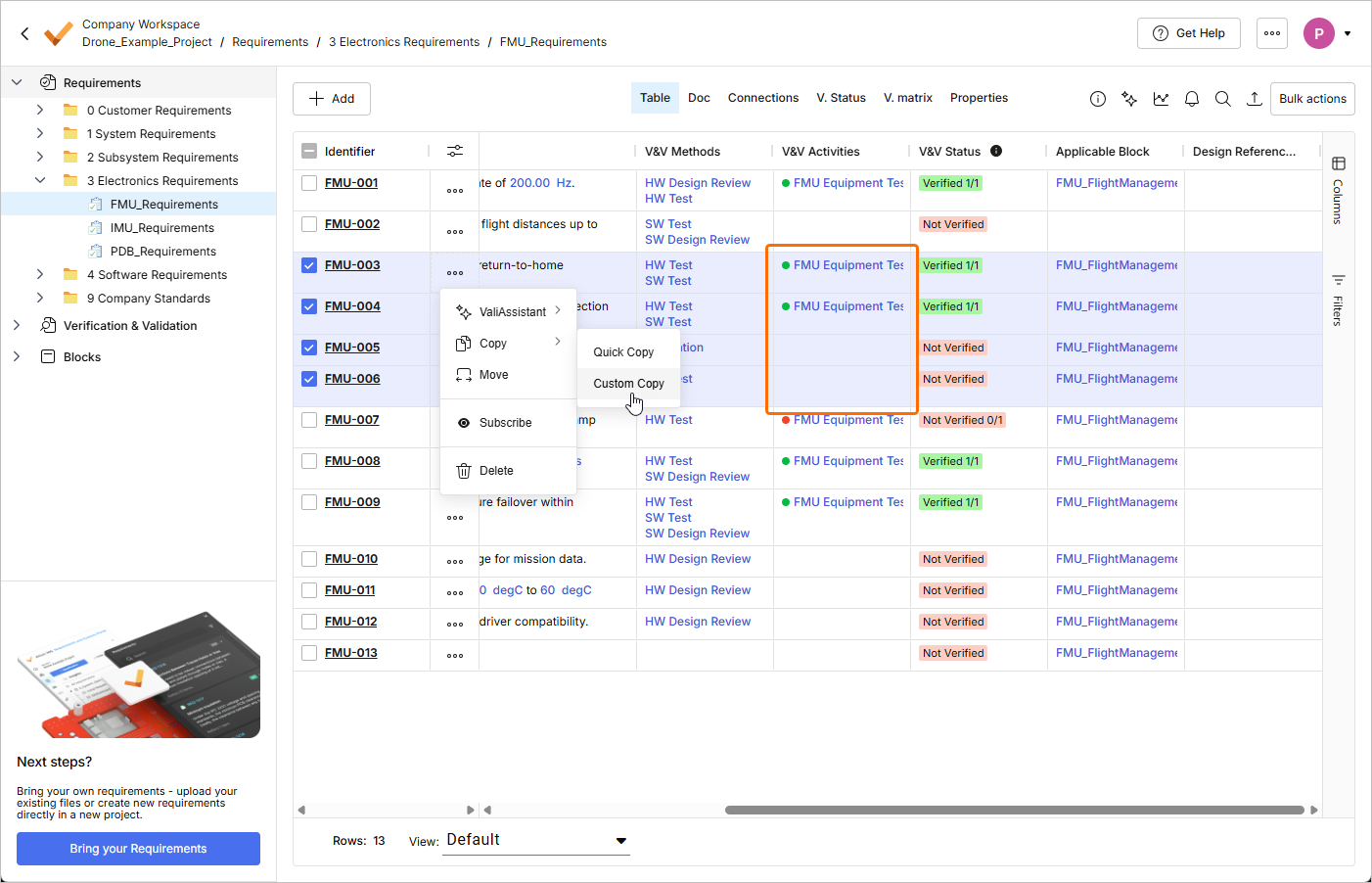
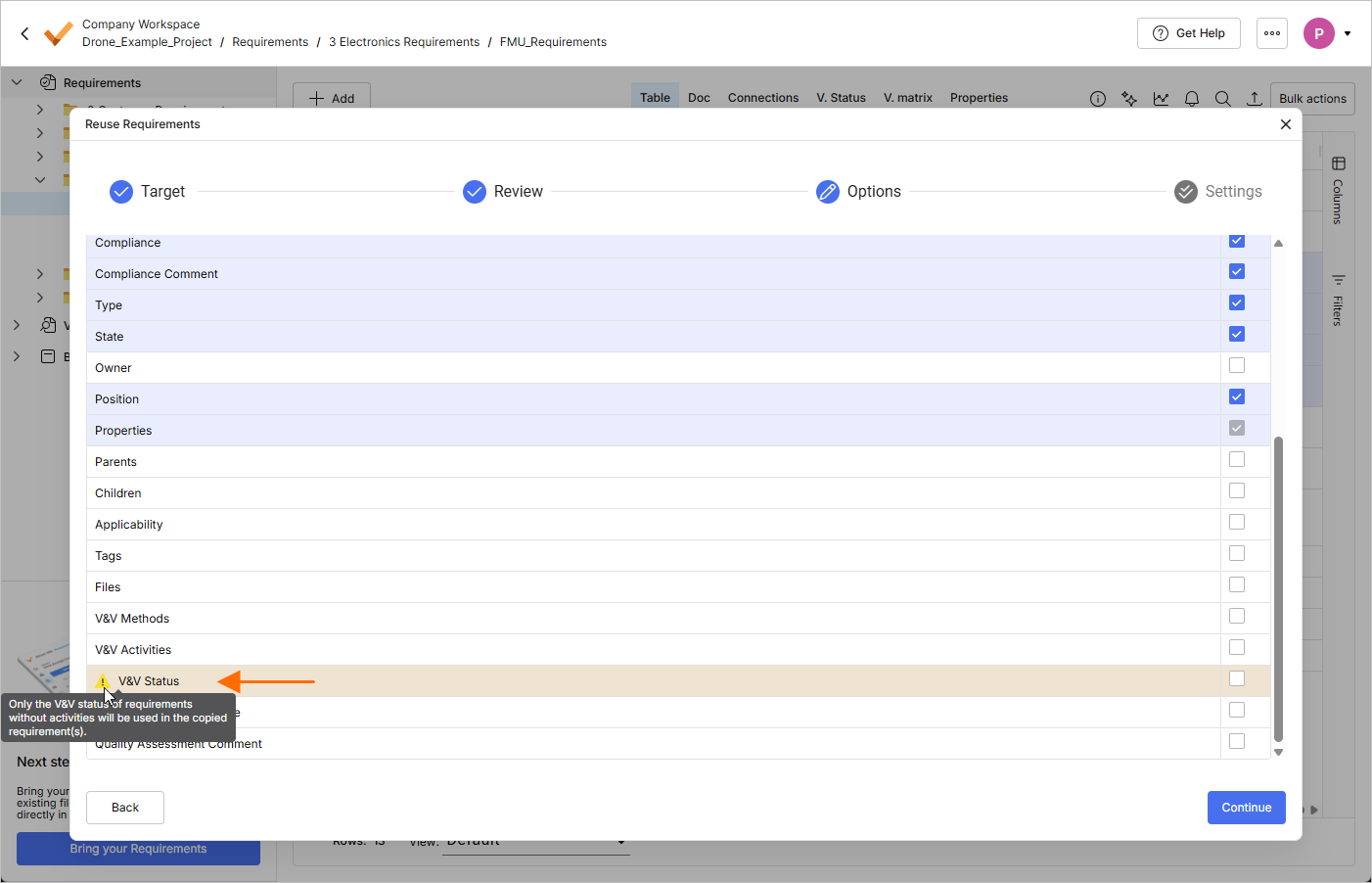
If all requirements being copied have assigned V&V activities, it will be not possible to select the V&V Status field as a field to be copied.
For more information about the Custom Copy feature, refer to the Reuse Requirements page.
Requirements Creation Improvements
-
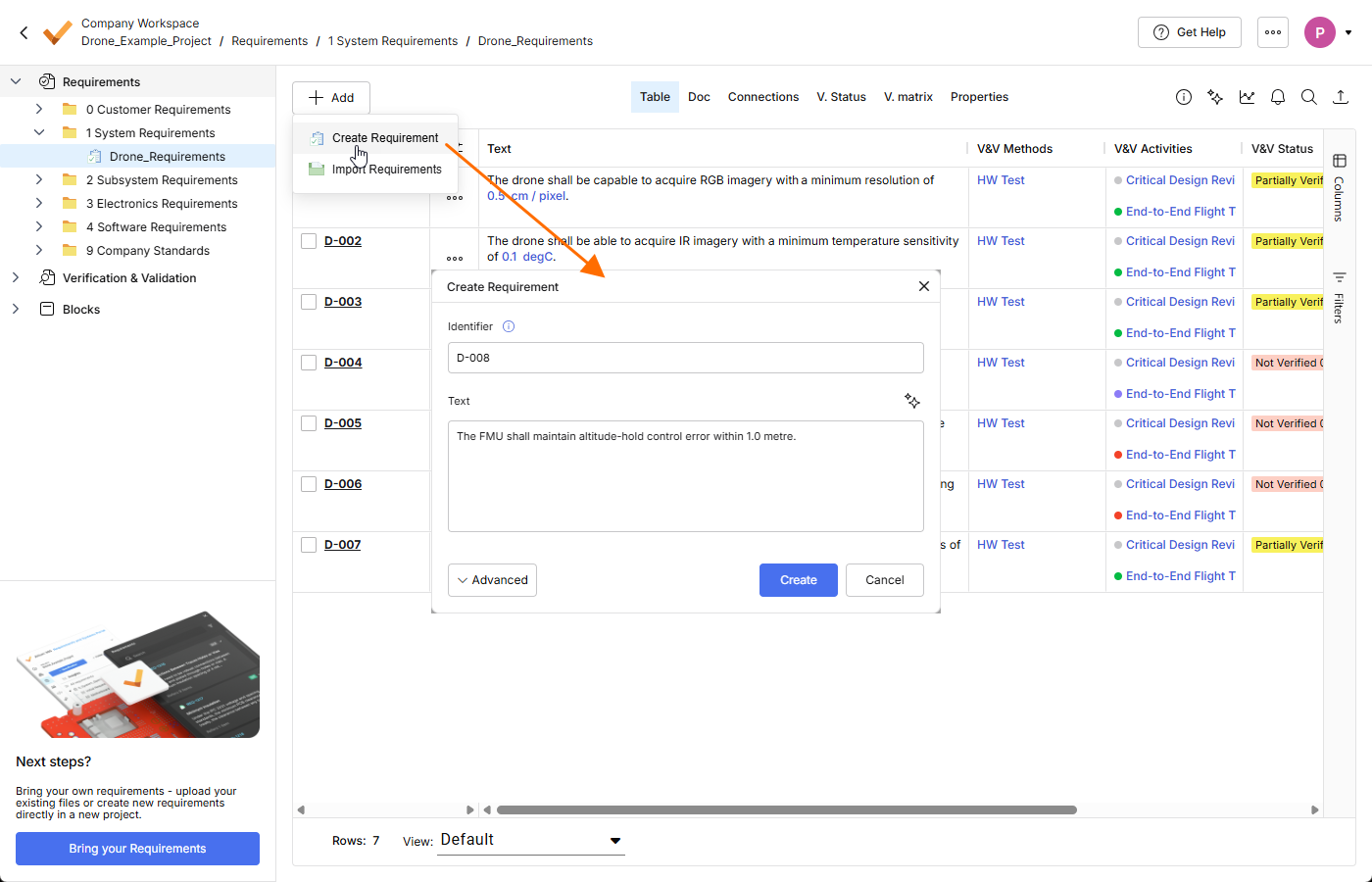
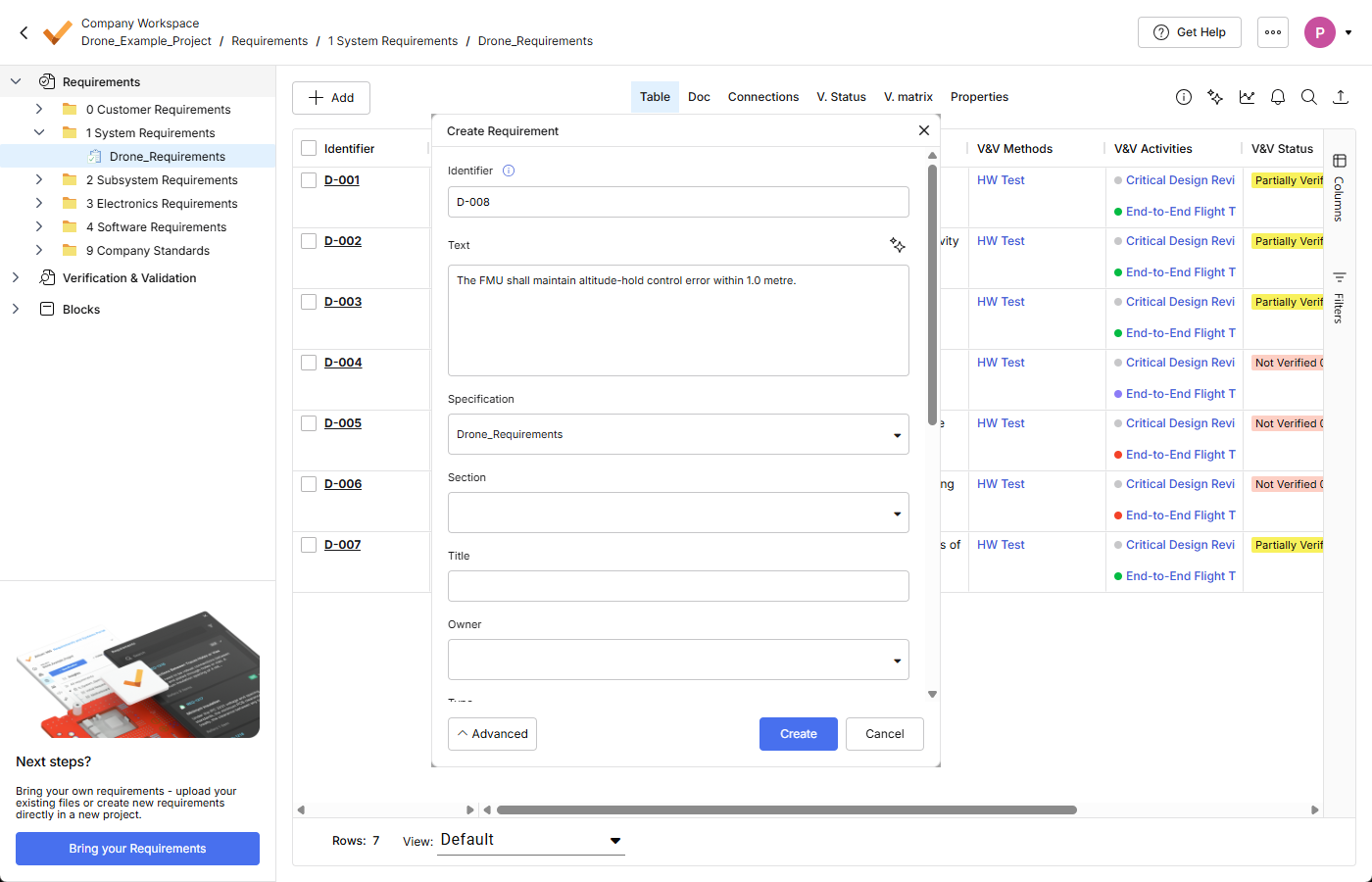
The Create Requirement window has been improved to provide a more straightforward process of creating a requirement. When the window is initially accessed, it is presented in a simple form, with the Identifier and Text fields only. Click the
 button at the bottom of the window to access other fields, such as Specification, Section, etc.
-
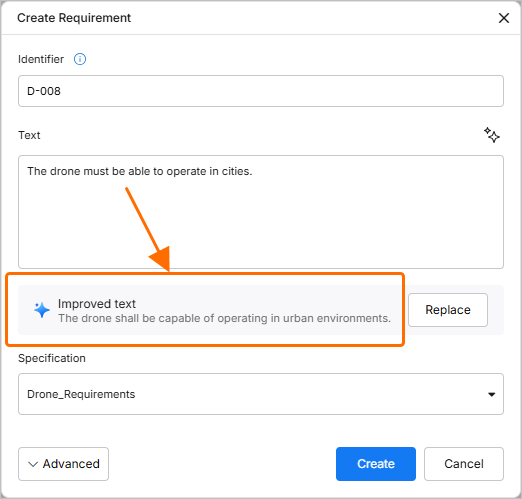
ValiAssistant now suggests improvements to the requirement text entered in the Text field of the Create Requirement window while you type the text (the process starts when you stop typing for three seconds). Alternatively, click the
 button at the top right of the field to start the process manually.
-
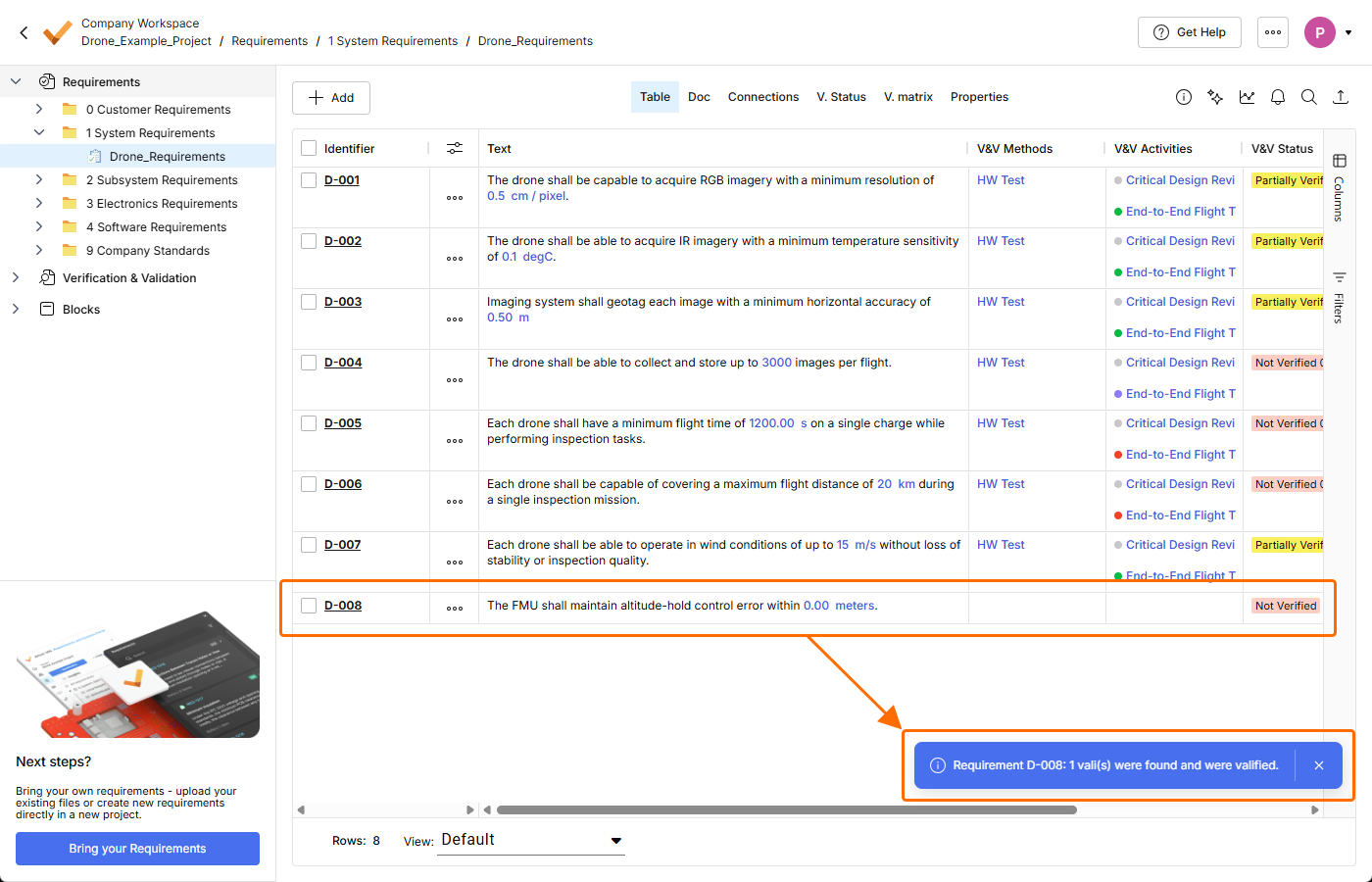
When you manually create a requirement and select to check it for possible valis (by enabling the Parametrize values option in the Create Requirement window), the process of valifying the requirement is now performed in the background. After clicking the
 button in the Create Requirement window, the requirement is now created immediately, without showing further windows related to the valifying process. Once the requirement is valified, you can click the
 button in the pop-up that appear at the bottom right of the page for details about the valifying process.
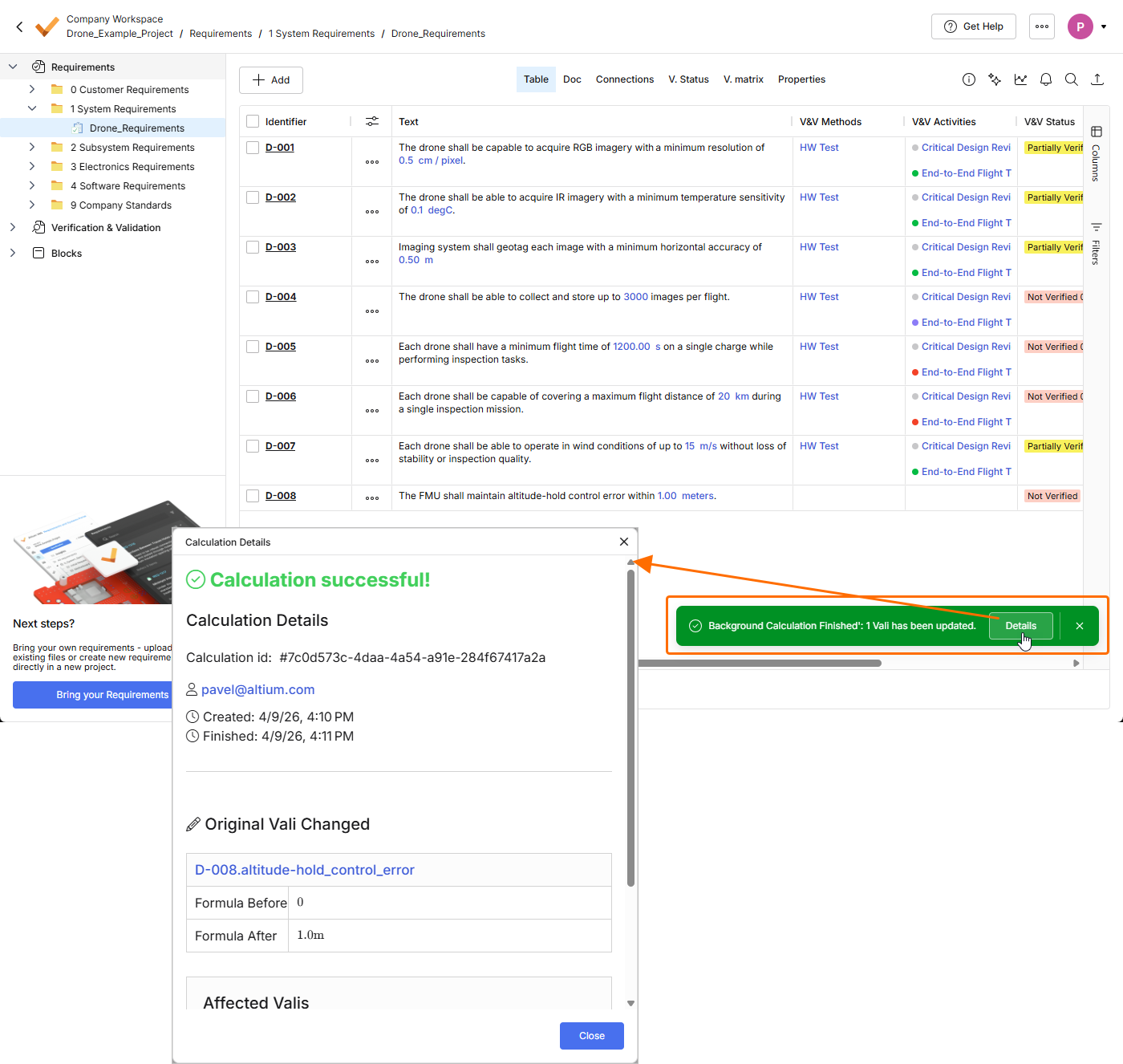
For more information about creating requirements, refer to the Creating Requirements page.
Other Improvements
-
In the Select Requirements window used to assign requirements to a block (accessed by clicking the
 button in the Requirements view of a block in the Blocks module), you now have the ability to select columns to be displayed in the window (Columns) and the ability to filter the content of the window based on requirements' Identifier, Text, and Specification.

For more information about the Blocks module, refer to the Blocks Module page.
-
To provide consistency with entities related to Verification & Validation, the Methods field has been renamed to V&V Methods in all places of Requirements Portal. Some examples of these places are shown below.
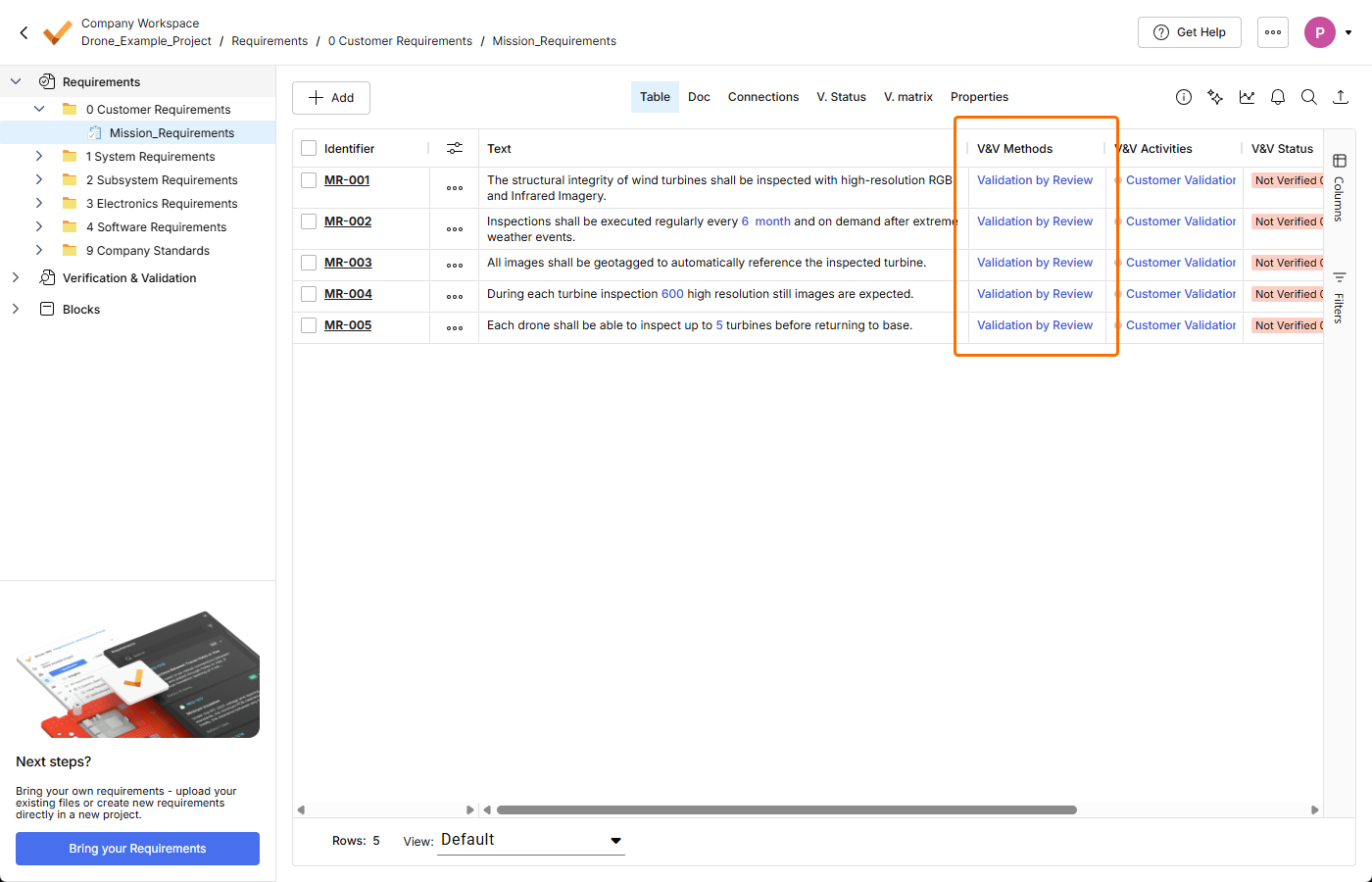
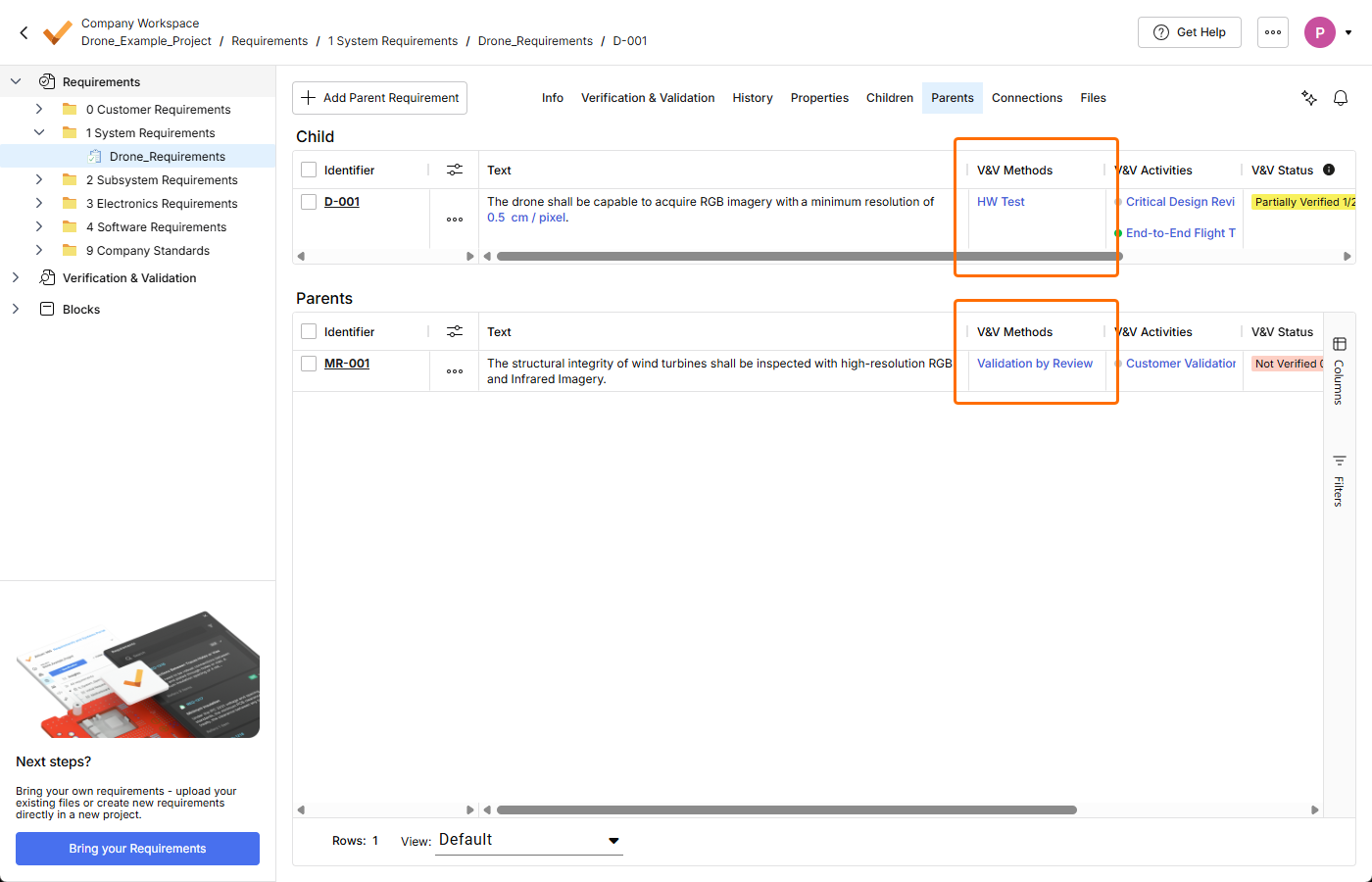
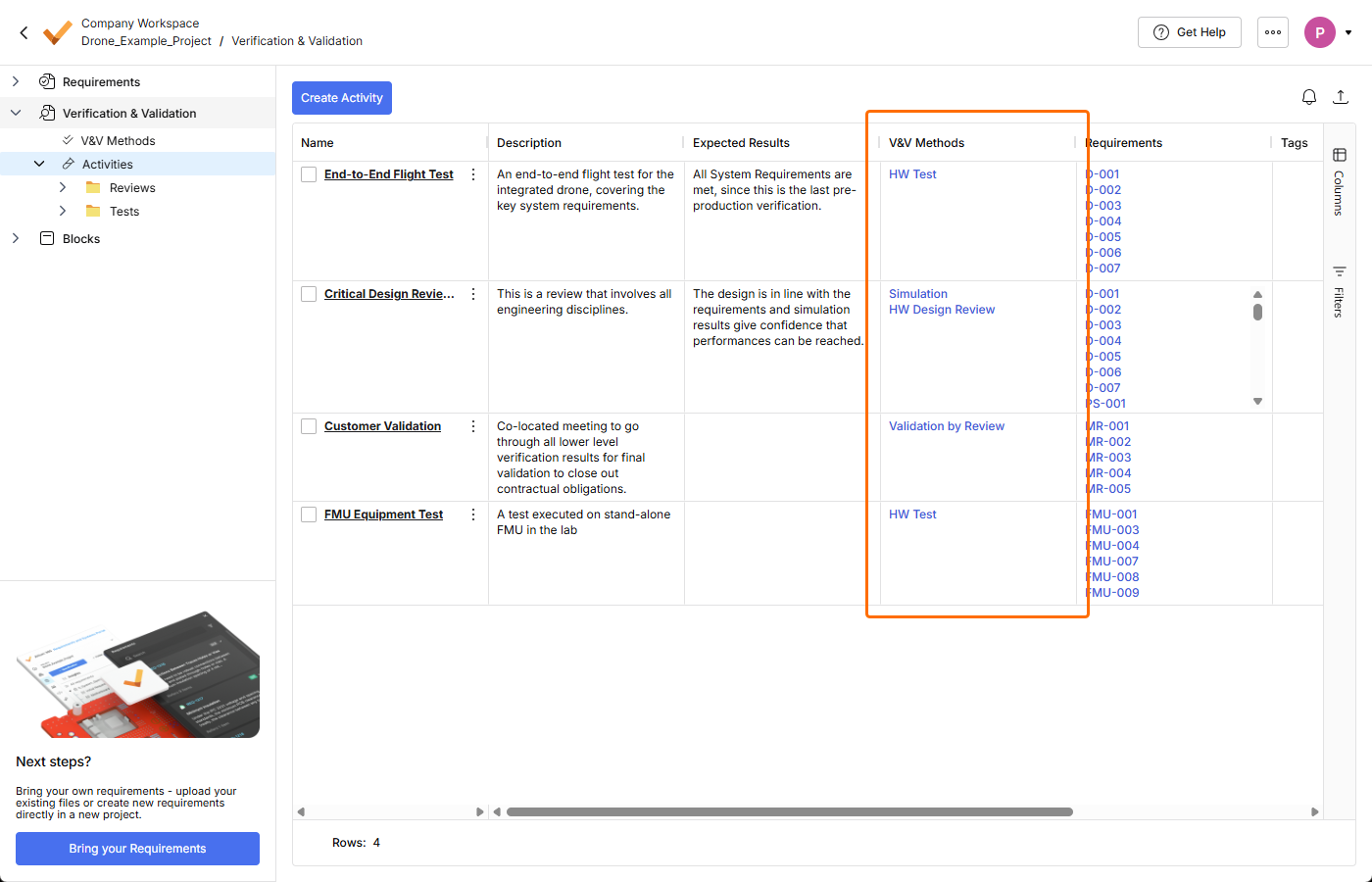
For more information about the Verification & Validation Module, refer to the Verification & Validation Module page.
Update - 31 March 2026
Key Highlights
This release includes bug fixes to enhance the overall functionality and user experience.
Update - 23 March 2026
Key Highlights
-
A new Home page has been introduced in Requirements Portal in this release. The page provides access to existing projects, which target requirements management, and also provides the ability to create a new project.
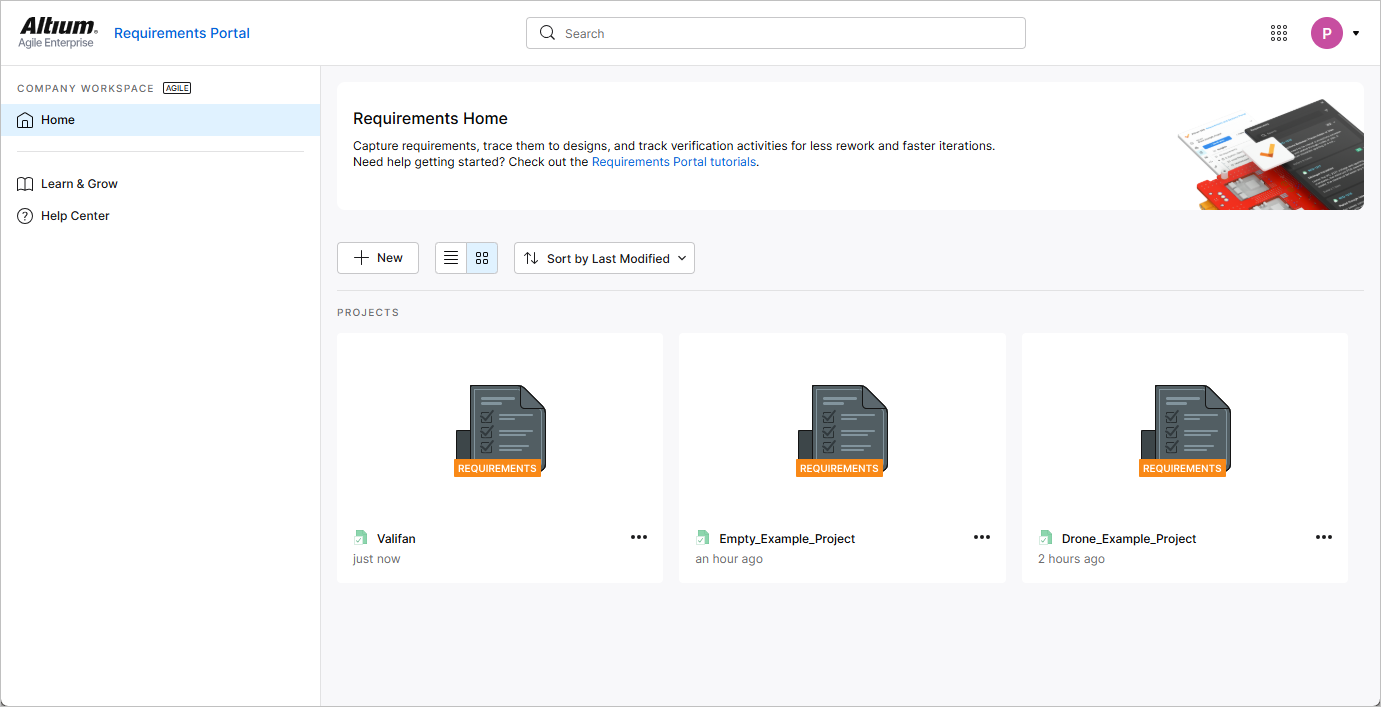
The Home page opens when accessing Requirements Portal using the nine-dot menu at the top right of the Workspace's browser-based interface.
For more information, refer to the Project Module page.
-
When creating a new requirement while the Requirements entry is selected in the project tree (i.e., no specific specification is currently selected), a default specification (the first specification in alphabetical order) is now selected in the Specification field of the Create new requirement window.
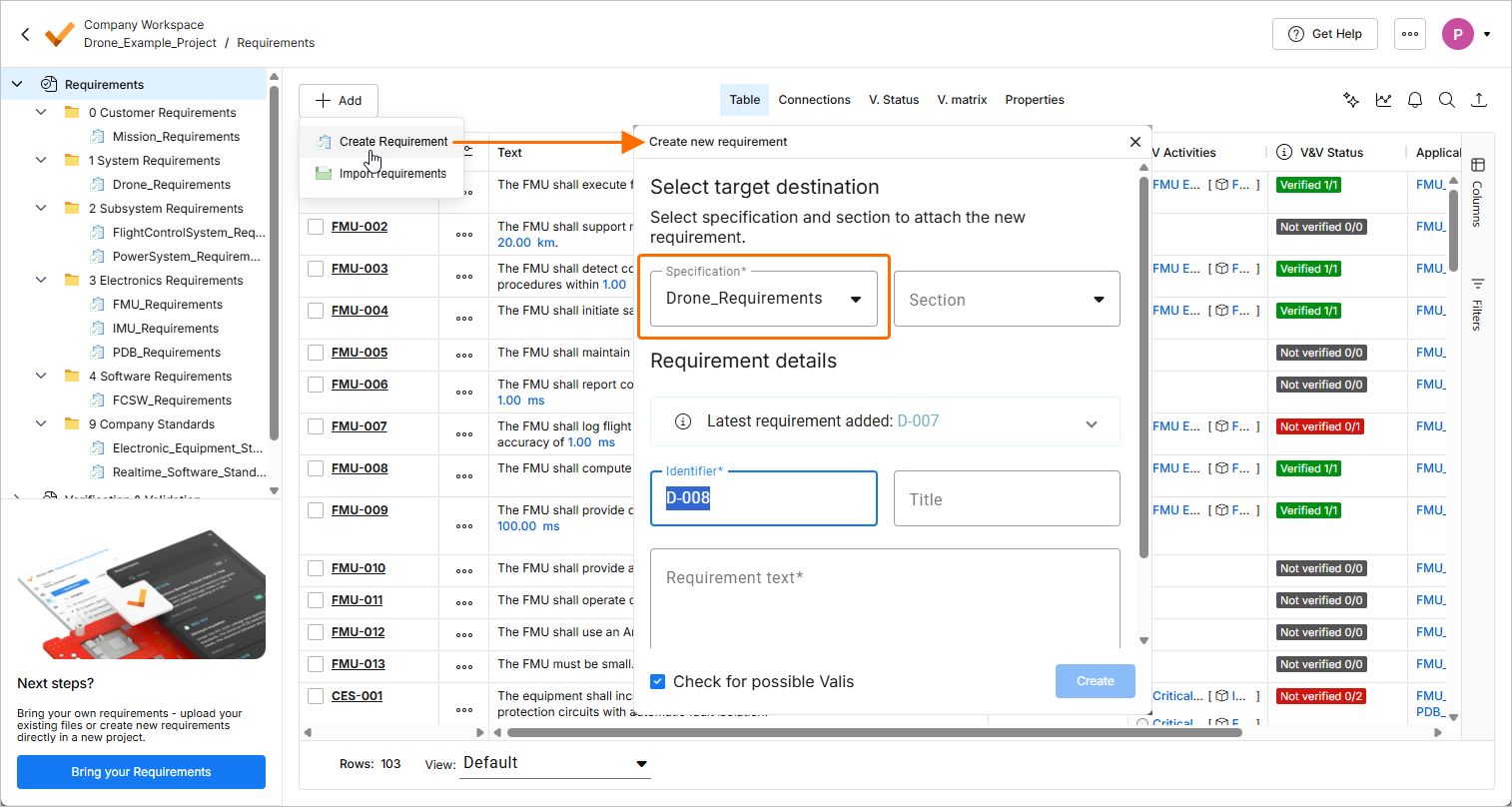
If the project has a single specification, it will be selected.
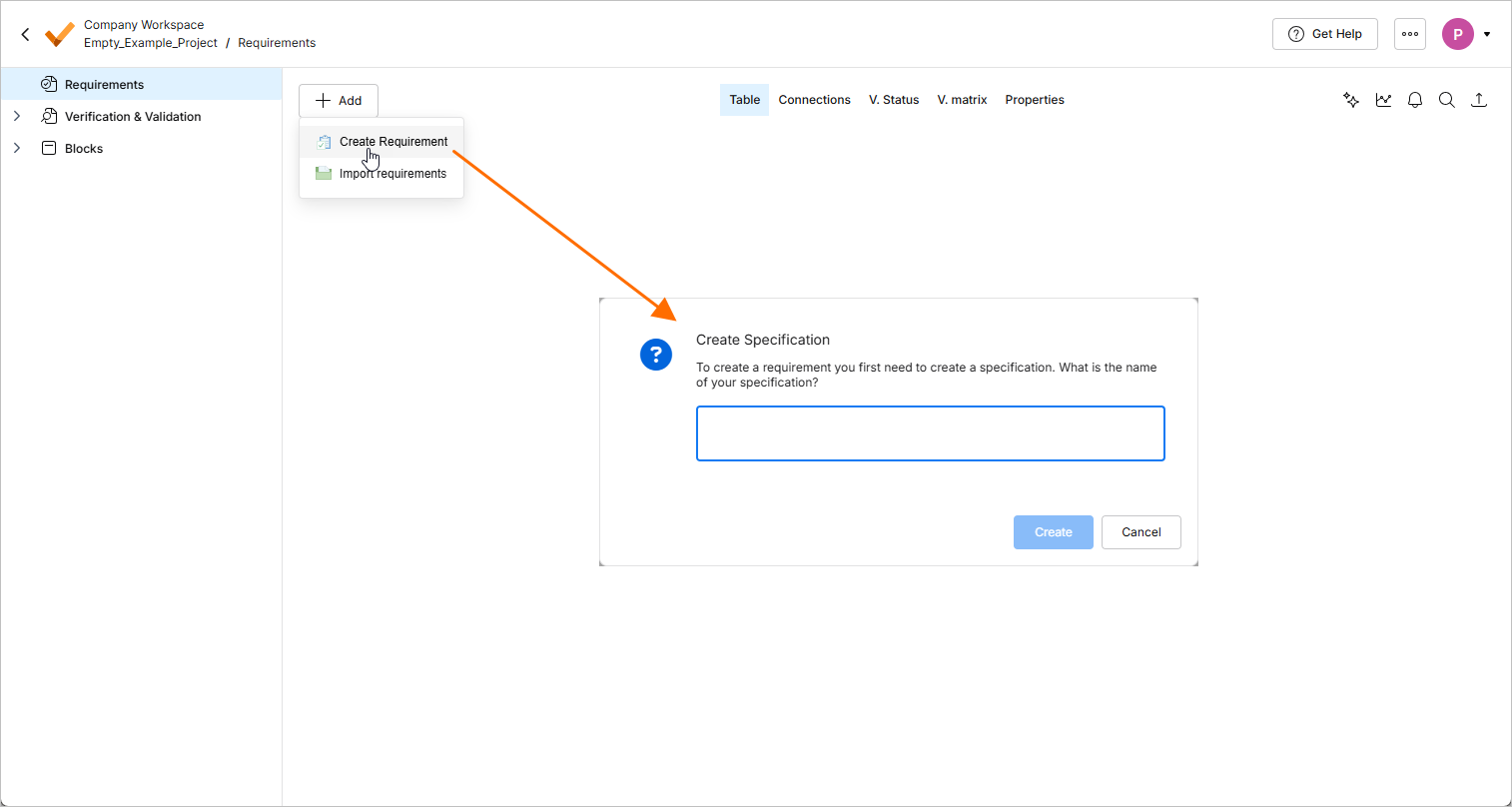
If the project has no specification, an attempt to create a requirement will open the Create Specification window using which you can create a specification first.
For more information about creating requirements, refer to the Creating Requirements page.
-
It is now possible to export a table in the Statuses and Procedures views of a run in the Verification & Validation module. Use the Export sub-menu of the view's right-click menu to export the table to a file of the
*.csv,*.xlsx, or*.xmlformat.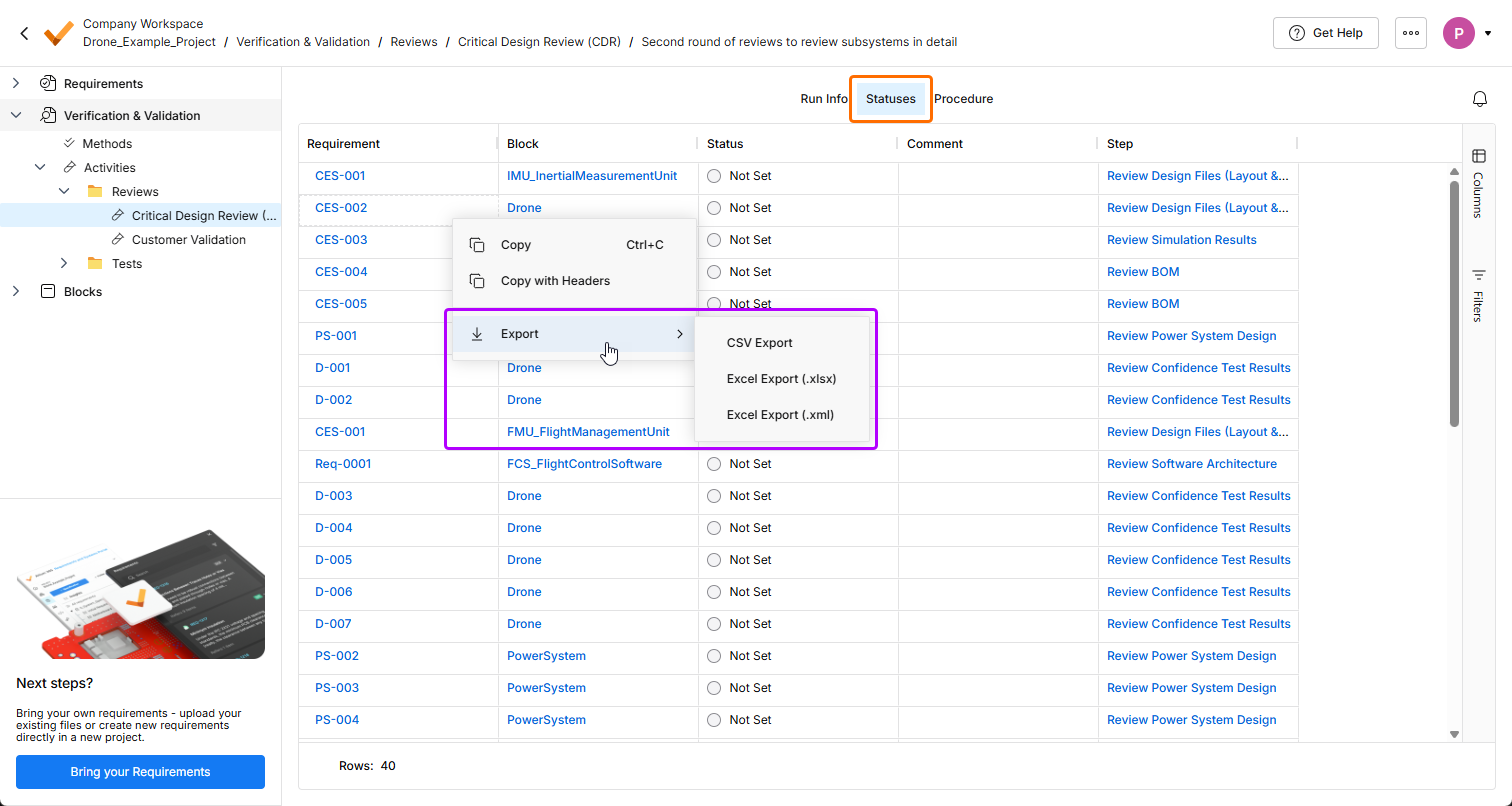
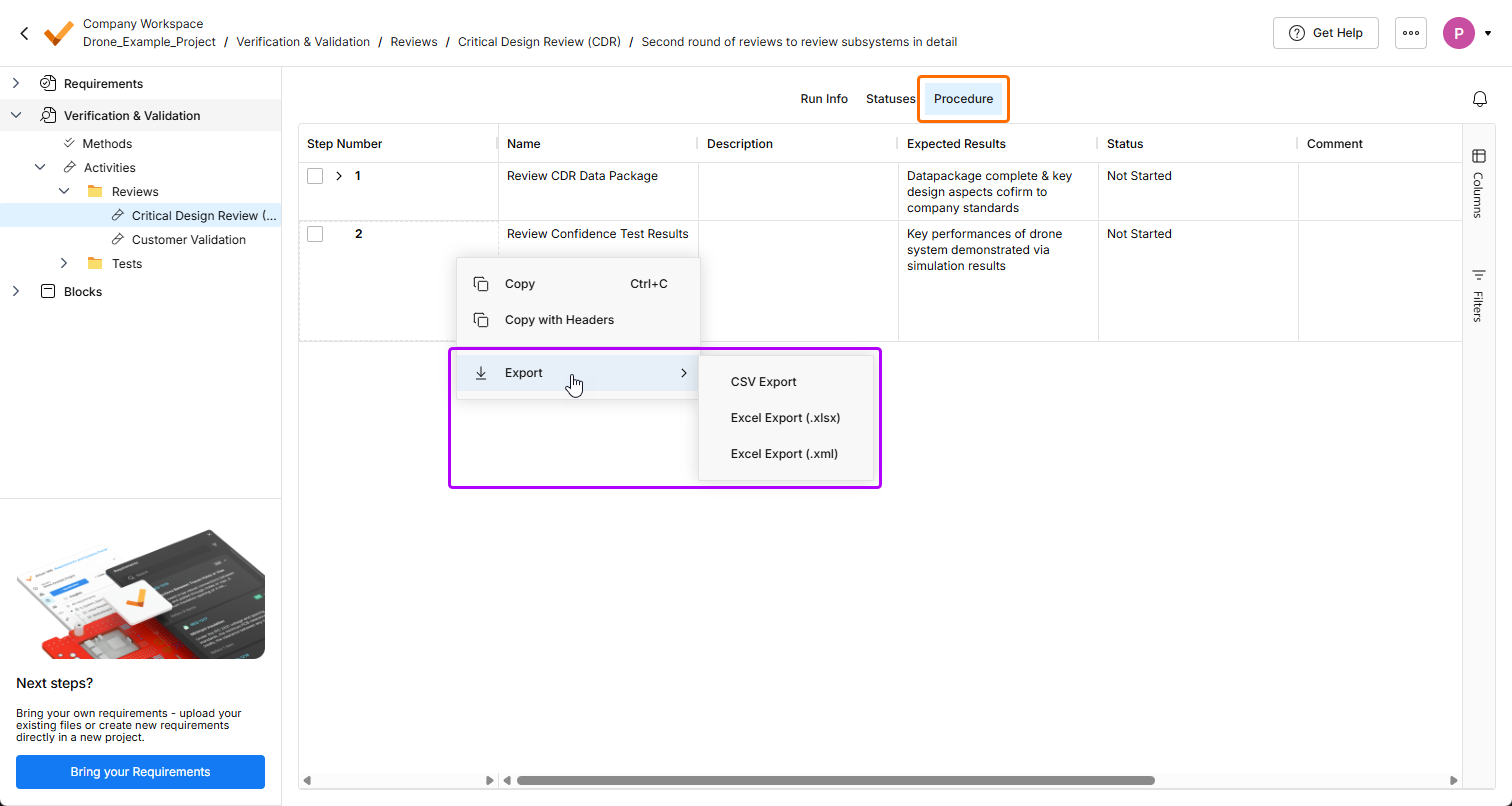
For more information about the Verification & Validation module, refer to the Verification & Validation Module page.
-
In the V. matrix view of requirements, the activity creation action is now available in the
 button menu. The requirement import action has been removed from the menu.
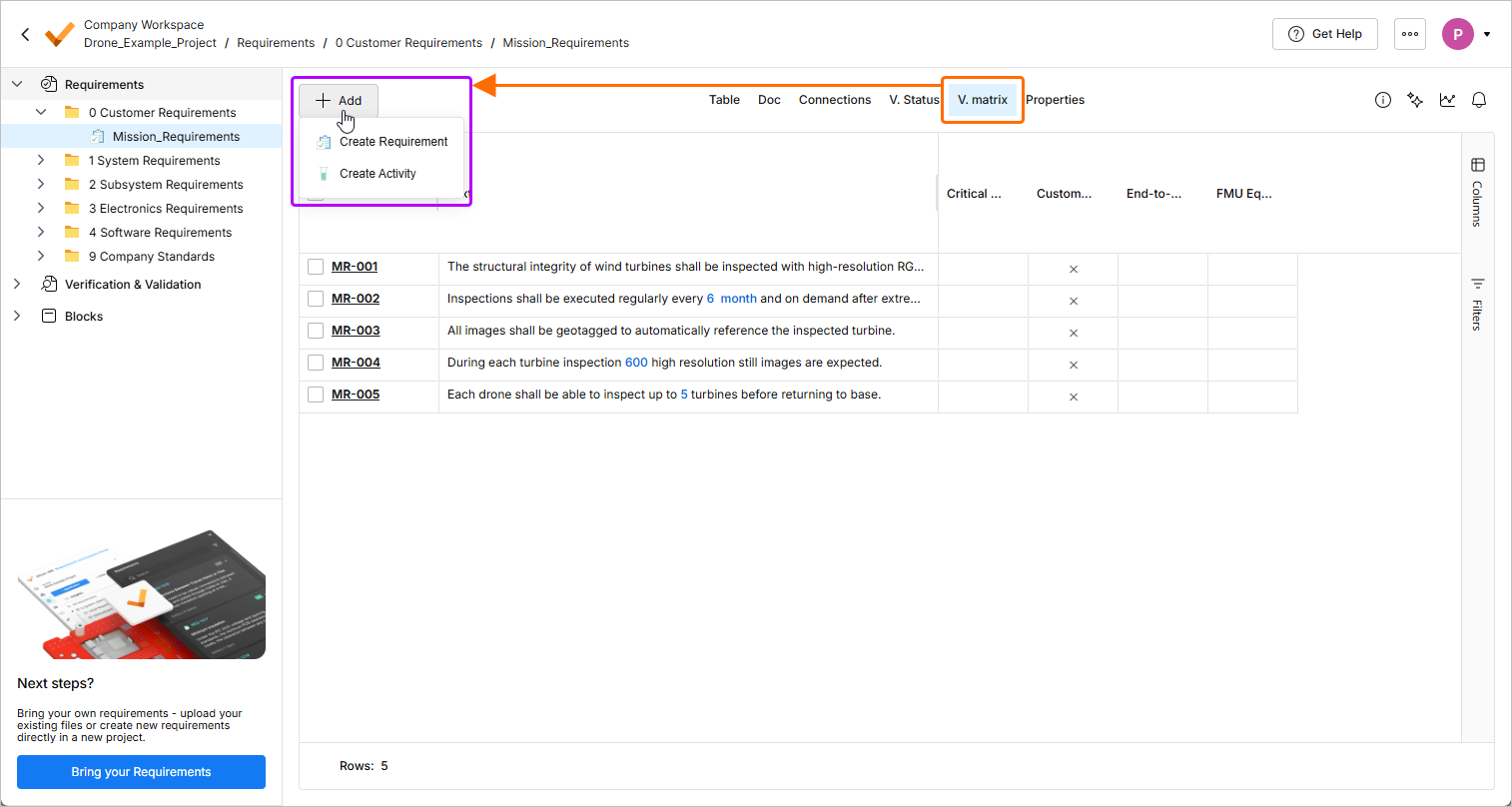
-
If Requirements Portal is not activated yet for a Workspace, it is now possible to start the activation process from the Requirements pane when viewing a design project in the Web Viewer.
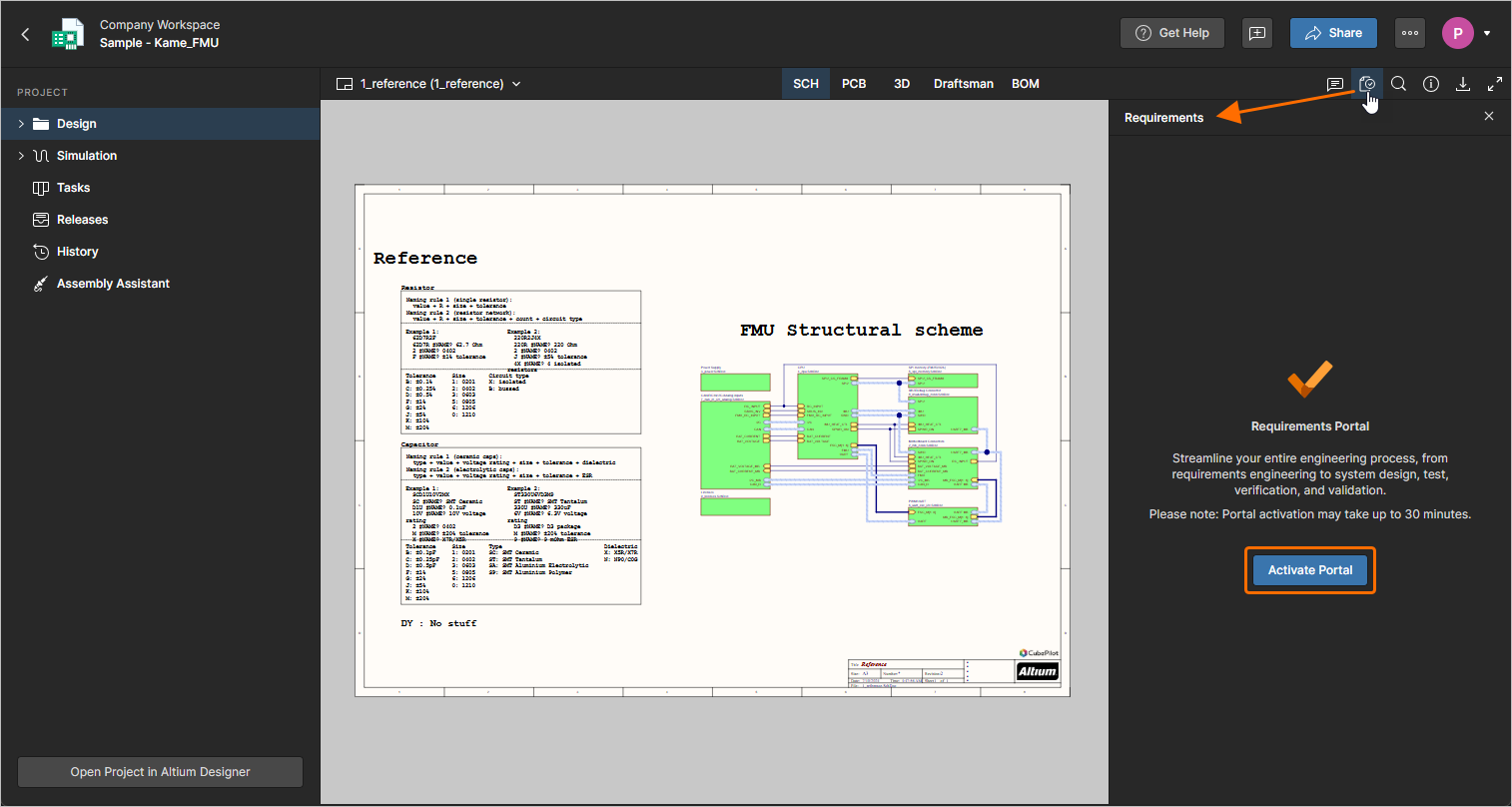
For more information about working with requirements in the context of a design project, refer to the Working with Requirements page.
-
Performance of the AI importer has been improved for long (more than three pages) documents by parallelizing extraction of sections.
For more information about the AI importer, refer to the Import Requirements page.
-
Fixed an issue when formatted text (that uses bullet points, italics, etc.) in custom columns was displayed incorrectly in exported documents.
For more information, refer to the Document Export Custom Templates page.
Update - 3 March 2026
Key Highlights
-
In order to consolidate the user interface of Requirements Portal with other elements of Altium Platform, a number of UI changes have been implemented in this release:
-
Breadcrumbs are now available at the top left of the page, under the name of the Workspace.
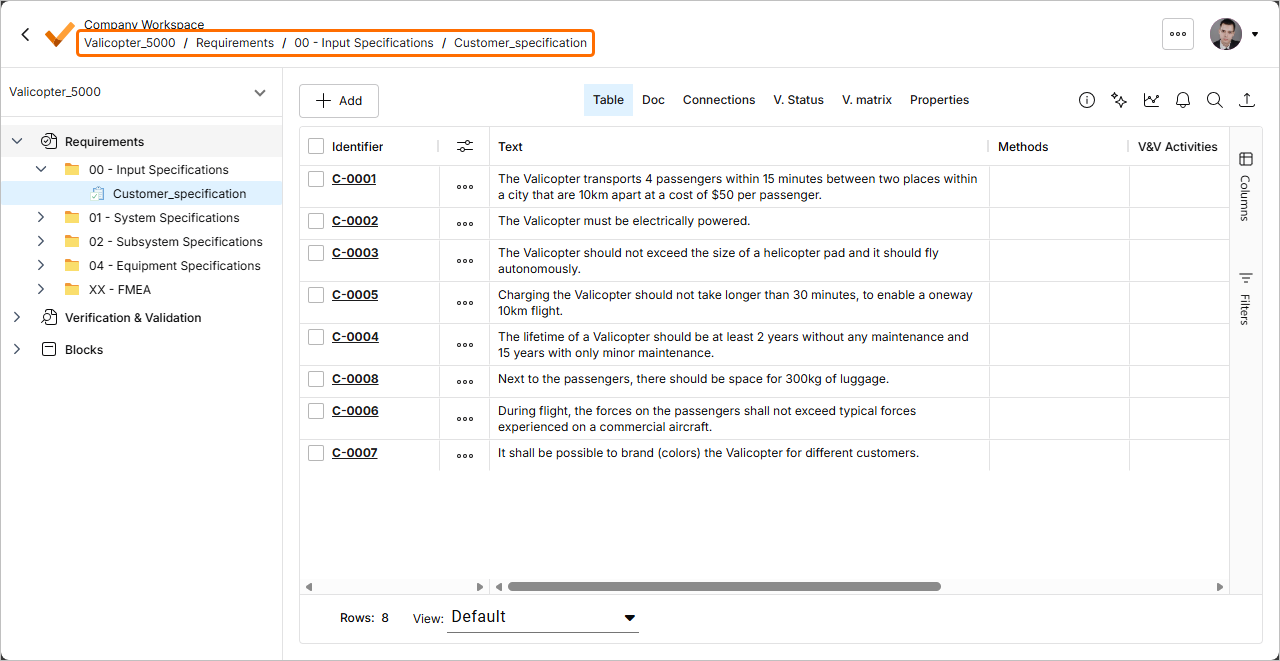
-
In the Table view of requirements, the menu of requirement actions is now available by clicking the
 button in a dedicated column (
 ).
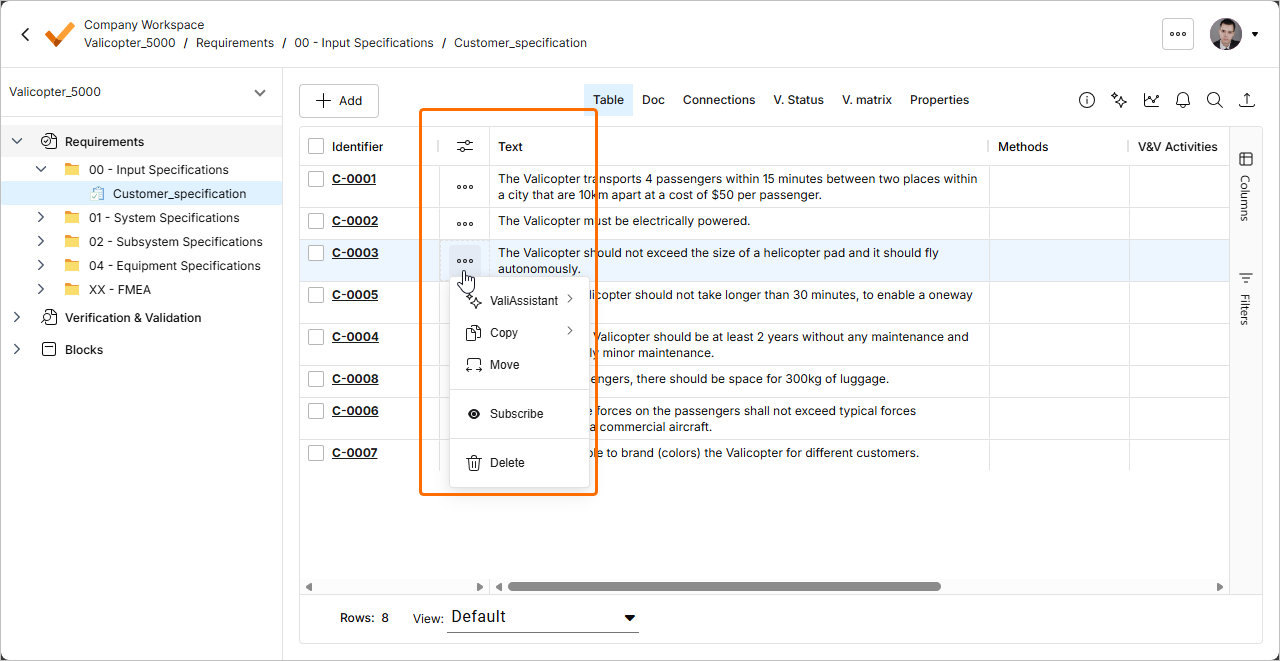
-
A new Info pane has been implemented for specification sections. The pane substitutes a separate Section info view and therefore, allows displaying and modifying specification section details without leaving the currently selected view (such as Table or Doc). When a specification section is selected in the Requirements Module, click the
 button at the top right of the page to access the pane.
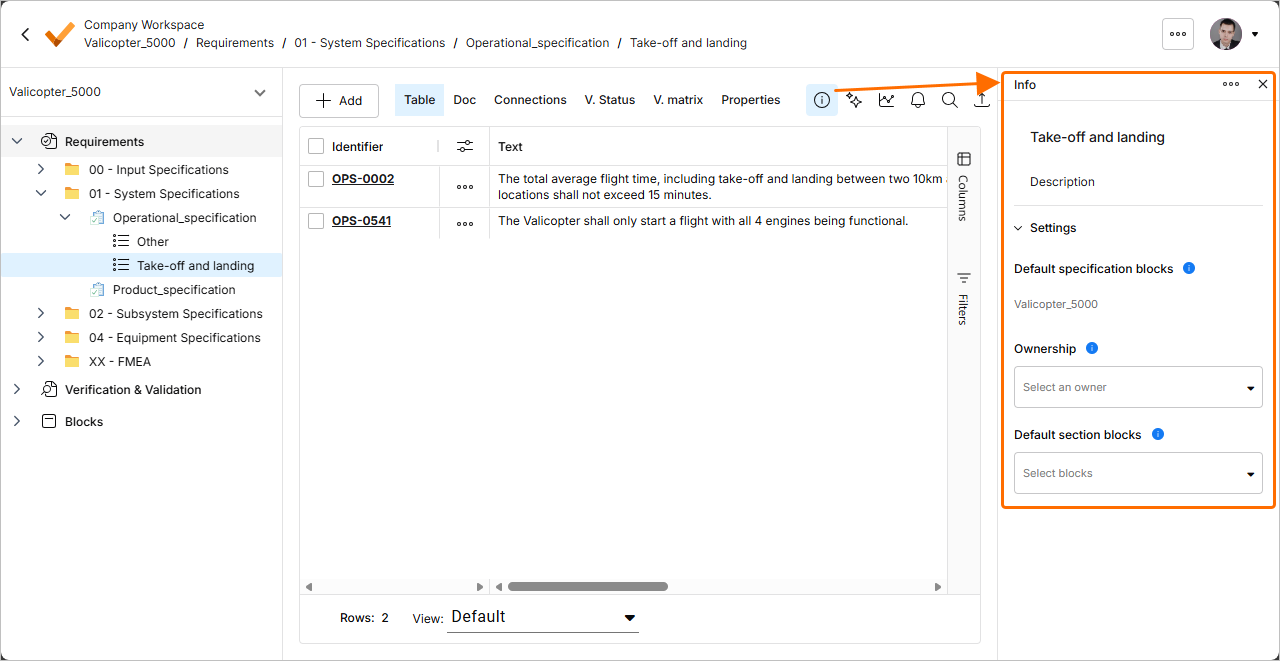
-
-
The AI importer has been enhanced in this release.
-
The importer now recognizes the content between the document title and the first heading as a requirement.
-
The owner of imported requirements is now assigned not only based on the user's first and last name, but also the email.
For more information about the AI importer, refer to the Import Requirements page.
-
Update - 18 February 2026
Key Highlights
-
A new Info pane has been implemented for specifications. The pane substitutes a separate Spec. info view and therefore, allows displaying and modifying specification details without leaving the currently selected view (such as Table or Doc). When a specification is selected in the Requirements Module, click the
button at the top right of the page to access the pane.
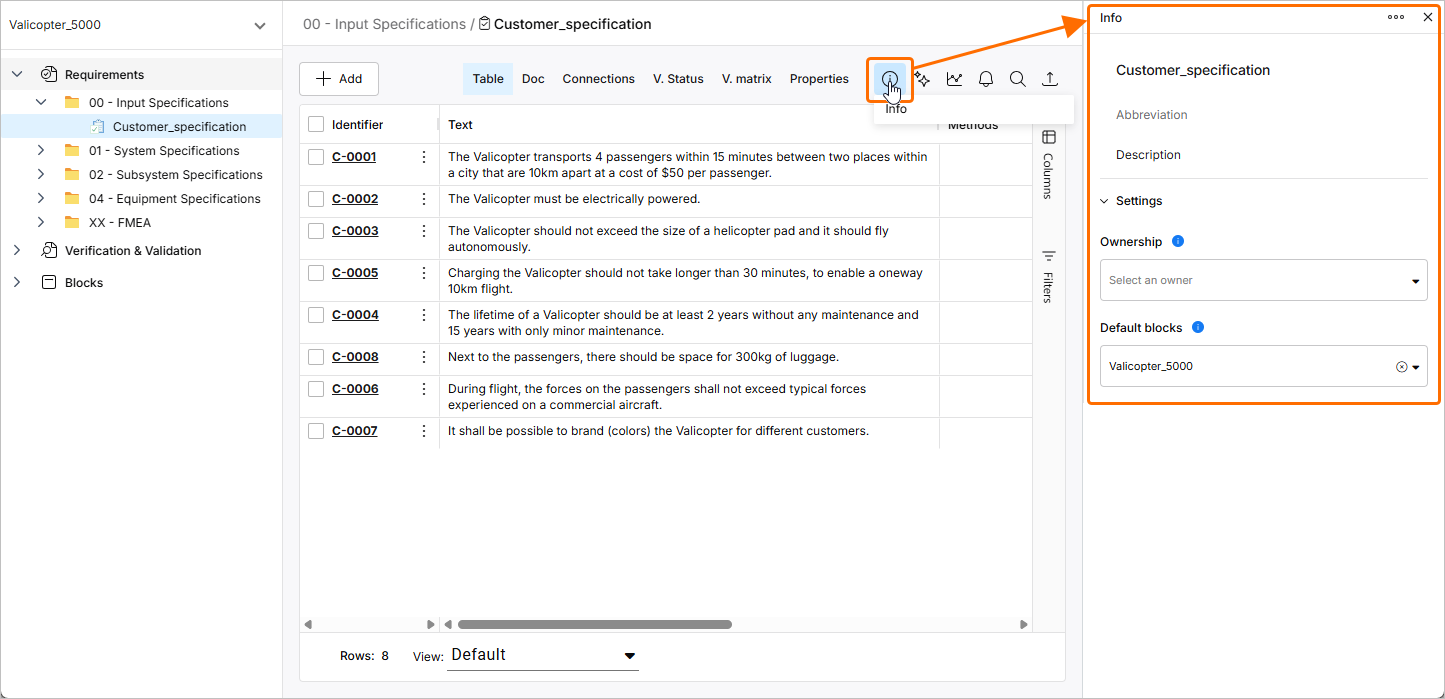
For more information about specifications, refer to the Create Specifications page.
-
The AI importer has been enhanced in this release:
-
The AI extractor has been improved to better handle bullet points and line breaks.
-
The title of the file being imported is no longer present in a section or subsection in the hierarchical structure of requirements.
For more information about the AI importer, refer to the Import Requirements page.
-
Update - 2 February 2026
Key Highlights
In this release, the process for creating and importing requirements has been updated. To perform either of these actions, navigate to the Requirements Module, click the  button, and then select either Create Requirement or Import Requirements from the menu that appears.
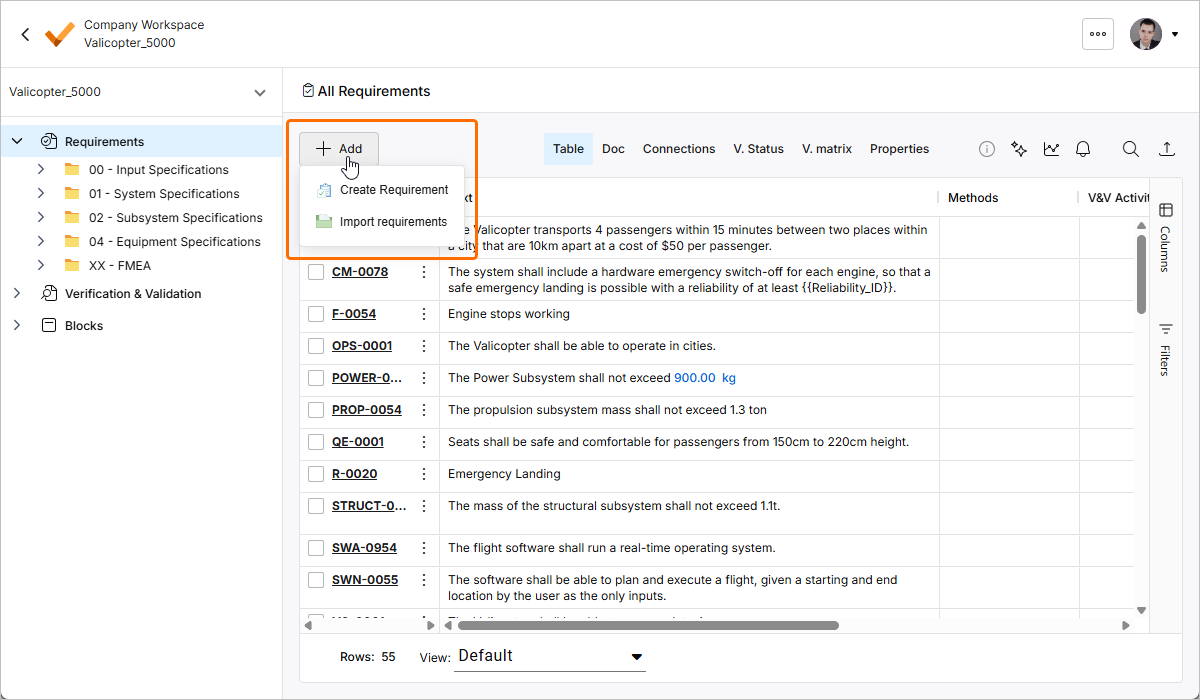
For more information, refer to the Creating Requirements and Import Requirements pages.
Update - 22 January 2026
Key Highlights
This release includes bug fixes to enhance the overall functionality and user experience.
Update - 7 January 2026
Key Highlights
Requirements engineering often begins with drafting of stakeholder requirements in documents like PDFs and Excel spreadsheets where data is not well structured. Extracting requirement data manually from these unstructured documents might be labor-intensive and error-prone, and in order to expedite the process of capturing requirements in Requirements Portal, you can leverage AI capabilities to import requirements from unstructured PDF, Excel, Word, and CSV files using a new AI-assisted Importer.
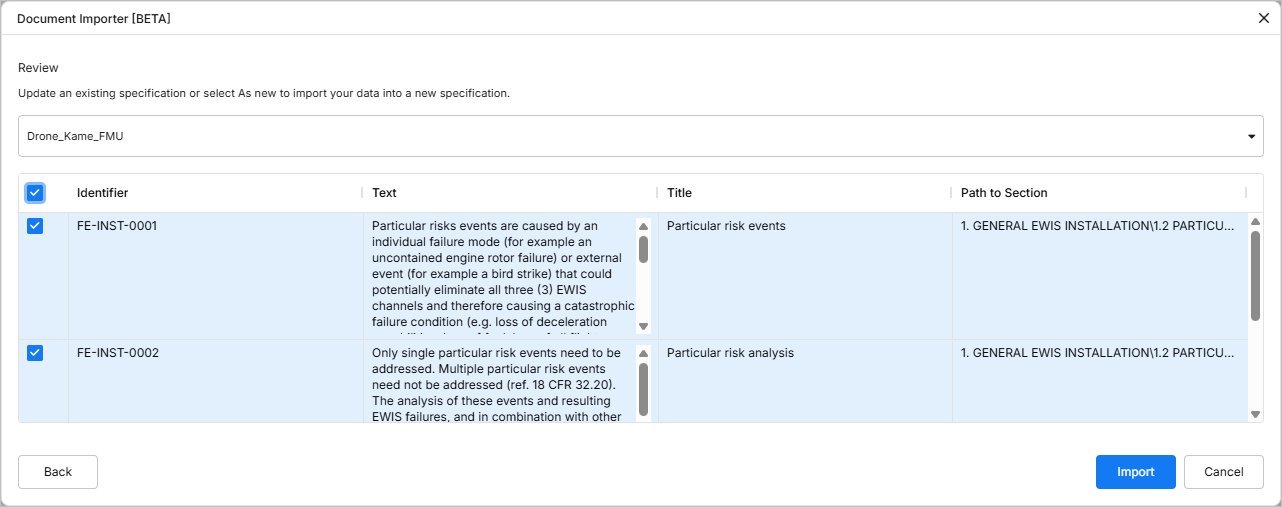
For more information, refer to the Import Requirements page.
Update - 17 December 2025
Key Highlights
This release includes bug fixes to enhance the overall functionality and user experience.
Update - 24 November 2025
Key Highlights
This release includes bug fixes to enhance the overall functionality and user experience.
Update - 12 November 2025
Key Highlights
In order to align the UI of Requirements Portal with other parts of the Workspace's browser-based interface, the following changes have been implemented:
-
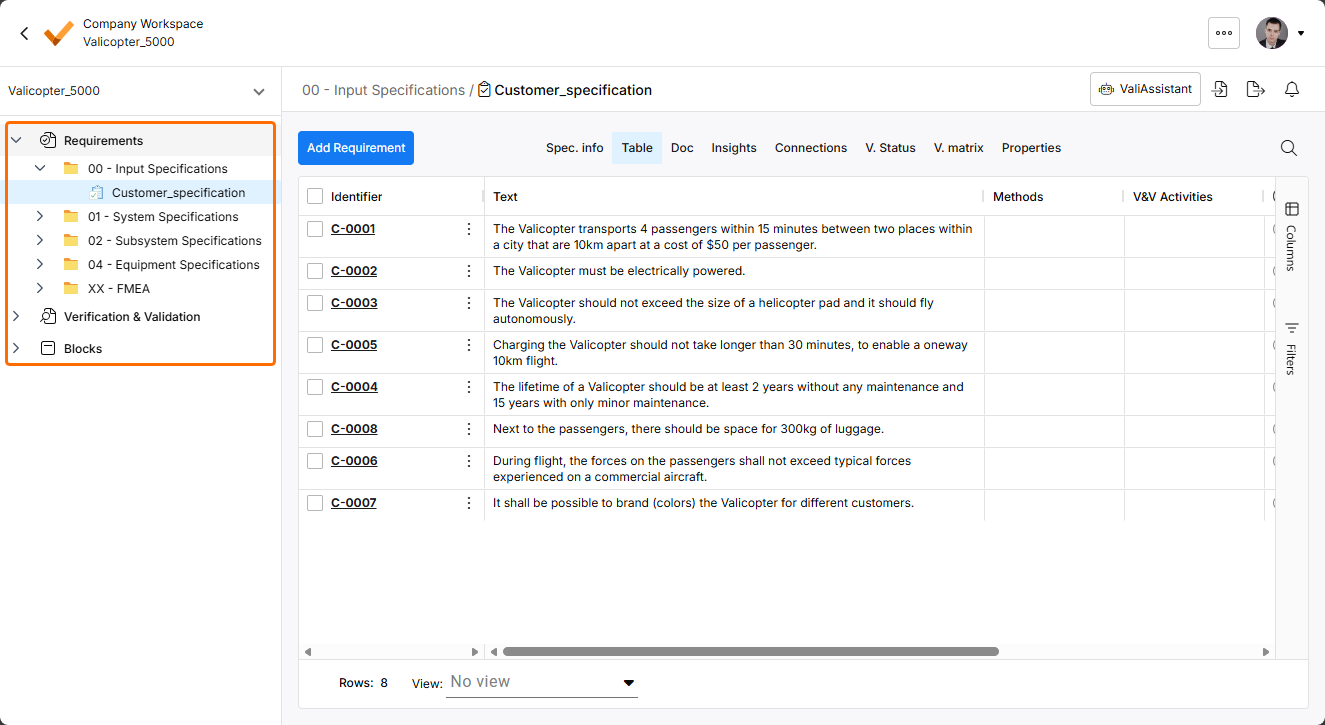
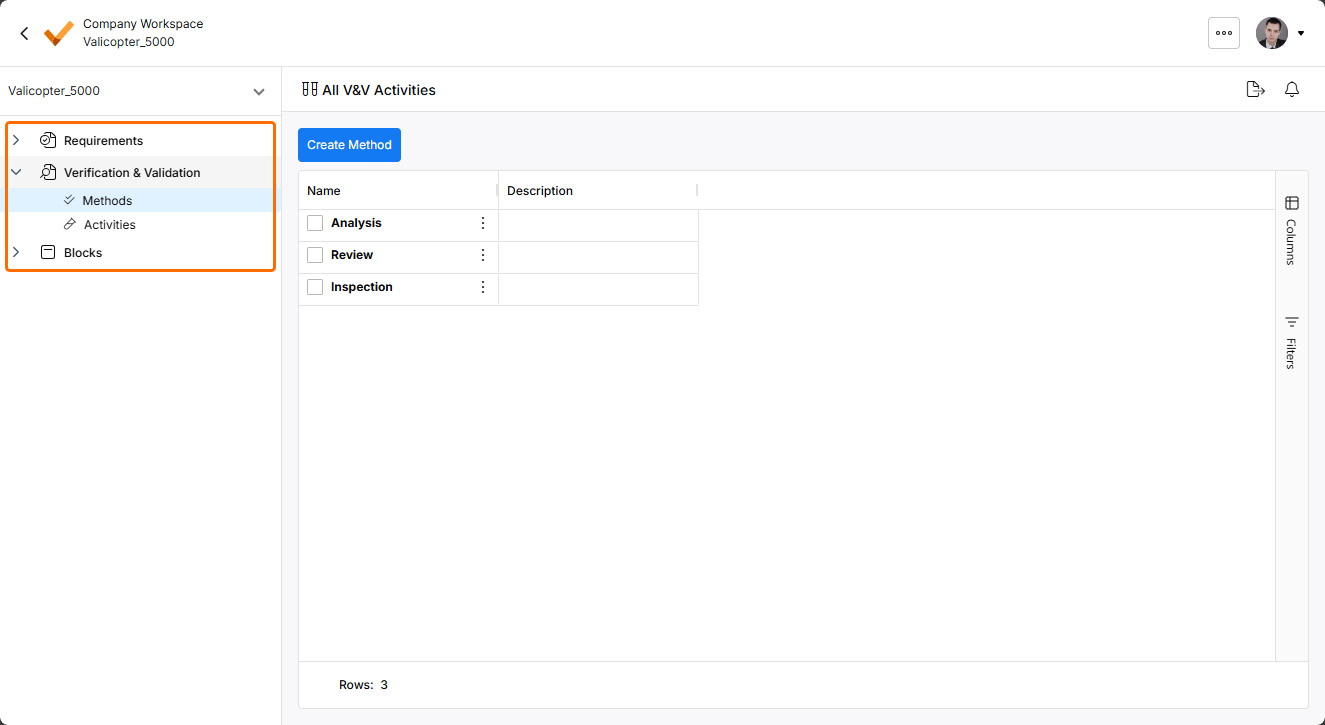
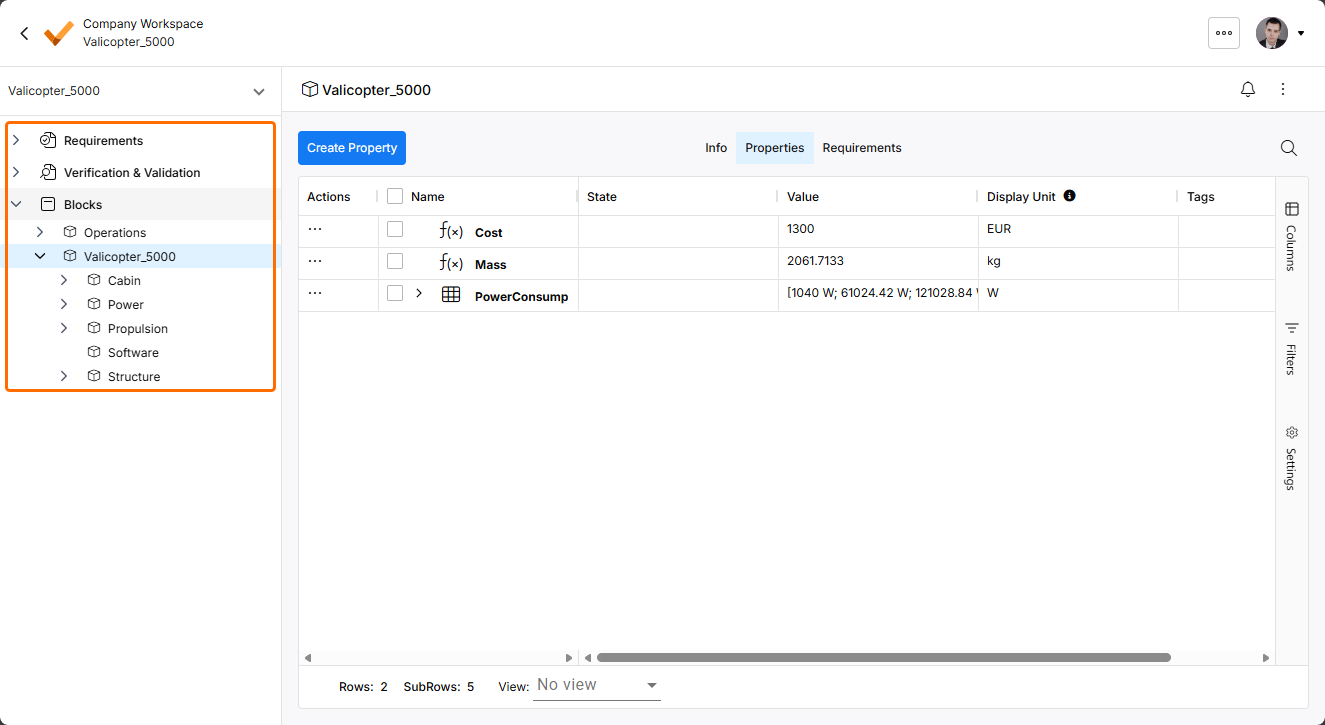
A new left-hand pane has been introduced. The pane allows access to different modules of the Requirements Portal and corresponding elements (specifications, V&V activities, blocks, etc.) of the currently selected project.
-
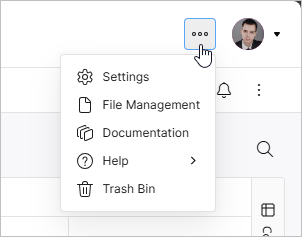
A new top bar has been introduced. From the
 icon menu of the top bar, you can access Requirements Portal's Settings, the File Management view, Documentation, Help resources, and the Trash Bin.
-
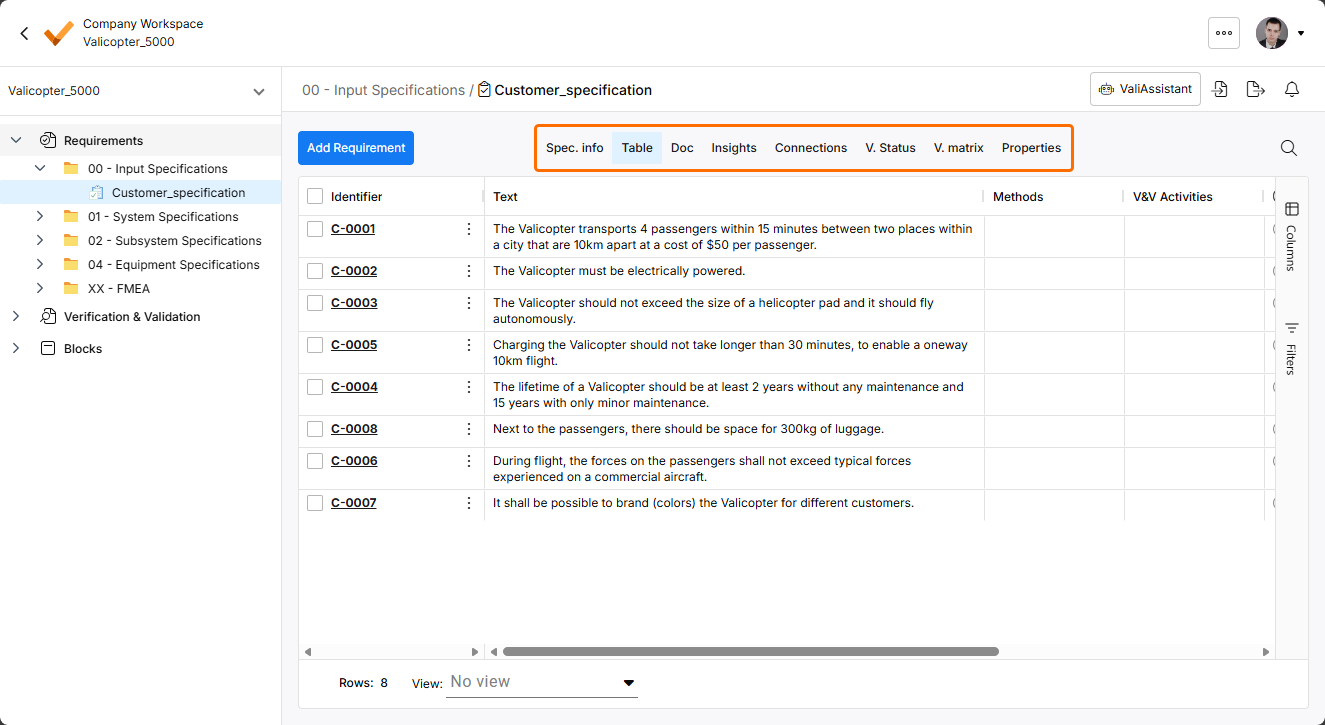
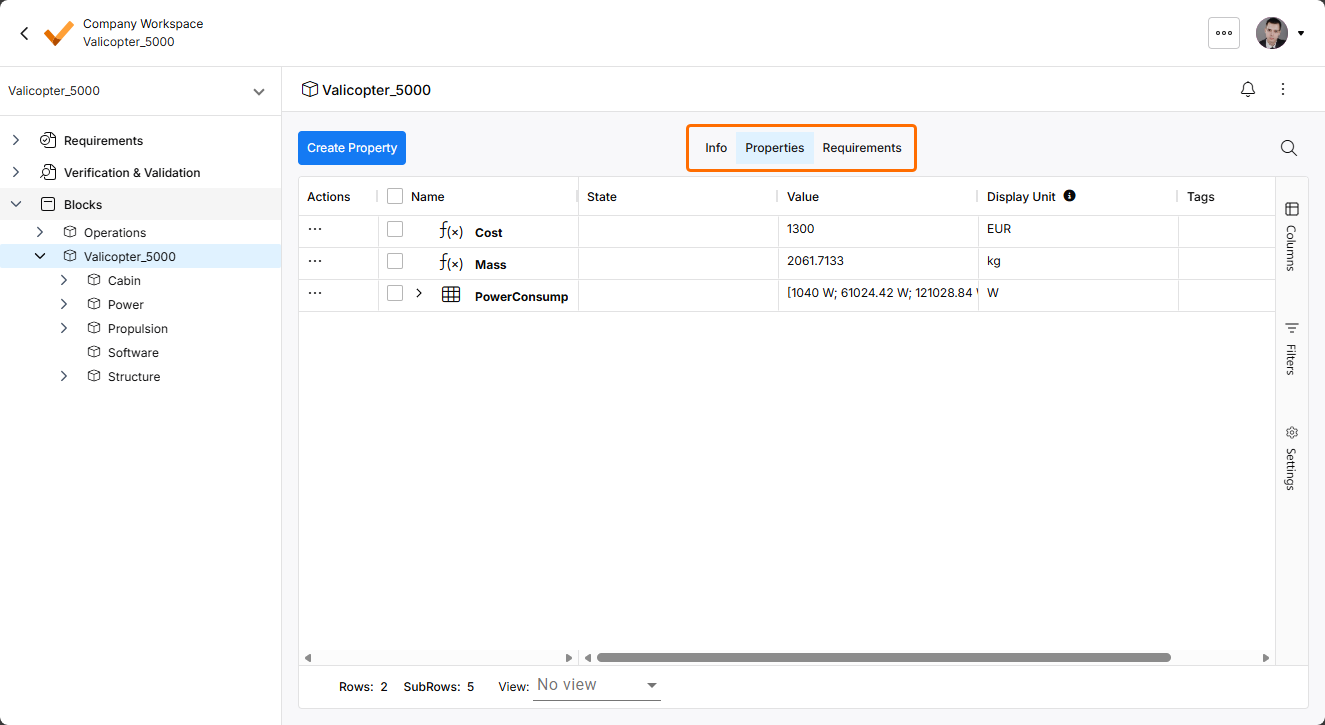
The display of controls used to switch between different views in modules has been updated.
Update - 14 October 2025
Key Highlights
This release includes bug fixes to enhance the overall functionality and user experience.
Update - 30 September 2025
Key Highlights
When creating a new folder for specifications in the Requirements Module, the folder now appears in the tree at the left-hand side immediately after creation, without the need for refreshing the page.
For more information about folders, refer to the Grouping Requirements page.