
Applicable Blocks
At a Glance
- Find the “Applicable block” attribute in the requirements module’s Table view.
- Navigate from a requirement to its applicable block and view associated requirements from the block’s Requirements tab.
- Understand why setting a “Default block” for a specification or section does not automatically add it to “Applicable blocks.”
Requirements can be directly paired with blocks without a specific VM. You can assign the blocks to the requirements within the requirements module’s Table view in the attribute column “Applicable block”, as in Figure Setting Applicable blocks.
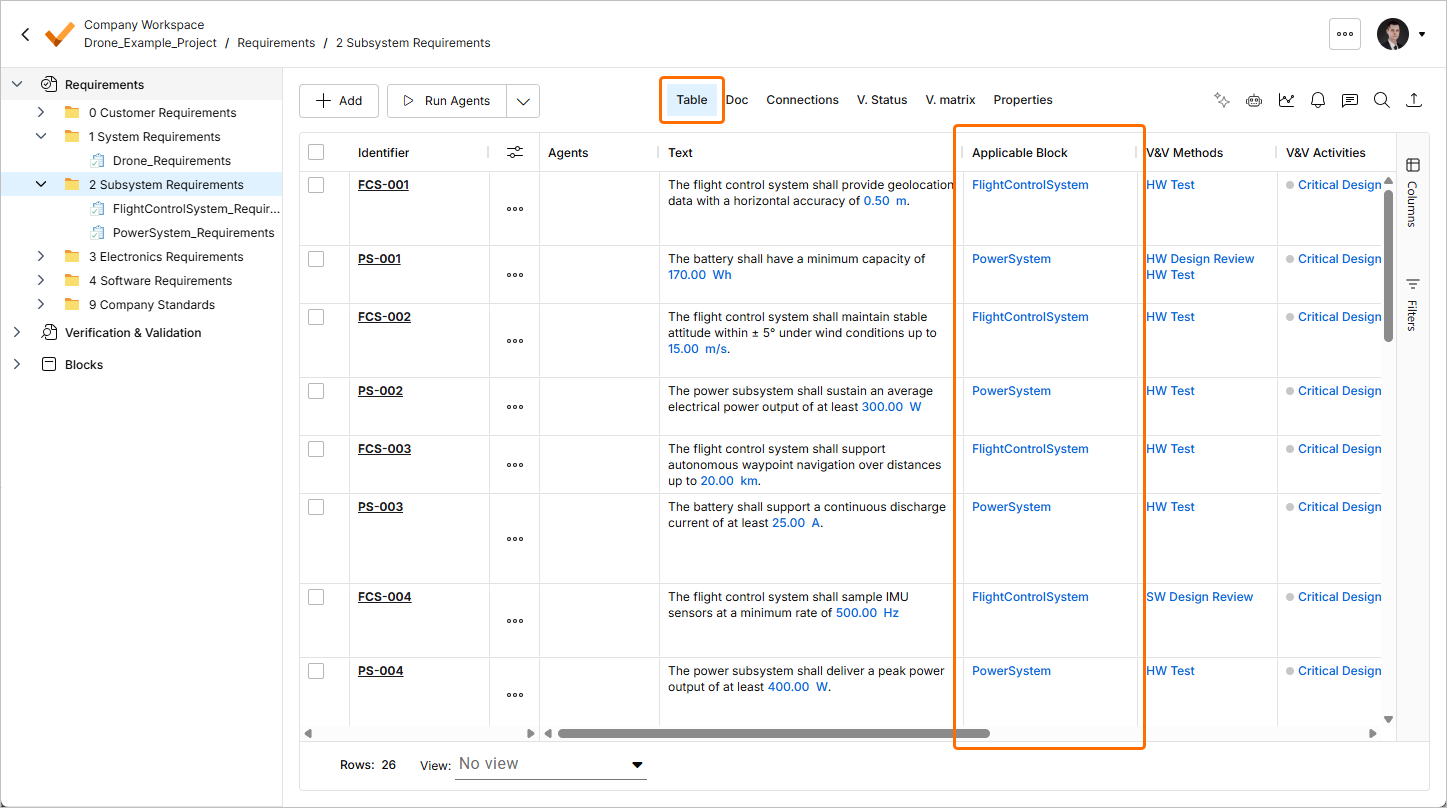
Applicable blocks can be set from the current project.
Setting Applicable blocks
By setting Applicable blocks, you can relate your design goals (Requirements) to your system architecture and design intent (blocks). As seen in the Video Setting Applicable blocks, you can not only directly navigate to a Requirement’s Applicable block from the Requirement’s table, but from that block’s Requirements tab, you can also view all Requirements for which that block is an Applicable block of.
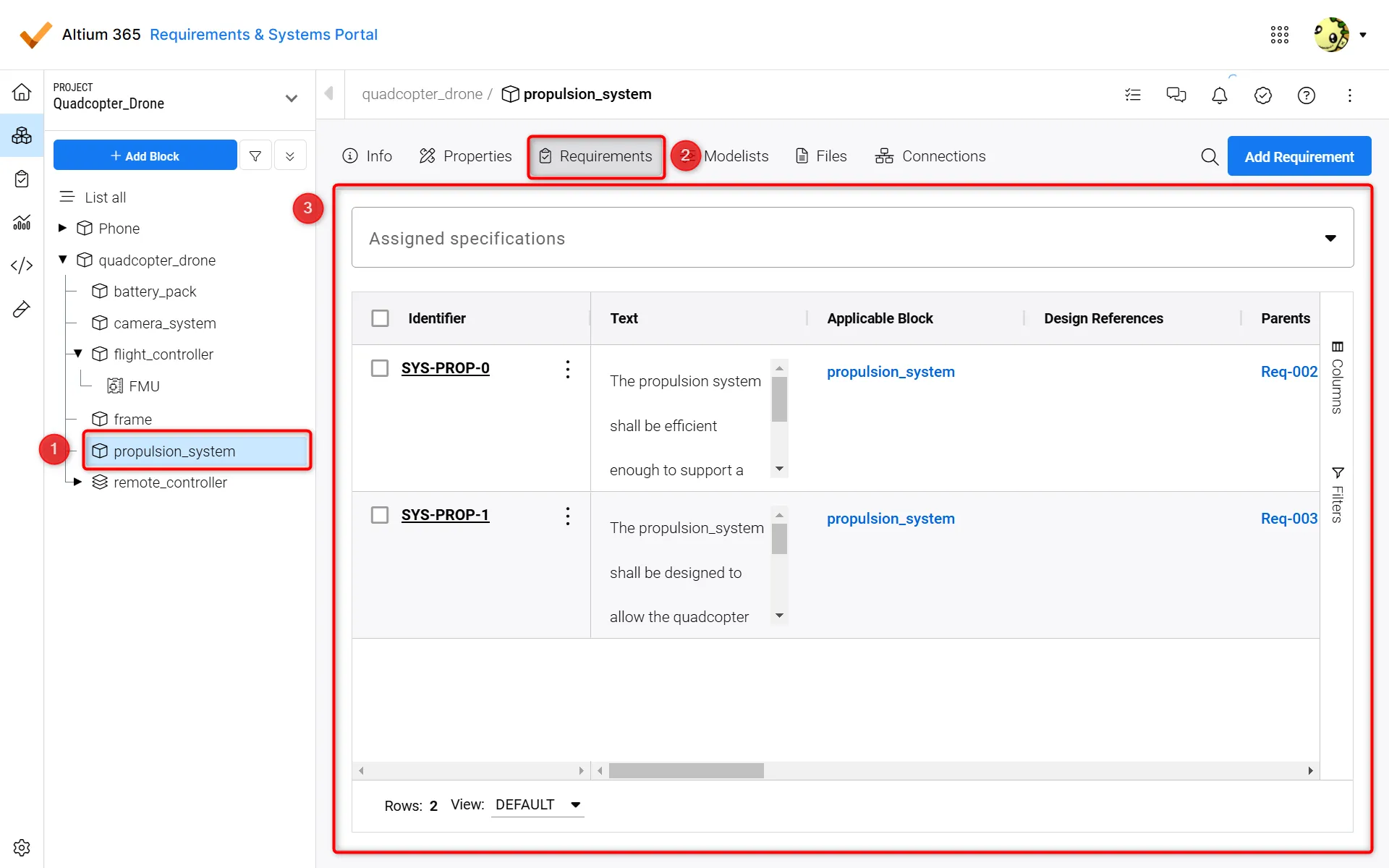 A block’s Application to Requirements
In Figure A, block’s Application to Requirements, you can see how this particular block would reflect a connection to multiple Requirements as an Applicable block.