
Document Export
While Requirements Portal reduces the need to manage documentation by housing and connecting the engineering data which typically resides in different document types belonging to different software tools, in some cases, it is still needed to generate documentation for activities such as certification and change control. To cater for this, the Document Export functionality is available as a self-contained wizard directly through the Requirements Module. This functionality allows you to quickly export requirements data into an editable *.docx file based on the selected template. You can quickly export all requirements, select specifications, or select requirements in either a single or across multiple specifications.
Accessing the Functionality
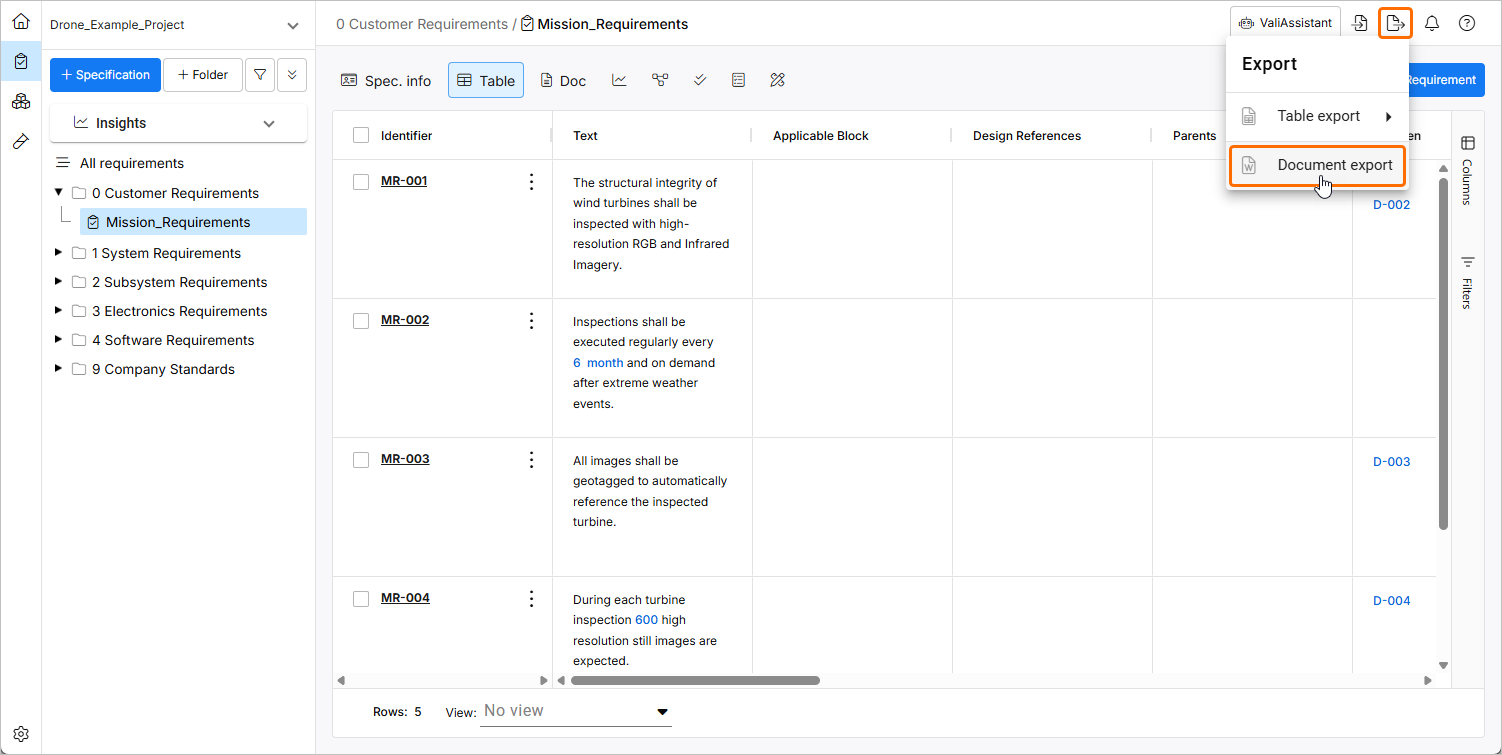
You can access the Document Export functionality from the Requirements Module by clicking the  button at the top right and selecting the Document export option from the menu that appears.
Exporting a Report
There are several ways to perform an export using the available templates.
Selecting the Context
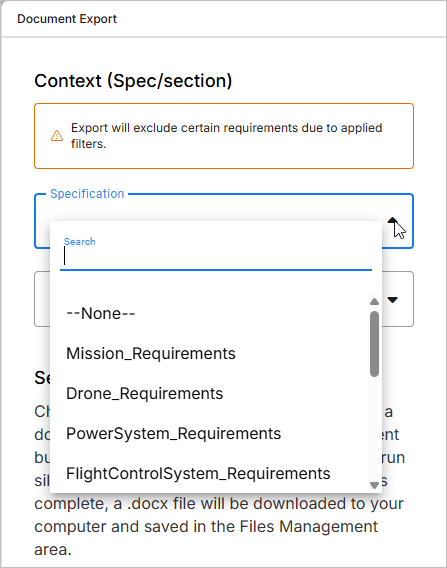
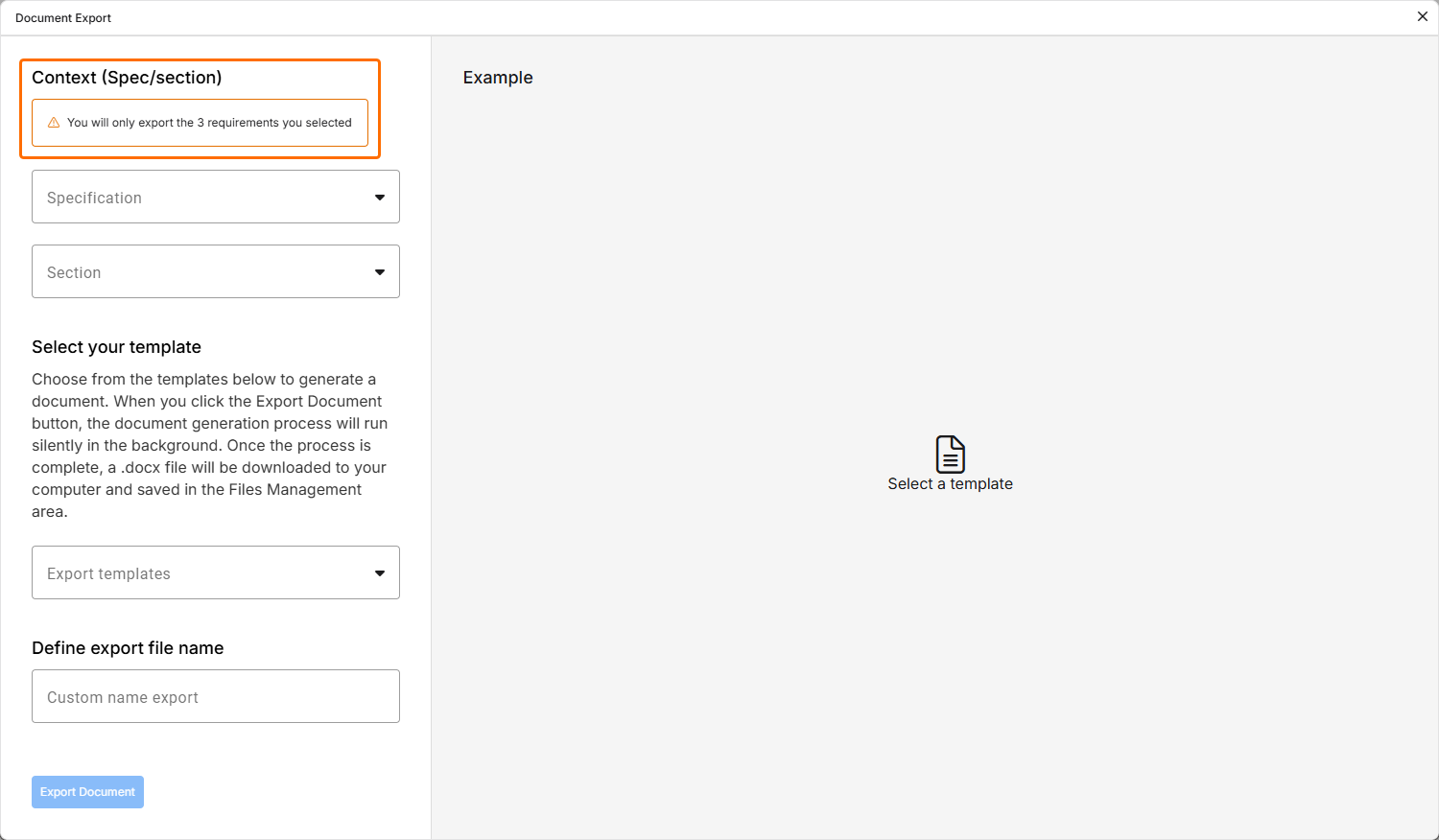
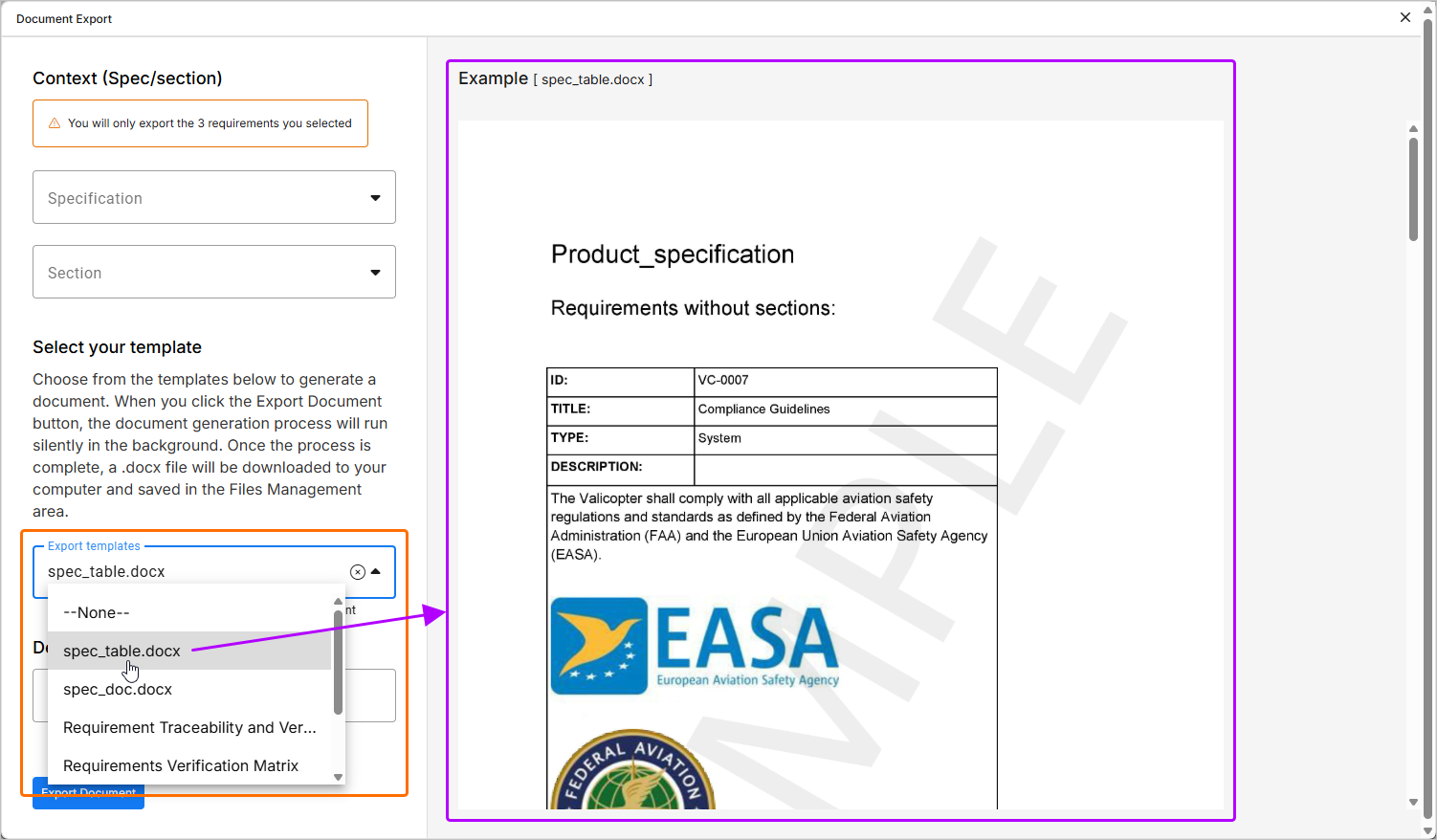
You can choose a particular specification or section to export using Specification and Section drop-downs in the Context (Spec/section) region of the document exporter's left-hand side pane.
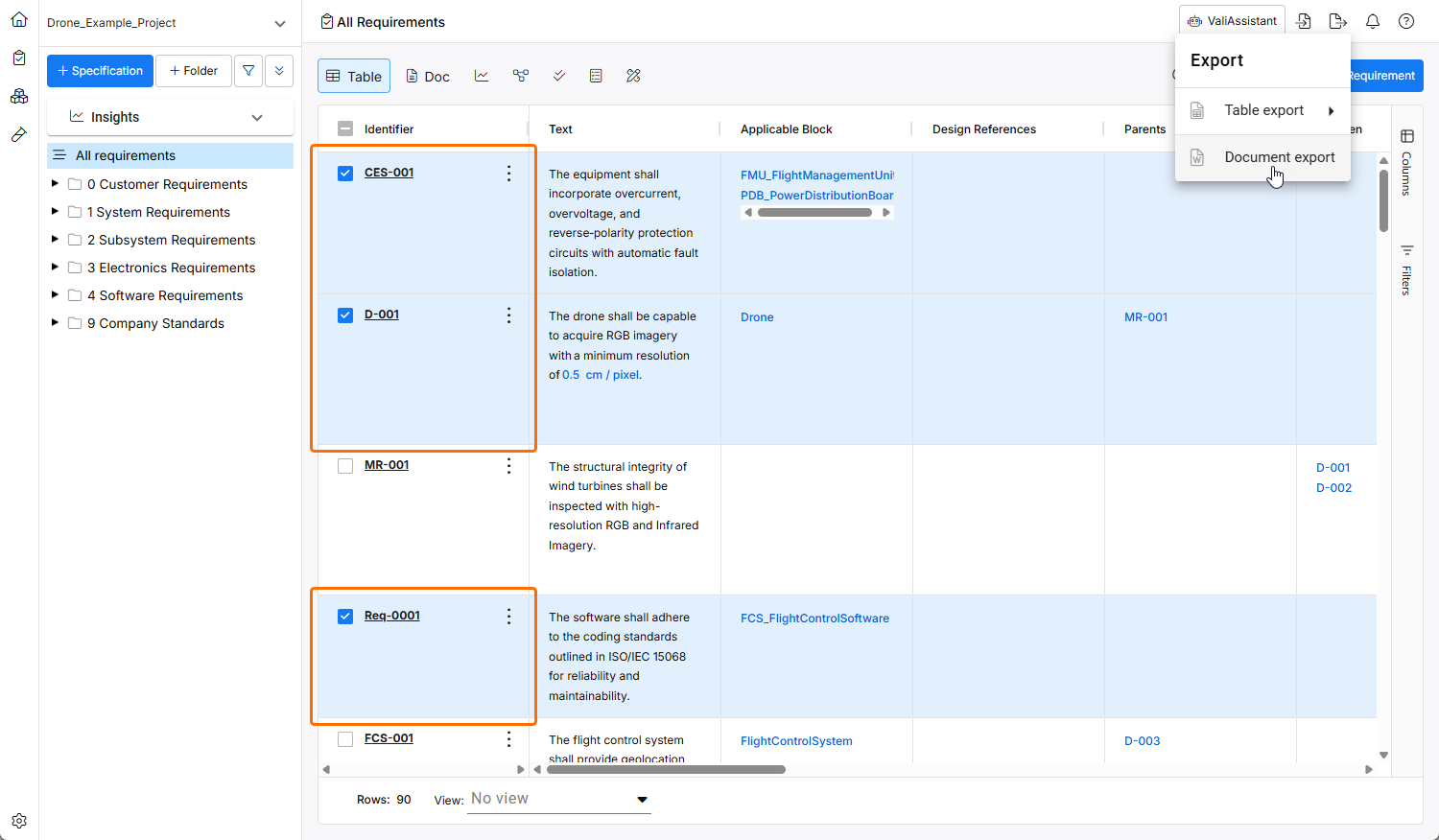
You can also pre-select multiple requirements before entering the exporter, in which case only the selected requirements will be included in the selected context (all/specification/section).
Selecting a Template
There are three default templates from which you can generate automated reports, as well as upload their own. The generated files are editable Word Document files. To select an available template, use the Export templates drop-down in the Select your template region of the document exporter's left-hand side pane.
 icon at the top right, selecting Settings from the menu that appears, and then selecting Export templates from list in the left-hand pane).
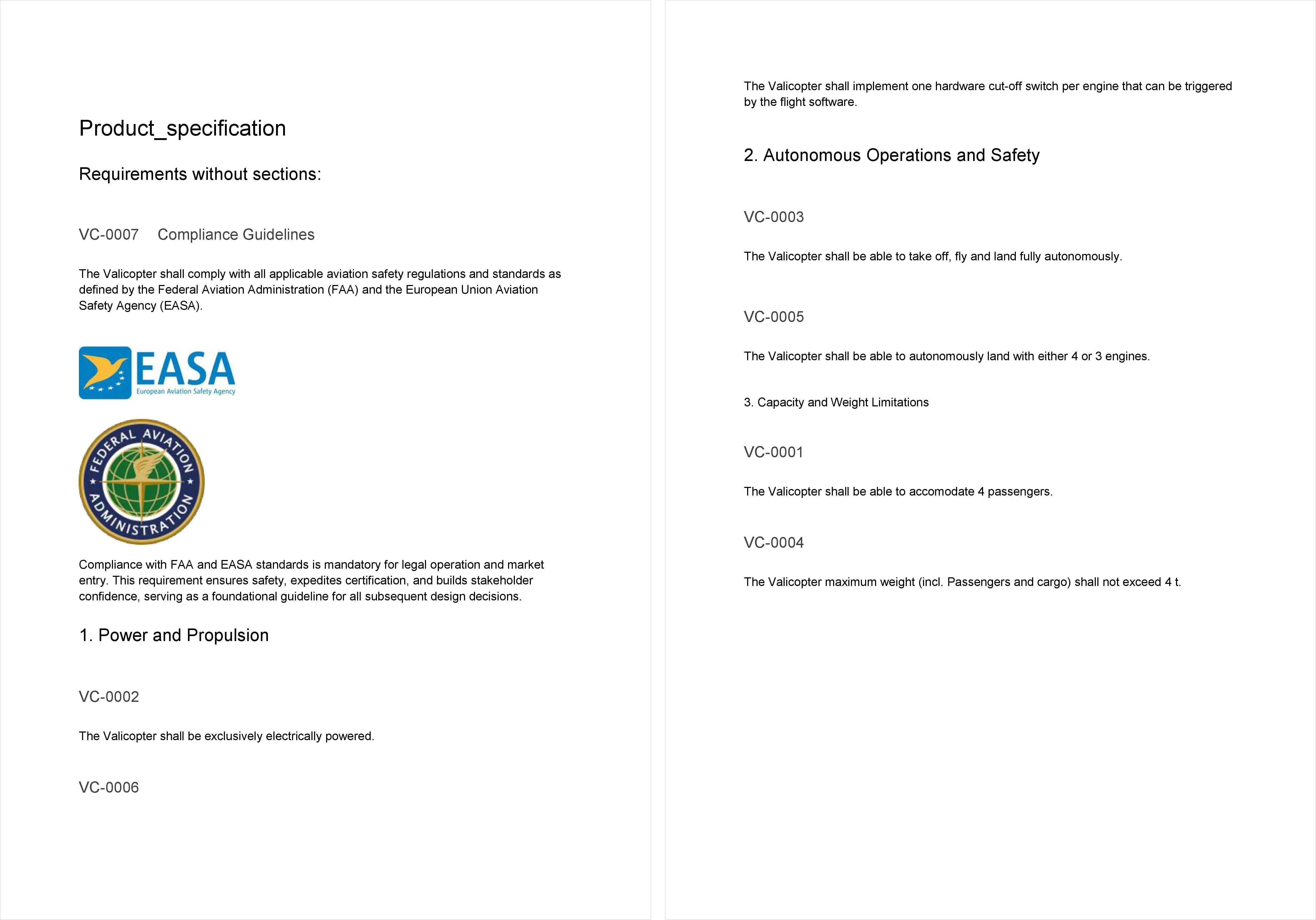 ).
).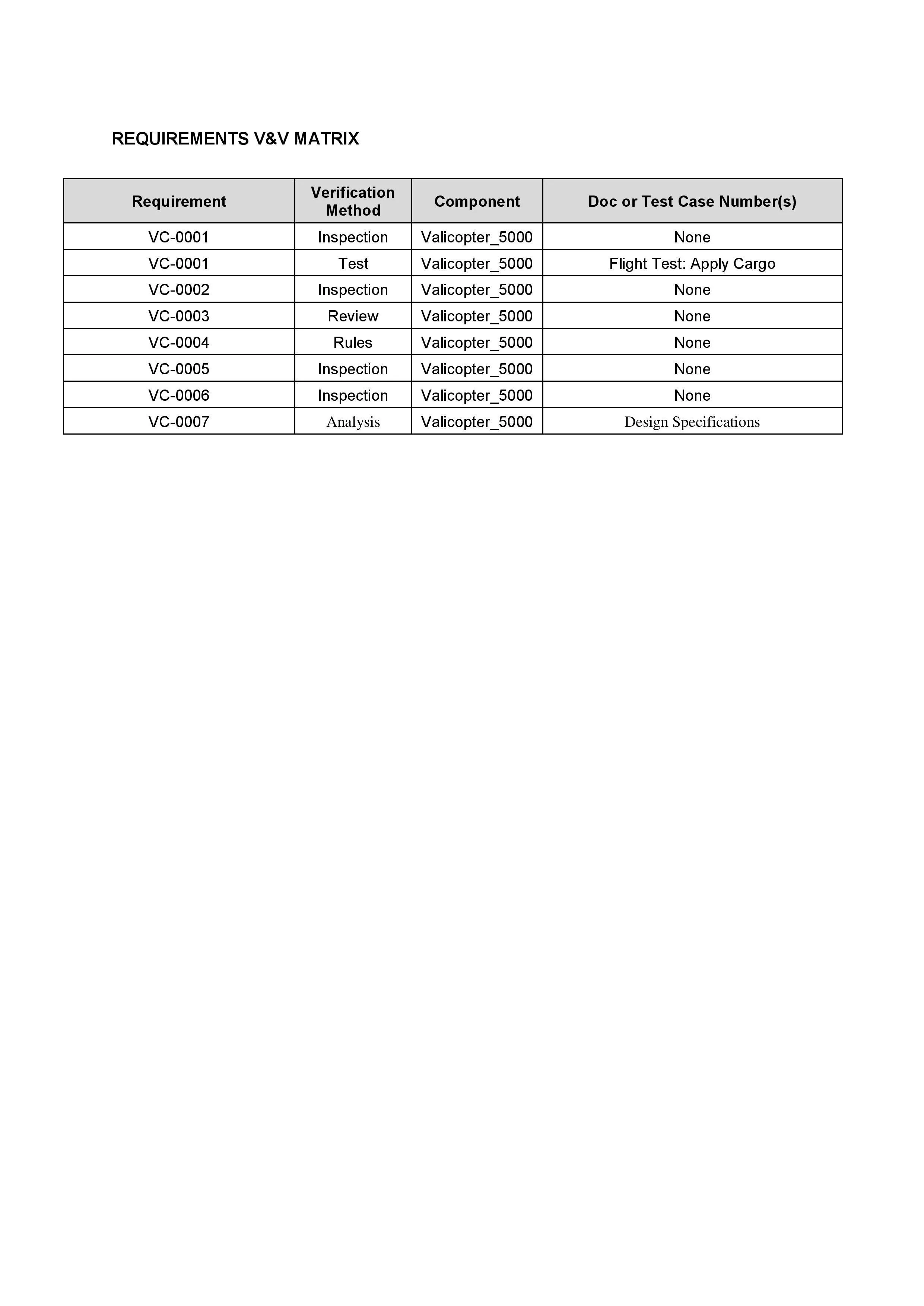 ).
).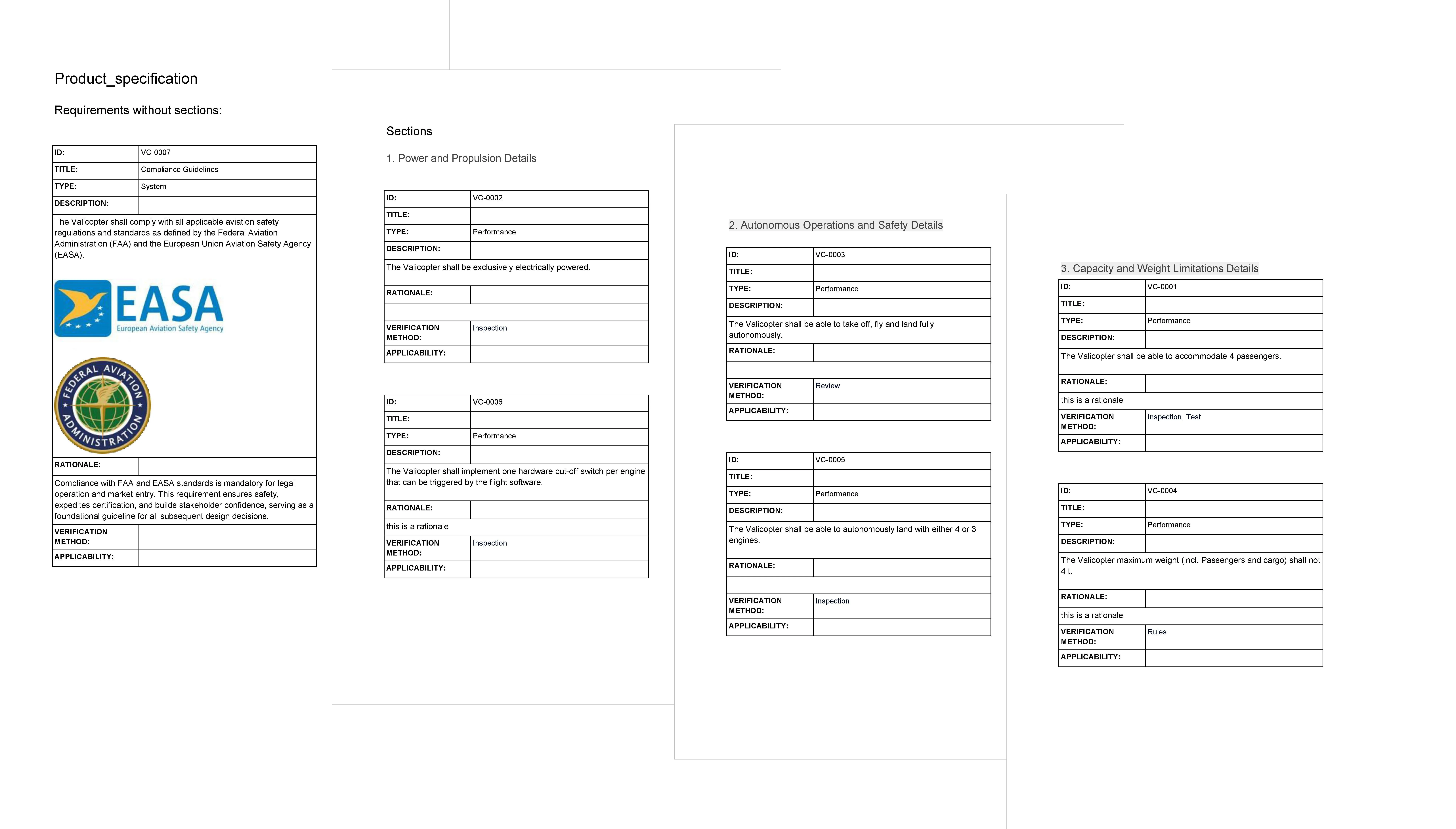 ).
).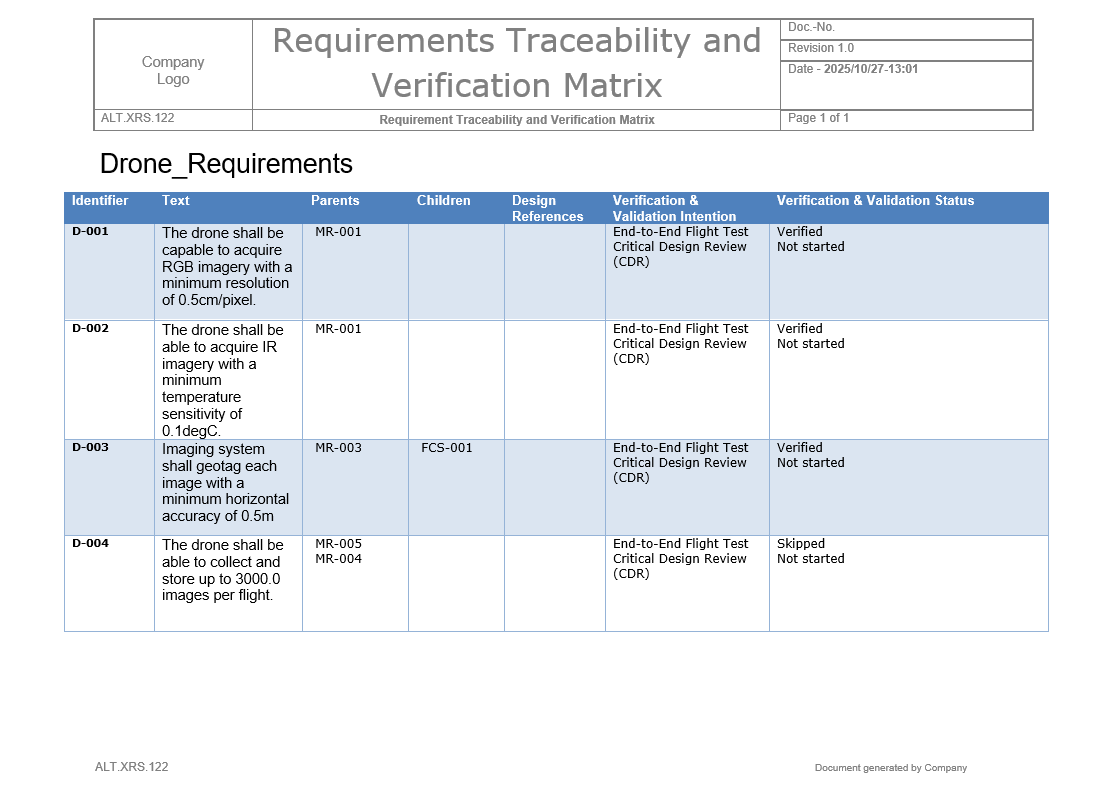 ).
).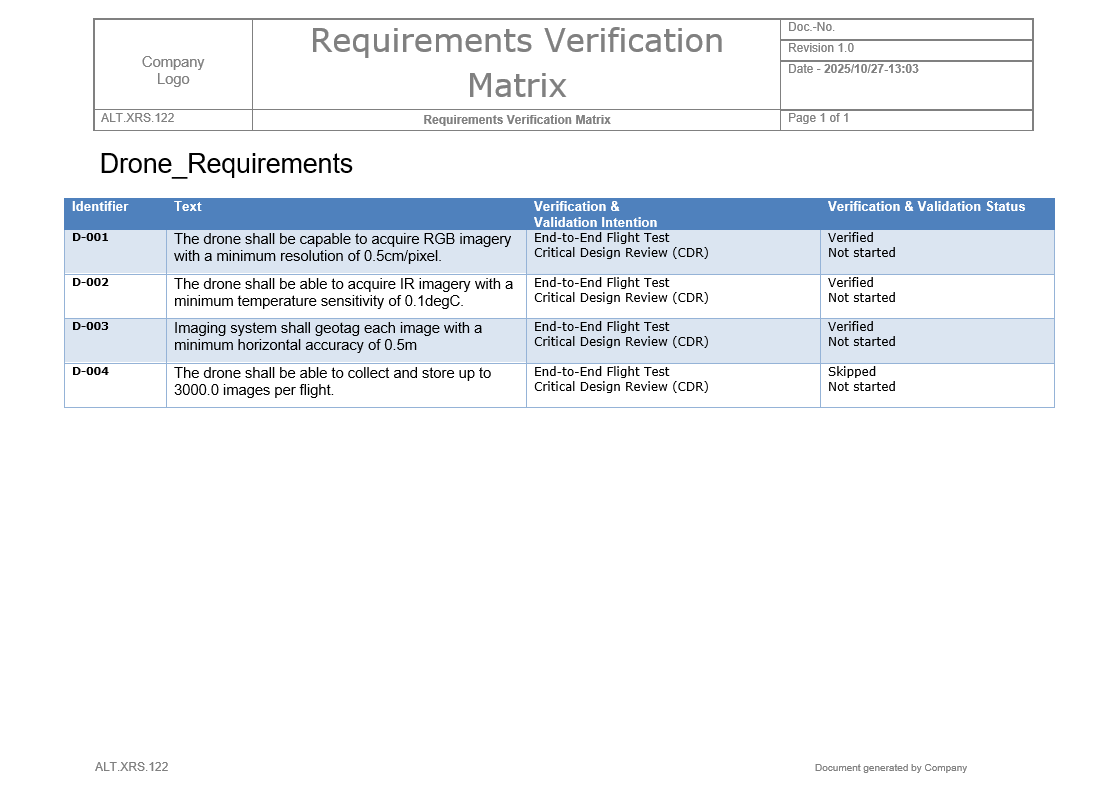 ).
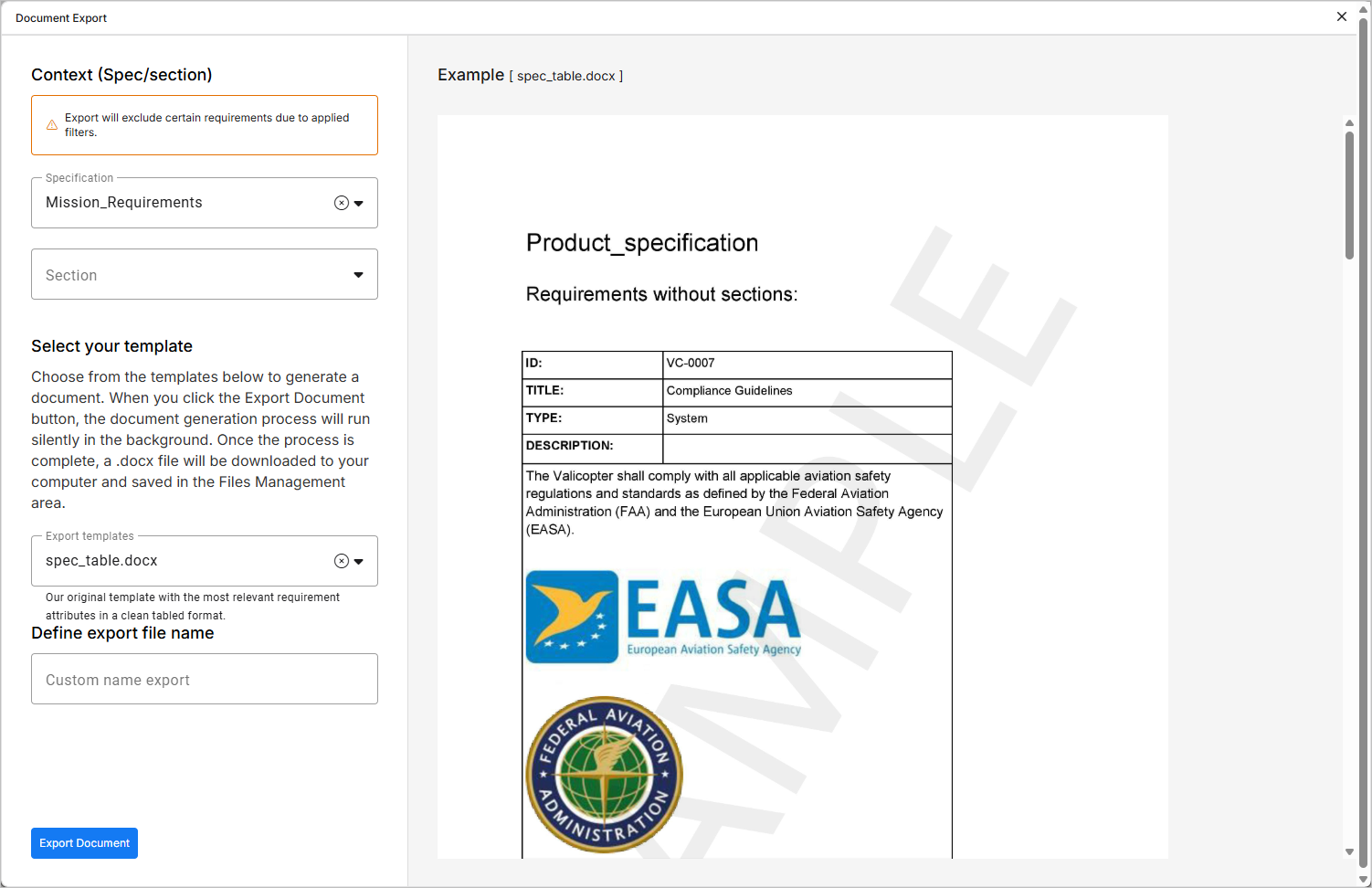
).If you select a default templates, a sample example of an output produced from it will be displayed in the right-side preview window, as shown in the image below.
Exporting and Downloading
Once you click the  button at the bottom of the document exporter's left-hand side pane, a pop-up will appear indicating that the export is in progress followed by another pop-up when it is ready to be downloaded.
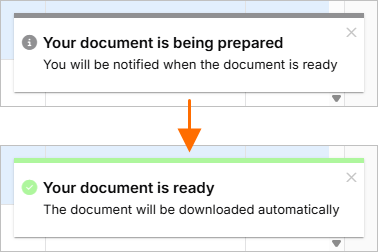
On this notification, your browser will either automatically download the file to a predefined location or ask you where to store it on your local hard drive, according to your personal browser settings.