
Budget Table and Chart
At a Glance
- Find the Budget tab to explore a property’s breakdown across all Blocks, down to the lowest system element.
- Learn how to show or hide table columns and copy the budget table into Excel.
- Access the Breakdown Chart tab and understand that its pie chart shows distribution only for the next lower level.
Valis/Valitypes within your project’s top-level blocks might have the formula function soc() that stands for "sum of children". This function sums up all the Valis of the same type in the Blocks one level below (sub-Blocks). Whenever a Vali has a soc() function as a formula, Requirements Portal automatically creates and updates budget tables and charts for Valis with the formula soc().
Budget Table
The budget tables provide the overall breakdown/distribution of the property over all the Blocks within the project. You can see even the lowest element of the system. To view the budget table for the property, click on the name of the Vali and select the Budget tab.
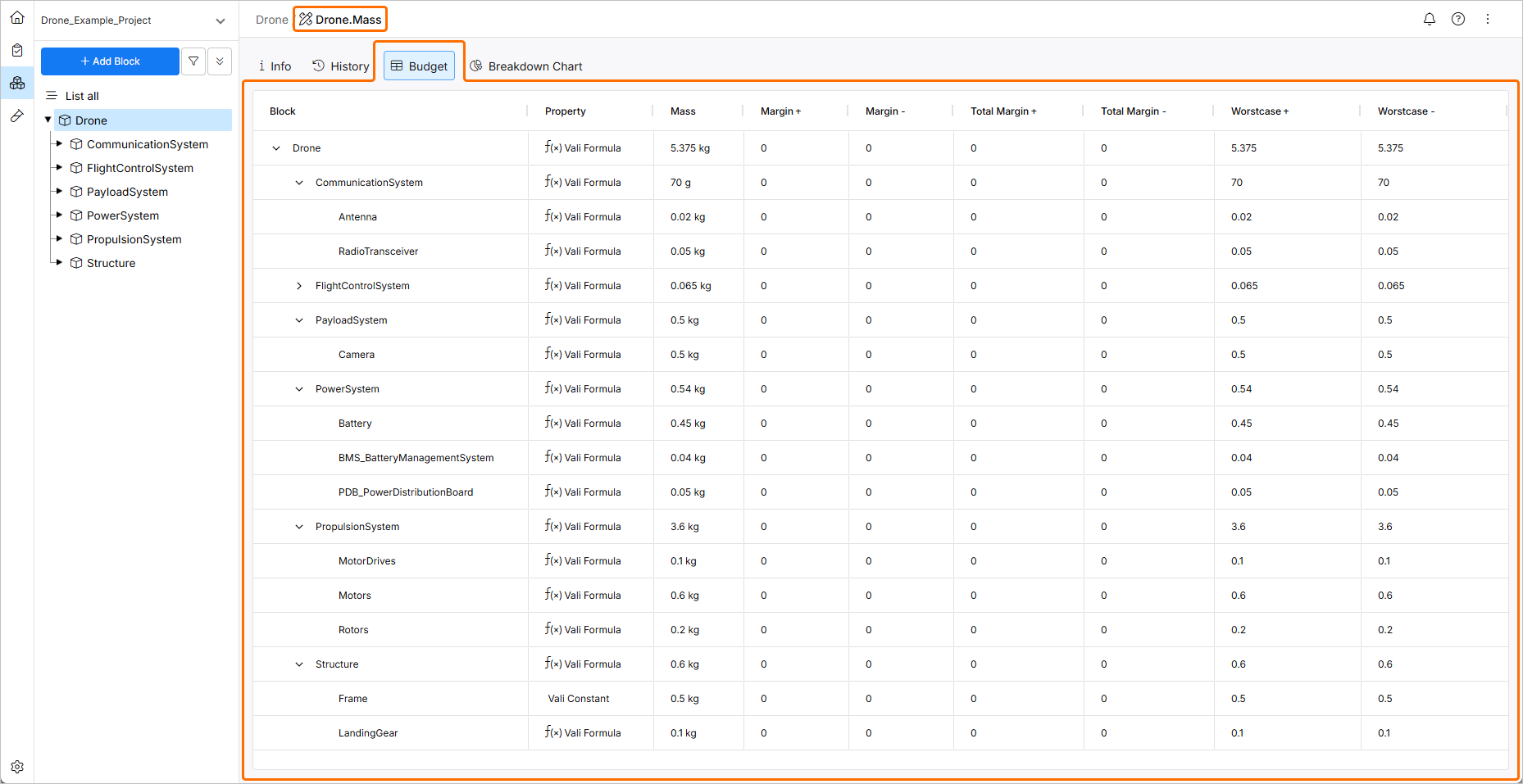
Budget table for a Valitype that has the soc() function
 icon in the column headers of the table and clicking the
 icon in the pop-up that appears.
Pie Chart
To view the pie chart, click on the name of the Vali and select the Breakdown Chart tab.
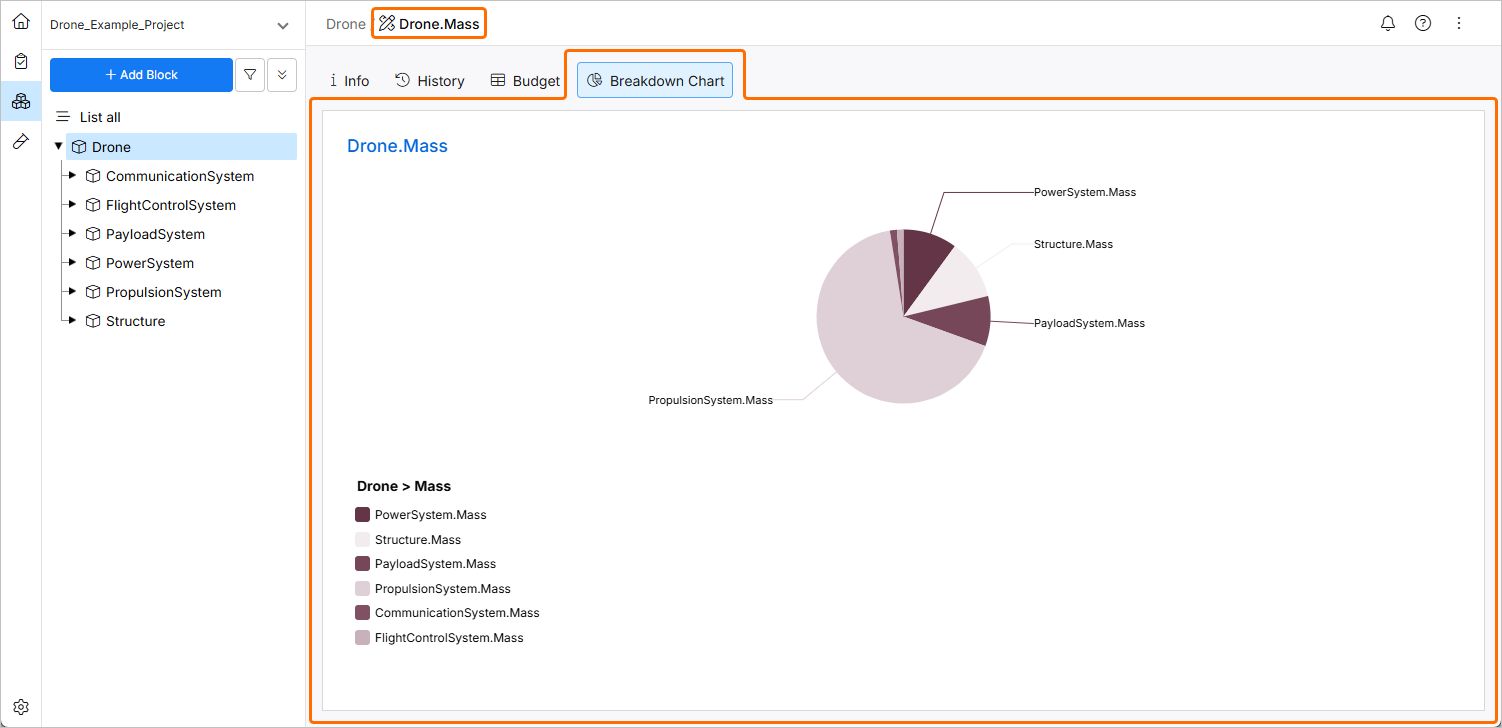
Pie Chart for a Valitype that has the soc() function