
Flow 3: Run a Test Campaign
For this flow, we consider the verification activity to follow procedures with steps and runs. This can be either a test procedure or manual inspection with steps or steps of review meetings. For this flow, the users can link the verification item to the verification activity and define the steps of the verification activity. The Verification Item, i.e. the requirements, can be attached/linked to the steps of the verification activity.
Once the steps are defined and the test/system engineer performs a “run”, the user can perform the steps and validate the results on the runs. This is then propagated to the Verification activity and verification item.

The detailed steps to perform this flow within the V&V module are shown in the slideshow below. The flow where the verification activity comprises of a test procedure is demonstrated (in this example, the V&V activity is already created, and the Requirements are added).
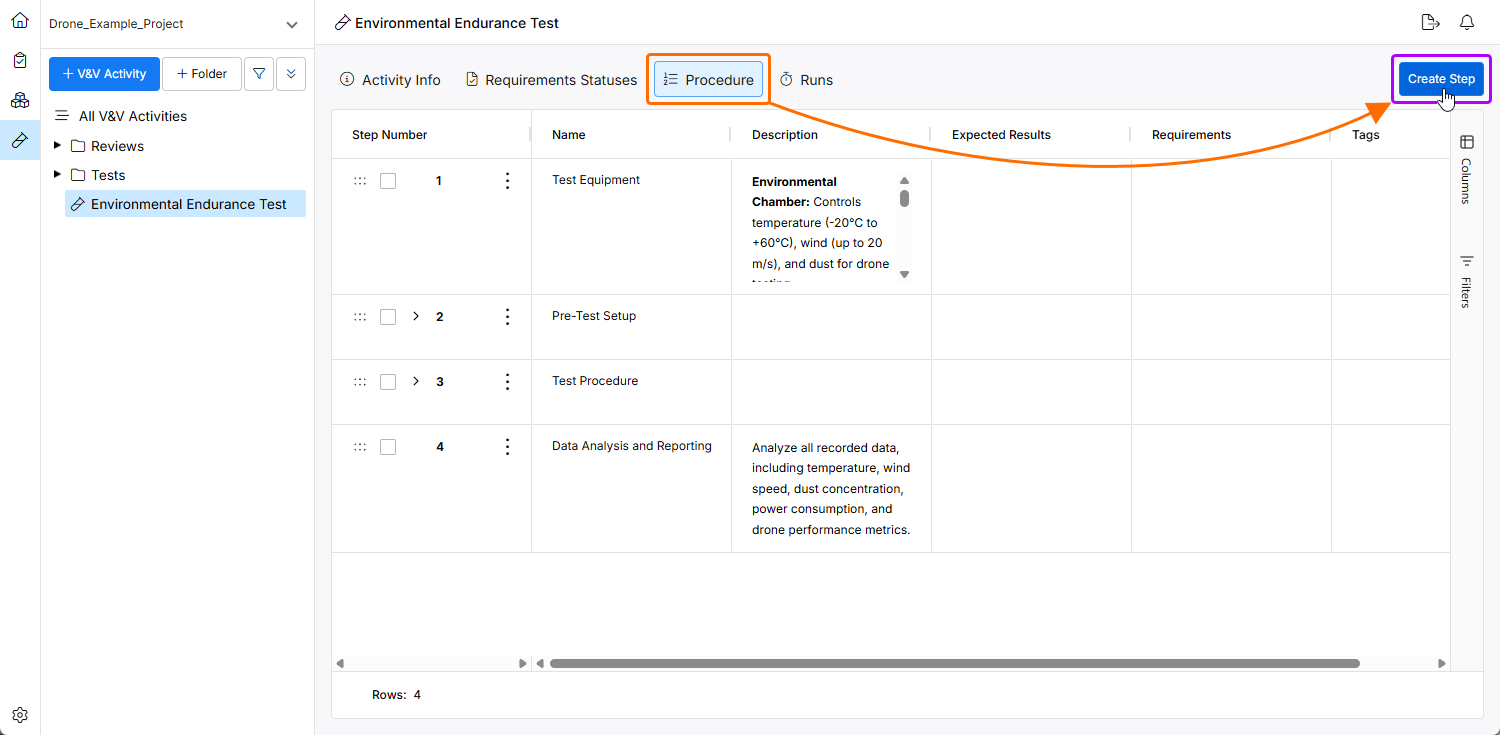
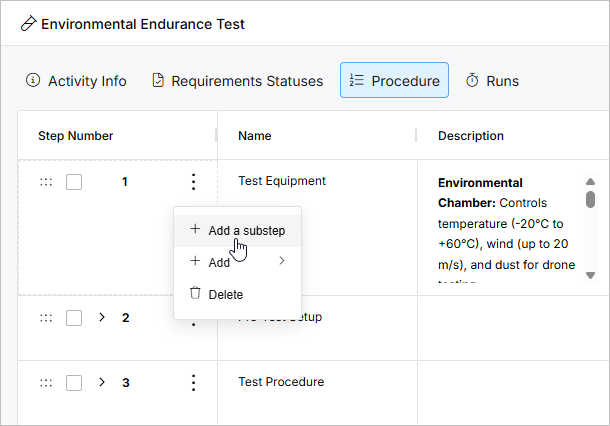
In the Procedure view of an activity, you can add the steps of the test procedure using the  button.
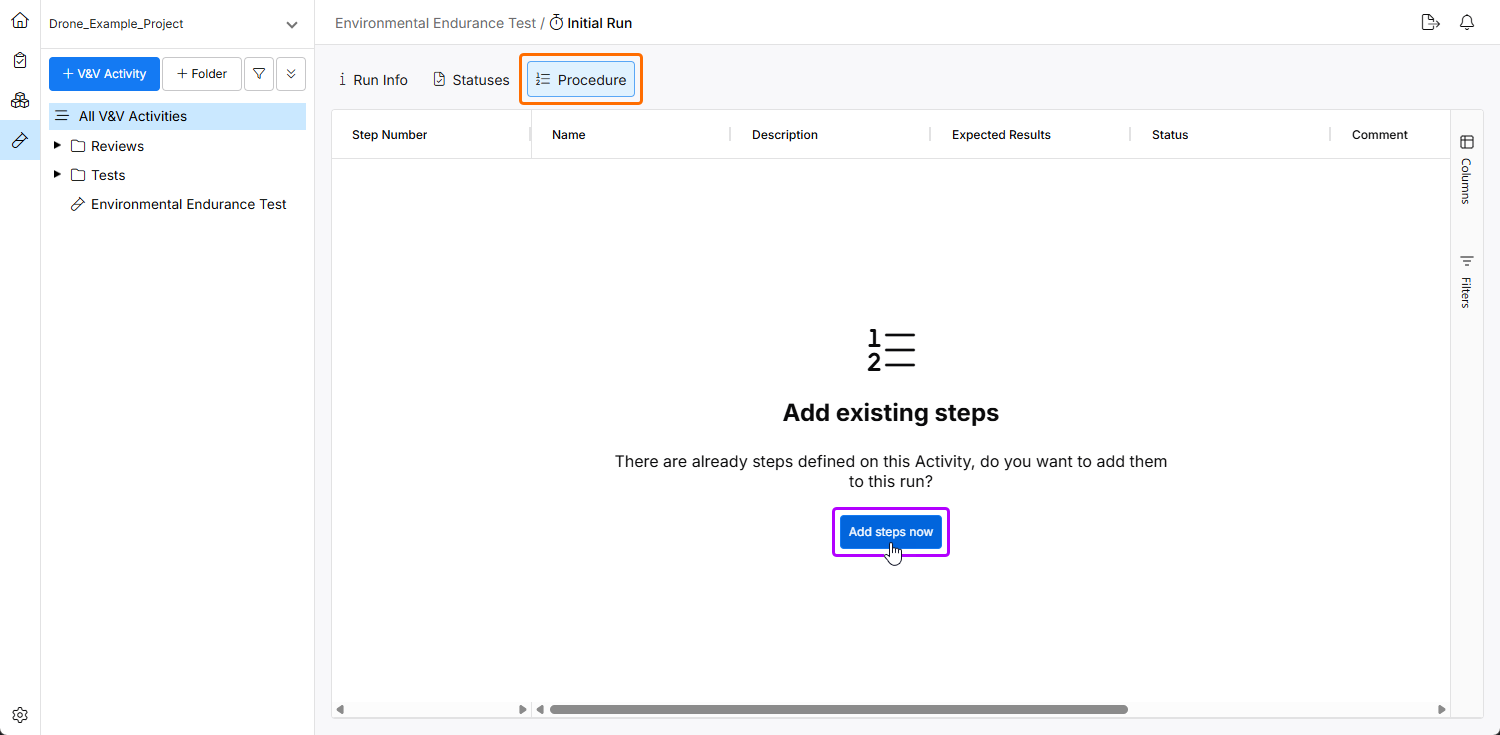
Navigate to the Procedure view of the run to perform the test procedure. Since the initial steps are created automatically during the activity creation, the steps added to the V&V activity are not copied, so you need to use the  button. In case you are creating a new run, the steps are automatically copied to the procedure.
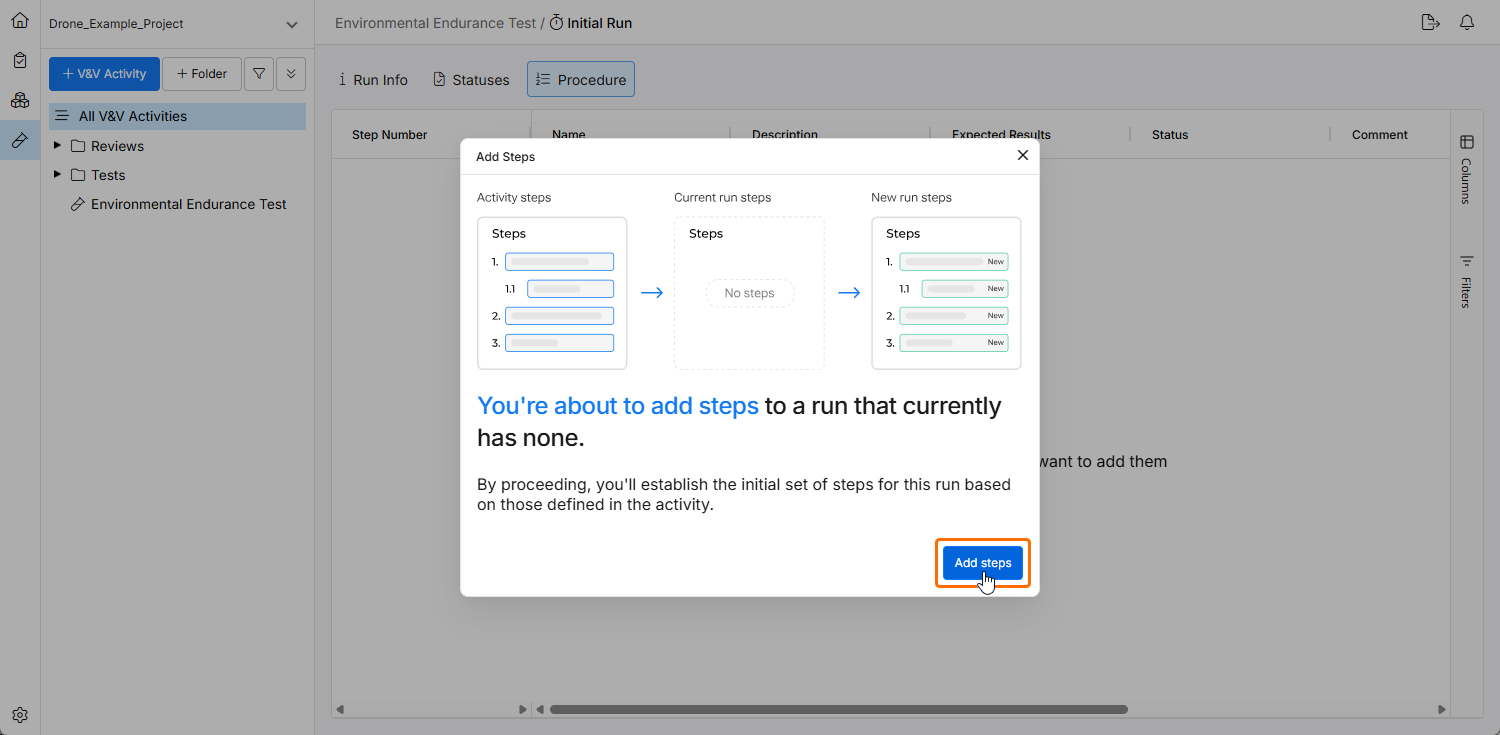
In the Add Steps window that opens, click the  button to add steps.
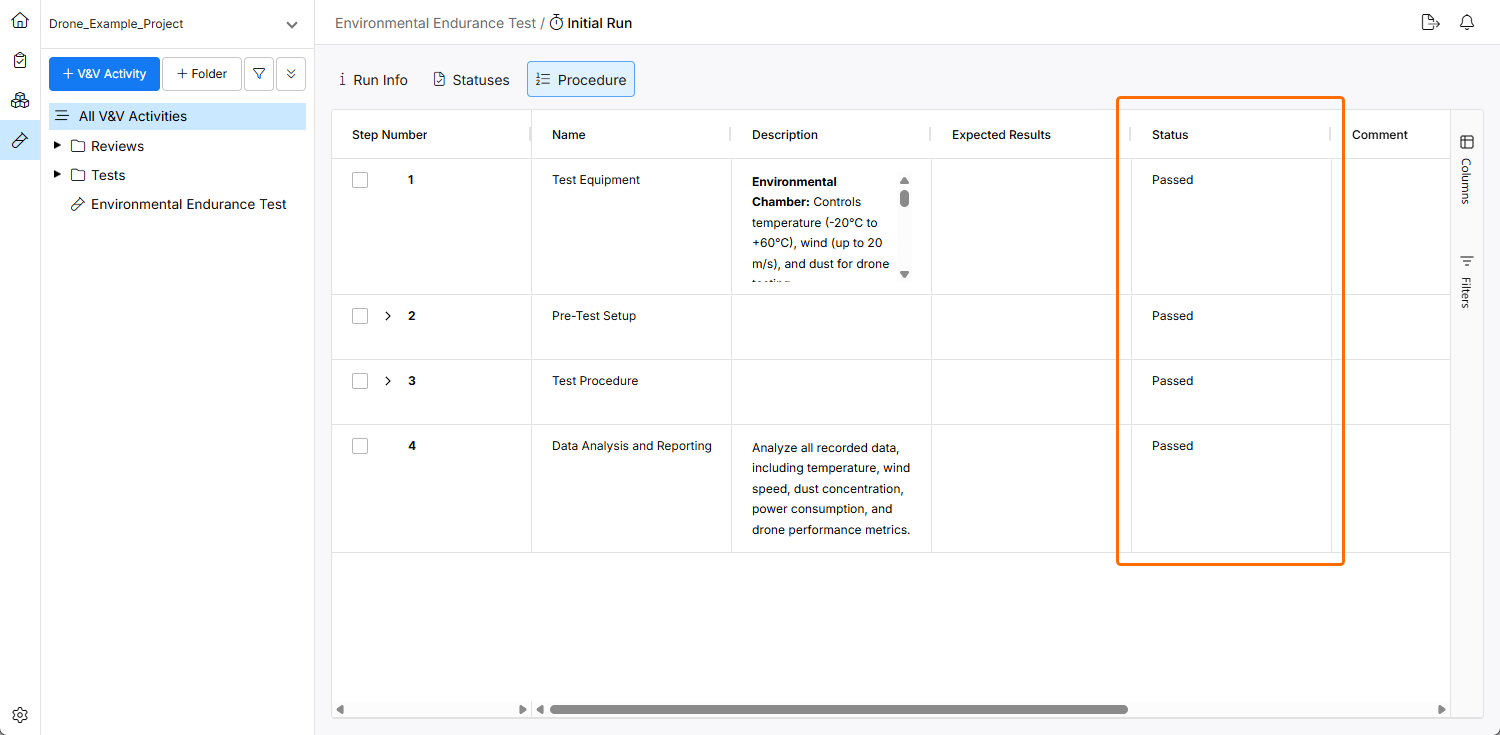
Create the Steps
You can create the steps for a verification activity on its Procedure view. Steps can be assigned to a Verification Item in the verification activity's Requirements Statuses view.
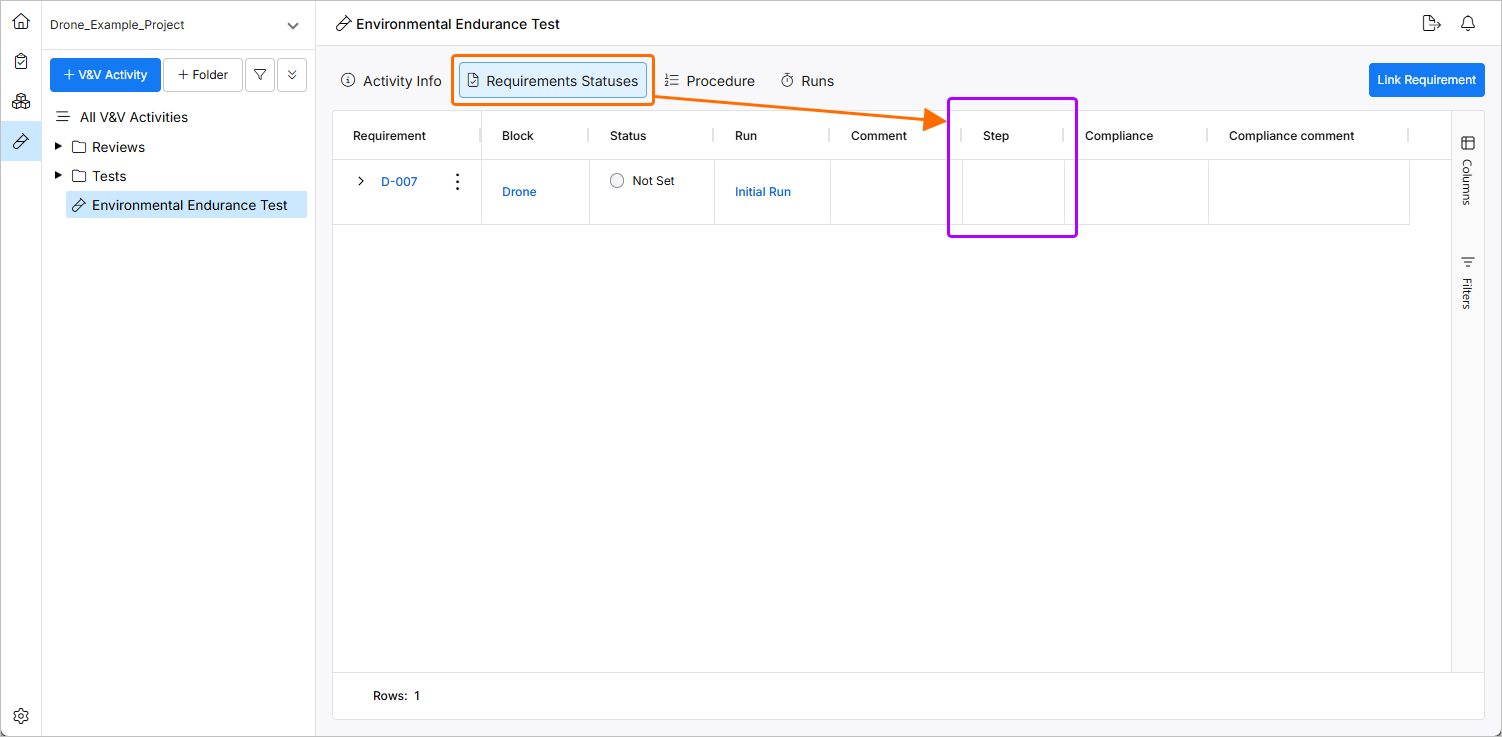
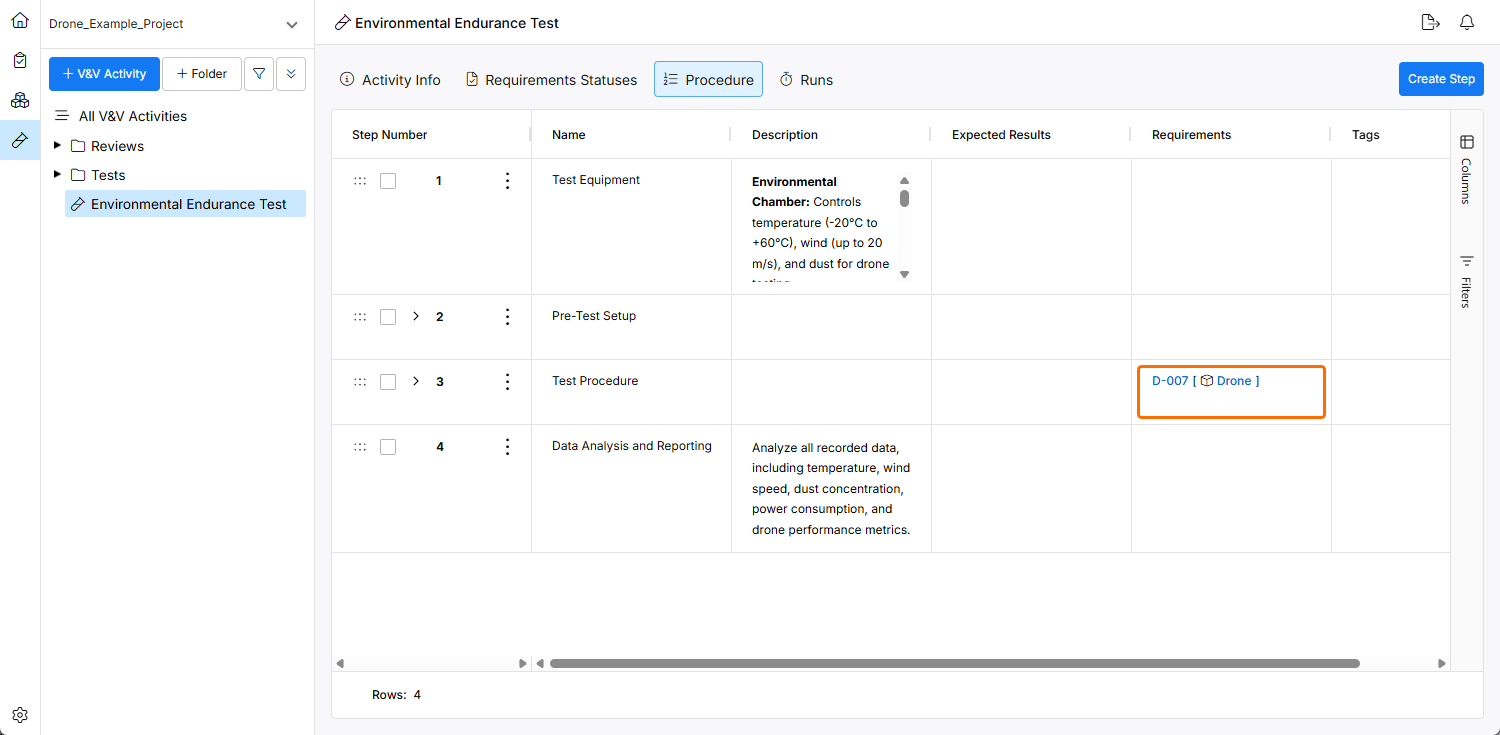
Users can also add the verification item to the steps from the Procedure view page.
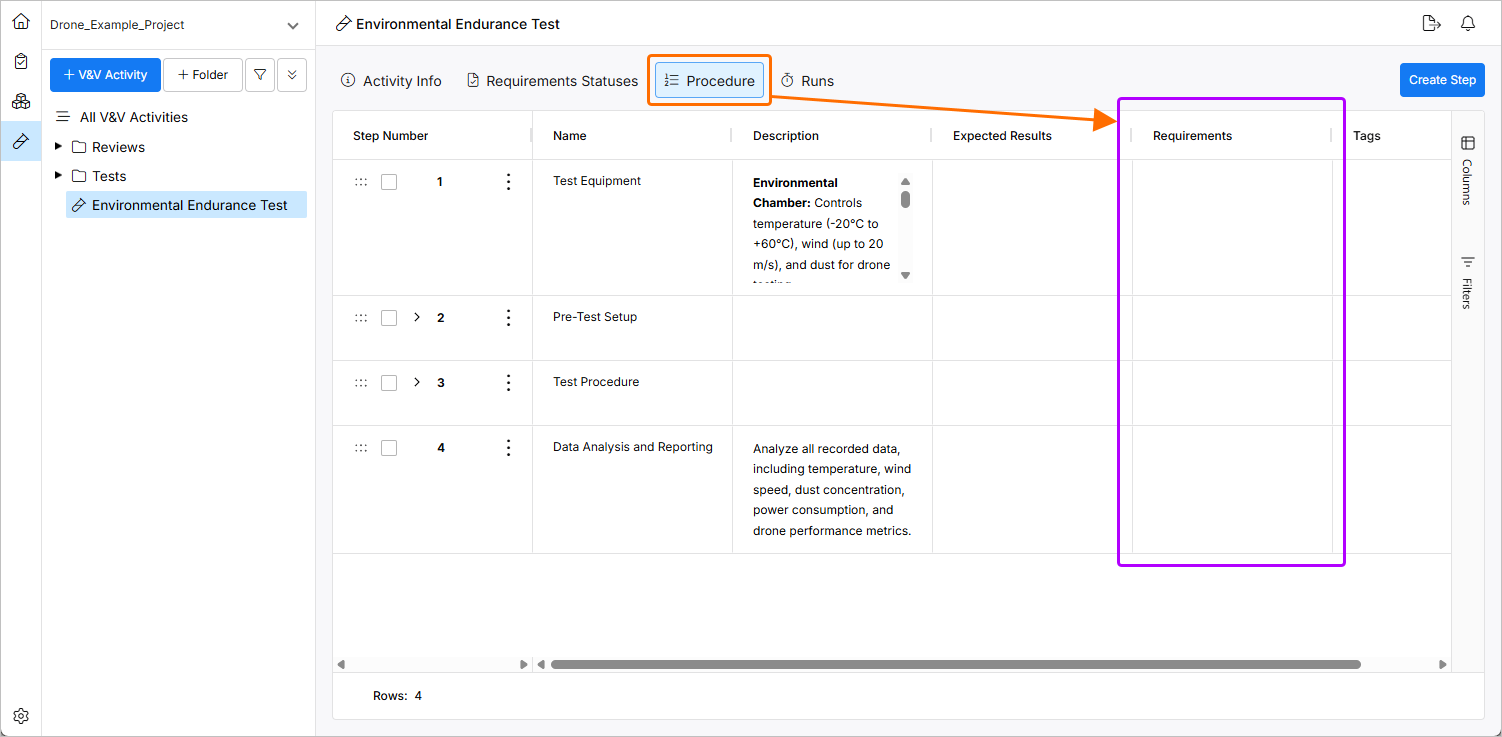
You can start performing the runs once the steps and requirements are defined.
Create a Run
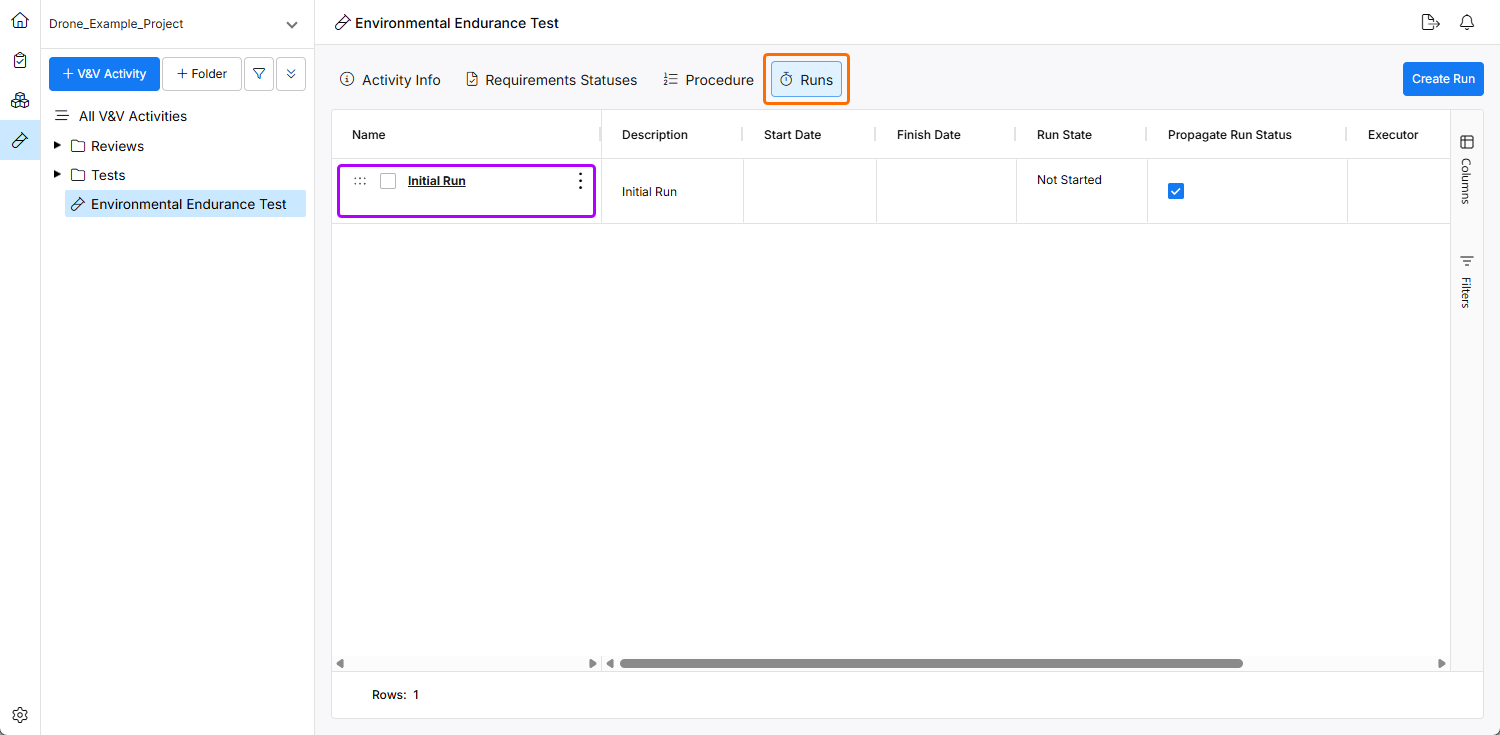
To verify the verification activity through the steps, a run needs to be created within the verification activity. A run is a specific instance of executing the verification activity. To create a run, click the  button and provide a name (e.g.,
 Run #1) in the Create Activity Run window that opens. Enable the Propagate Run Statuses option to propagate the Run Status to the Verification Status of the Requirement.
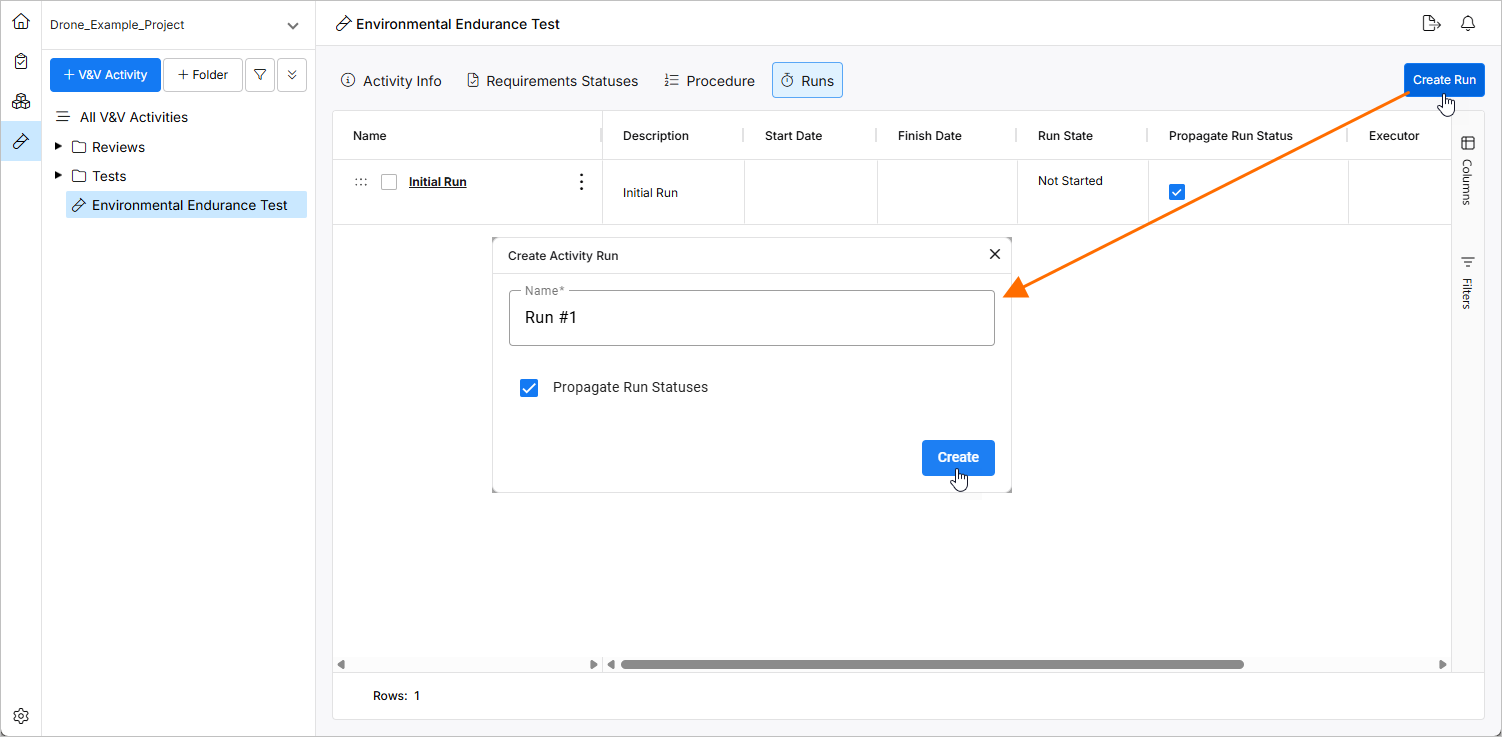
Click the name of the created run to access its details.
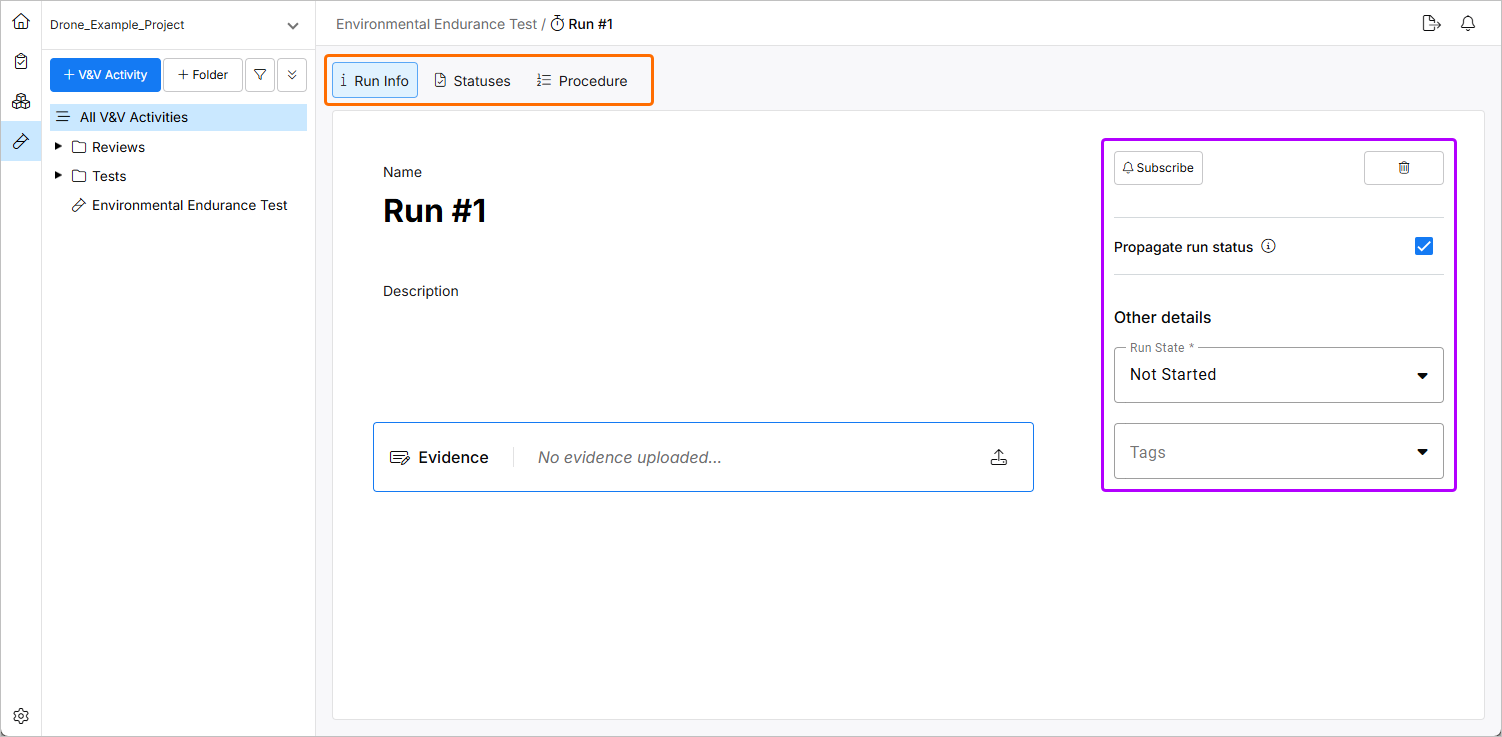
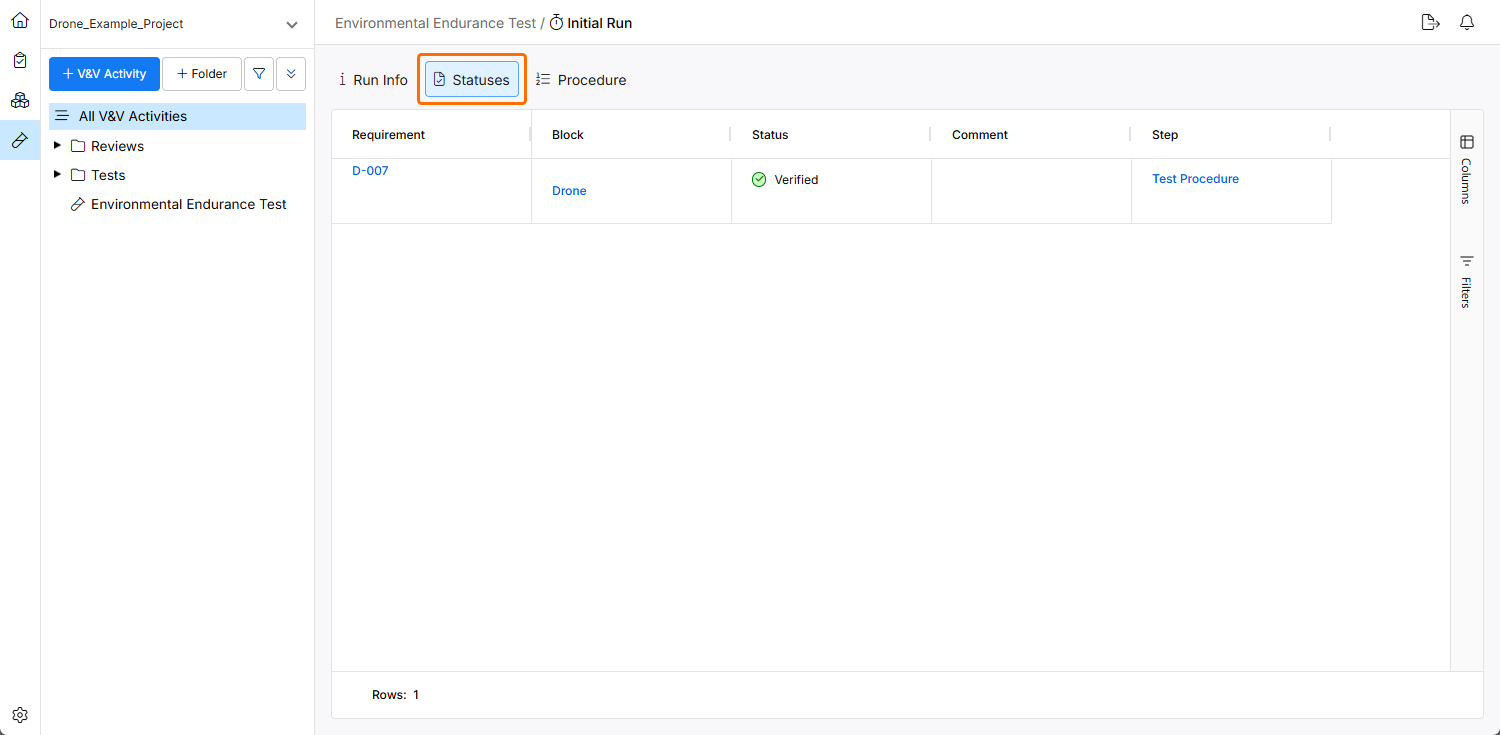
You can access the Status and Procedures of the run.
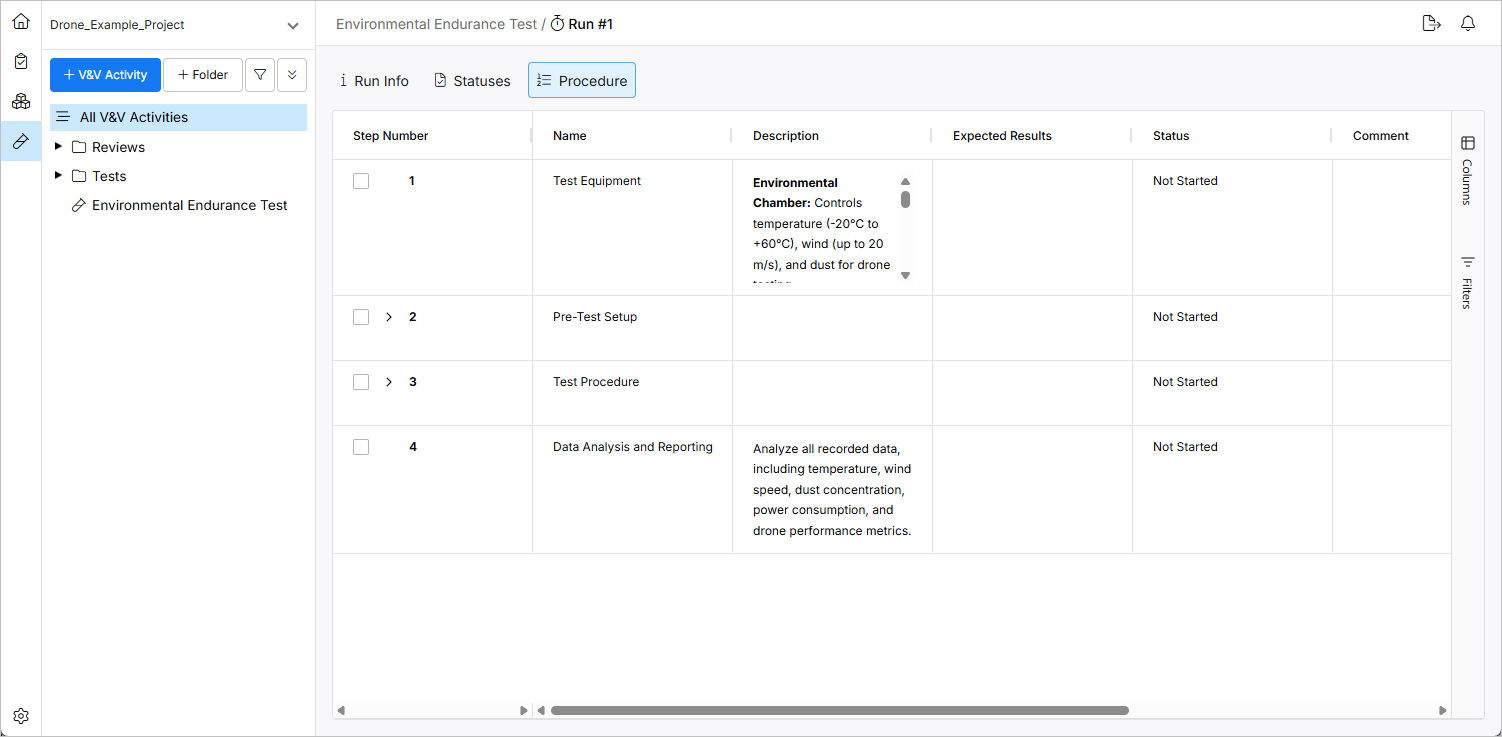
Perform the Steps and Update the Status
You can go through each step and perform it or skip the step if it is not relevant to the current state of the system design. Based on the results, you can update the status as Passed, Skipped, or Failed. Based on the run step results, the requirements' status is updated to reflect whether they have been Verified, Skipped, or Not Verified.
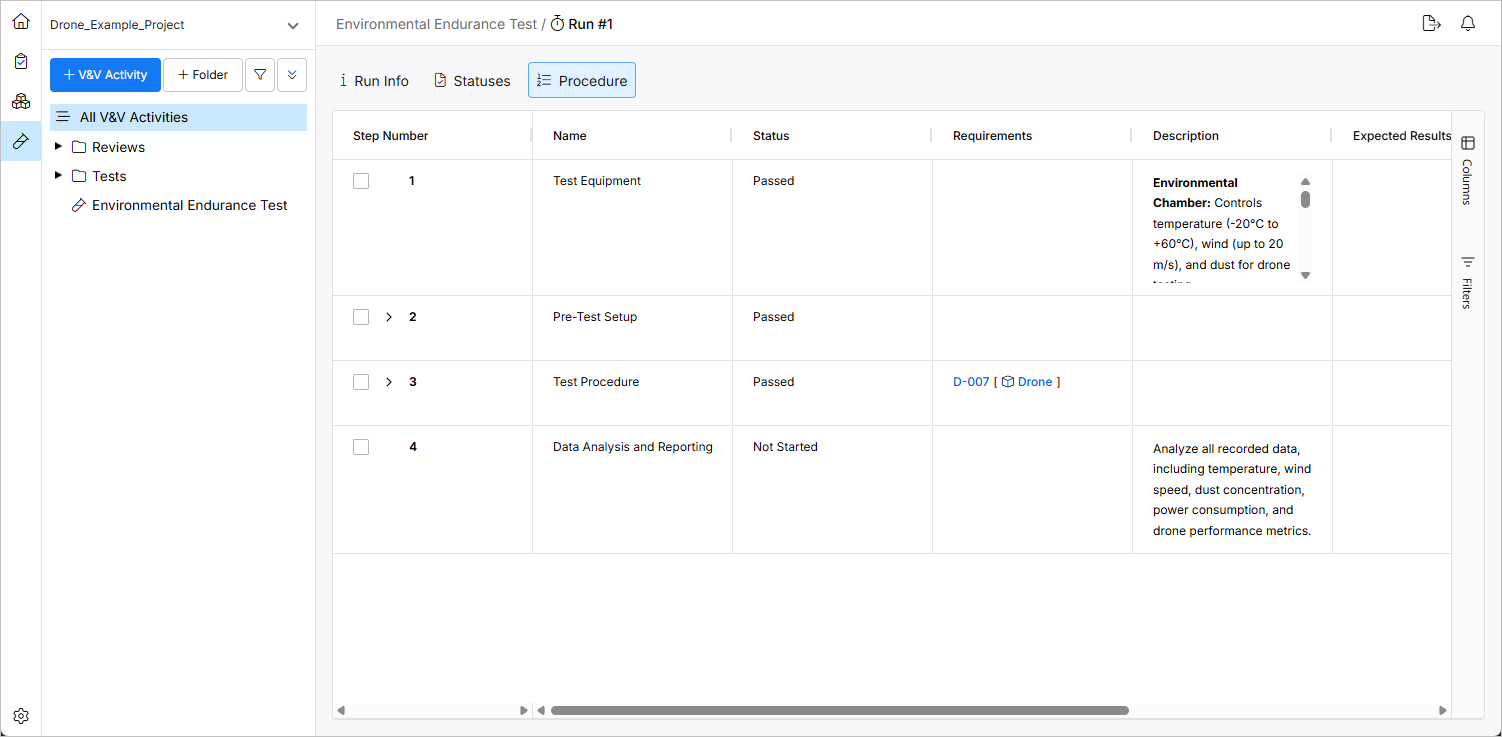
In this case, Step 3 was Passed, so the Verification Status of the associated Requirement is Verified.
Check the Status of Verification Activity and Verification Status of Requirement
Finally, the status of the verification activity and the verification status of the requirement are reviewed to ensure that the verification process is complete and properly documented.
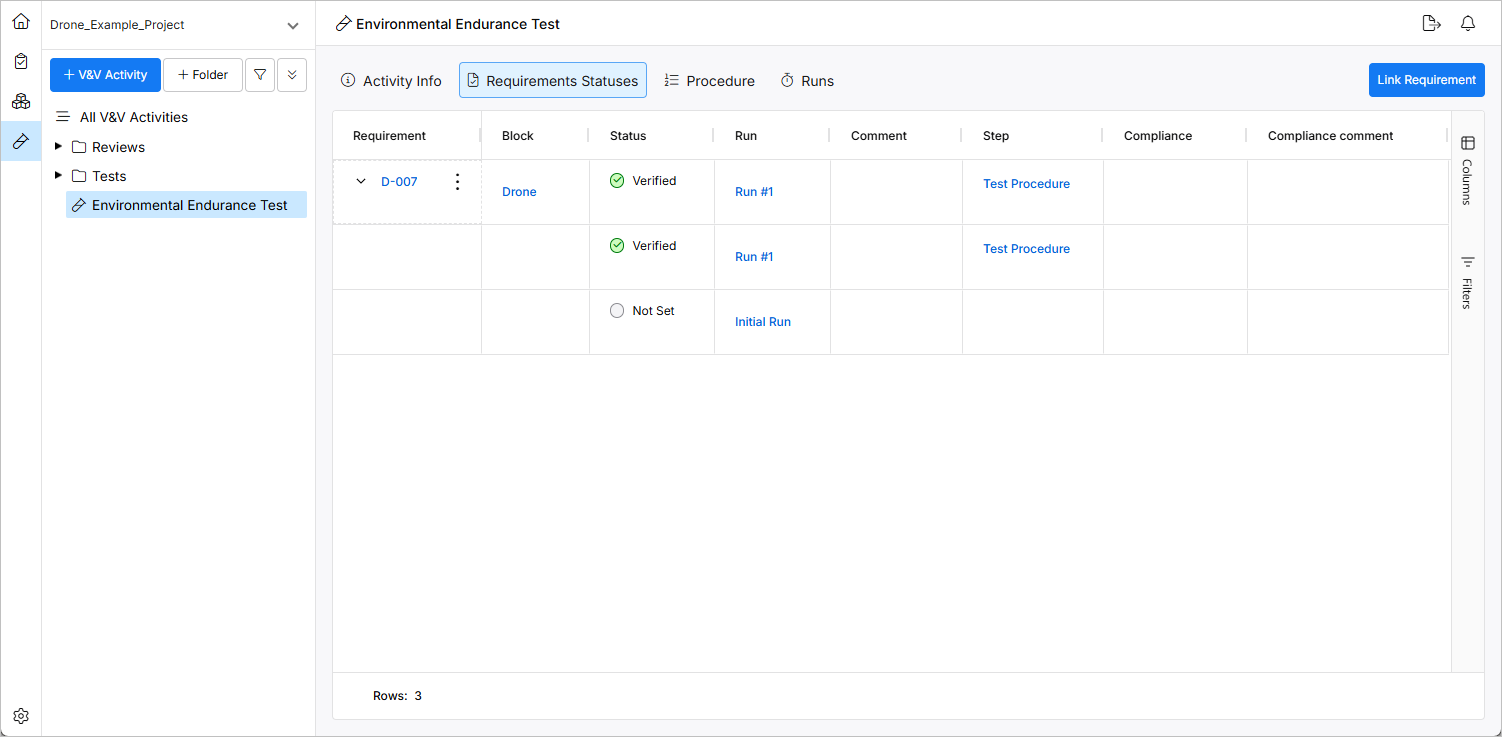
This workflow ensures that each verification item is thoroughly checked against its requirements using a structured process that includes documentation and status tracking at each step.