
Flow 4: Manual and Rules Verification Flow
The following two flows allow the user to set up a verification directly from the Requirements Module.
Manual Verification Flow
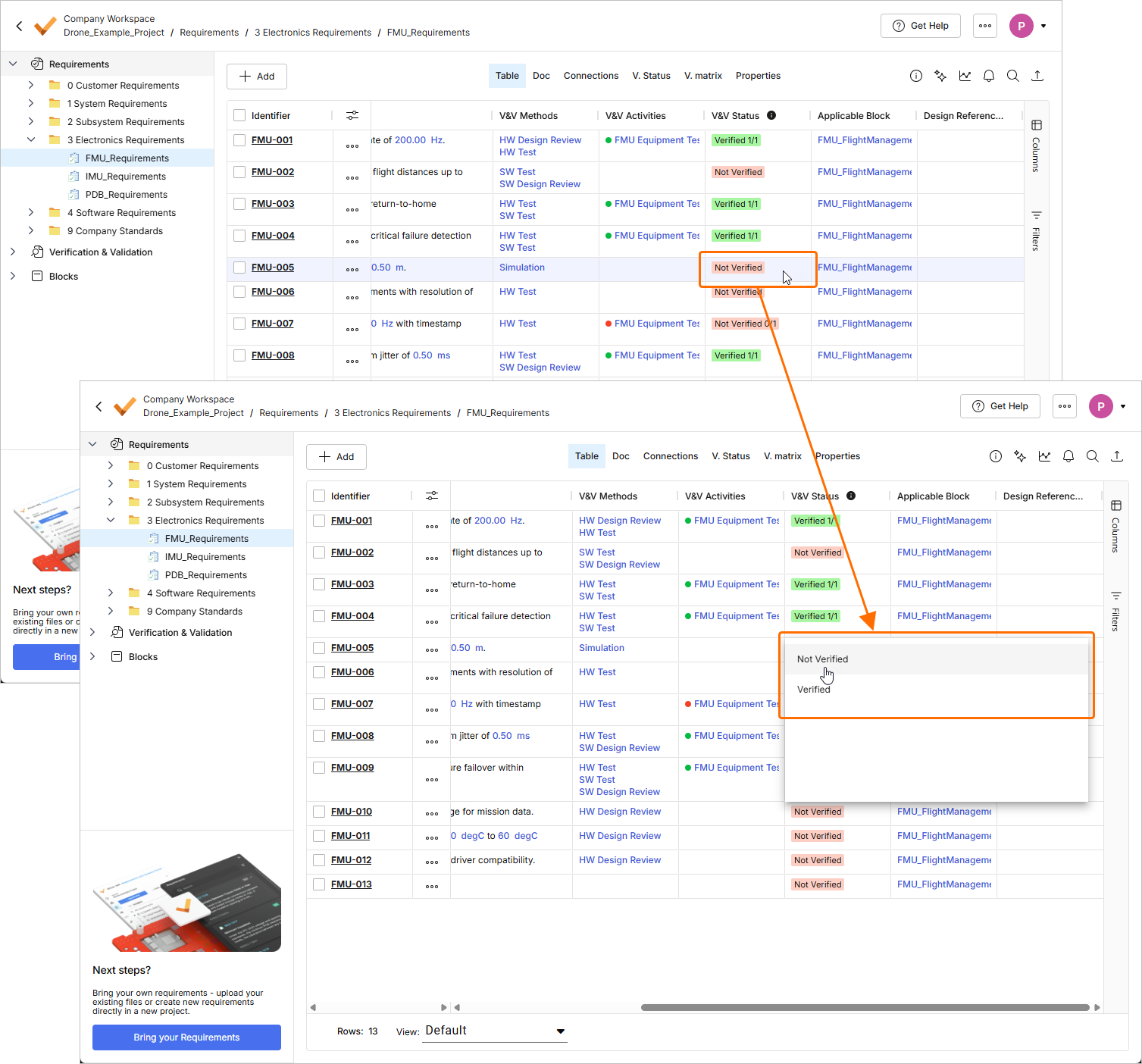
This flow allows you to directly add a V&V Activity to a Requirement from within the Requirements Module and manually update the Status. To do this, you can double-click a cell in the V&V Activities column in the Requirements Module and create a link to an Activity.
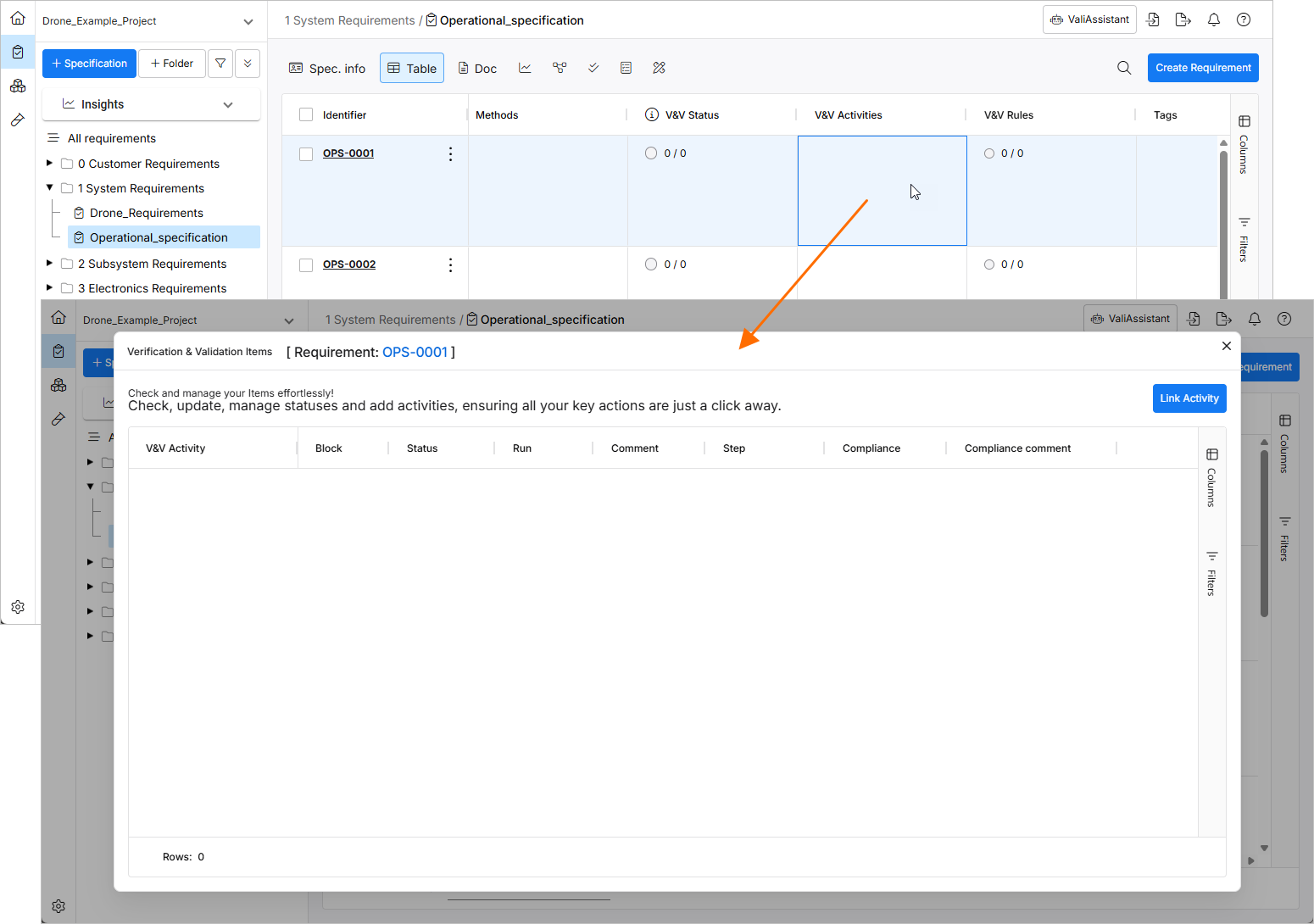
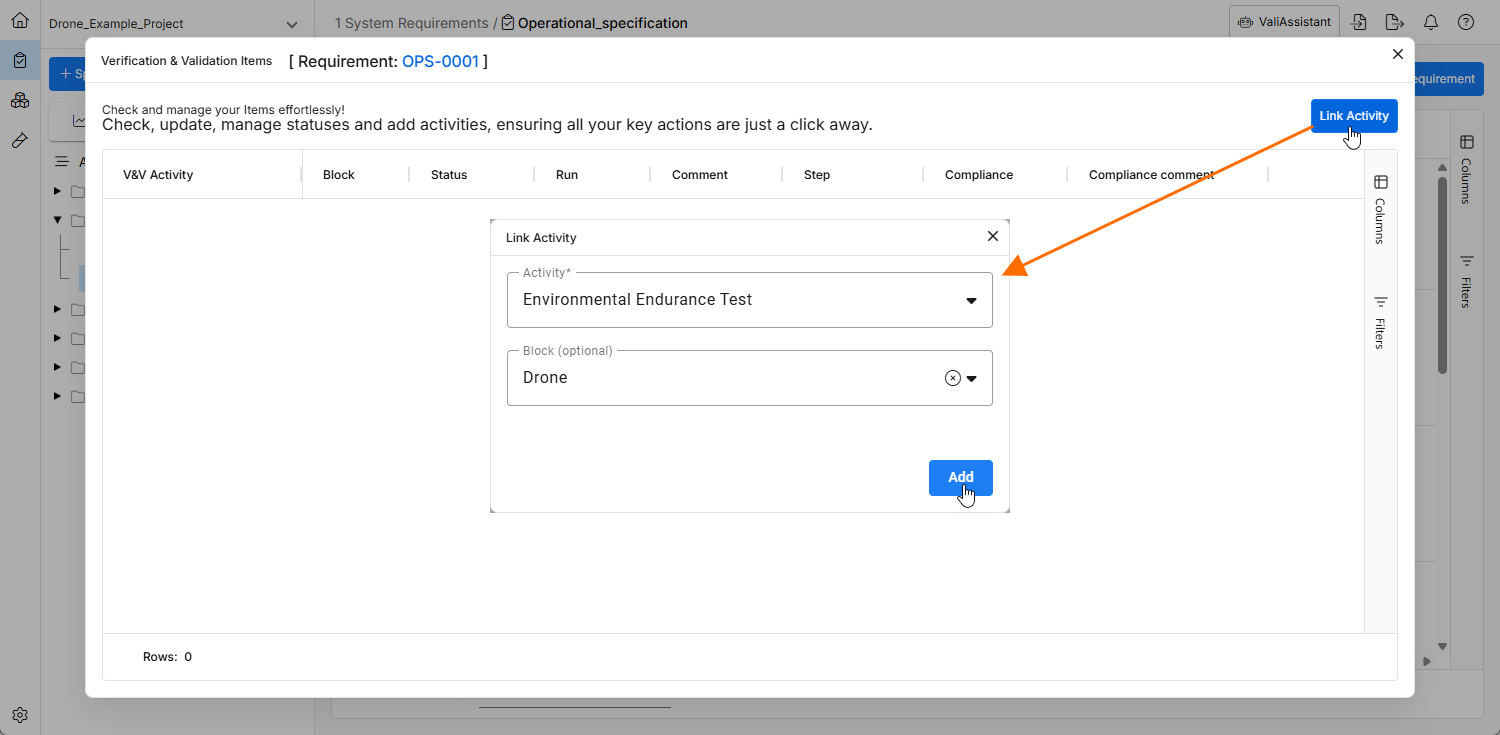
The Verification & Validation Items window that opens shows already added activities. Click the  button to link existing Activities to the Requirement. From the Link Activity window that opens, you can select an existing activity and, optionally, a Block.
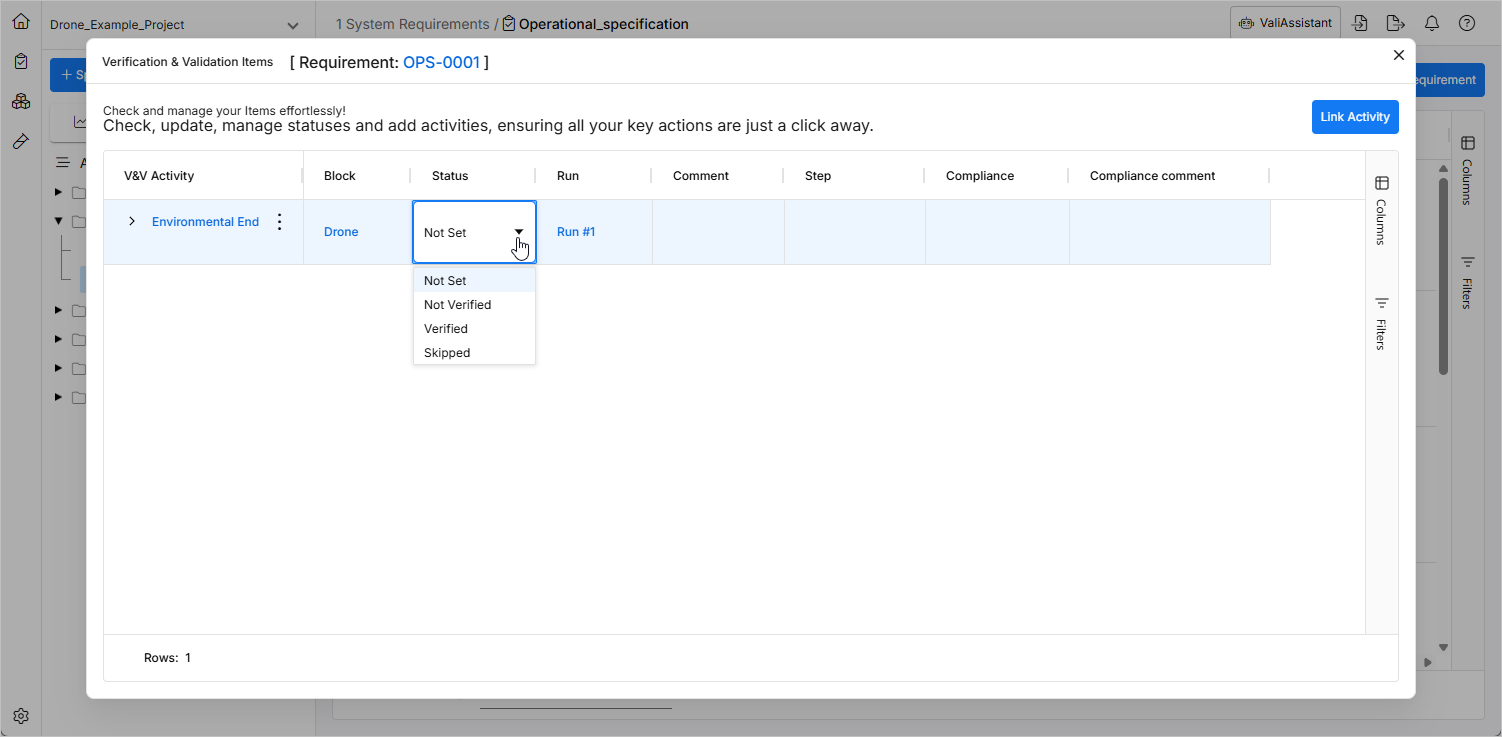
After this, you can directly assign the Status manually or jump into the Activity or the Run through the dynamic links.
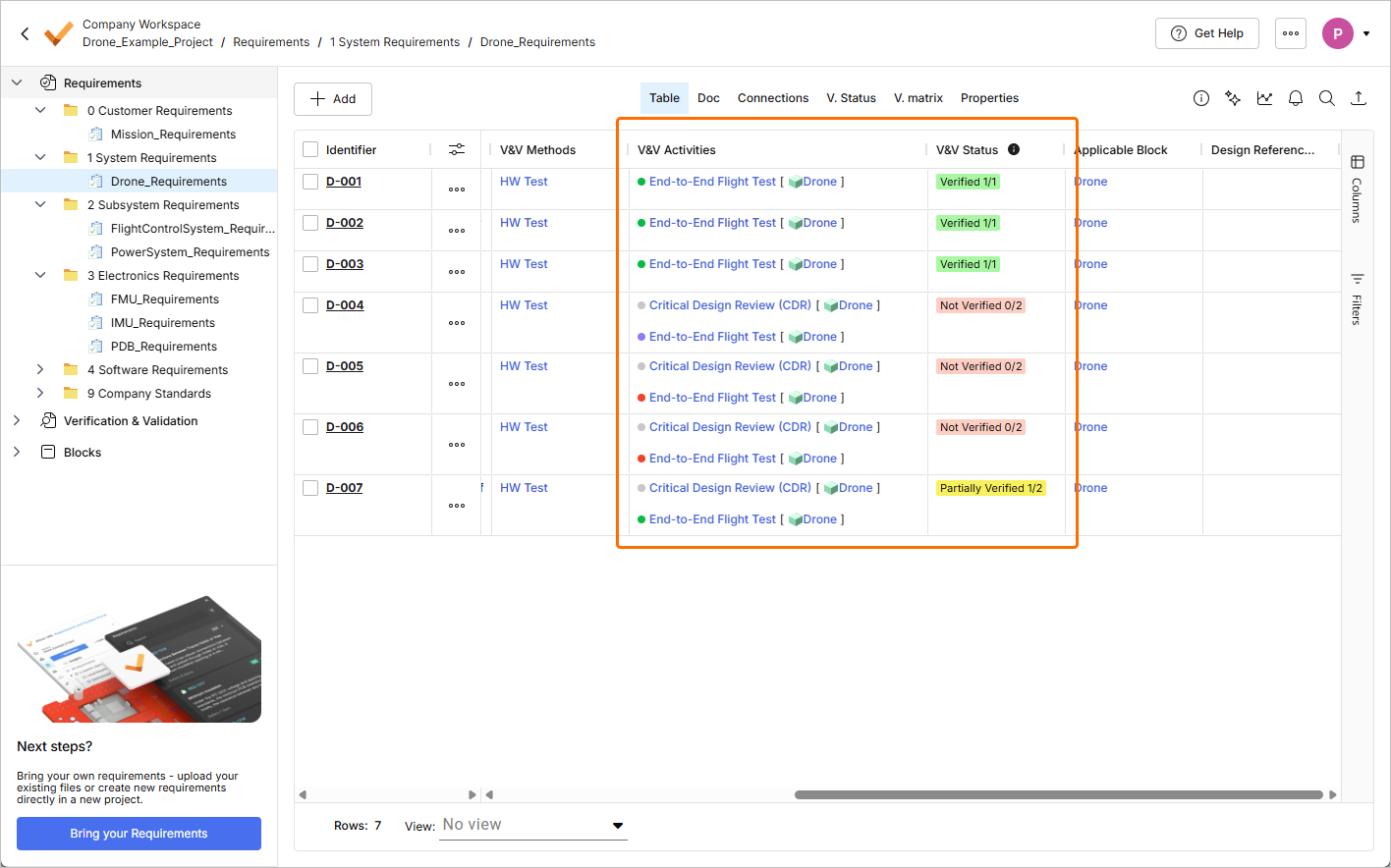
The V&V Status field of a requirement with assigned V&V activities will automatically be updated based on the status of the V&V activities. The entry in the requirement's V&V Status field will be shown as follows:
-
Not Verified – if no assigned activities are in the Verified status.
-
Partially Verified – if some but not all of assigned activities are in the Verified status.
-
Verified – if all assigned activities are in the Verified status.
Also, numbers will be shown in the cell in the form of X/Y, where X is the number assigned activities in the Verified status and Y is the total number of assigned activities.
Rules Verification Flow
The Rules let you establish a comparison between block valis and requirement valis through Boolean expressions (e.g., "Is the Design Mass lower than the maximum Requirement Mass?"). For this, make sure you have established Valis on both sides (in the Blocks Module and in the Requirements Module). To establish a Rule, double-click a cell in the V&V Rules column on a Requirement. This will open up a window where the Rules can be defined.
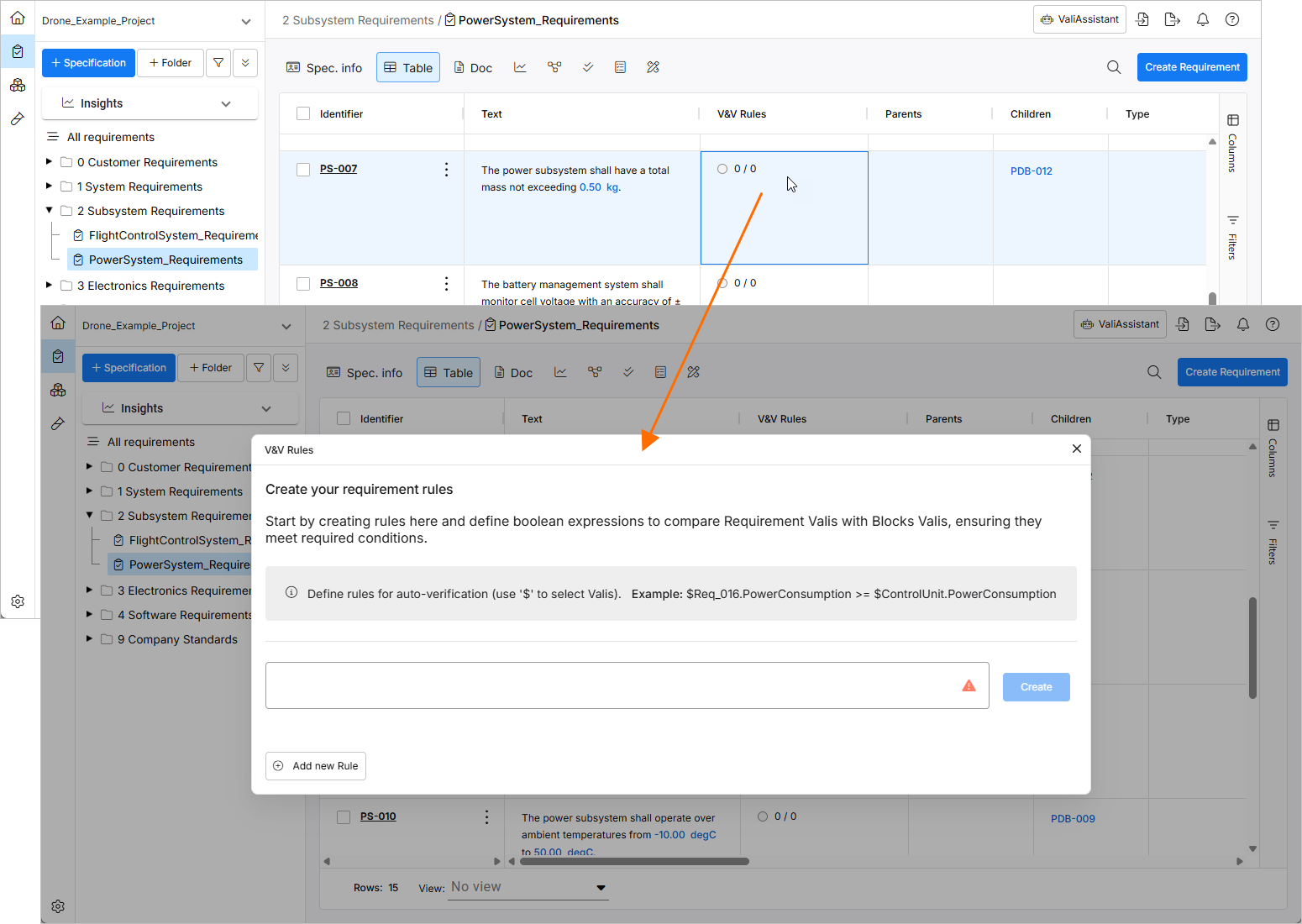
To call the Valis, type the dollar sign ($) which will open up a drop-down with Valis to choose from and search for. In the example shown below, the actual mass of the drone power system is compared with the maximum permitted mass defined by the Requirement.
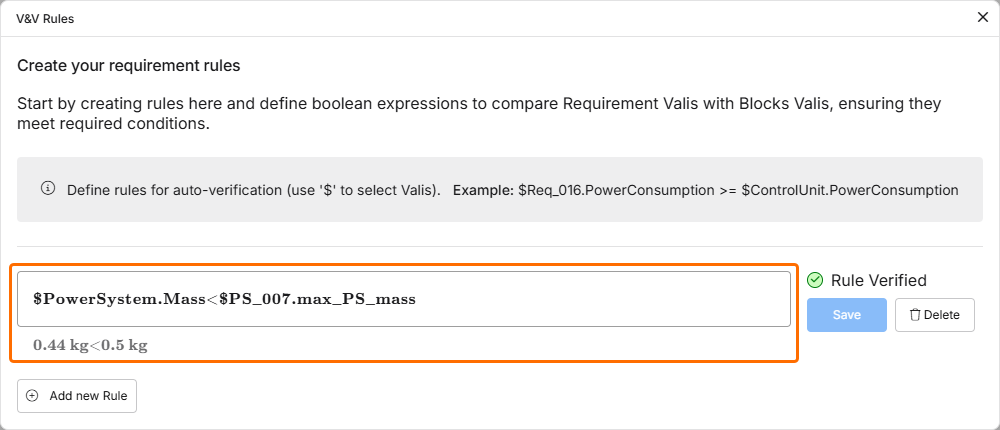
In this case, the Rule is Verified as 0.44 kg (Design Mass) is lower than 0.5 kg (Maximum Requirement Mass).