
Sharing and Exporting an Analysis
The analysis can be exported as a PDF or shared with a link, even with external partners who don't have access to your Requirements & Systems Portal account.
Sharing an Analysis
To share the analysis, click on the three-dot icon (1) in the upper right corner and select the “Share” button (2). Then, create a unique link for the analysis. Refer Figure share the analysis
 Sharing the analysis - Explore the sharing possibilities within the three dots menu.
You can create unique links with different permissions to send to different people and revoke access by removing the shared link from the list.
 Creating a new link - Provide the permissions through the option “View as” and then select the option “Create new link”
Downloading an Analysis as a PDF
To download the analysis as a PDF, click the three-dot icon in the upper right corner and select Download PDF. A window with a document preview and settings will be displayed. Use it to configure the output PDF document as required.
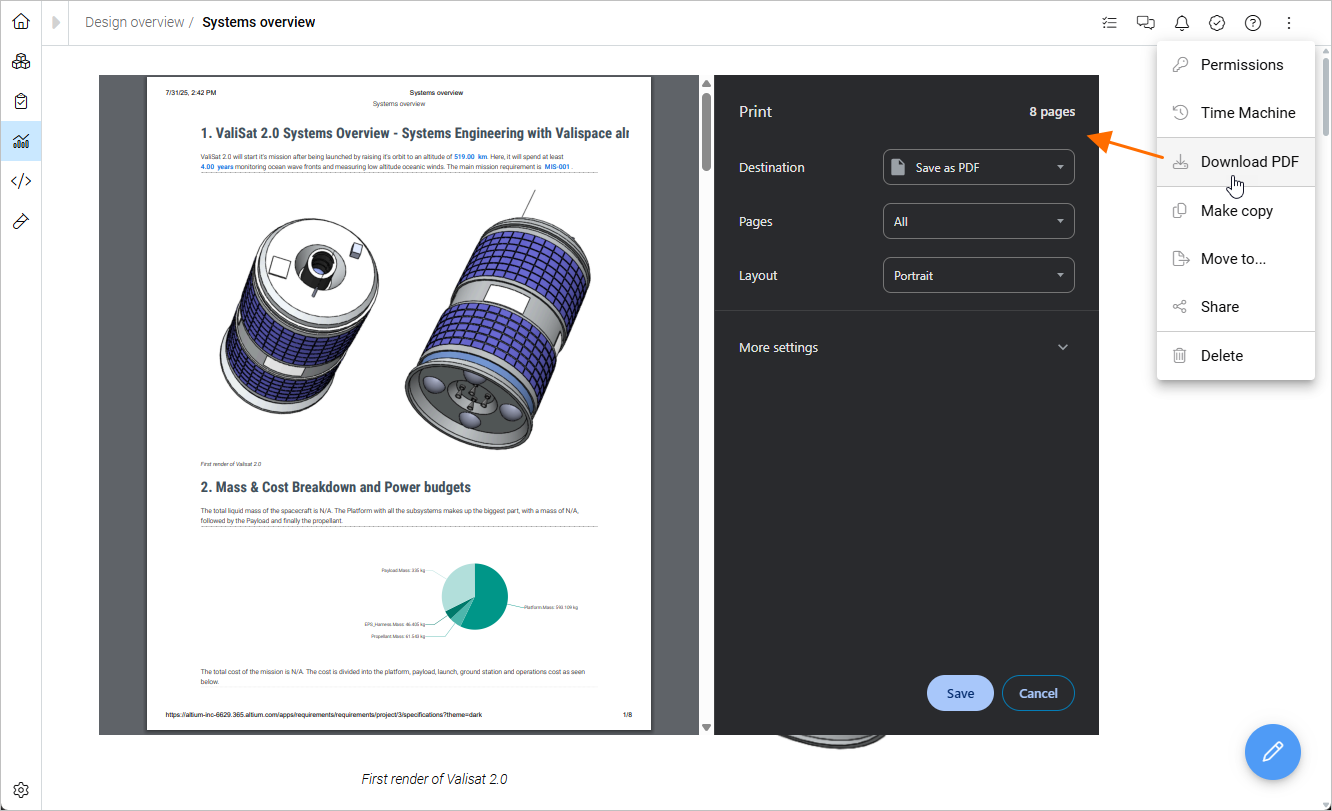
Download PDF analysis - Explore the sharing possibilities within the three dots menu
Exporting a Block
Additionally, each analysis block can be exported and downloaded as an image. Hover over the block and then click on the menu (three dots) that appears in the upper right corner to select “Export as image.”
 Export as Image - Every block(image, graph or text) in Requirements & Systems Portal can be exported as image through this option