
New in Requirements & Systems Portal
Requirements & Systems Portal is under continuous development. This page outlines new features and enhancements made to Requirements & Systems Portal in key updates.
Update - 6 August 2026
Consolidated UI of the Importer
In this release, the Import Wizard used to import requirements to your projects has been updated to consolidate the user interface of the AI importer and the classic (formerly legacy) importer.
When accessing the Import Wizard, it will now suggest you uploading a file of a supported type (*.pdf, *.docx, *.xlsx, or *.csv).
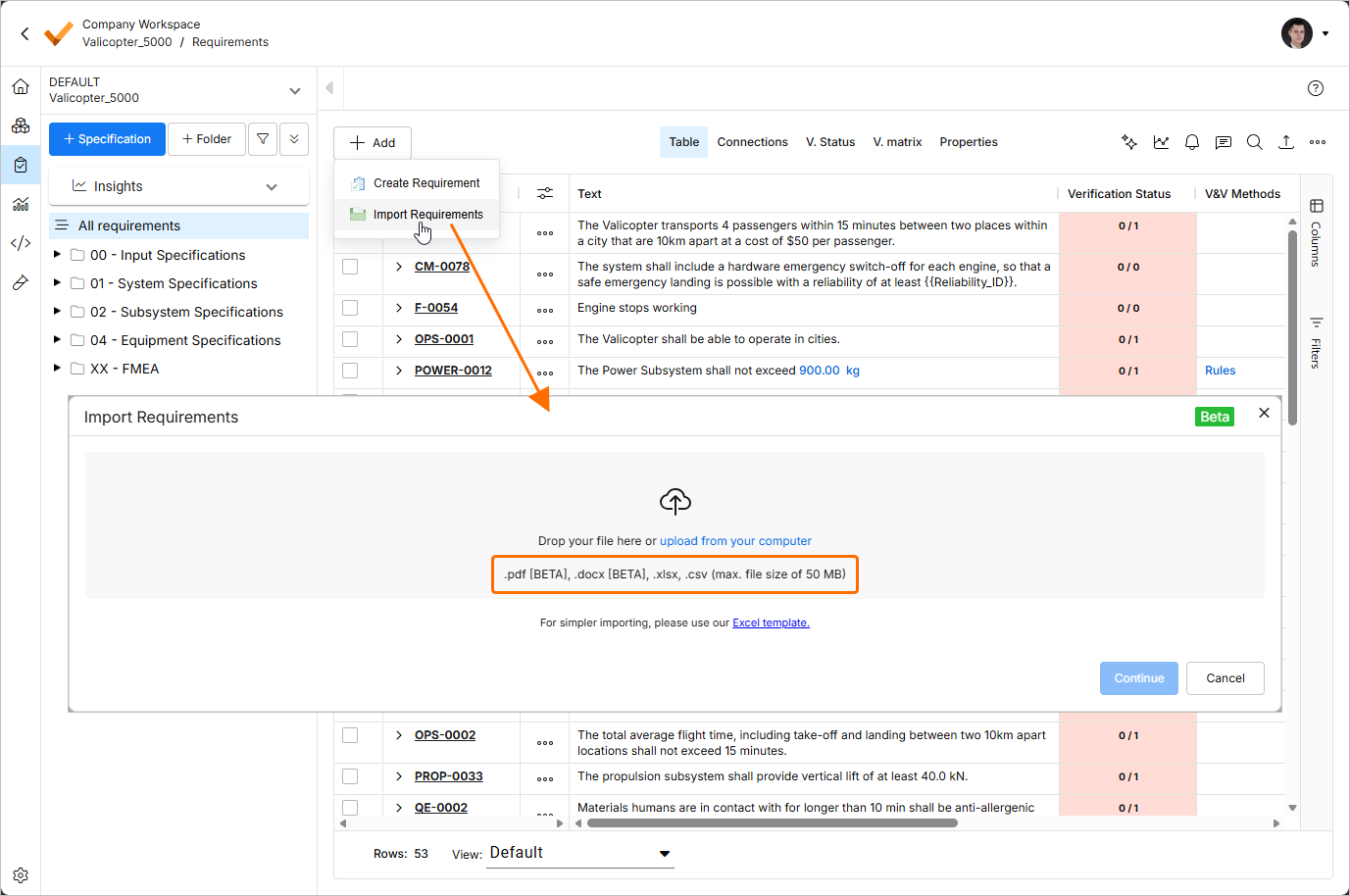
Files in *.pdf and *.docx formats can only be imported using the AI importer. If you upload a *.xlsx or *.csv file, you can choose to use the classic importer by enabling the Classic Import (Non-AI) option.

The user interface of both AI and classic importers shares similar controls.
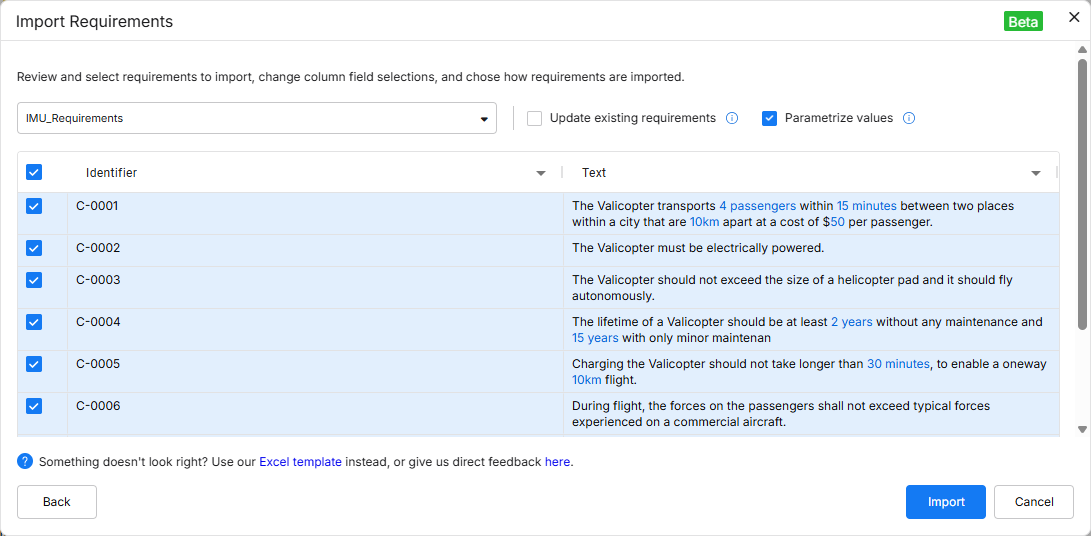
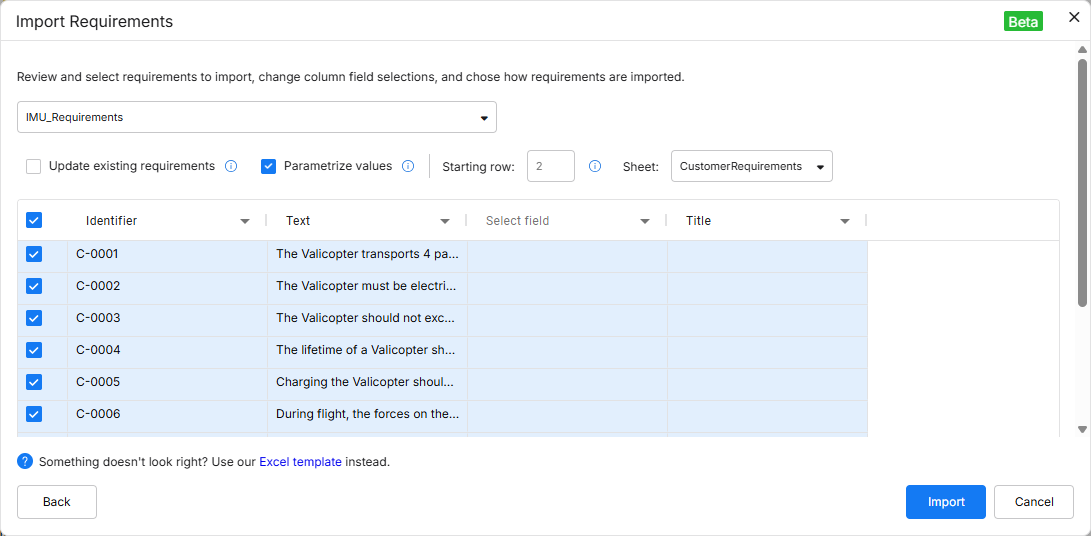
A number of improvements has been added to the AI importer:
-
Custom columns (including creating custom columns directly on the review page).
-
The ability to remap fields.
-
The ability to update existing requirements with the imported data.
For more information, refer to the Import Requirements page.
Update - 27 July 2026
Key Highlights
This release includes bug fixes to enhance the overall functionality and user experience.
Update - 9 July 2026
Key Highlights
This release includes bug fixes to enhance the overall functionality and user experience.
Update - 6 July 2026
Key Highlights
This release includes bug fixes to enhance the overall functionality and user experience.
Update - 23 June 2026
Key Highlights
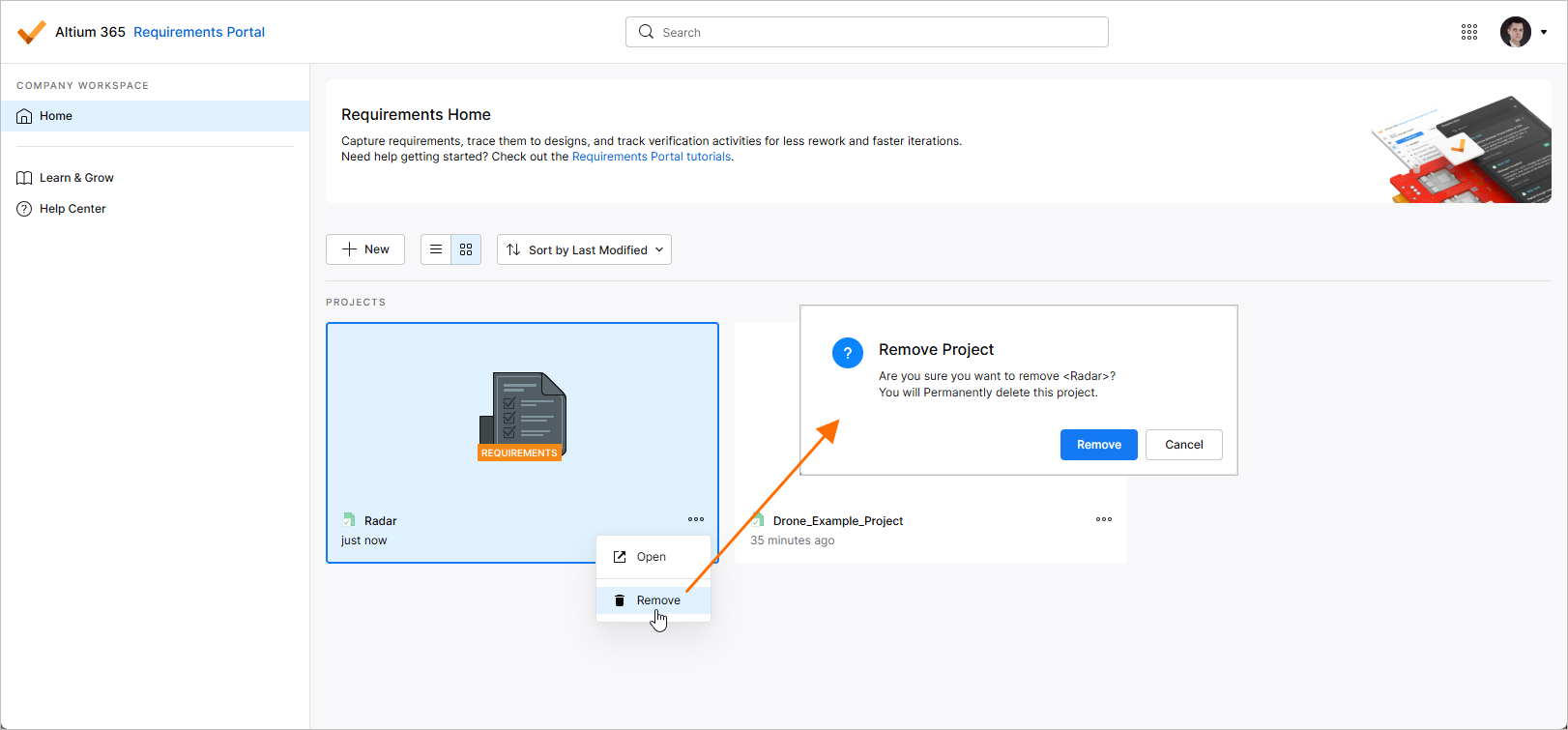
The ability to delete a requirements project has been added. In Requirements Portal's Home page, click a project's  control and select the Remove command of the menu that appears to remove that project. Before the deletion is complete, you will be asked to confirm.
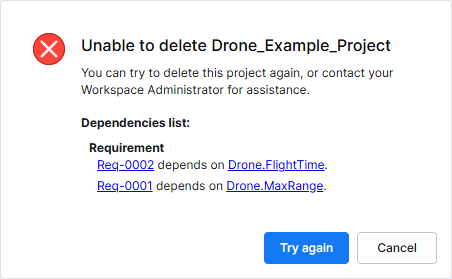 ).
).For more information about working with projects, refer to the Project Module page.
Update - 10 June 2026
Key Highlights
To provide the ability to switch between requirement projects from within an opened project, the project selector has been added back to the top left of a page in this release.
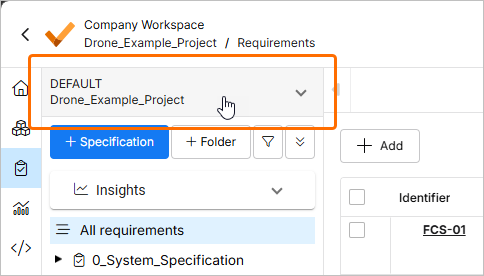
For more information about working with projects, refer to the Project Module page.
Update - 29 May 2026
Key Highlights
This release includes bug fixes to enhance the overall functionality and user experience.
Update - 13 May 2026
Key Highlights
This release includes bug fixes to enhance the overall functionality and user experience.
Update - 27 April 2026
Key Highlights
This release includes bug fixes to enhance the overall functionality and user experience.
Update - 14 April 2026
Key Highlights
Requirements Verification Improvements
-
For requirements that have no assigned V&V activities, you now have the ability to manually define their V&V status. Double-click the requirement's V&V Status cell and select either Verified or Not Verified from the menu that appears.
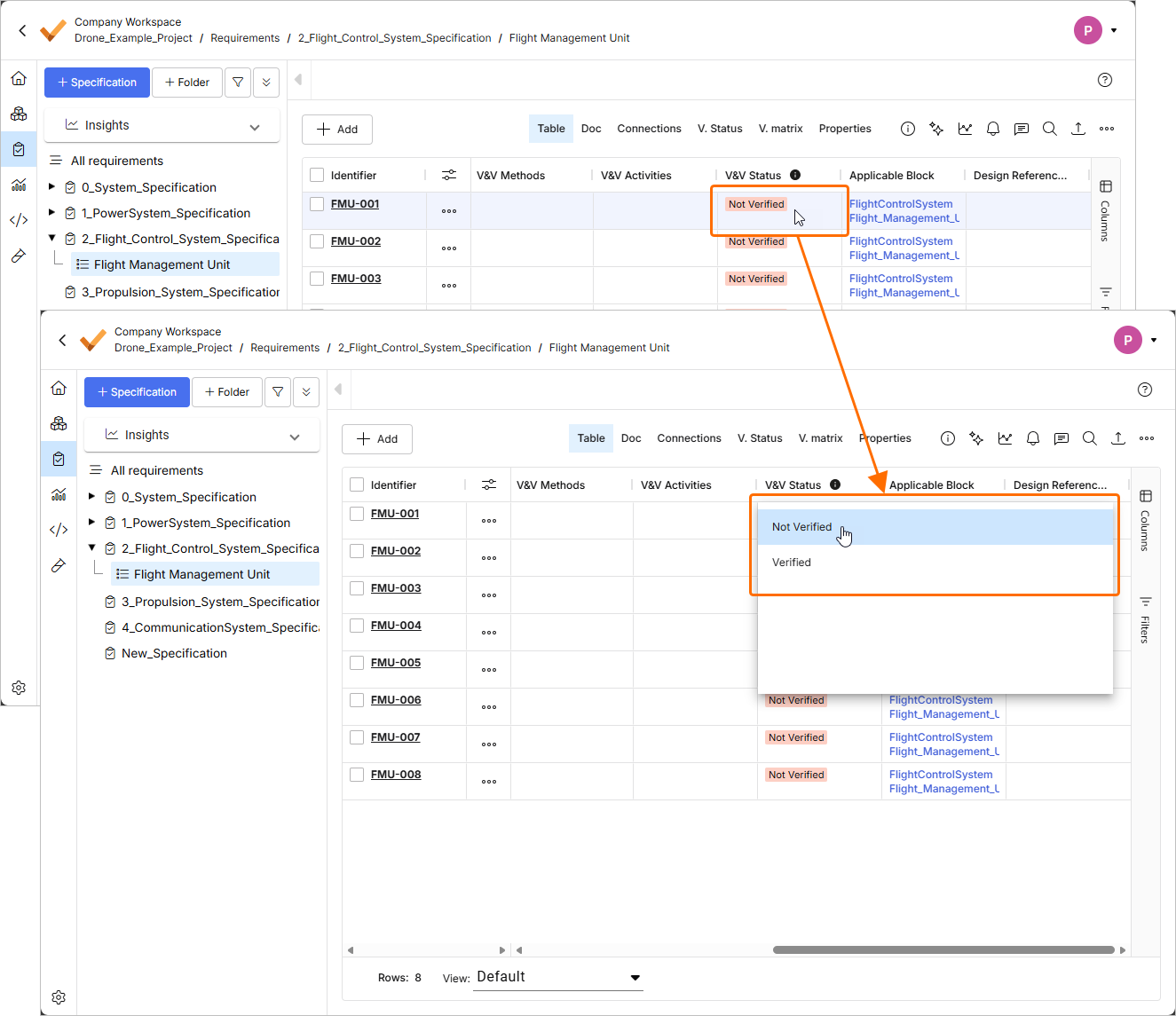
The V&V status of requirements that have linked V&V activities is set based on the status of these activities.
Additionally, V&V rules no longer affect the V&V Status of requirements.
For more information about requirements verification, refer to the Flow 4: Manual and Rules Verification flow page.
-
When adding an applicable block to a requirement which V&V Status was manually set to Verified, you will now get a warning that the requirement was already verified. Use the warning window to choose either to keep the V&V status of the requirement or reset the status (set it to Not Verified) while adding the block.
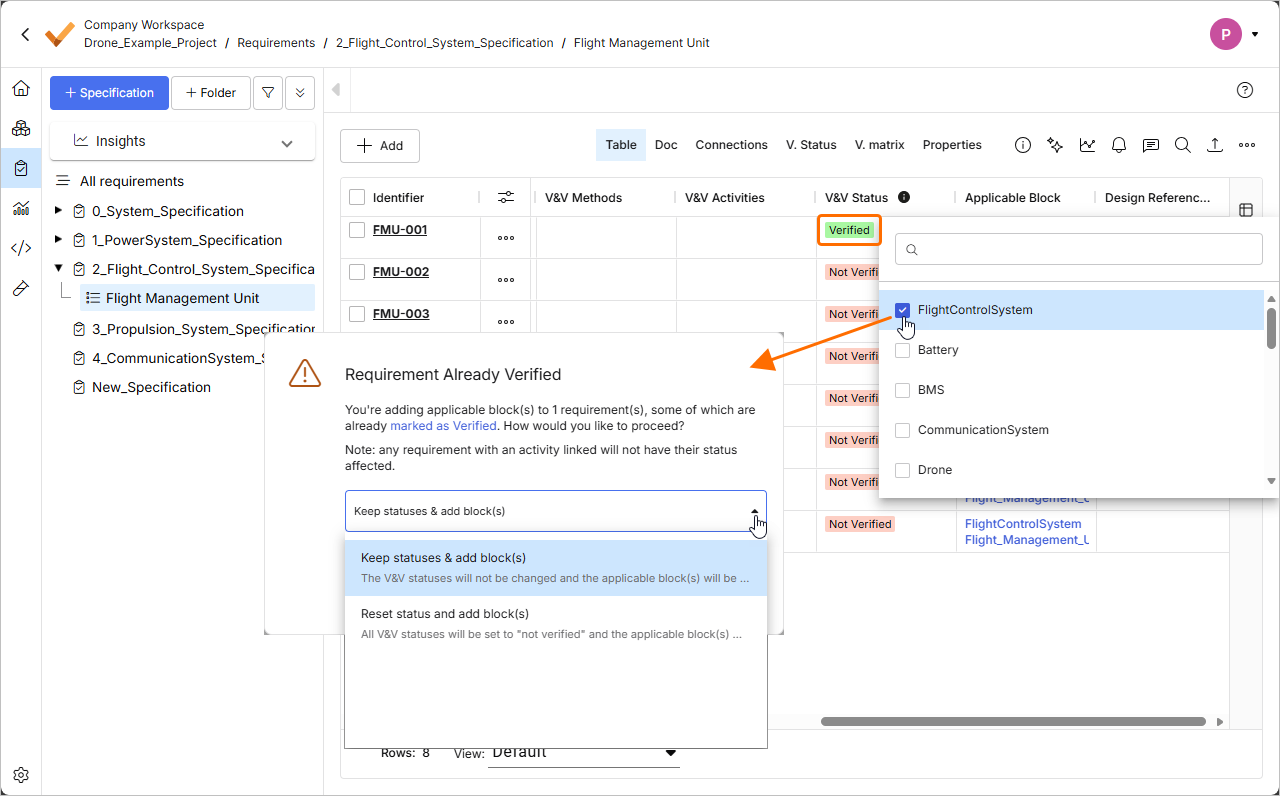
For more information about available requirement fields, refer to the Requirement Fields page.
-
When you copy requirements using the Custom Copy method and some of the requirement being copied have assigned V&V activities, a warning is now shown next to the V&V Status field of the Reuse Requirements window at the Select Fields to Copy & Synchronize stage.
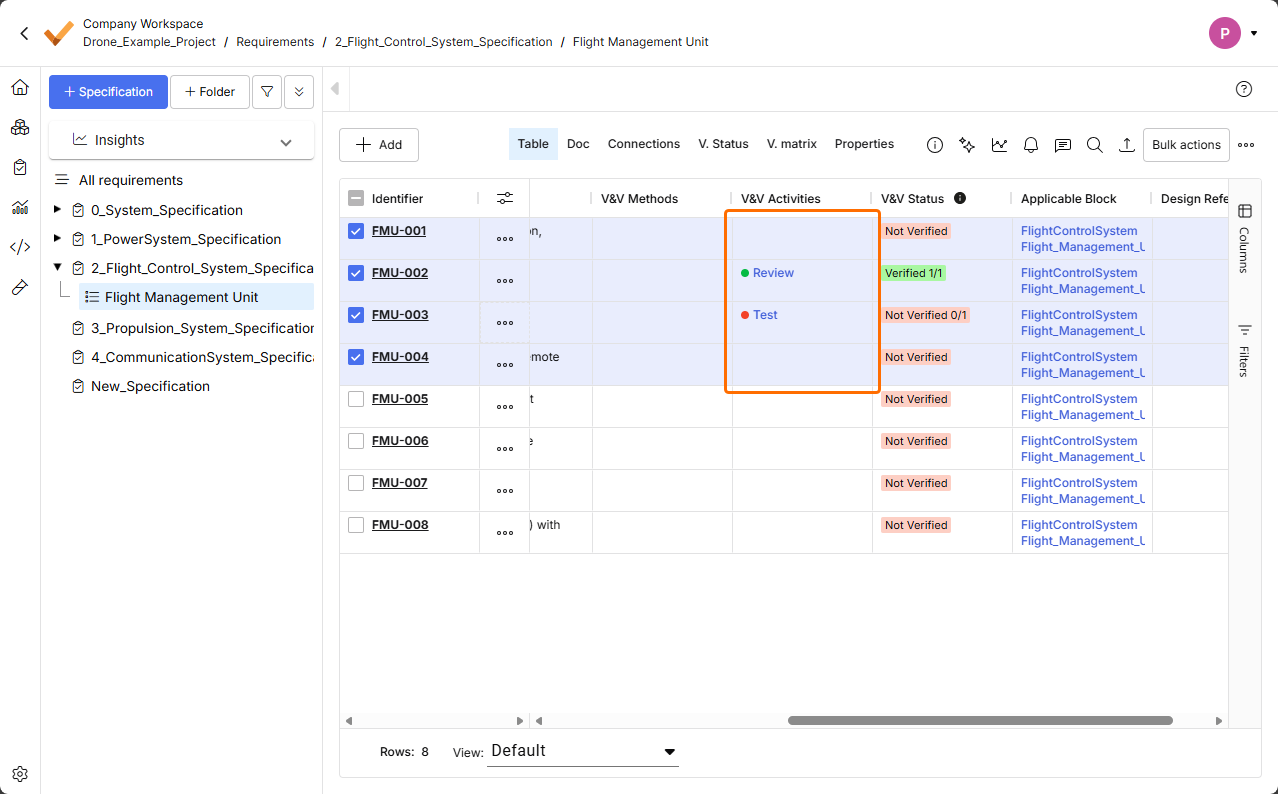
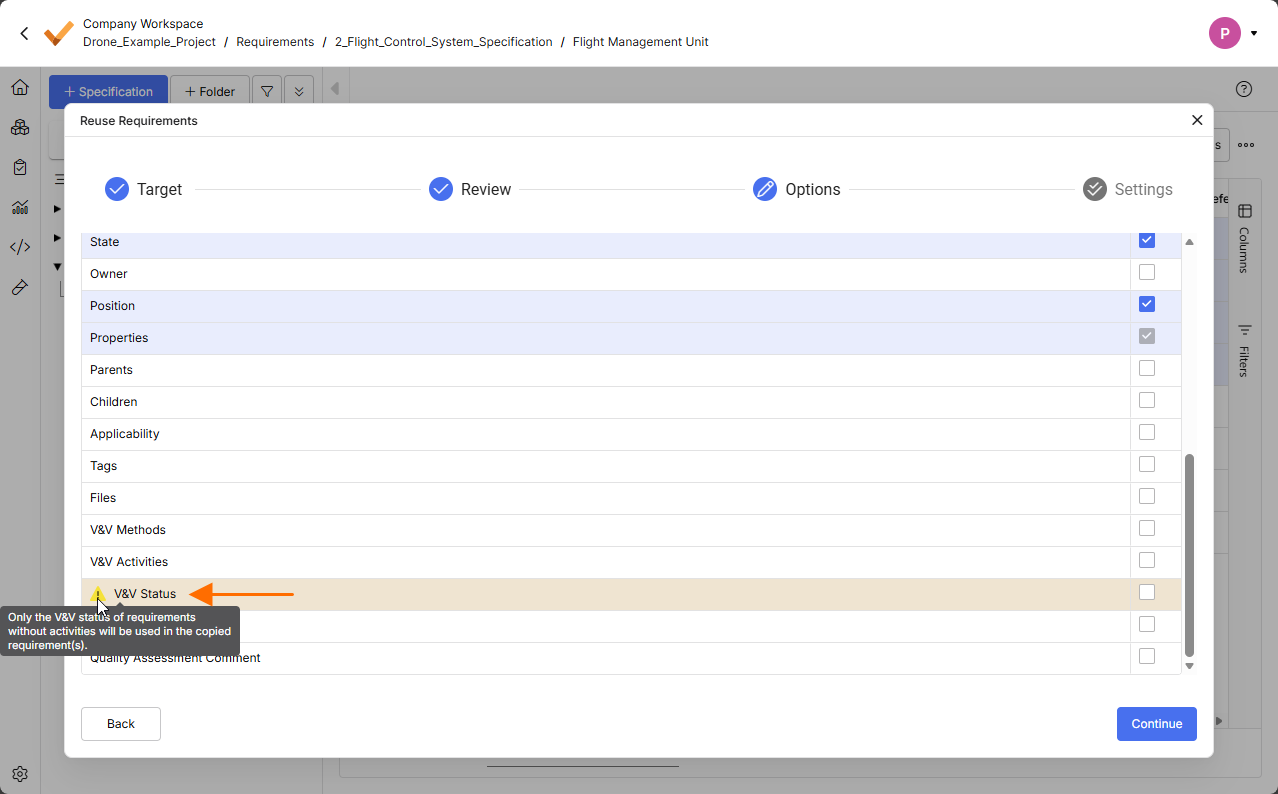
If all requirements being copied have assigned V&V activities, it will be not possible to select the V&V Status field as a field to be copied.
For more information about the Custom Copy feature, refer to the Reuse Requirements page.
Requirements Creation Improvements
-
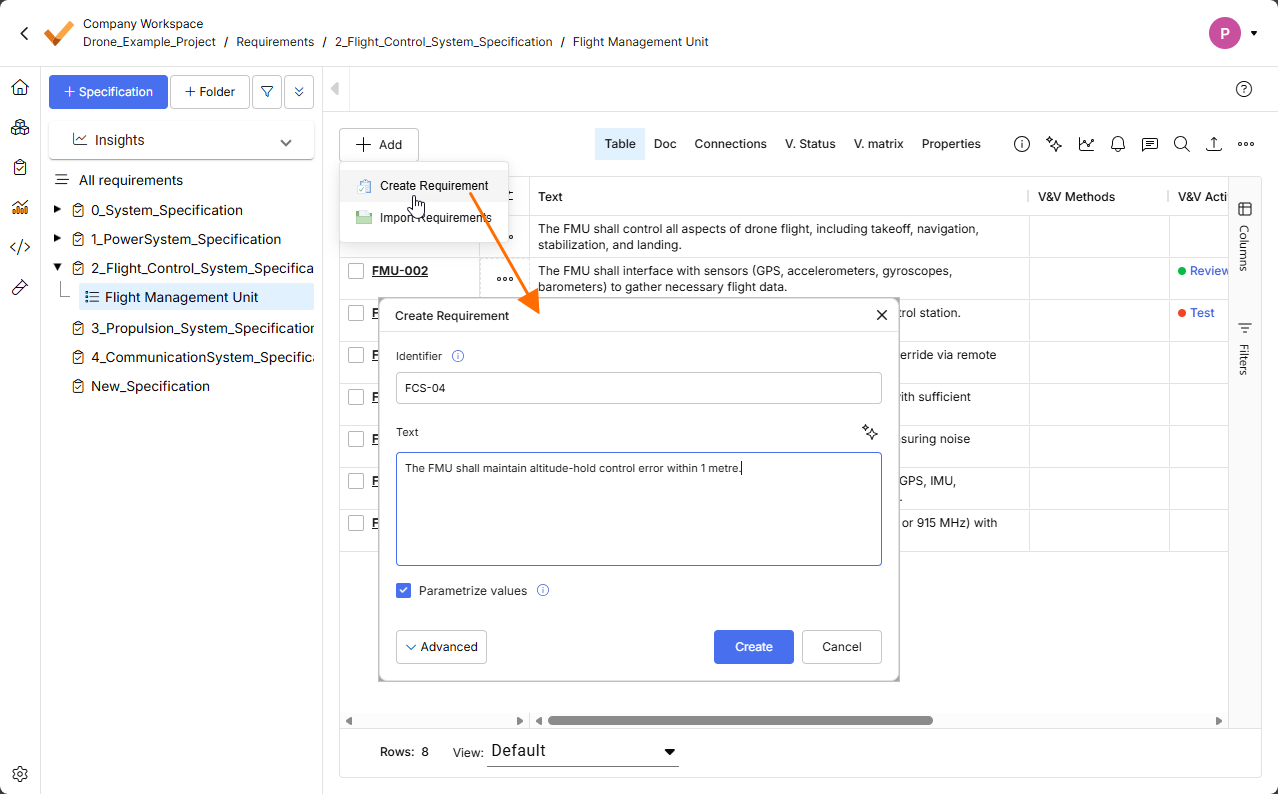
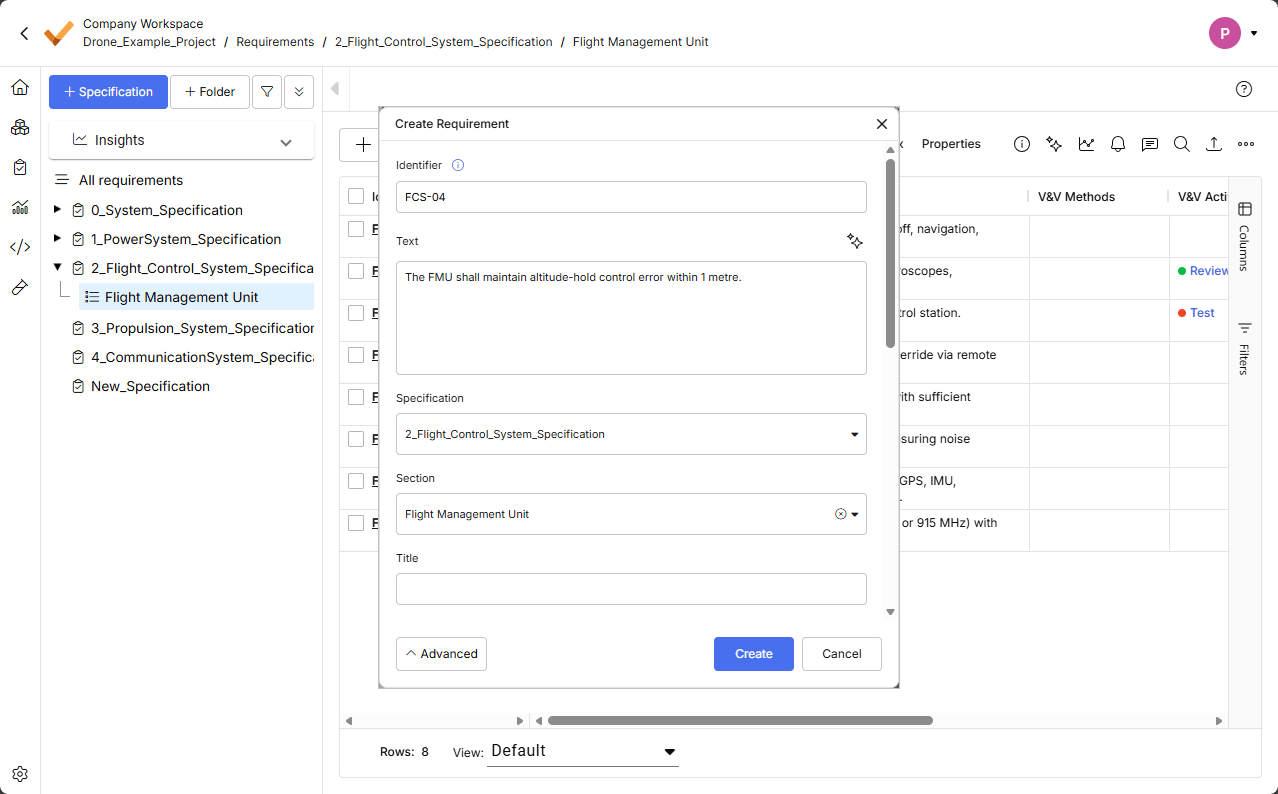
The Create Requirement window has been improved to provide a more straightforward process of creating a requirement. When the window is initially accessed, it is presented in a simple form, with the Identifier and Text fields only. Click the
 button at the bottom of the window to access other fields, such as Specification, Section, etc.
-
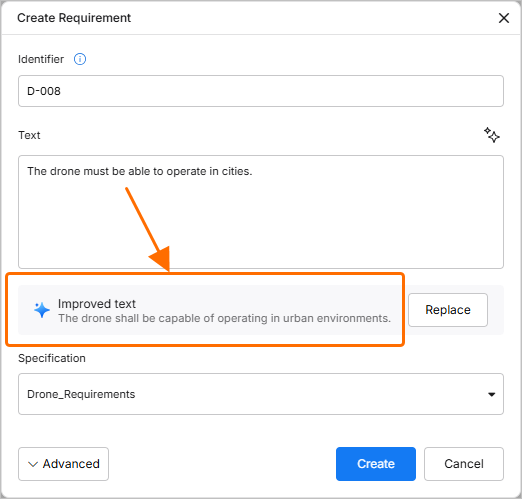
ValiAssistant now suggests improvements to the requirement text entered in the Text field of the Create Requirement window while you type the text (the process starts when you stop typing for three seconds). Alternatively, click the
 button at the top right of the field to start the process manually.
-
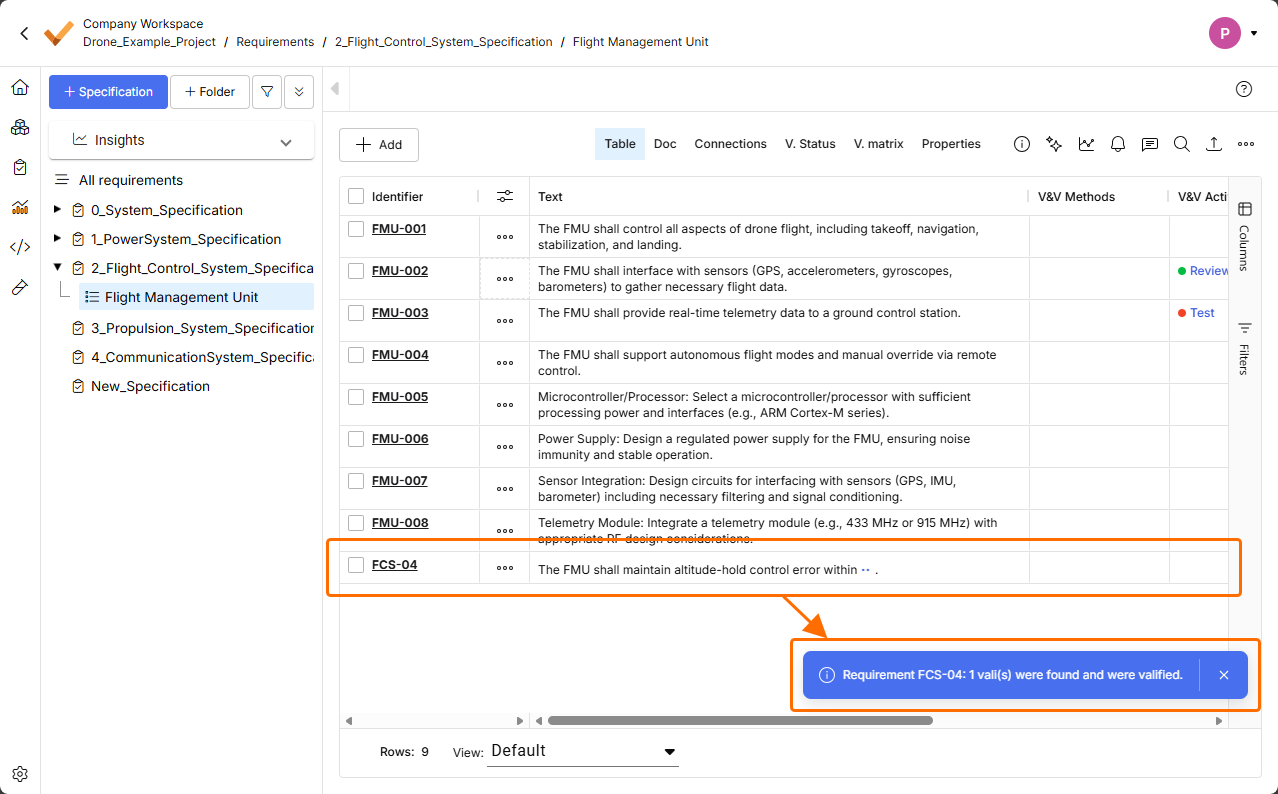
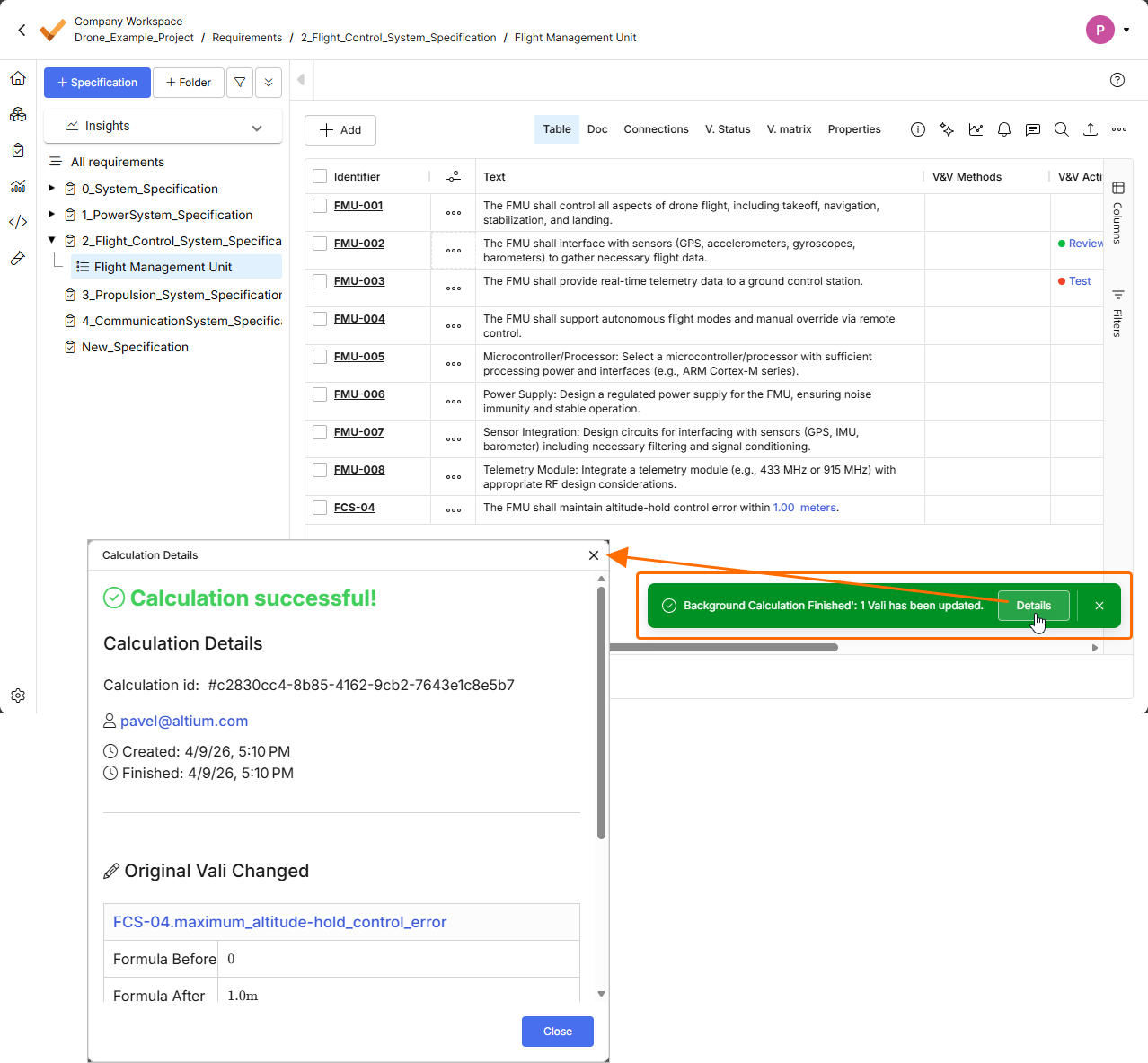
When you manually create a requirement and select to check it for possible valis (by enabling the Parametrize values option in the Create Requirement window), the process of valifying the requirement is now performed in the background. After clicking the
 button in the Create Requirement window, the requirement is now created immediately, without showing further windows related to the valifying process. Once the requirement is valified, you can click the
  button in the pop-up that appear at the bottom right of the page for details about the valifying process.
For more information about creating requirements, refer to the Creating Requirements page.
Other Improvements
-
In the Select Requirements window used to assign requirements to a block (accessed by clicking the
 button in the Requirements view of a block in the System Design module), you now have the ability to select columns to be displayed in the window (Columns) and the ability to filter the content of the window based on requirements' Identifier, Text, and Specification.

For more information about the System Design module, refer to the System Design Module page.
-
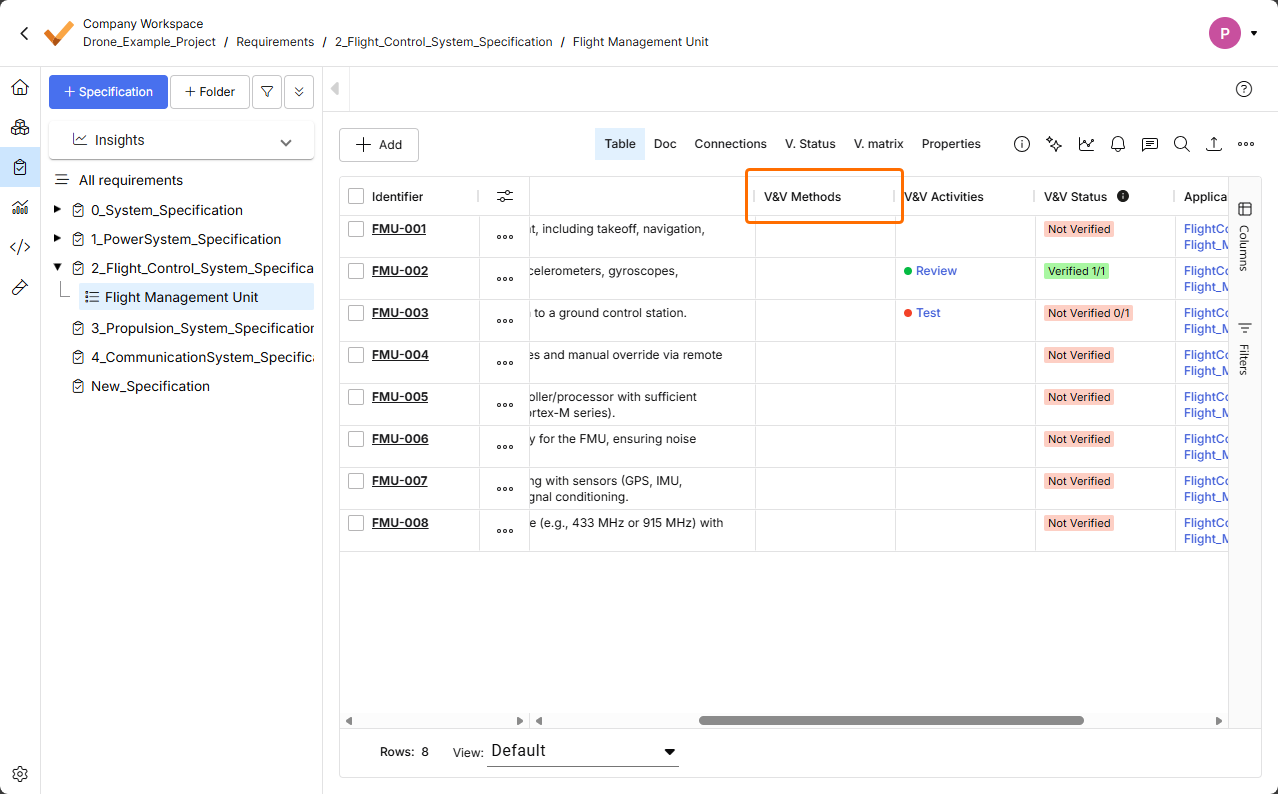
To provide consistency with entities related to Verification & Validation, the Methods field has been renamed to V&V Methods in all places of Requirements Portal. Some examples of these places are shown below.
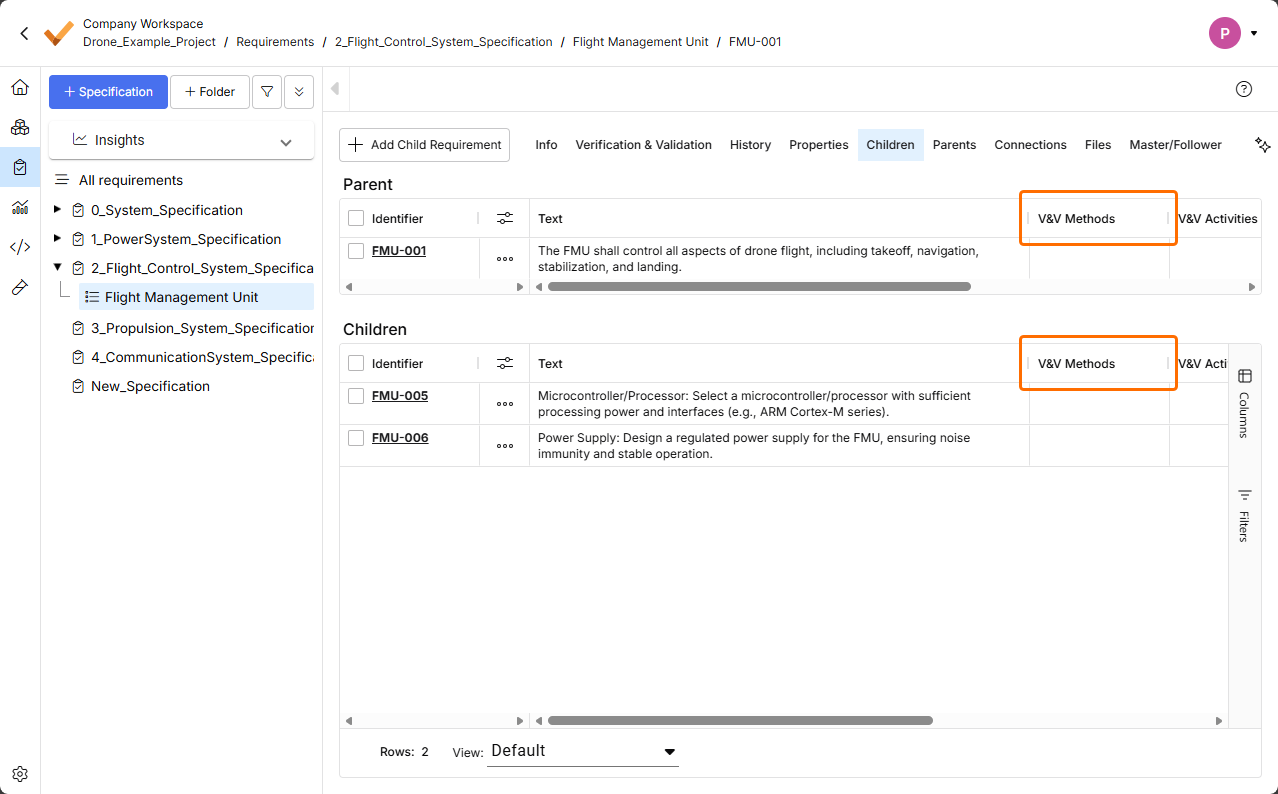
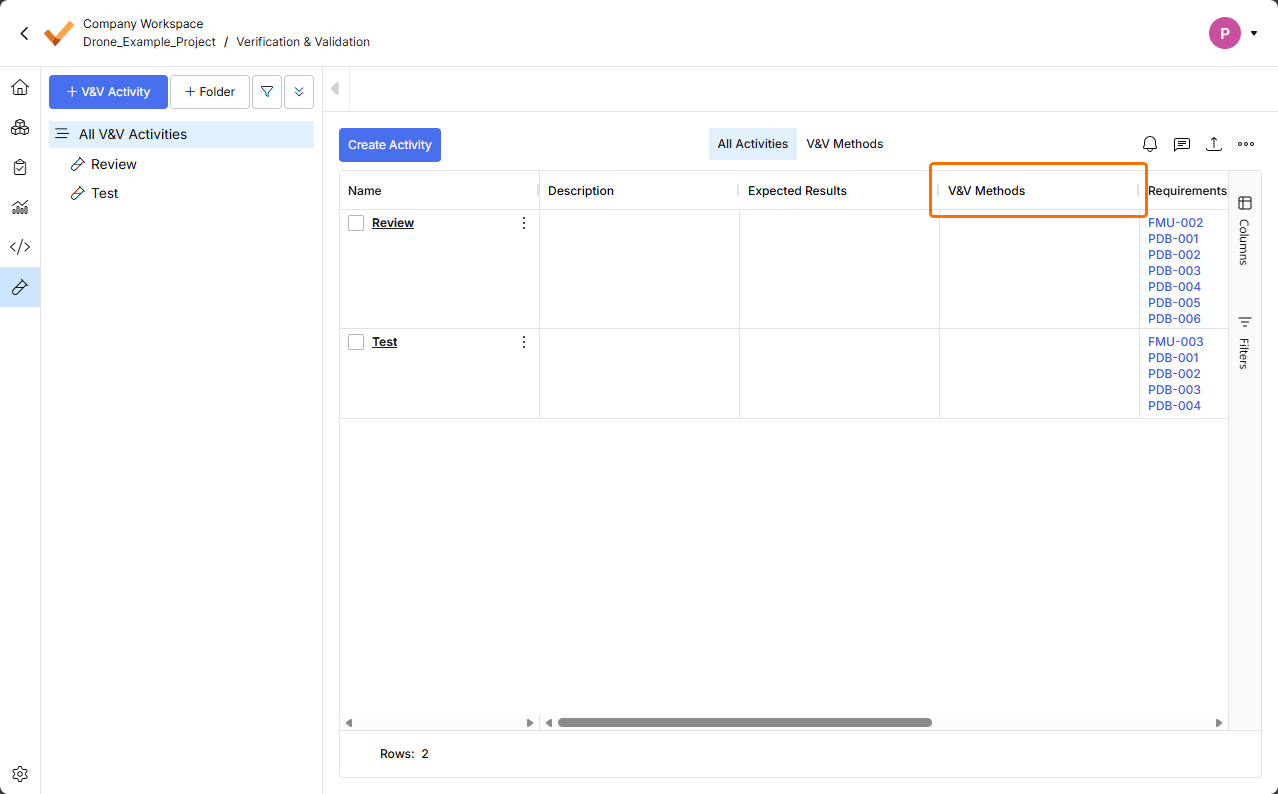
For more information about the Verification & Validation Module, refer to the Verification & Validation Module page.
Update - 31 March 2026
Key Highlights
This release includes bug fixes to enhance the overall functionality and user experience.
Update - 23 March 2026
Key Highlights
-
A new Home page has been introduced in Requirements & Systems Portal in this release. The page provides access to existing projects, which target requirements management, and also provides the ability to create a new project.
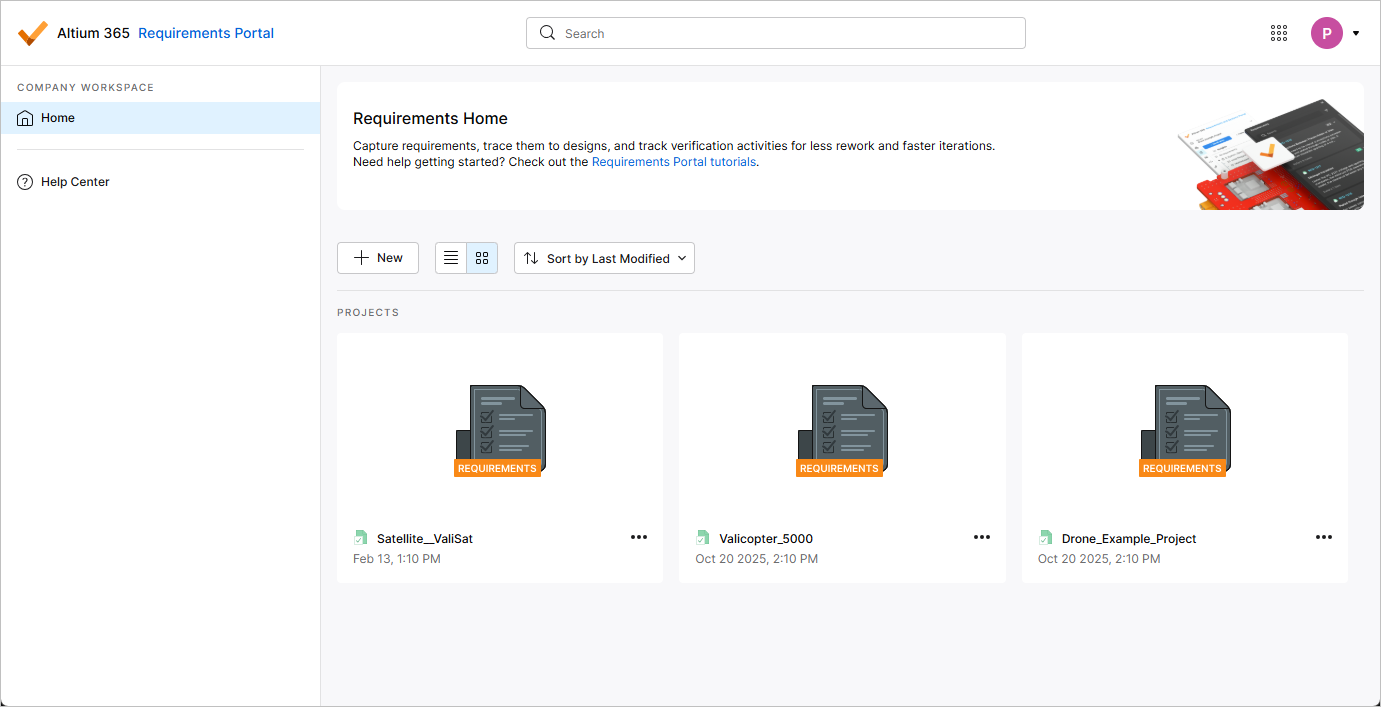
The Home page opens when accessing Requirements & Systems Portal using the nine-dot menu at the top right of the Workspace's browser-based interface.
For more information, refer to the Project Module page.
-
When creating a new requirement while the Requirements entry is selected in the project tree (i.e., no specific specification is currently selected), a default specification (the first specification in alphabetical order) is now selected in the Specification field of the Create new requirement window.
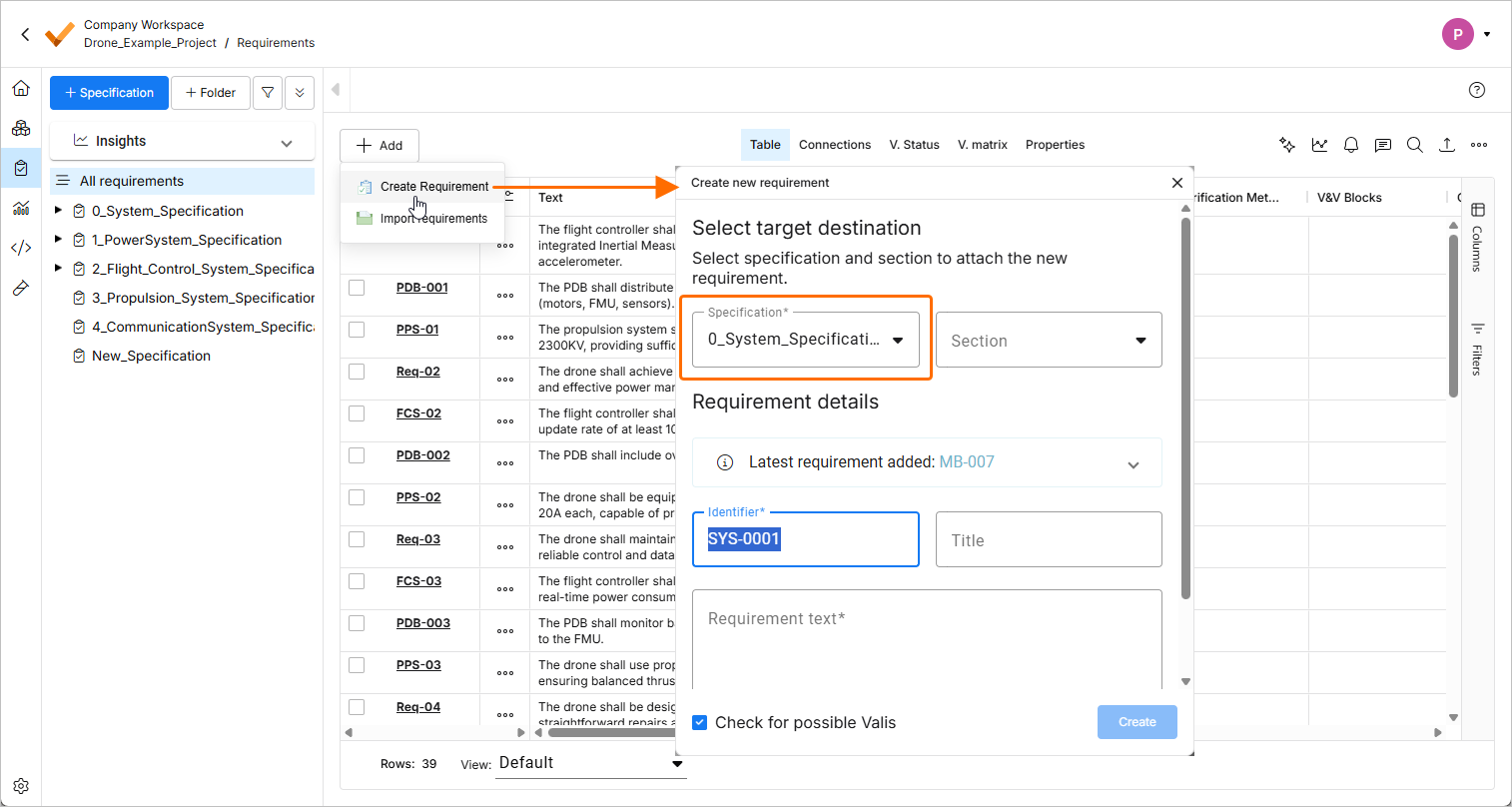
If the project has a single specification, it will be selected.
If the project has no specification yet, an attempt to create a requirement will open the Create Specification window using which you can create a specification first.
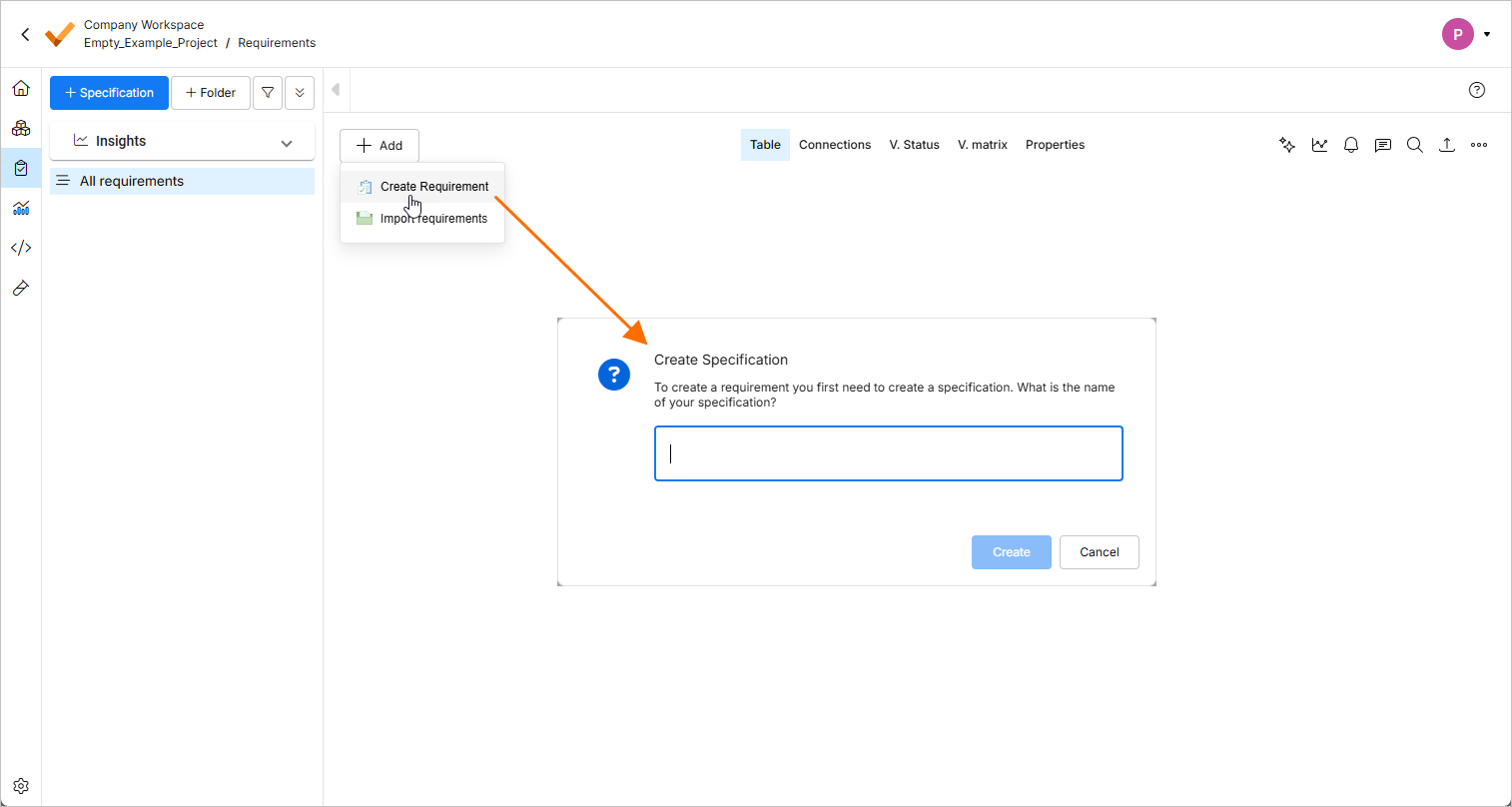
For more information about creating requirements, refer to the Creating Requirements page.
-
It is now possible to export a table in the Statuses and Procedures views of a run in the Verification & Validation module. Use the Export sub-menu of the view's right-click menu to export the table to a file of the
*.csv,*.xlsx, or*.xmlformat.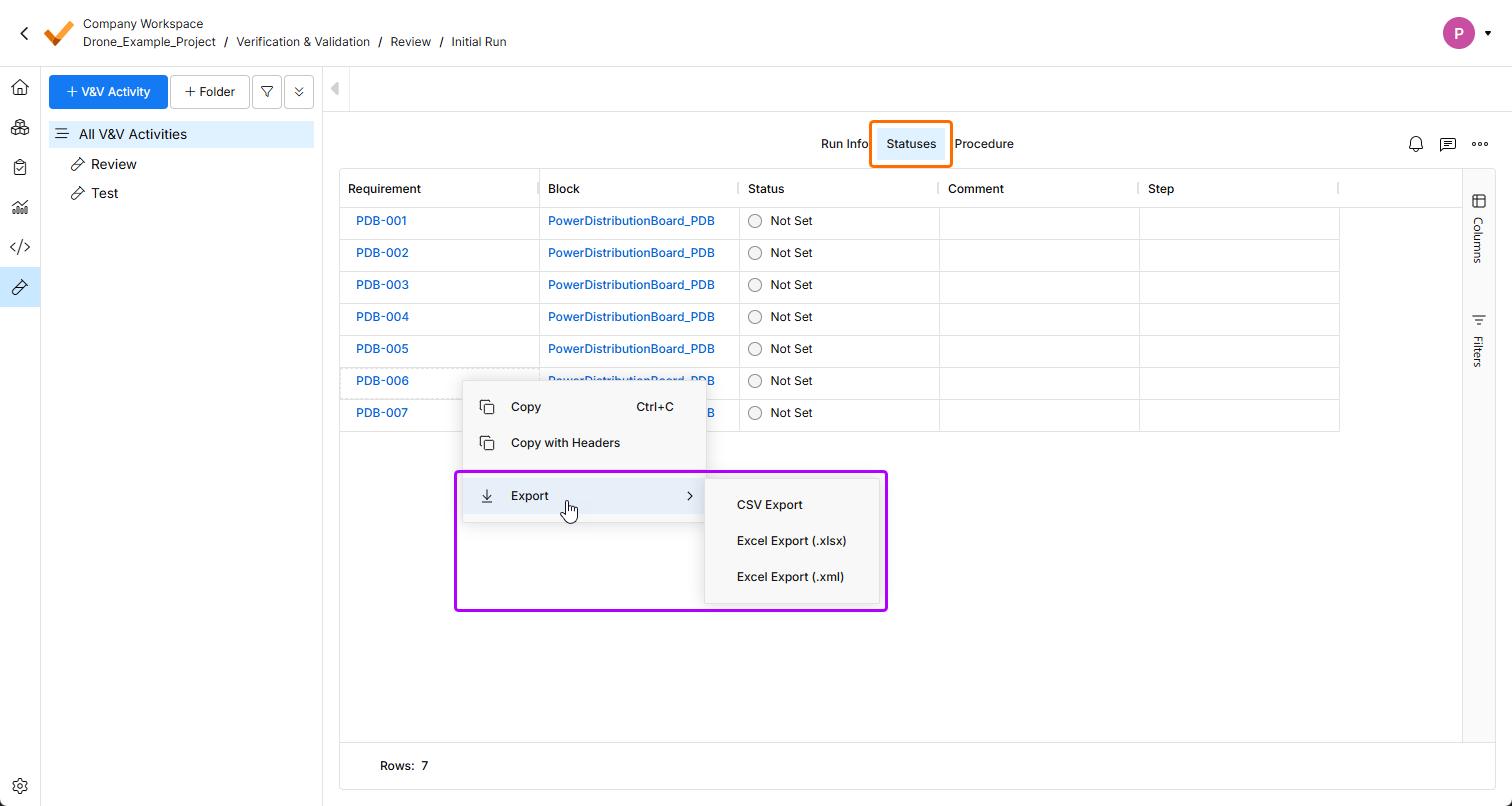
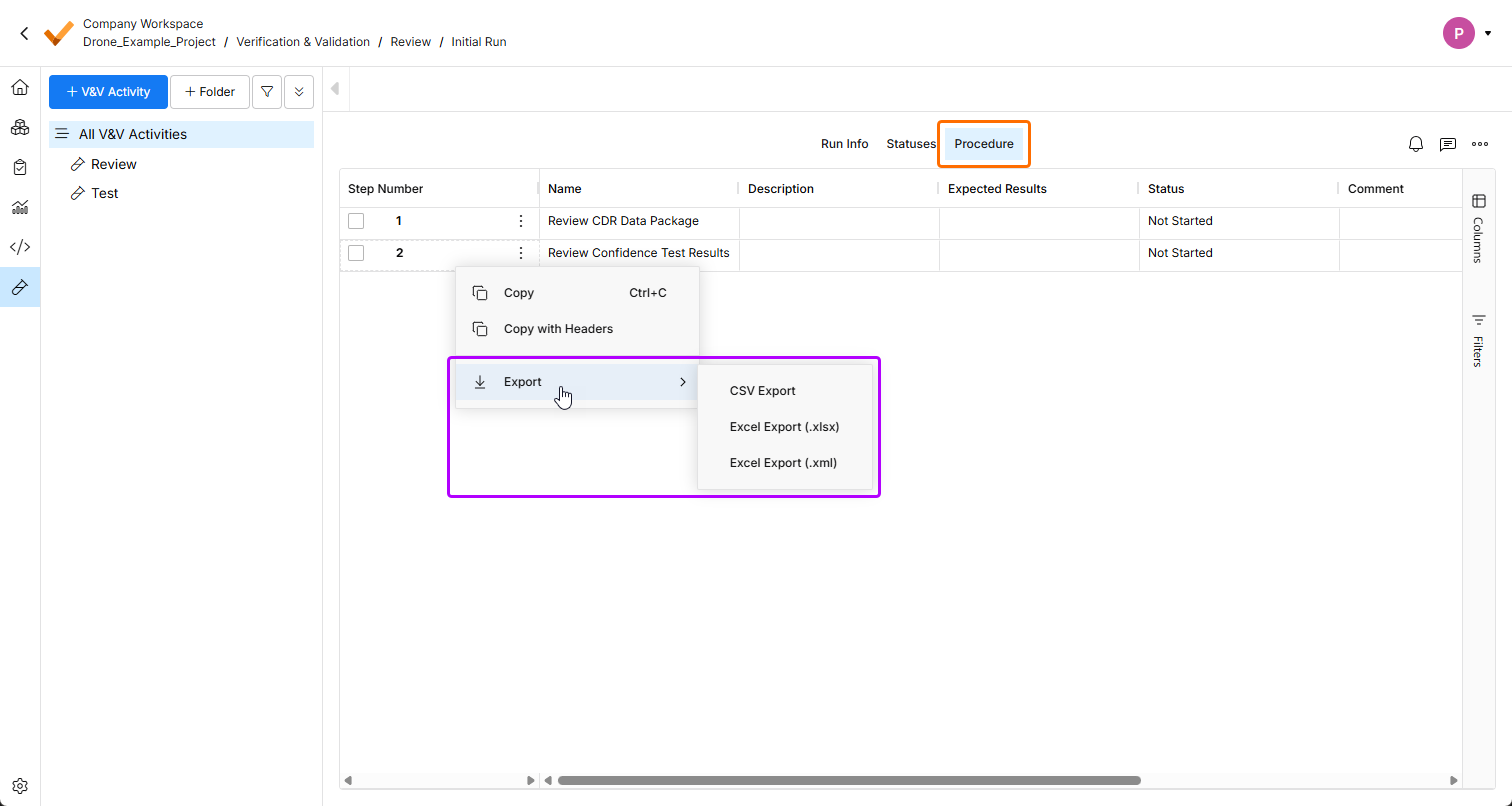
For more information about the Verification & Validation module, refer to the Verification & Validation Module page.
-
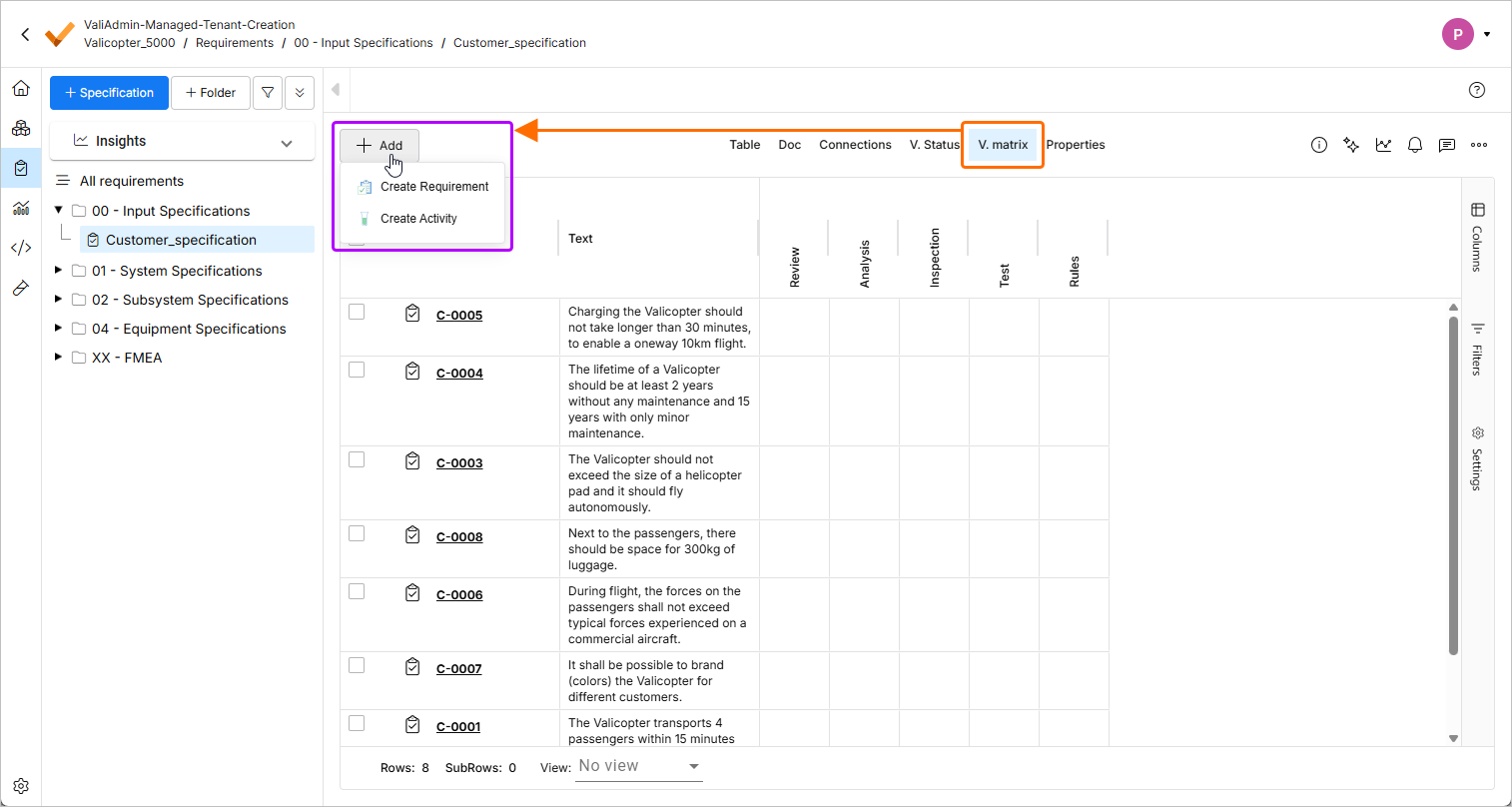
In the V. matrix view of requirements, the activity creation action is now available in the
 button menu. The requirement import action has been removed from the menu.
-
Performance of the AI importer has been improved for long (more than three pages) documents by parallelizing extraction of sections.
For more information about the AI importer, refer to the Import Requirements page.
-
Fixed an issue when formatted text (that uses bullet points, italics, etc.) in custom columns was displayed incorrectly in exported documents.
For more information, refer to the Document Export Custom Templates page.
Update - 3 March 2026
Key Highlights
-
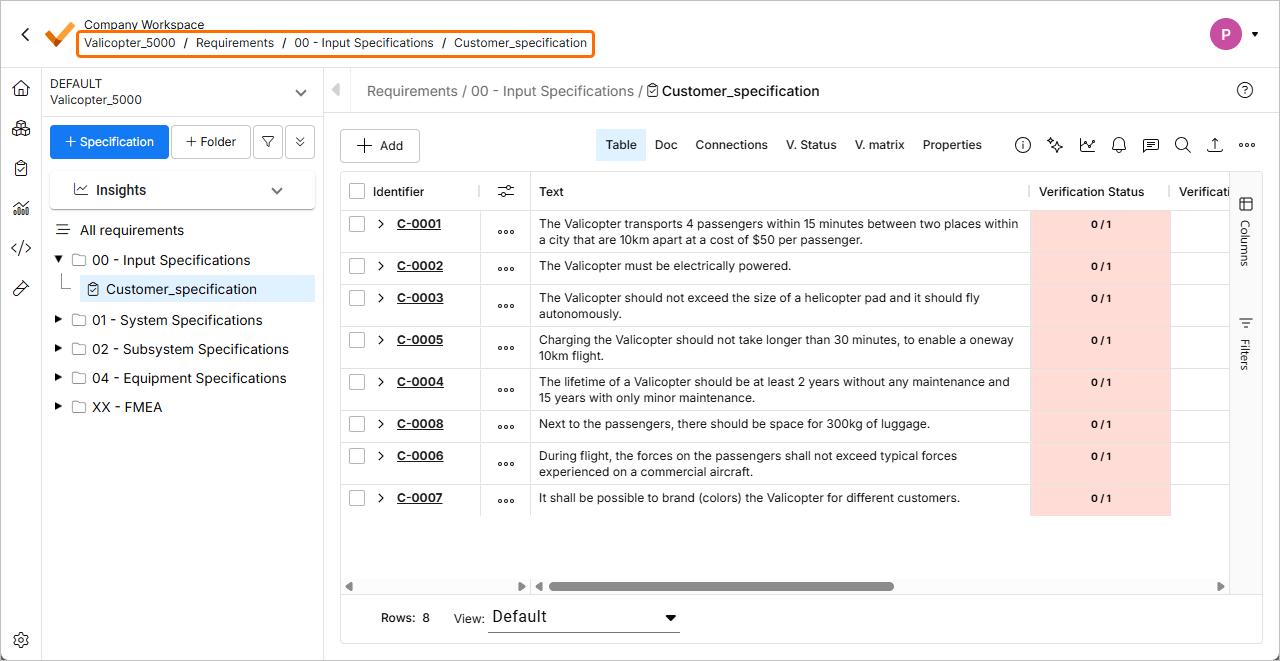
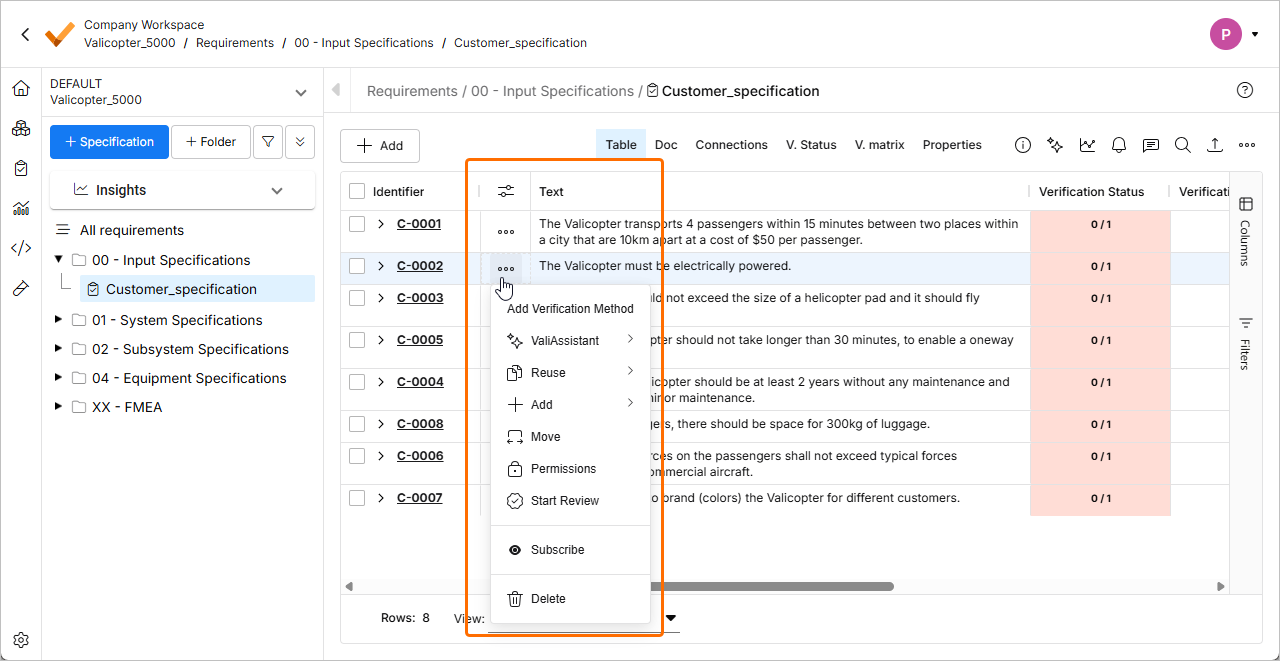
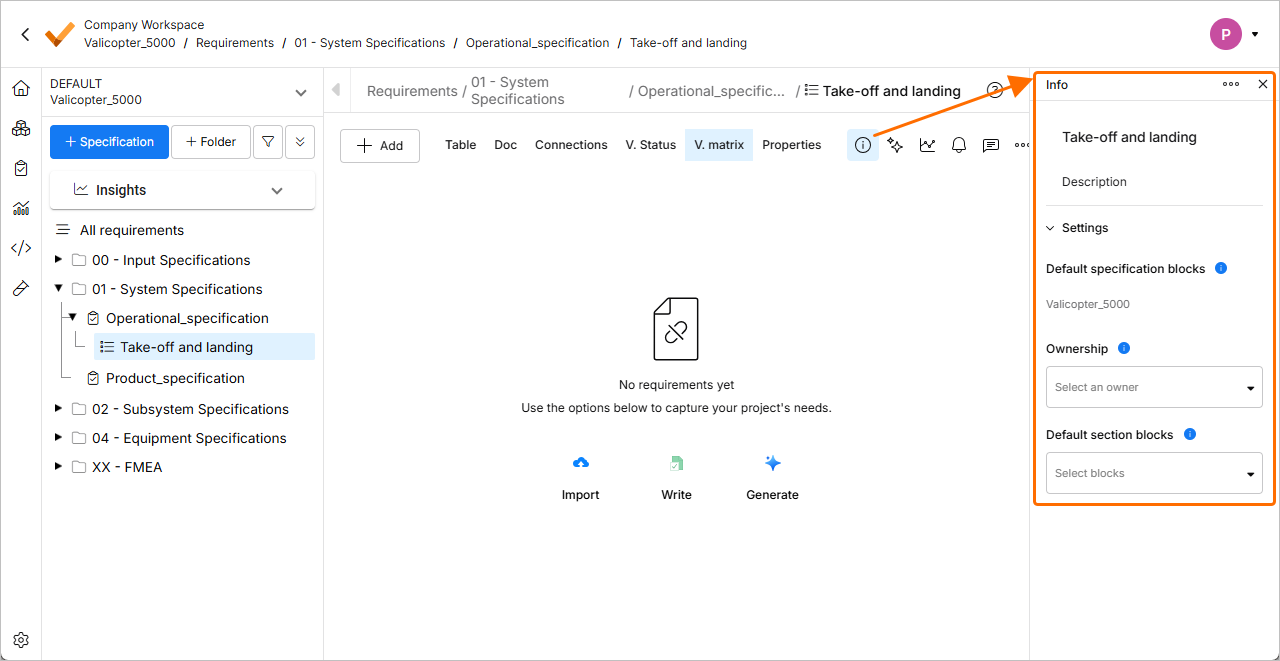
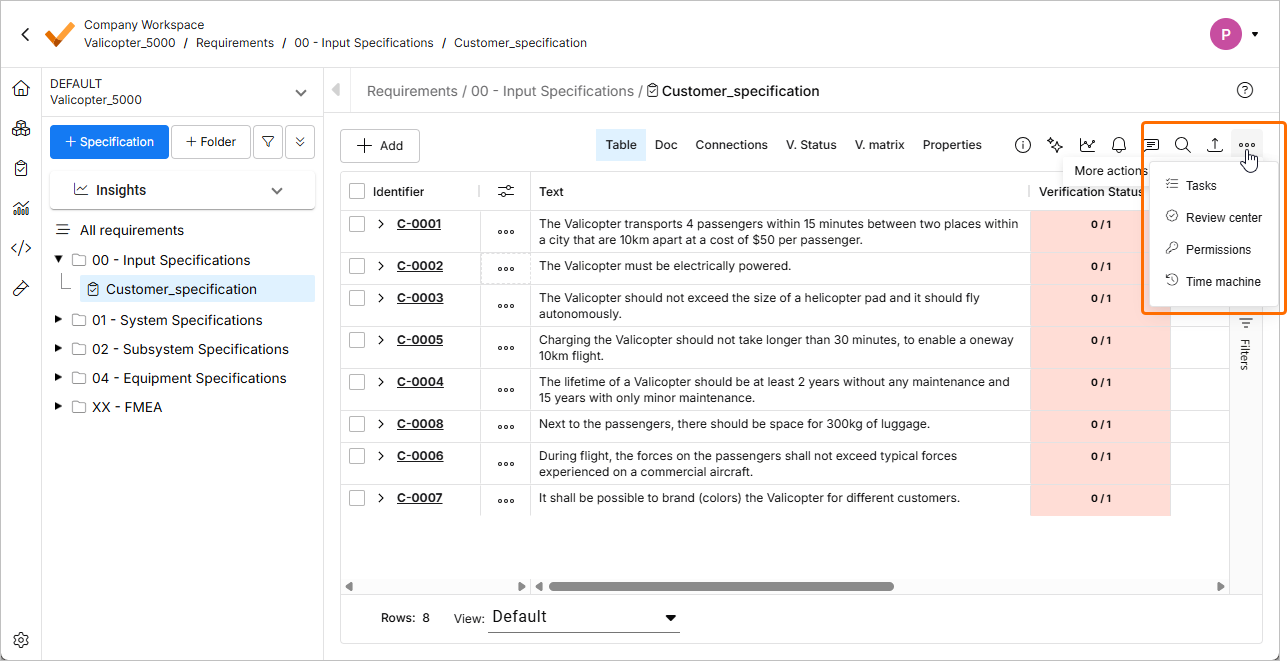
In order to consolidate the user interface of Requirements & Systems Portal with other elements of Altium Platform, a number of UI changes have been implemented in this release:
-
Breadcrumbs are now available at the top left of the page, under the name of the Workspace.
-
In the Table view of requirements, the menu of requirement actions is now available by clicking the
 button in a dedicated column (
 ).
).
-
A new Info pane has been implemented for specification sections. The pane substitutes a separate Section info view and therefore, allows displaying and modifying specification section details without leaving the currently selected view (such as Table or Doc). When a specification section is selected in the Requirements Module, click the
 button at the top right of the page to access the pane.
-
The actions previously available in the toolbar at the top right of a page are now available in the
 button menu.
-
-
The AI importer has been enhanced in this release.
-
The importer now recognizes the content between the document title and the first heading as a requirement.
-
The owner of imported requirements is now assigned not only based on the user's first and last name, but also the email.
For more information about the AI importer, refer to the Import Requirements page.
-
Update - 18 February 2026
Key Highlights
-
A new Info pane has been implemented for specifications. The pane substitutes a separate Spec. info view and therefore, allows displaying and modifying specification details without leaving the currently selected view (such as Table or Doc). When a specification is selected in the Requirements Module, click the
button at the top right of the page to access the pane.
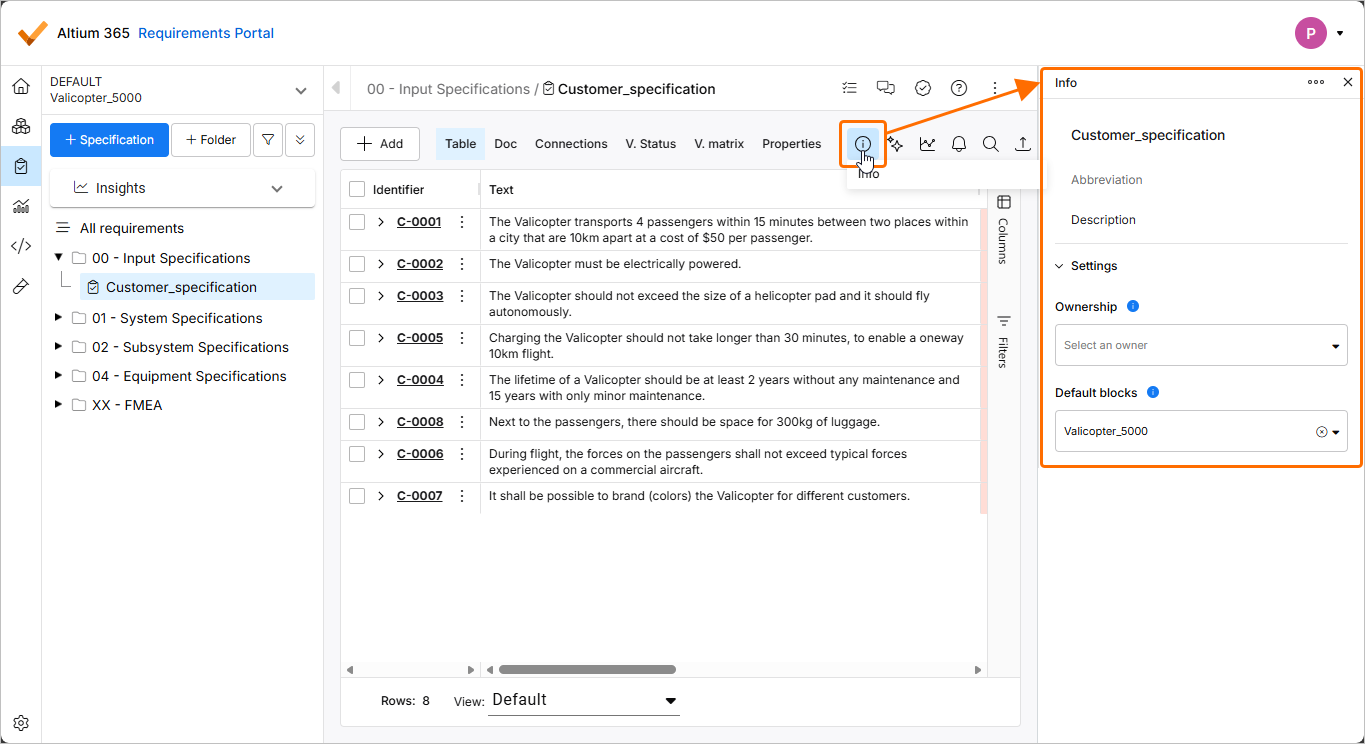
For more information about specifications, refer to the Create Specifications page.
-
The AI importer has been enhanced in this release:
-
The AI extractor has been improved to better handle bullet points and line breaks.
-
The title of the file being imported is no longer present in a section or subsection in the hierarchical structure of requirements.
For more information about the AI importer, refer to the Import Requirements page.
-
Update - 2 February 2026
Key Highlights
-
Requirements engineering often begins with drafting of stakeholder requirements in documents like PDFs and Excel spreadsheets where data is not well structured. Extracting requirement data manually from these unstructured documents might be labor-intensive and error-prone, and in order to expedite the process of capturing requirements in Requirements & Systems Portal, you can leverage AI capabilities to import requirements from unstructured PDF, Excel, Word, and CSV files using a new AI-assisted Importer.
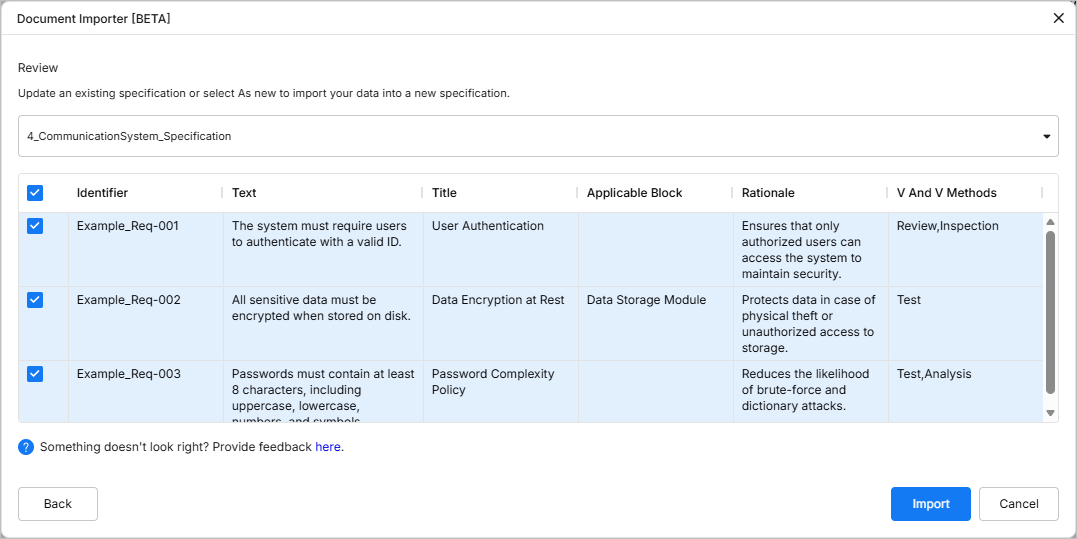
For more information, refer to the Import Requirements page.
-
In this release, the process for creating and importing requirements has been updated. To perform either of these actions, navigate to the Requirements Module, click the
 button, and then select either Create Requirement or Import Requirements from the menu that appears.
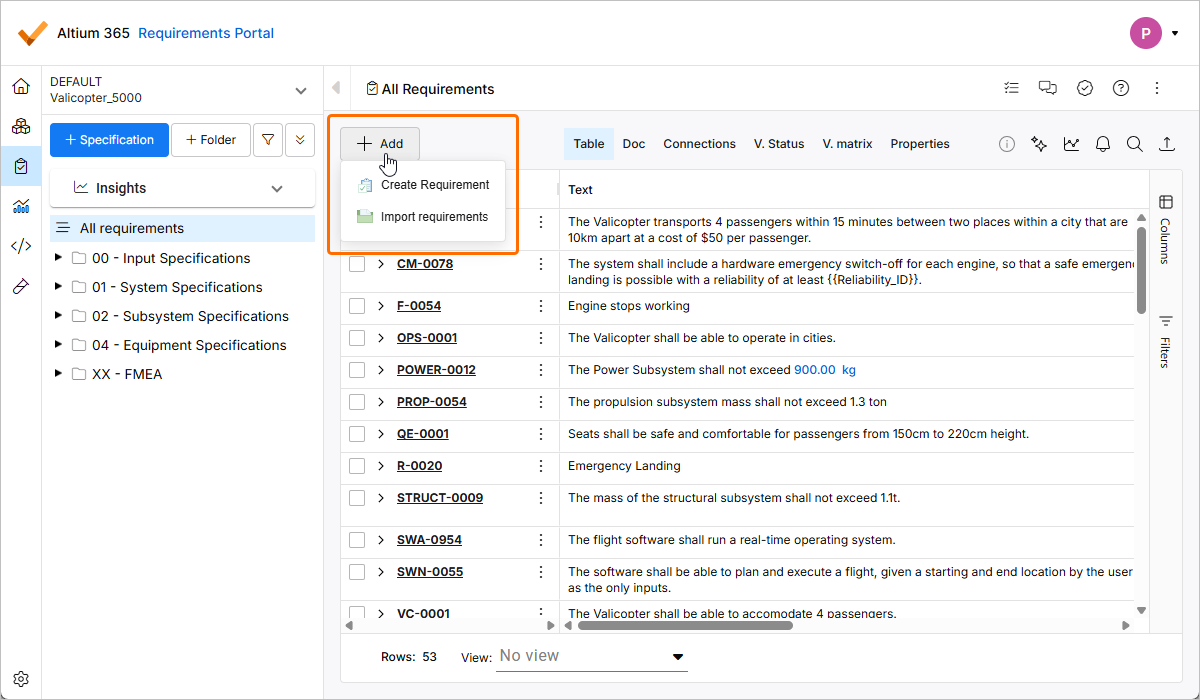
For more information, refer to the Creating Requirements and Import Requirements pages.
Update - 22 January 2026
Key Highlights
This release includes bug fixes to enhance the overall functionality and user experience.
Update - 7 January 2026
Key Highlights
This release includes bug fixes to enhance the overall functionality and user experience.
Update - 17 December 2025
Key Highlights
This release includes bug fixes to enhance the overall functionality and user experience.
Update - 24 November 2025
Key Highlights
This release includes bug fixes to enhance the overall functionality and user experience.
Update - 12 November 2025
Key Highlights
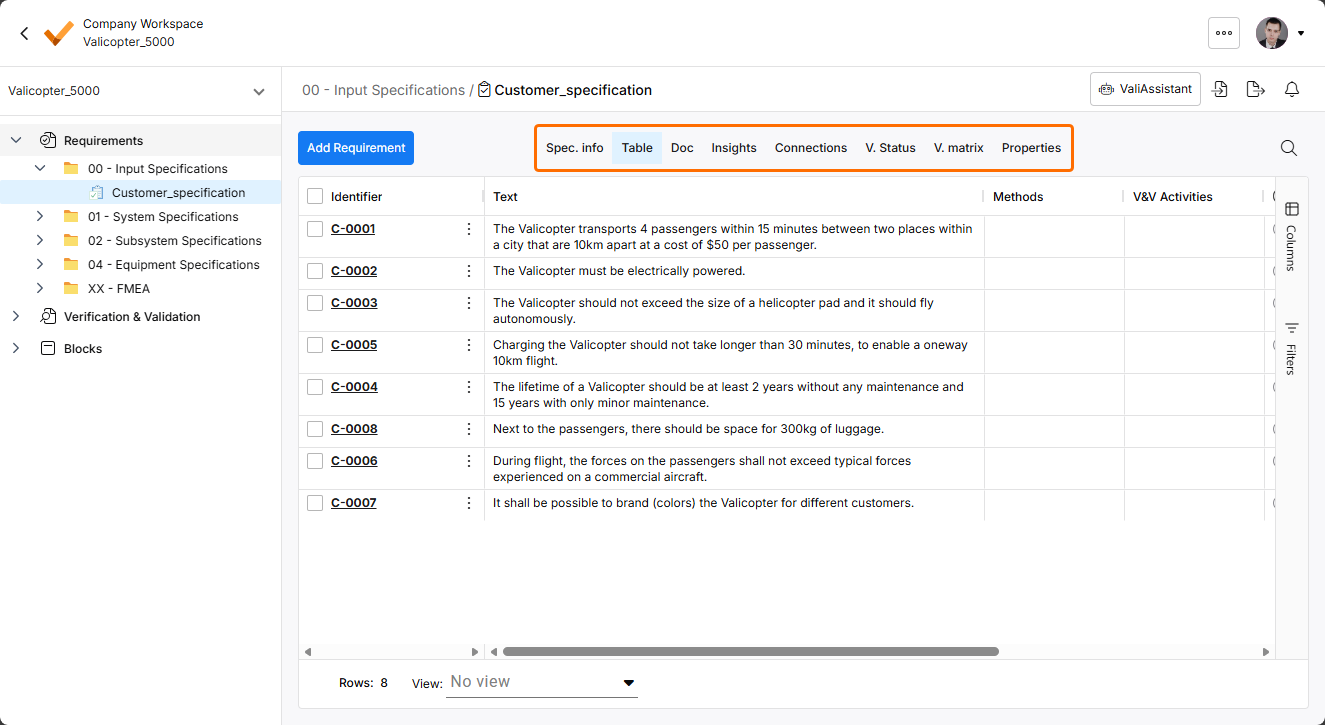
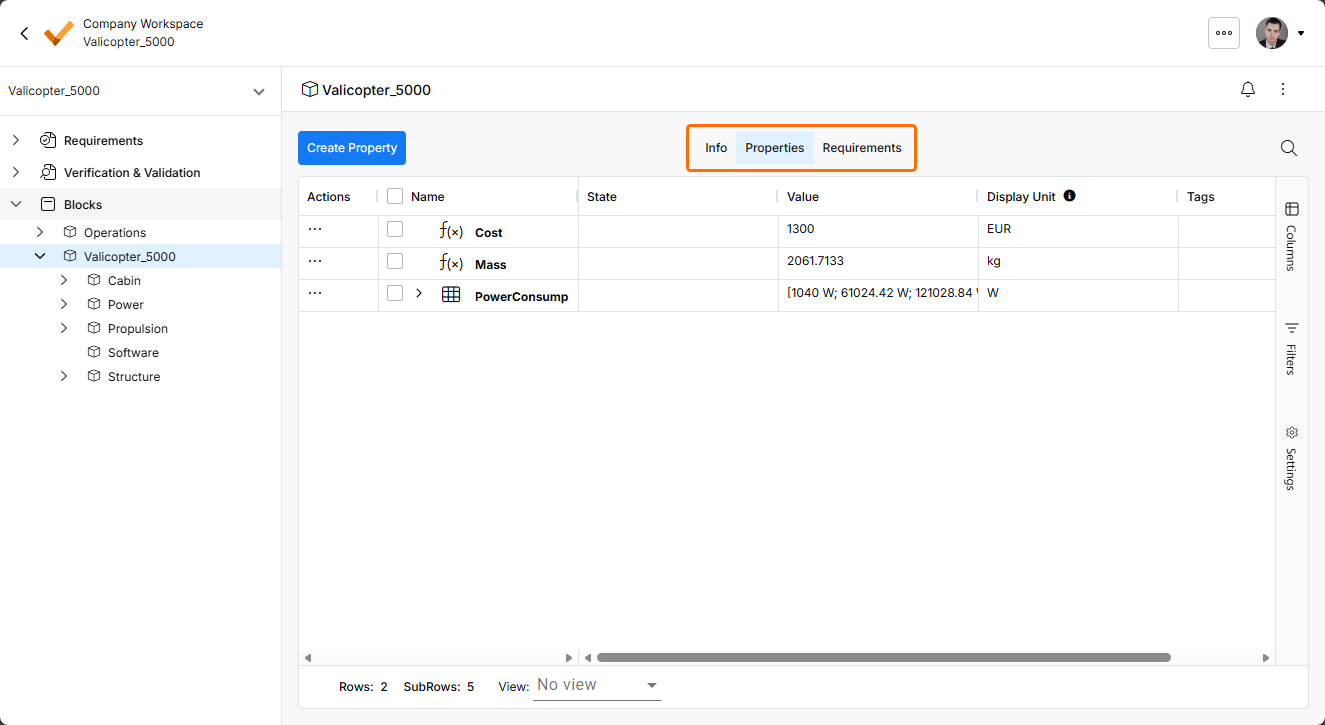
In order to align the UI of Requirements & Systems Portal with other parts of the Workspace's browser-based interface, the display of controls used to switch between different views in modules has been updated.
Update - 14 October 2025
Key Highlights
This release includes bug fixes to enhance the overall functionality and user experience.
Update - 30 September 2025
Key Highlights
When creating a new folder for specifications in the Requirements Module, the folder now appears in the tree at the left-hand side immediately after creation, without the need for refreshing the page.
For more information about folders, refer to the Grouping Requirements page.
Update - 1 September 2025
Key Highlights
-
When copying a requirement using the Simple Copy feature, you can now choose between creating copies of valis from the original requirement, with the references in the copied requirement updated accordingly (the Create option), and keeping references to valis associated with the original requirement (the Keep option).
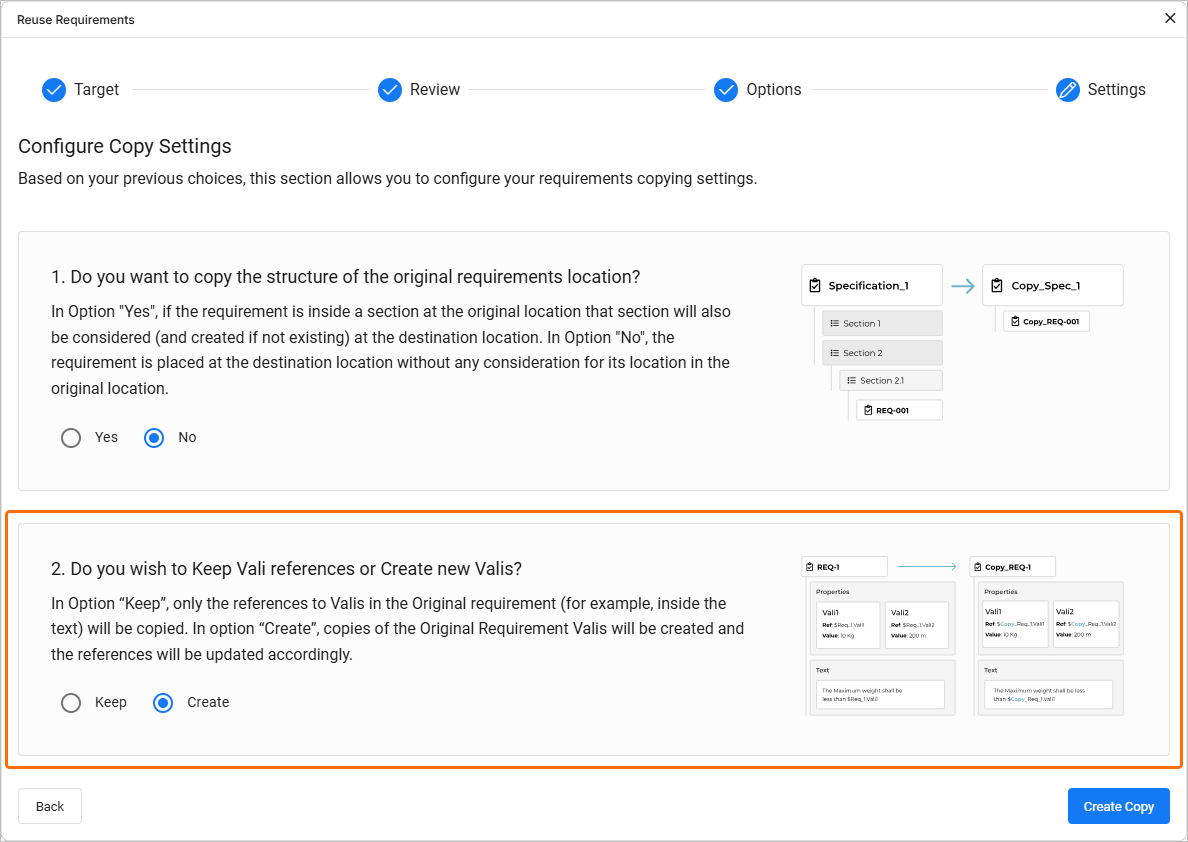
For more information about the requirement reuse feature, refer to the Reuse Requirements page.
-
When importing requirements from a file and the file includes columns with valid Applicable Blocks data, this data is now imported to resulting requirements.
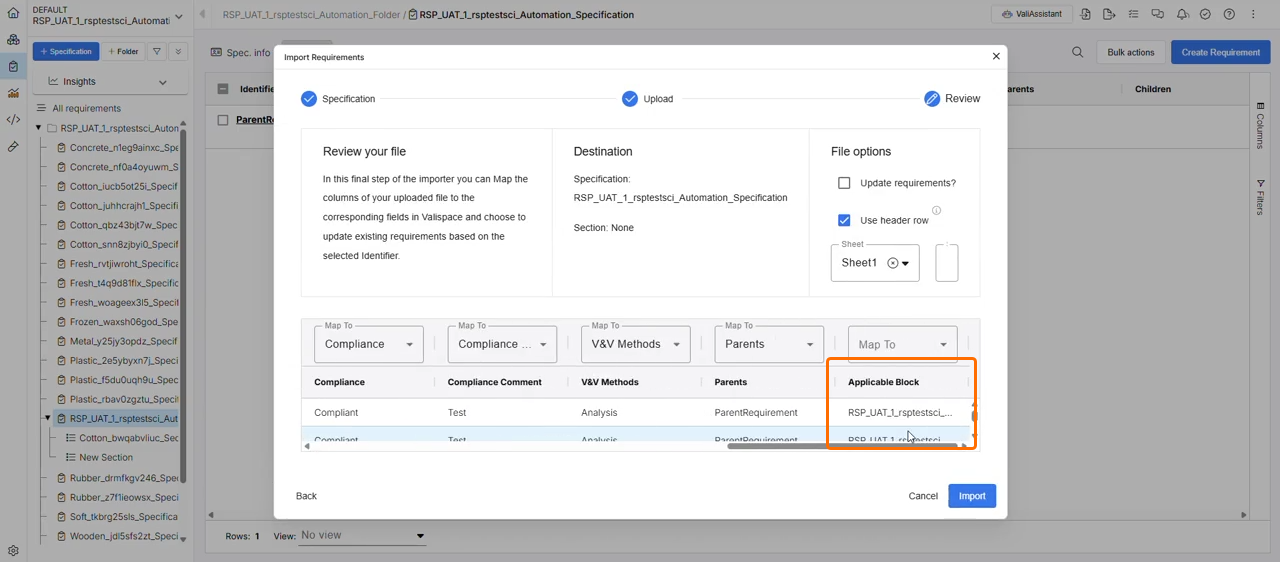
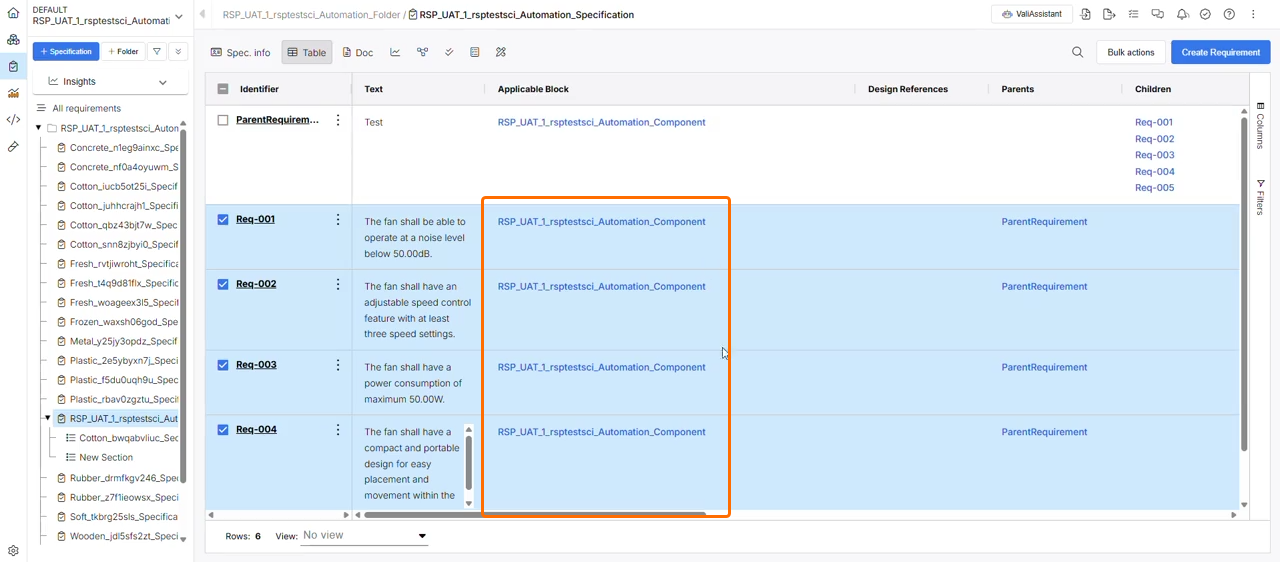
For more information about importing requirements, refer to the Import Requirements page.
-
Performance of importing requirements from larger files has been improved.
For more information about importing requirements, refer to the Import Requirements page.
-
The Actions menu for properties of a requirement has been updated to include only relevant/applicable actions.
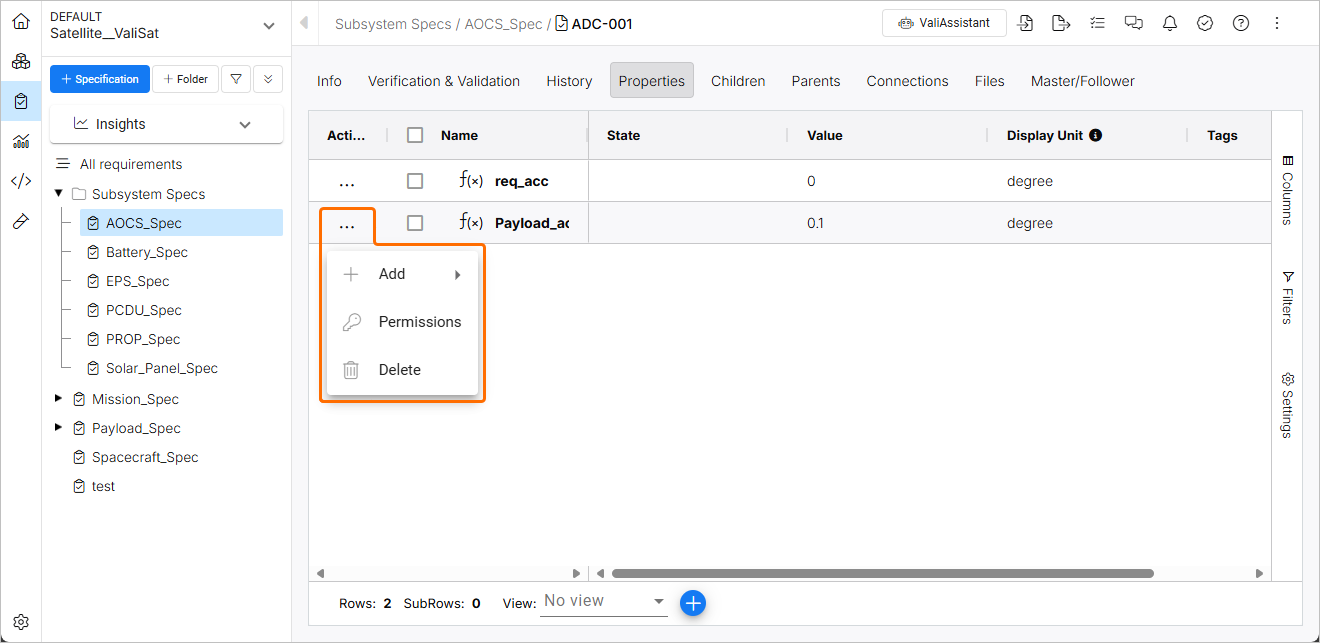
For more information about valis, refer to the Valis and Calculations page.
Update - 31 July 2025
Key Highlights
-
The ability to download an analysis as PDF has been improved. Before the download, the dialog with a document preview and settings is now displayed. Performance of the operation has also been improved.
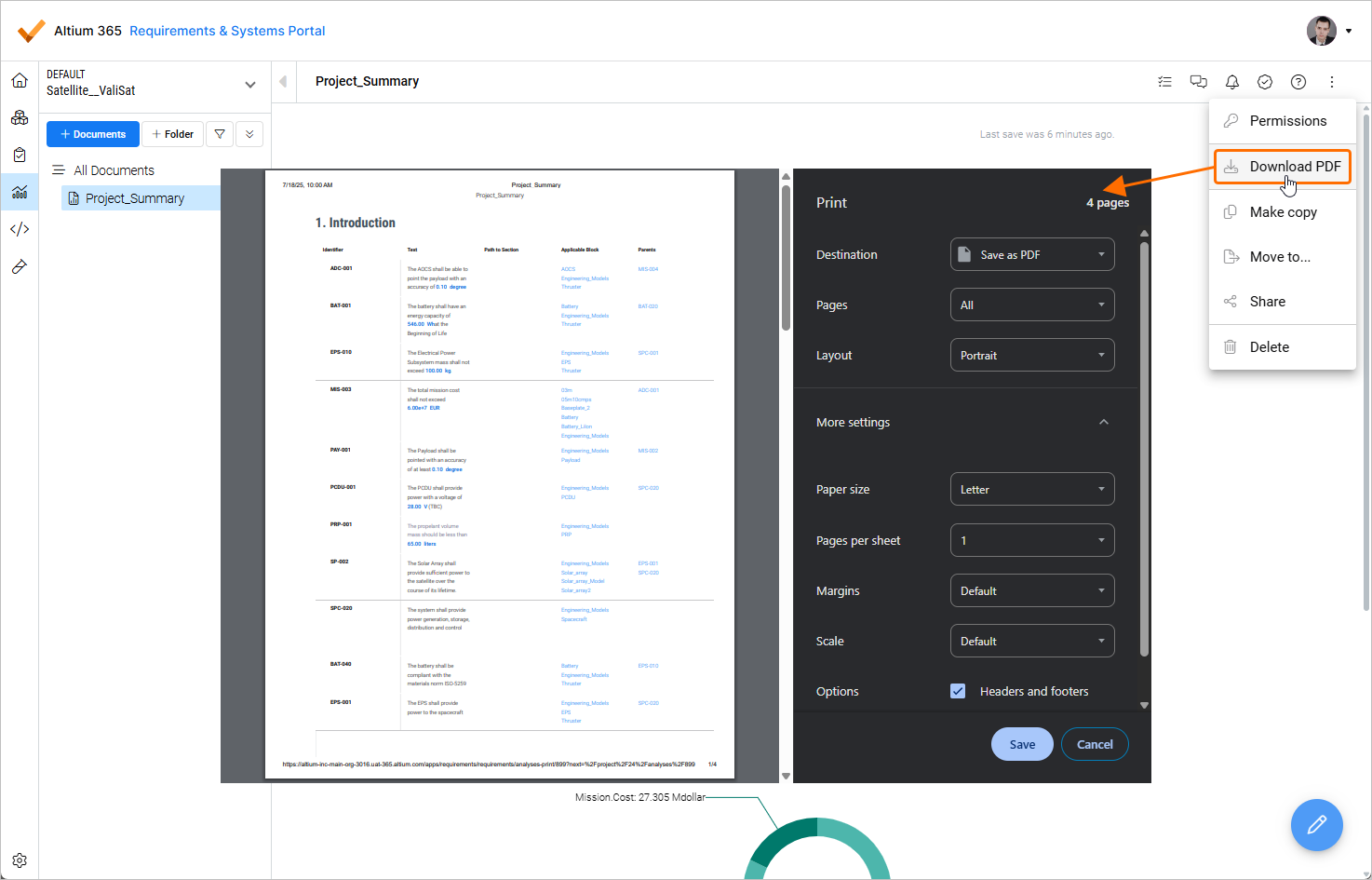
For more information about sharing and exporting an Analysis, refer to the Sharing and Exporting an Analysis page.
-
A follower requirement now has its fields synchronized with the master requirement while the confirmation is pending.
For more information about the Master-Follower feature, refer to the Master-Follower feature page.
-
When a requirement includes a file and then a Simple Copy of this requirement is created, removing the file from the original requirement no longer removes the file from the copied requirement.
For more information about adding images to requirements, refer to the Adding Images to Requirements from URL and Files page.
-
Fixed an issue preventing removal of custom permissions.
Update - 9 July 2025
Key Highlights
The labels referencing the Quick Load Table feature has been removed from the Table view of the Requirements Module.

Also, the corresponding option (that was always enabled) has been removed from the User Flags page of the Settings ( » Settings » User Flags).

For more information about the Quick Load Table feature, refer to the Requirements Module page.
Update - 26 June 2025
Key Highlights
-
Sorting and filtering can now be applied to the list of custom fields (
» Settings » Custom Fields).
Click on a column heading to sort the list of custom fields by this column. Click once to sort in ascending order (based on the content of that column). Click again to sort in descending order. Click again to remove sorting.
Hover the cursor over a column header, click the
 icon, and then click the
  icon in the popup that appears to access filter options.
For more information about custom fields, refer to the Custom Columns and Units page.
-
The Collaborators page that could previously be accessed from the Projects Module is no longer available. The list of collaborators can now be accessed from the global settings (
» Settings » Collaborators), and this page is accessible by admin users only.

For more information about collaborators, refer to the Collaborators page.
-
Improved performance of the dialog used to move requirements between specifications.
For more information about collaborators, refer to the Grouping Requirements page.
-
In order to improve performance when initially navigating into Requirements & Systems Portal, project data has been removed from the initial data request. Only the current project is now loaded.


Update - 12 June 2025
Key Highlights
When importing requirements from a file and choosing to update existing requirements, blank values are now supported. I.e., if a value in the file being imported is blank, the value will be removed from the requirement. This also applies to multi-select fields, such as Tags.
|
A specification includes a number of requirements. Note that requirements Req-001 and Req-002 have values for their Applicability and Tags. A CSV file is being imported. Note that the Update requirements option is enabled to overwrite existing specification with the data from the file. Since Applicability and Tags values for Req-001 and Req-002 are blank in the imported file, the values are now also blank in the specification. |


For more information about importing requirements, refer to the Import Requirements page.
Update - 27 May 2025
Key Highlights
-
The ability to export a document from the Verification & Validation Module has been implemented. This functionality allows you to quickly export verification and validation data into an editable
*.docxfile based on the selected context and template. Three default templates are provided, and you can create and upload your own templates.
For more information, refer to the Document Export page.
-
The Quick Load Table feature is no longer considered a Beta feature. Therefore, Beta labels have been removed from the Table view in the Requirements Module.
For more information about the Quick Load Table feature, refer to the Requirements Module page.
-
When performing a bulk edit in the Applicability column of requirements and quick search is used, the changes now apply only to the currently listed requirements.
For more information about assigning block types to requirements, refer to the Applicability in Requirements Module page.
Update - 15 May 2025
Key Highlights
-
A filter has been added to the V&V Rules column in the requirements table so you can filter table entries based on the following statuses: Not Verified, Partially Verified, and Verified.

For more information about filtering requirements in the requirements table, refer to the Filtering Requirements page.
-
The Applicability column in the requirements table now supports bulk update across selected requirements.
For more information about assigning block types to requirements, refer to the Applicability in Requirements Module page.
-
The history table of a requirement has been improved to display timestamps in the Data column using 'yyyy-mm-dd' format. Hover the cursor over a timestamp to display additional information regarding the occurrence timespan.

For more information about history of a requirement, refer to the Requirement Versioning and Releasing page.
-
The number of current subscriptions is now displayed next to the Subscriptions entry in the left-hand side menu of the Project Module.

For more information about subscriptions and notifications, refer to the Notifications page.
-
If a user is a member of a group in the Altium 365 Workspace, that group will now be created in Requirements & Systems Portal and the user will be added to this group accordingly. A list of groups and their users is available on the Group tab of the Collaborators page.

For more information about collaborators, refer to the Collaborators page.
Update - 22 April 2025
Key Highlights
-
Improved performance on Master → Follower dialog in which change propagation is confirmed when many custom fields are included.
-
Improved performance on Master → Follower table when many requirements and custom fields are included.
-
Added a warning with a specific dialog displaying information regarding the limitations of the Time Machine feature.

-
The following table column cells will display Not Supported upon Time Machine activation and no data will be displayed in cells of these columns:
-
Applicable Component
-
Images
-
Compliance Comment
-
Path to Section
-
Owner

-
-
Removed the 512 characters limit for the URL provided to link files in Files Management.
-
The table export will now include the uploaded image name (not the image link, but the original file name as it was uploaded).
Update - 20 March 2025
Key Highlights
-
Upon activating the Time Machine feature for a table, its layout will revert to a different version in order for the Time Machine functionality to be available. Upon deactivating the Time Machine feature, the original table layout will be restored, with the Quick Load enabled.
-
The layout of the UI when mapping columns from a file imported using the Quickstart functionality has been improved. The widths of Map To drop-downs now match the widths of corresponding columns, and the text overflow of selected labels has been fixed.

Update - 21 February 2025
Key Highlights
-
In the Verifications & Validations Module, the step definition's attachment is now copied (in read-only mode) to the step run.
-
The usability of requirement text editing has been enhanced. The formatting toolbar now appears right after entering editing mode by double-clicking the text.

-
The Beta features section within Requirements & Systems Portal's Settings has been renamed to the User Flags section. Its user interface has also been updated to enhance the distinction between settings for beta and normal features and to improve feature categorization.

-
The same icon is now displayed for blocks of the Electronics type in both the table view and the blocks list.
