
Information for IT Departments
This document is no longer available beyond version 5.0. Information can now be found here: Information for IT Departments Regarding Altium On-Prem Enterprise Server for version 8.1
While installation and use of Altium Server Technology - in the form of Altium Concord Pro and its related services - is detailed across other pages within this documentation site, the aim of this page is to provide a single, detailed resource for an organization's IT department. A place to come for answers to typically asked questions regarding this technology, including:
- What are the hardware requirements to install Altium Concord Pro?
- What is installed?
- What programs and processes are running?
- Where is the data stored?
- What ports are used?
- What protocol is used for communications?
- How is data backed-up?
The following sections provide detailed answers to these and other questions, including a high-level overview of the architecture and data flows.
Hardware Requirements
Altium Concord Pro should be installed on a PC running one of the following officially supported Operating Systems:
- Windows Server 2019 Standard Edition (64-bit)
- Windows Server 2016 Standard Edition (64-bit)
Recommended System Requirements
The following are the recommended system requirements to install and run Altium Concord Pro. Note that these recommendations are for 5 concurrent users.
- OS: Windows Server 2019 Standard Edition (64-bit)
- RAM: 16GB+
- Processor: Intel® Xeon® processor or equivalent (4 or more cores)
- Disk space: 200GB
Minimum System Requirements
The following are the minimum system requirements to install and run Altium Concord Pro. Note that these recommendations are for 5 concurrent users.
- OS: Windows Server 2016 Standard Edition (64-bit)
- RAM: 8GB+
- Processor: Intel Core i3/i5 processor or equivalent (2 or more cores)
- Disk space: 200GB
Altium Designer Requirements
Installation & Other Software
Due to the observed unpredictable behavior of antivirus software, it is recommended to disable such software during the installation of Altium Concord Pro.
If the computer is also running Microsoft Exchange Server, you might receive an HTTP Error 503 error when you first attempt to log in. The installation of the Exchange Server can change the Internet Information Services (IIS) configuration in a way that conflicts with Altium Concord Pro. To resolve this, the following changes must be made to the applicationHost.config file:
<handlers accessPolicy="Read, Script">
...
<add name="kerbauth" image="C:\Program Files\Microsoft\Exchange Server\V15\Bin\kerbauth.dll" preCondition="bitness64" />

	<add name="WSMan" image="C:\Windows\system32\wsmsvc.dll" preCondition="bitness64" />

	<add name="exppw" image="C:\Program Files\Microsoft\Exchange Server\V15\ClientAccess\Owa\auth\exppw.dll" preCondition="bitness64" />

	<add name="cafe_exppw" image="C:\Program Files\Microsoft\Exchange Server\V15\FrontEnd\HttpProxy\bin\exppw.dll"  preCondition="bitness64" />
...

	</handlers>
Additional Software Installed or Configured
-
Internet Information Services (IIS). For correct operation, Altium Concord Pro requires, at minimum, version 8.0 (IIS 8.0) to be installed. Installation of Altium Concord Pro will simply install the version of IIS native to your operating system:
- IIS 10.0 - Windows Server 2019 Standard Edition (64-bit), Windows Server 2016 Standard Edition (64-bit) and Windows 10 (64-bit)
- IIS 8.5 - Windows 8.1 (64-bit)
-
Firebird 3.0 database engine. Ensure that IPv4 network addressing is enabled – to check for active IPv4 addresses, run
ipconfig /allin a command prompt. - .NET Framework 4.8 and .NET Core 3.1.2
IIS Configuration
As part of IIS configuration, the ISAPI Extensions feature is enabled. This feature can be found in the \Internet Information Services\World Wide Web Services\Application Development Features section of the Windows Features dialog - accessed from Window's Programs and Features window.
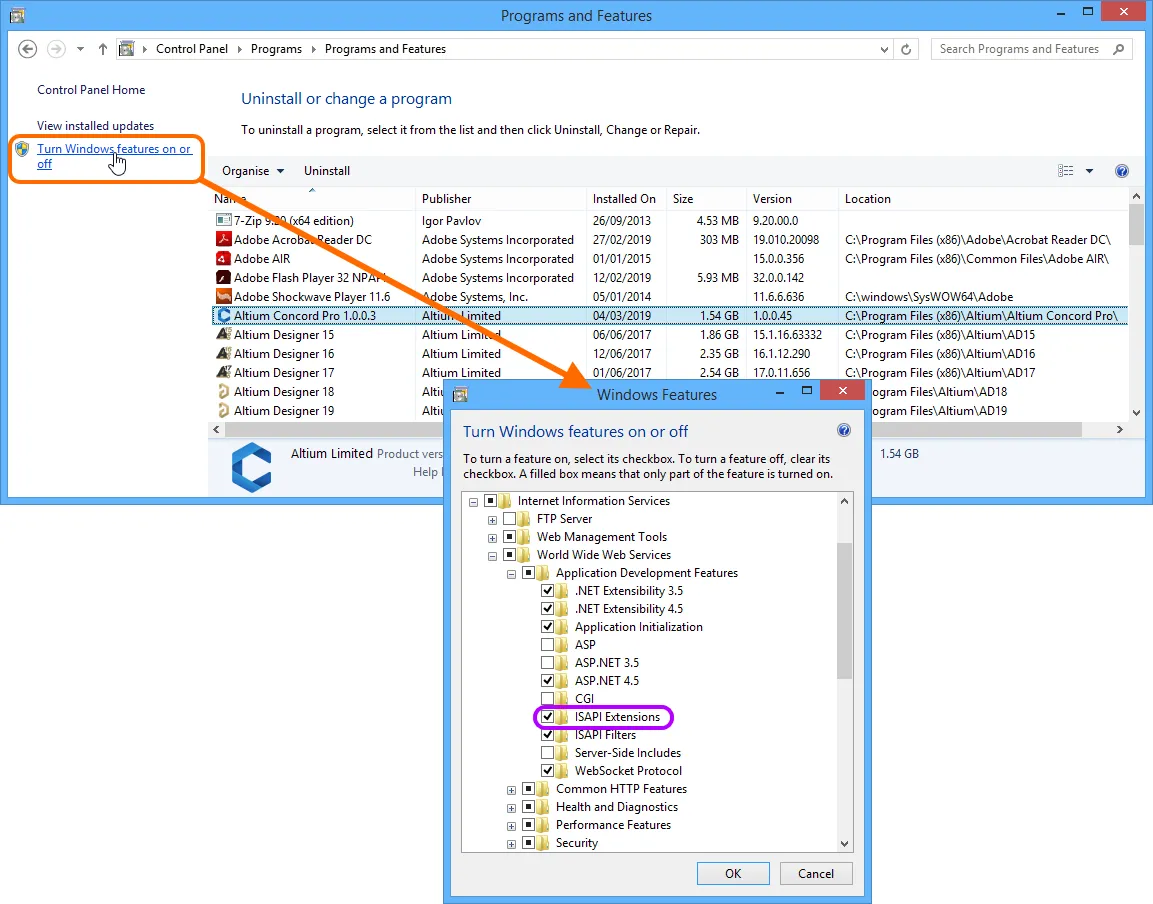
Installation of Altium Concord Pro enables the Windows ISAPI Extensions feature, part of IIS configuration.
Application Pools Installed on IIS
The following application pools are installed on the IIS server:
- Altium Concord Pro
- Altium Concord Pro - Applications Registry Service
- Altium Concord Pro - ARK Service
- Altium Concord Pro - BOM Management Service
- Altium Concord Pro - Collaboration Service
- Altium Concord Pro - Comments Service
- Altium Concord Pro - Configuration Discovery
- Altium Concord Pro - Data Acquisition Service
- Altium Concord Pro - Data Storage Service
- Altium Concord Pro - Discovery Service
- Altium Concord Pro - EIS
- Altium Concord Pro - Event Dispatching Service
- Altium Concord Pro - Git
- Altium Concord Pro - Identity Service
- Altium Concord Pro - LicenseManager Service
- Altium Concord Pro - Managed Flows
- Altium Concord Pro - MCAD Collaboration Service
- Altium Concord Pro - Network Installation Management
- Altium Concord Pro - Network Installation Service
- Altium Concord Pro - Notifications Service
- Altium Concord Pro - NTLM Authentication
- Altium Concord Pro - Part Catalog Service
- Altium Concord Pro - Plm Sync Service
- Altium Concord Pro - Projects Service
- Altium Concord Pro - Search Service
- Altium Concord Pro - Search Templates Service
- Altium Concord Pro - Security Service
- Altium Concord Pro - Settings Service
- Altium Concord Pro - Simple Lock Service
- Altium Concord Pro - Tasks Service
- Altium Concord Pro - Team Configuration Service
- Altium Concord Pro - Vault Service
- Altium Concord Pro - Vcs Service
- Altium Concord Pro - Web Review
- Altium Concord Pro - WebSocket Service
Verification that Altium Concord Pro is running can be performed from the Windows Internet Information Services (IIS) Manager panel - accessed from Window's Administrative Tools window. Simply check to confirm each of these application pools are in the Started state.
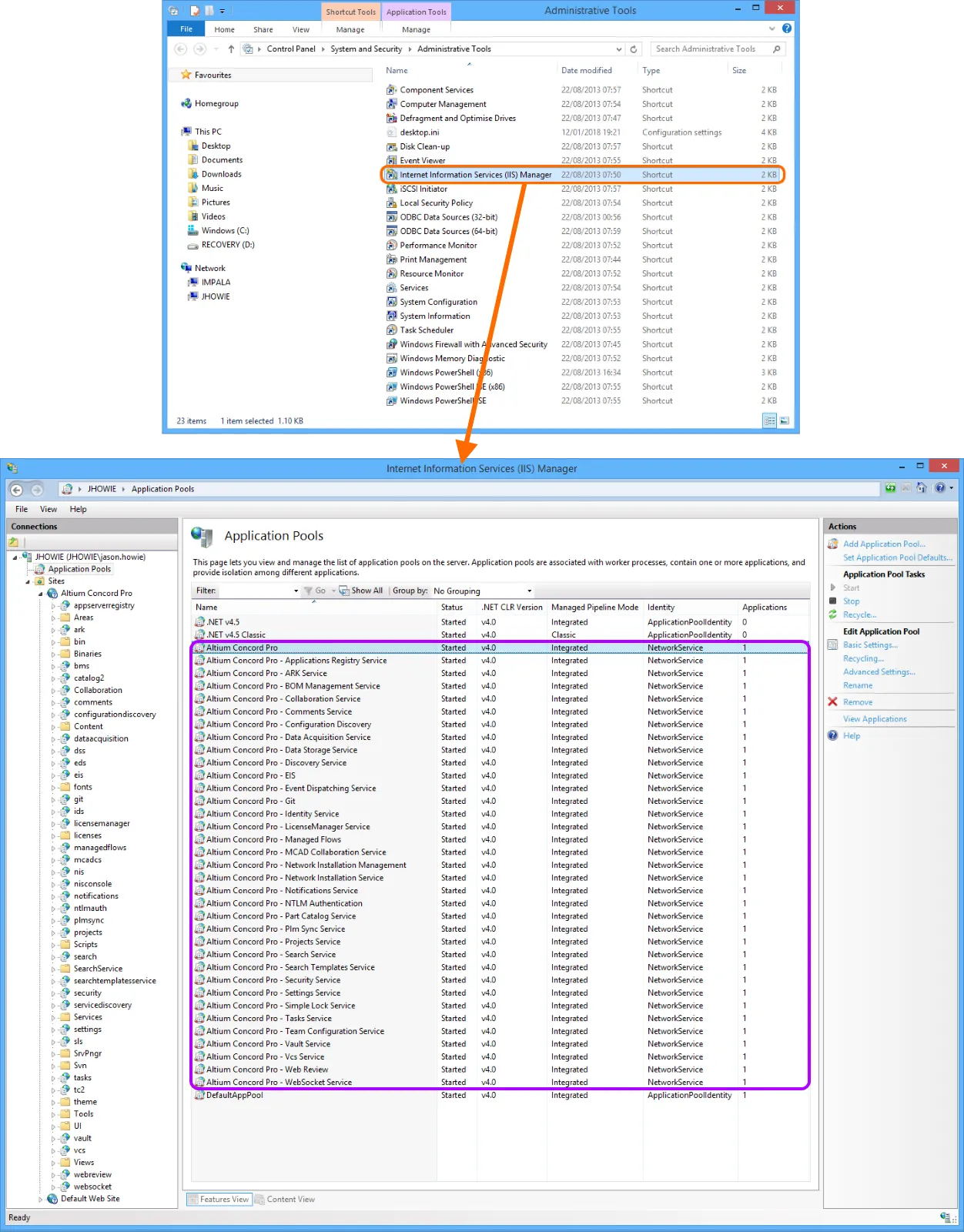
Altium Concord Pro-related application pools running on the IIS server.
Default Installation Paths
The following is a list of default installation paths when installing Altium Concord Pro:
-
Altium Concord Pro Installation Folder -
\Program Files (x86)\Altium\Altium Concord Pro -
Firebird Installation Folder -
\Program Files (x86)\Firebird\Firebird_3_0 -
Firebird Database -
\ProgramData\Altium\ConcordProData\DXPSERVER.DAT -
Revision Files Folder -
\ProgramData -
Search Index Data Folder -
\ProgramData
Default Ports
The following default communication port numbers are used by Altium Concord Pro:
- HTTP Port - 9780
- HTTPS Port - 9785
- LDAP Service Port - 9791
- Websocket Port - 4649
- Firebird Server Port - 3050
- SVN Port - 3690
The first three in the list can be configured during initial installation, on the Altium Concord Pro Configuration page of the Installer.
When choosing a port, note that it must not clash with any ports used by other applications - if a port is currently in use, you will be notified by the installer.
► See information on ports and IP addresses for Altium Design software.
HTTPS Protocol Support
For those that require an additional layer of security for exchanging data with Altium Concord Pro, the Server provides for secure communication over networks using the HTTPS protocol to protect the privacy and integrity of the data.
The configuration and server bindings for Altium Concord Pro can be accessed from the Windows Internet Information Services (IIS) Manager panel - available from the Administration Tools window (Control Panel\System and Security\Administrative Tools). Select the 'Altium Concord Pro' entry in the panel's Connections\Sites list, and choose the Features View tab.

Access configuration and server binding settings for Altium Concord Pro.
The available ports and server names for Altium Concord Pro are shown as selectable links in the Actions pane. Use the links to note and test the server connection protocols, or access the current name/port bindings by selecting the Bindings link in the Edit Site section of the pane.
A Binding, including its protocol port number, can be edited from the Site Bindings dialog via the Edit button.

Configure bindings through the Site Bindings dialog.
Note that the server name localhost only applies to the local machine, so PCs other than the one that is hosting Altium Concord Pro need to use the actual (server) name of that host machine to connect.
To confirm the name of the host PC on which Altium Concord Pro is installed and running, on that machine go to Control Panel\System and Security\System and note both the Computer name and Full computer name (its qualified domain name) - the latter will be that used by Altium Concord Pro for secure connections over the network.
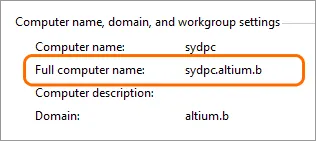
Checking the name of the PC on which Altium Concord Pro is running.
 See example
To establish a secure connection to Altium Concord Pro:
-
From Altium Designer - use a HTTPS prefixed server address and the configured HTTPS port. By default, this is
https://localhost:9785when using the PC that hosts Altium Concord Pro, orhttps://<computername>:9785for a remote connection (where[computername]is the host machine's Computer Name or qualified domain name).
-
From a Web Browser - enter the address of the local service (
https://localhost:9785) or the host computer name equivalent (https://<computername>:9785).
When Reconfiguring Site Bindings
If you have added a new IIS Site Binding for the server, or edited an existing Site Binding entry (see above), the server PC should be restarted to correctly establish the new configuration. Typical Site Binding changes might be editing the Port number for a host entry, or adding a new binding for a domain alias.
When it is not practical to restart the server host machine, the alternative process is to restart the server service on the IIS platform – Restart under Manage Website – and also restart the Altium Server Pinger service (a Windows service).

Protocol used for Service-to-Service Communications
SOAP over HTTP.
Service Architecture – Overview
Altium Concord Pro installs a number of core services, as well as browser-based management consoles, and an Explorer (also browser-based). In order to access any of these services, a user's identity must be recognized and authenticated. Altium Concord Pro comes with one predefined user (Username: admin, Password: admin). The Users page of Concord Pro's browser-based interface can be used to add and manage more users. There is no limit to the number of users that may be registered to access and use Altium Concord Pro, but there is a limit on simultaneous connections, as determined and enforced by required licensing.
Altium Designer uses an unencrypted channel (SOAP over HTTP) for communicating with the following services:
- Collaboration Service
- Comments Service
- Data Acquisition Service
- Data Storage Service (DSS)
- Identity Service (IDS)
- Notifications Service
- Part Catalog Service
- Projects Service
- Simple Lock Service (SLS)
- SVN (through the SVN:// protocol)
- Vault Service
All other services communicate with each other.
The majority of services require access to the same Altium Concord Pro database, in which to store data applicable to them. The following are examples of the data stored by some of these services:
- Part Catalog Service - stores supplier and manufacturer items, price and quantity history changes, etc...
- Identity Service - stores users, roles, licensing configuration, and session information.
- Vault Service - stores its structure (folders, items, revisions, content types, lifecycle states, etc...).
Actual documents are stored on the file system, in the Revisions folder (\).
ProgramData
The following browser-based applications use SOAP API to communicate to the applicable services - they do not require access to the Altium Concord Pro database, nor are any other files required for them to function:
- User Management - the application behind the Users page and sub-pages in Concord Pro's browser interface.
- Vault Explorer - the application behind the Explorer page of Concord Pro's browser interface.
- Catalog Management - the application behind the Part Providers page of Concord Pro's browser interface.
- Projects Management - the application behind the Projects page of Concord Pro's browser interface.
License Files
Related article: Altium Concord Pro Licensing
Licensing for Altium Concord Pro essentially consists of the following two components, that together comprise a two-tiered licensing system:
- Server License - this license makes the features and services of the Altium Concord Pro installation available to the organization.
- Client Access License - this license enables users within an organization to access, and sign-in to the organization's Altium Concord Pro installation.
Licensing for Altium Concord Pro can be handled through the cloud, or locally through license files (*.alf). Acquisition of the latter is performed through the Altium Dashboard (accessed using the DASHBOARD control at the top of the Altium website). From the Licenses tab, locate the applicable license (in the CONCORD PRO grouping of licenses) then click through to the detailed license management page. Once there, click the Activate button to generate and download the associated license file.
Backup/Restore of Server Data
Backup and restoration of your Concord Pro server data is performed from the command line, in automated fashion, using the dedicated Backup & Restore Tool. This tool - avbackup.exe - can be found in the folder \Program Files (x86)\Altium\Altium Concord Pro\Tools\BackupTool\ (for a default installation of Concord Pro).
Manually Updating the Server Installation
To manually upgrade Altium Concord Pro to a later version, first uninstall the existing version. This is performed from the standard Programs and Features page (accessed from the Control panel). Right-click on the entry for Altium Concord Pro <VersionNumber> and use the Uninstall command from the context menu.
Once this is done, install the later version of Altium Concord Pro software. Just remember to install with the same settings for data locations and the same communications port numbers.
Re-Indexing Server Content after Data Migration
To re-index server content, for example after data migration:
- Stop all IIS application pools associated to Altium Concord Pro.
- Stop the Elasticsearch (AltiumElasticSearch) service. This is performed from the Windows Services panel - accessed from Window's Administrative Tools window.
-
Delete the content of the
SearchDatafolder, which contains the search indexing data (\for a default install).ProgramData - Restart the Elasticsearch (AltiumElasticSearch) service.
- Restart the IIS application pools associated with Concord Pro.
On finding the SearchData folder empty, Altium Concord Pro will re-index its content once it starts.
Local SVN Design Repository - Storage
A Design Repository that is created through the local Version Control Service has its internal data stored in a corresponding sub-folder in the \ProgramData\Altium\ConcordProData\Repository folder (for a default installation of Altium Concord Pro).
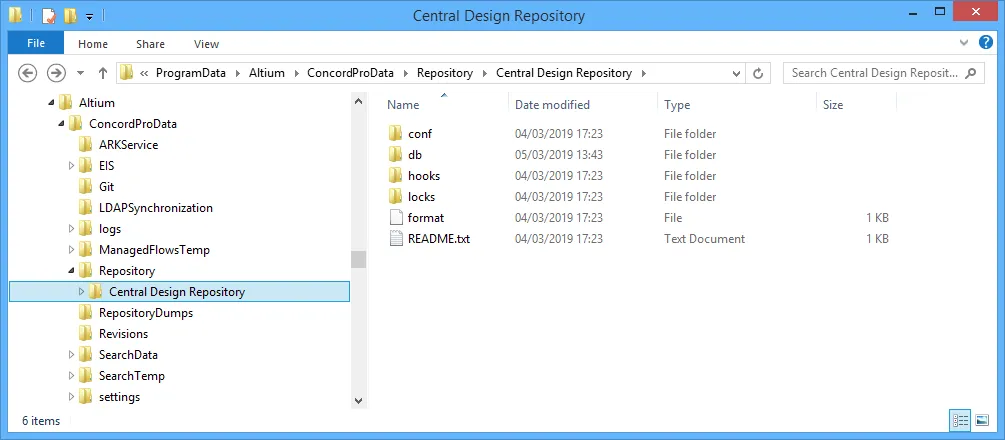
Internal data storage location for a Design Repository created through the Altium Concord Pro installation's local SVN-based Version Control Service.