Part Requests
The likely need to create new Library (Managed) components, as catered for by Altium Designer’s Component Editor, can be resolved at an informal level or by the submission of a formalized Part Request. At the basic level, a design engineer might simply create the Library components they require. At a higher level where components are created by a dedicated librarian, design engineers can request that a new Library part be created. This formalized Part Request approach, managed by the connected Altium Workspace, is available at two levels:
-
Legacy Part Requests – a Workspace document-based approach, where a submitted Part Request contains details of the requested part. The document includes interactive options available to the Librarians user group who complete and manage the request.
See the Legacy Parts Request page for detailed information.
-
Part Requests – an advanced, highly formalized approach based on a dedicated Workspace Process workflow. Once the request details are submitted, the process moves through a series of steps based on the workflow and user actions. Process-based Part Requests are accessed, advanced and resolved as Workspace Tasks. See below for more information.
Process-based Part Requests
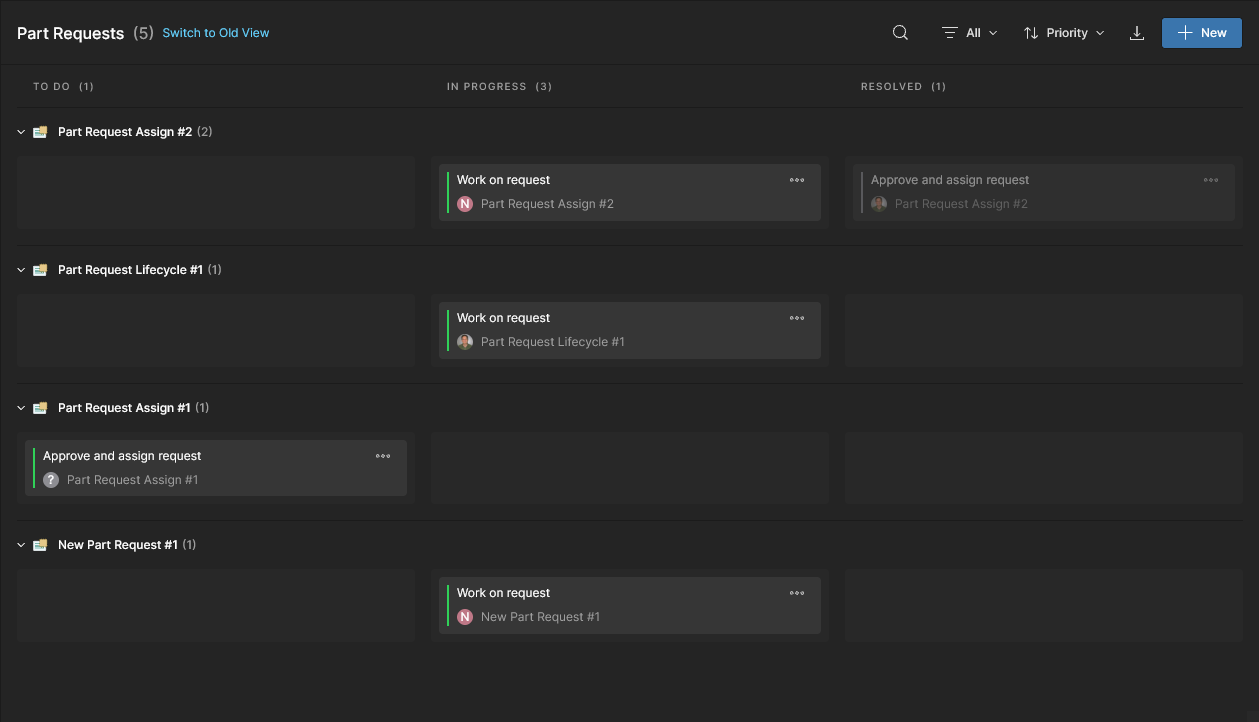
The Altium Workspace Part Requests page is dedicated to accessing and managing submitted process-based part requests. Opened by selecting Library – Part Requests on the main navigation tree, the Part Requests view provides the workflow-oriented interface by default, with the option of switching to a new task-oriented view through the upper Switch to New View command. The latter is recommended since it provides immediate access to Part Request tasks only, which avoids the previous need to locate and action Part Request tasks in the main Workspace Tasks view.
As with other Tasks views (Global and Project), details can be fully explored through the Details/Activity pane on the right, and ultimately advanced and resolved to completion by the task Assignee. The alternative (old) workflow-oriented view provides an equivalent level of detail from a process perspective (via Diagram, Data and History tabs) and includes a graphical representation of the workflow and its current state – see below.
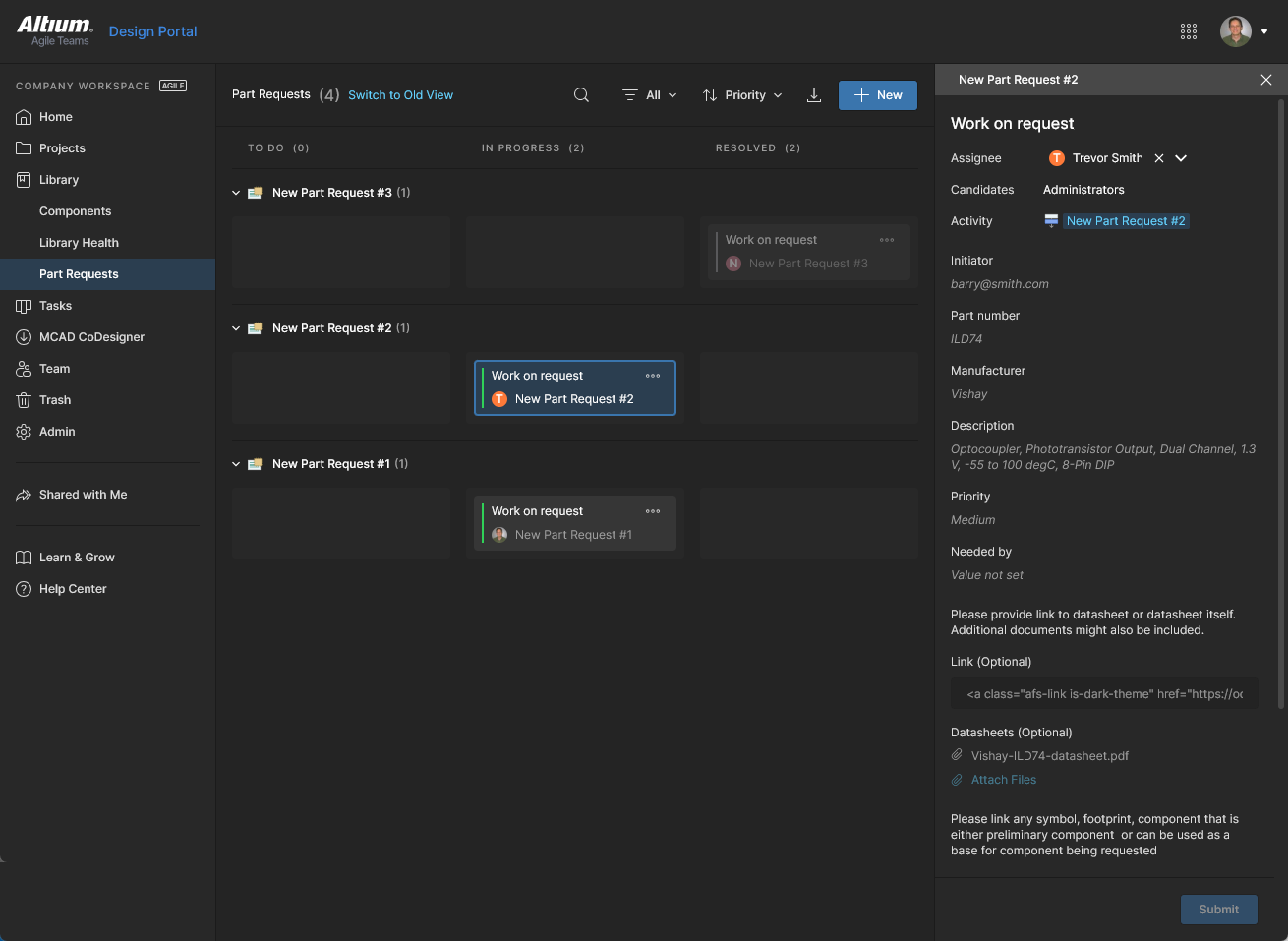
The tasks-focused view of the Part Requests page includes all Workspace part requests, with access to details and management through the Details pane. A new Part Request process can be invoked from the  button, and the grid listing constrained by applying Assignee and/or Status filters (
 ). Select both the
 ToDo and InProgress filter options to remove the display of Resolved tasks. See Tasks Filtering below.
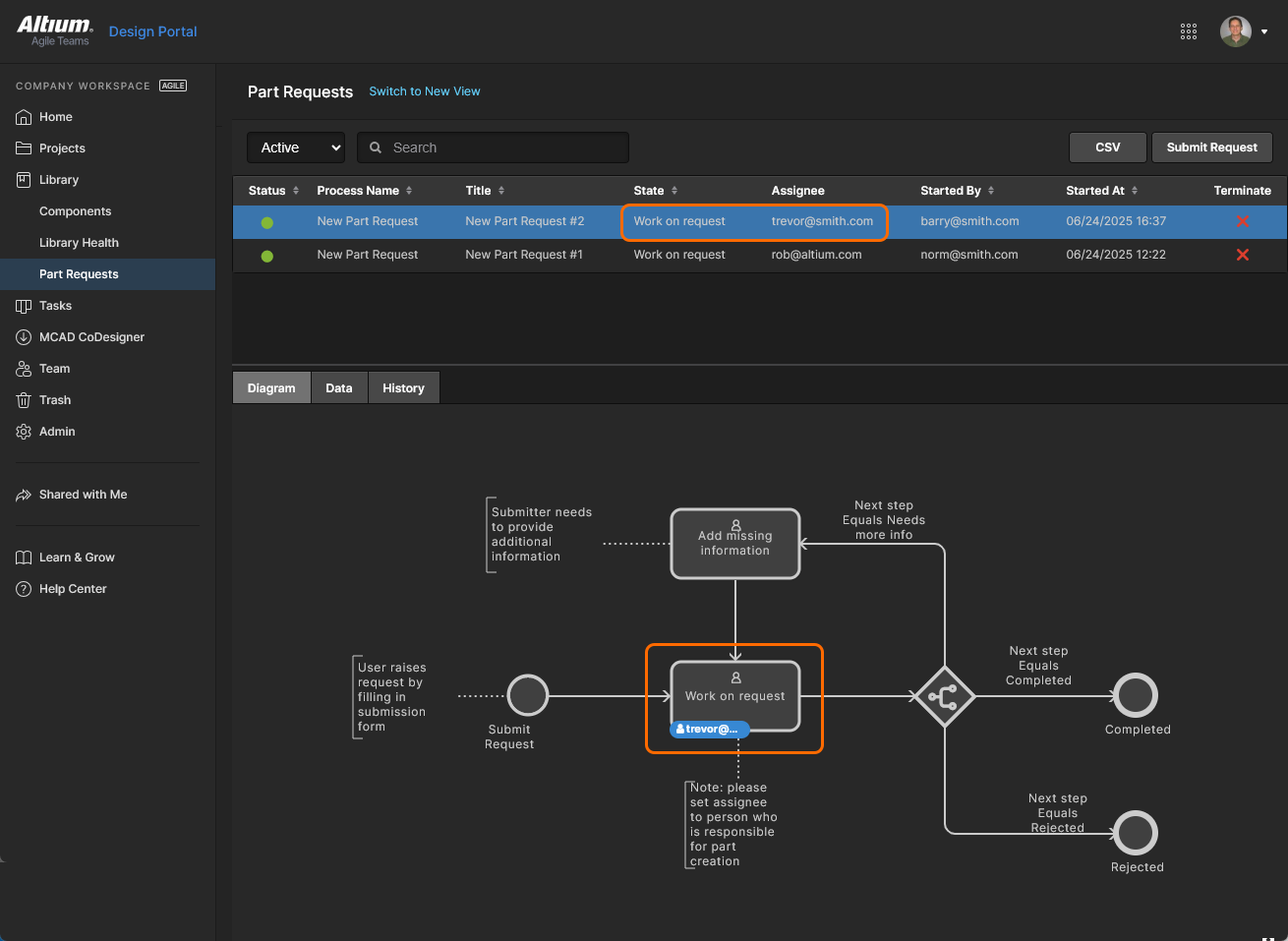
The workflow-focused Part Requests page view includes a diagrammatic representation of process flow state, and additional information through Data/History tabs. A new Part Request process can be invoked from the  button, and the list populated with inactive Part Request processes (those that are Completed or Terminated) by changing the upper Active control to its Closed mode.
 )
) button will download a detailed list of the currently displayed Part Release processes in a CSV-formatted file. In the equivalent workflow style view, the
  button downloads the CSV collation.
Submit Part Request
Invoke a new Part Request process from the upper button which opens the Part Request window, or where multiple Part Request processes have been enabled, from the associated drop-down menu. Part Requests are available to all Workspace members (Users) unless the process has been assigned to specific Members or Groups – see the Process Assign option for more information. The user who invokes a Part Request is designated as the process Initiator.
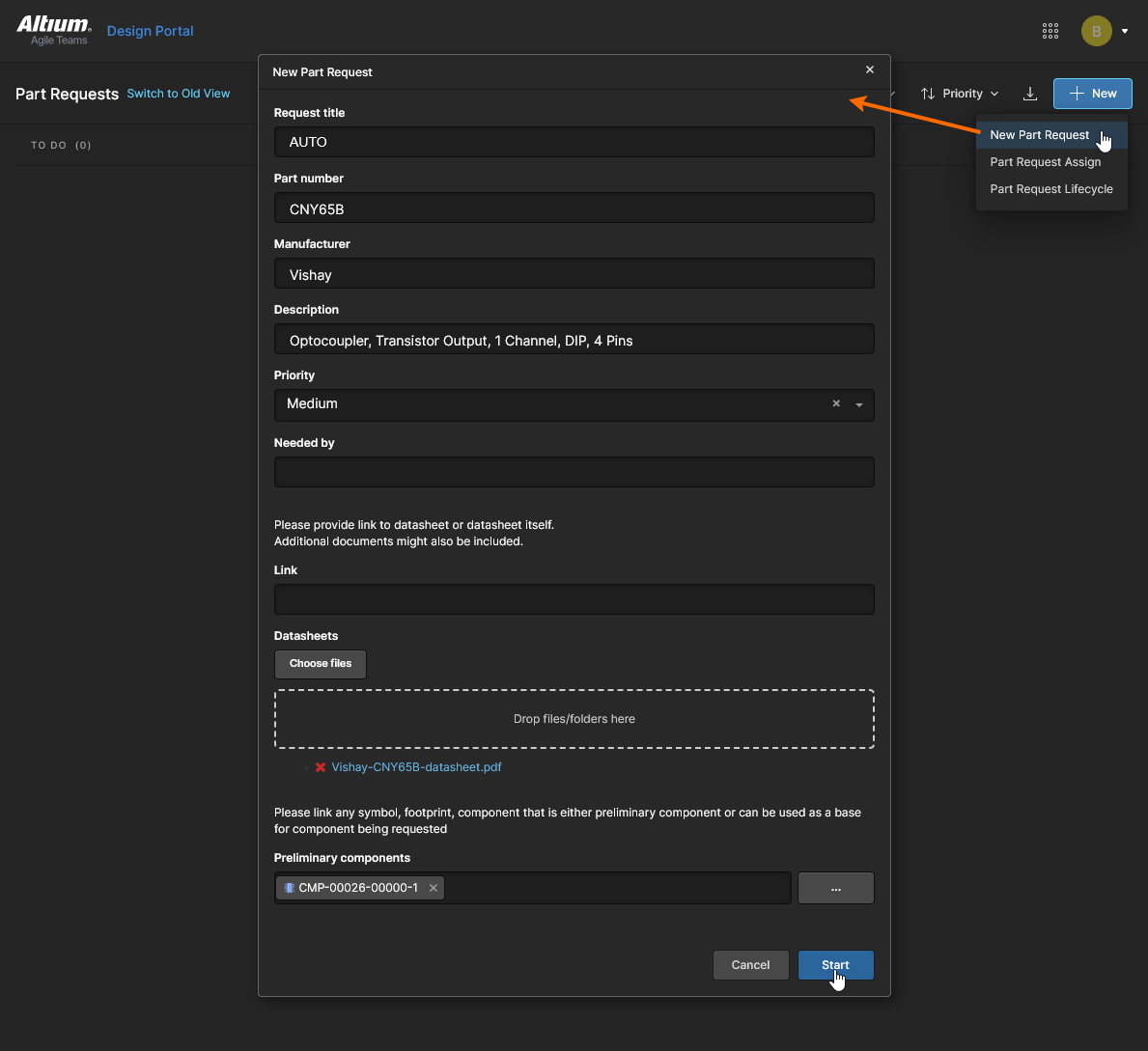
The following Part Request window, named as the selected process, provides a range of information fields used to define the requested part’s characteristics and parameters where necessary. While only the first few fields are mandatory, more information will ensure that the created part will most accurately match the required part. When complete, select  to submit the request.
The example outlined here is for the default New Part Request process. Other Part Request processes will have more or less fields:
-
Request title – The identifying name used for the Part Request and its Task tile. Can be manually entered or remain as the
AUTOdefault, which generates a title in the format<process name> #<incrementing number>- eg: Part Request Lifecycle #9. -
Part number – The manufacturer part number (or numbers) of the specific part you are requesting. Multiple part numbers must be separated by a comma (,). This entry field in mandatory.
-
Manufacturer – The name of the manufacturer that provides the part you are requesting. This entry field in mandatory.
-
Description – A textural description of the requested part, usually composed of key parameter values.
-
Priority – A setting that indicates the urgency of the part request (
Low/Medium/High). -
Needed by – A granular requirement entry for the request that indicates a specific date when the part is needed. Click in the field to open a pop-up date selection calendar.
-
Link – URL link(s) to additional related data and/or documents.
-
Datasheets – Relevant documents such as saved datasheets. Browse to and select documents from the
 button, or drag and drop in documents as indicated.
-
Preliminary components – Existing component data or models that can be built on or modified to create the required component. Select the
 button to browse to and select (using its associated checkbox) a suitable Item Revision in the Vault Explorer window.
 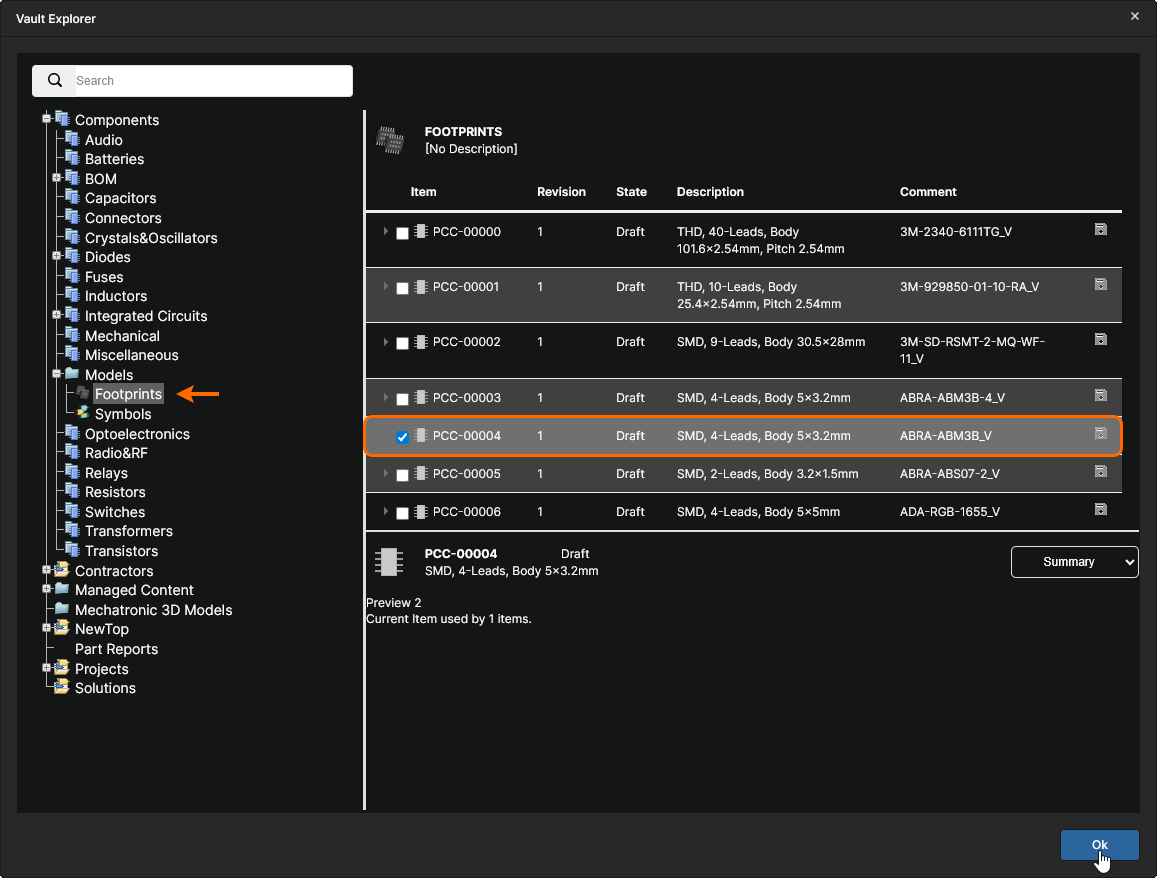 Note that this option is available to Administrators only, since access to the Explorer view requires administrator access rights. Alternatively, you can begin entering and then select a listed Component.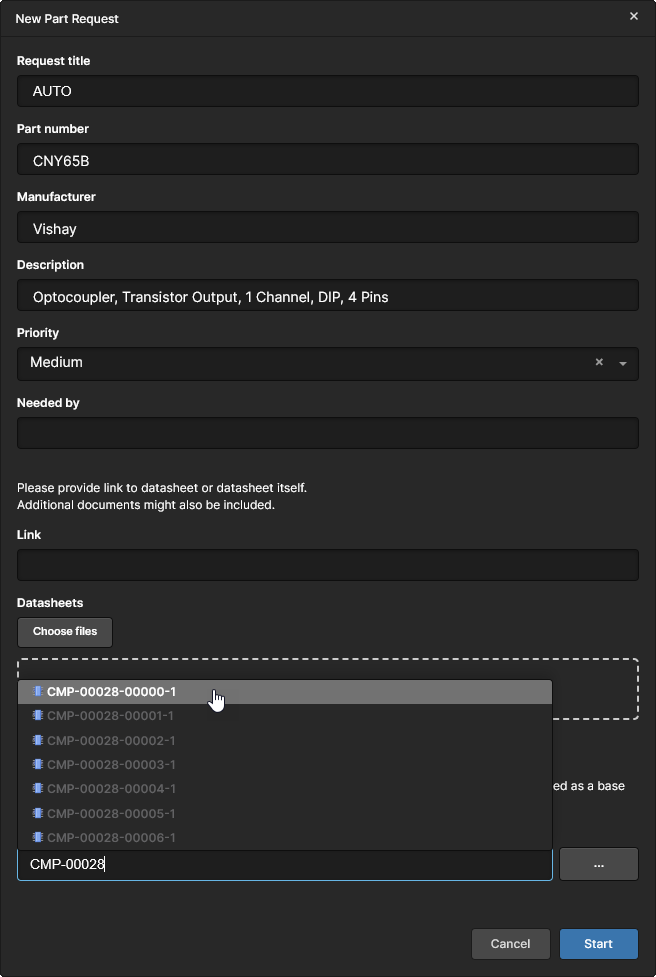
Assign Part Request
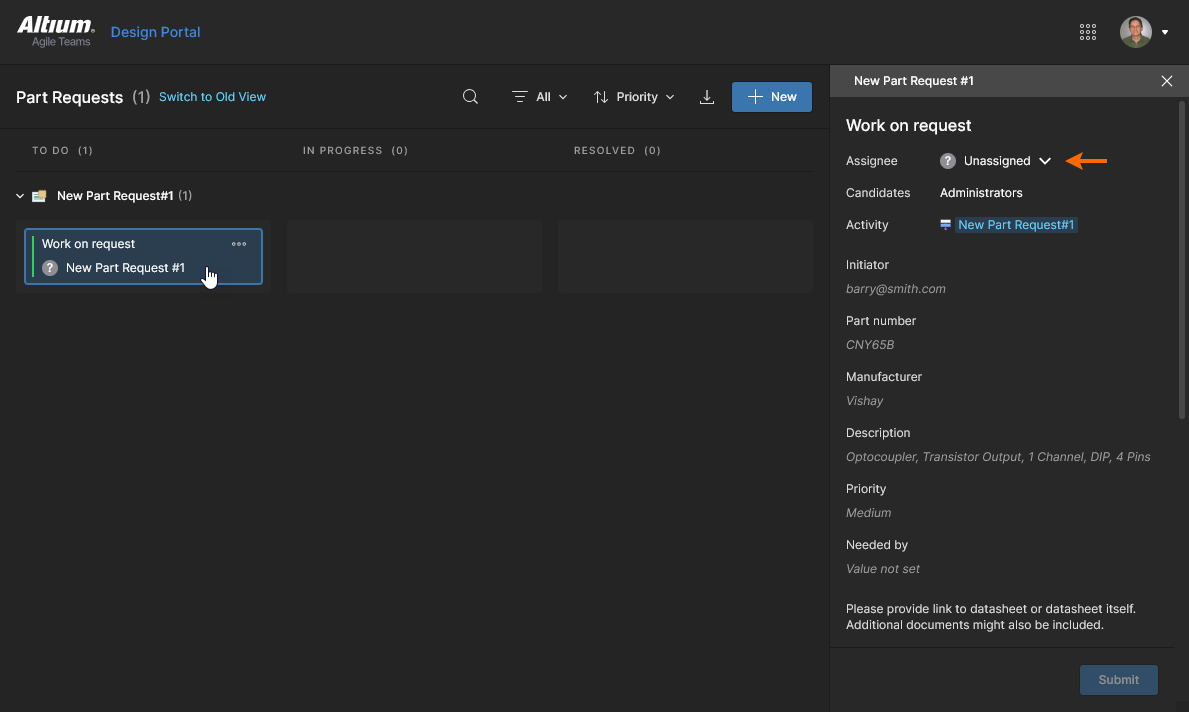
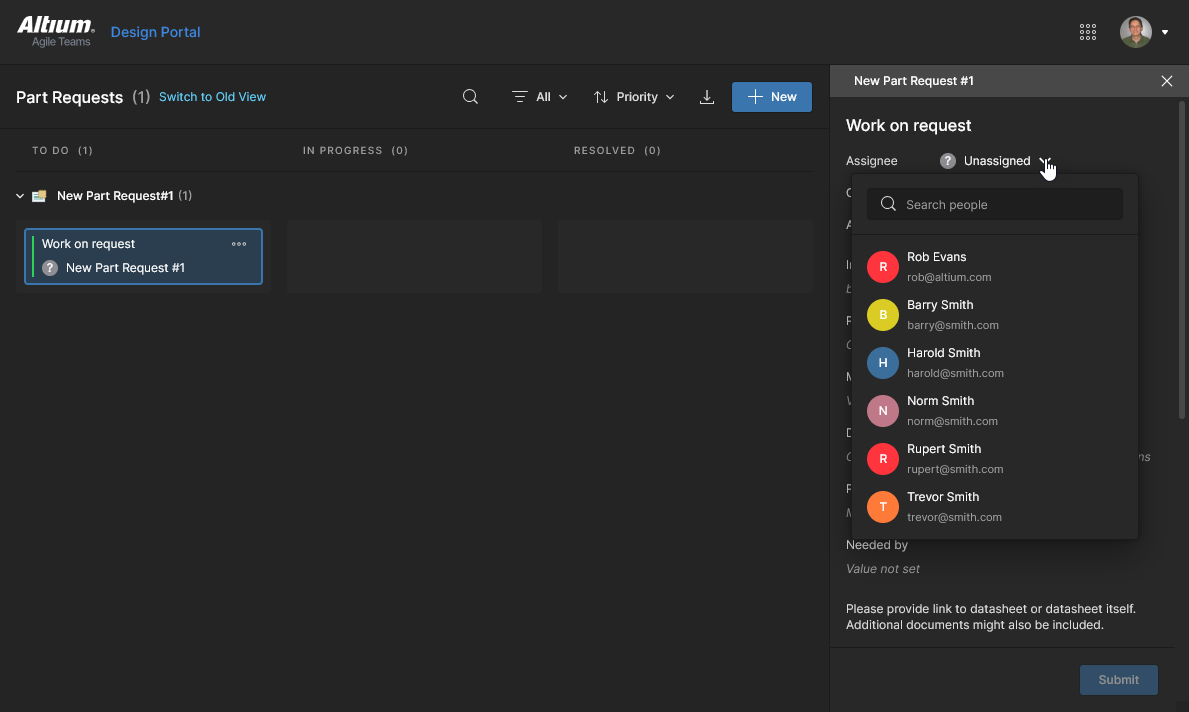
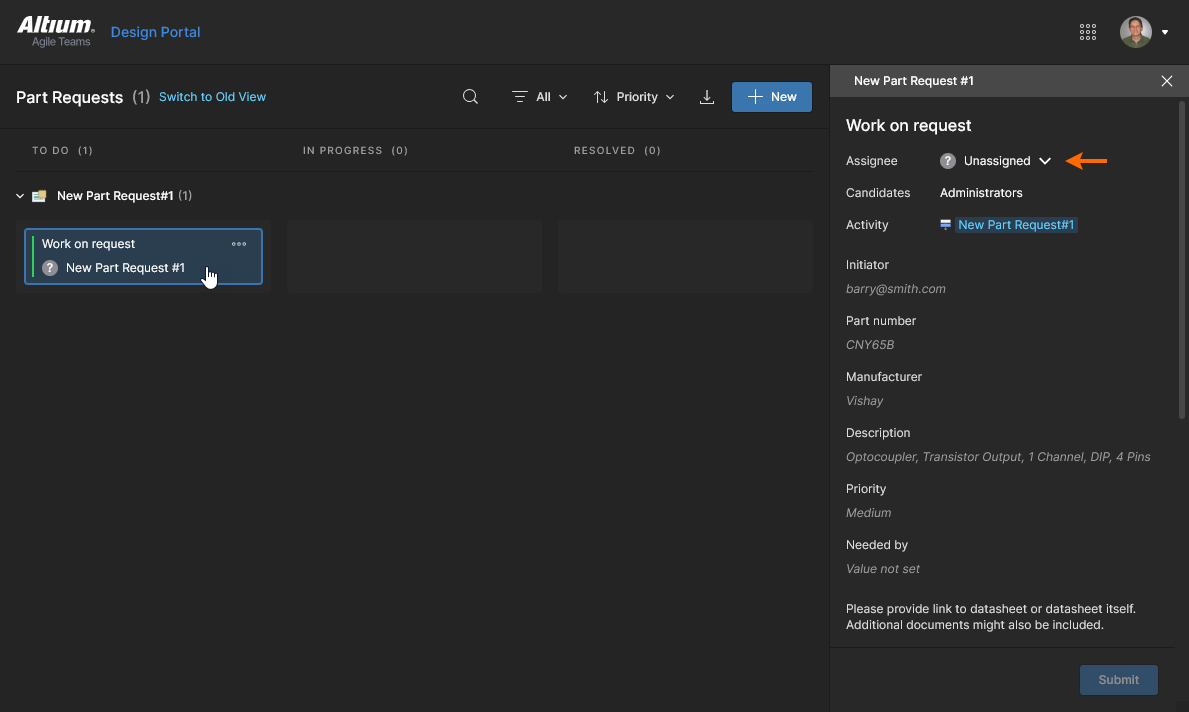
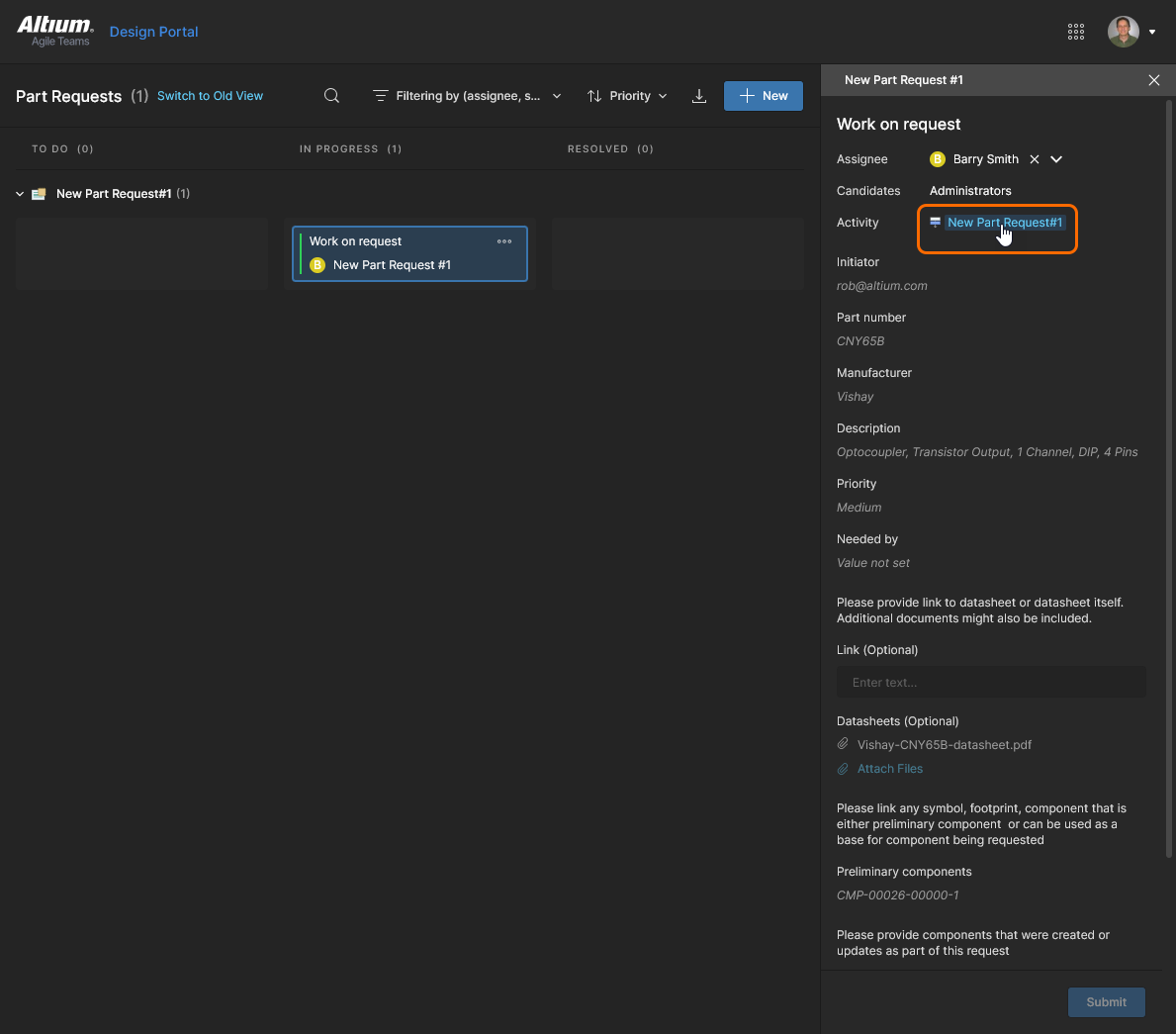
A submitted Part Request (by the Initiator) creates a corresponding Task for completing the next required step, which is assigning the process to a Team member (the Assignee) – for example, your organization's parts librarian. The information and controls for the task are accessed from the Tasks pane on the right.
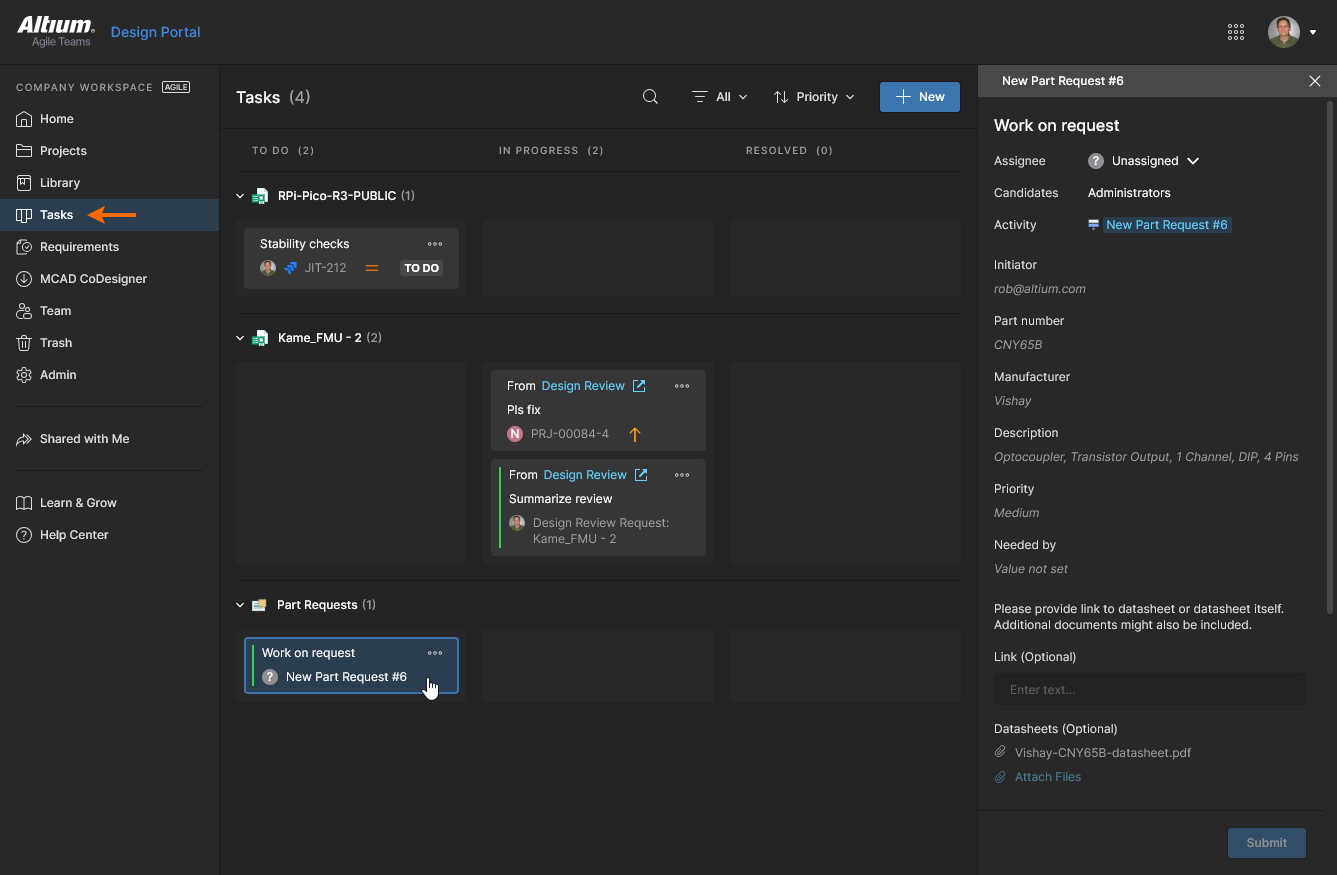
The assignment Task, with a To Do status, can be completed by one of the designated process Candidates. In the default New Part Request process this is the Administrators Group, but it can be any Group or individual specified in the process itself. If an individual user has been specified in the active Part Request process then they will be assigned to the Task automatically – the Task assignment step will be skipped and move to In Progress.
See Process Workflow Task Assignment for related information.
Complete Part Request
The Part Request process, now in a In Progress state, is available to the Assignee for completion. While other users can inspect the Part Request details, only the designated Assignee can act on the Task.
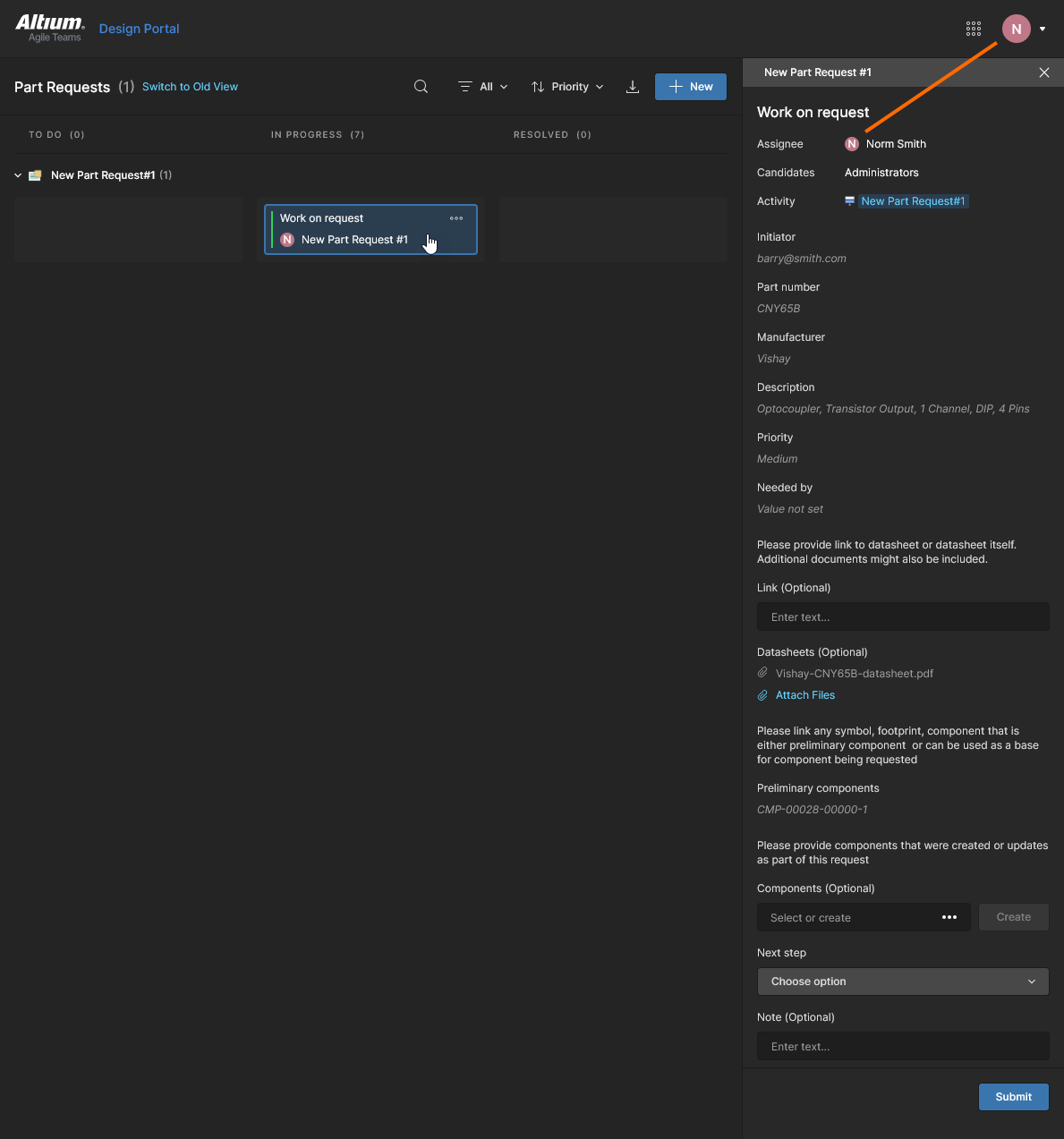
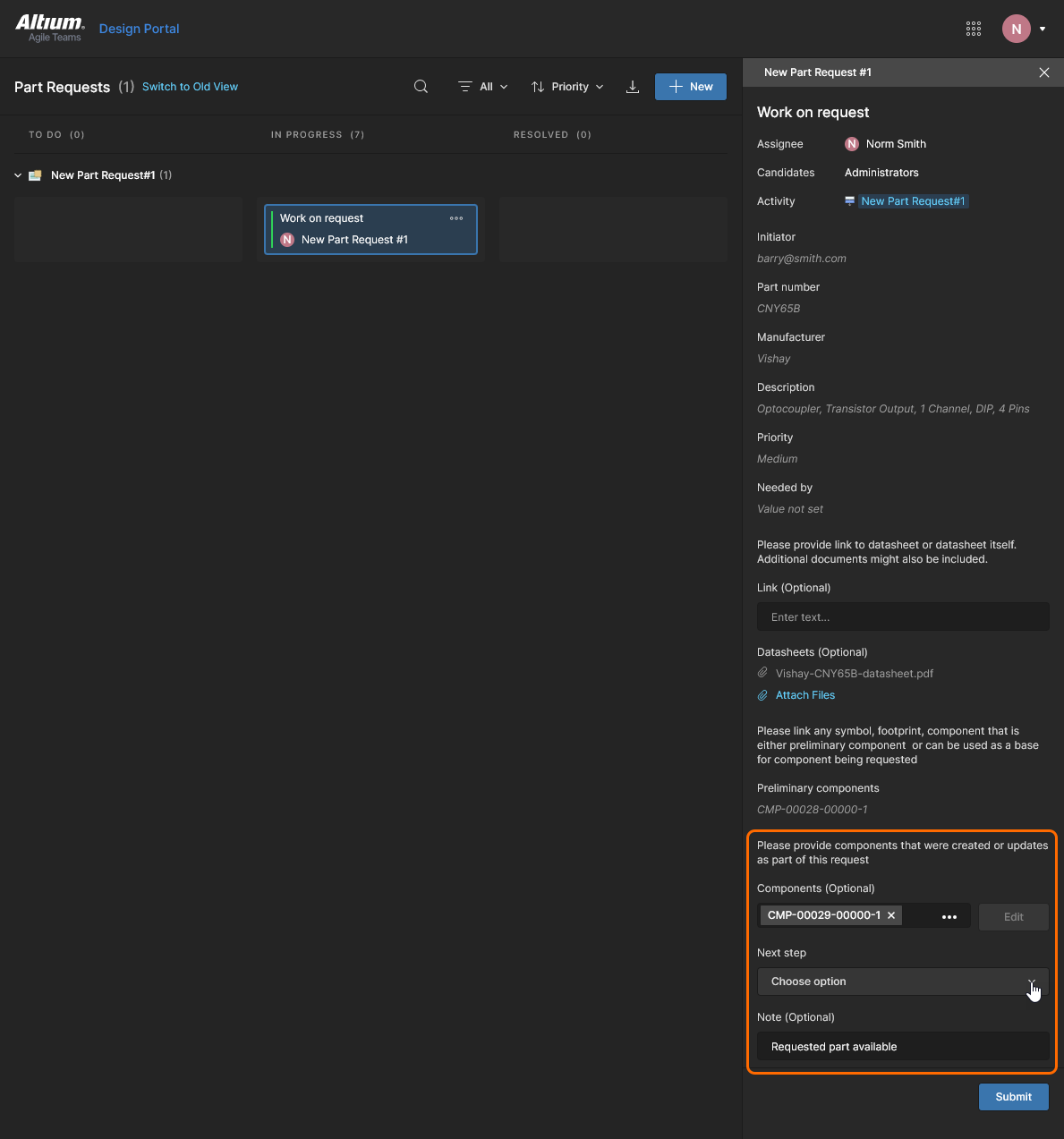
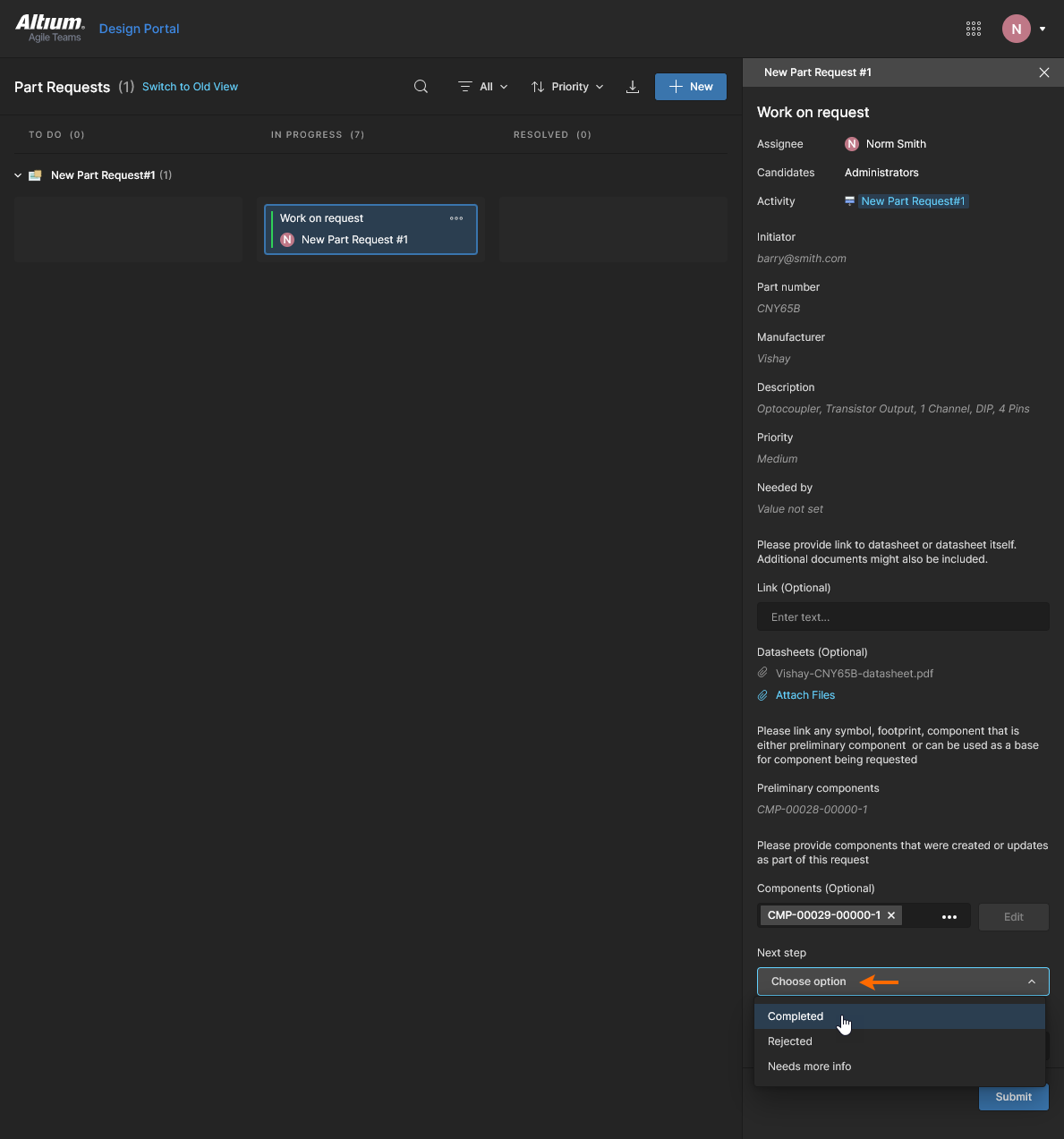
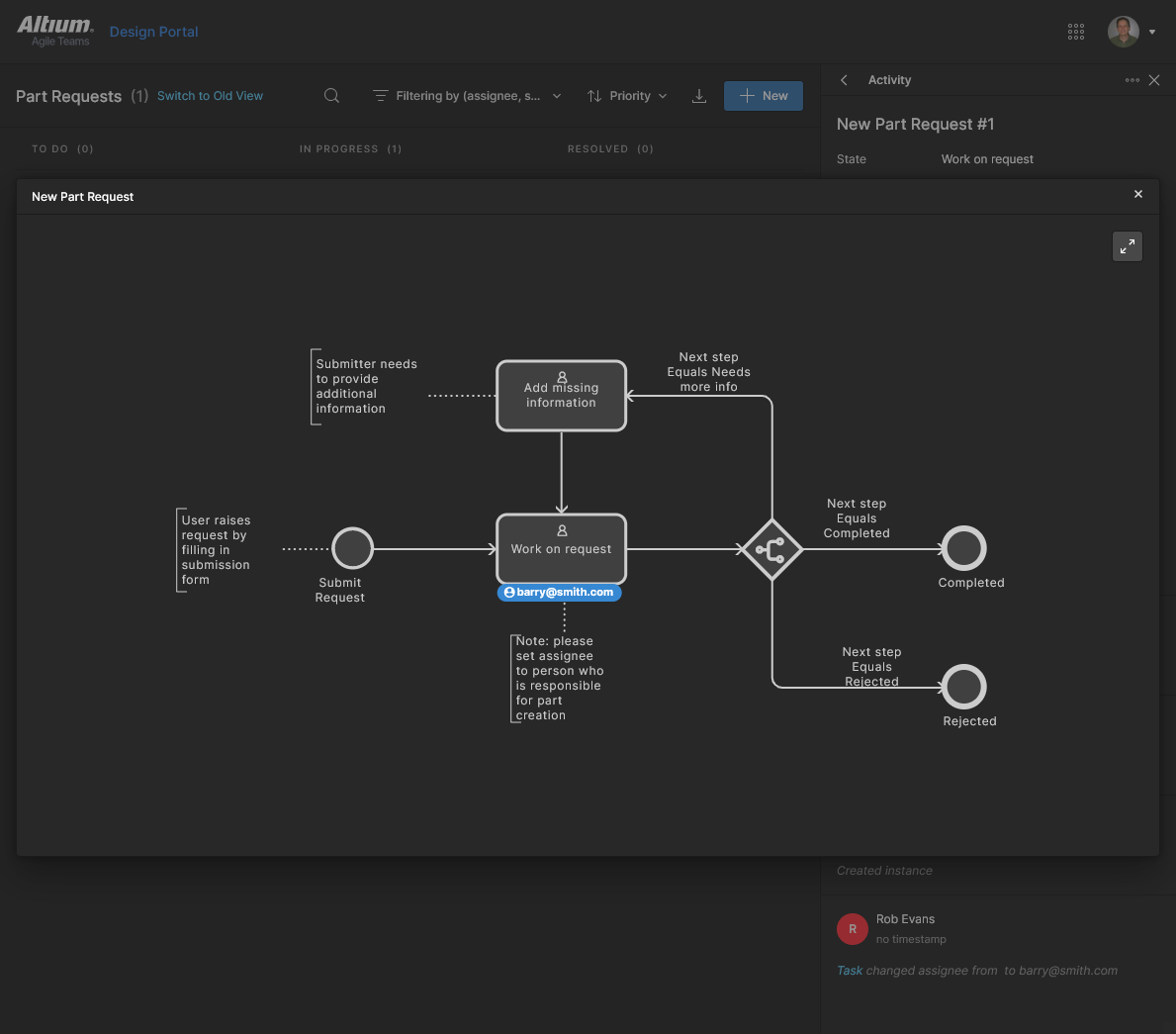
Only the Next step menu option is mandatory to finish (resolve) the Part Request process. The selected option – Completed, Rejected, or Needs more info – will determine how the resolved Task is marked (under Next step). 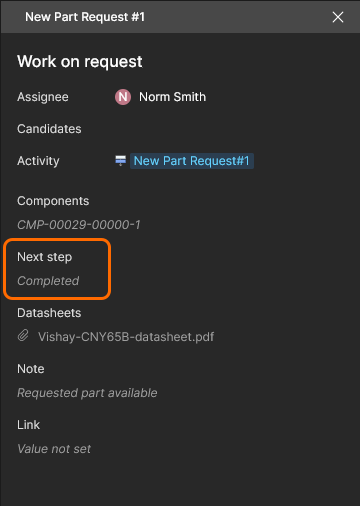
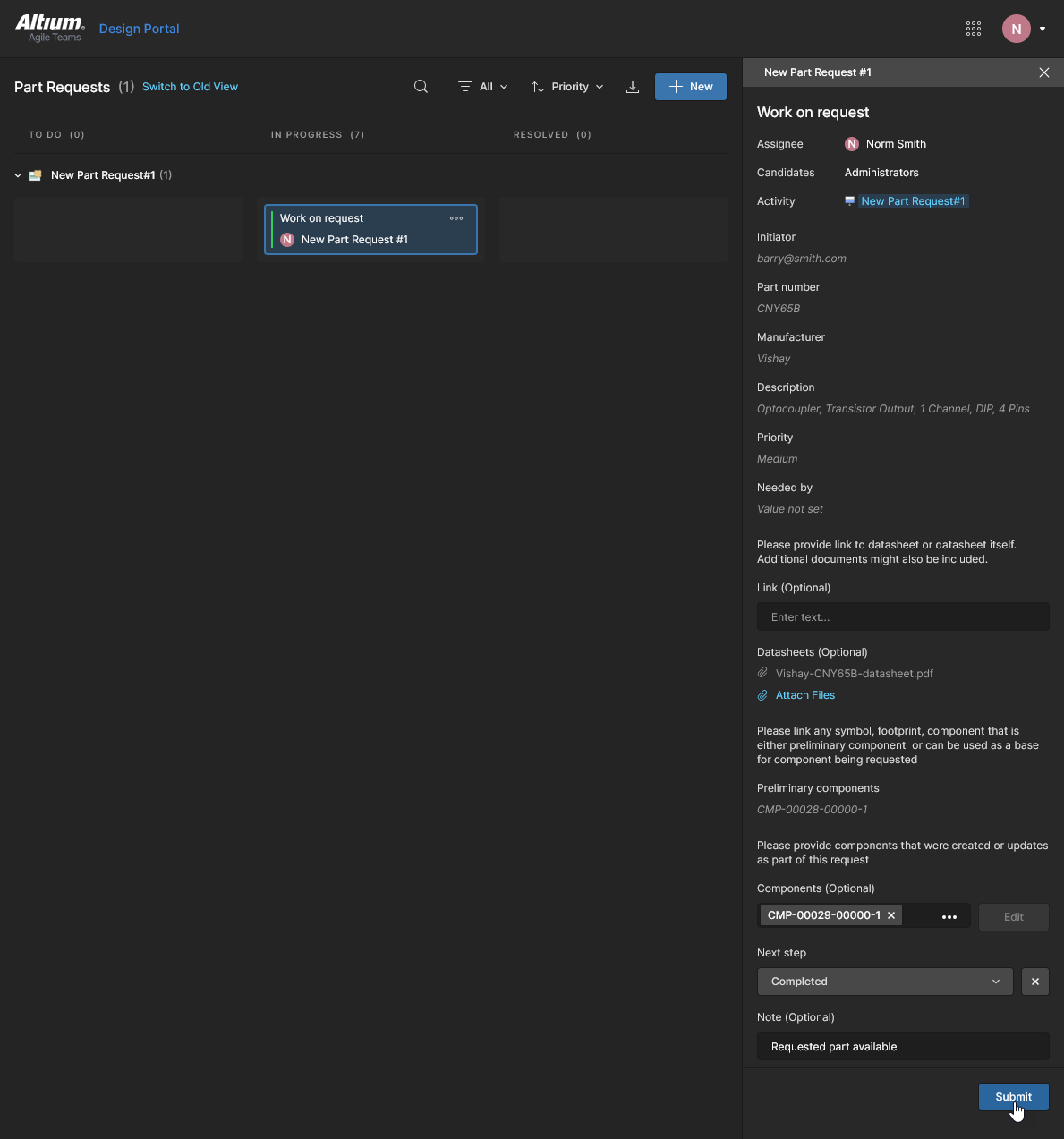
Select  to step the Task through to a
 Resolved state. A resolved task is read-only and can be inspected by all Team members. 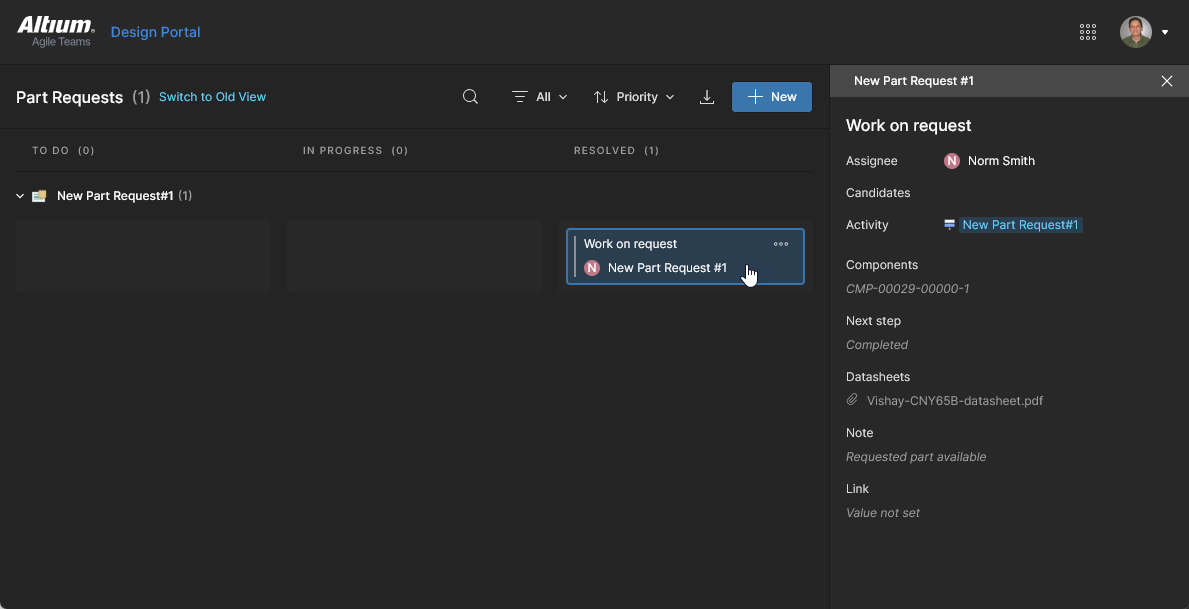
Tasks Activity
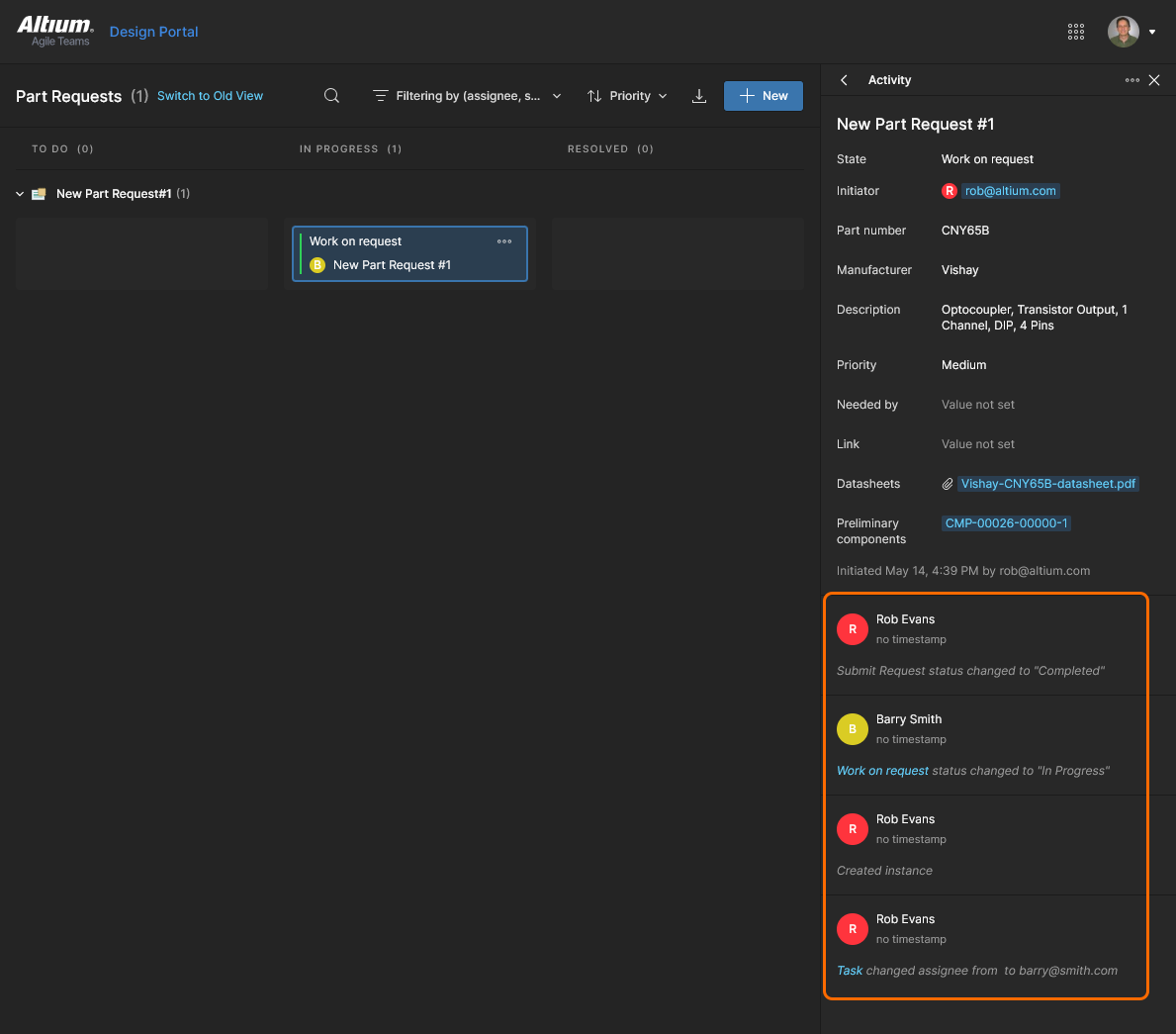
The Tasks pane Activity view, available to all Workspace Tasks, provides additional information on the progress of the current task. This includes links to data sources and sequential user actions such as task state changes, user assignments, and submissions. This provides valuable insight into active tasks, and in particular to those that have been resolved.
See Task Details Pane for related information.
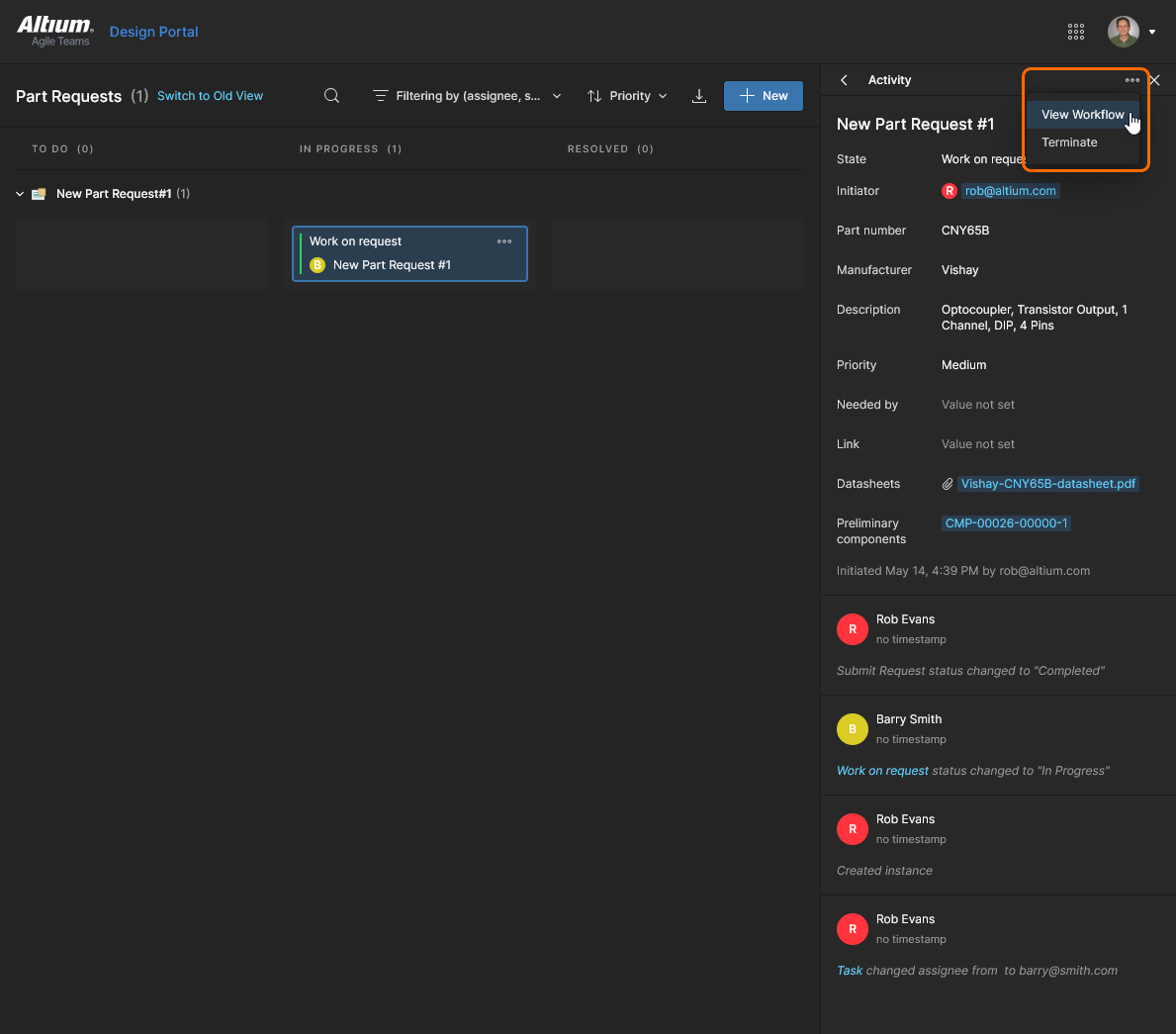
A visual representation of the Task workflow is available from the  menu's View Workflow option.
Tasks Filtering
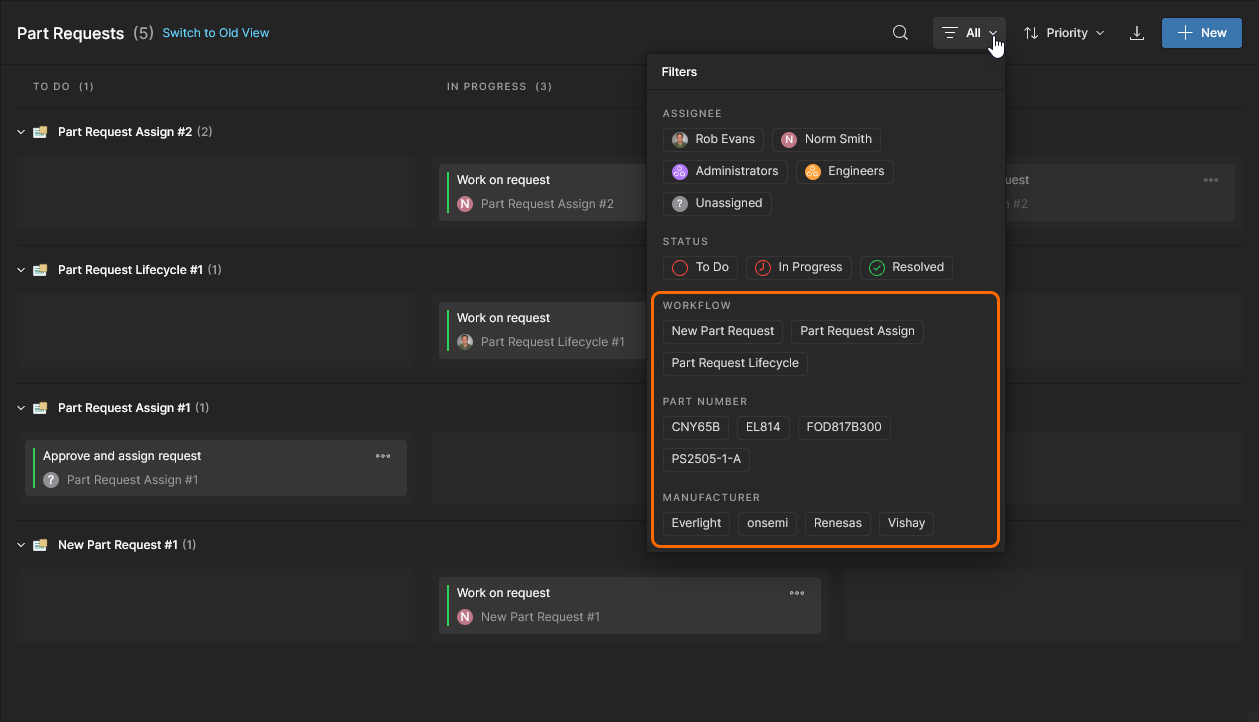
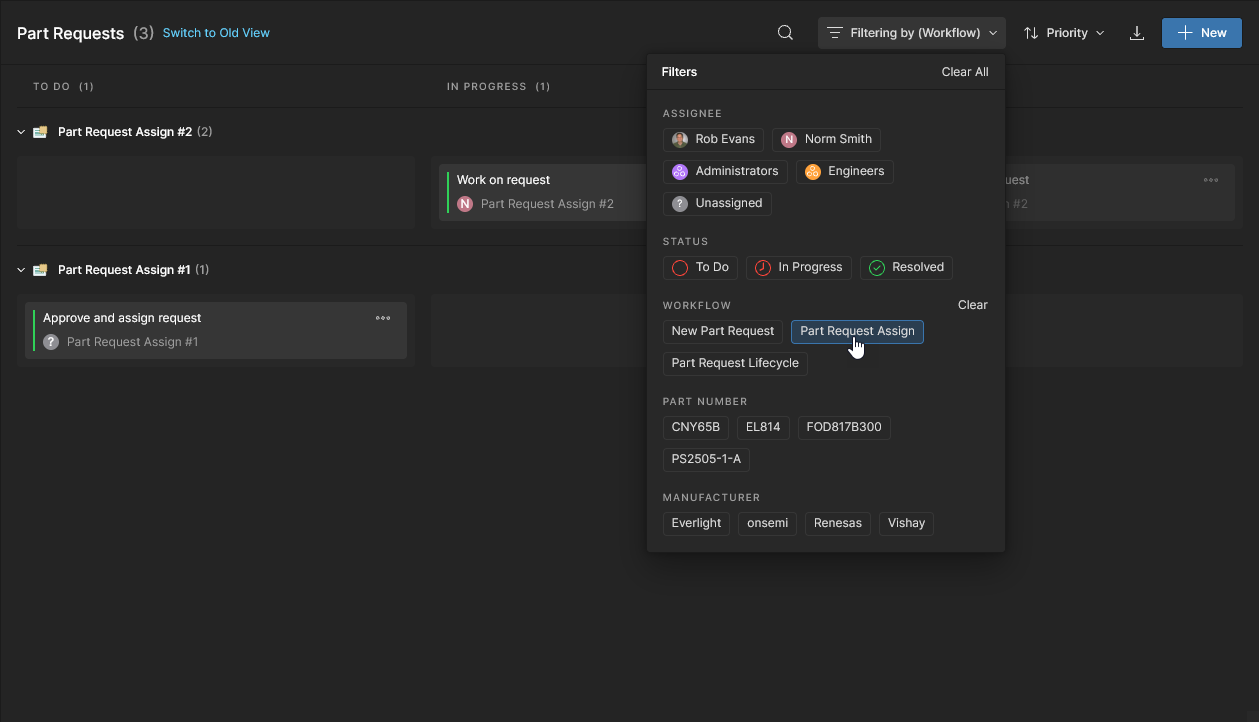
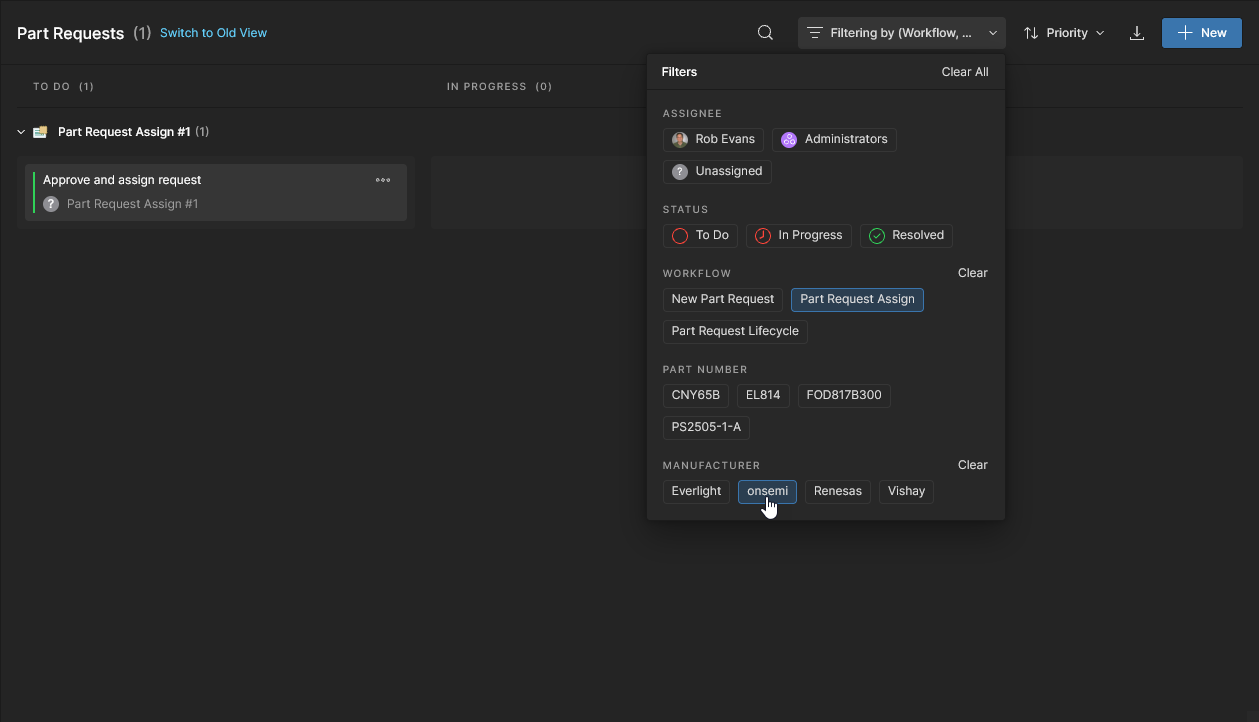
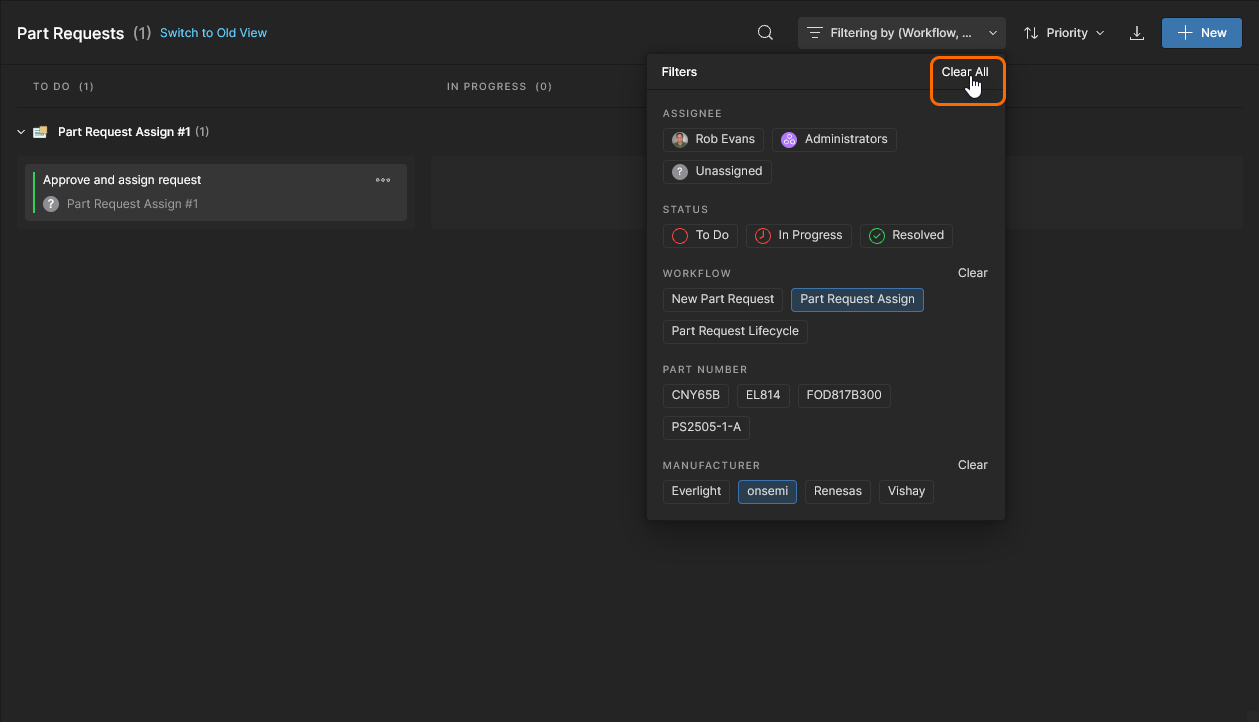
As is the case with other Workspace views, the Parts Request page offers a set of Filter options that allow the Task entries to be filtered by additional parameters. The specific parameters for Part Requests – Workflow, Part Number and Manufacturer – include selectable values extracted from all available Part Request tasks. This allows you to tailor the Tasks listing to only those entries that comply with the specified parameter values and process workflow type.
See Tasks View Features for related information on Task filtering.