Configuring the Profile for Your Company Account through the Company Dashboard

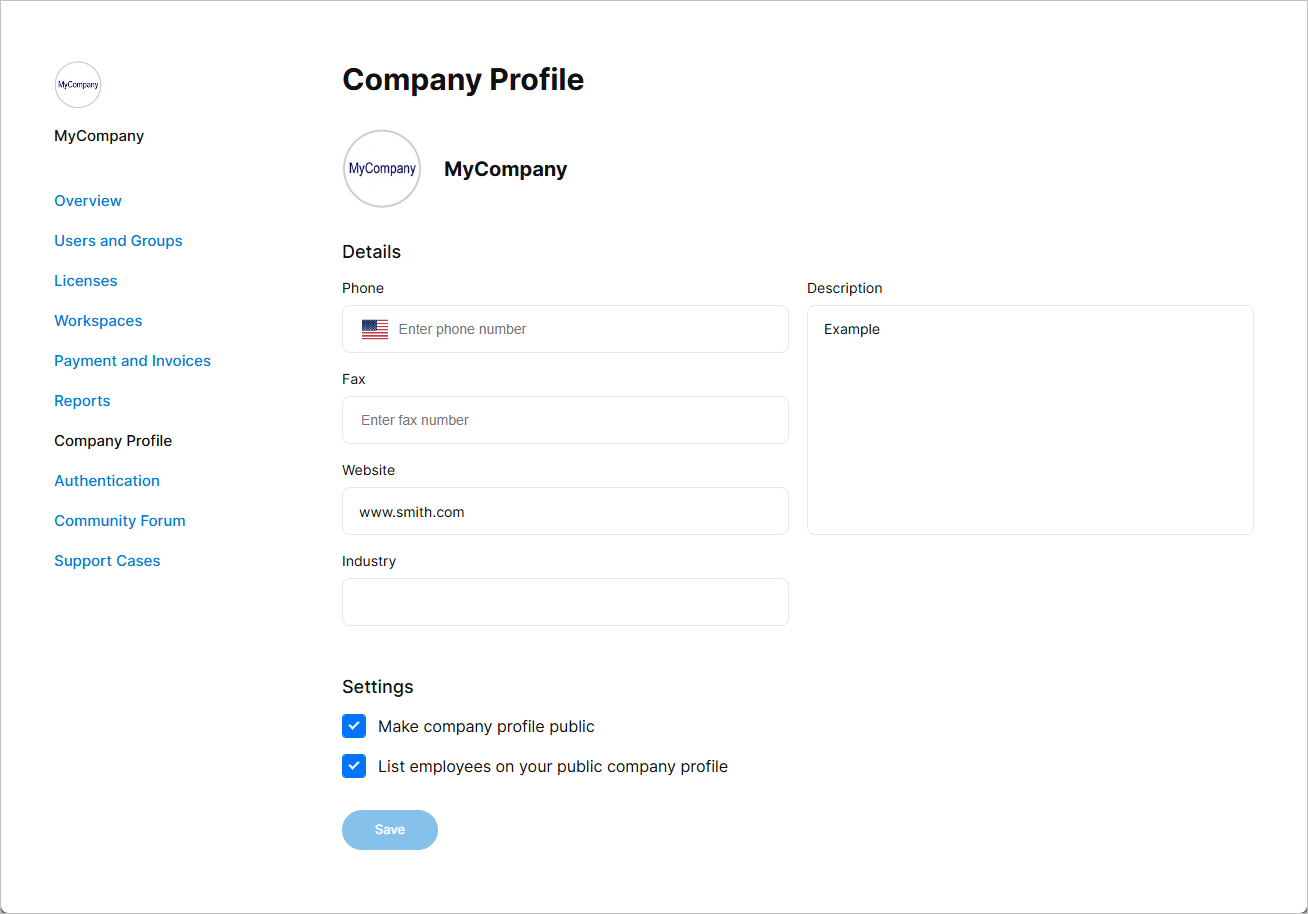
This page of the Company Dashboard presents top-level information for the Company Account itself, with editable sections for general company details, billing address, and shipping address. Along with the main Company Dashboard page link, you can also link to the Profile page from the Account page navigation tree.

View and edit top-level information for your Company Account.

To make changes, click in a field and type the required entry or enable/disable an option as applicable. To commit the changes, click the Save button at the bottom of the page.

Creating Organizational Presence

All organizations will have a profile that can be made public, for viewing by other organizations (and their users) within the Altium Community. The following information, sourced from your organization's Company Account, will be available on your organization's profile page:

  • Organization's Name – the name of your organization, in the breadcrumb entry at the top of the page.

    If you need to change the organization's name, please reach Altium Support.

  • Company Logo – the visual tag that accompanies your organization's name. Use of a logo is optional, and the associated image can be uploaded by clicking the button. Click the grey circle with the Company Logo text within it in the dialog that appears, then browse to the relevant logo image (maximum size 220x220 pixels and stored in JPG or PNG format) and click the Upload button. To clear the use of a logo image, access the dialog again by clicking the logo on the Company Profile page and then clicking the Remove button in the dialog that appears. The uploaded logo will also be shown on each page of the Company Dashboard, at the top of the left menu.

  • Description – a brief description of your organization, such as what it does, the services it provides its customers, and so on.

  • Website – the URL to your company's website, specified using the Website field.

  • List of Users – all the active users associated with your organization's Company Account. This list is optional, with control over its inclusion provided through the List employees on your public company profile option.

To make your organization's profile public – for viewing by the wider Altium Community – ensure the Make company profile public option is enabled in the General Information region of the Profile page. An organization's profile can be accessed by clicking the related link to that profile, on the profile page of any of its users.

A link to an organization's profile page can also be accessed from other areas within the Altium Community, typically located in the vicinity of a user's name. For example, in a Forum post or in a BugCrunch report.
If you find an issue, select the text/image and pressCtrl + Enterto send us your feedback.
기능 제공 여부

사용 가능한 기능은 보유하고 계시는 Altium 솔루션에 따라 달라집니다. 해당 솔루션은 Altium Develop, Altium Agile의 에디션(Agile Teams 또는 Agile Enterprise), 또는 활성기간 내의 Altium Designer 중 하나입니다.

안내된 기능이 고객님의 소프트웨어에서 보이지 않는 경우, 보다 자세한 내용을 위해 Altium 영업팀 에 문의해 주세요.