
KB: 라이브러리에서/로 구성 요소를 복사하여 붙여넣기
 Altium Designer
Solution Details
In either schlib or pcblib, components can be copied, cut, or pasted by right-click command on SCH/PCB Library panel, while those symbols and footprints already instantiated in schematic and PCB editor can be directly selected to copy, cut, or paste by the ordinary keyboard shortcut Ctrl+C/X/V.- from/to a library: right-click copy/cut/paste on SCH/PCB Library panel
- from schematic/PCB editor: keyboard shortcut Ctrl+C/X/V
- from Manufacturer Part Search panel: download as libraries first, open the libraries, right-click copy/cut/paste on SCH/PCB Library panel
From/to Library:
1 Open the source library document.
2 Select the required component in SCH/PCB Library panel. Multiple components can be selected.
3 Right-click on the selected component, then choose the Copy command from the context menu or Ctrl+C.
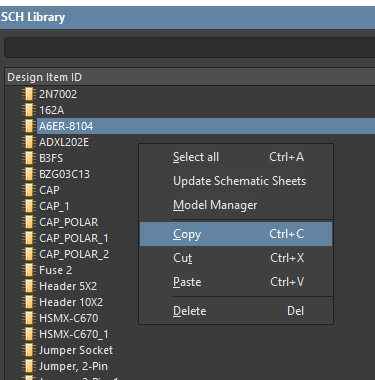
4 Open the target schematic/PCB library document.
5 Right-click anywhere in the list of components in the SCH/PCB Library panel, and select Paste from the context menu or Ctrl+V, after which the components from the step 3 with all its properties are now added to the target library.

From Schematic/PCB Editor:
1 Open the source schematic or PCB document (*.schdoc or *.pcbdoc).
2 Select component(s) to copy and Ctrl+C
3 Follow the instruction above to paste the component to a target library
Note: As an alternative to copying and pasting components individually from the schematic or PCB editor to a library, new schematic or PCB libraries can be created in one go to include all components in the active document with a command Design » Make Schematic Library or Design » Make PCB Library.
From Manufacturer Part Search panel:
1 Select the required part in Manufacturer Part Search panel. Multiple parts can be selected
2 Right-click on the selected component, then choose the Download as File Library... command from the context menu.
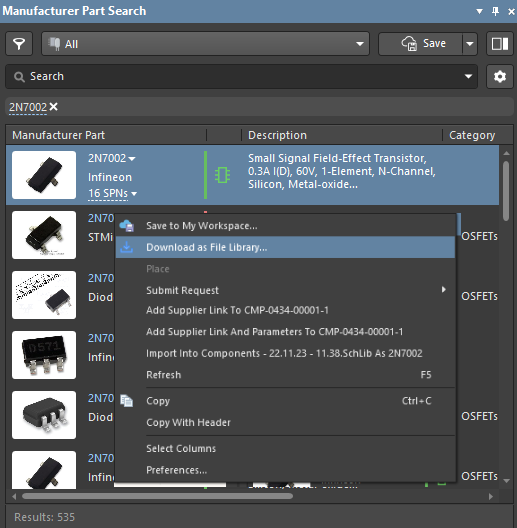
3 A library package, including the SCH and PCH library, is downloaded to a folder of your choice.
4 Extract the package and open the source library files.
5 Follow the instruction above to copy and paste the components from the downloaded library to a target library
Further Reading on Moving and Copying Components from Other Libraries:
Copying Components from Other Sources
Adding Footprints from Other Sources