
Engineering Assistant
AI agents provide substantial advantages for engineering tasks like requirements capturing and test planning by significantly enhancing efficiency and automating complex, repetitive workflows. Requirements Portal's Engineering Assistant leverages AI technologies to provide you with fast, automated review tool for your requirements projects that allows you to ask questions about requirements and verification activities in your current project in free-form, natural language and get quick answers without manually filtering or searching, for example:
-
How many requirements are not verified?
-
Are there any engineering gaps in these requirements?
-
Show me all requirements about the power supply.
-
Which requirements need to be taken into account for PCB design?
-
Do any requirements conflict with each other?
-
Give me an overview of all battery-related requirements.
-
Are software requirements properly covered by test steps?
The Engineering Assistant is also able to modify, create, or delete items related to requirements and verification activities. When you submit a request to create a new or change or delete an existing item, the Engineering Assistant will provide you a summary of changes to be applied, and you can review them and then either apply or discard the changes. Examples of such requests:
-
Generate requirements for a lightweight drone power supply that takes a 6S LiPo input, provides regulated 5 V / 5 A and 12 V / 3 A outputs, and weighs under 150 g. It should handle vibration and -10°C to +50°C operation, with protection for short circuit, reverse polarity, overtemperature, and low battery.
-
Change the required maximum operating temperature for all parts to 60°C.
-
Can you identify all requirements that affect the sizing of the power system and ensure they are verifiable?
-
In the new design, I've replaced the camera with an IR sensor. Remove all requirements that were related to the camera.
-
Suggest a verification plan for drone flight requirements.
 icon at the top right, selecting Settings from the menu that appears, and then selecting General in the AI Settings group from list in the left-hand pane) –
 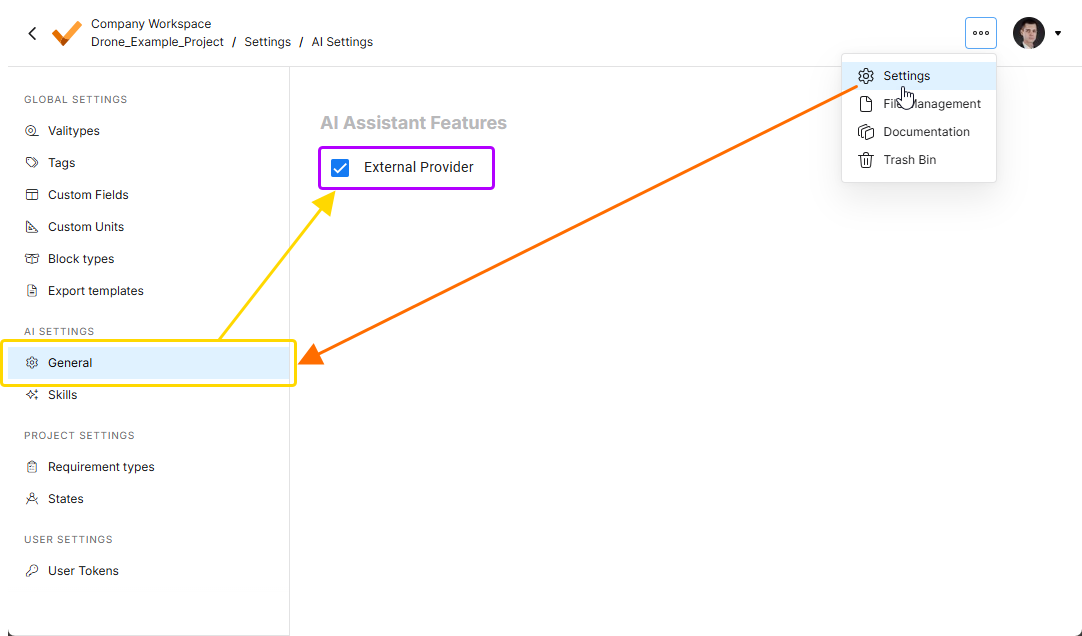 .
.
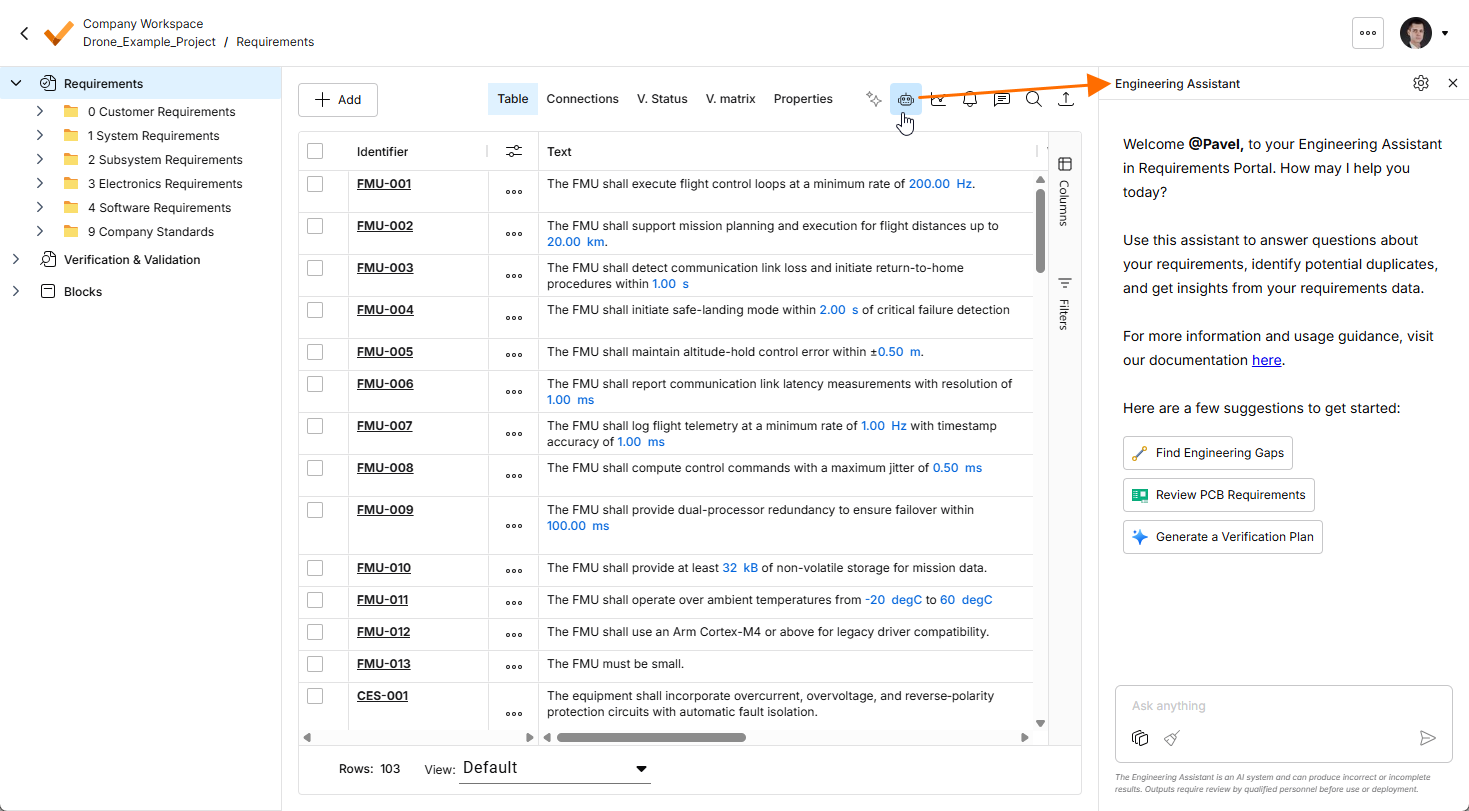
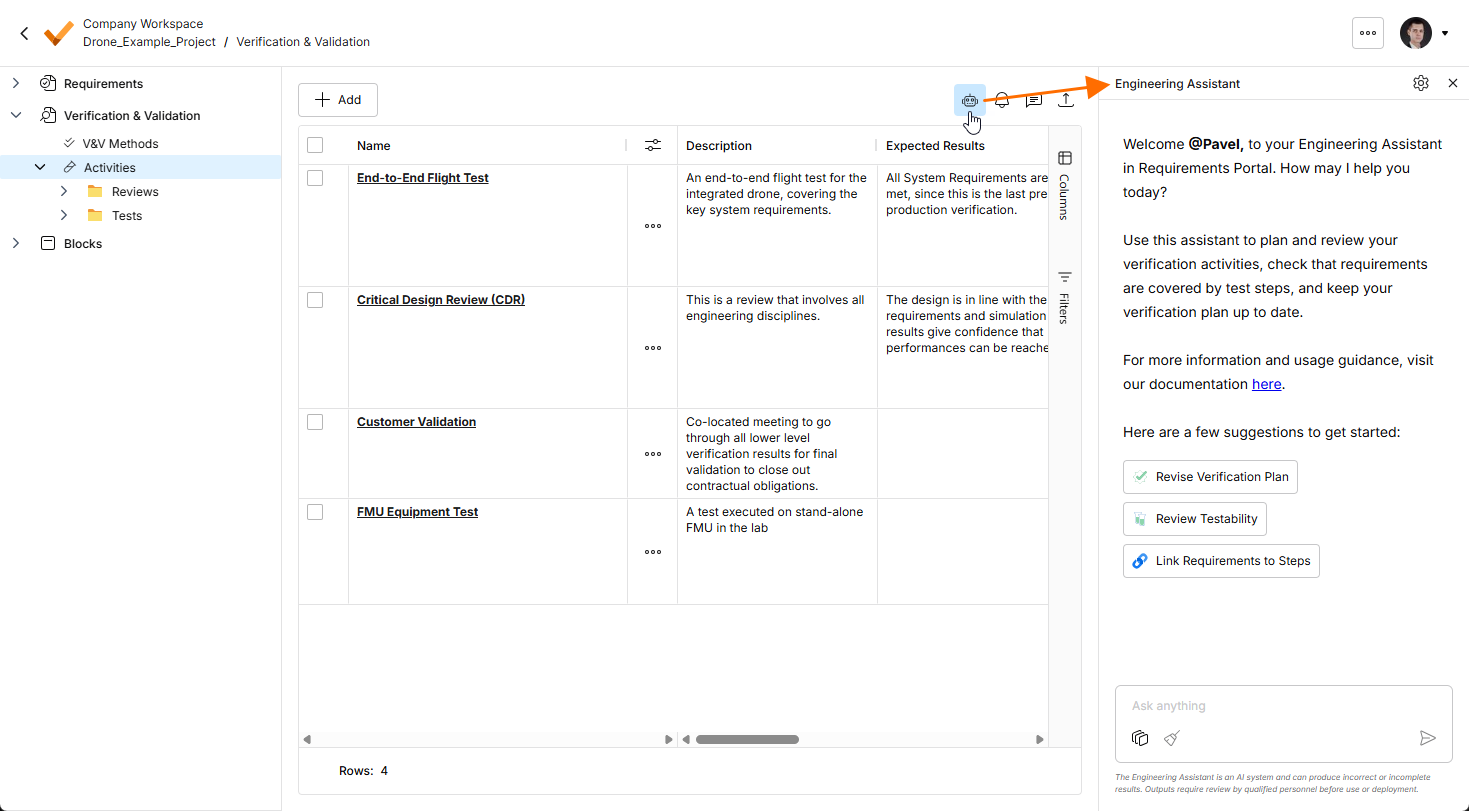
The Engineering Assistant is accessed via the Engineering Assistant pane available in the Requirement Module and Verification & Validation Module by clicking the  icon at the top right.
You can see the current chat context by clicking the  button at the bottom of the Engineering Assistant pane. The Chat Context pop-up will open presenting the following information:
-
Project – shows the name of the current project and the name of the currently selected folder, specification, section, or V&V activity.
-
Filters – shows the number of filters currently applied to the requirements table and the list of columns to which the filters are applied.
-
Rows selected – shows the number of currently selected requirement rows.
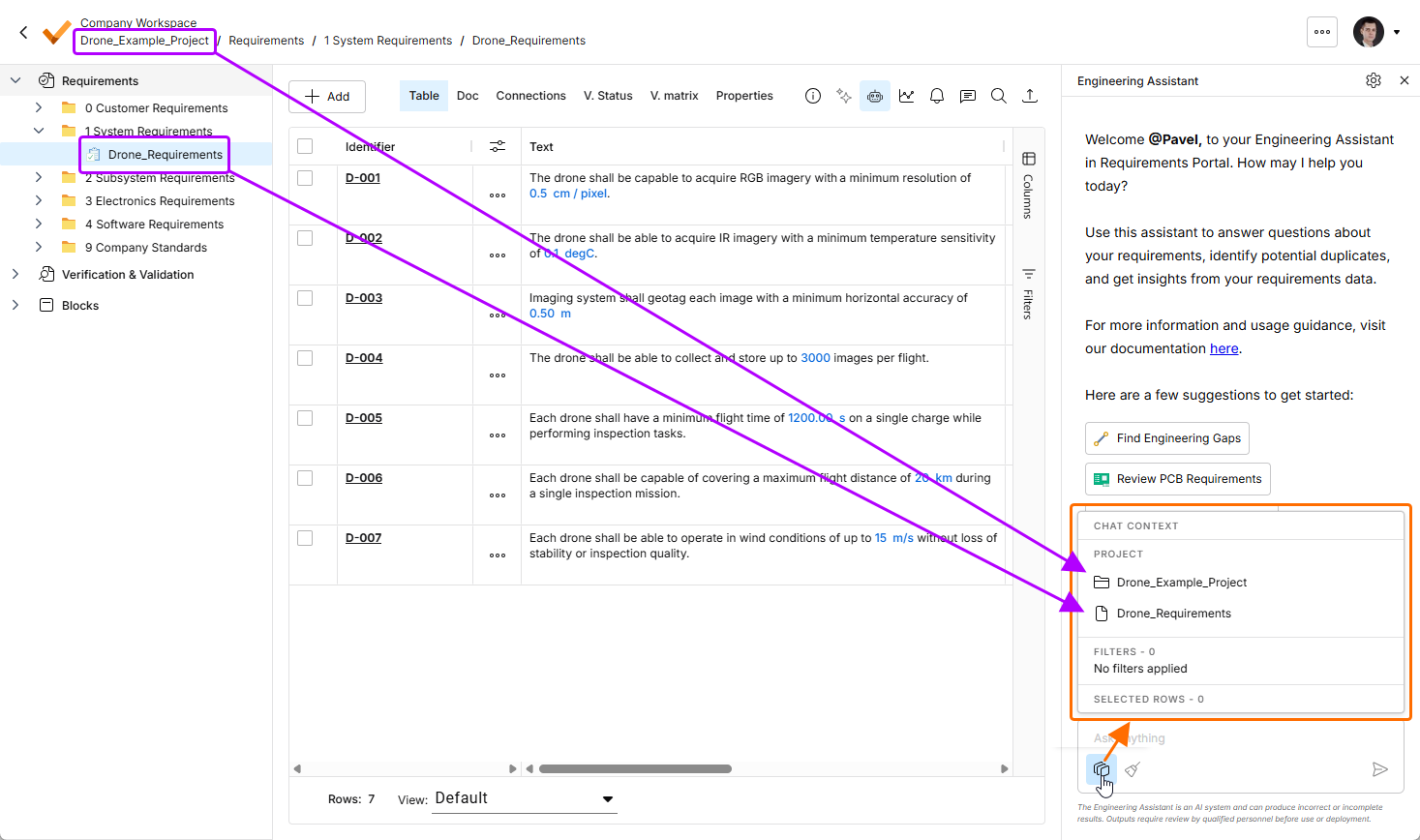
Click the button to open the Chat Context pop-up. In this example, the Project region shows the name of the current project (Drone_Example_Project) and the name of the currently selected specification (Drone_Requirements).
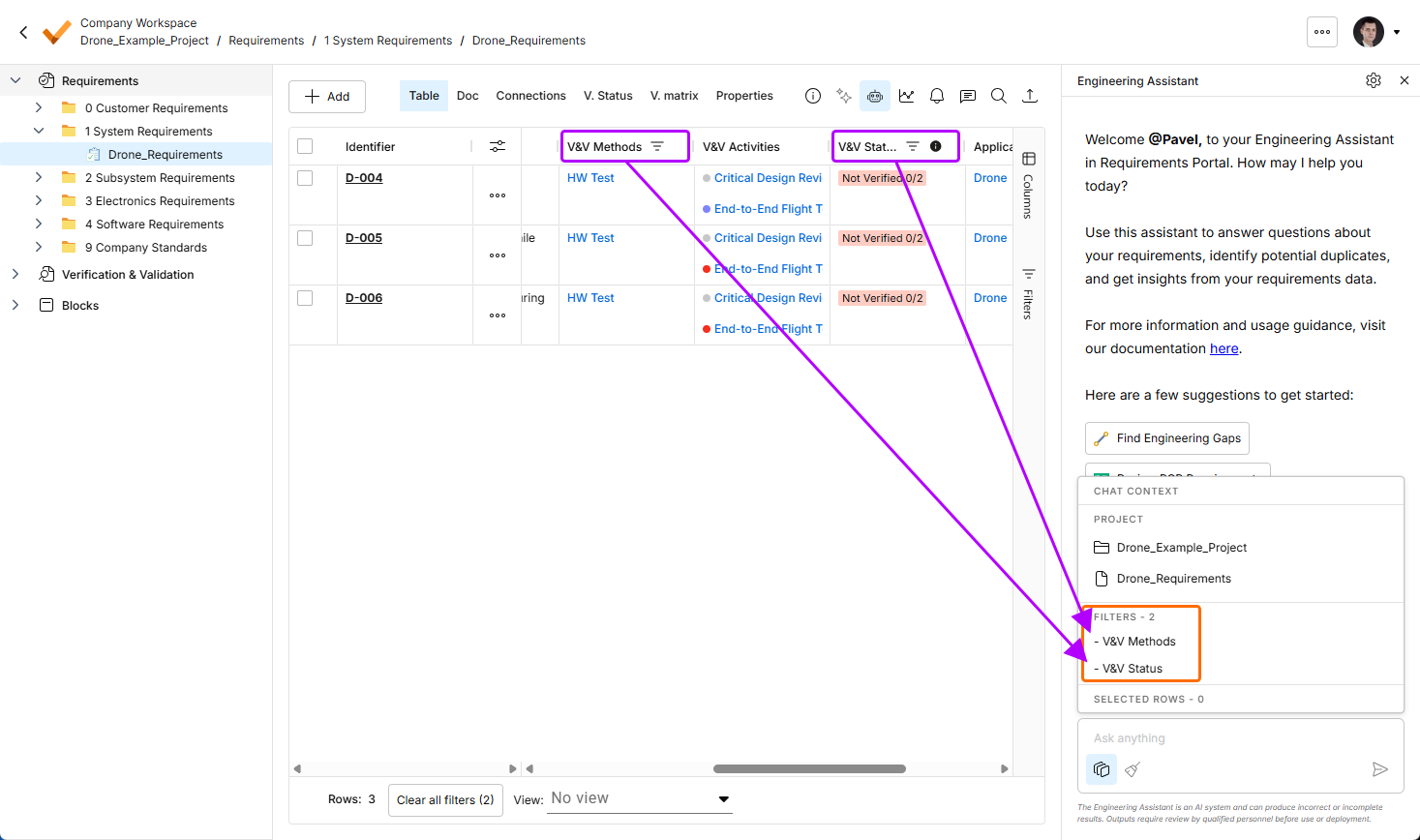
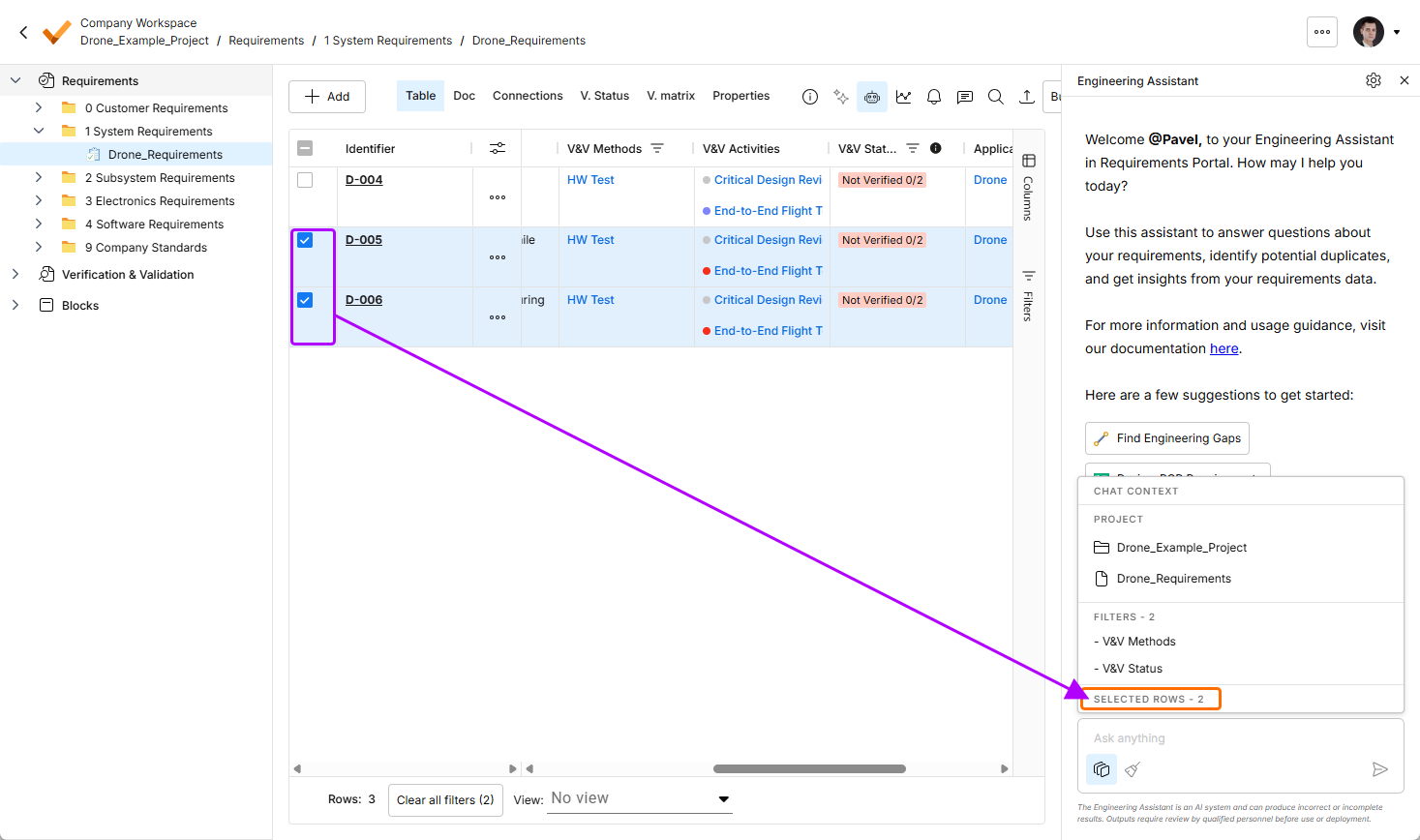
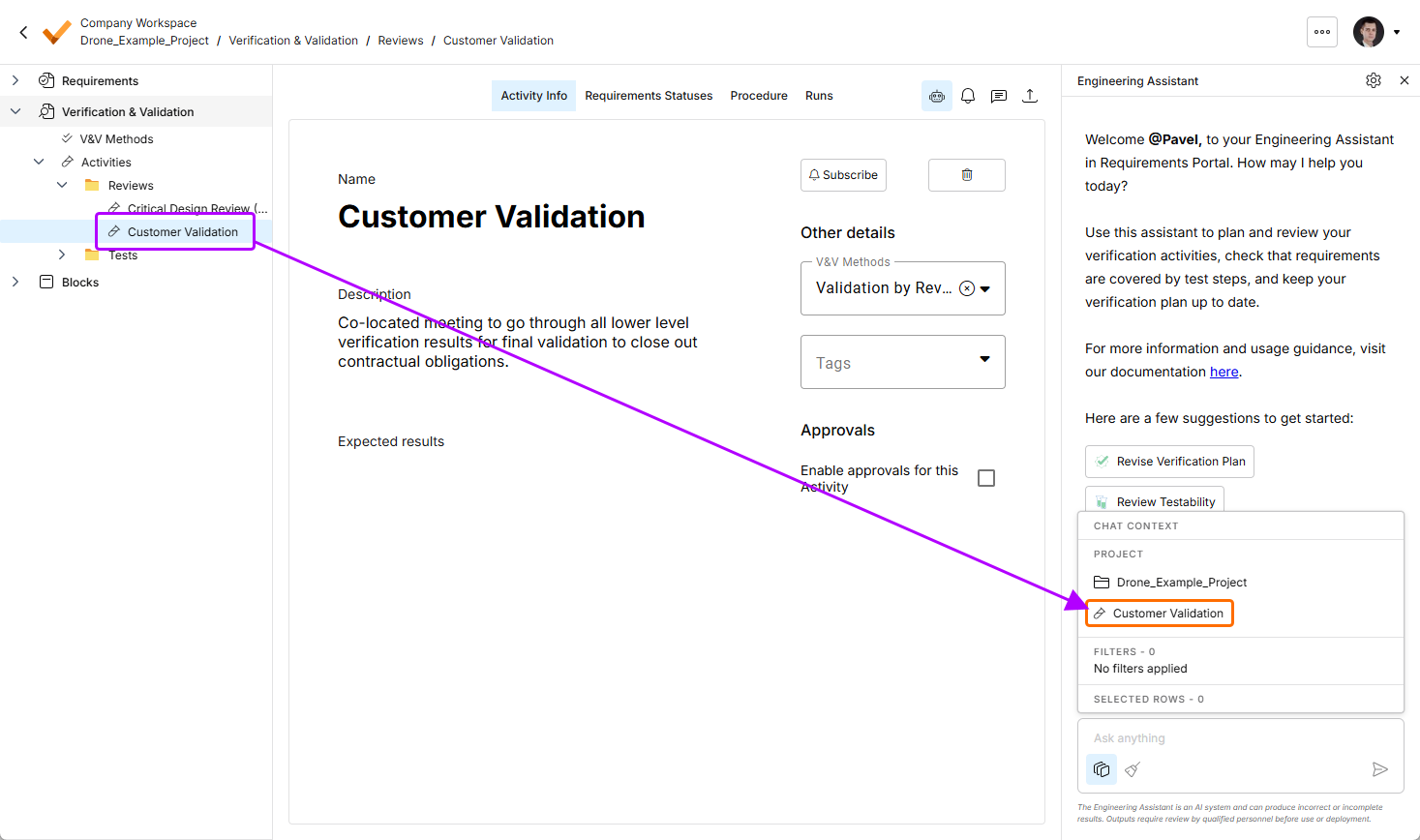
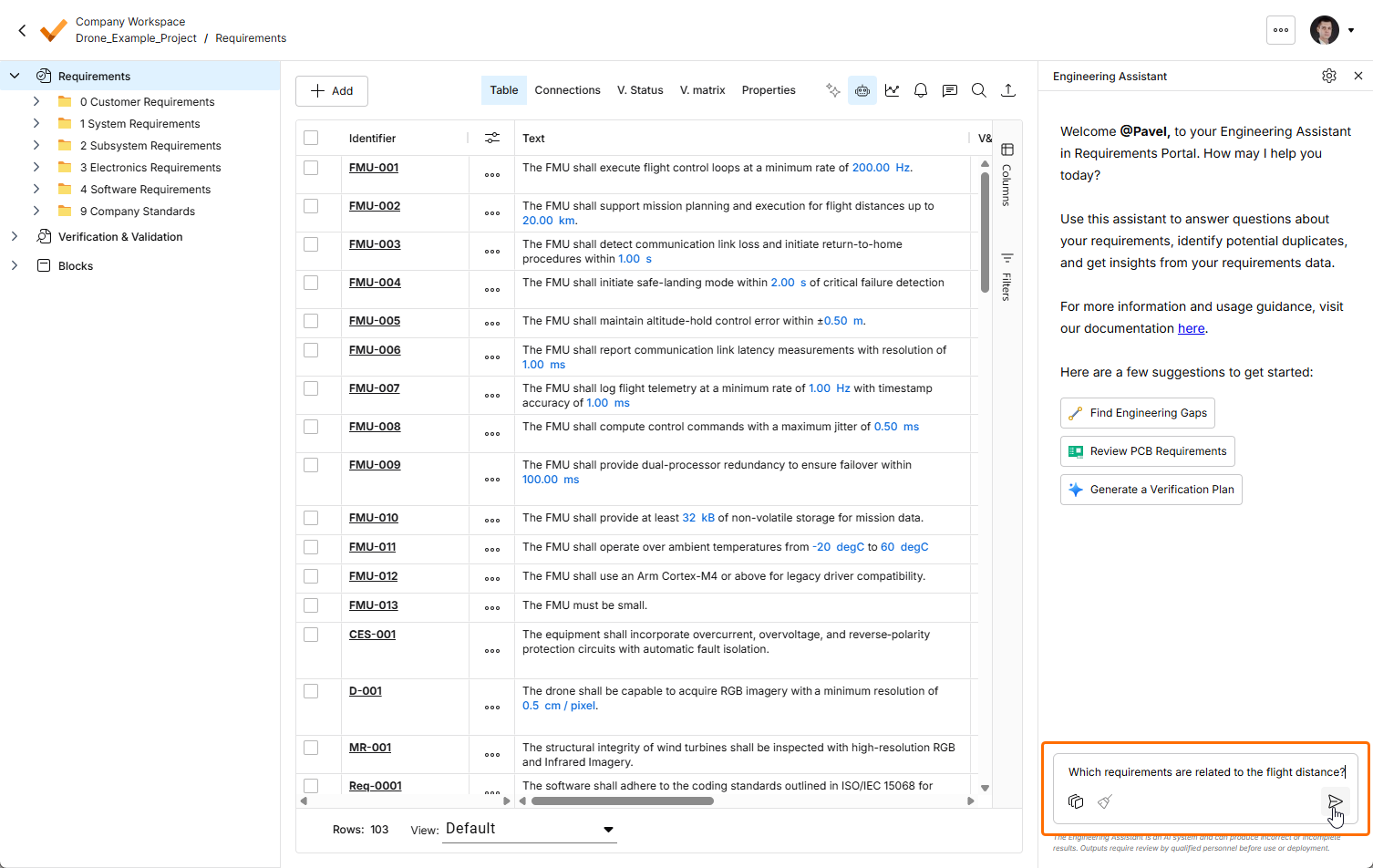
To use the Engineering Assistant, type your query into the Ask anything field at the bottom of the Engineering Assistant pane and click the  icon or press
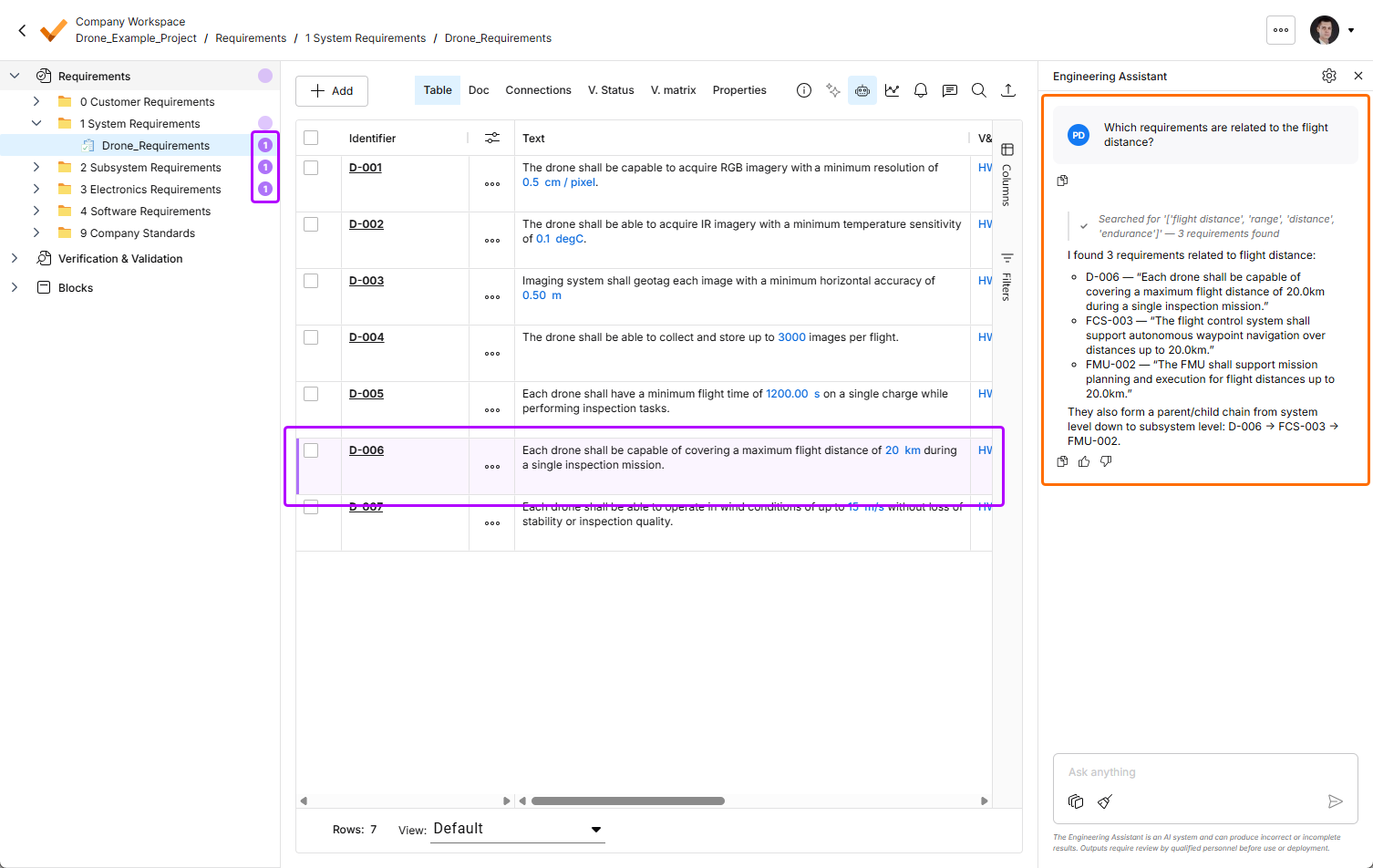
 Enter. The Engineering Assistant will analyze the project and present a relevant answer in the pane. Depending on the query, the Engineering Assistant will return a numeric answer, a list of requirement IDs, or a brief summary. The item(s) related to the query will be highlighted in the project view (e.g., in the requirements table or activities table), and the number of related items is shown in the project tree next to the corresponding entries (specifications, sections, and folders).
 button in under a request or response to copy its content to the clipboard.
 and
and  icons below a response in the Engineering Assistant pane to provide your positive or negative reaction to it.
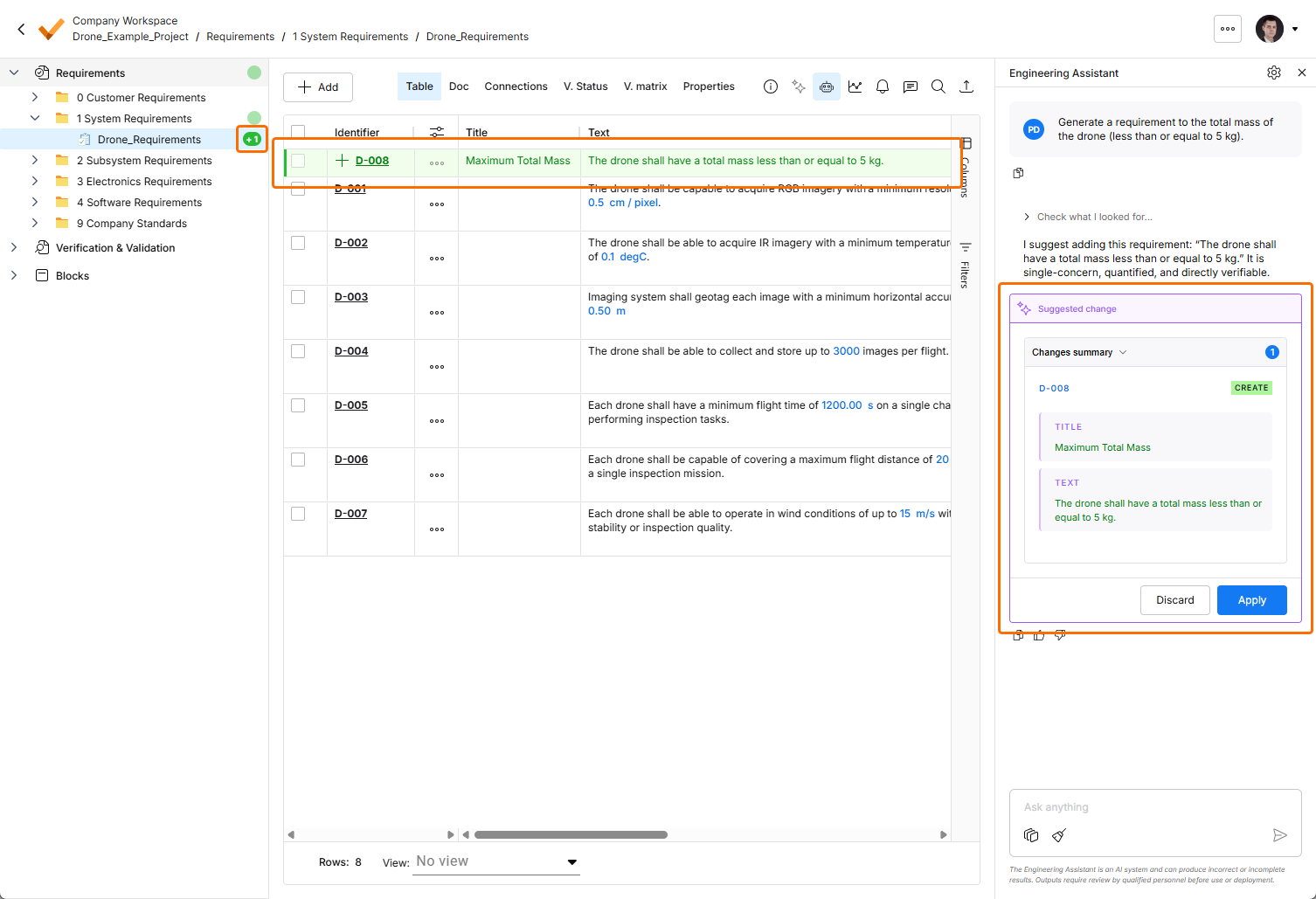
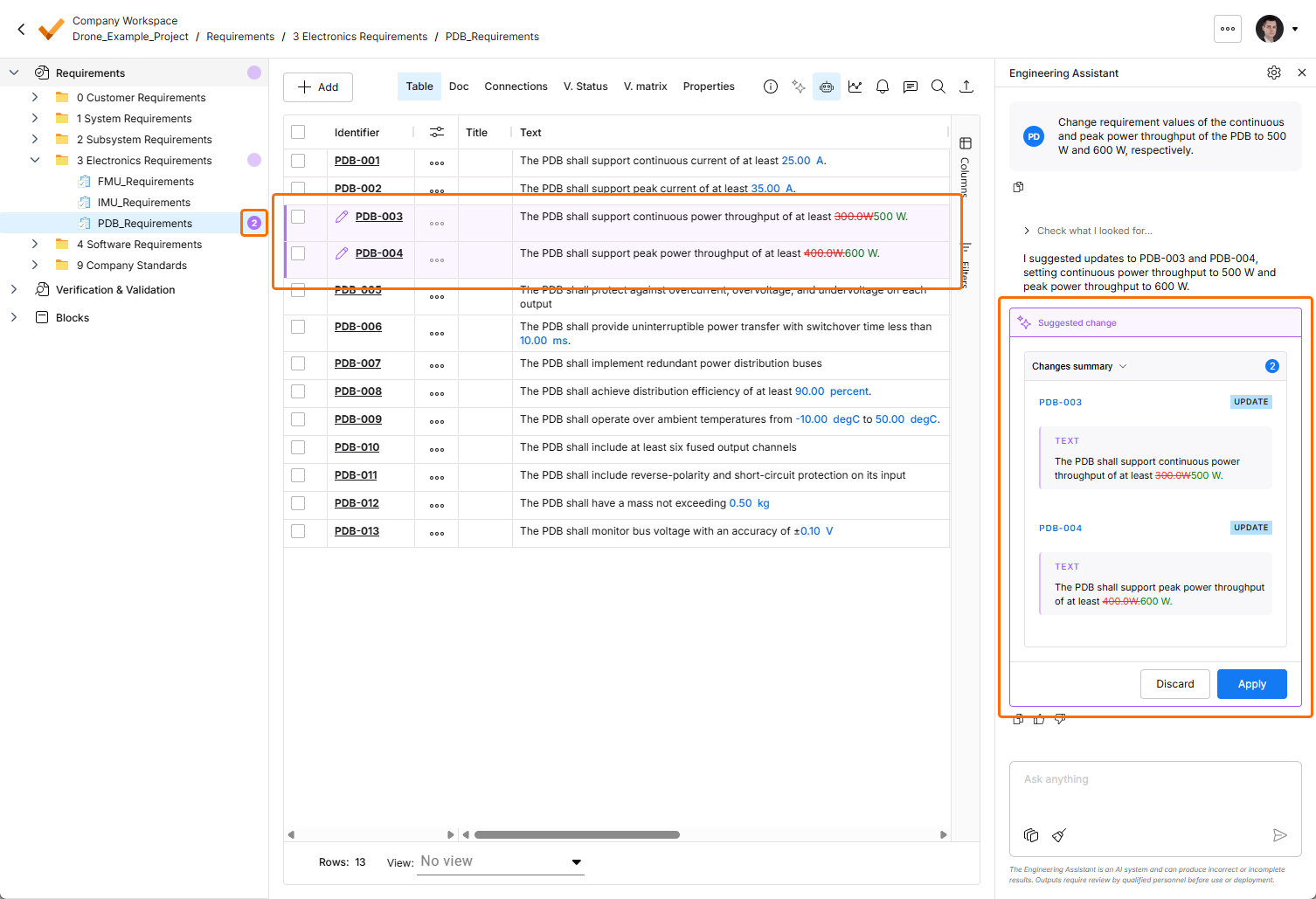
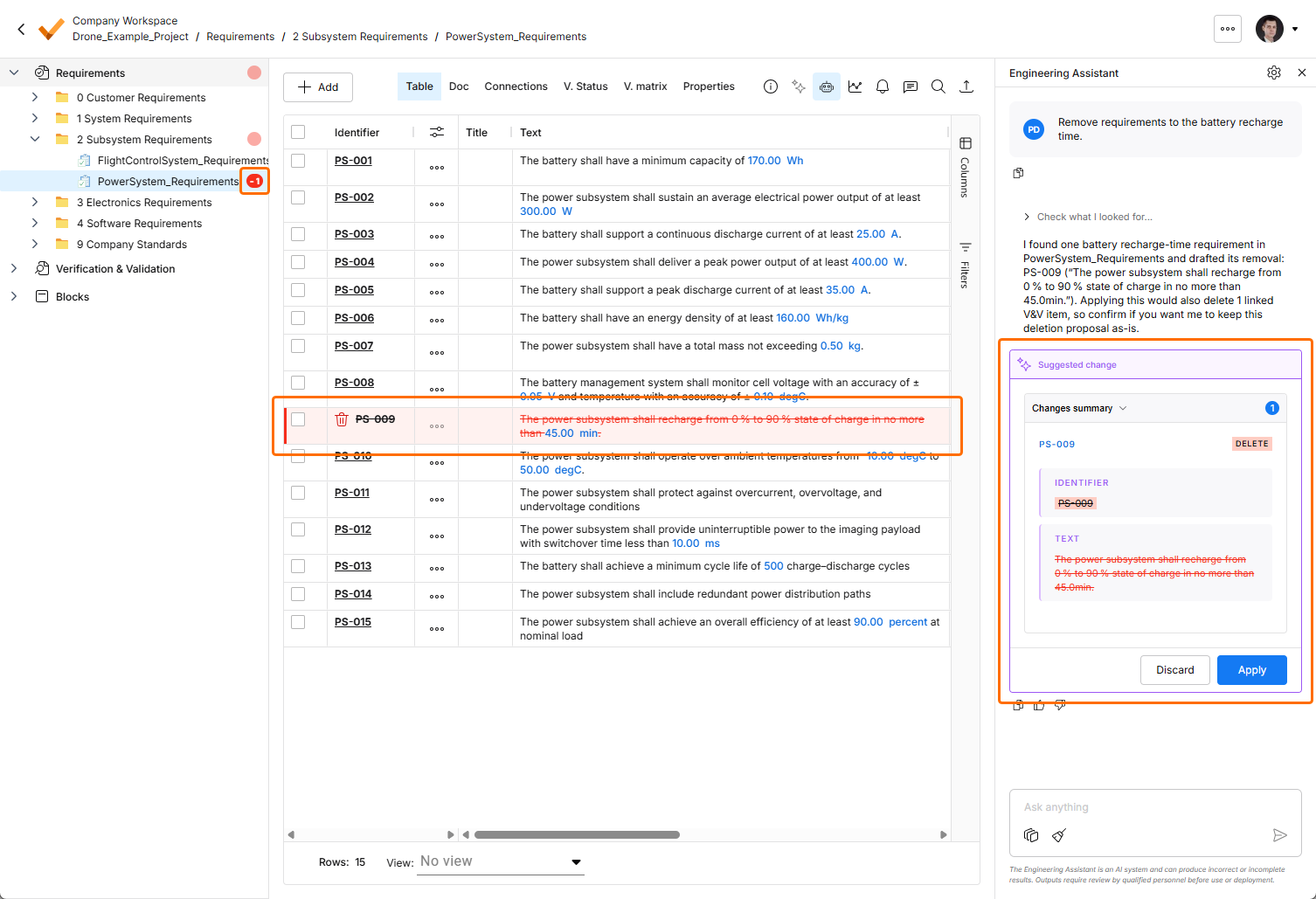
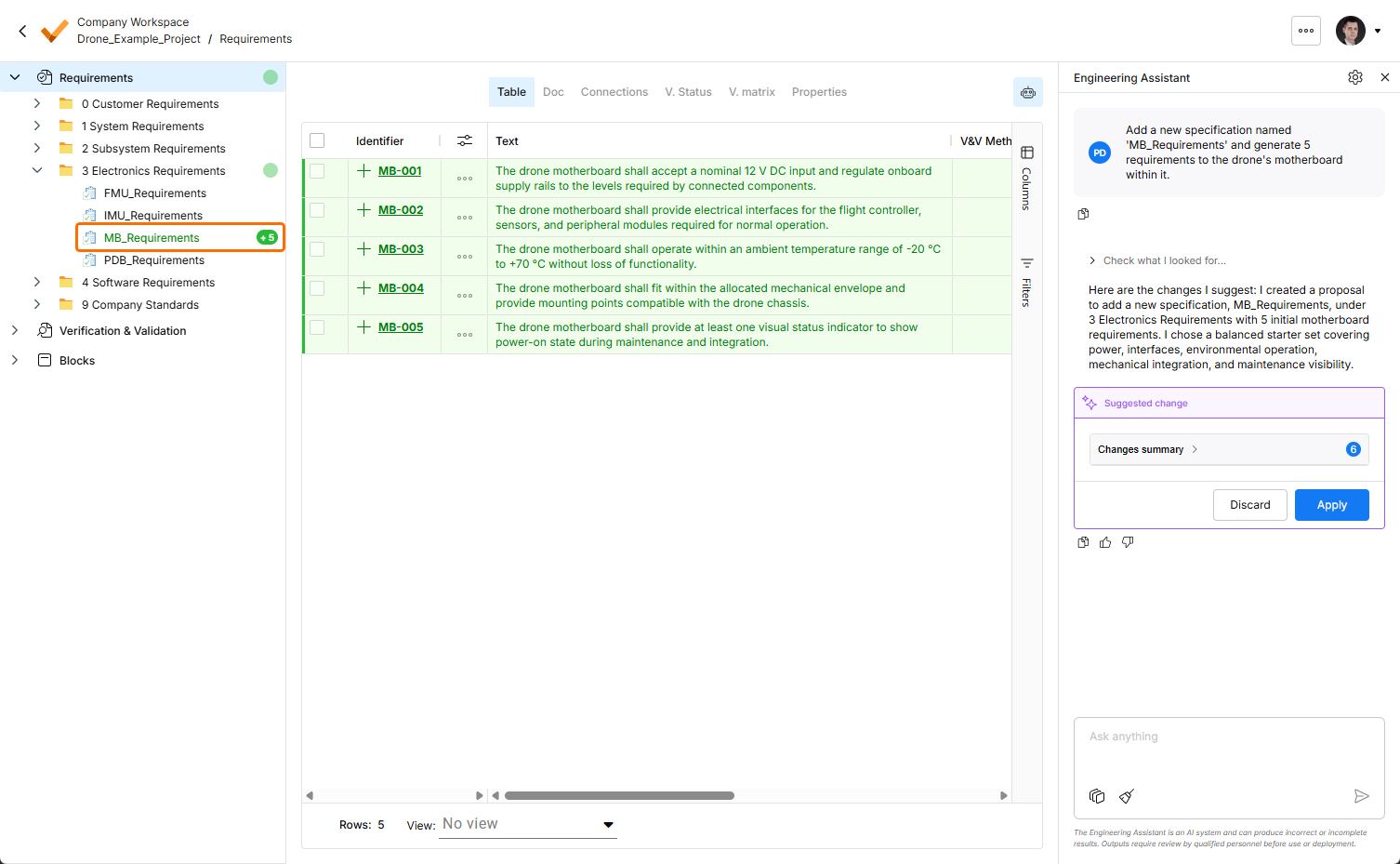
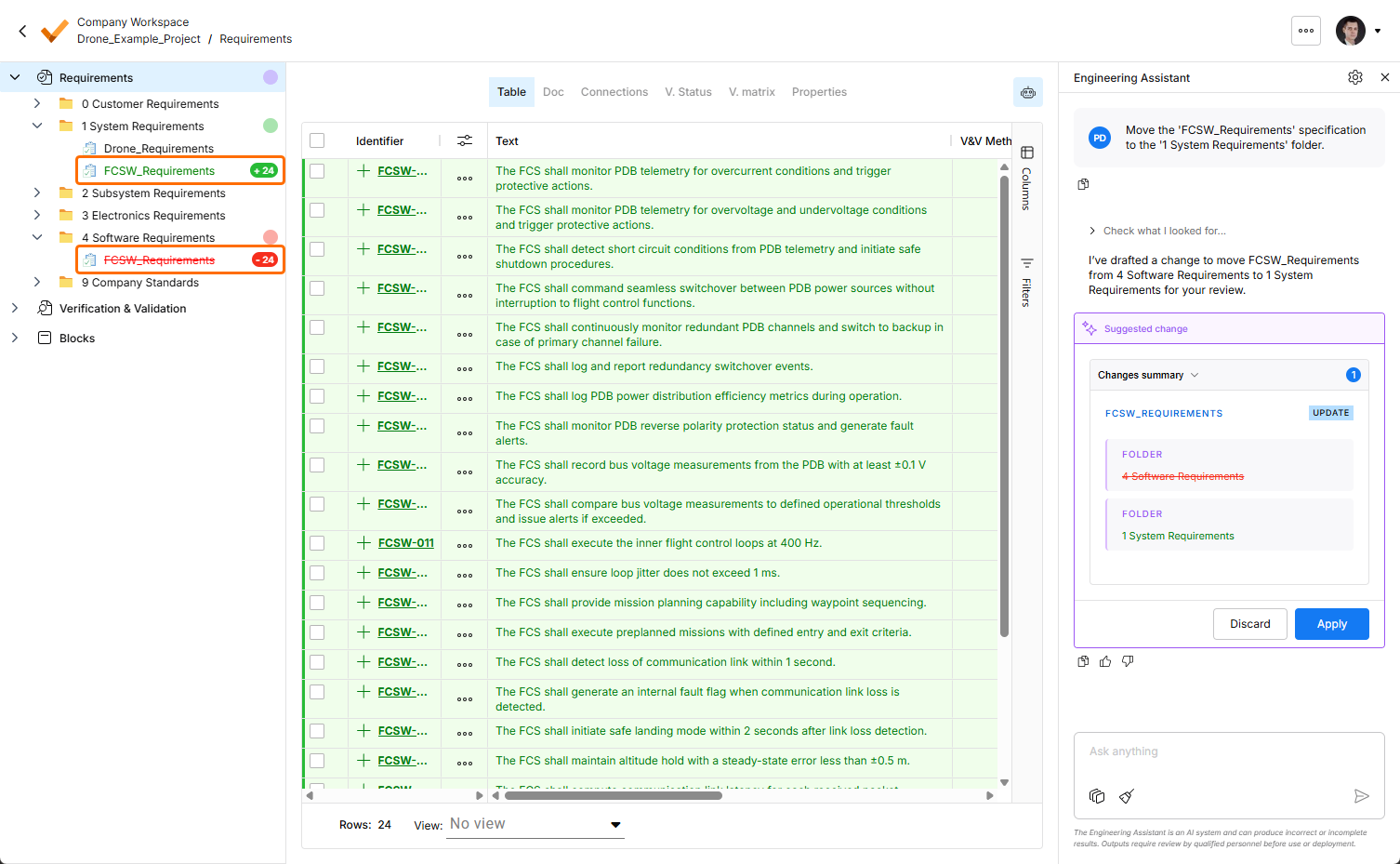
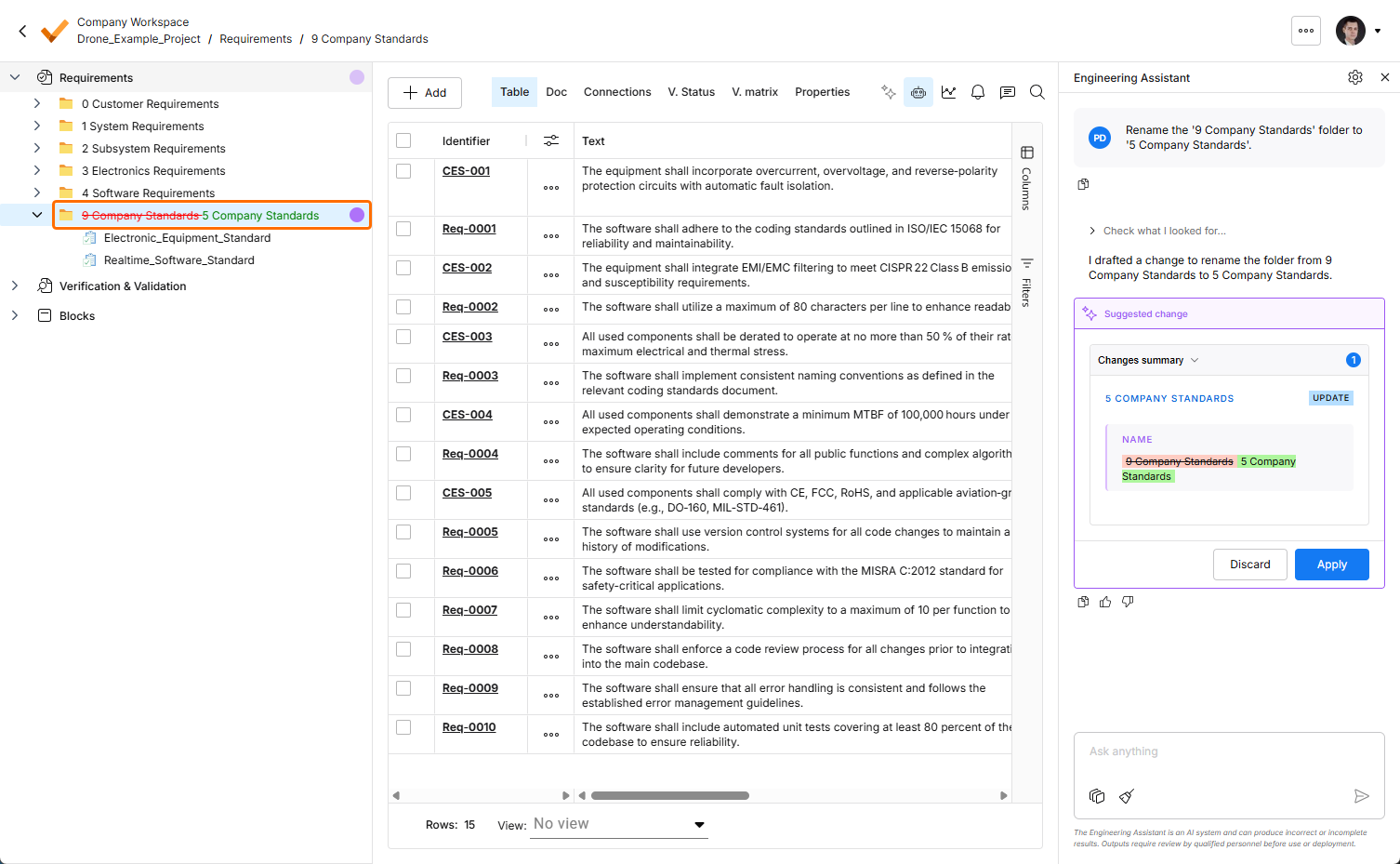
When you submit a request to the Engineering Assistant to create a new or change or delete an existing item, suggested changes will be shown in a dedicated tile within the Engineering Assistant pane where you can review them (by expanding the Changes summary collapsible region) and then either apply or discard the changes. Also, suggested changes will be visible in the project view (e.g., the requirements table) as follows:
-
New items are highlighted in green, with the icon in the
 icon in the Identifier column. A green bubble is also shown next to the corresponding entry in the project tree at the left.
-
Changed items are highlighted in purple, with the
 icon in the Identifier column. Actual changes are highlighted in the table. A purple bubble is also shown next to the corresponding entry in the project tree at the left.
-
Items suggested for removal are highlighted in red, with the
 icon in the Identifier column. A red bubble is also shown next to the corresponding entry in the project tree at the left.
In the Verification & Validation Module, the Requirement Statuses and Procedure tabs of an activity also show the number of affected items within them and highlight the affected items (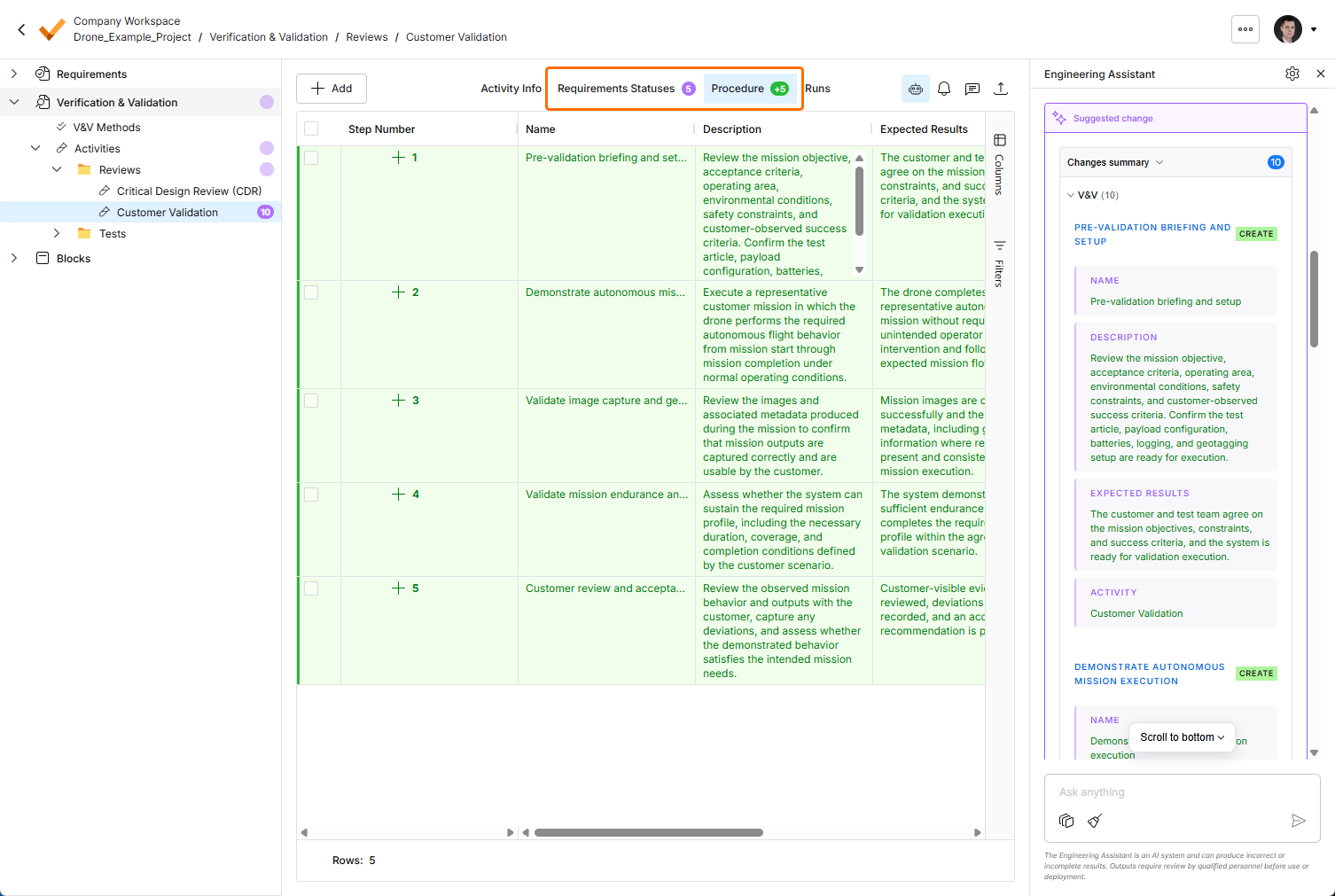 ).
).
Supported Fields
You can search these requirement fields (filters):
-
Identifier
-
Title
-
Text
-
Rationale
-
Compliance Comment
-
Specification
-
Section
-
Parents / Children (trace links)
-
Type
-
State
-
V&V Methods
-
V&V Status
-
Tags
You can edit these requirement fields (via change suggestions):
-
Identifier, Title, Text, Rationale, Compliance Comment
-
Type, State
-
Tags
-
V&V Methods
-
Parents / Children (trace links)
-
Section (move within a specification) and Specification (move across specifications)
-
Applicable Blocks
You can edit these activity fields (via change suggestions):
-
Name
-
Description
-
Expected Results
-
Approvals
-
Verification Methods
-
Tags
You can edit these procedure fields (via change suggestions):
-
Name
-
Description
-
Expected Results
-
Position (reordering steps)
You can edit these item fields (via change suggestions):
-
Description
-
Compliance comment
-
Step
-
Component
-
Compliance
-
Tags
You can edit these V&V method fields (via change suggestions):
-
Name
-
Description
 ,
,  ).
).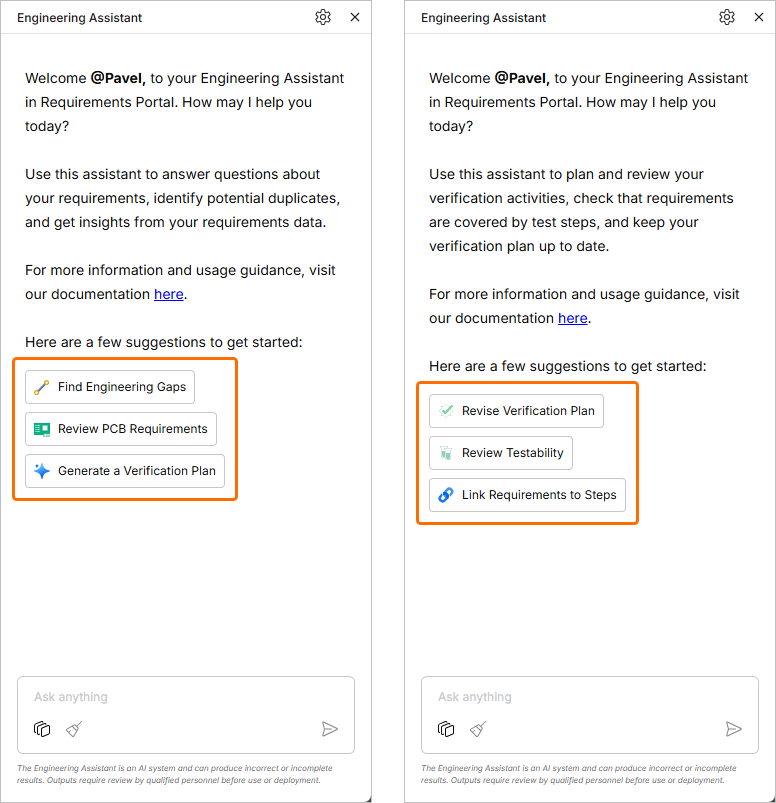 ).
).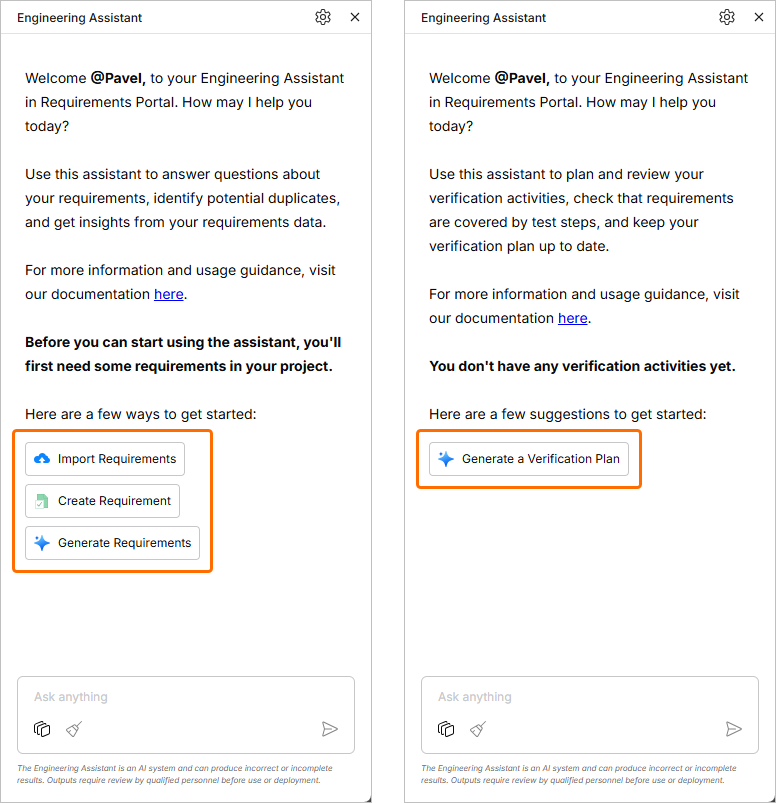 ).
). )
)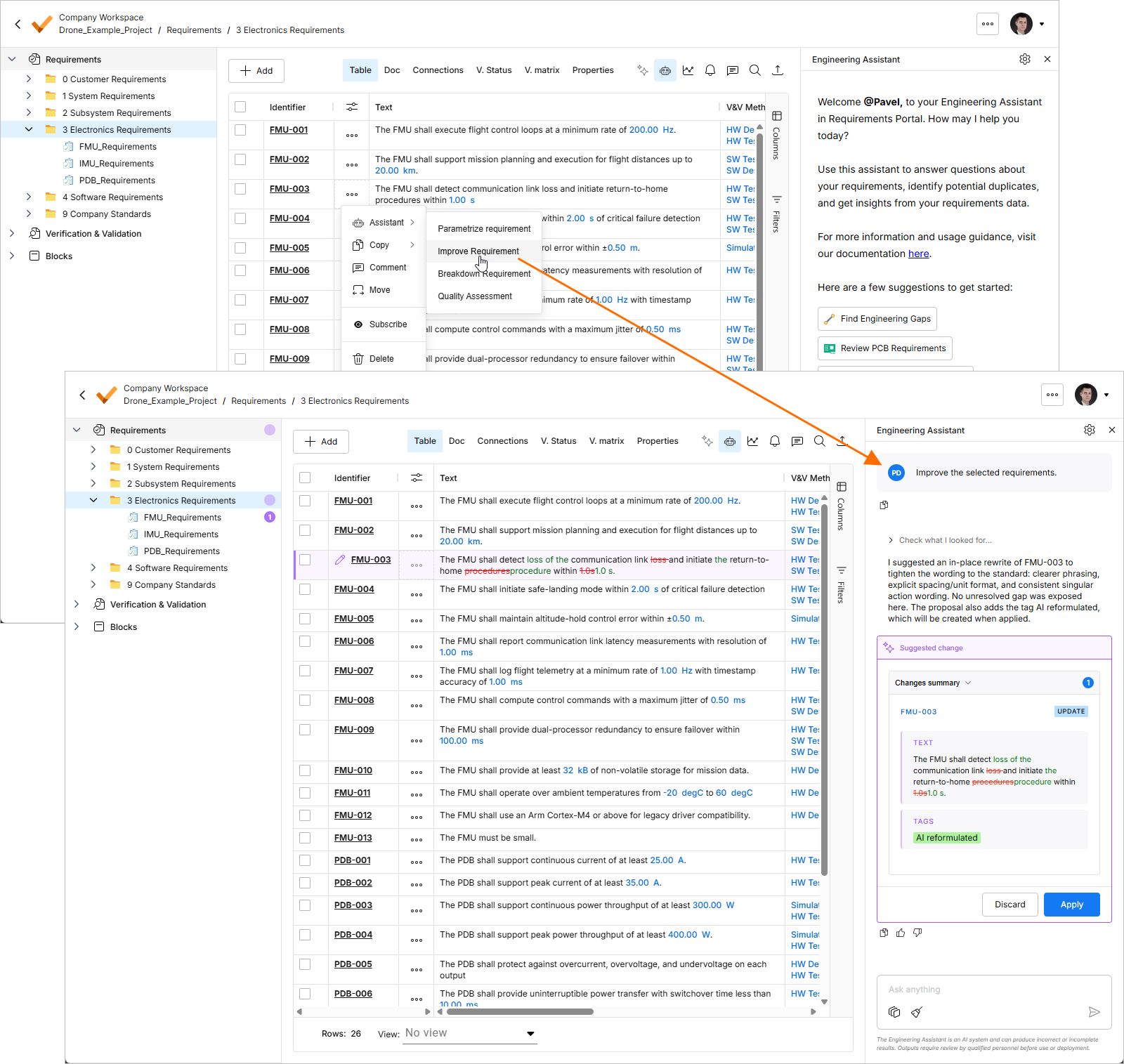 ).
).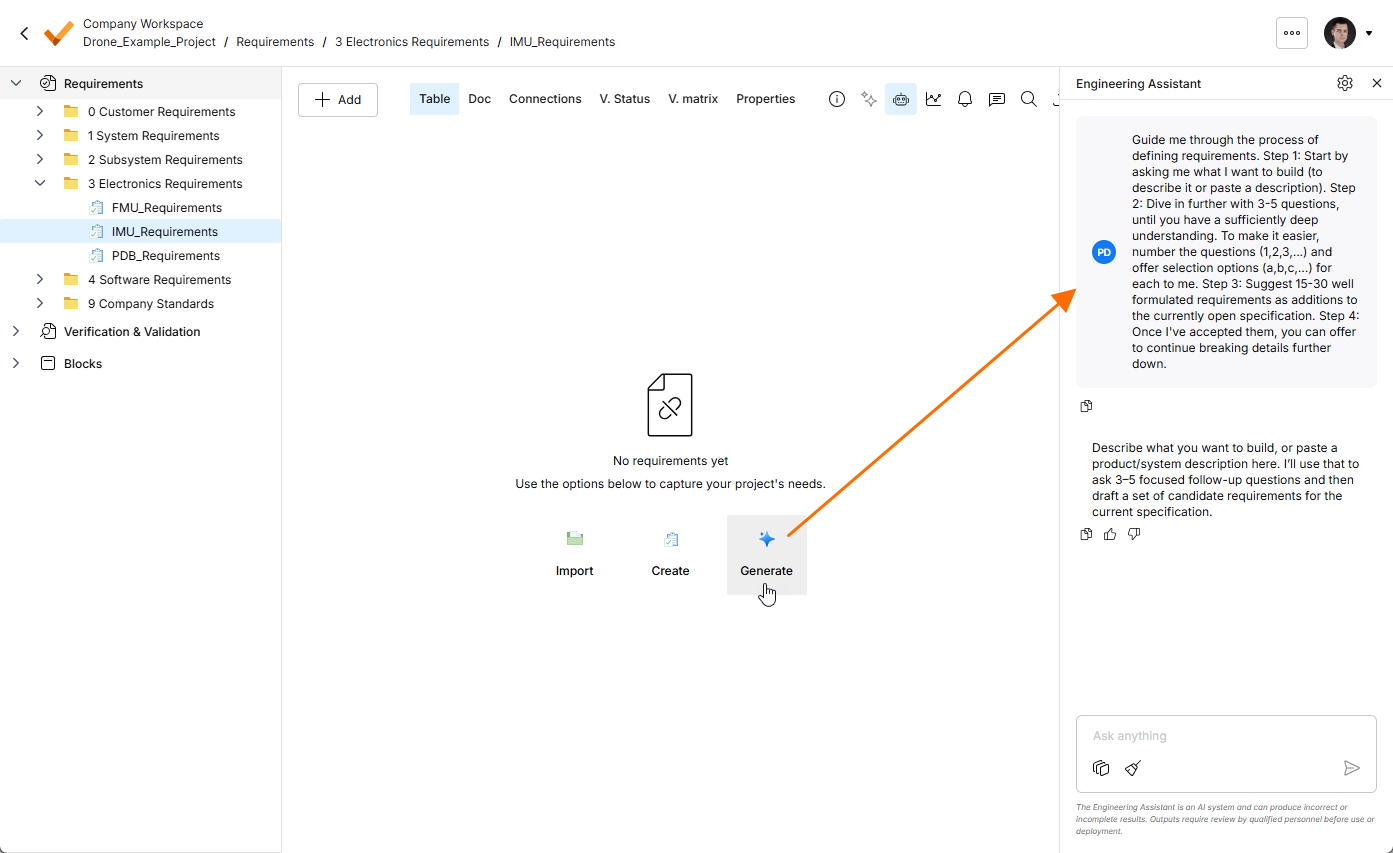 ).
). icon at the bottom of the Engineering Assistant pane. Note that only one conversation at the time is available (i.e., there is no history of conversations).