
Konsolidierte Stückliste
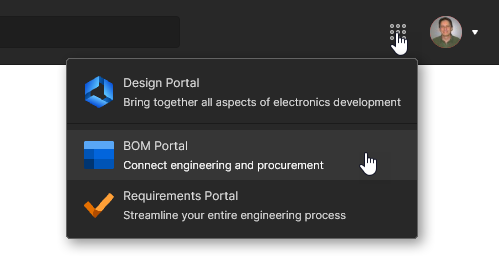
Der Modus des BOM Portal Consolidated BOM ermöglicht es Ihnen, aus mehreren Engineering-BOMs ein beschaffungsorientiertes BOM-Dokument zu erstellen, das den Teilebedarf für die Lieferung eines vollständigen Produkts zusammenführt – typischerweise auf Basis mehrerer PCBs, Module oder funktionaler Unterabschnitte. Dadurch entfällt die Notwendigkeit, mehrere BOM-Listen über Tabellenkalkulationen oder andere manuelle Methoden zusammenzuführen, während gleichzeitig Teilemengen für vorteilhafte Preisstaffeln von Lieferanten berechnet, gleichwertige Komponentenauswahlen rationalisiert und Bestellungen oder RFQs (Request For Quote) erstellt werden.
Mit einer konsolidierten BOM werden die Teile aus allen enthaltenen BOMs automatisch zugeordnet, summiert, bei Identität zusammengeführt und in der kumulierten Bestellliste dargestellt. Sie können außerdem die Bestellmenge eines Teils manuell erhöhen, um einen Preisstaffelpunkt eines Lieferanten auszunutzen, und akzeptabel gleichwertige Teile zu einem „konsolidierten“ BOM-Zeileneintrag zusammenführen.
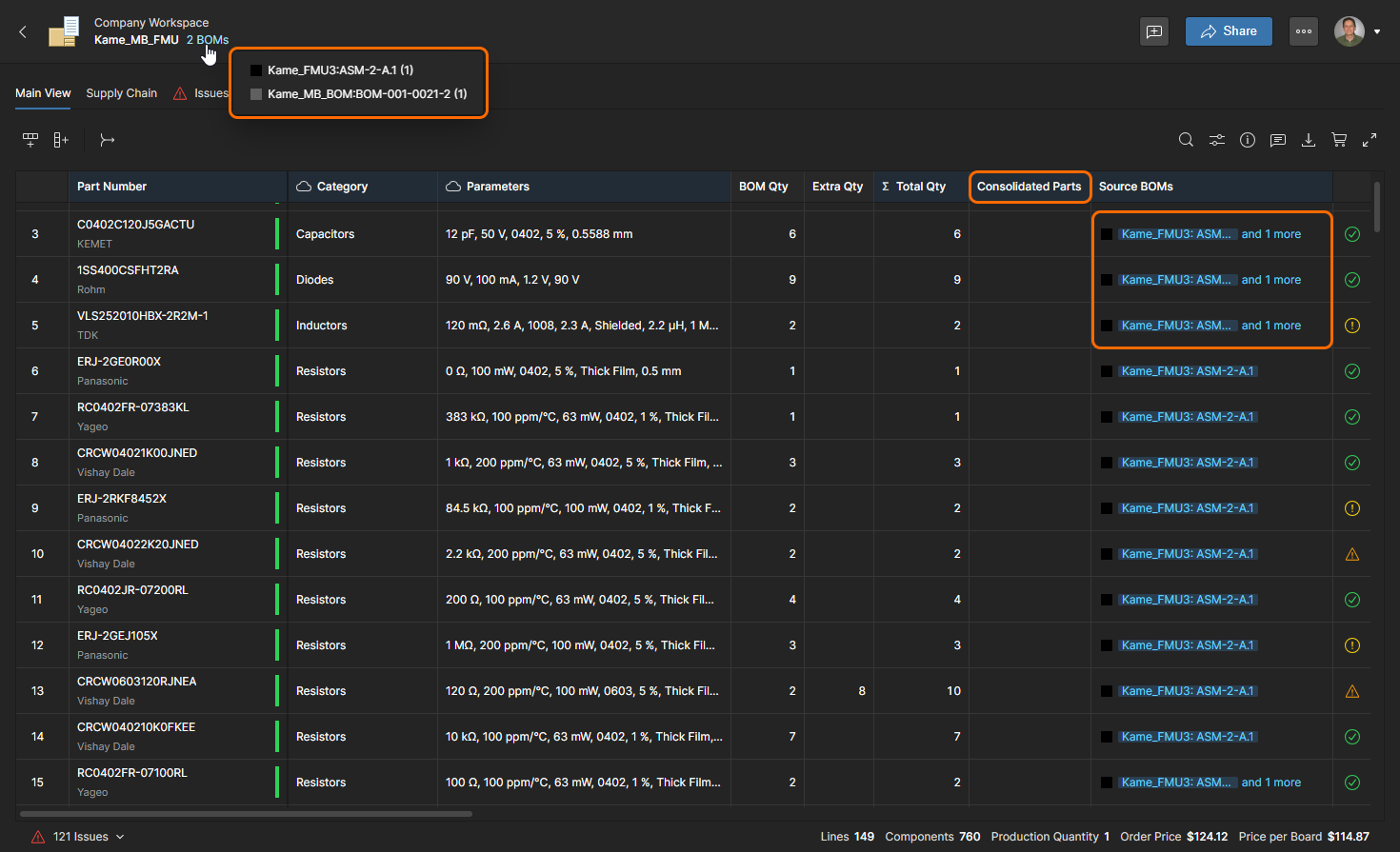 Das beschaffungsorientierte Format der konsolidierten BOM umfasst mehrere BOM-Releases mit der Möglichkeit, gleichwertige Komponenten zu konsolidieren und Einkaufsmengen zu bearbeiten.
Verwenden Sie die Option Create Consolidated BOM aus dem Menü der Schaltfläche  auf der Seite Projects, um im Dialogfenster Create Consolidated BOM ein neues konsolidiertes BOM-Dokument zu konfigurieren. Sie können mehrere BOMs aus vorhandenen Managed BOMs und/oder Design Projects hinzufügen, um die kombinierte konsolidierte BOM zu erstellen, und Mengen für die enthaltenen BOMs oder die gesamte konsolidierte BOM festlegen. Die hinzugefügten BOM-Daten können aus einer BOM oder einem Projekt in ihrem aktuellen Zustand stammen – einer WIP-Datenaufnahme – oder aus vorhandenen BOM-/Projekt-Releases.
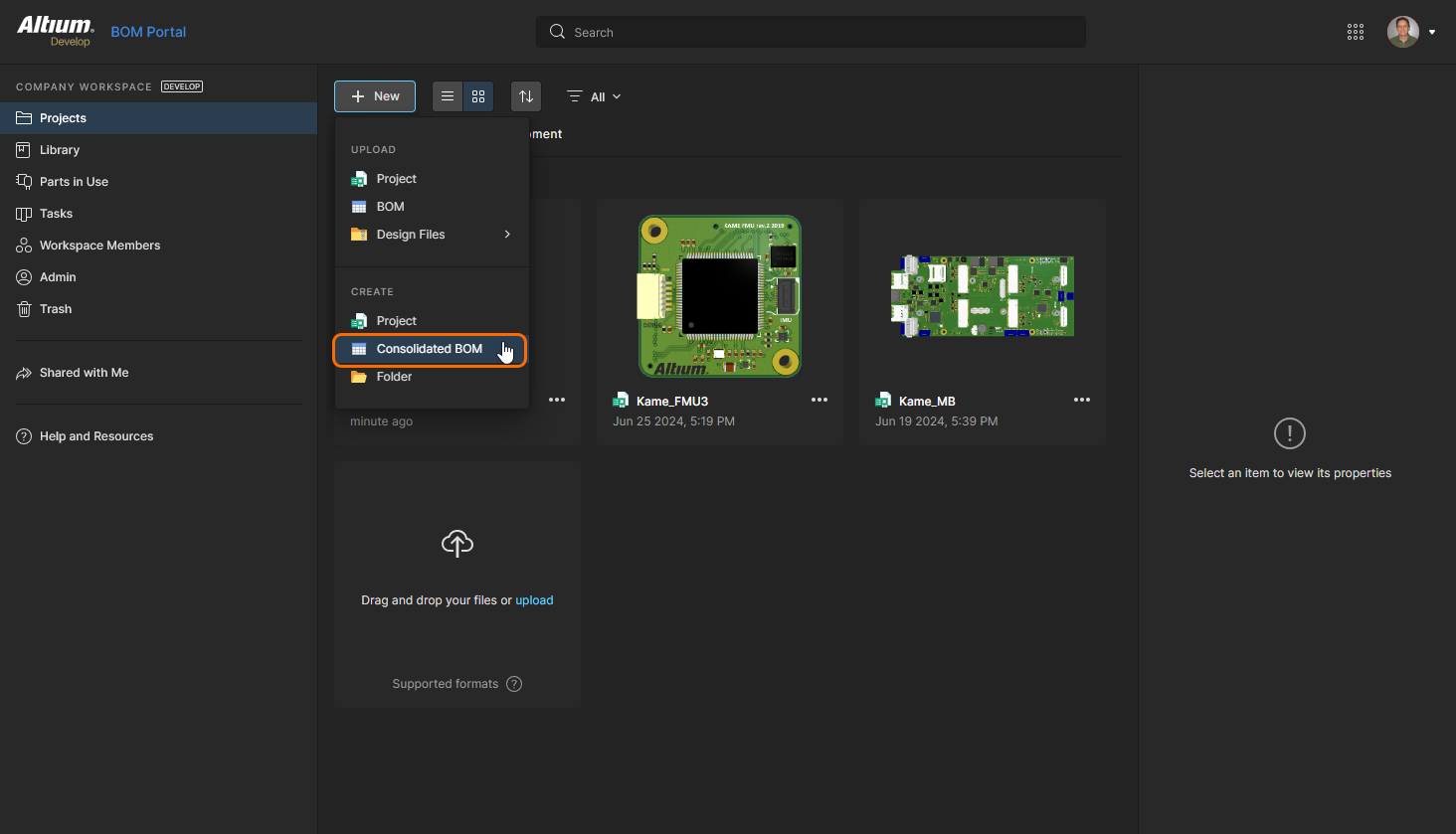
Um ein neues konsolidiertes BOM-Dokument zu erstellen, wählen Sie die Option Create Consolidated BOM aus dem Dropdown-Menü auf der Workspace-Projects Seite.
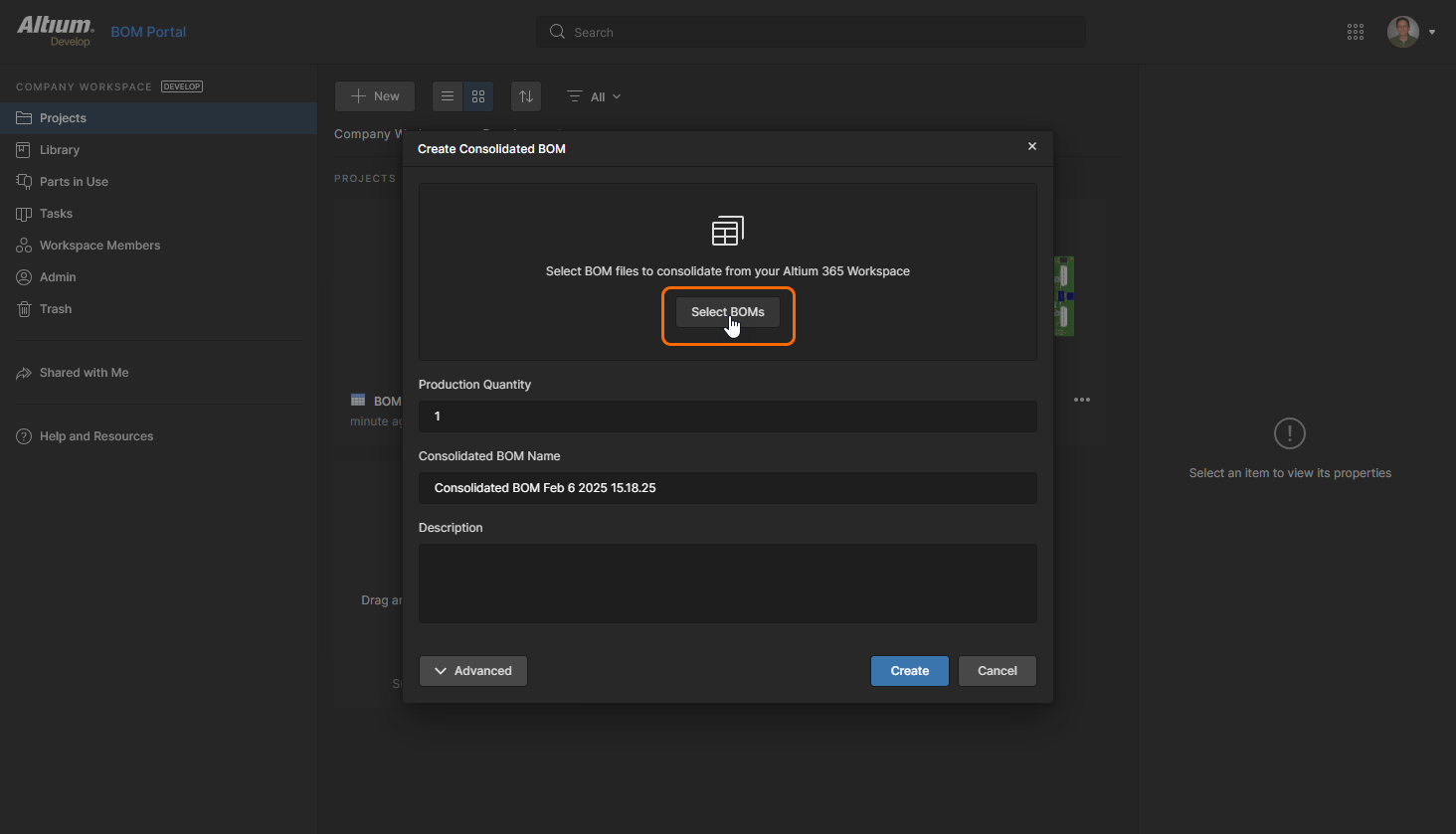
Klicken Sie im folgenden Dialogfenster Create Consolidated BOM auf die Schaltfläche  , um den Prozess zur Auswahl der einzubeziehenden BOM-Datenquellen zu starten.
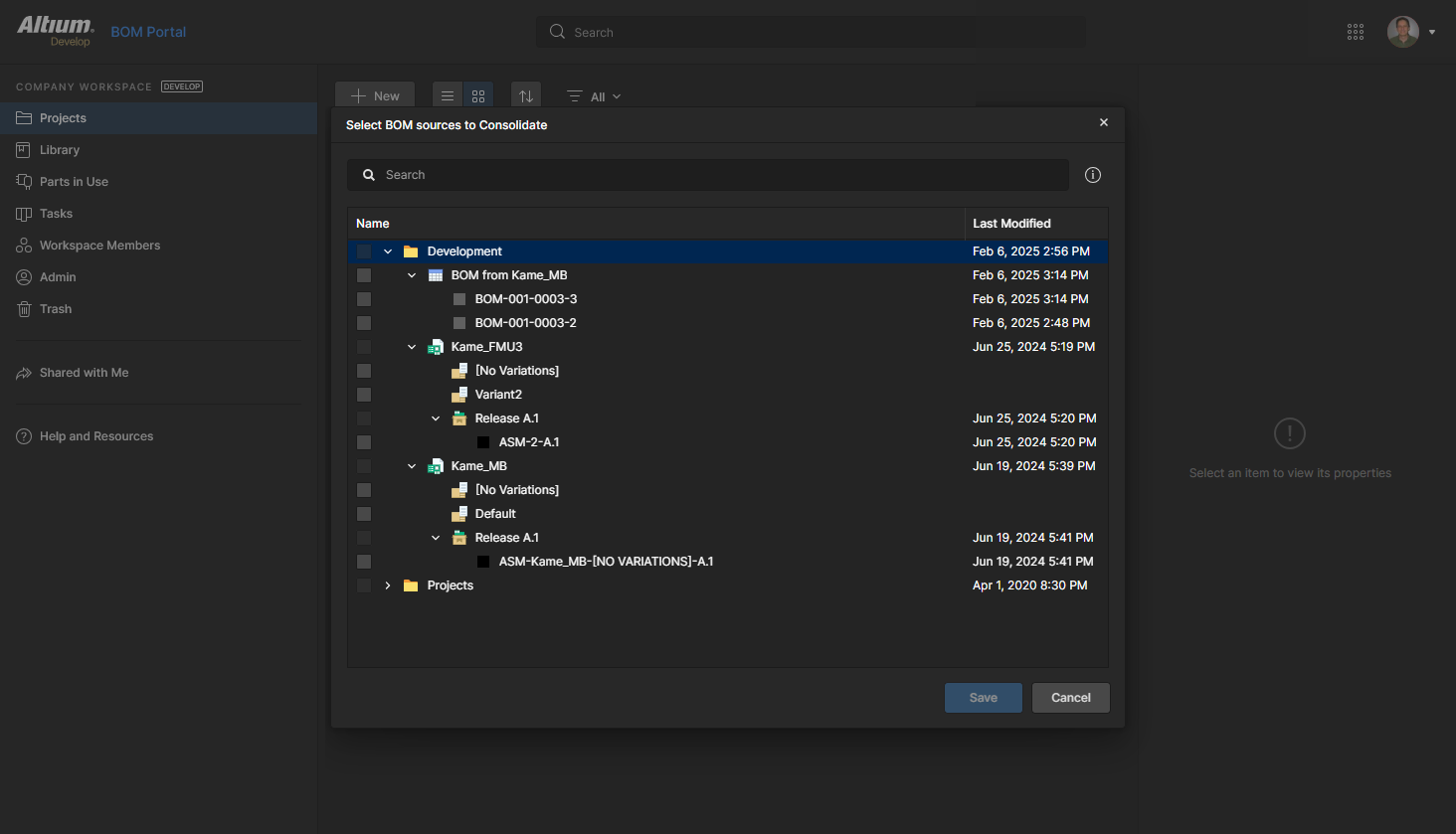
Erweitern Sie die Hierarchie der verfügbaren Design Projects und Managed BOMs im Fenster Select BOM sources to Consolidate, um die gewünschten BOM-Datenquellen zu finden. Öffnen Sie den Bereich Properties ( ), um Informationen zum ausgewählten Element anzuzeigen – Sie können das Projekt, die BOM oder das Release durch Klicken auf den Namen öffnen.
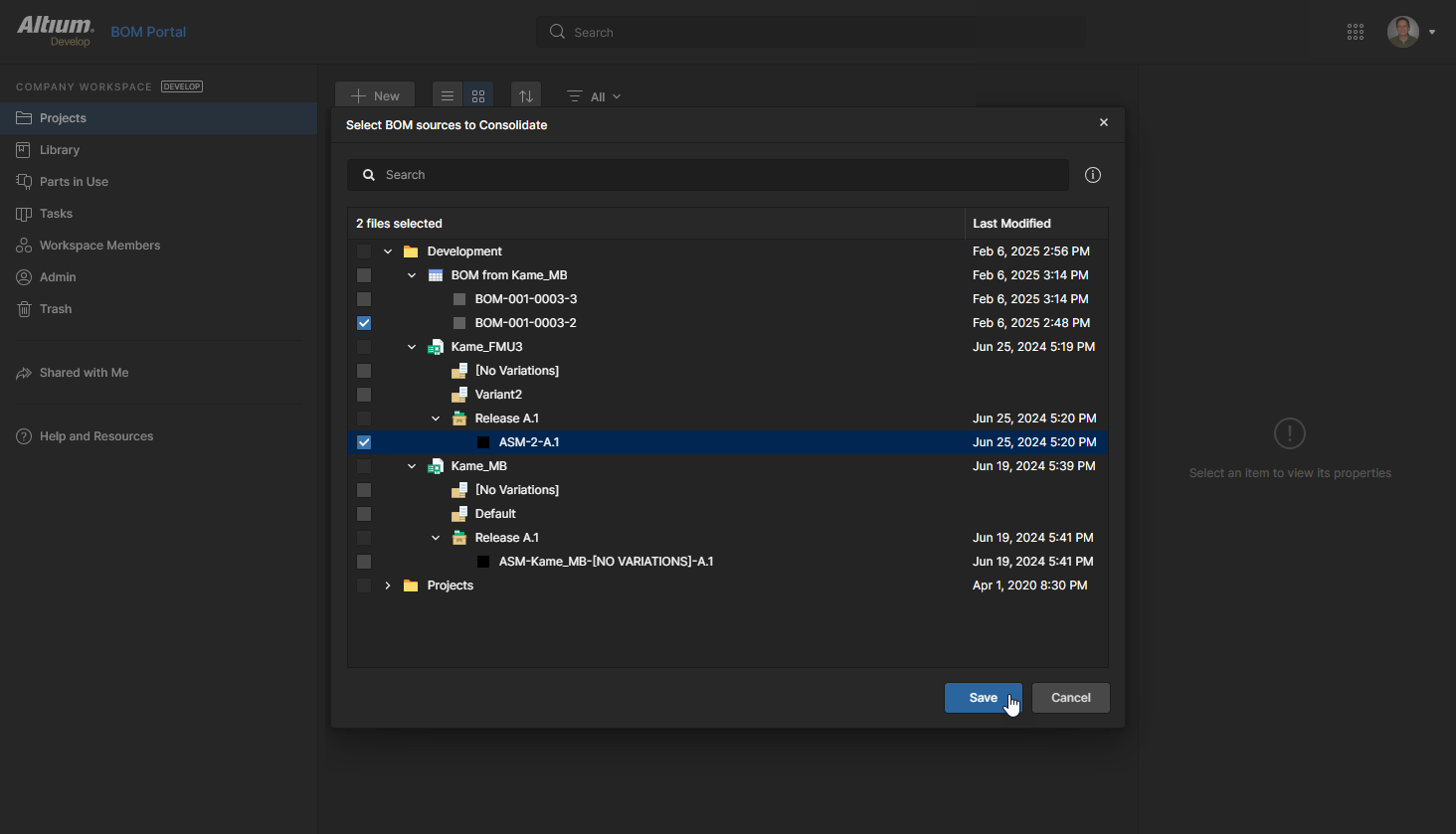
Sie können auch verfügbare Releases auswählen, um die konsolidierte BOM zu füllen. Hier wurden Releases sowohl für eine Managed BOM als auch für ein Projekt ausgewählt. Klicken Sie auf  , um die Auswahl der Datenquellen zu bestätigen.
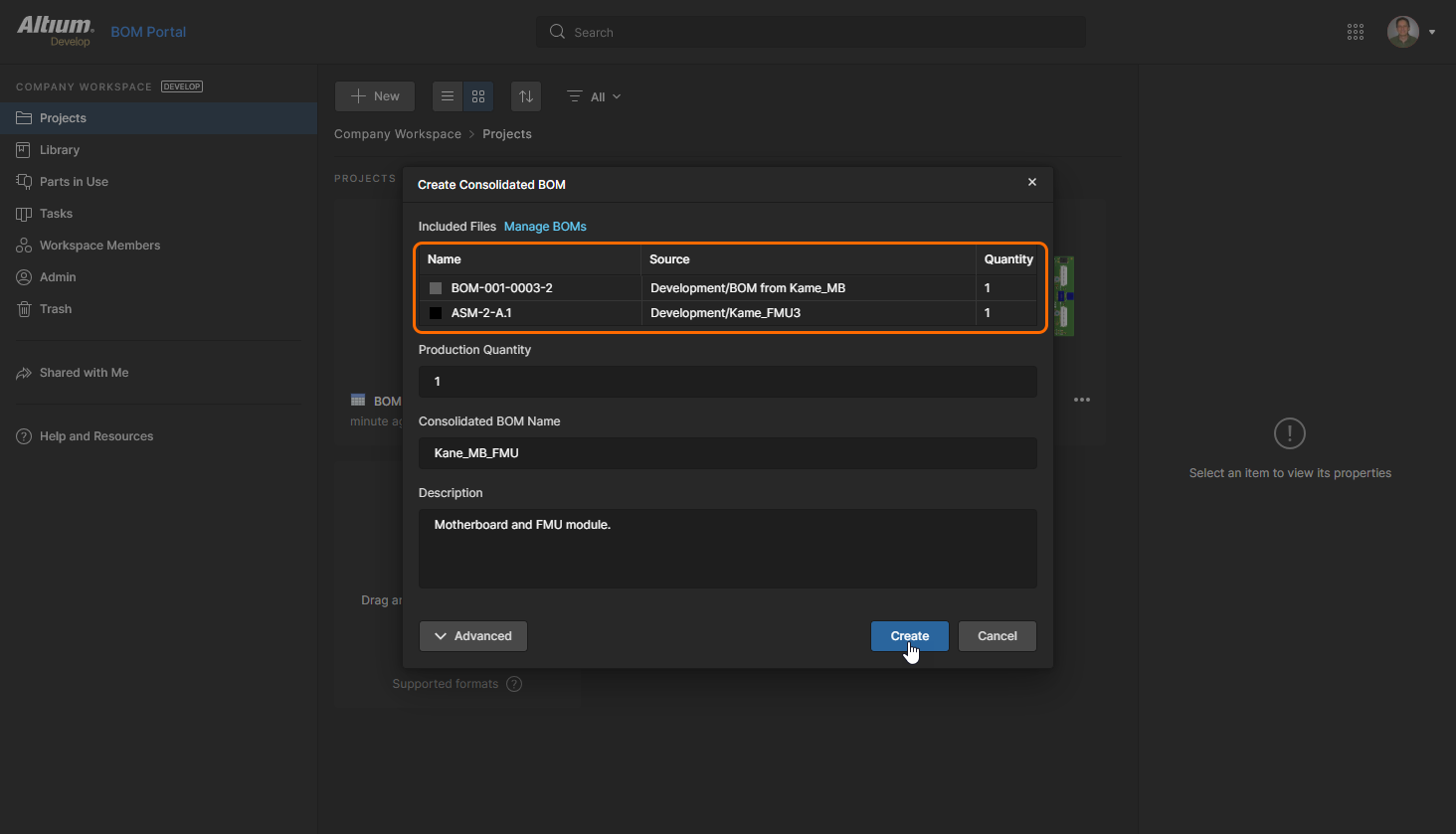
Zurück im Fenster Create Consolidated BOM können Sie die Liste der enthaltenen BOMs prüfen, die Anzahl der Teile aus den Quell-BOMs multiplizieren (Batch Size), den vorgeschlagenen Consolidated BOM Name bearbeiten und eine optionale Description hinzufügen. Klicken Sie auf  , um den Vorgang abzuschließen.
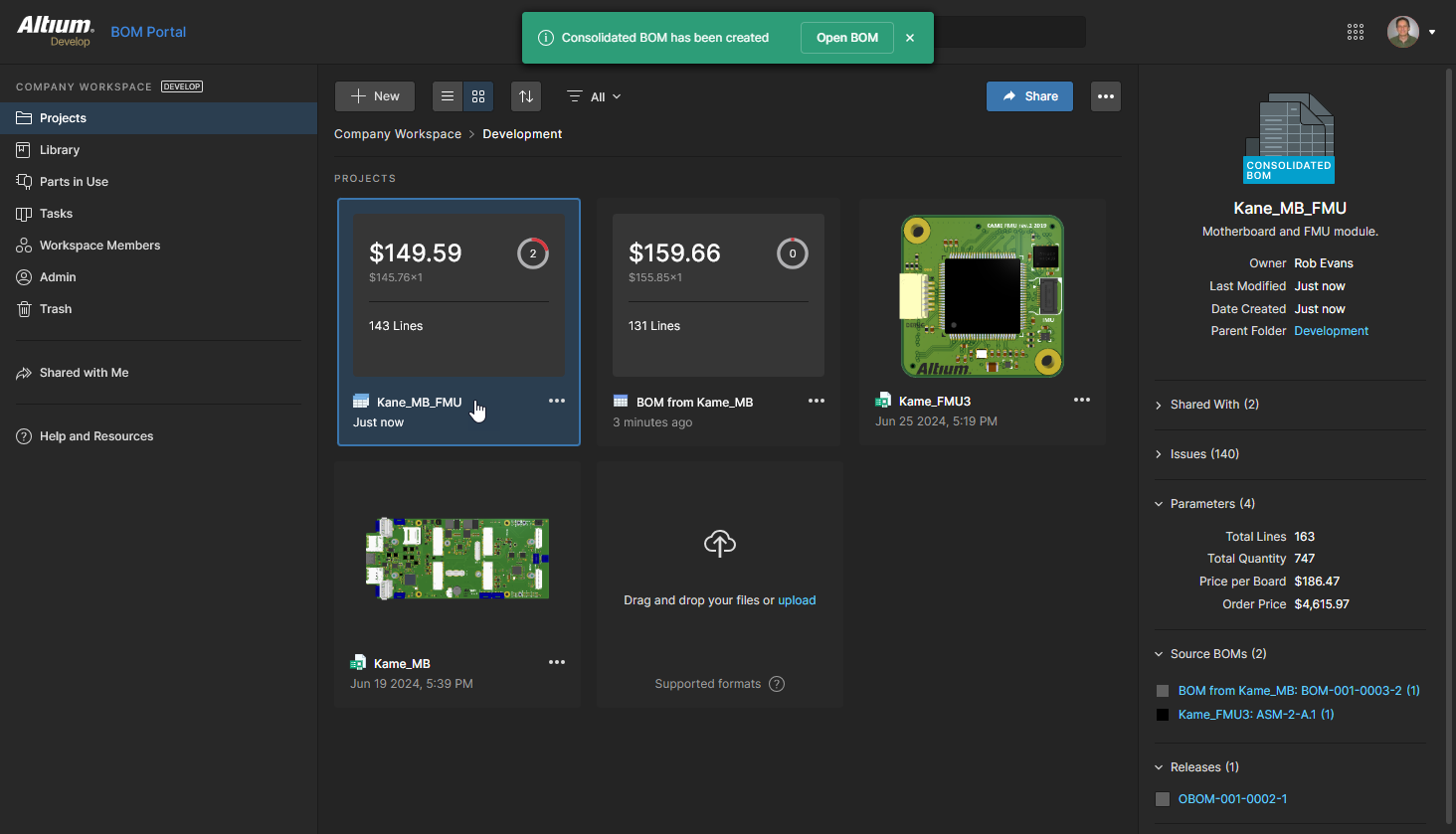
Eine konsolidierte BOM teilt die meisten Funktionen und Merkmale, die für eine Managed BOM im BOM Portal verfügbar sind. Bemerkenswerte Beispiele hierfür sind:
-
Die Möglichkeit, einzelne BOM-Einträge mit den Funktionen Add Row (
 ) und Remove Row (
 ) hinzuzufügen und zu entfernen – siehe List Features des BOM Portal.
-
Zugriff auf detaillierte Informationen zu einem BOM-Element über den Bereich Info (
 ) – siehe Information Pane im BOM Portal.
-
Die Möglichkeit, zuweisbare Kommentare zu BOM-Zeileneinträgen über den Bereich Comments and Task (
 ) hinzuzufügen – siehe BOM Portal Comments.
Eine konsolidierte BOM weist außerdem mehrere wichtige Funktionsunterschiede gegenüber einer Managed BOM auf, um ihren beschaffungsorientierten Fokus zu unterstützen:
-
Referenzen auf Manufacturer Part Number sind nicht bearbeitbar, da sie in der Quell-Managed-BOM oder im Design Project festgelegt werden.
-
Eine spezielle Spalte Source BOMs ist enthalten, die Links zur Quell-BOM des ausgewählten Teils und zu den zugehörigen Designator-Referenzen bereitstellt.
-
Eine spezielle Spalte Consolidated Parts ist enthalten, die auf einzelne Teileeinträge verweist, die zu einer einzigen BOM-Zeile zusammengeführt wurden.
-
Eine spezielle Spalte Category ist enthalten, die es ermöglicht, Komponententeileinträge nach
Typezu organisieren, um gleichwertige Teile zu konsolidieren, wie unten beschrieben. -
Spezielle Spalten <SourceName>Quantity stehen zur Verfügung, die die beitragenden Teilemengen für jede in der konsolidierten BOM enthaltene BOM-Datenquelle anzeigen.
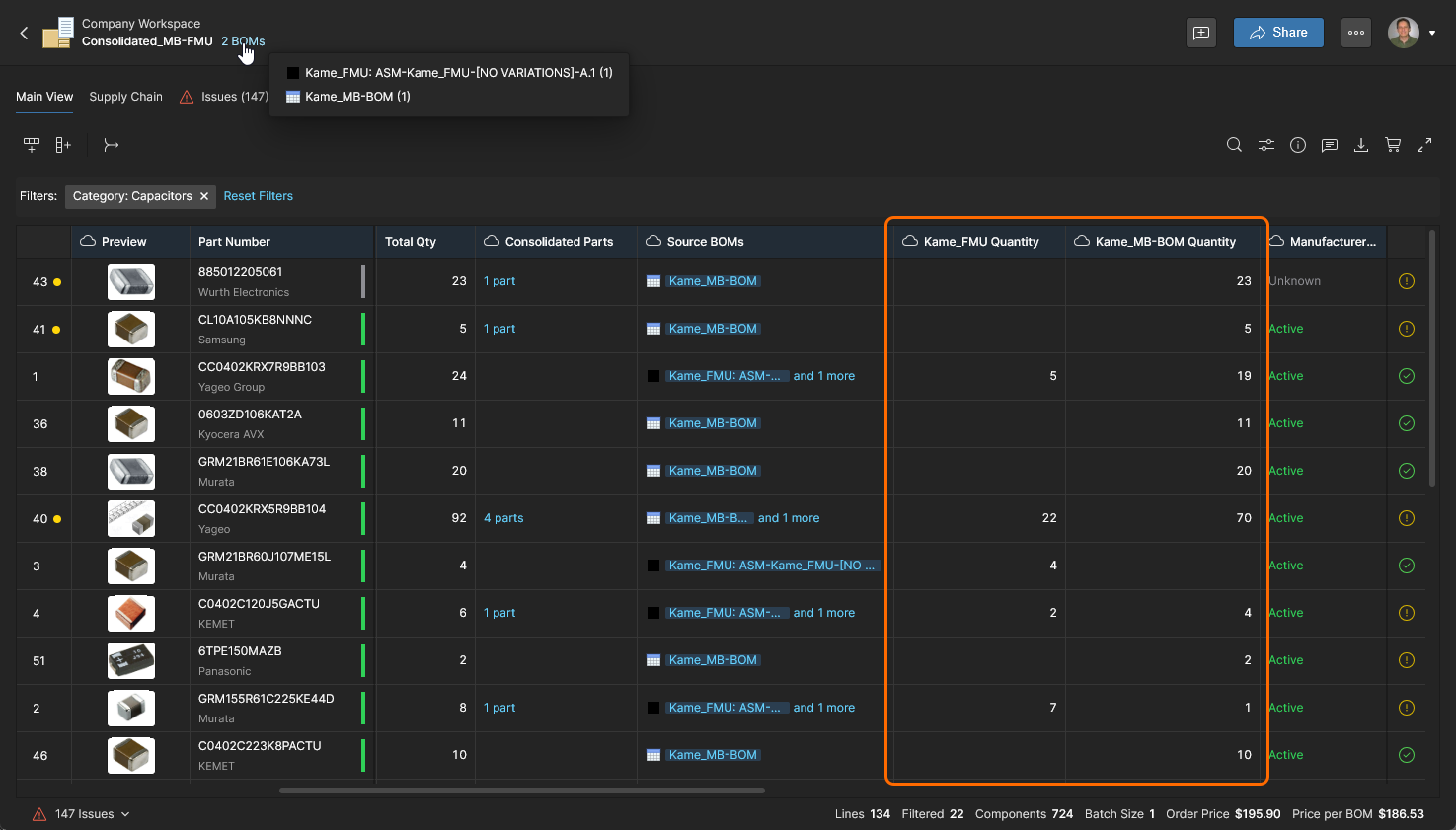
-
Die Spalten Extra Qty und Total Qty werden automatisch aktiviert, damit Bestellmengen für vorteilhafte Einkaufsergebnisse angepasst werden können. Beachten Sie, dass diese Spalten auch in Managed BOMs verfügbar sind.
-
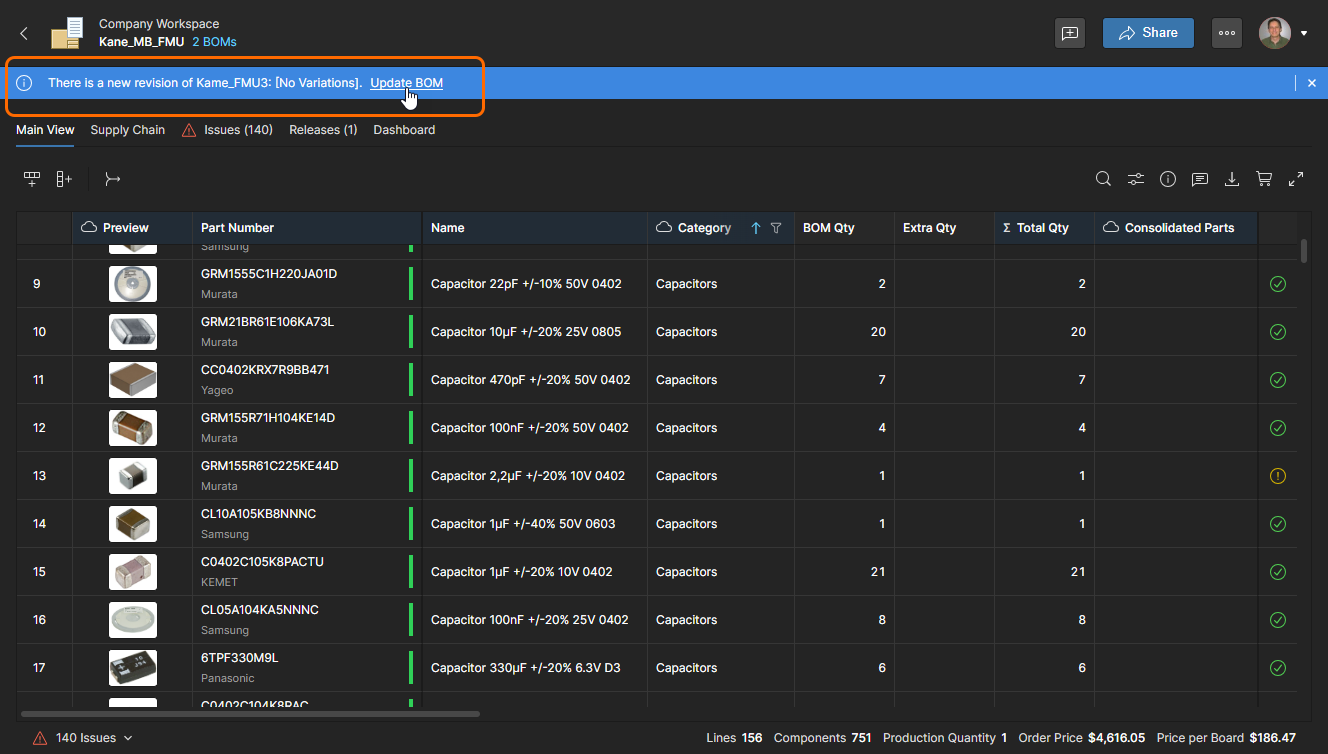
Eine geöffnete konsolidierte BOM erkennt automatisch, ob eine enthaltene WIP-BOM-Quelle (im Gegensatz zu einem statischen Release) aktualisiert wurde – also eine neuere Revision existiert. Wählen Sie Update BOM, um die Änderungen in die konsolidierte BOM zu übernehmen.
BOM-Quellen und Teile
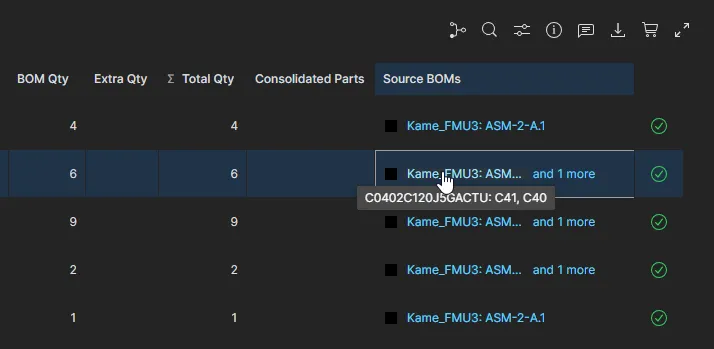
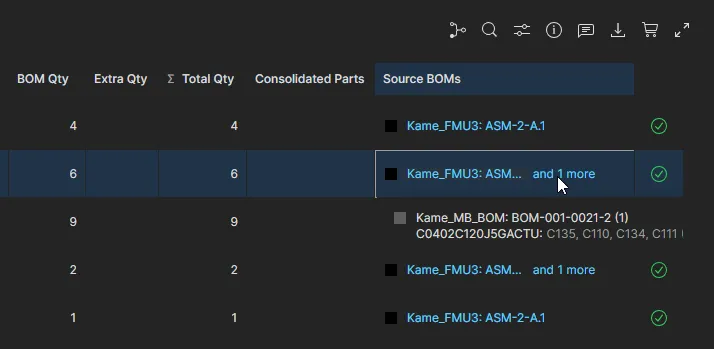
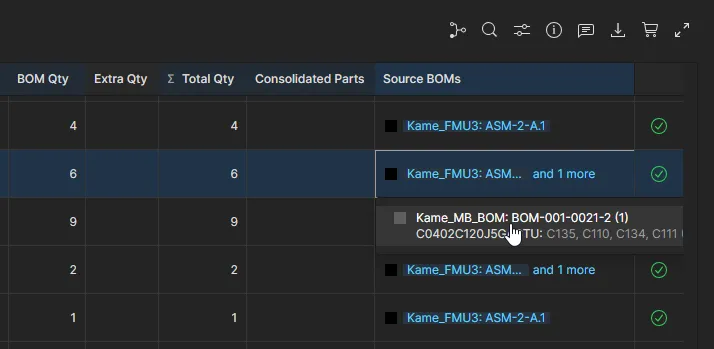
Die Spaltendaten Source BOMs in jedem Zeileneintrag der konsolidierten BOM enthalten Verweise auf dieses Komponententeil in einer oder mehreren der Quell-BOMs, bei denen es sich um Managed BOMs, Projekte oder deren Releases handeln kann. Der Zelleintrag liefert Informationen zum Quellteil sowie einen Link zur Quell-BOM/zum Quellprojekt/zum Release selbst.
Teilekonsolidierung
Während die konsolidierte BOM identische Teile aus den Quell-BOMs automatisch in einem einzigen mengenangepassten Zeileneintrag zusammenführt, gibt es wahrscheinlich weitere gleichwertige Teileeinträge, die kombiniert werden können – etwa funktional gleiche Teile von mehreren Herstellern. Diese Situation kann mit der Funktion Manual Parts Consolidation der konsolidierten BOM behandelt werden.
Die Funktion zur Teilekonsolidierung und die zugehörigen Spaltendaten ermöglichen es, nominell gleichwertige Komponententeileinträge in einem einzigen BOM-Zeileneintrag mit einem neu berechneten Parameter Quantity zusammenzuführen. Der über die Schaltfläche  aufgerufene Teilekonsolidierungsprozess erstellt außerdem einen kombinierten Teileinformationseintrag in der Zelle der Spalte Consolidated Parts. Dieser Prozess wird durch die Spalte Category der konsolidierten BOM beschleunigt, die so eingestellt werden kann, dass sie nach bestimmten Komponententypen filtert – etwa Kondensatoren – und anschließend die Spalte Parameters der Teile neu sortiert wird, um ähnliche Komponenteneinträge leichter vergleichen zu können.
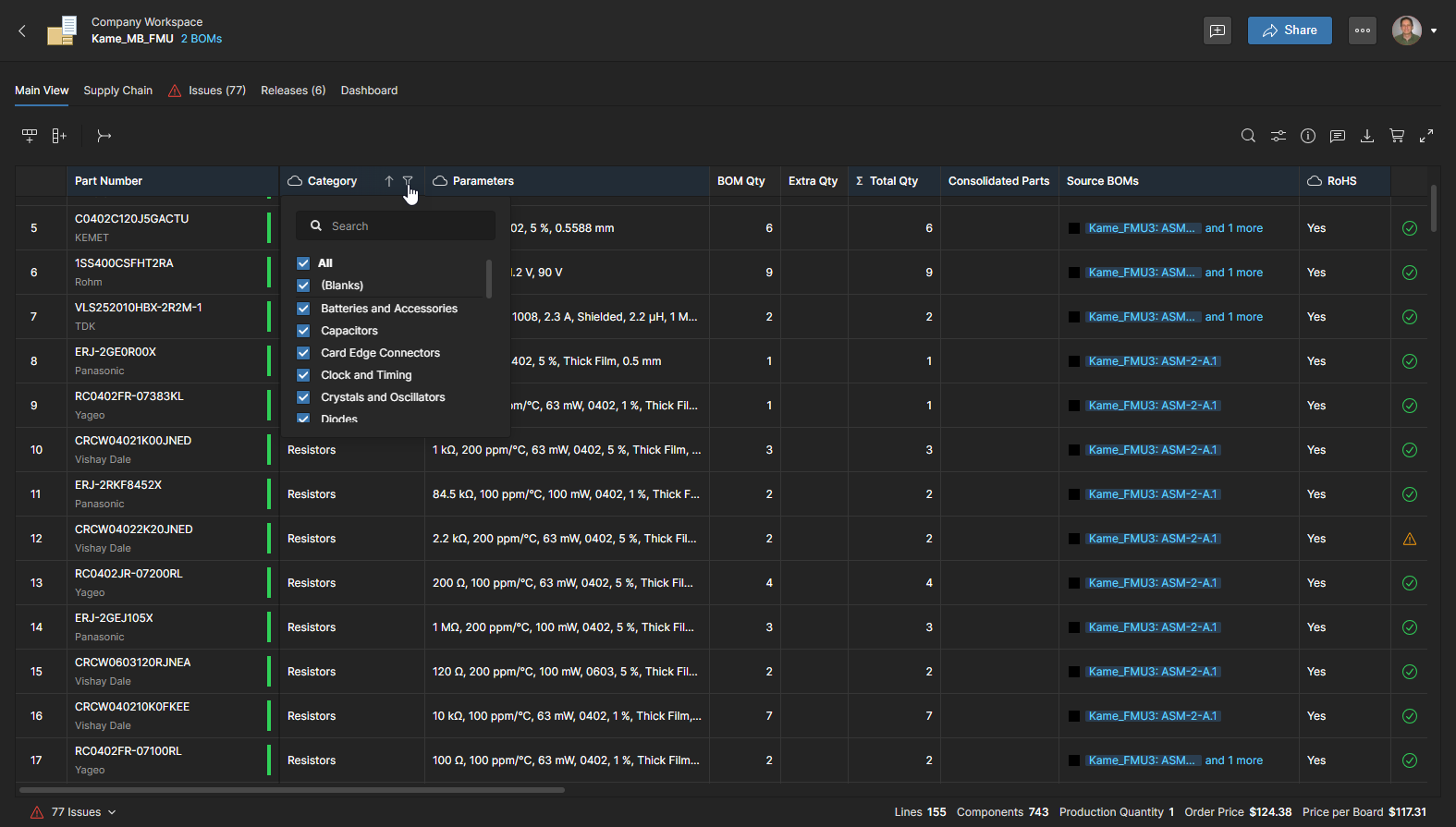
Der einfachste Weg, für eine Konsolidierung geeignete BOM-Teile zu finden, besteht darin, die BOM-Liste zunächst so zu filtern, dass ein bestimmter Teiletyp angezeigt wird, indem Sie die Option Filter ( ) in der Kopfzeile der Spalte Category auswählen.
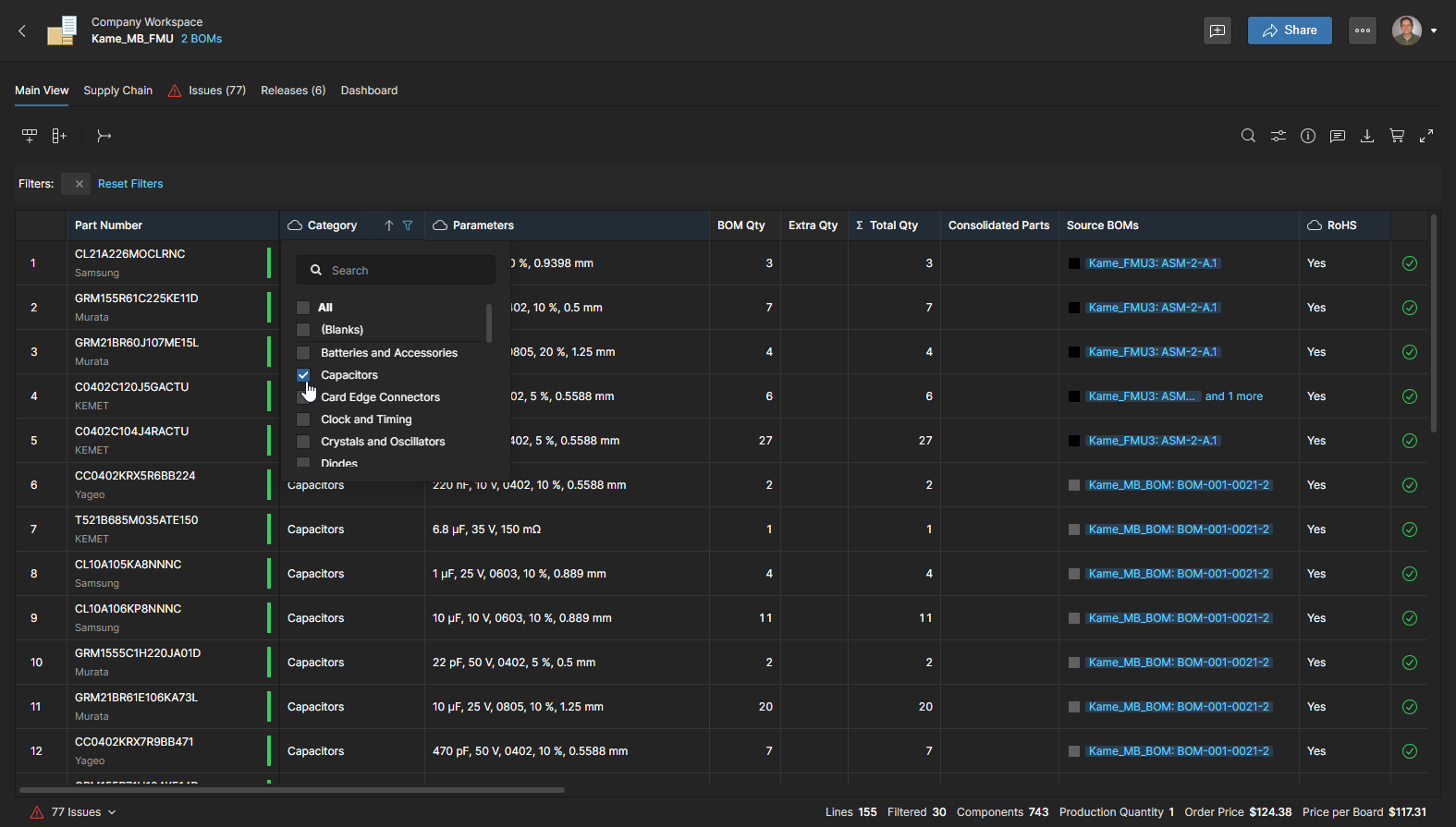
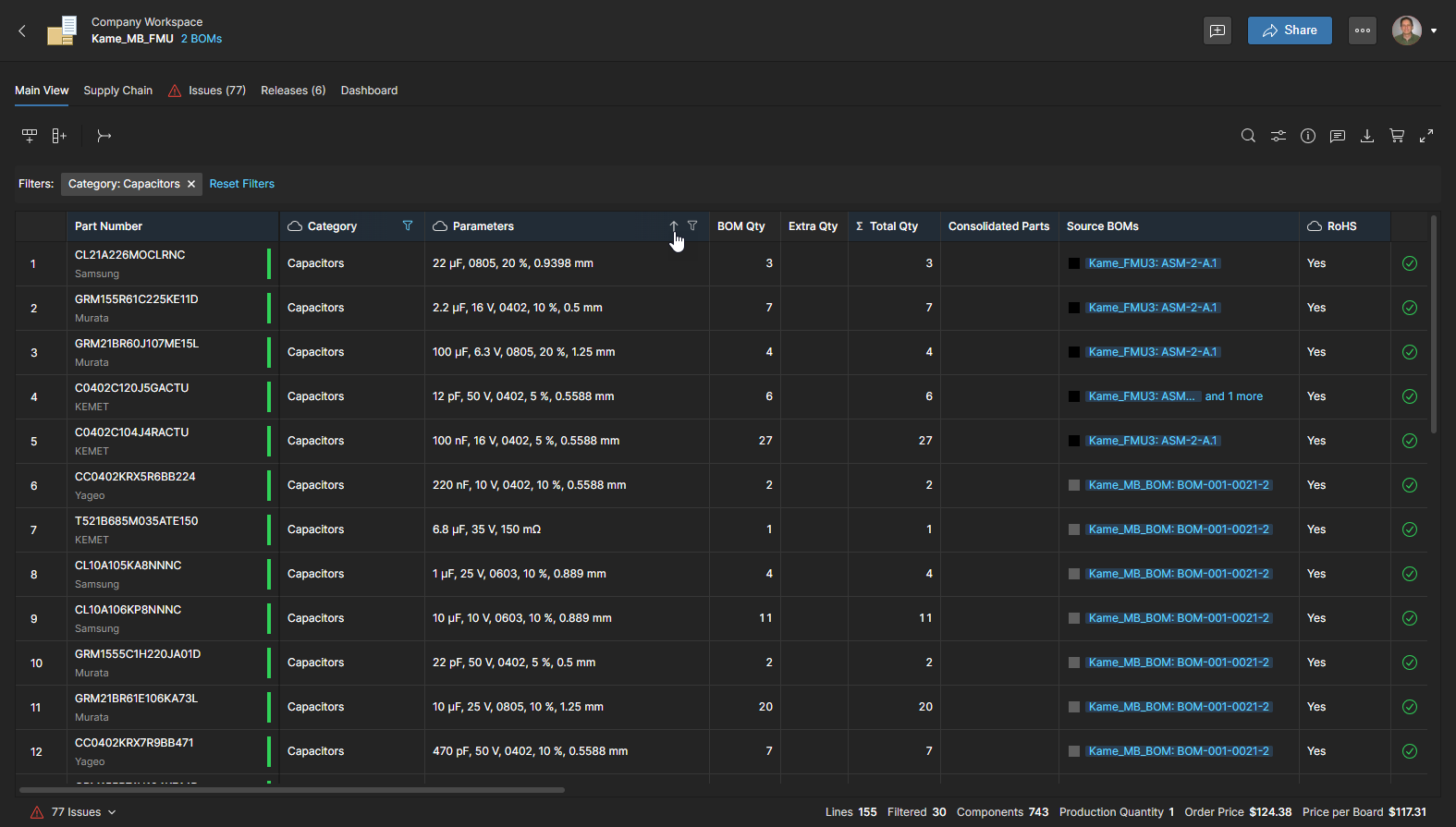
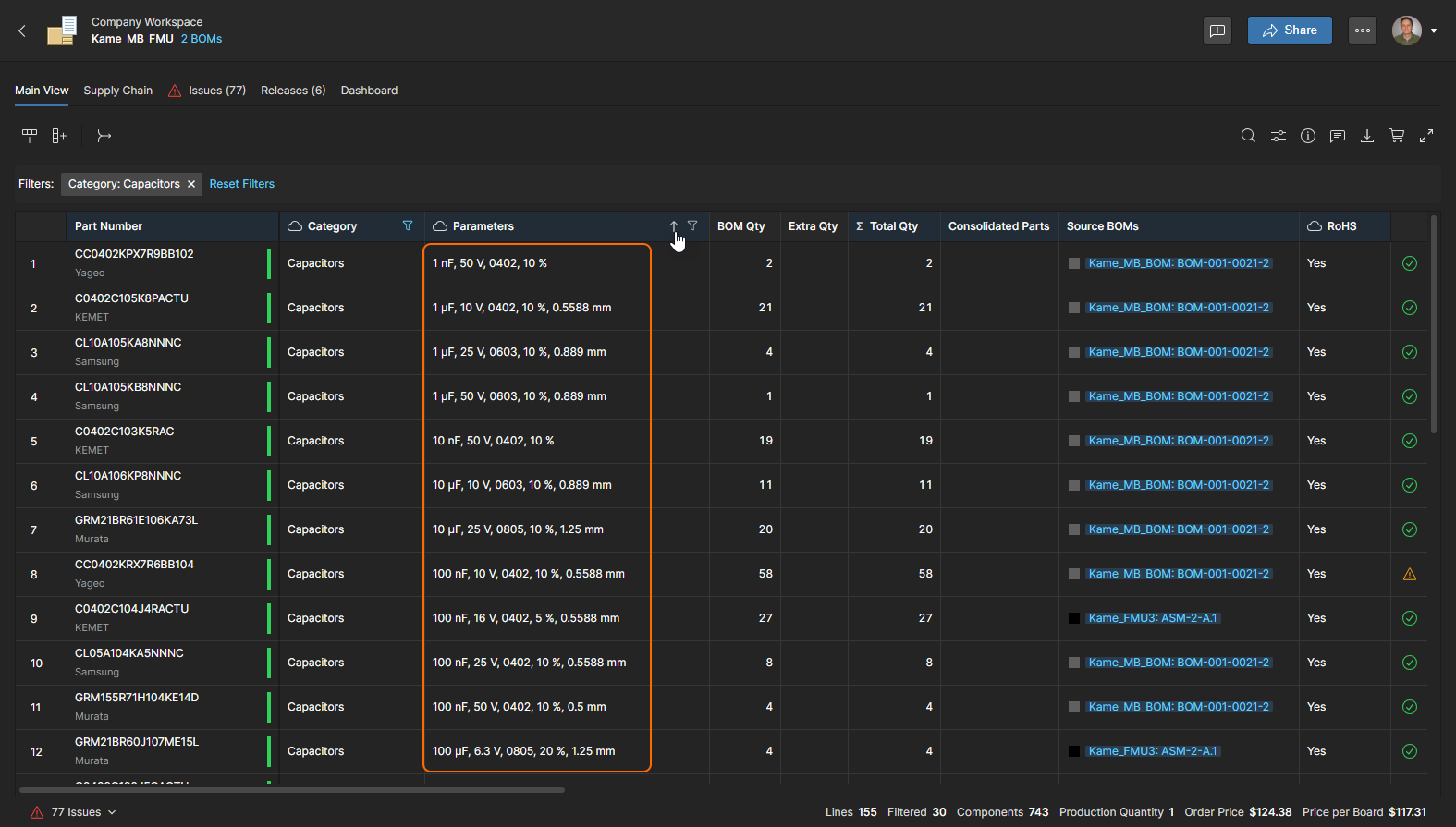
Klicken Sie auf das Pfeilsymbol in der Kopfzeile (
 ), um zwischen aufsteigender, absteigender und „keiner Sortierung“ umzuschalten (wenn der Pfeil weiß statt blau ist).
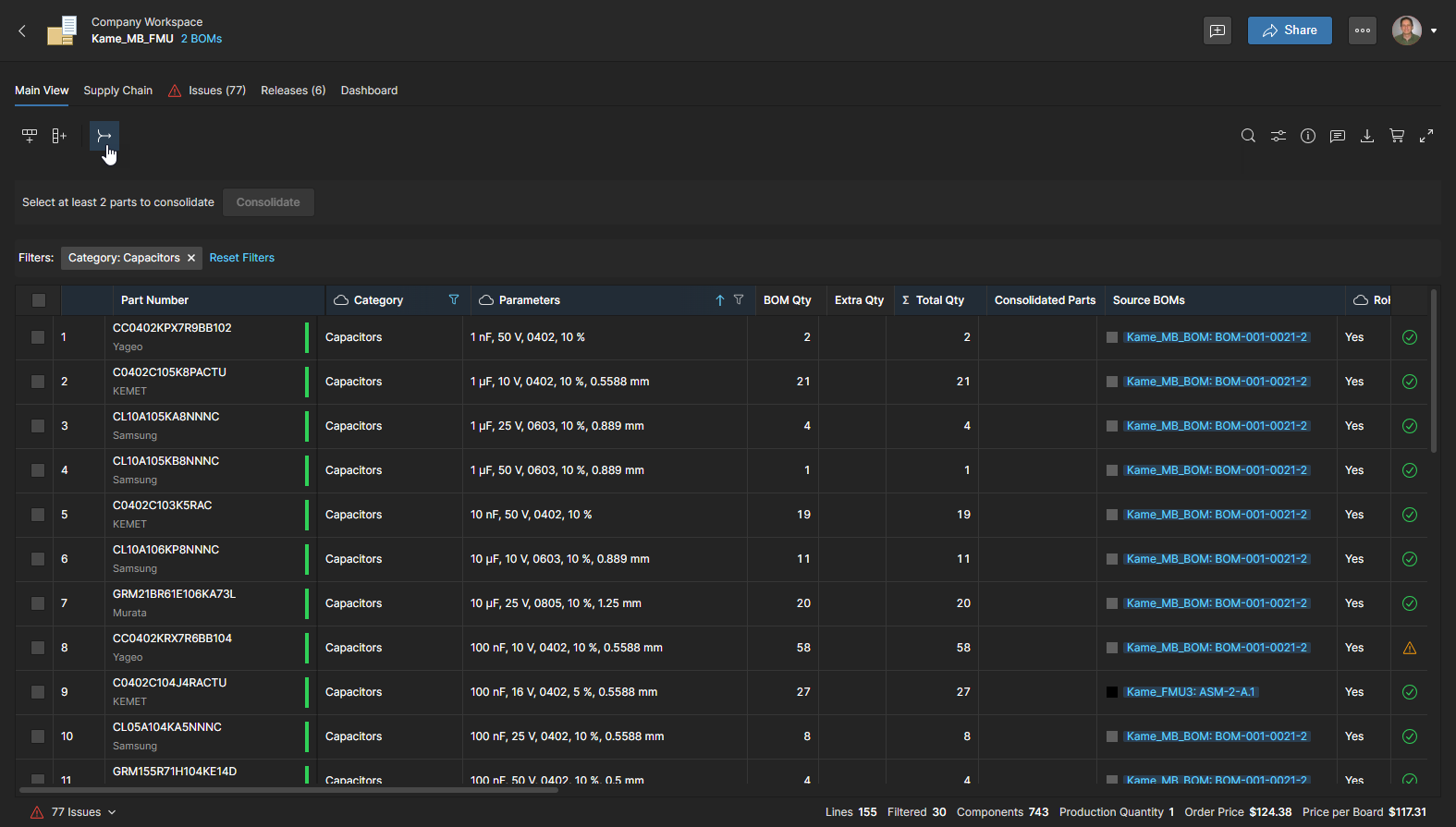
Um mit der Konsolidierung von BOM-Zeileneinträgen zu einem einzigen Eintrag zu beginnen, wählen Sie die Schaltfläche Manual Consolidation Mode (), wodurch am Anfang jeder BOM-Zeile eine Checklisten-Spalte aktiviert wird.
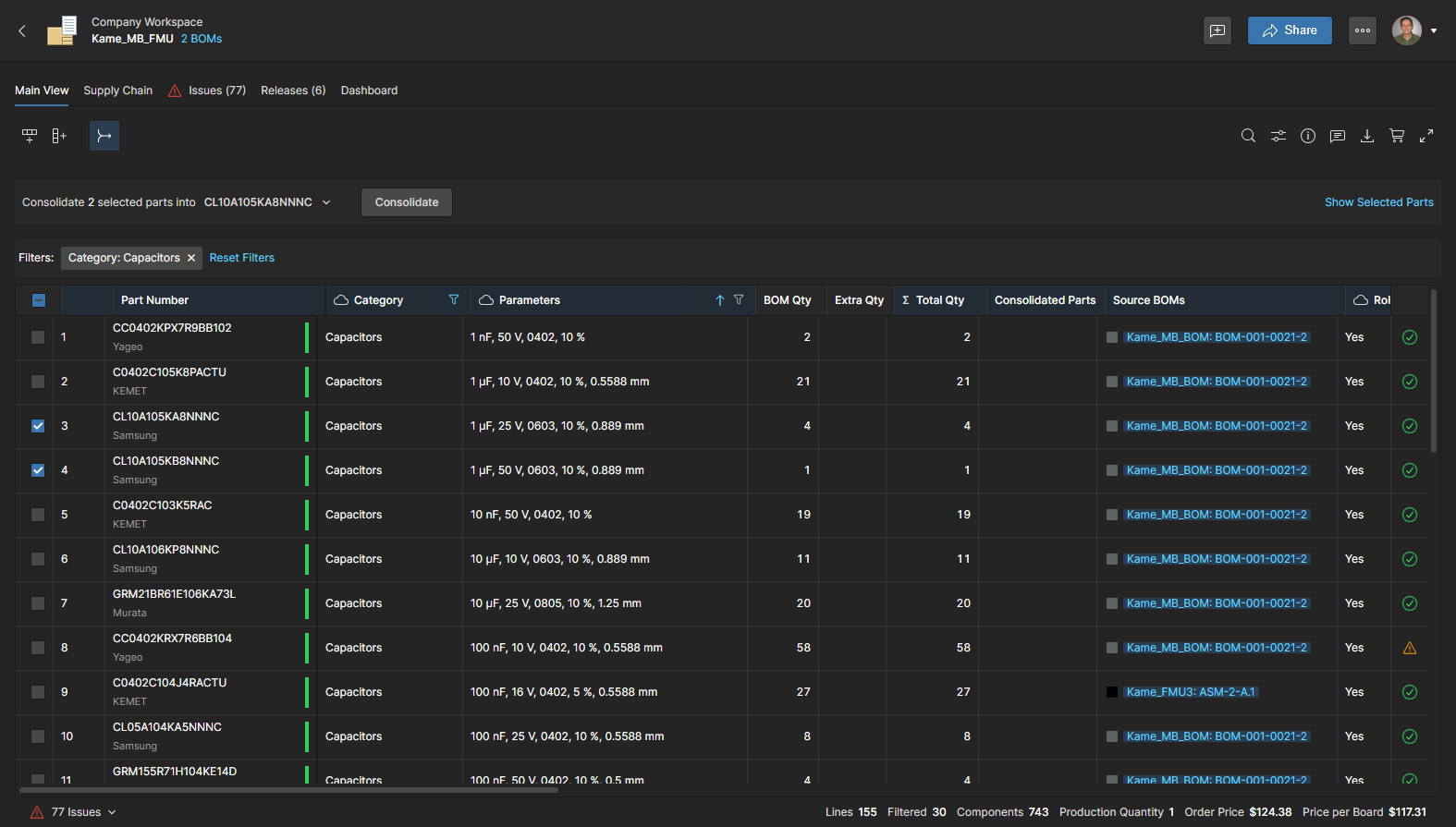
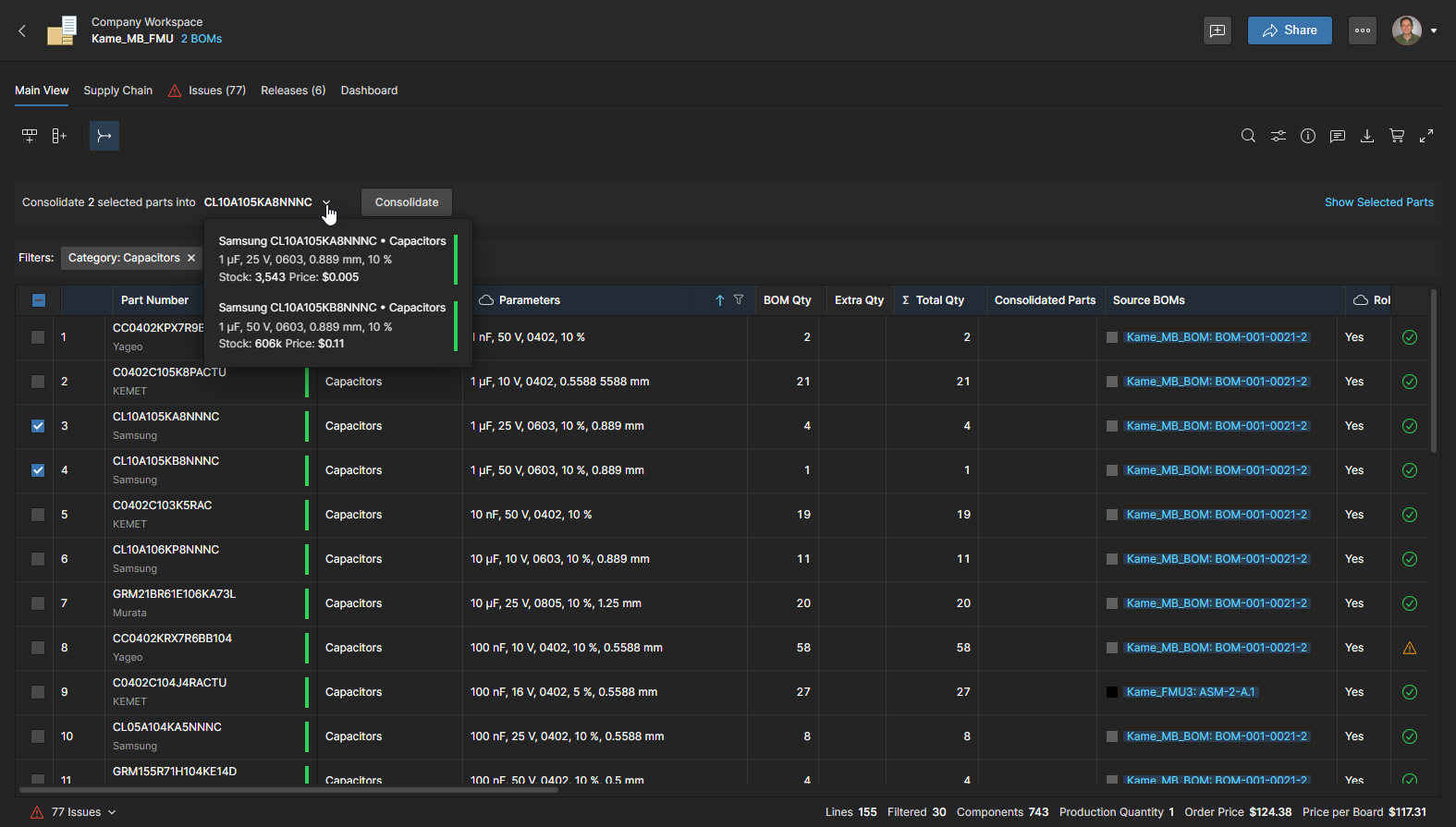
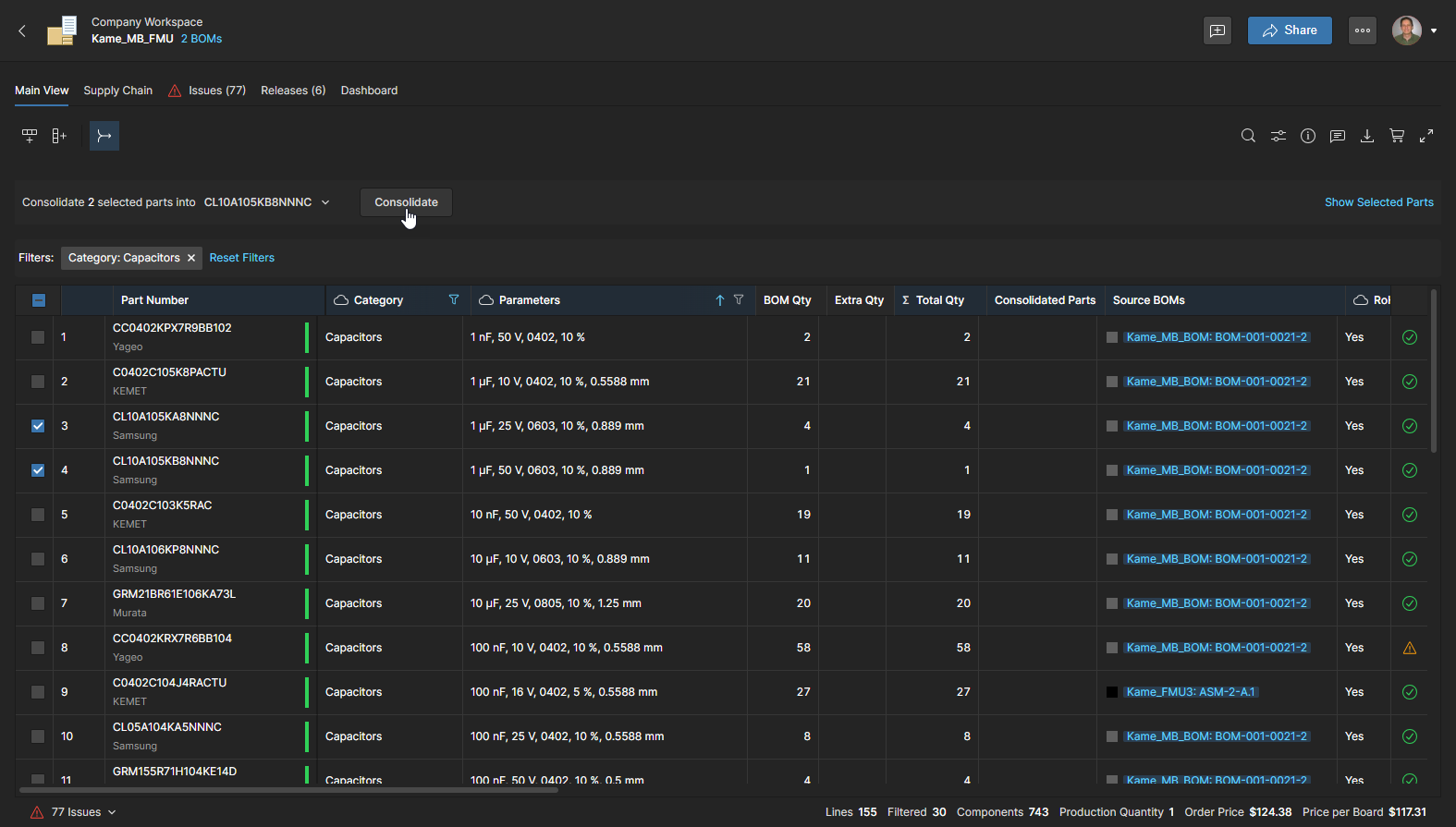
Klicken Sie auf die Schaltfläche  , um den Vorgang zu bestätigen und den neuen einzeiligen BOM-Eintrag zu erstellen.
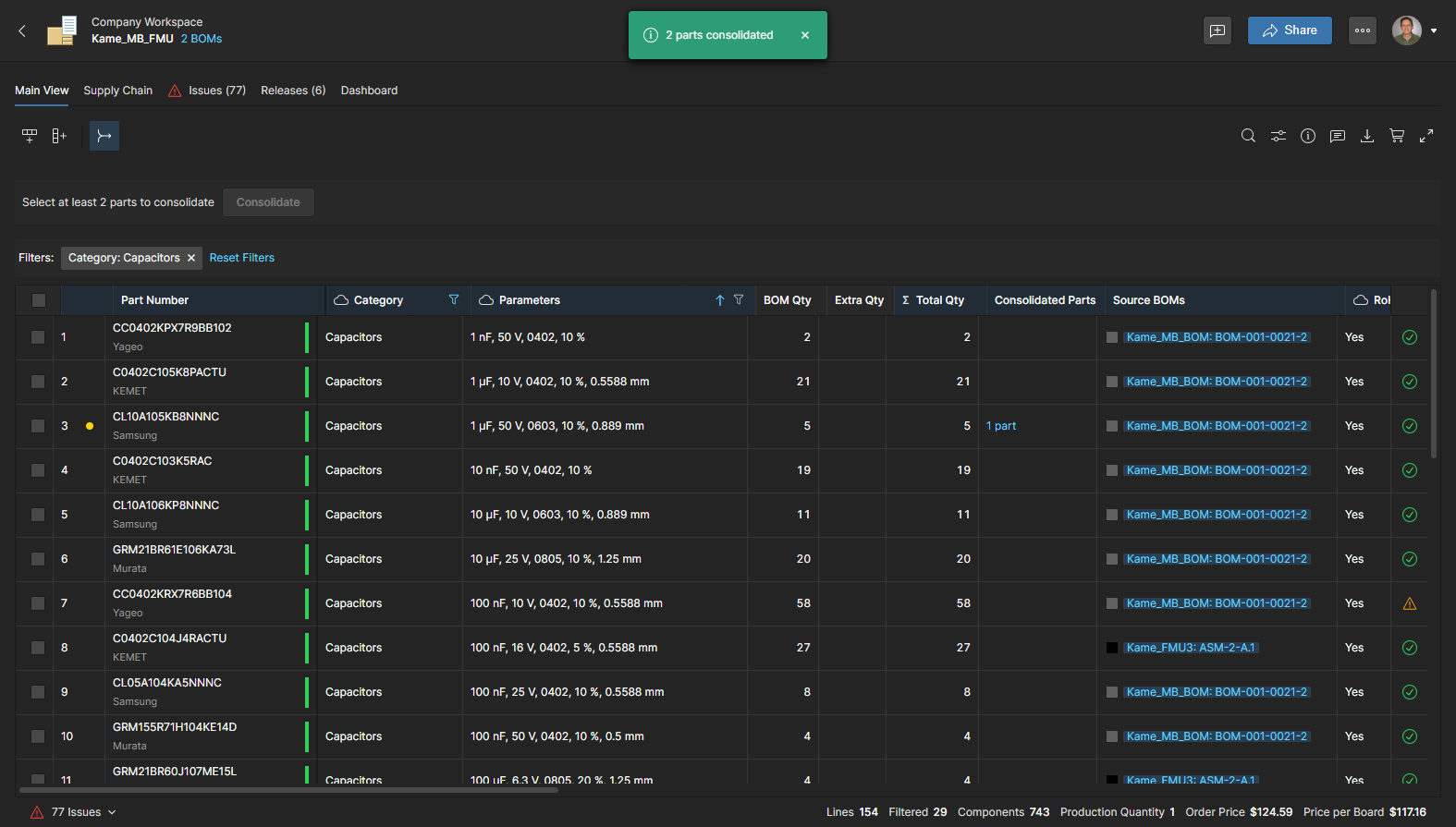
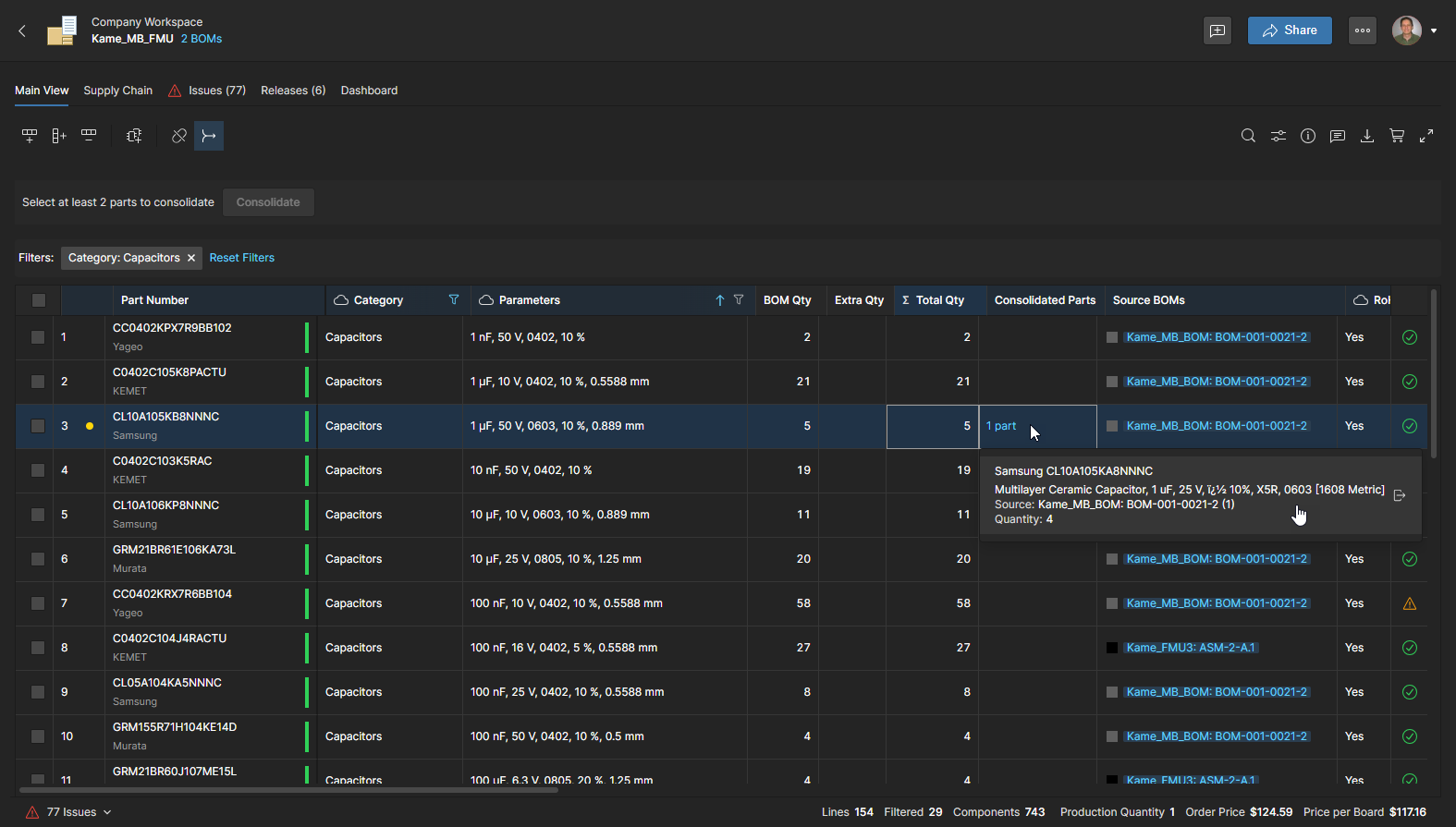
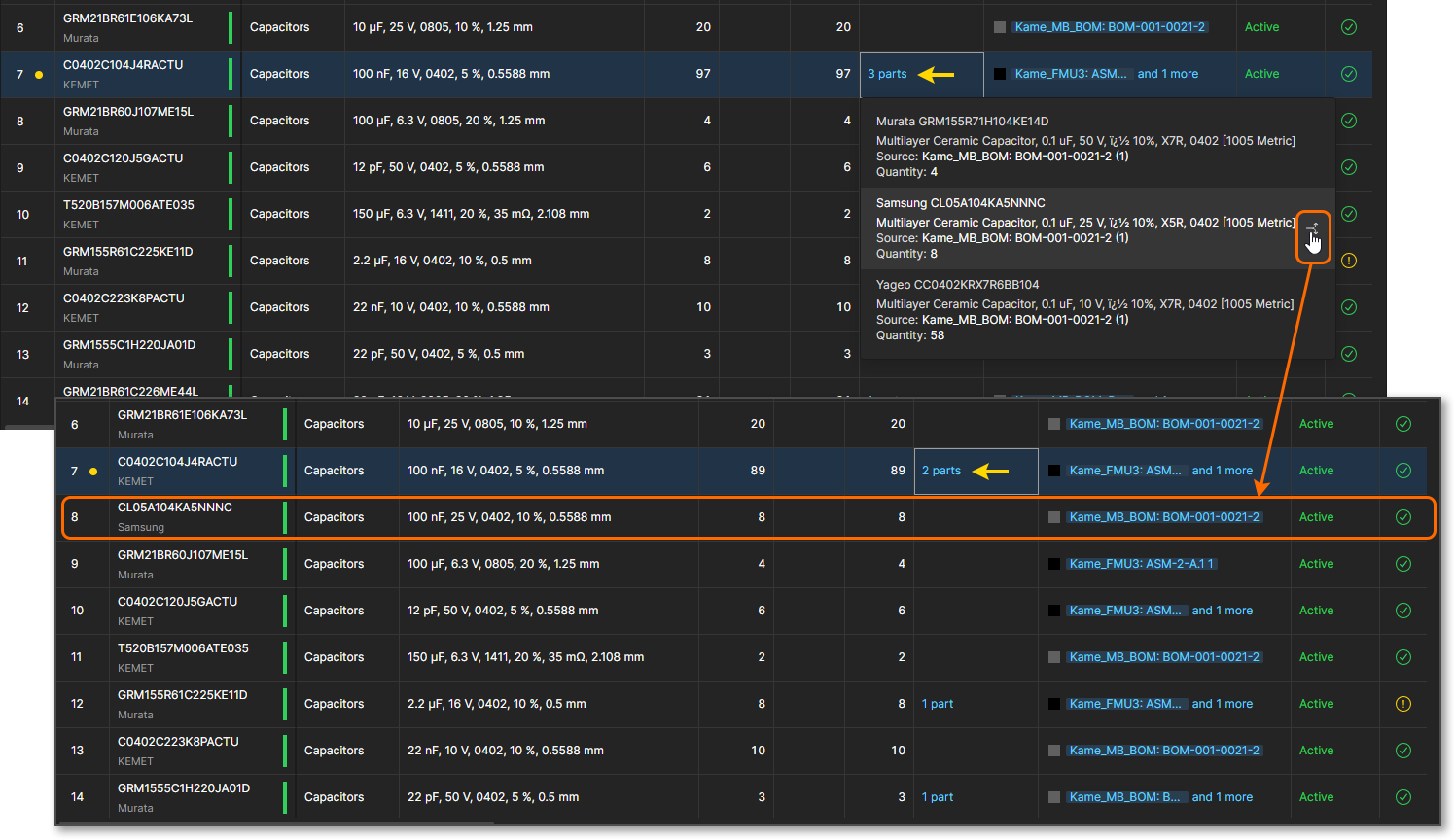
Wählen Sie den Zelleintrag Consolidated Parts, um eine Liste der Teile anzuzeigen, die in den neuen BOM-Zeileneintrag konsolidiert wurden – in diesem Beispiel ein weiteres Teil. Klicken Sie auf das Teil, um seine Quell-BOM in einem neuen Browser-Tab zu öffnen, oder verwenden Sie das Symbol  , um seine Konsolidierung rückgängig zu machen (siehe unten).
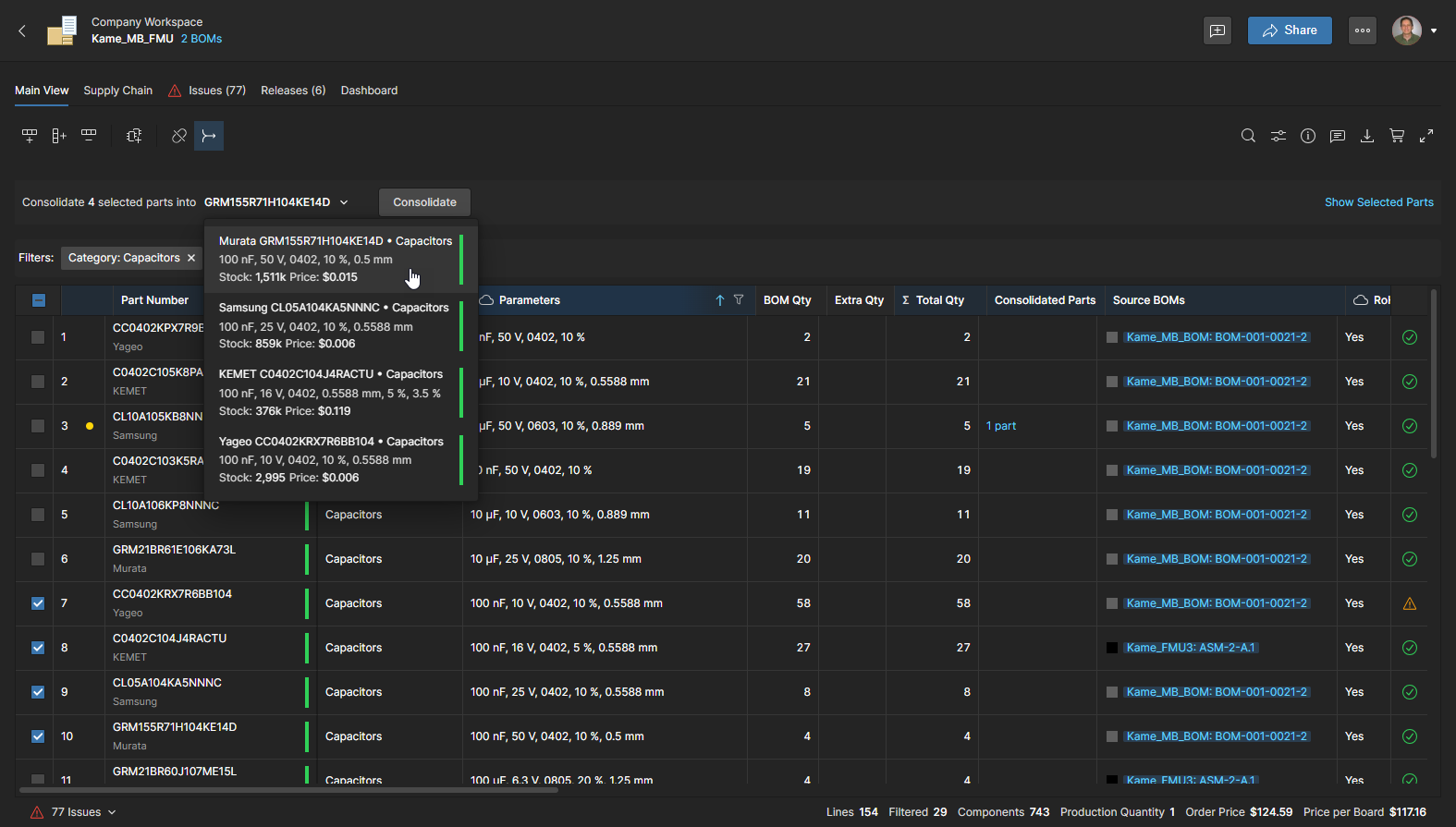
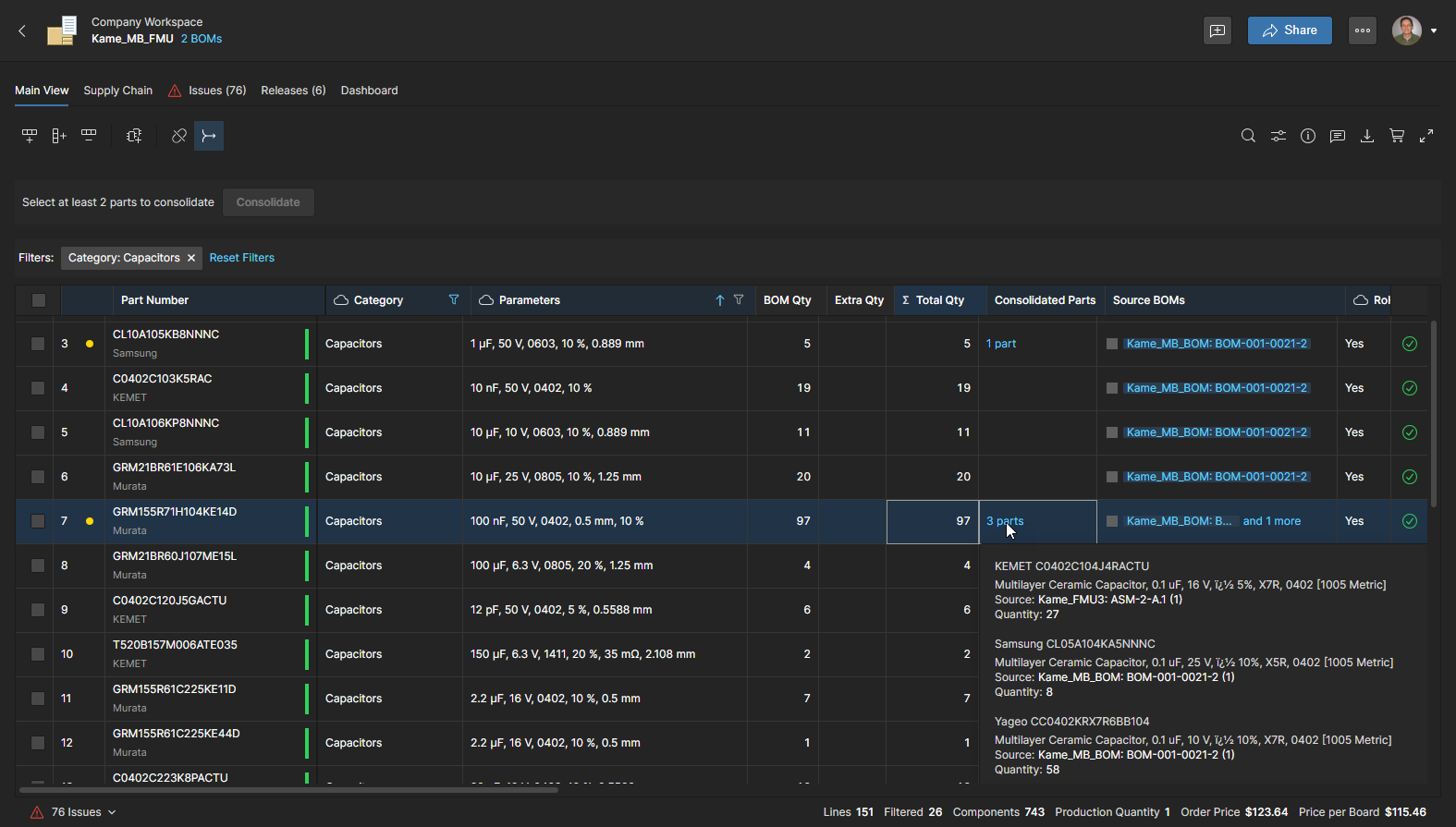
Die Anzahl der konsolidierten Teile wird durch den Spalteneintrag Consolidated Parts angezeigt, der auch die anderen Teile auflistet, die von der einzelnen Zeile aufgenommen wurden. Klicken Sie auf ein aufgelistetes Teil, um seine BOM-Quelle in einem neuen Browser-Tab zu öffnen, oder verwenden Sie das Symbol , um seine Konsolidierung rückgängig zu machen (siehe unten).
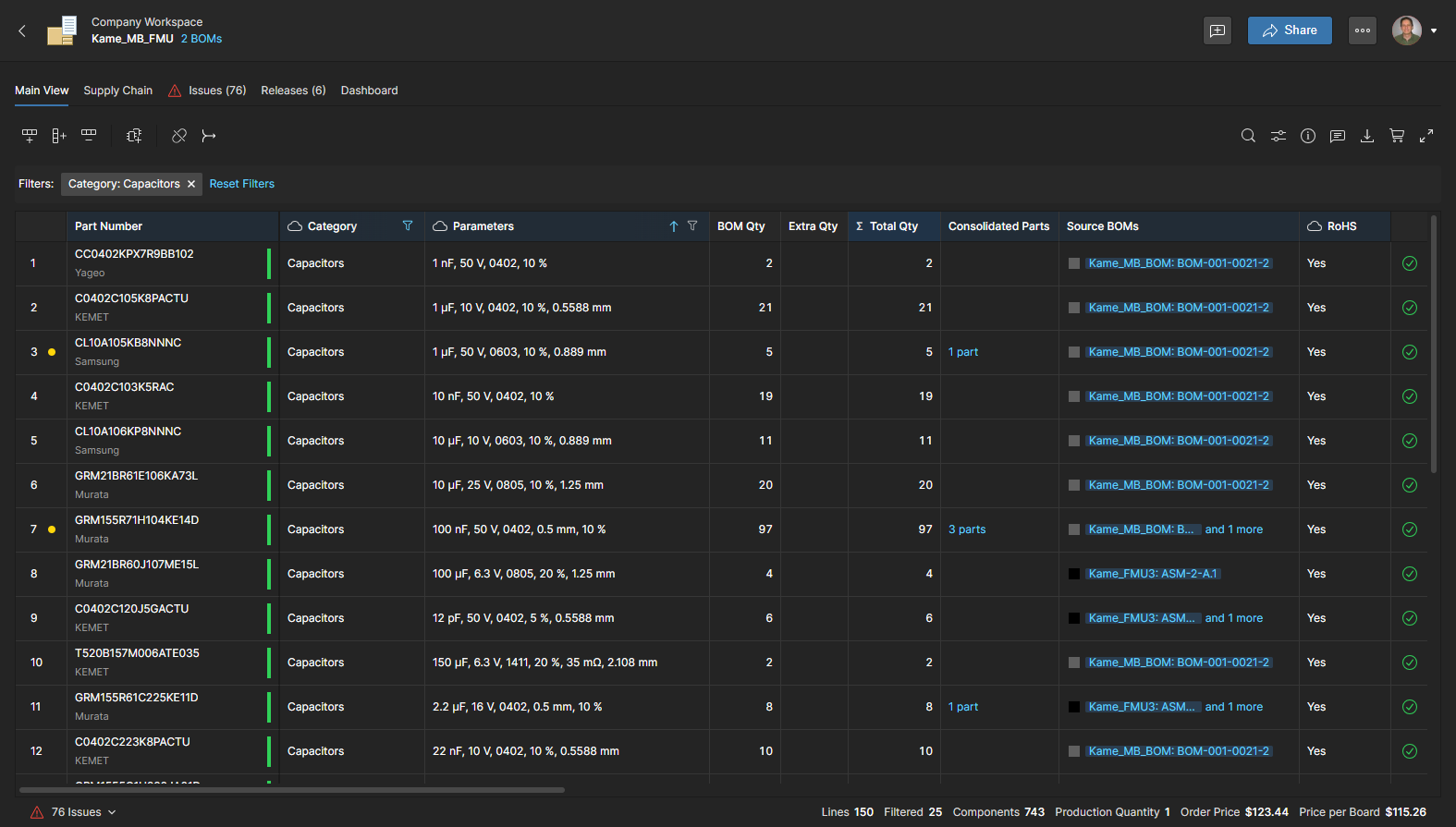
Sobald alle möglichen Teile für die ausgewählte Komponenten-Kategorie konsolidiert wurden, können Sie auf die Schaltfläche klicken, um den Konsolidierungsmodus zu verlassen, oder die BOM-Kategorieliste erneut filtern, um sich auf einen anderen Teiletyp zu konzentrieren. Beachten Sie die Option Reset Filters oben in der BOM-Liste.
Ein Bauteil, das zu einem einzelnen Eintrag zusammengefasst wurde, kann über das Symbol in seinem zugehörigen Consolidated Part-Eintrag wieder in seine eigene BOM-Zeile zurückgeführt werden. Dadurch wird dieses Bauteil effektiv aus der Konsolidierung herausgelöst und wieder als eigener BOM-Zeileneintrag geführt.
Verwalten von Bauteilmengen
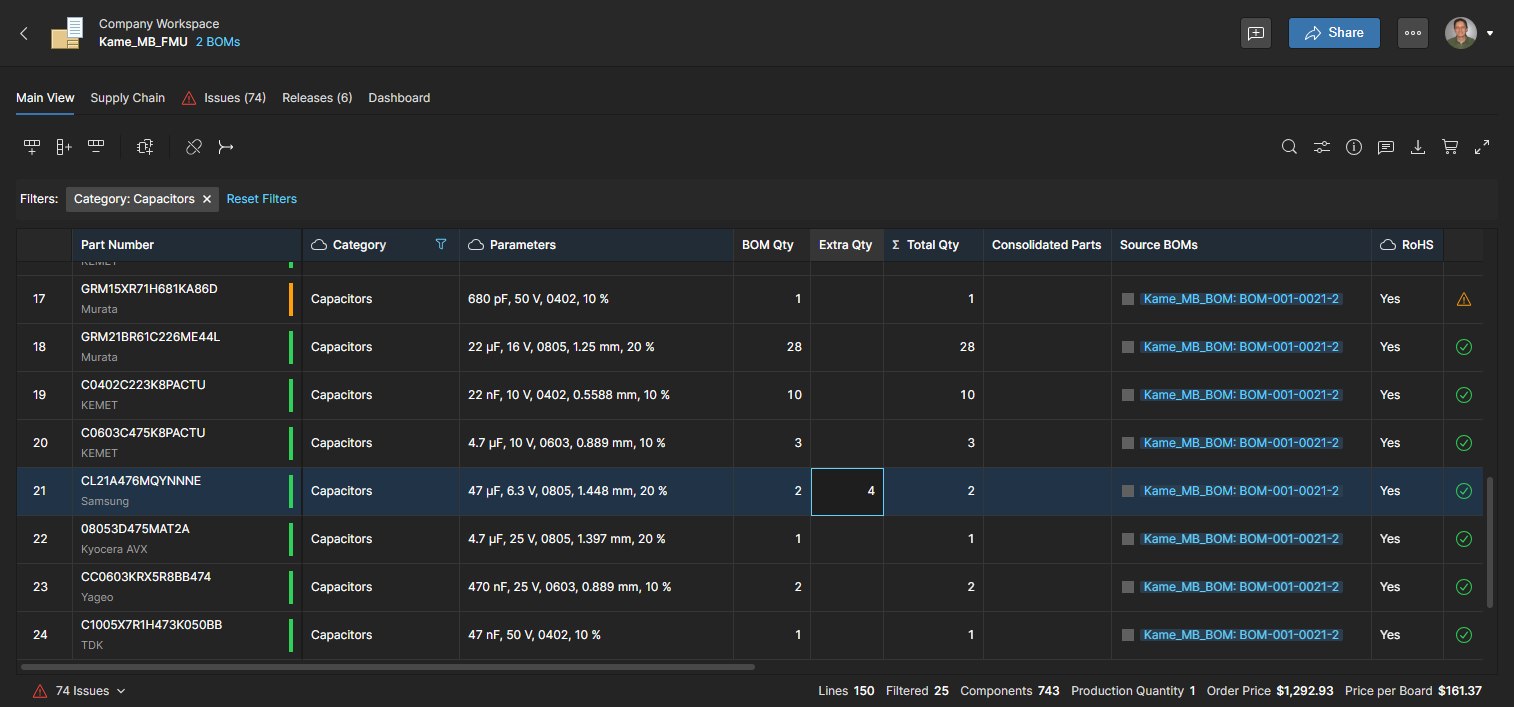
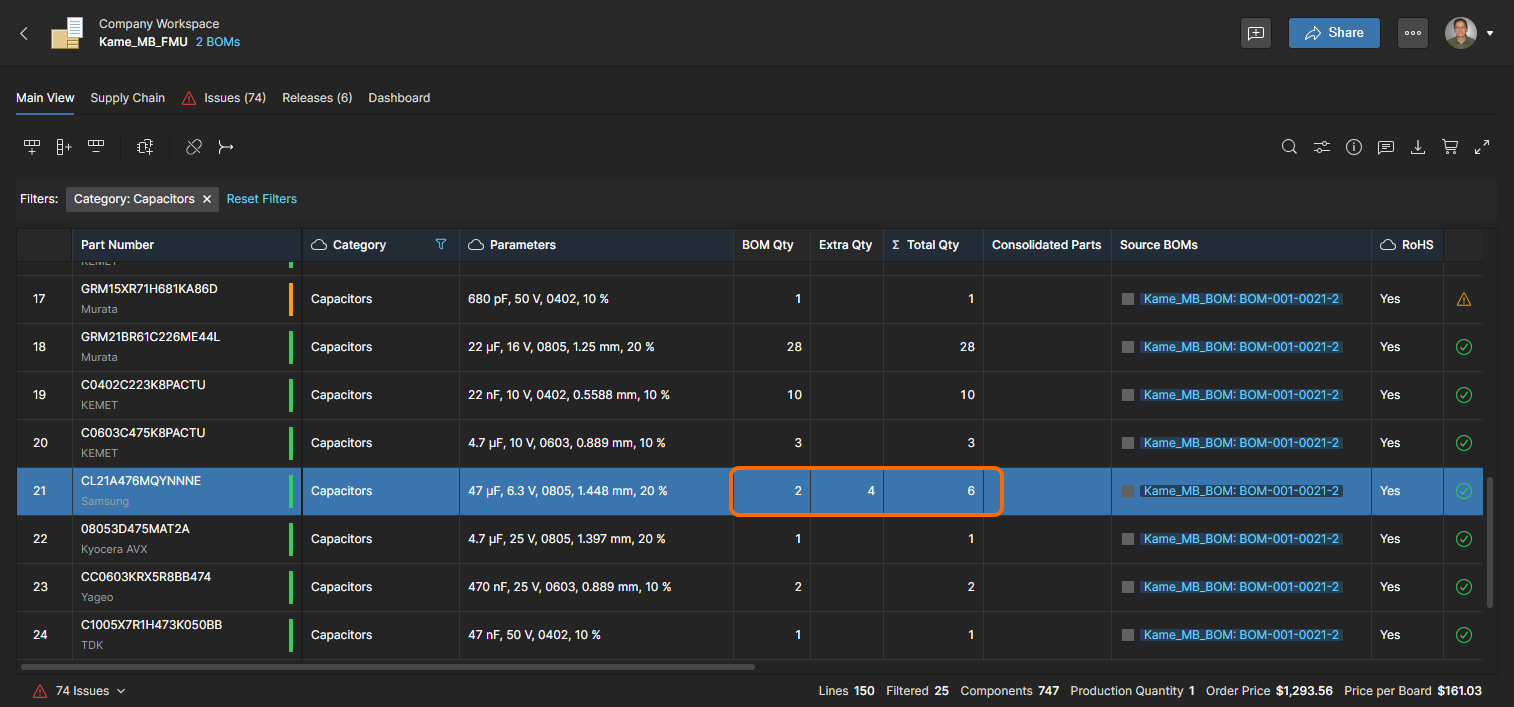
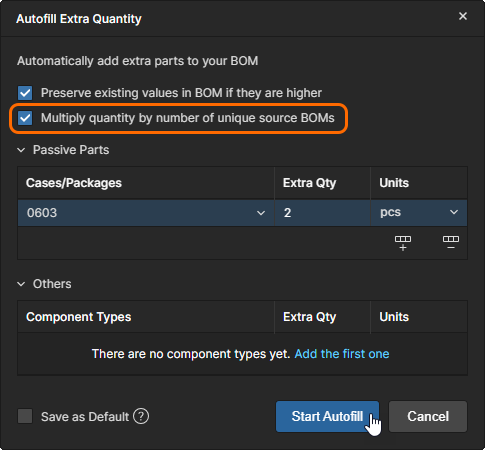
Sowohl konsolidierte BOM- als auch Managed BOM-Dokumente enthalten eine Spalte Extra Qty, mit der Sie die Anzahl der zu bestellenden Bauteile erhöhen können. Die Verwaltung der Bestellmenge von Bauteilen kann genutzt werden, um Preisstaffeln von Lieferanten auszunutzen, erwarteten Bauteilausschuss zu berücksichtigen, weitere Produktion vorwegzunehmen und andere Beschaffungsaspekte abzudecken.
Die Eingabe eines Werts in die Spalte Extra Qty erhöht proportional den Gesamtwert in der Spalte Total Qty (BOM Qty + Extra Qty) und passt dadurch, soweit möglich, automatisch die Order List sowie die Lieferantenlösungen an.
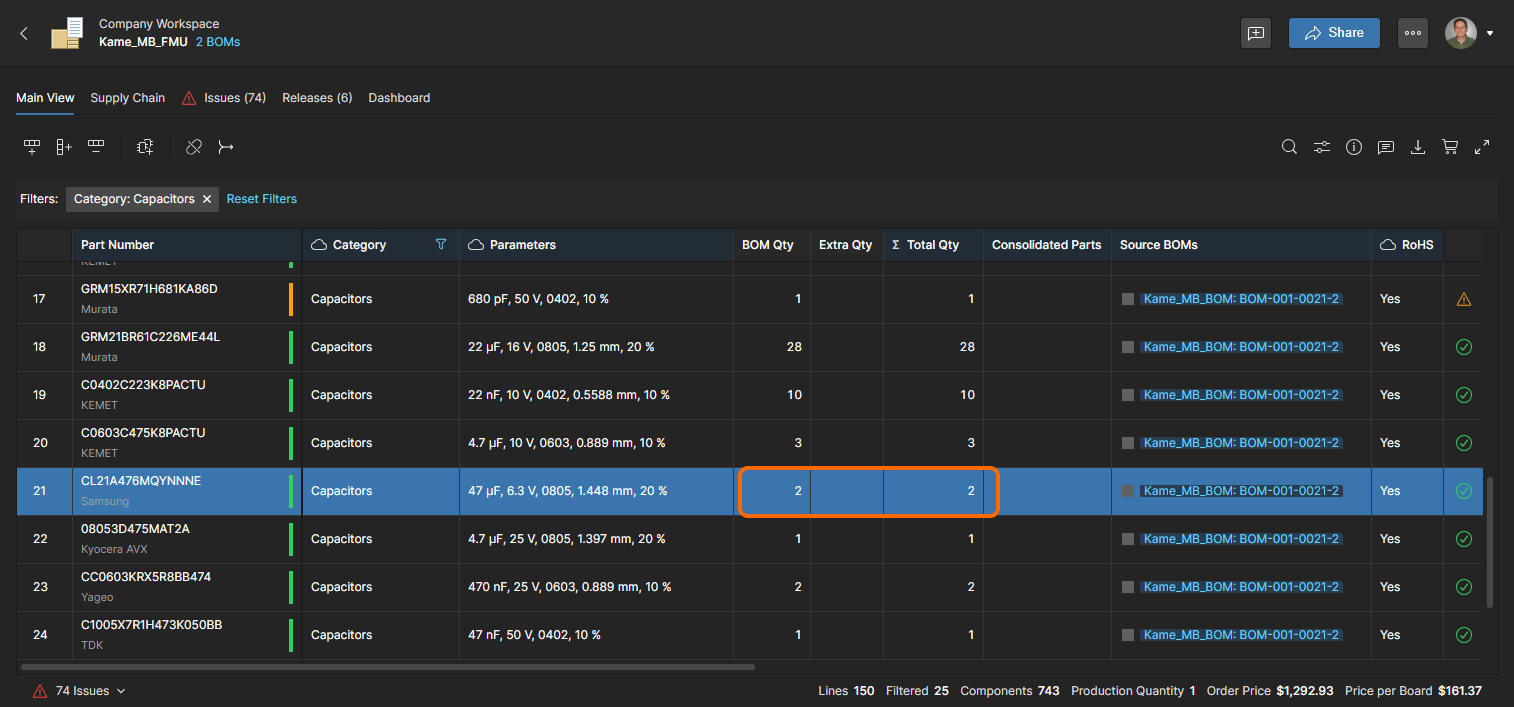
Dies führt zu einer Lieferantenbestellung von 2 Bauteilen (Supplier Order Quantity) zum Einzelstückpreis sowie zu angegebenen Beschaffungskosten für jedes Komponentenbauteil (Unit Price). 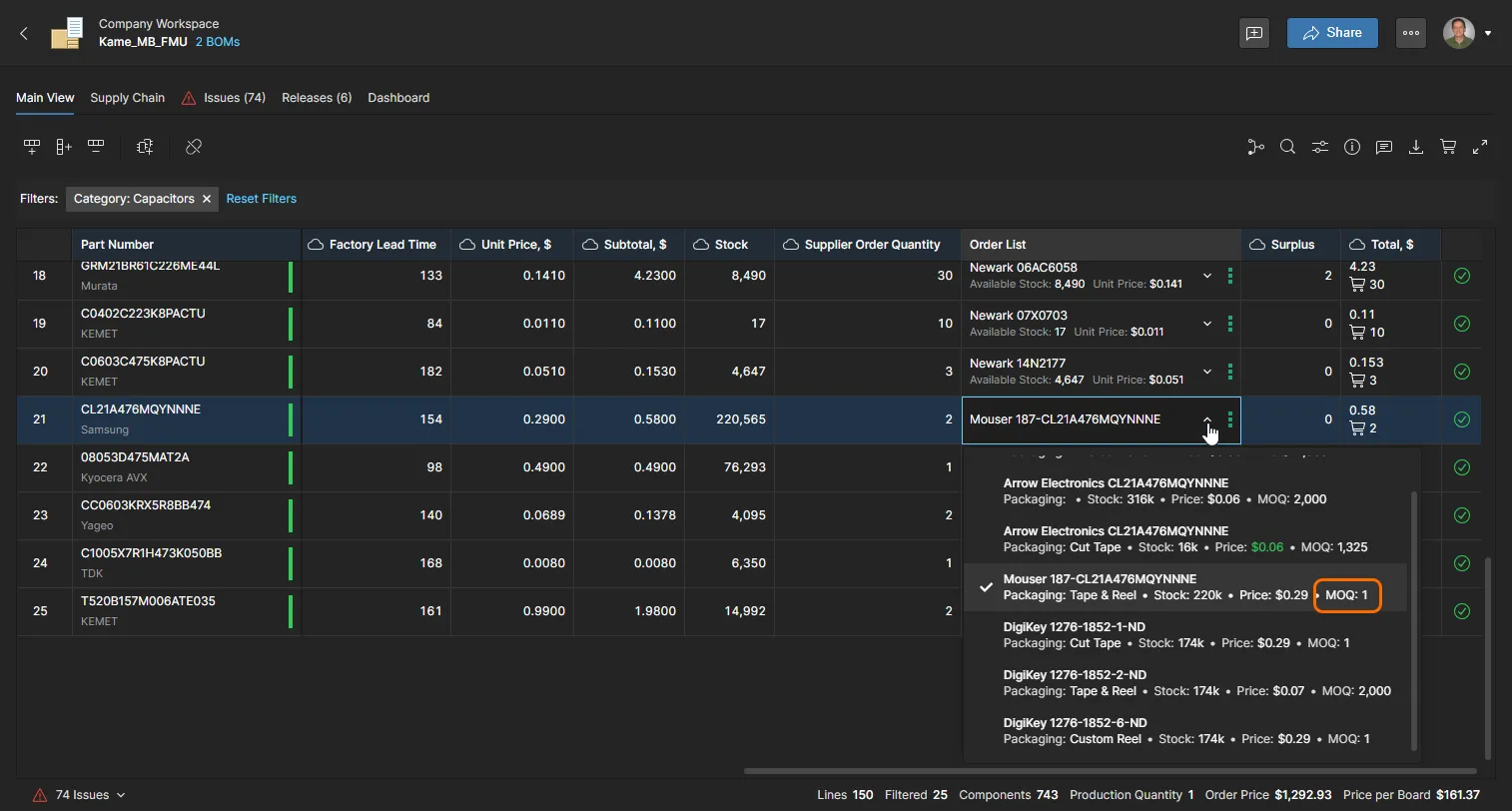
 )
)
Einstellungen der konsolidierten BOM
Die konsolidierte BOM enthält im Fenster BOM Settings window zusätzliche Optionen, mit denen Sie weitere Quell-BOMs hinzufügen und die Anzahl der enthaltenen einzelnen Quell-BOMs erhöhen können. In beiden Fällen führt die konsolidierte BOM identische Komponentenbauteile automatisch zusammen und passt die Mengen entsprechend an.
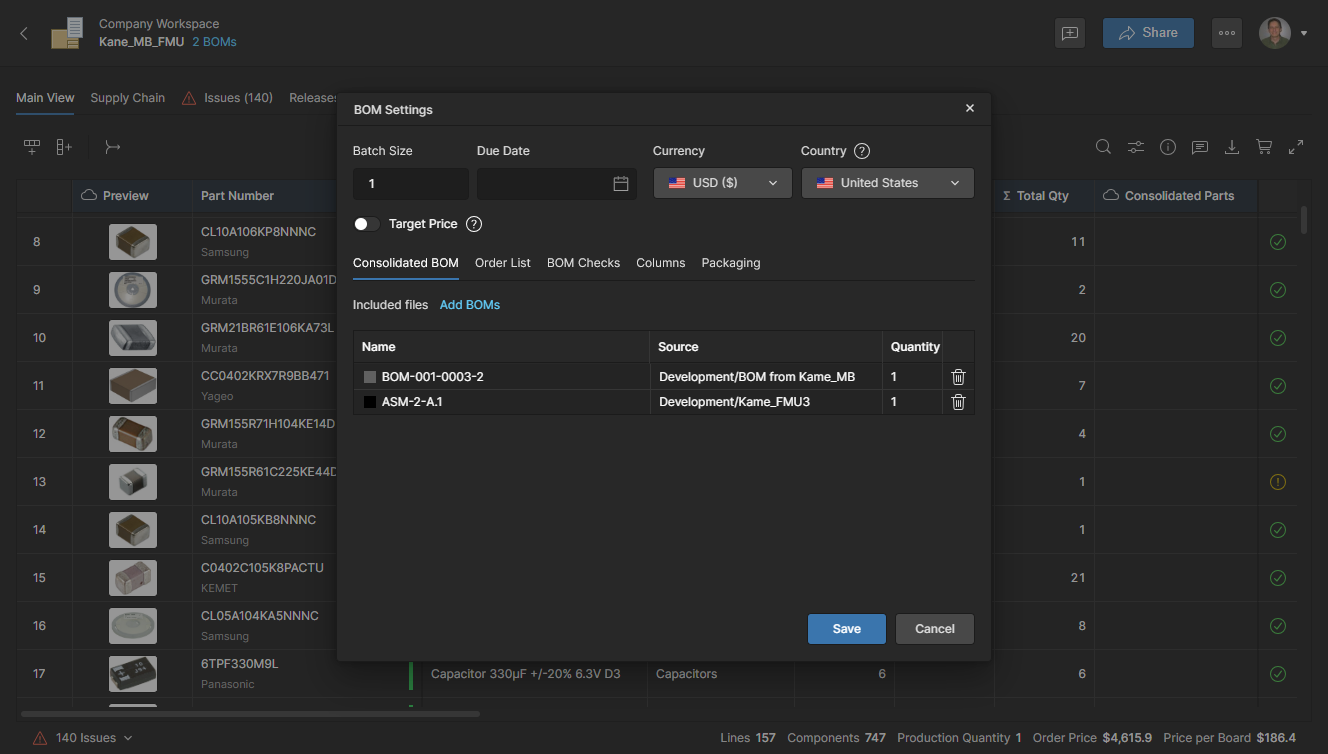
Um Quell-BOM-Instanzen hinzuzufügen, zu entfernen oder deren Menge zu ändern, wählen Sie die Registerkarte Consolidated BOM im Fenster BOM Settings, das über das obere Menü  aufgerufen wird. Verwenden Sie das Symbol
  , um einen BOM-Quelleintrag zu entfernen.
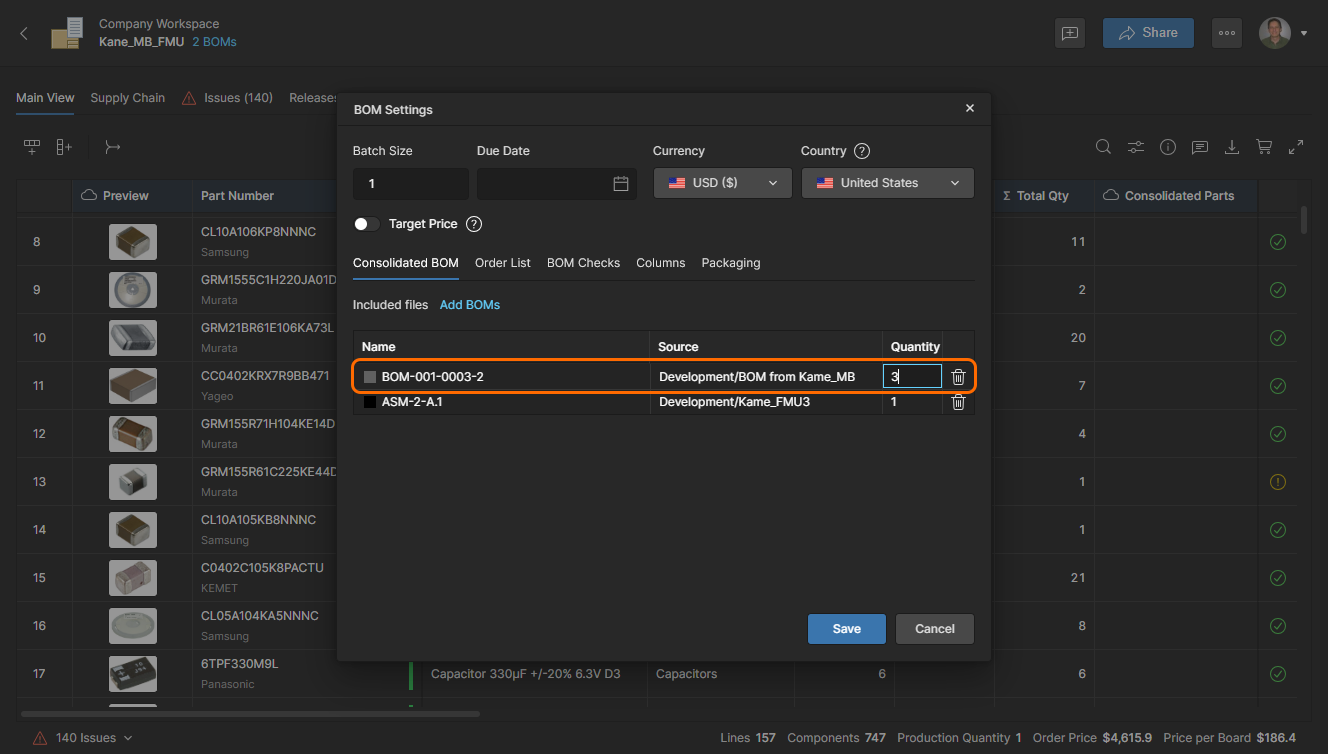
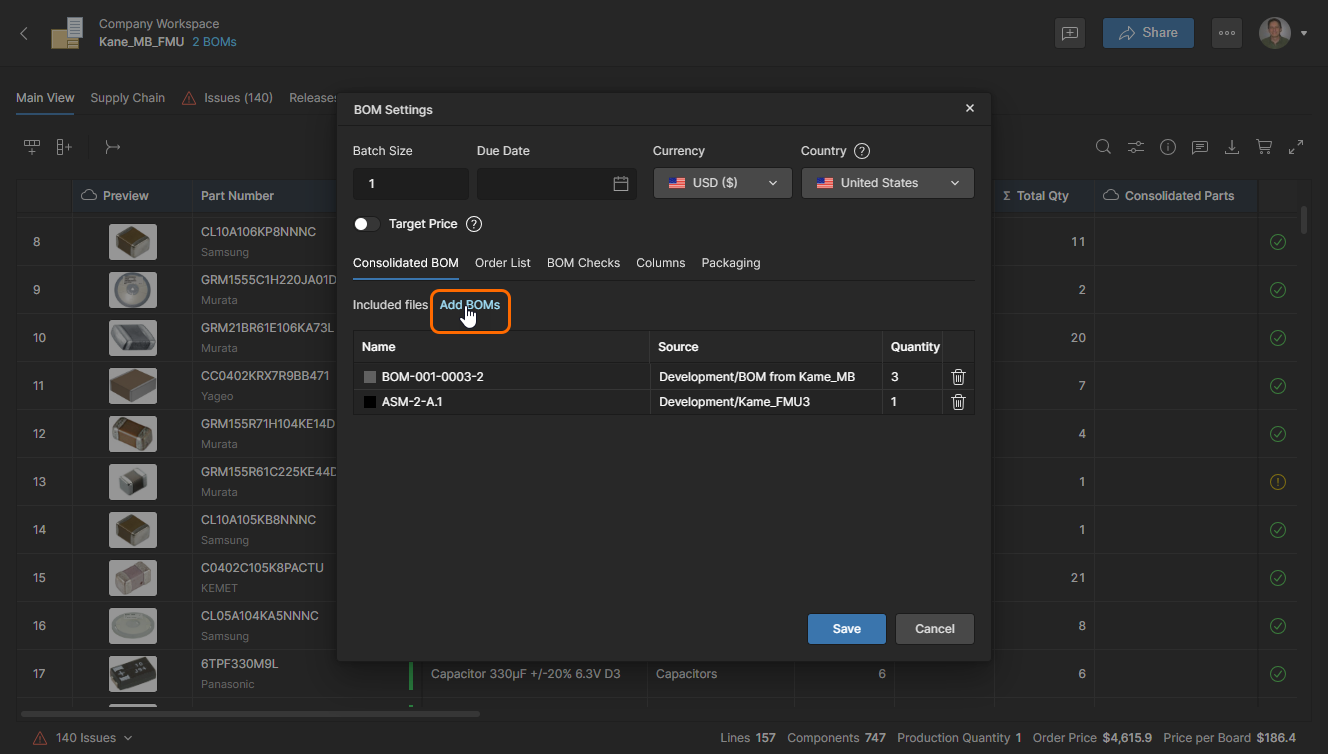
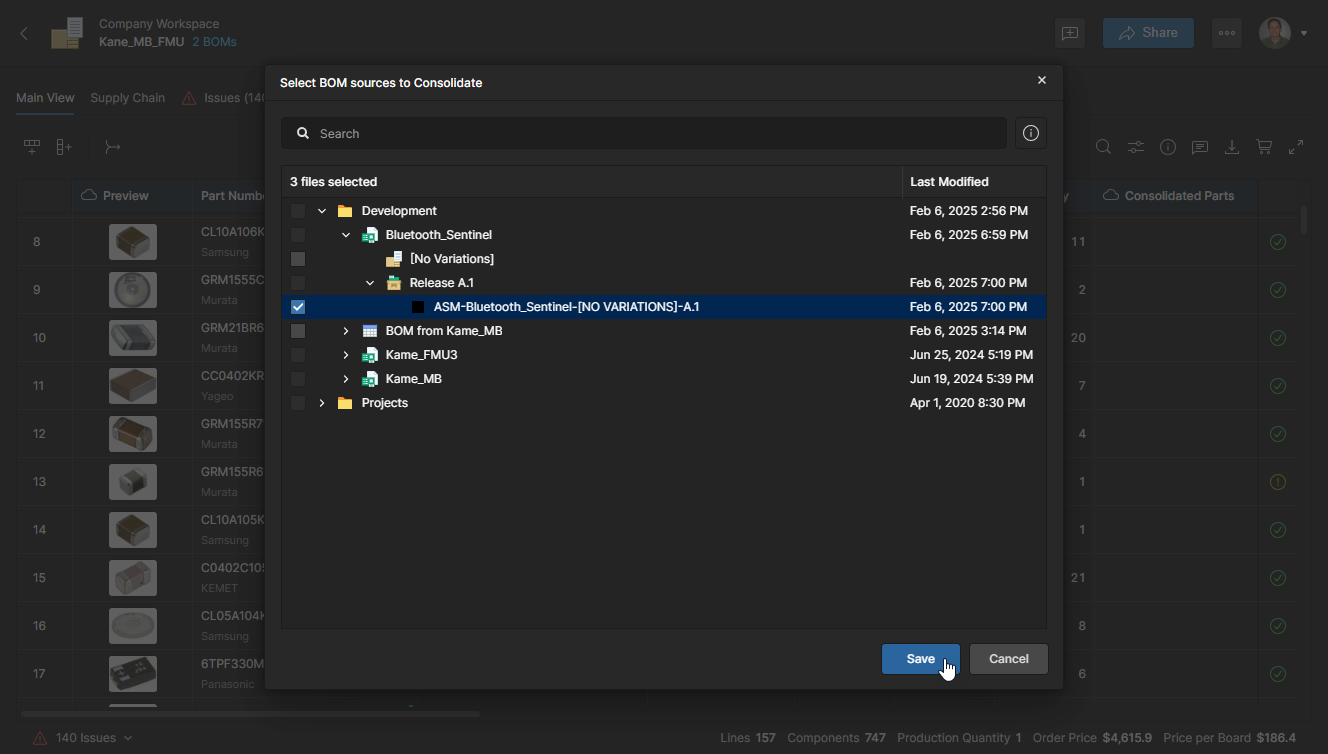
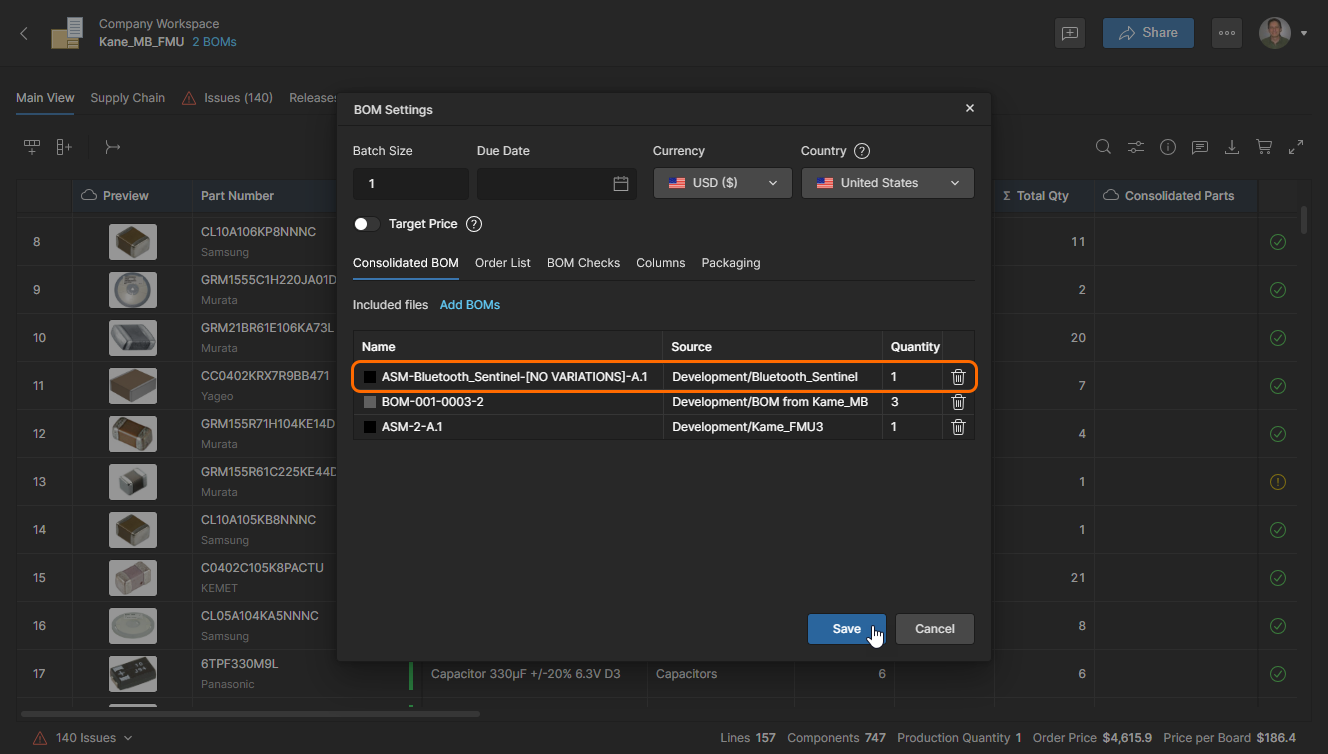
Das Hinzufügen von Quell-BOM-Daten und geänderten Mengen wird in der Quell-BOM-Liste angezeigt. Klicken Sie auf , um die Änderungen zu bestätigen. Weitere Informationen zu den verfügbaren BOM-Einstellungsoptionen finden Sie oben im Abschnitt BOM Settings.
 KI-lokalisiert