
Bilder aus URLs und Dateien zu Anforderungen hinzufügen
Oft müssen Sie einem Requirement ein Bild hinzufügen, um den Requirement-Text besser zu veranschaulichen. Im Requirements Portal können Sie Bilder zu einzelnen Requirements entweder per URL oder durch Hochladen einer Datei hinzufügen.
Hinzufügen eines Bildes zu einem Requirement
Der Benutzer kann Bilder auf zwei verschiedene Arten hochladen.
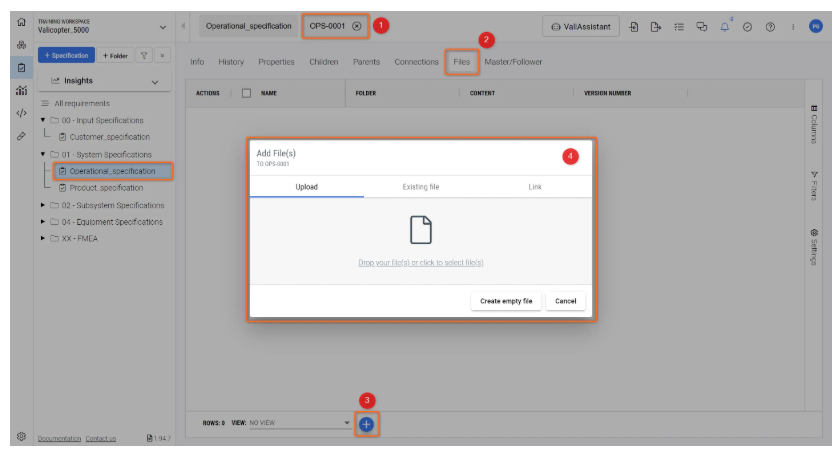
Am einfachsten fügen Sie Bilder zu Ihren Requirements hinzu, indem Sie in der Requirements-Tabelle auf den Requirement-Bezeichner klicken. Dadurch gelangen Sie in den Detailbereich des Requirements (1). Klicken Sie in diesem Tab auf den Abschnitt „Files“ (2) und anschließend auf das Symbol „+“ (3). Dadurch wird ein Popup-Fenster geöffnet, in dem Sie Bilder oder Dokumente per Drag-and-Drop hinzufügen können (4). Mehrere Bilder oder Dateien können zu einem einzelnen Requirement hinzugefügt werden.
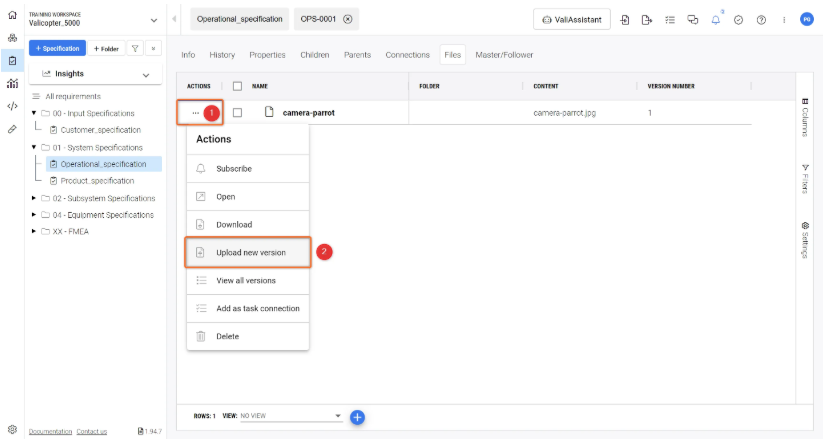
Im Requirements Portal können Benutzer verschiedene Versionen von Dateien zu einem einzelnen Requirement hinzufügen. Wählen Sie dazu die drei Punkte einer Datei/eines Bildes (1) aus und klicken Sie auf „Upload New Version“ (2), um eine aktualisierte Version hochzuladen:
Eine weitere und bequemere Methode, Bilder zu einem Requirement hinzuzufügen, besteht darin, die Spalte „Image“ unter „Columns“ zu aktivieren. Durch Doppelklicken in die Zelle wird ein Popup-Fenster geöffnet, in dem der Benutzer vorhandene Bilder anzeigen und neue Bilder hochladen kann.
Hinzufügen von Bildern – Bilder über die Image-Spalte zu Requirements hinzufügen.
 KI-lokalisiert