
Valis und Berechnungen
Valis sind Entwurfsparameter von Blöcken, Anforderungen oder Analysen, die in Berechnungen und der Dokumentation verwendet werden können. Ein Vali hat einen numerischen Wert und enthält außerdem zusätzliche Informationen wie Typ, Einheit, Formel, Beschreibung und Min-/Max-Anforderungen.
Erstellen eines Vali
Wenn Sie die Eigenschaften eines Blocks anzeigen, können Sie in diesem Block Valis erstellen, indem Sie oben rechts auf der Seite auf die Schaltfläche  klicken. Wählen Sie im sich öffnenden Fenster Create Property den Typ der Eigenschaft aus, die Sie erstellen möchten. Für ein Vali geben Sie den Name des Vali ein (dies kann ein beliebiger Name oder ein Valitype-Name sein), definieren den Formula and unit (erforderlich) und Display Unit (optional). Zusätzlich können Sie über das Feld Add to Block festlegen, zu welchen Blöcken Sie dieses Vali hinzufügen möchten.
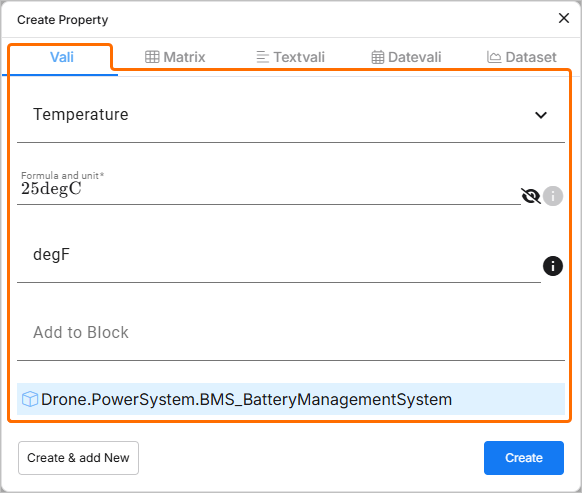
Beachten Sie, dass Sie beim Erstellen einer Eigenschaft Valis unterschiedlicher Typen erstellen können: normales Vali, Matrix, Textvali, Datevali oder Dataset.
| Typ | Beschreibung |
|---|---|
| Vali | Eigenschaft des Blocks, die nur einen einzigen Wert hat, z. B. Masse, Kosten, Dichte usw. |
| Matrix | Eine Matrix ist eine Gruppe einzelner Valis, die in Zeilen und Spalten angeordnet sind. Ein Matrix-Vali wird üblicherweise verwendet, wenn die Eigenschaft der Blöcke unterschiedliche Modi hat, z. B. Leistungsaufnahme in verschiedenen Modi oder Trägheitswerte auf unterschiedlichen Achsen. |
| Textvali | Ein Vali, das Zeichenfolgen/Text speichert. |
| Datevali | Ein Vali, das Datumsinformationen speichert. |
| Dataset | Hier können Sie Dataset-Werte importieren oder hinzufügen, ein Diagramm erstellen und deren Werte in der Berechnung anderer Werte verwenden. |




Hinzufügen von Formeln
Ein Vali kann mit einer Formel berechnet werden, die allgemeine mathematische Ausdrücke verwendet oder Konstanten bzw. Funktionen einbindet. Eine Formel kann auch andere Valis enthalten.
Im Feld Formula and unit können Sie auf Valis verweisen, die entweder im aktuellen Projekt oder in anderen Projekten verfügbar sind. Geben Sie dazu $ in das Feld ein. Suchen Sie im eingeblendeten Pop-up das gewünschte Vali und wählen Sie es aus.
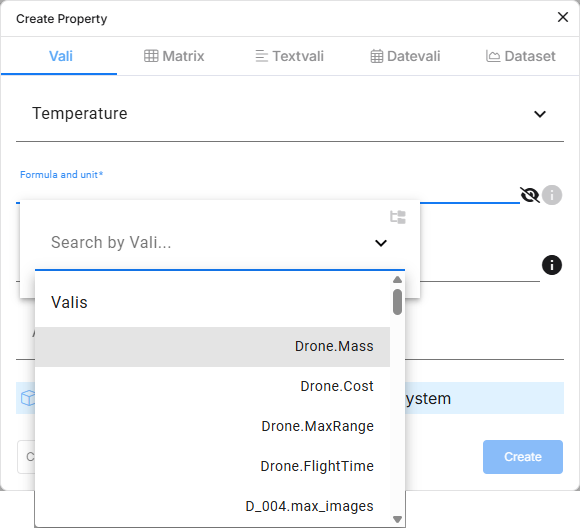
Valis aufrufen – überall im Requirements Portal können Sie das Dollarzeichen $ verwenden, um ein Dropdown zu öffnen, das alle referenzierbaren Objekte anzeigt (z. B. Valis, Anforderungen usw.).
Falls Sie Valis aus einem anderen Projekt verwenden möchten, können Sie im Pop-up bis ganz nach unten scrollen und die Option show other projects auswählen.
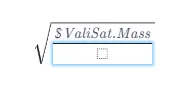
Gängige Formeltypen
Sie können:
-
einen festen Wert verwenden, z. B.
42.7kg, oder -
eine Formel verwenden, z. B.
5/(3+17.3*9), oder -
andere Valis unter Verwendung des Zeichens
$verwenden:$car.speed+5.
In Formeln verfügbare mathematische Operationen sind:
-
+,-,*,/ -
%(Modulo-Operation) -
^ -
sqrt() -
exp() -
log10(),ln(),log() -
sin(),cos(),tan() -
asin(),acos(),atan() -
sinh(),cosh(),tanh() -
fabs(): gibt den Absolutwert zurück -
soc()= „Summe der untergeordneten Elemente“: Summe aller Valis desselben Typs in Unterblöcken -
poc()= „Produkt der untergeordneten Elemente“: Produkt aller Valis desselben Typs in Unterblöcken
Sie können in Formeln außerdem die folgenden logischen Funktionen verwenden:
-
if(condition, formula_if_true, formula_if_false) -
max(formula1, formula2) -
min(formula1, formula2)
Integrierte Funktionen von Requirements Portal
-
soc(): steht für „Summe der untergeordneten Elemente“, summiert alle Valis desselben Typs in den Blöcken eine Ebene darunter -
rssoc(): steht für „root sum squared of children“ sqrt(x1^2+x2^2+⋯+xn^2). Wenn Sie beispielsweise drei Massen von 2 kg, 5 kg und 6 kg haben, liefert die Funktion rssoc das Ergebnis 8,062257 -
aoc(): steht für „Durchschnitt der untergeordneten Elemente“, berechnet den Durchschnittswert der Valis desselben Typs in den Blöcken eine Ebene darunter -
poc(): steht für „Produkt der untergeordneten Elemente“, multipliziert alle Valis desselben Typs in den Blöcken eine Ebene darunter -
average_of_datasets()oderaod(): Das Ergebnis des Vali ist der Durchschnitt für jeden Punkt der zu diesem Vali gehörenden Datasets. Wenn es nur ein Dataset gibt, ist dieses Dataset das Ergebnis und wird in weiteren Berechnungen verwendet -
sum_of_datasets()odersod(): Das Ergebnis des Vali ist die Summe für jeden Punkt der zu diesem Vali gehörenden Datasets. Wenn es nur ein Dataset gibt, ist dieses Dataset das Ergebnis und wird in weiteren Berechnungen verwendet -
property($vali, property_name): Ruft eine Eigenschaft eines Vali ab. Möglichkeiten fürproperty_namesind:-
minundmax(um jeweils die Min- und Max-Anforderungen abzurufen) -
wc_minusundwc_plus(um jeweils die Minus- und Plus-Worst-Case-Werte abzurufen)
-
-
minoc(): Minimum der untergeordneten Elemente. Gibt den kleinsten Wert aller Valis desselben Typs in den Unterblöcken zurück -
maxoc(): Maximum der untergeordneten Elemente. Gibt den größten Wert aller Valis desselben Typs in den Unterblöcken zurück -
round(): Die Funktion folgt den Spezifikationen der Python's round function, bei der die Werte auf das nächstgelegene Vielfache von 10 hoch minus ndigits
gerundet werden.Beispiel für Formeln:
-
$SolarPanel.width * $SolarPanel.length -
max(soc(), $SolarPanel.lowest_mass) -
if($SolarPanel.width*2 > $SolarPanel.length, 10, 5)
Vali-Informationen
Sie können weitere Informationen zum Vali anzeigen, indem Sie auf dessen Namen klicken. Dadurch wird eine Detailansicht des Vali geöffnet, wobei die Informationen auf der Registerkarte Info angezeigt werden.
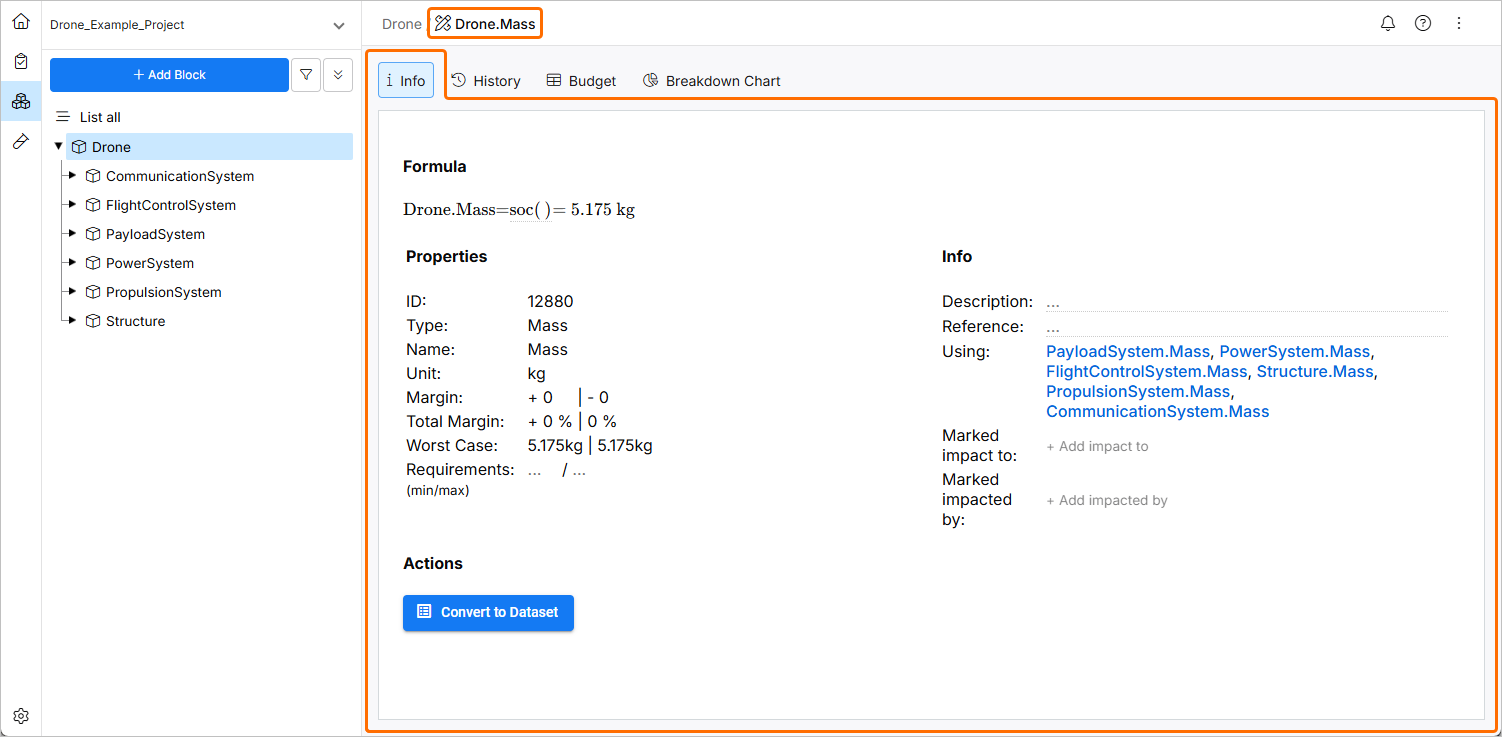
Vali-Informationen – durch Klicken auf ein Vali wird eine Ansicht mit zusätzlichen Informationen geöffnet. Hier können Sie weitere Eigenschaften definieren, eine Beschreibung hinzufügen und Auswirkungen festlegen.
Die in der Ansicht angezeigten grundlegenden Informationen zu einem Vali sind:
-
ID – die ID ist eine zufällige Nummer, die automatisch von der Valiengine hinzugefügt wird und im Backend verwendet wird.
-
Name – hier können Sie den Namen des Vali eingeben und bearbeiten.
-
Description – im Beschreibungsfeld können Sie eine Beschreibung des Vali eingeben. Sie können Aufgaben außerdem wie unten dargestellt formatieren und bearbeiten.
Sie können außerdem die Margen/Einheiten hinzufügen bzw. ändern und die Anforderungen (Min/Max) hinzufügen. Die Anforderungen (Min/Max) sind die Grenzwerte, die Sie für die jeweilige Eigenschaft haben.
Weitere Informationen, die hier hinzugefügt/angezeigt werden können, umfassen Referenzen, Using und Used by sowie auch Impacts dieses Vali.
Verlauf von Valis
Wenn ein Vali direkt oder indirekt geändert wird, werden die Änderungen automatisch in der Datenbank von Requirements Portal gespeichert. Die Registerkarte History des Vali zeigt den Wert davor, den Wert danach und wer die Werte geändert hat. Requirements Portal erfasst die Änderungen auch dann, wenn das geänderte Vali nicht direkt auf das Vali referenziert.
Um den Änderungsverlauf eines Vali anzuzeigen, klicken Sie auf den Namen des Vali und wählen Sie die Registerkarte History aus. Auf dieser Registerkarte finden Sie ein Diagramm, das die Änderungen im Zeitverlauf zeigt. Unterhalb des Diagramms befindet sich eine Tabelle Recent Changes, die mit den Daten Time, Value Before, Value After und Reason gefüllt ist.
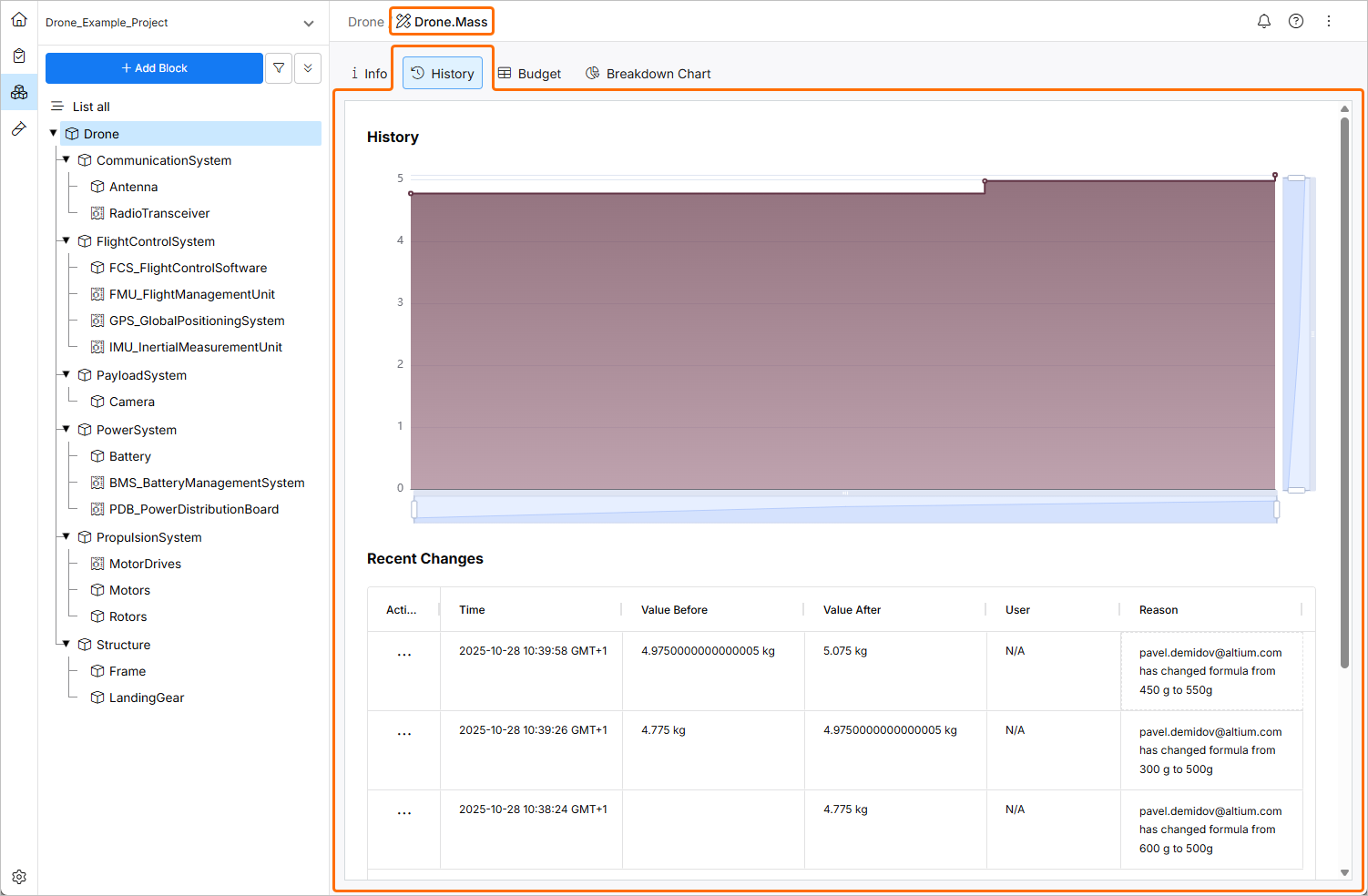
Vali-Verlauf – auf der Registerkarte History wird eine grafische und tabellarische Darstellung der Änderung eines Vali im Zeitverlauf angezeigt.
Benachrichtigungen bei Änderungen
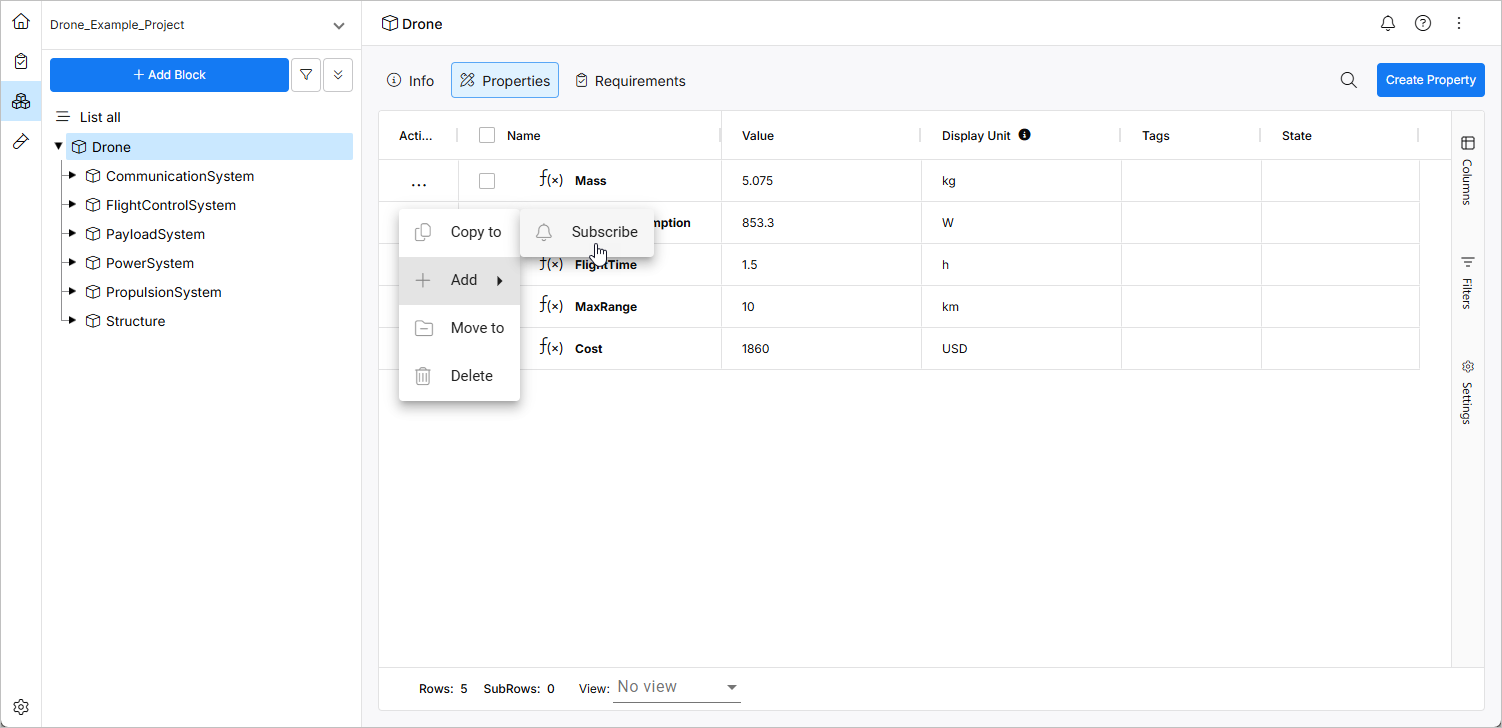
Um eine Benachrichtigung zu erhalten, wenn sich ein bestimmtes Vali ändert, können Sie es abonnieren, indem Sie in der Spalte „Aktionen“ auf die Schaltfläche mit den drei Punkten klicken und im sich öffnenden Menü den Befehl Add » Subscribe auswählen.
Weitere Informationen zu Benachrichtigungen finden Sie auf der Seite Notifications.
 KI-lokalisiert