
Anforderungen importieren
Sie können Ihre vorhandenen Anforderungsdaten schnell und einfach über den Import Wizard im Anforderungsmodul in Requirements Portal hochladen. Dank KI-gestützter Extraktion können Sie Anforderungen aus unstrukturierten PDF-, Word-, Excel- und CSV-Dateien importieren. Das reduziert den Zeit- und Arbeitsaufwand für die manuelle Übertragung von Anforderungsdaten und hilft Ihnen, Anforderungen genauer und effizienter zu erfassen.
Aufrufen des Importers
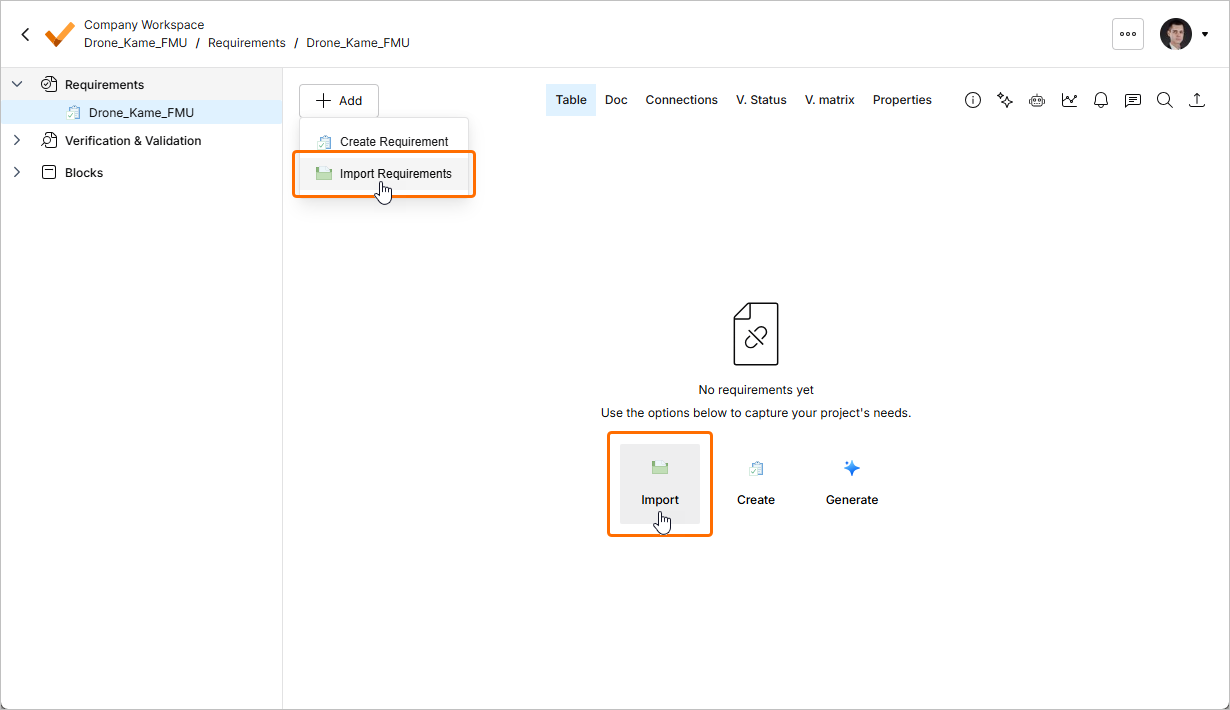
Sie können den Importer im Anforderungsmodul ( ) aufrufen, indem Sie oben links auf der Seite auf die Schaltfläche
  klicken und im angezeigten Menü Create Requirement auswählen. Wenn die aktuell angezeigte Spezifikation keine Anforderungen enthält, können Sie den Importer alternativ über die Schaltfläche Import auf der Seite aufrufen.
Hochladen einer Datei
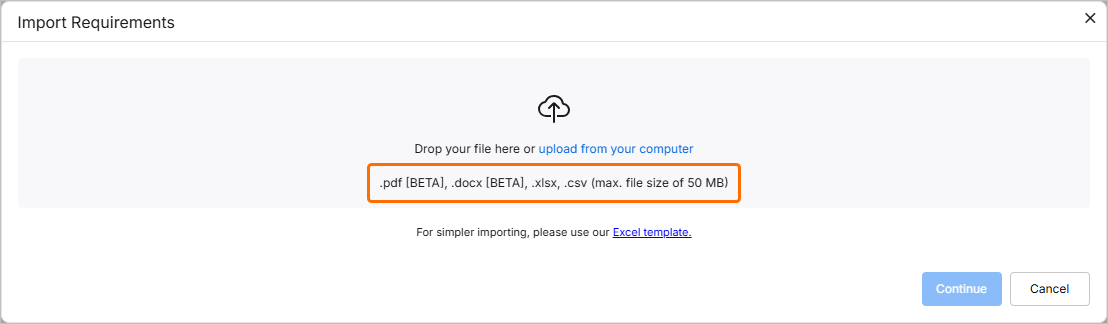
Das Fenster Import Requirements wird geöffnet. In diesem Schritt können Sie eine Datei eines unterstützten Typs (*.pdf, *.docx, *.xlsx oder *.csv) hochladen. Ziehen Sie dazu die Datei per Drag-and-drop in den entsprechenden Bereich des Fensters oder klicken Sie auf select from your computer, um die Datei auf Ihrer Festplatte zu suchen und auszuwählen.
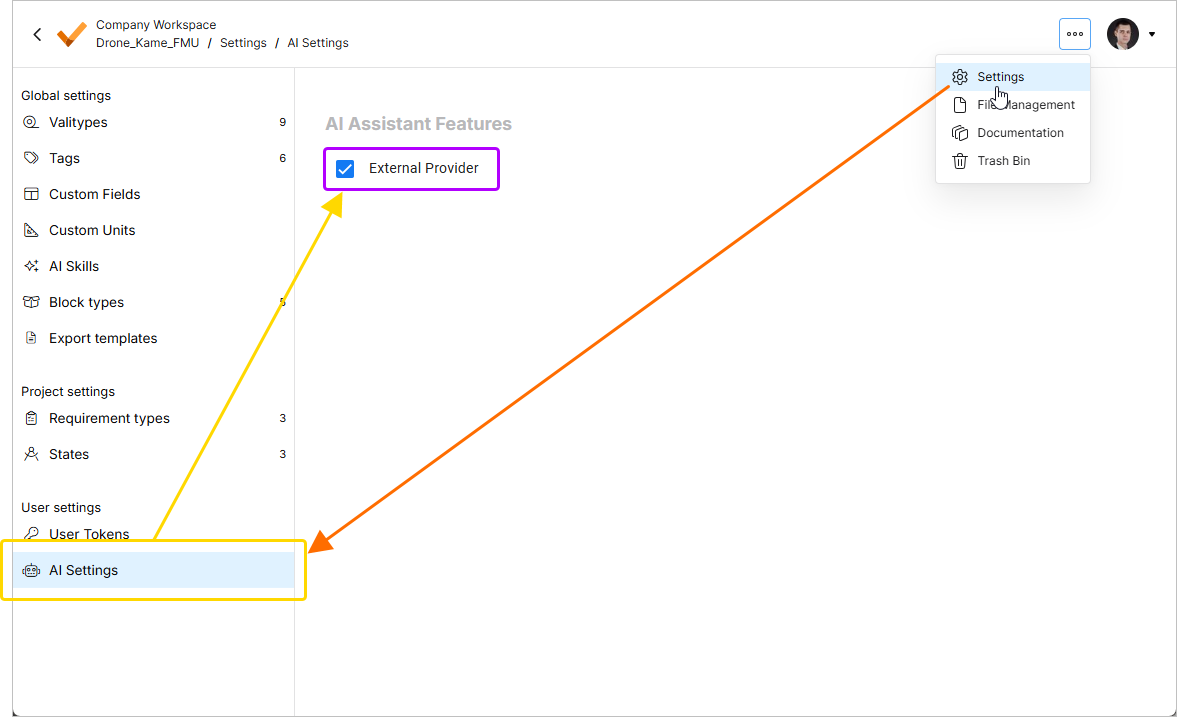
 klicken, im angezeigten Menü Settings auswählen und anschließend in der Liste im linken Bereich AI Settings auswählen –
  .
.
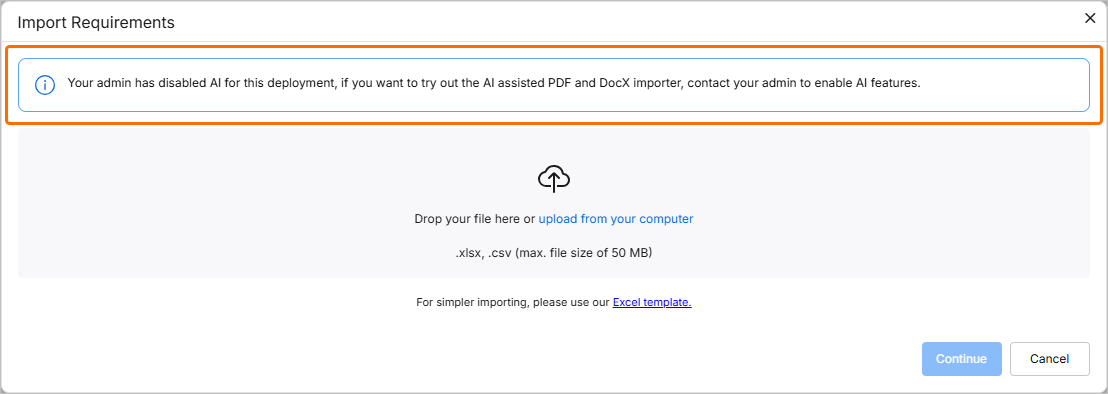 ).
).Sobald die Datei erfolgreich hochgeladen wurde, wird ihr Eintrag im Fenster angezeigt. Sie können sie aus dem Fenster entfernen, indem Sie auf das Symbol  klicken.
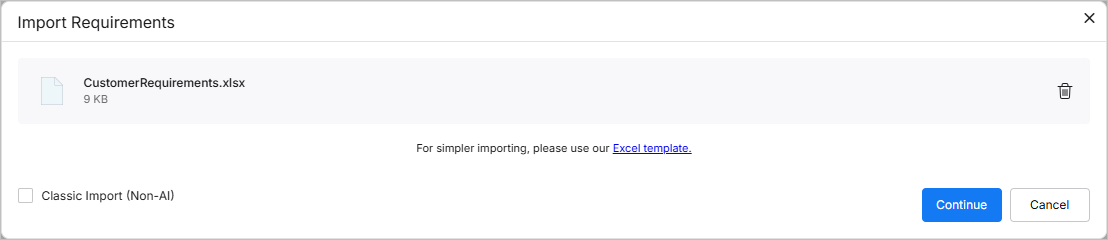
Bei einer hochgeladenen *.xlsx- oder *.csv-Datei können Sie den klassischen Importer verwenden, indem Sie unten links im Fenster die Option Classic Import (Non-AI) aktivieren.
Überprüfen der extrahierten Daten
Sobald die gewünschte Datei hochgeladen wurde, klicken Sie auf die Schaltfläche  , um fortzufahren. Die extrahierten Daten werden als Tabelle mit vorgeschlagenen Anforderungen zur Überprüfung angezeigt.
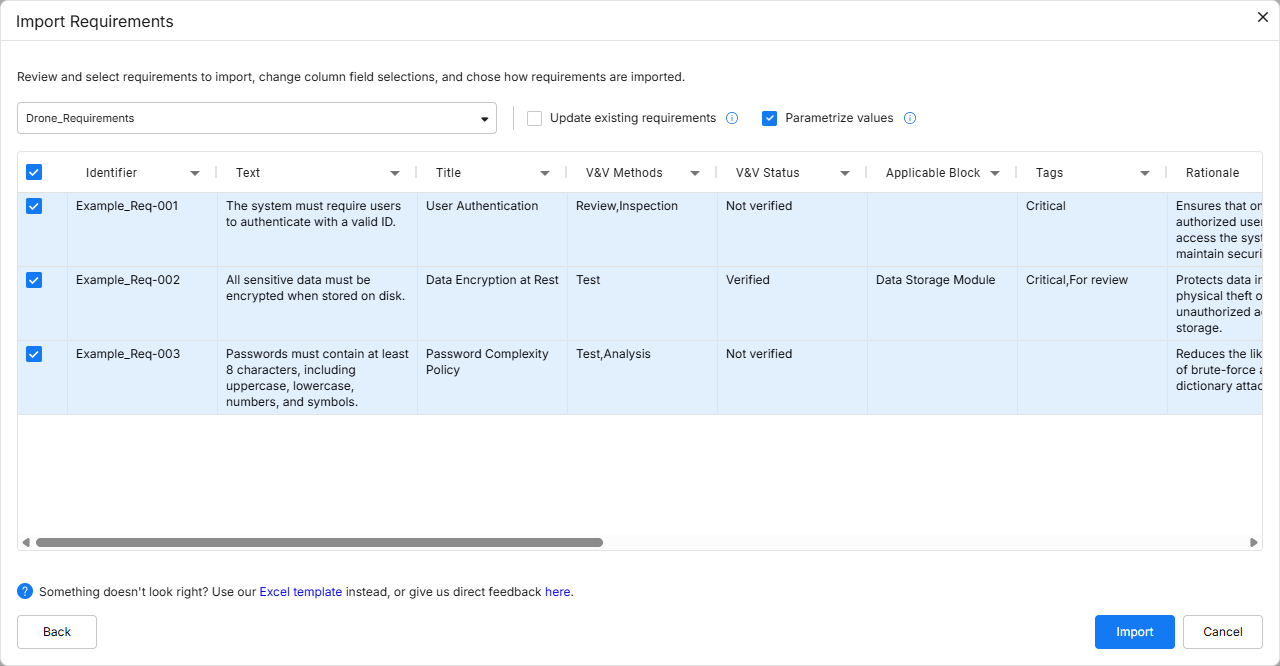
Standardmäßig werden die vorgeschlagenen Anforderungen in die Spezifikation importiert, die beim Aufrufen des Importers angezeigt wurde. Sie können die gewünschte Spezifikation über die Dropdown-Liste oben im Fenster auswählen oder eine neue Spezifikation erstellen. Wählen Sie dazu den Eintrag + Add specification aus der Dropdown-Liste aus und geben Sie im daraufhin angezeigten Feld für den Spezifikationsnamen den Namen der neuen Spezifikation ein (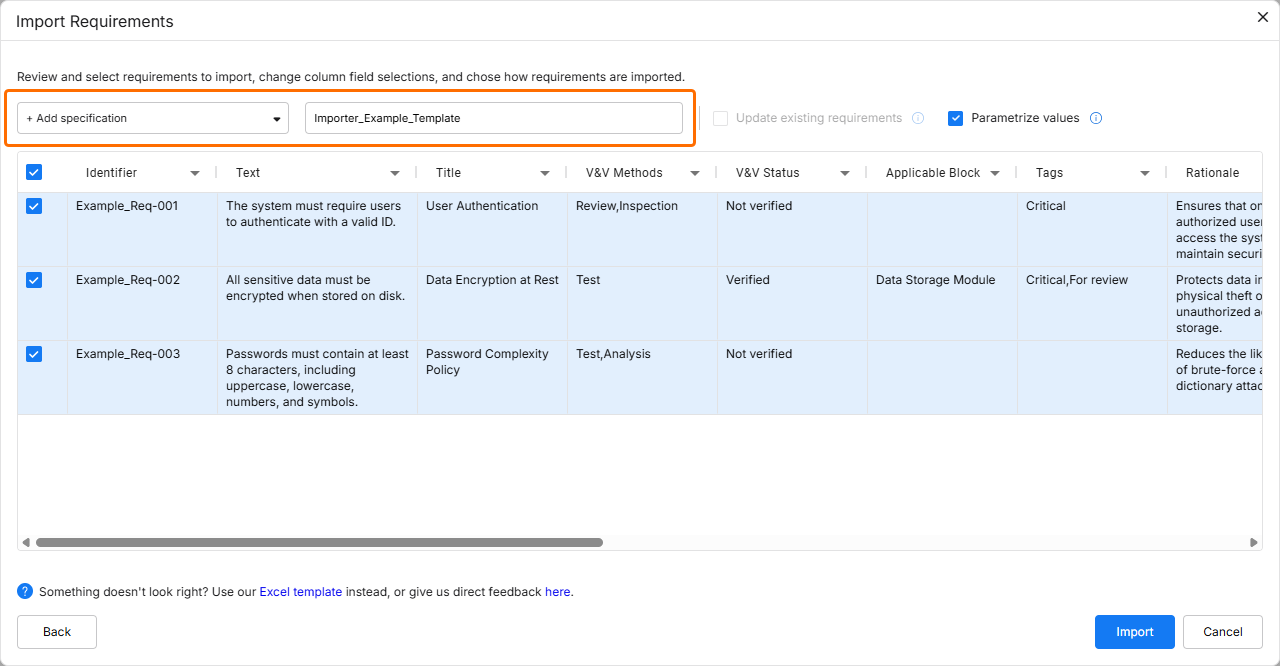 ).
).
Aktivieren Sie die Option Update requirements, um vorhandene Anforderungen in der Zielspezifikation durch die importierten Daten zu überschreiben (die Dateidaten ersetzen die Daten in der Spezifikation).
Aktivieren Sie die Option Parametrize values, um die vorgeschlagenen Anforderungen auf mögliche quantifizierbare Parameter zu prüfen und diese in Valis umzuwandeln.
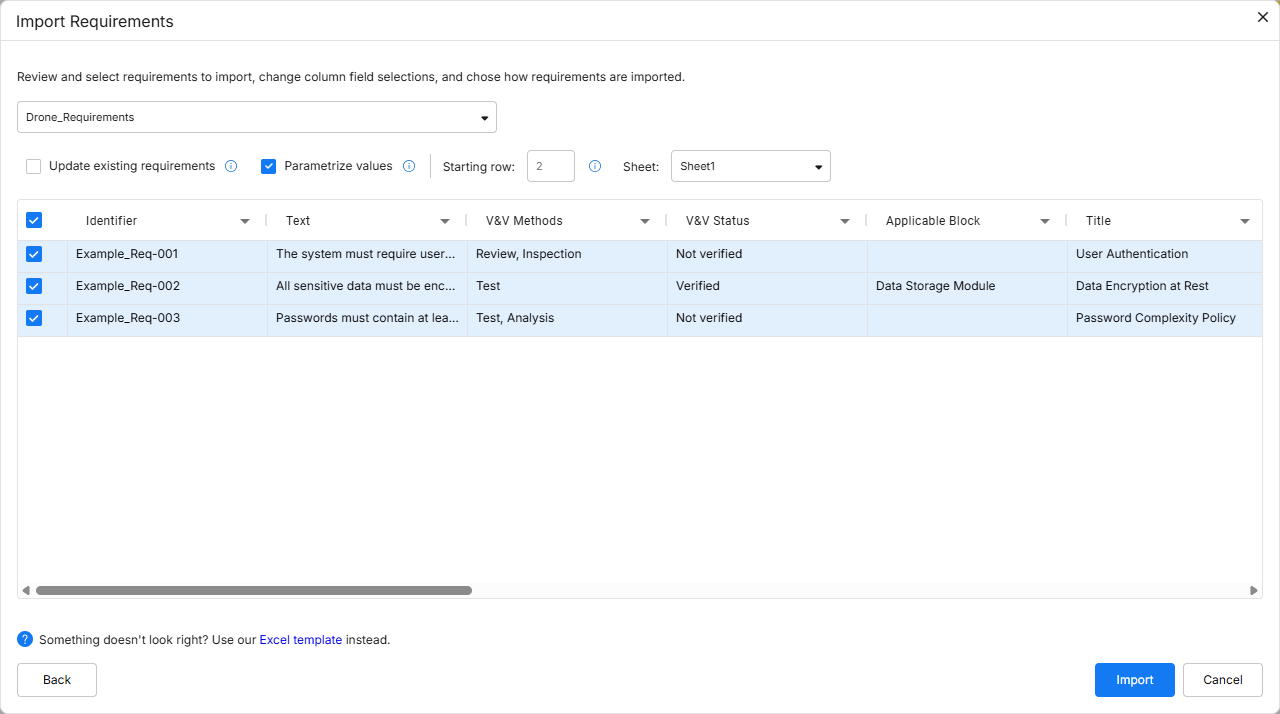
Bei Verwendung des klassischen Importers stehen außerdem die folgenden Optionen zur Verfügung:
-
Starting row – Sie können auswählen, ab welcher Zeile der importierten Datei die Daten erfasst werden sollen, die in Requirements Portal eingefügt werden.
-
Sheet – Bei einer Datei mit mehreren Tabellenblättern können Sie auswählen, aus welchem Tabellenblatt importiert werden soll.
Sie können die zu importierenden Anforderungen auswählen, indem Sie die Kontrollkästchen links neben den entsprechenden Zeilen aktivieren.
Datenzuordnung
Sie können festlegen, wie die Daten aus der hochgeladenen Datei bestimmten Feldern in Requirements Portal zugeordnet werden. Enthält die Datei Überschriften, die mit den Standardfeldern in Requirements Portal identisch sind, werden diese Felder automatisch zugeordnet. Bei Bedarf können Sie diese automatische Zuordnung jedoch überschreiben oder anpassen. Klicken Sie auf eine Spaltenüberschrift und wählen Sie das gewünschte Feld aus der Dropdown-Liste aus.
Alternativ können Sie die Spaltendaten einer neuen, benutzerdefinierten Spalte zuordnen. Geben Sie dazu den gewünschten Namen in das Feld Search/Add custom in der Dropdown-Liste ein und wählen Sie anschließend <custom_column_name> (Create new) aus der Dropdown-Liste aus.
Sie können auch None aus der Dropdown-Liste auswählen, um die Daten aus der Datei keiner Spalte zuzuordnen (diese Daten werden dann nicht importiert).
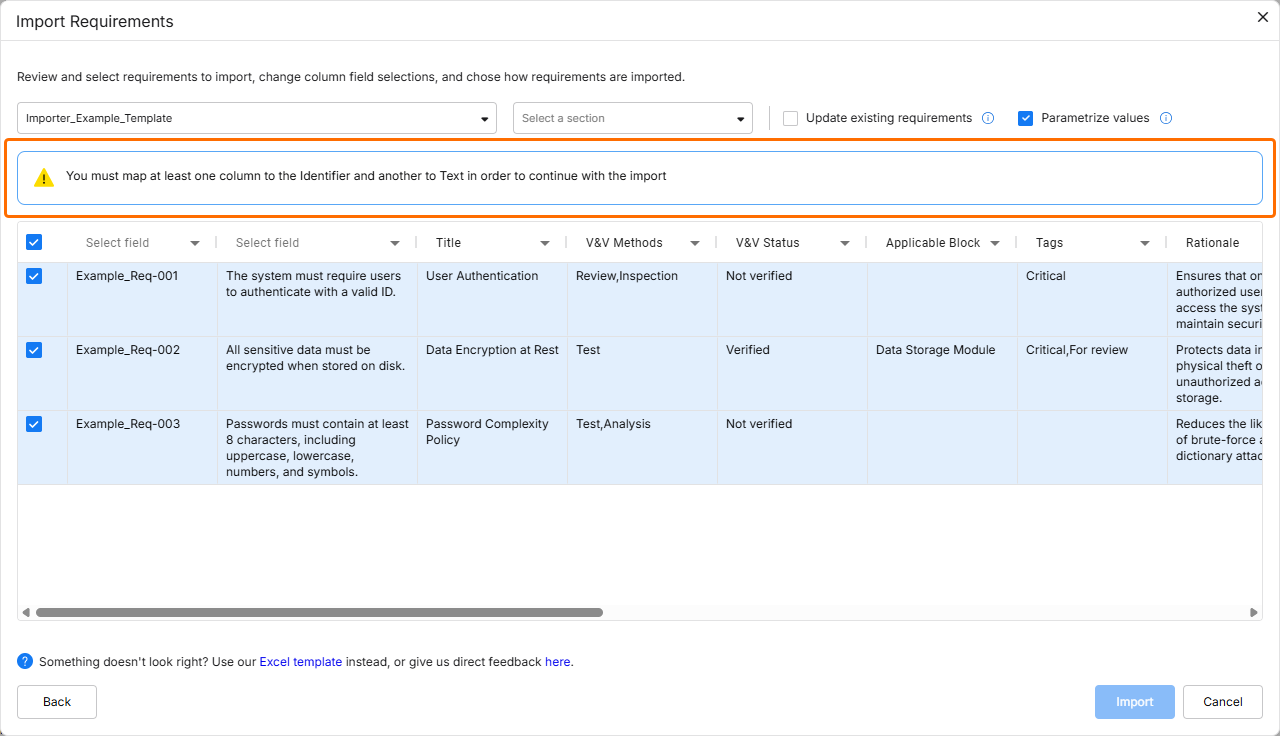 ).
).Die folgenden Felder können mit dem Importer in Anforderungen importiert werden:
-
Kennung
-
Text
-
Titel
-
Begründung
-
Untergeordnete Anforderungen
-
Übergeordnete Anforderungen
-
Abschnitt
-
Pfad zum Abschnitt
-
Zutreffender Block
-
Kommentar zur Erfüllung
-
Typ
-
Zustand
-
Erfüllung
-
V&V-Status
-
V&V-Methoden
-
Anwendbarkeit
-
Verantwortlicher
-
Tags
-
Benutzerdefinierte Spalten
Ausführungsbericht
Nachdem Sie die zu importierenden Daten überprüft und die Optionen wie gewünscht konfiguriert haben, klicken Sie auf die Schaltfläche  , um fortzufahren. Nach Abschluss des Imports wird ein Bestätigungsfenster angezeigt.
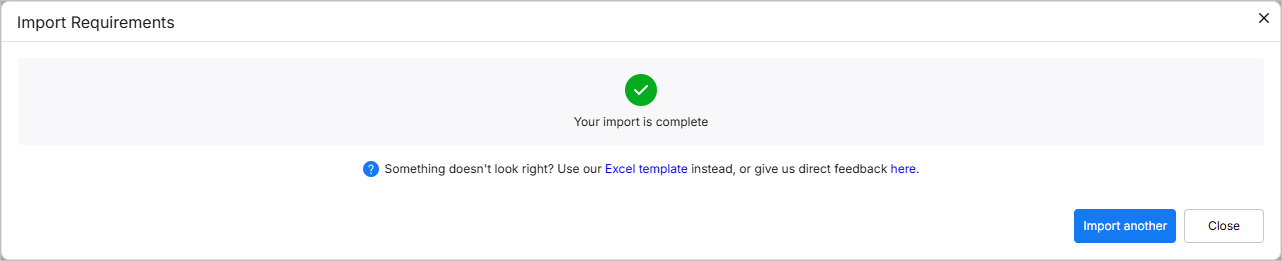
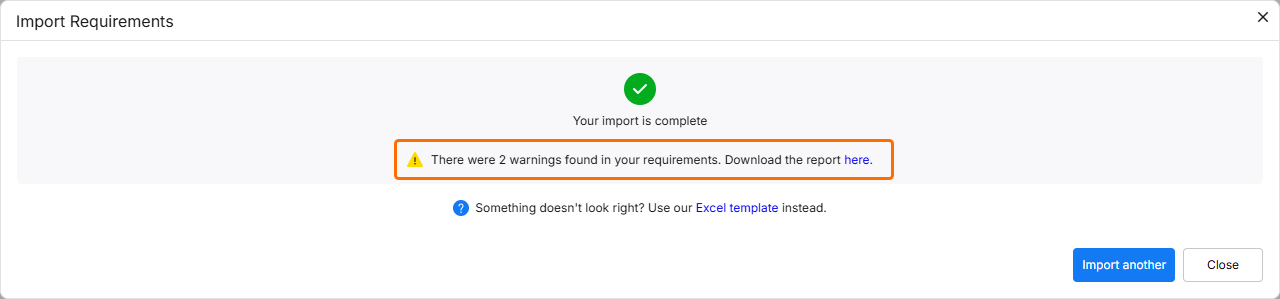 ).
).Klicken Sie auf die Schaltfläche  , um zum Schritt für das Hochladen der Datei im Importwerkzeug zurückzukehren, oder klicken Sie auf
  , um das Importwerkzeug zu verlassen.
 KI-lokalisiert