
BOM Error Detection and Correction
The BOM Portal will automatically analyze a Managed BOM document to detect any issues in BOM Item lines, based on their logical structure and the part’s manufacturer and supplier data. These include invalid part numbers, deprecated or low-stock items, non-compliant parts, and much more.
BOM line item errors and warnings are summarized by the listing's right-most column icons. Hover over an icon to see a summary of the issues, or click to see more information (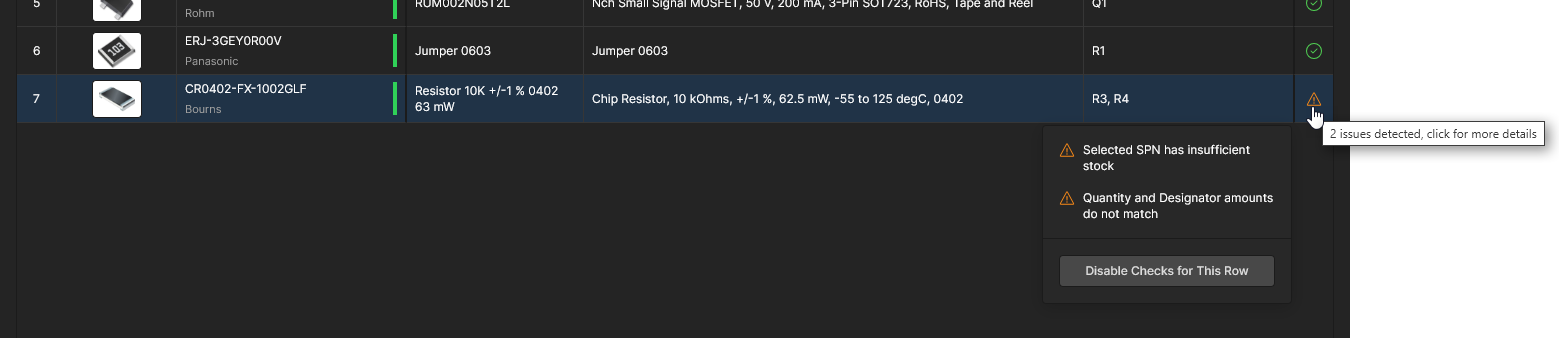 ) – the
  icon indicates an issue-free BOM entry, as you would expect. BOM issues can be addressed directly in the relevant line item or through the Issues tab view, which provides dedicated links to item lines with detected Errors and Warnings.
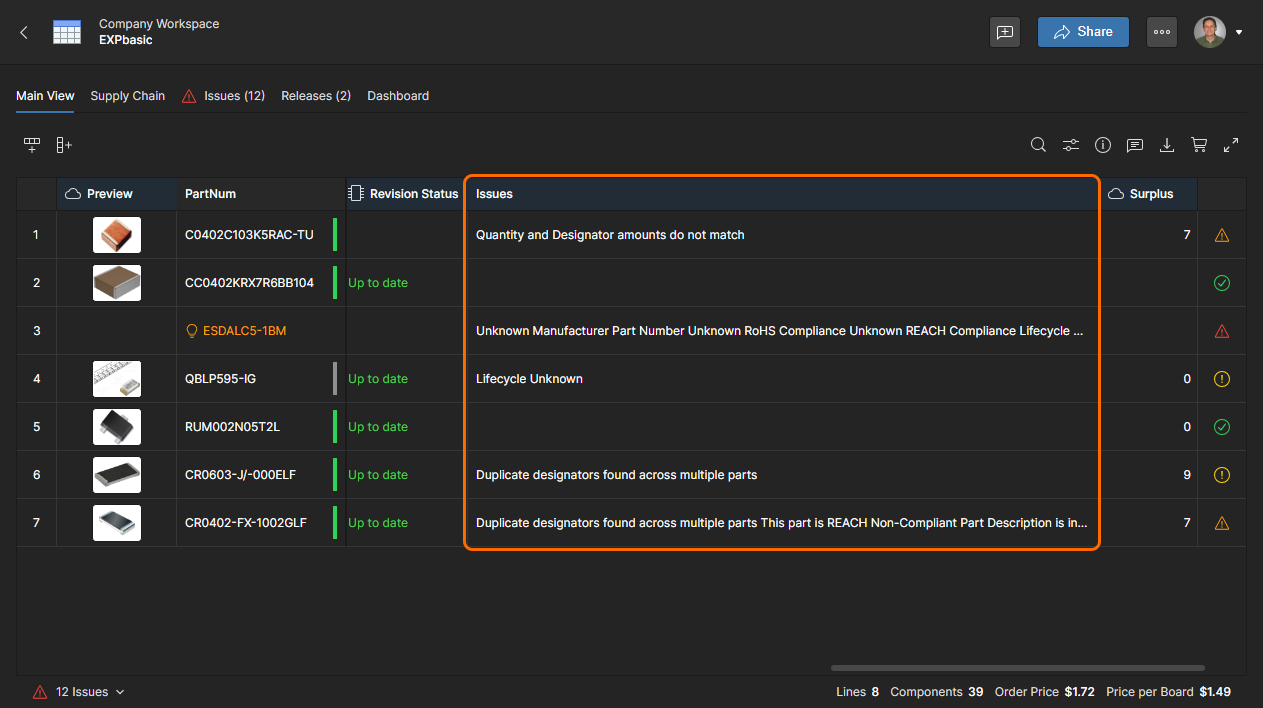 This column is disabled by default – enable through the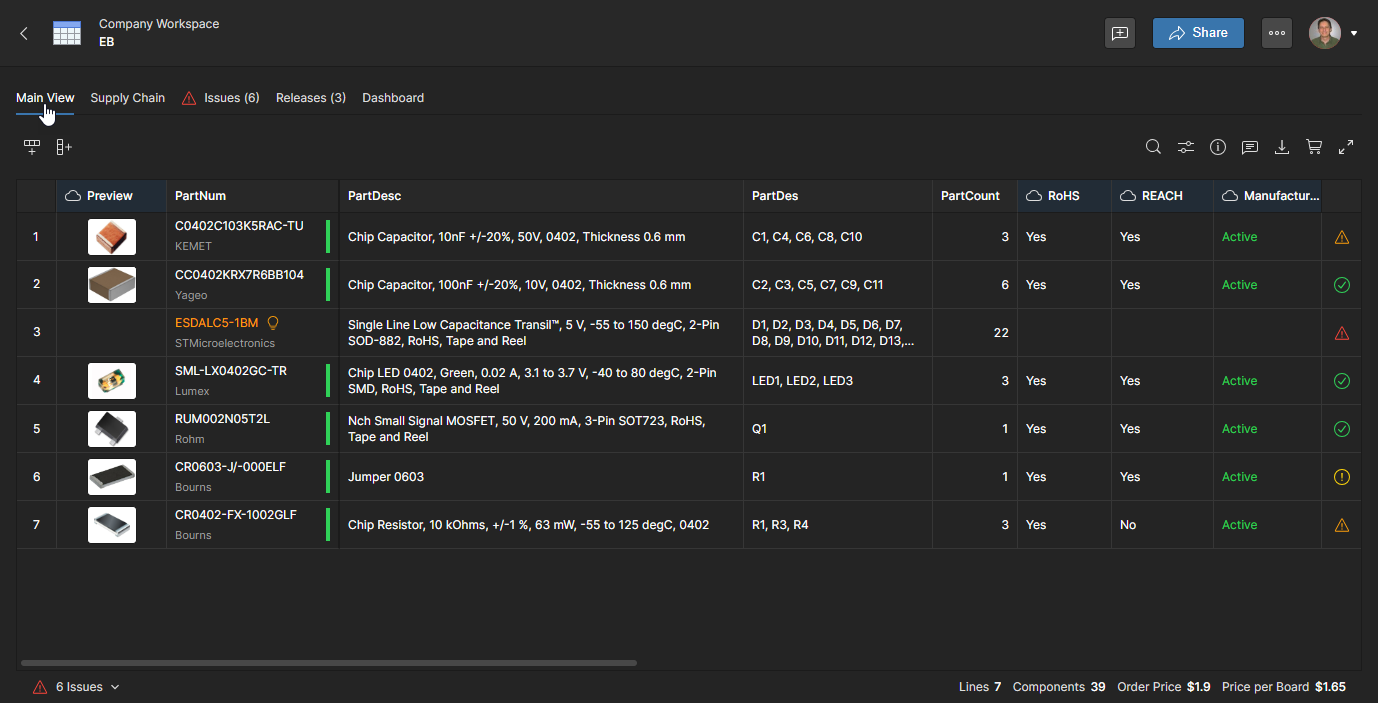
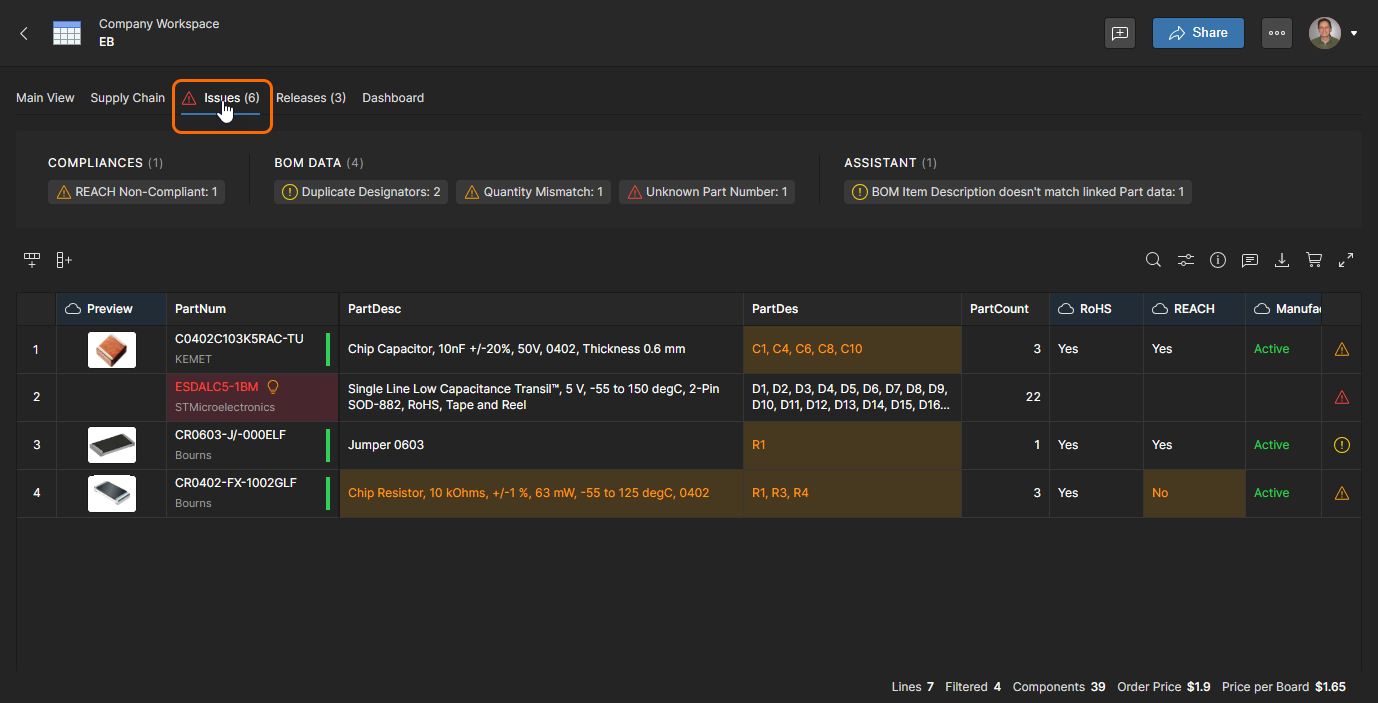
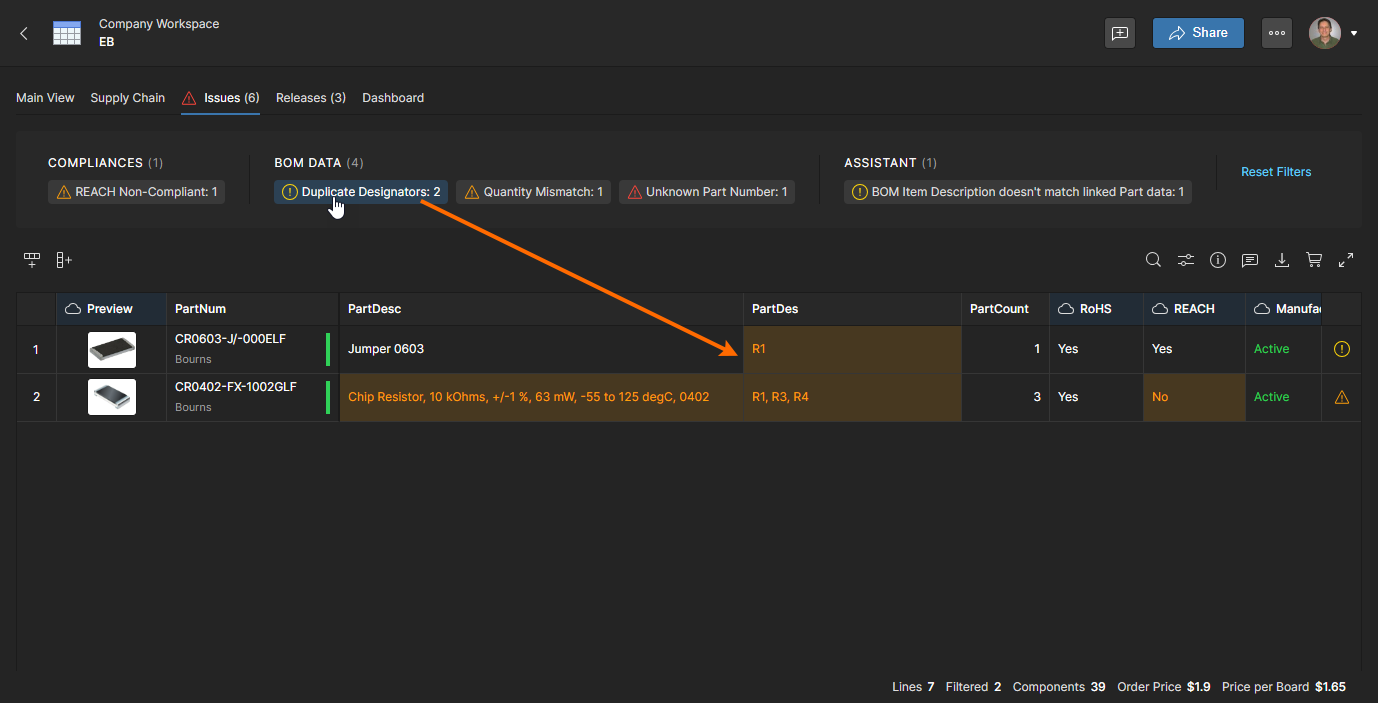
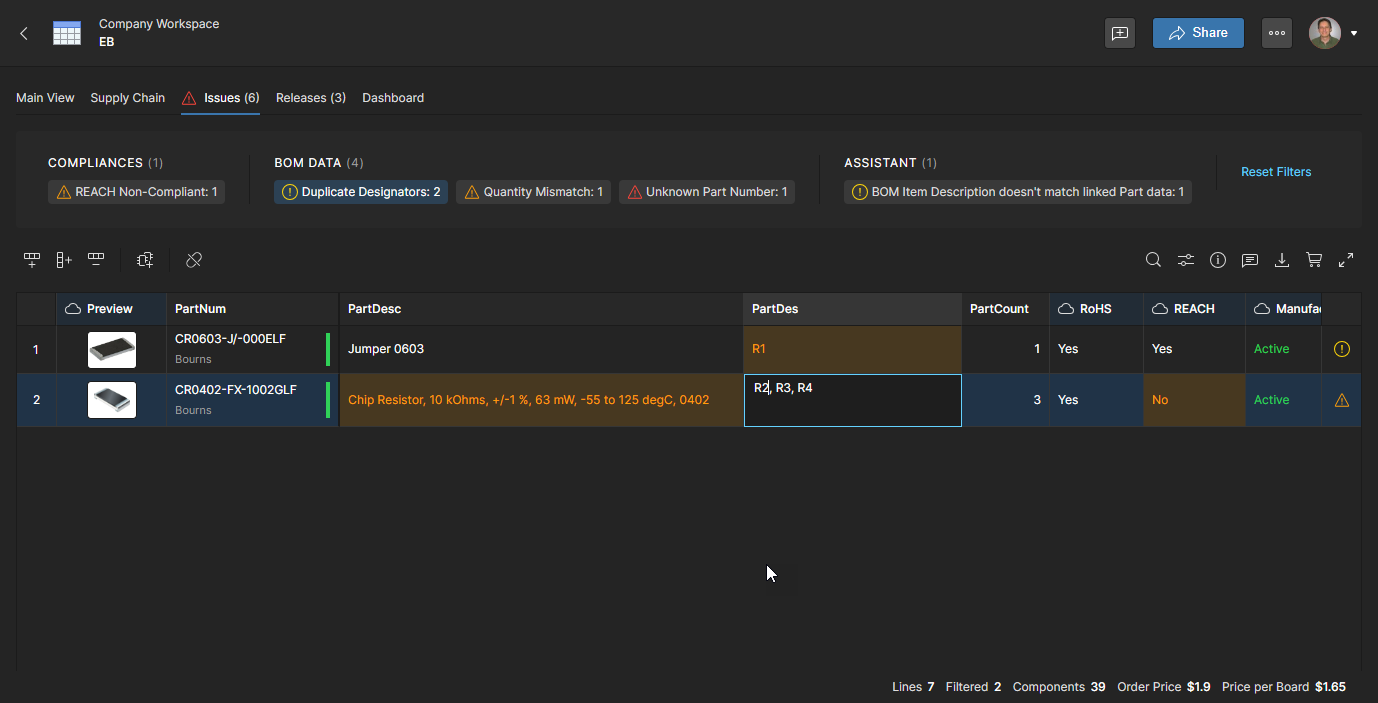
A BOM line item's manufacturer part number could be incomplete or the part itself may no longer be listed as available, resulting in an Unknown Part Number error. This is resolved by specifying a different, viable part number.
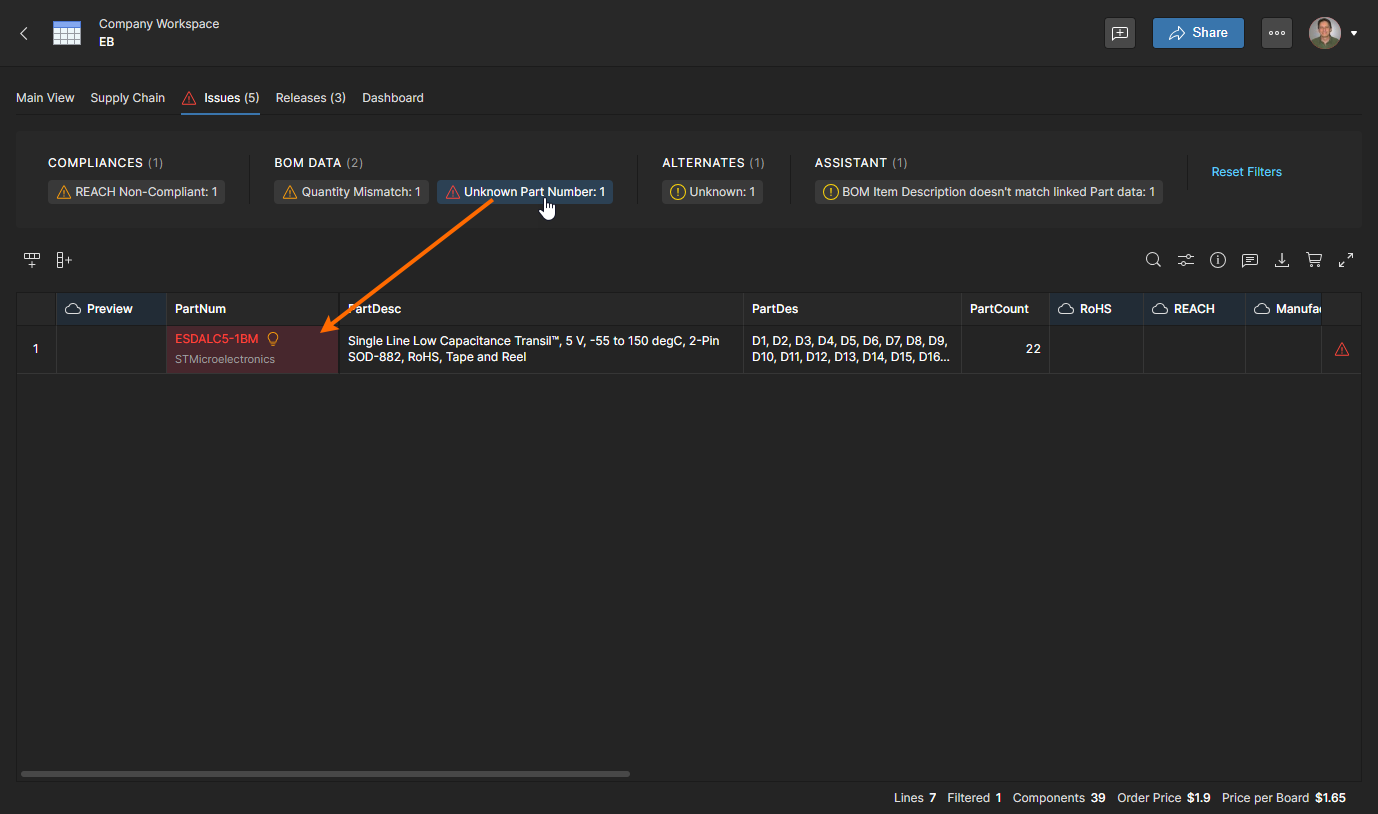
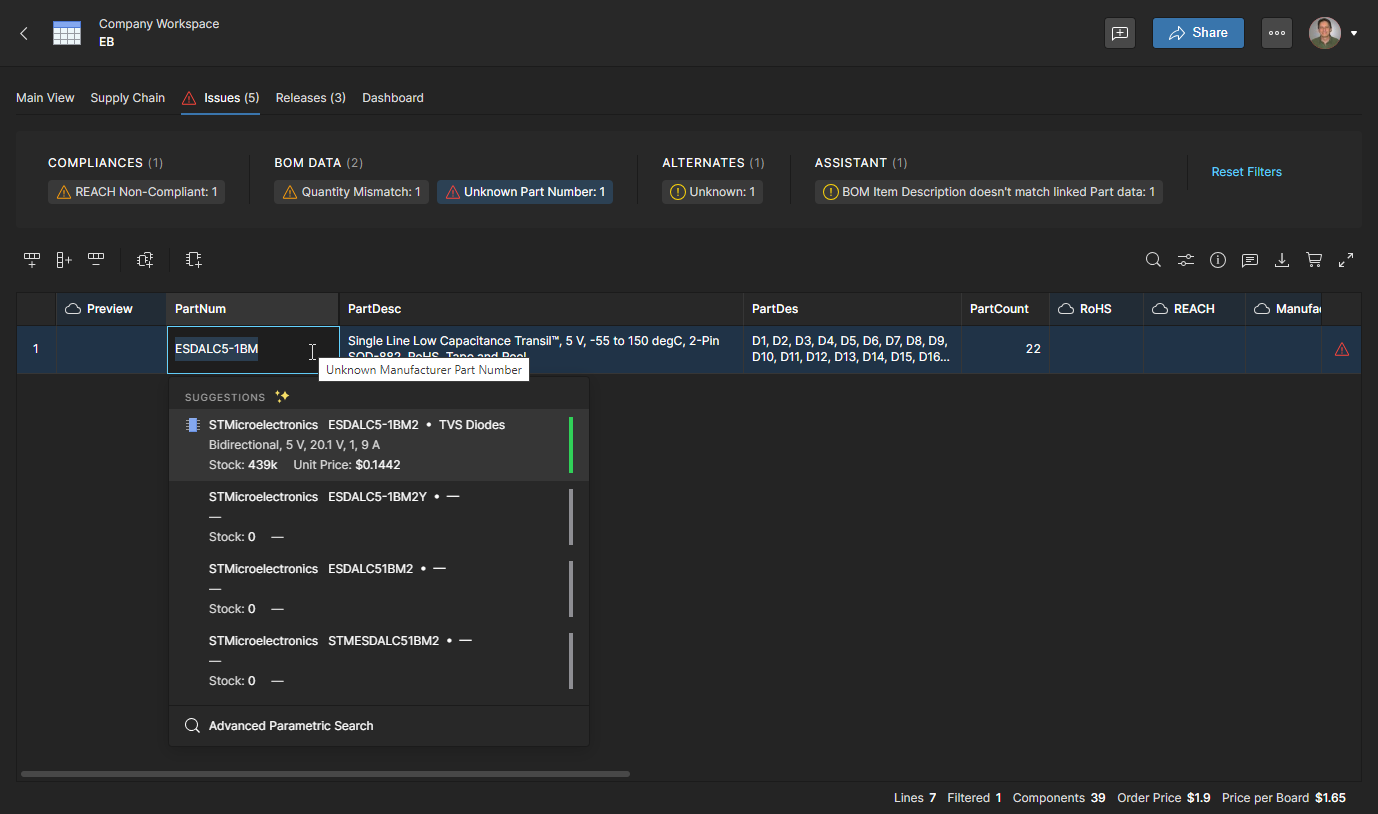
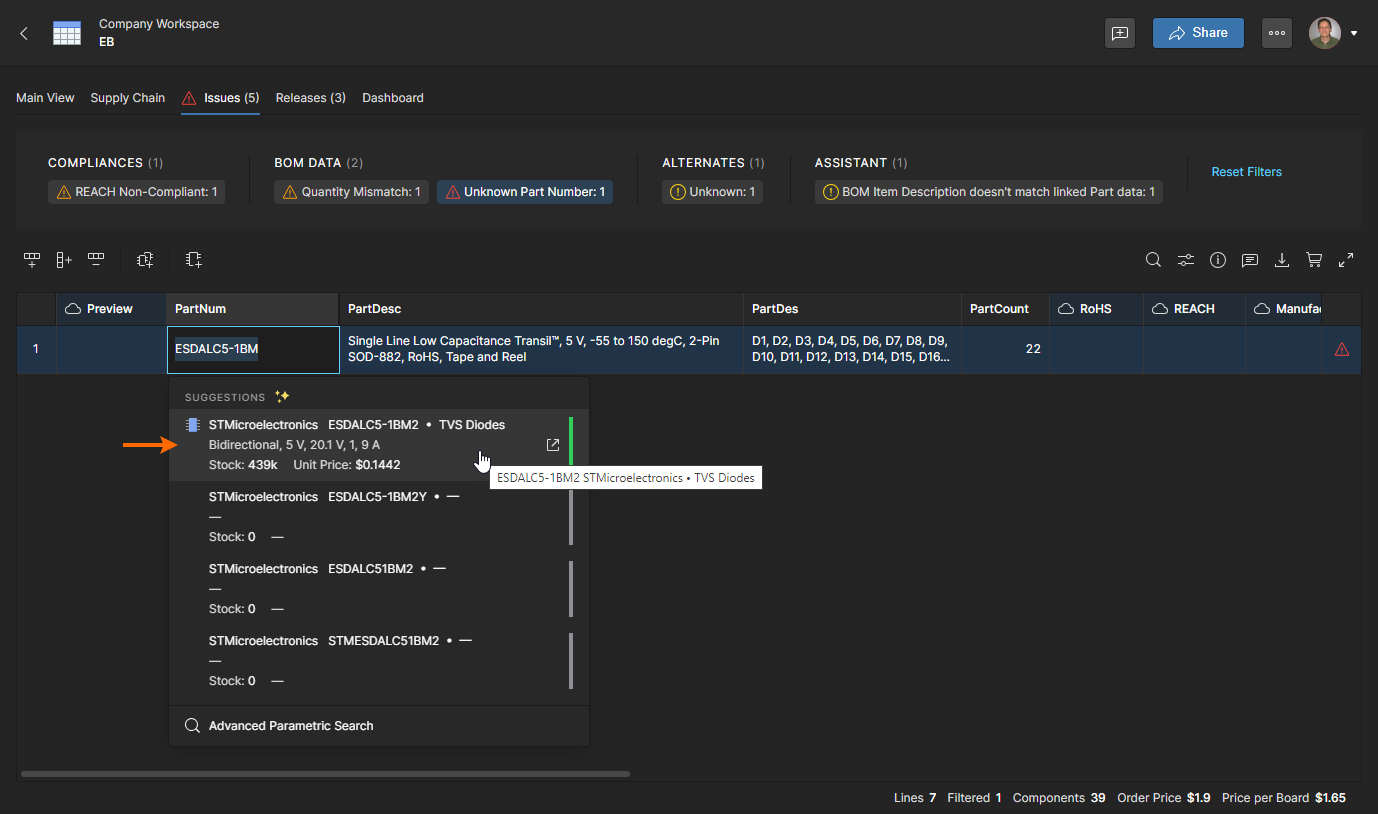
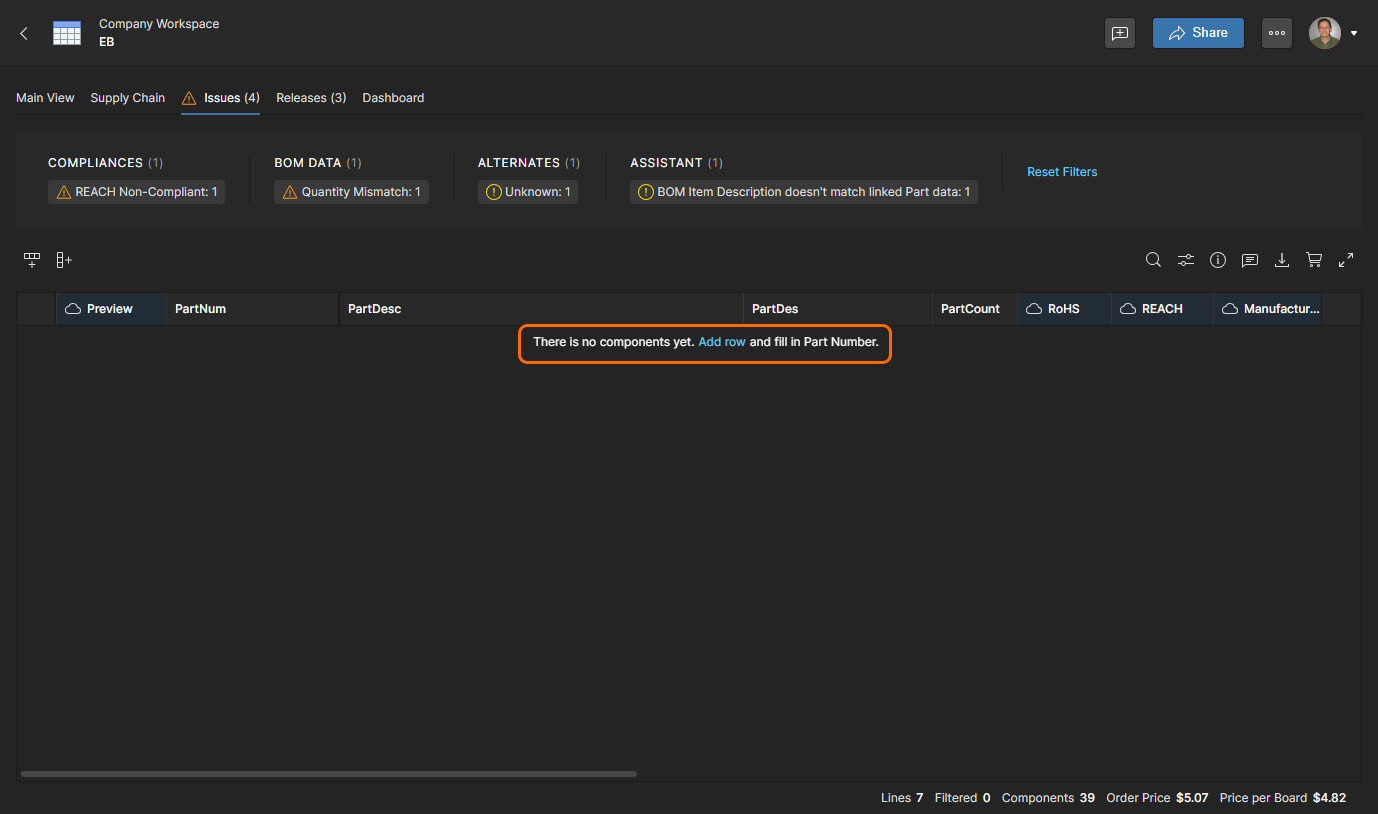
Other BOM issues such as non-compliant manufacturer parts require the selection of a suitably qualified replacement part.
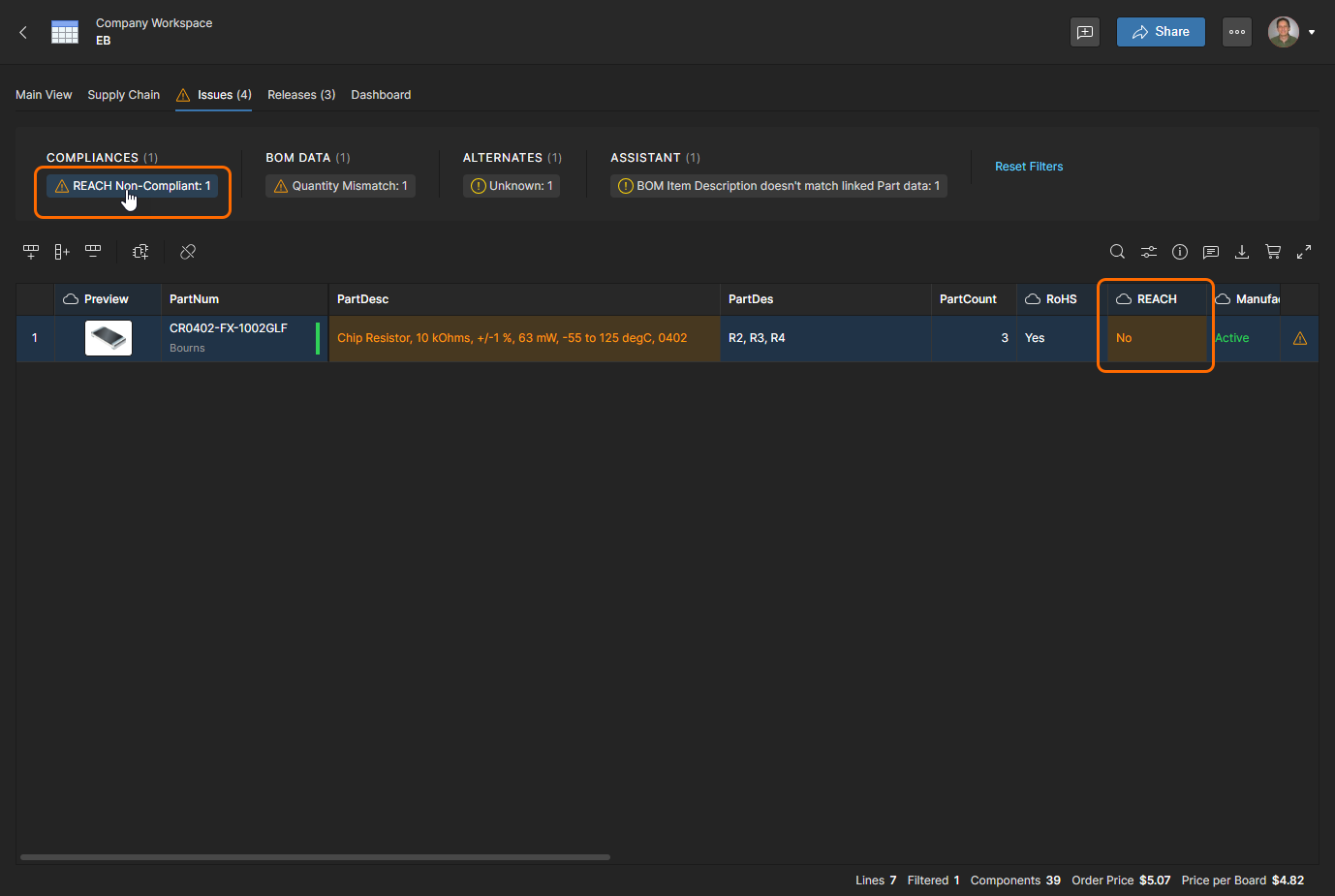
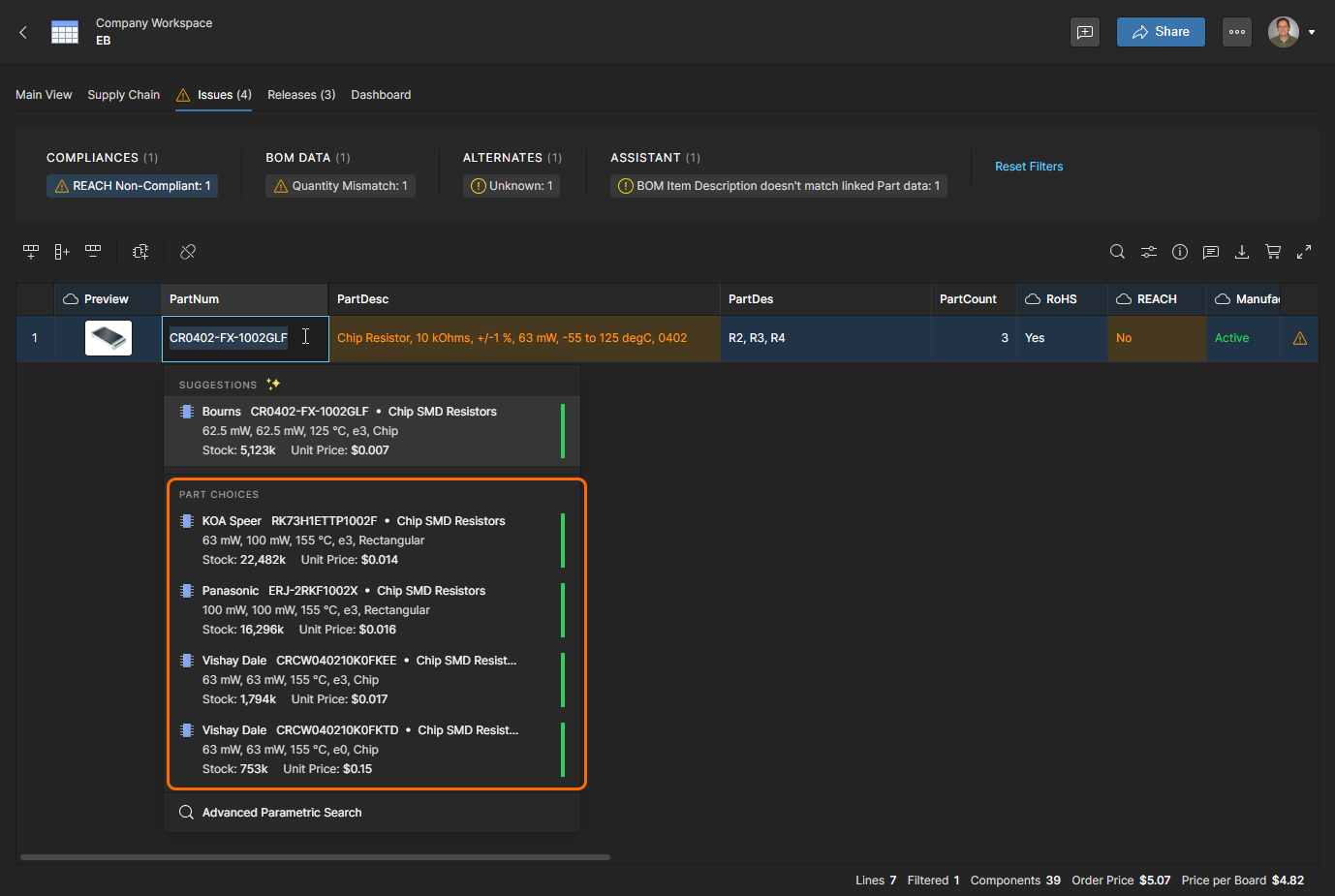
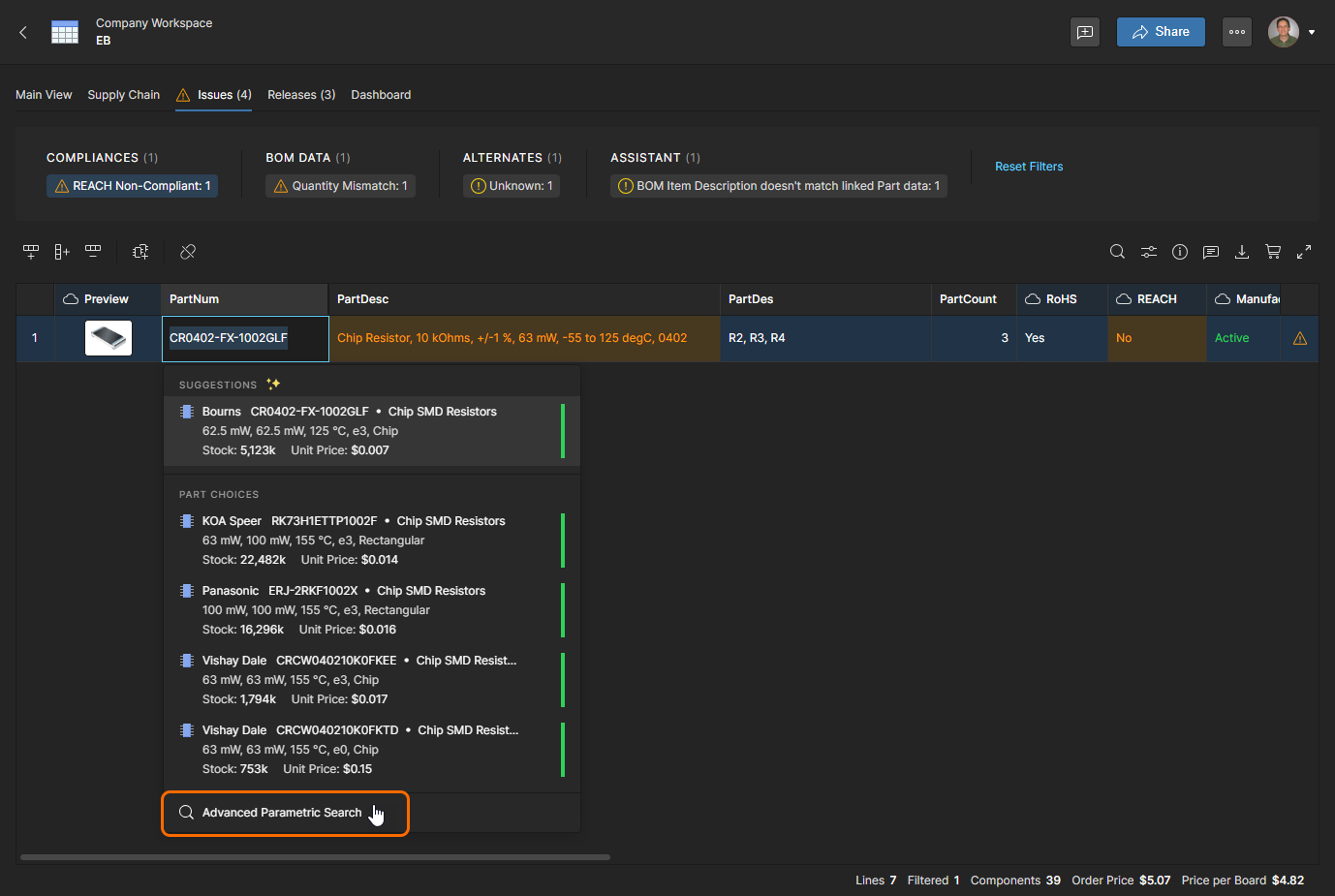
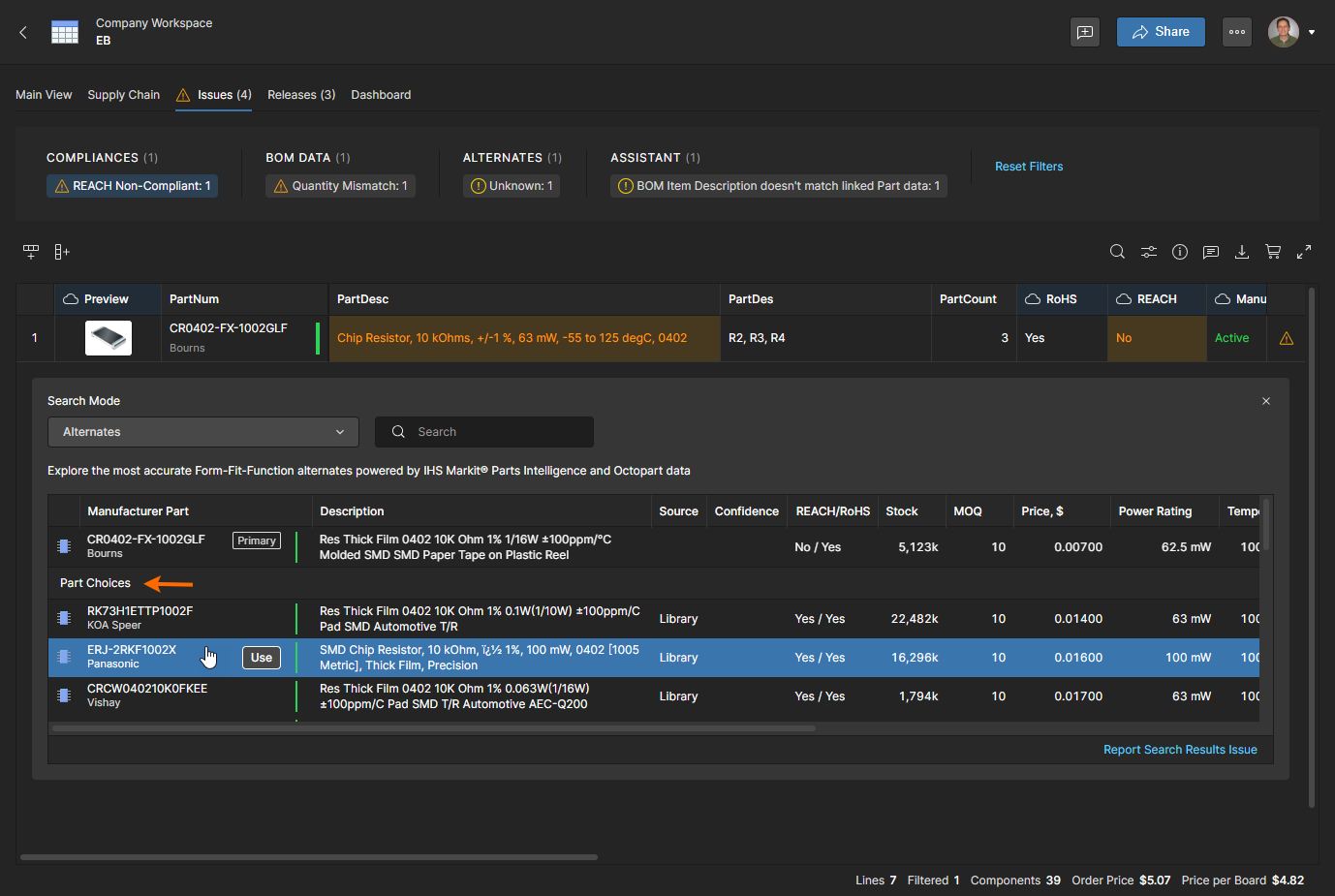
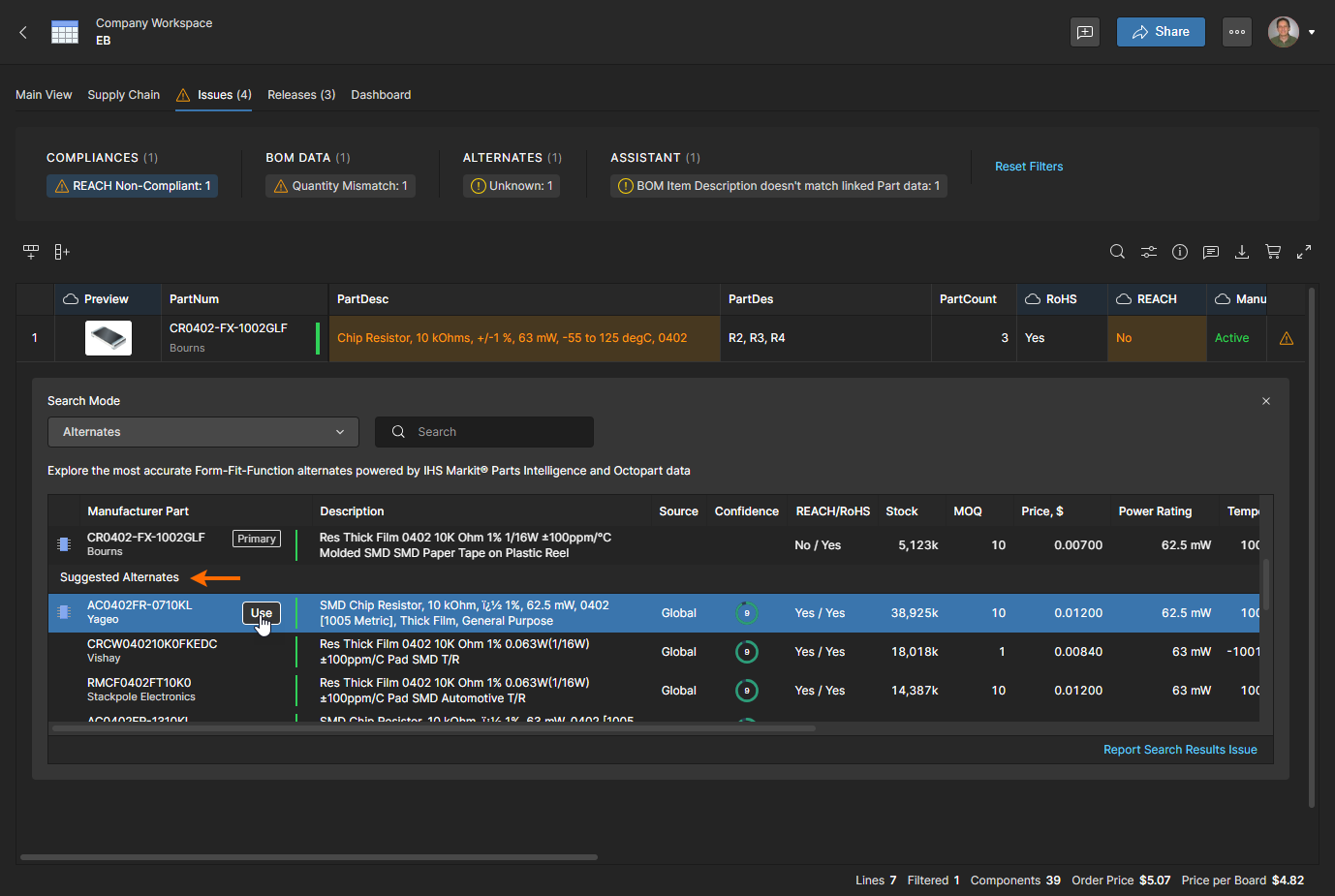
The list also will include a range of compliant manufacturer parts to choose from under Suggested Alternates. Note that these include, and are ordered by, a Confidence rating provided by Altium's component data resources – this information also is available in the Information pane ( ). Click the
  button to confirm your selected replacement part.
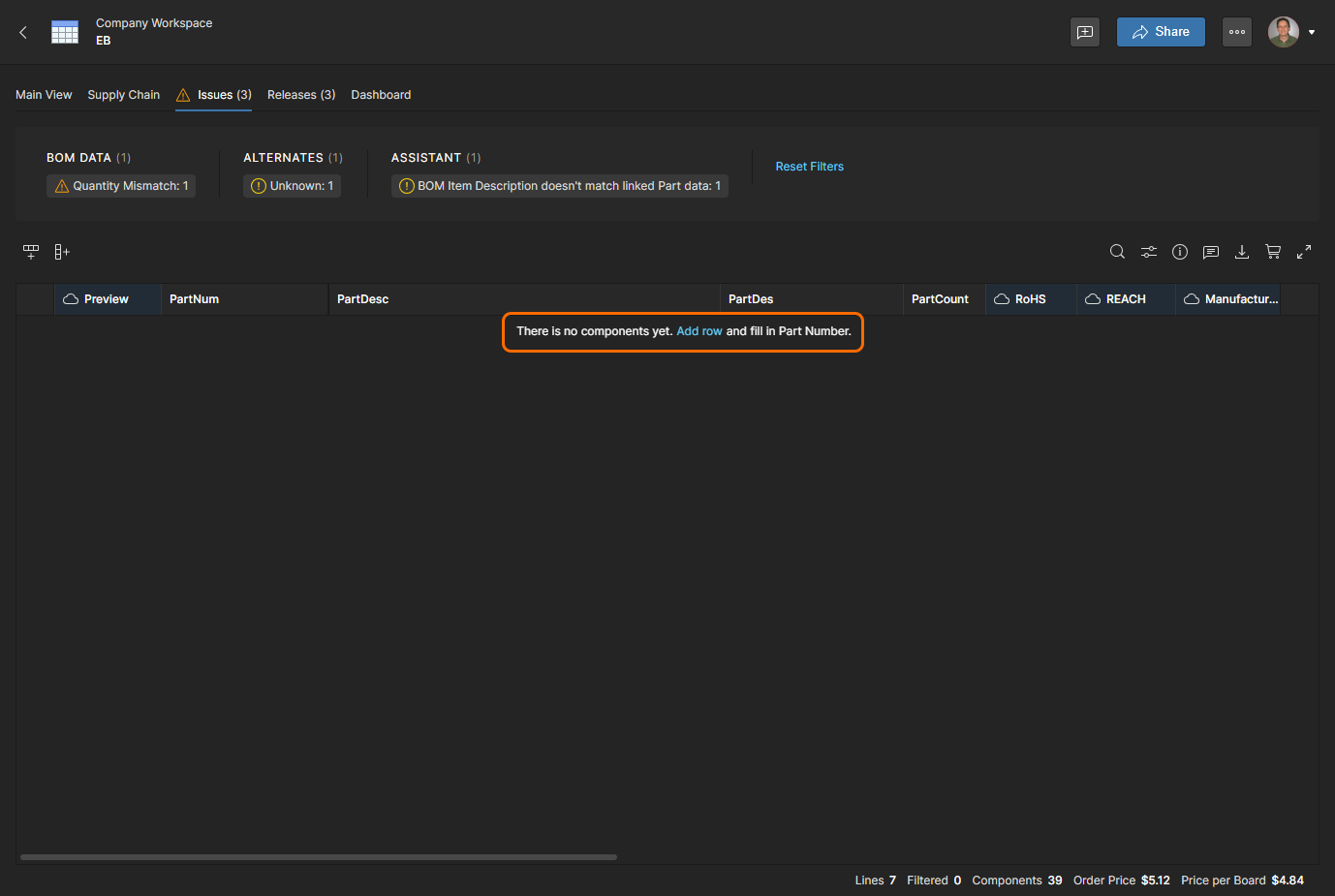
Issue Reporting and Management
The BOM Portal allows you to specify the types of BOM health checks that are detected and how they are reported, and also if a particular issue is overridden in an individual BOM:
-
BOM health checks – Use the BOM Checks option in the BOM Settings window to specify if issues are reported as a
Fatal Error,Error,Warning, or are ignored (No Report). The global settings that apply to all new BOM documents are available in the BOM Portal Application setup accessed through the Workspace Admin – Settings page. -
Individual BOM lines – Right-click on a BOM item line (or click its issue staius icon
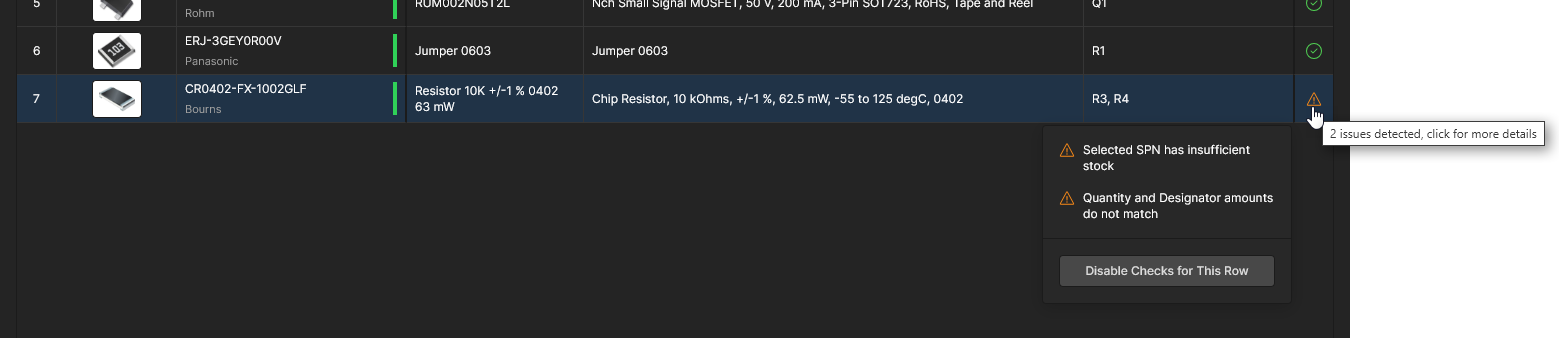 ) and select the Disable Checks for This Row option to deactivate BOM health checks for that particular item line. The health icon reverts to
 No Reportand any issues are ignored. Applies to the current BOM only. -
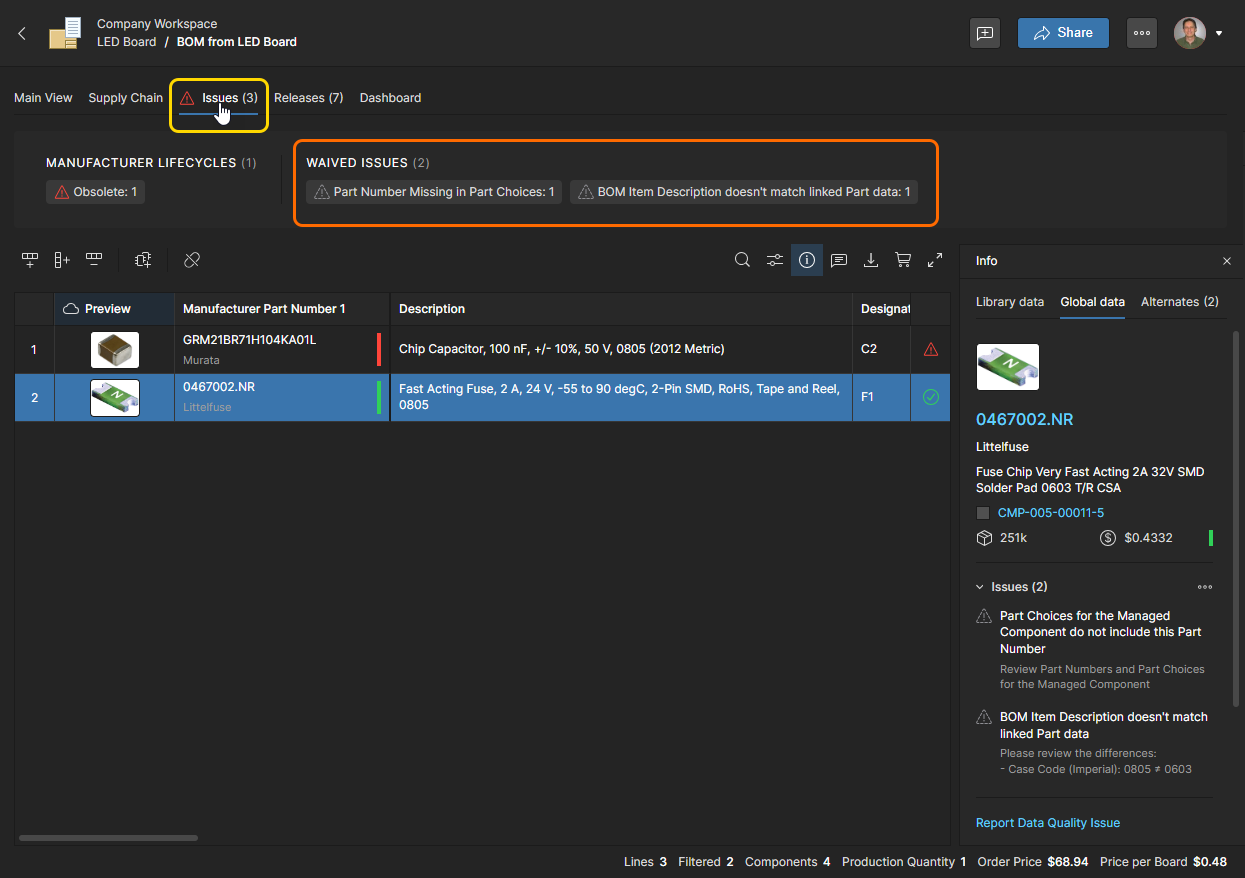
Individual Issues – Select a BOM line Issue in the Info pane and then the Waive issue for this BOM item to disregard (waive) that issue for all entries. Waived issues adopt a
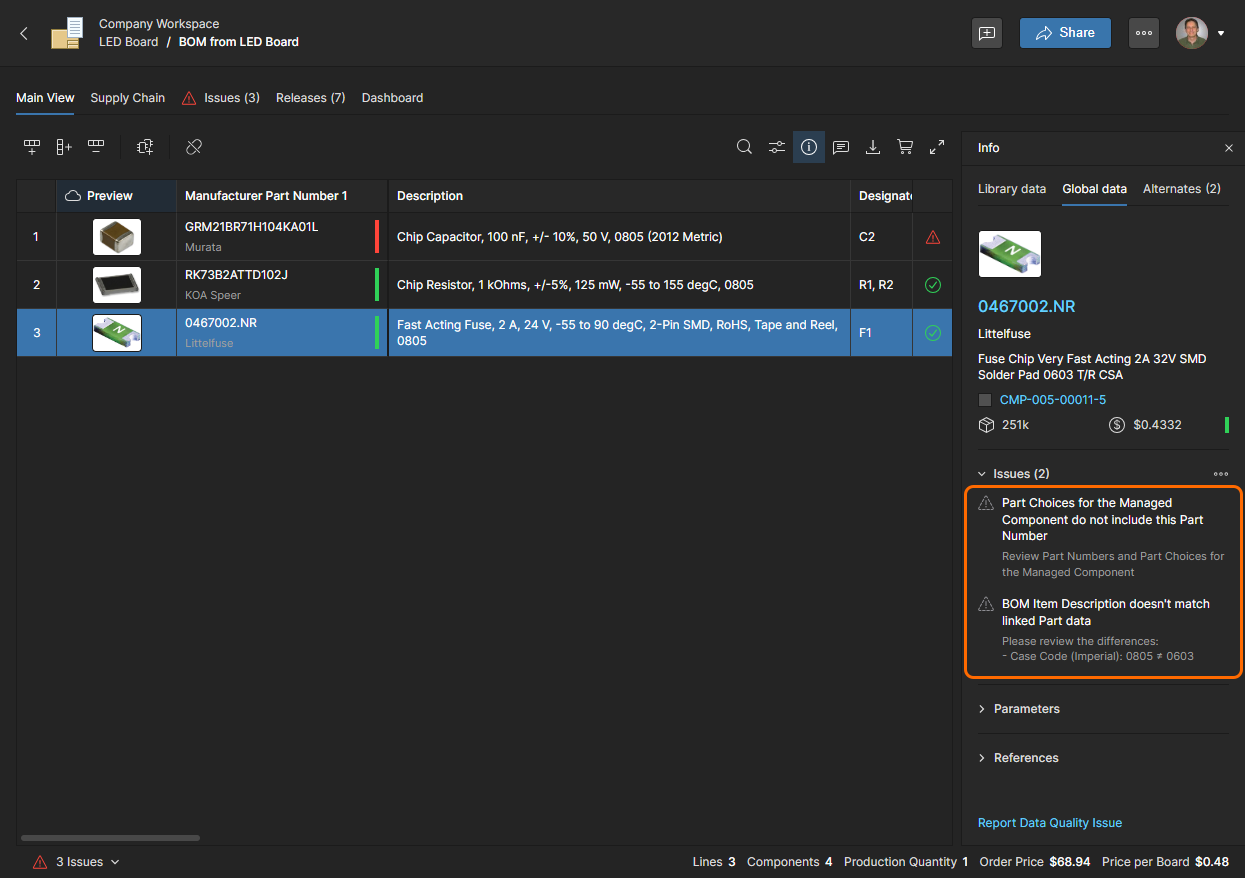
 icon and are collated under the BOM’s Issues tab as ‘WAIVED ISSUES’.
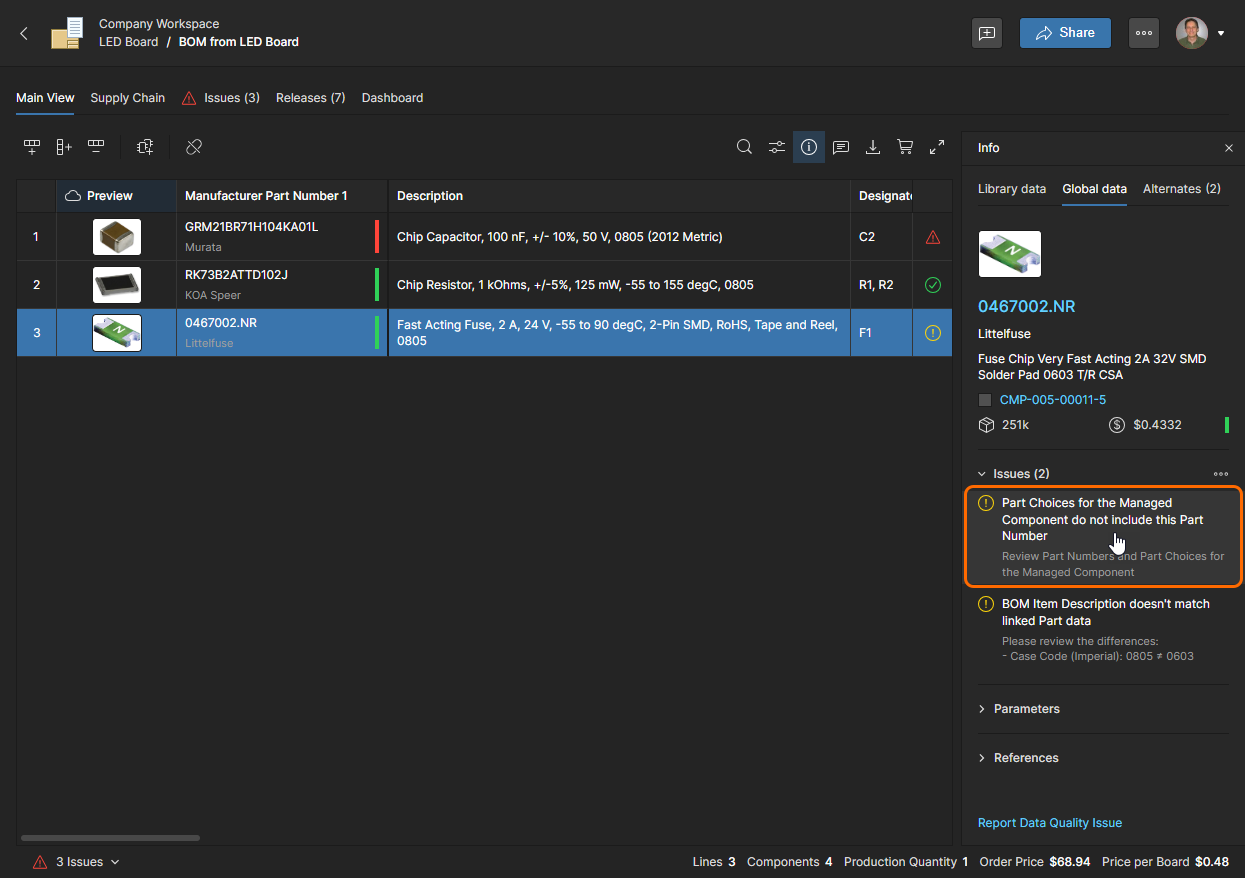
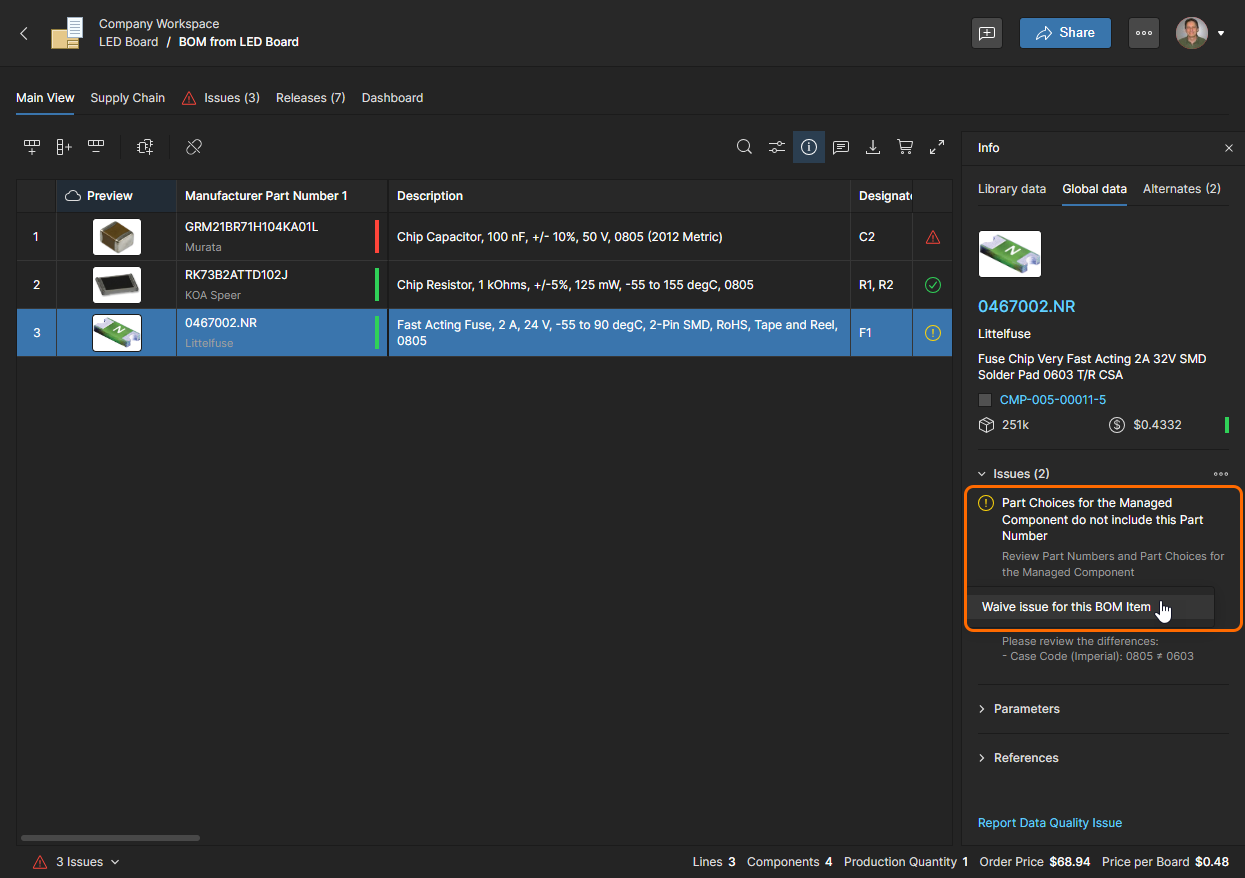
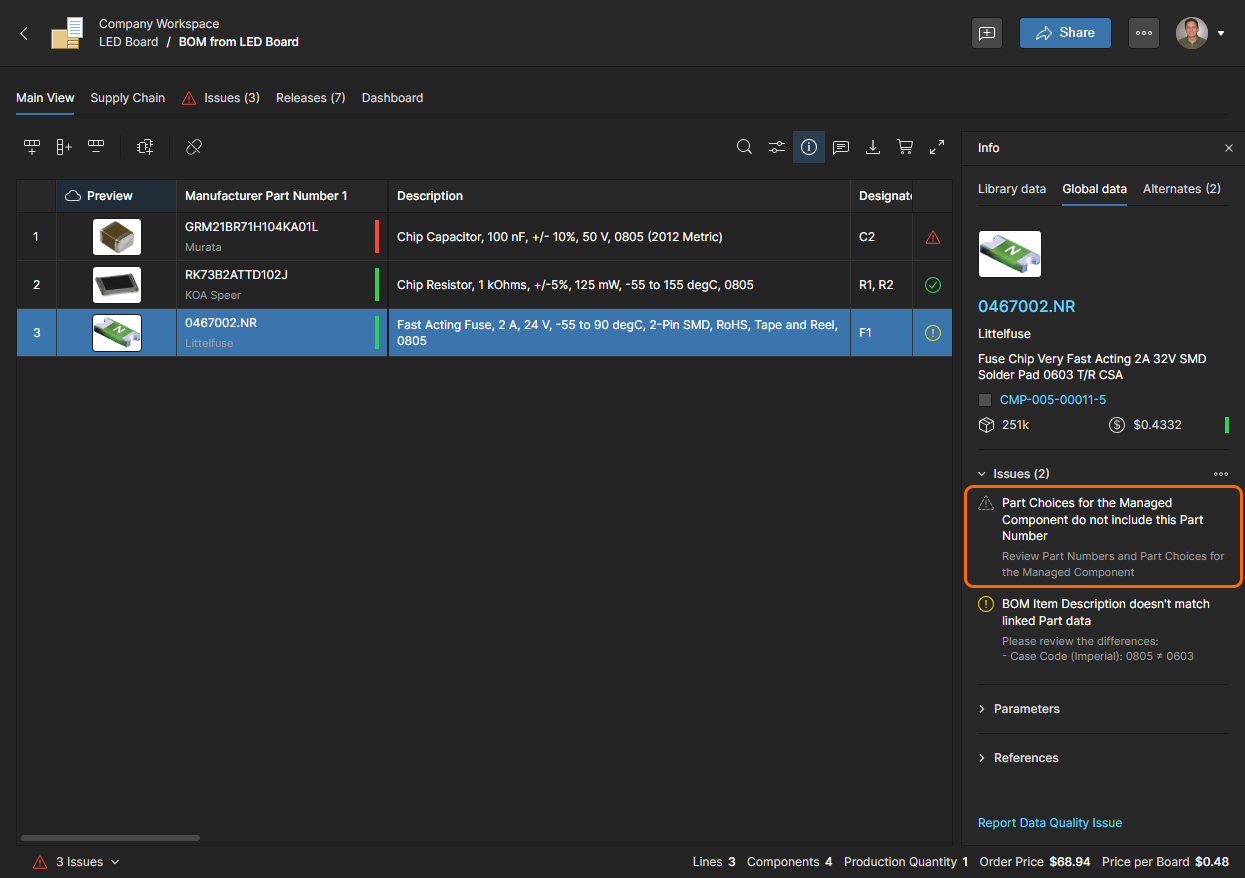
The waived issue is no longer regarded as an error/warning for that BOM part, as indicated by its associated
icon.
Parametric Search
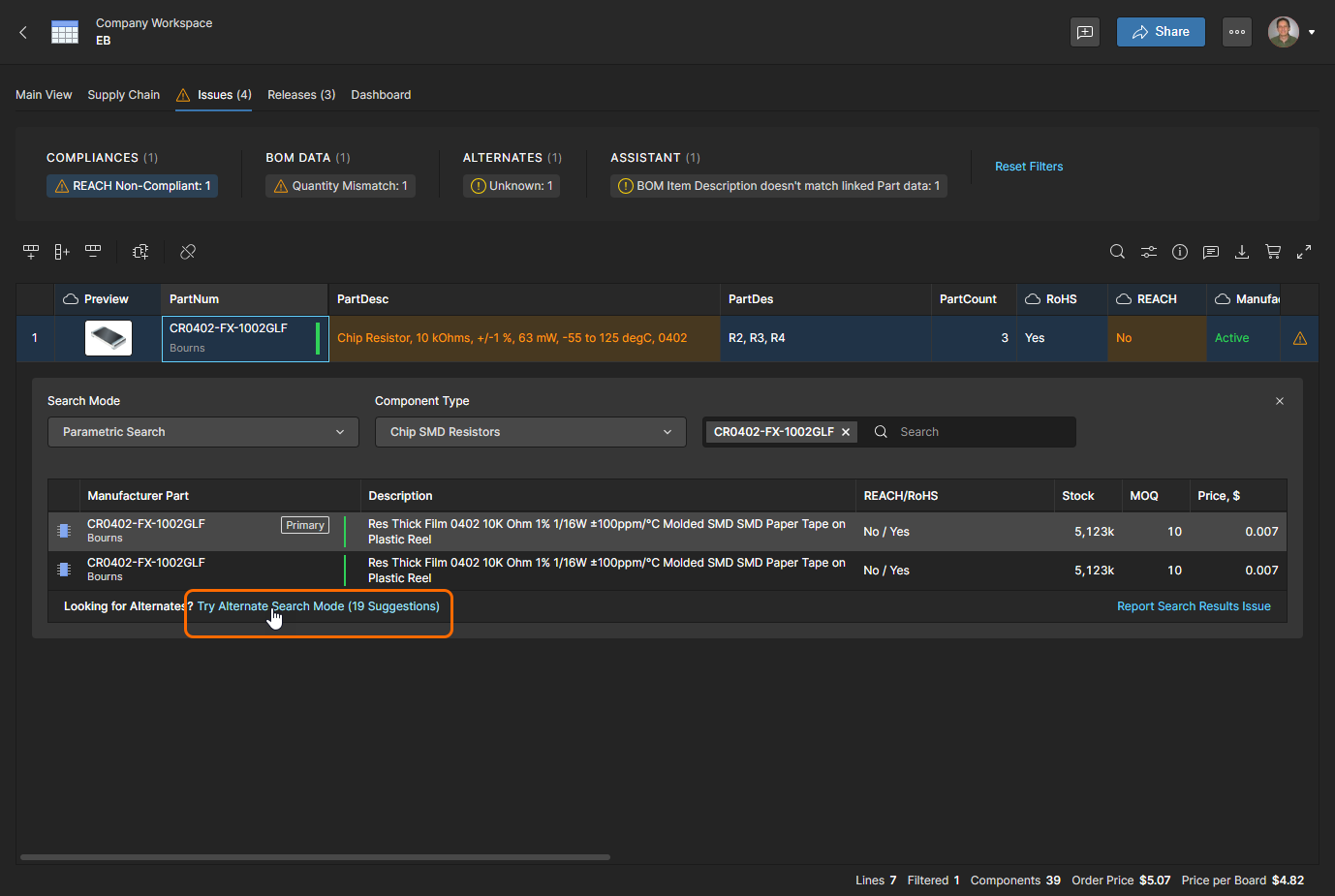
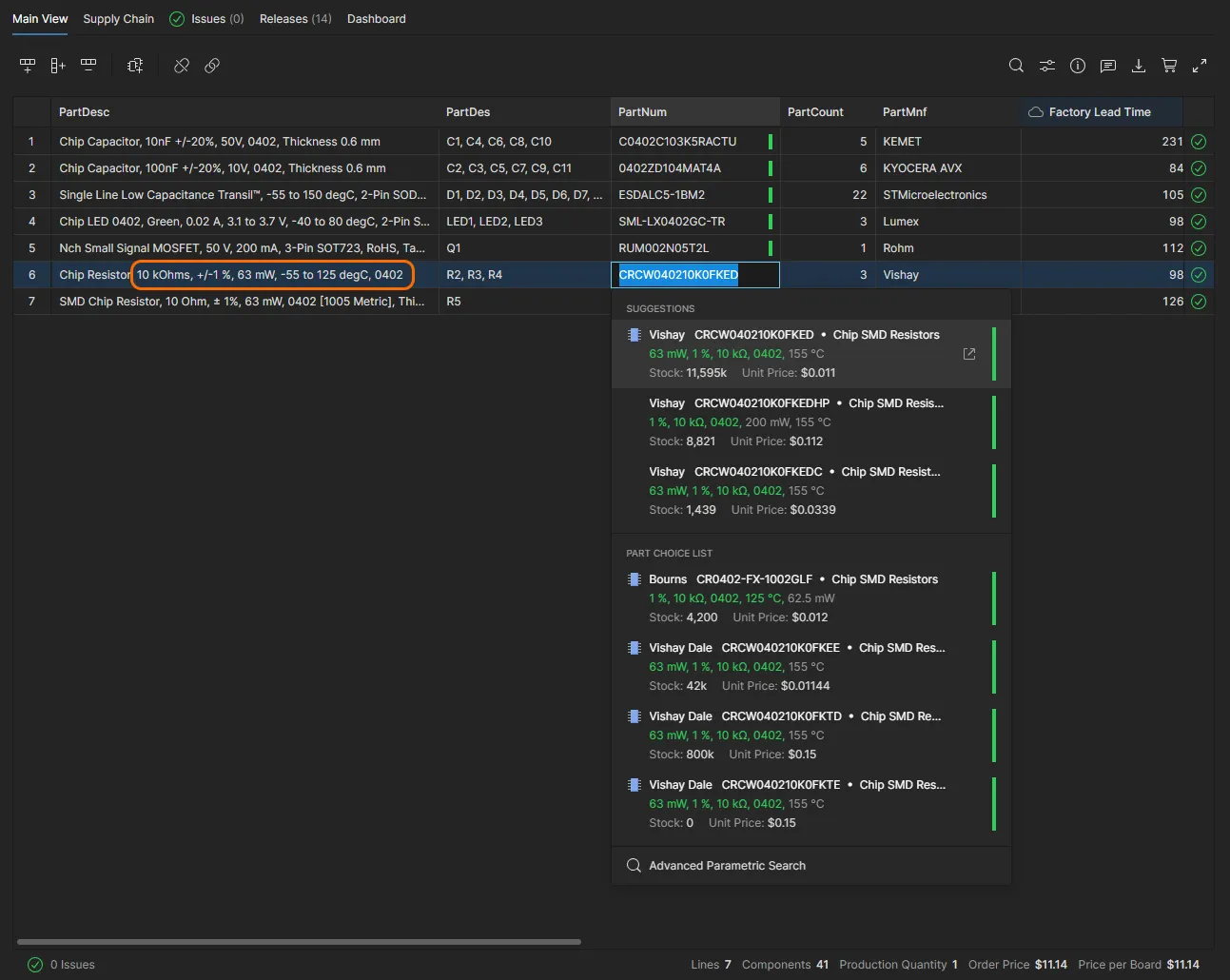
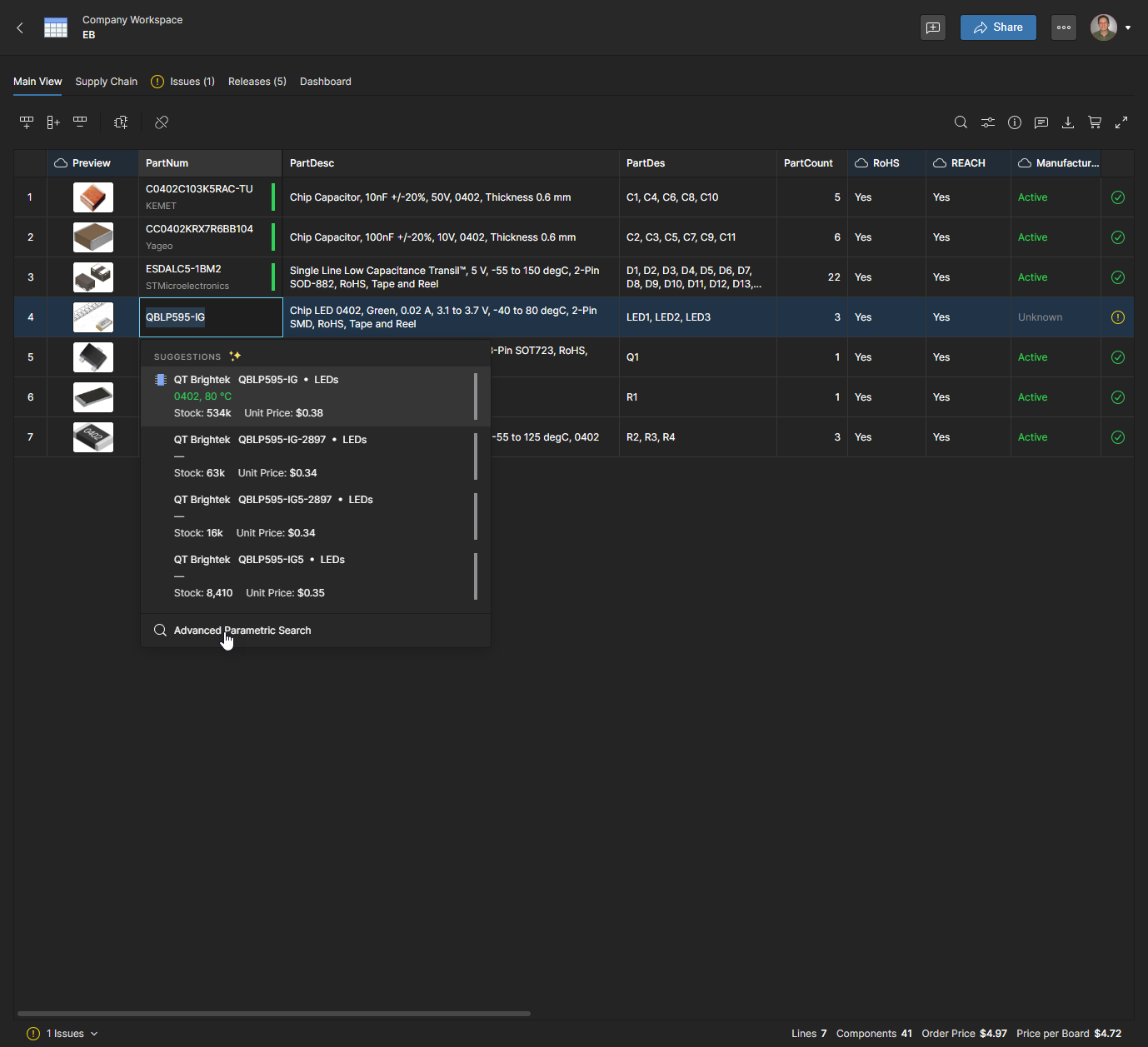
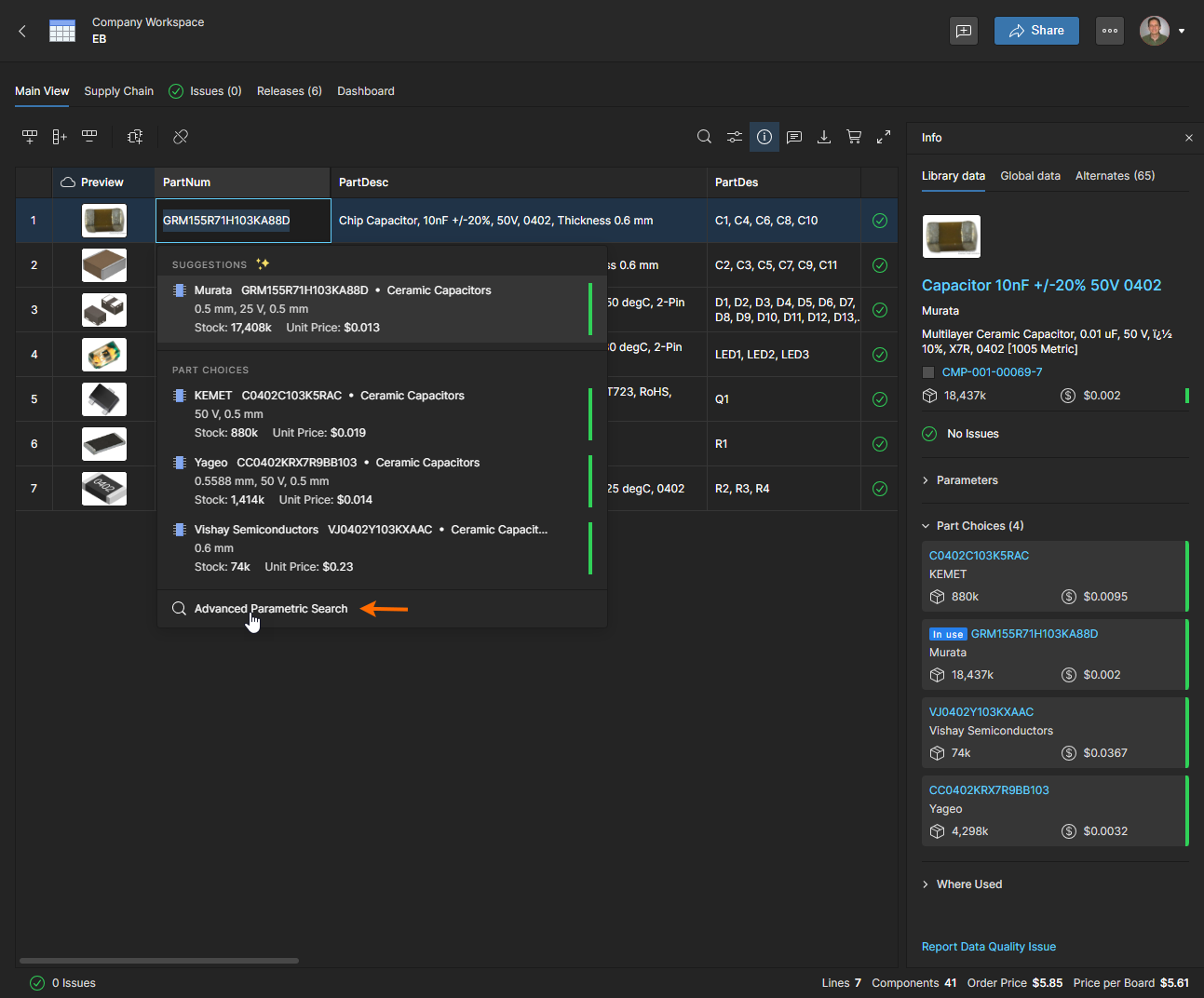
When selecting a different manufacturer part for a BOM line item, use the system's advanced Parametric Search feature to locate a part with specific parameters, or when none of the system's automated part suggestions or alternatives are suitable. This is available in the Advanced Search feature when the Parametric Search mode is selected.
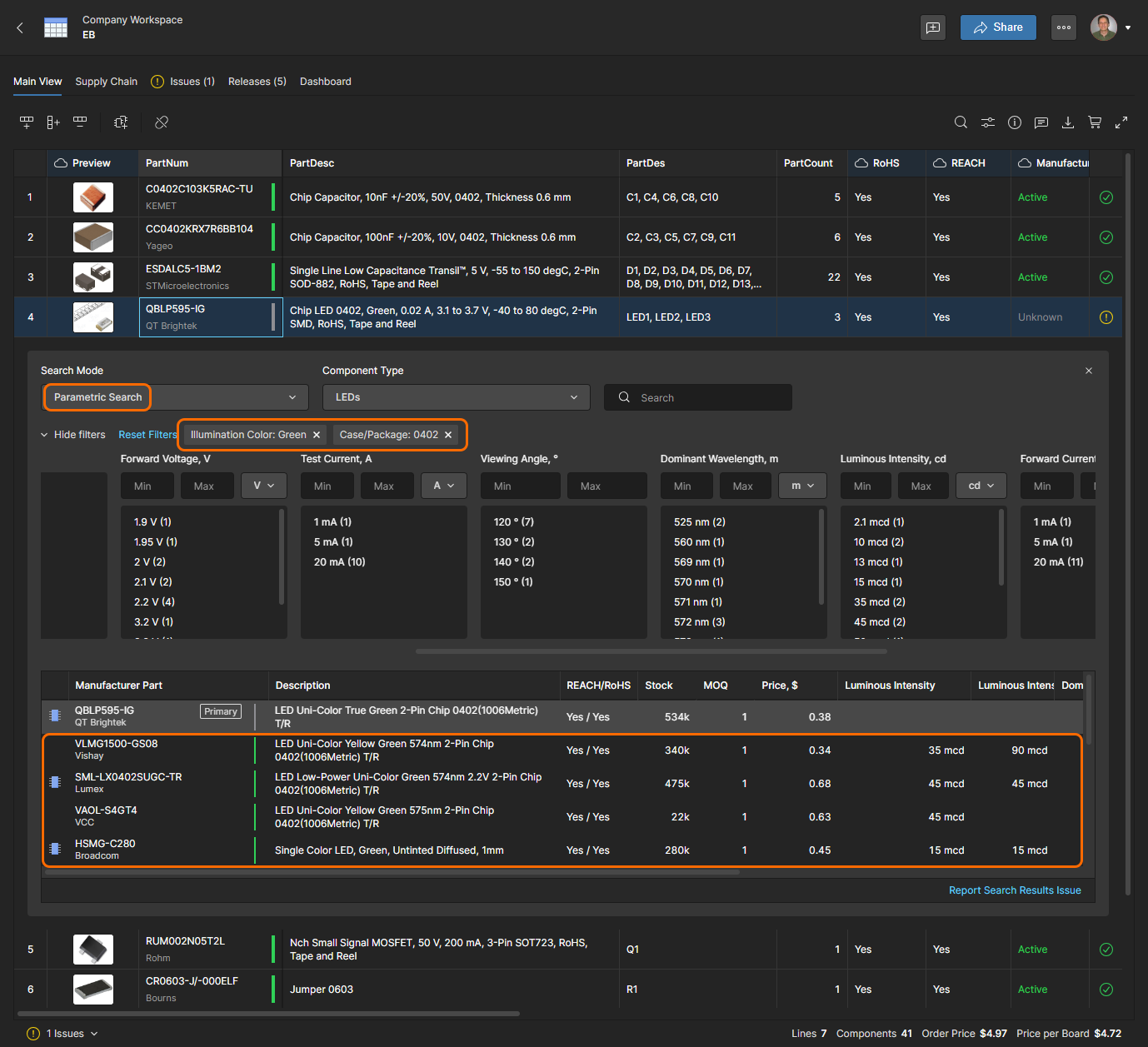
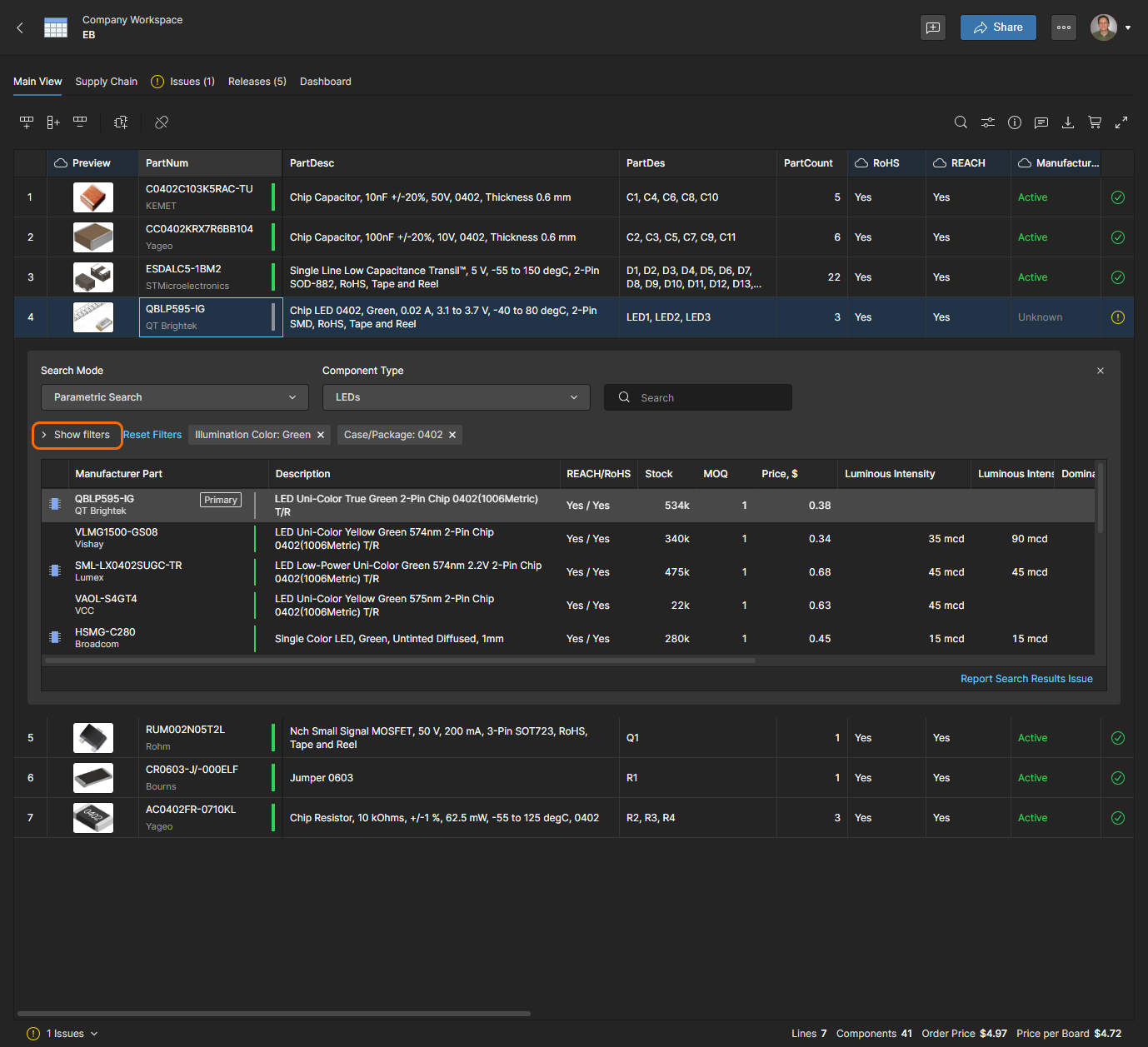
You can simplify and reduce the size of the search panel by hiding the filter section. Also note that the Info pane (click the icon to enable) will provide additional information on a component entry selected in the search results list.
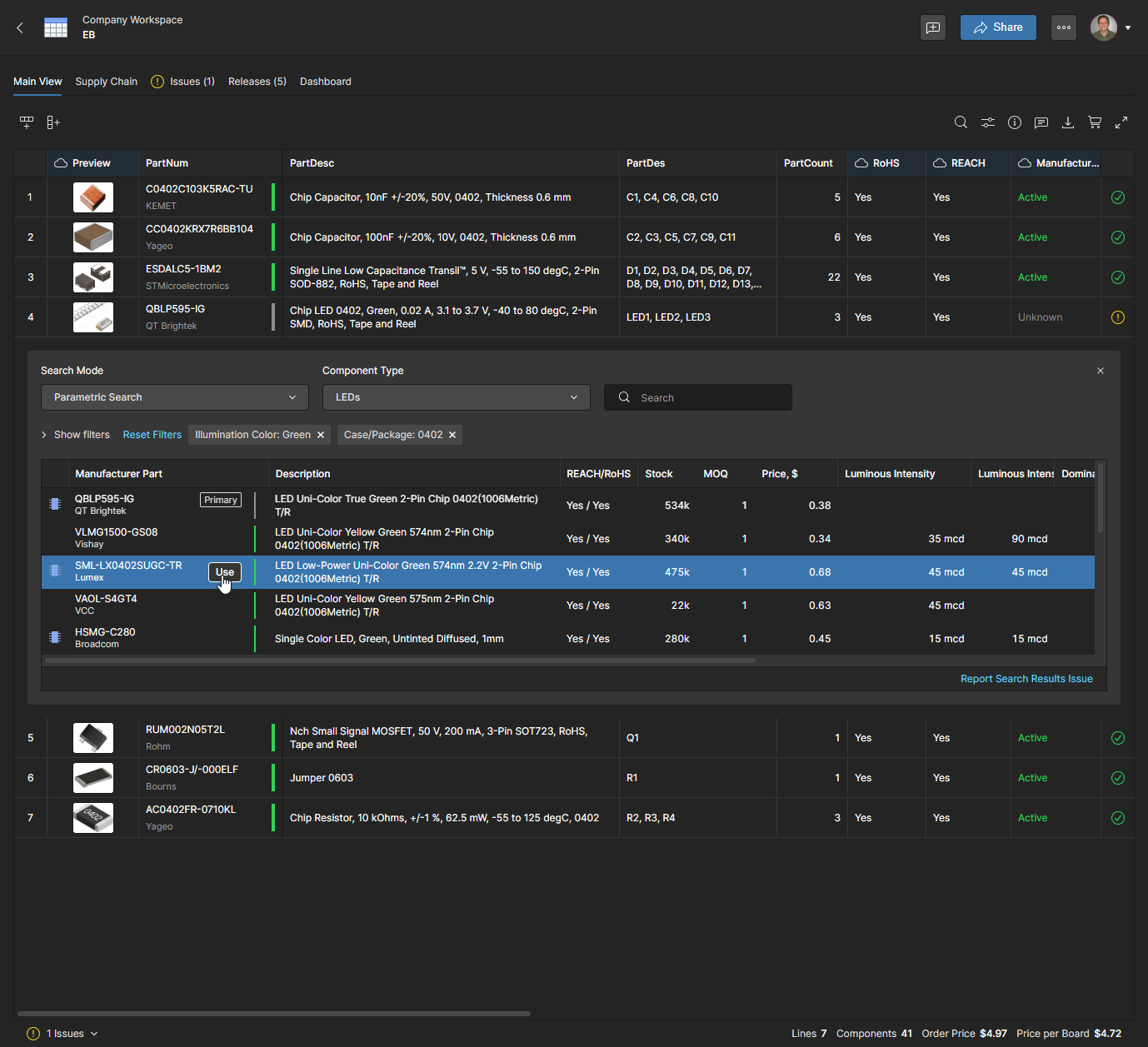
Each list entry includes the best minimum-order pricing solution available from one of the enabled suppliers, and the part’s total stock levels for all enabled suppliers. Select a suitable replacement part entry and click the button to confirm your choice. Note that a Manufacturer Part entry with an associated  icon indicates that a Workspace component is available with this manufacturer part as a Part Choice entry.
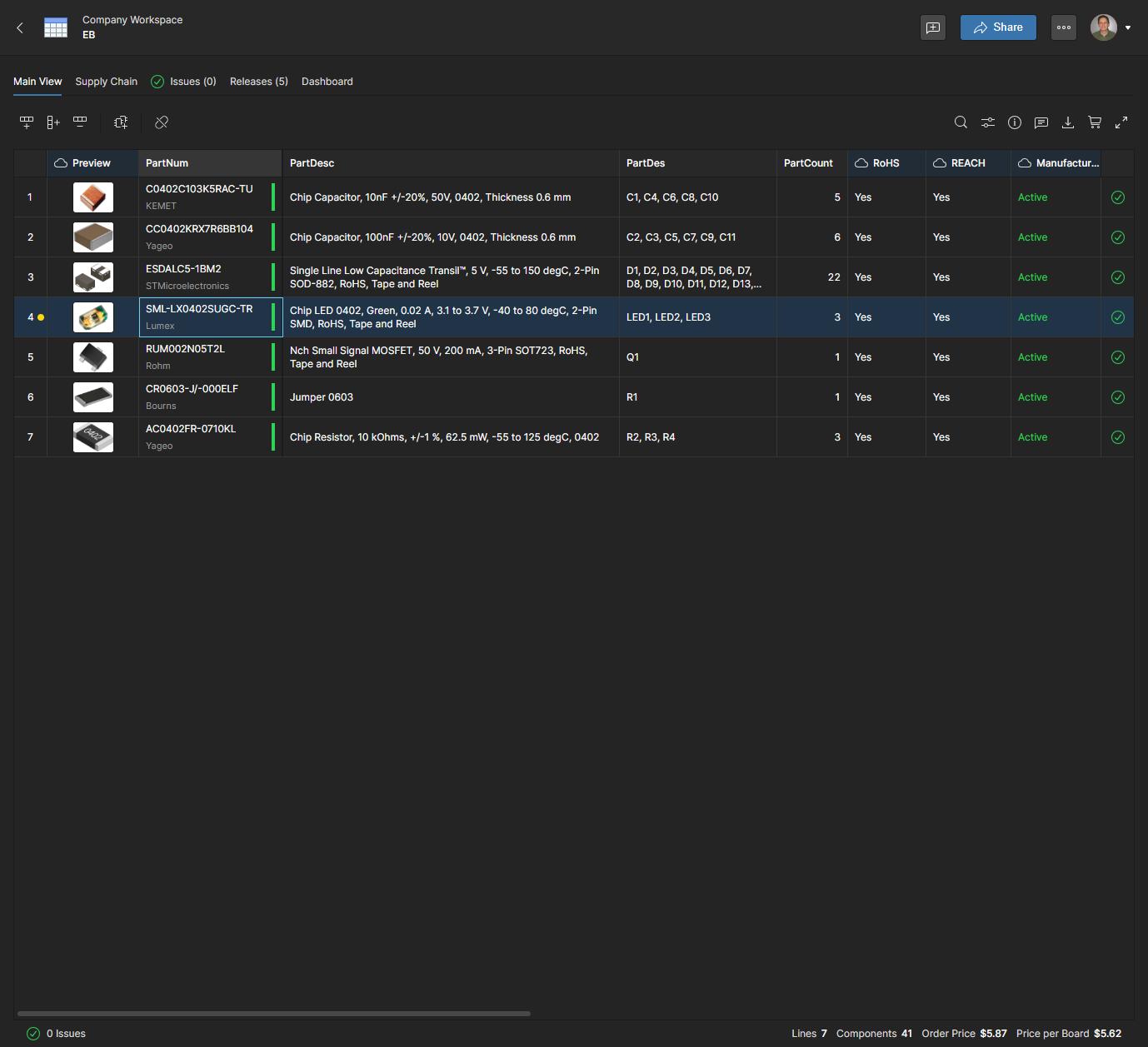
The BOM line item will be updated with the new part number, which will in turn update the Order List entry and its current Supply Chain procurement data. The line's yellow dot icon indicates that the Manufacturer Part Number (or Description) has been changed since the last Release – click on the icon to view that data change ( ).
).
 icon. The parameter values extracted from the
  menu. Note that this should be completed before updating the combined Part Numbers with search Suggestions or Alternate parts, so that the
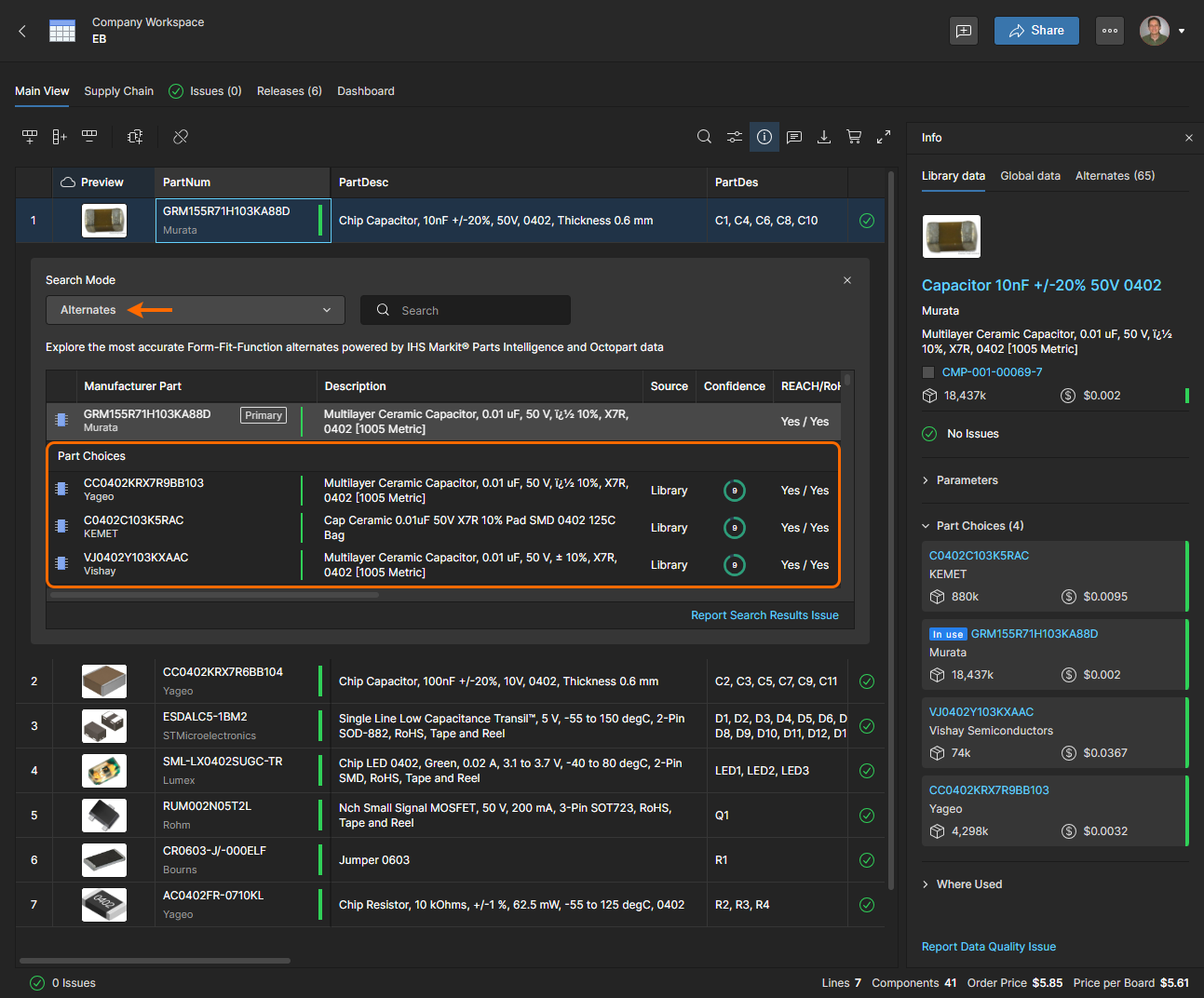
 Where a BOM line Manufacturer Part entry is linked to an existing Workspace component (see Components Integration section below), its Part Choices are made available for selection. These are offered as a list of Part Choices when the part number is selected, and also in the Alternates mode of the Advanced Search – where the latter includes confidence ratings along with compliance and supplier information.
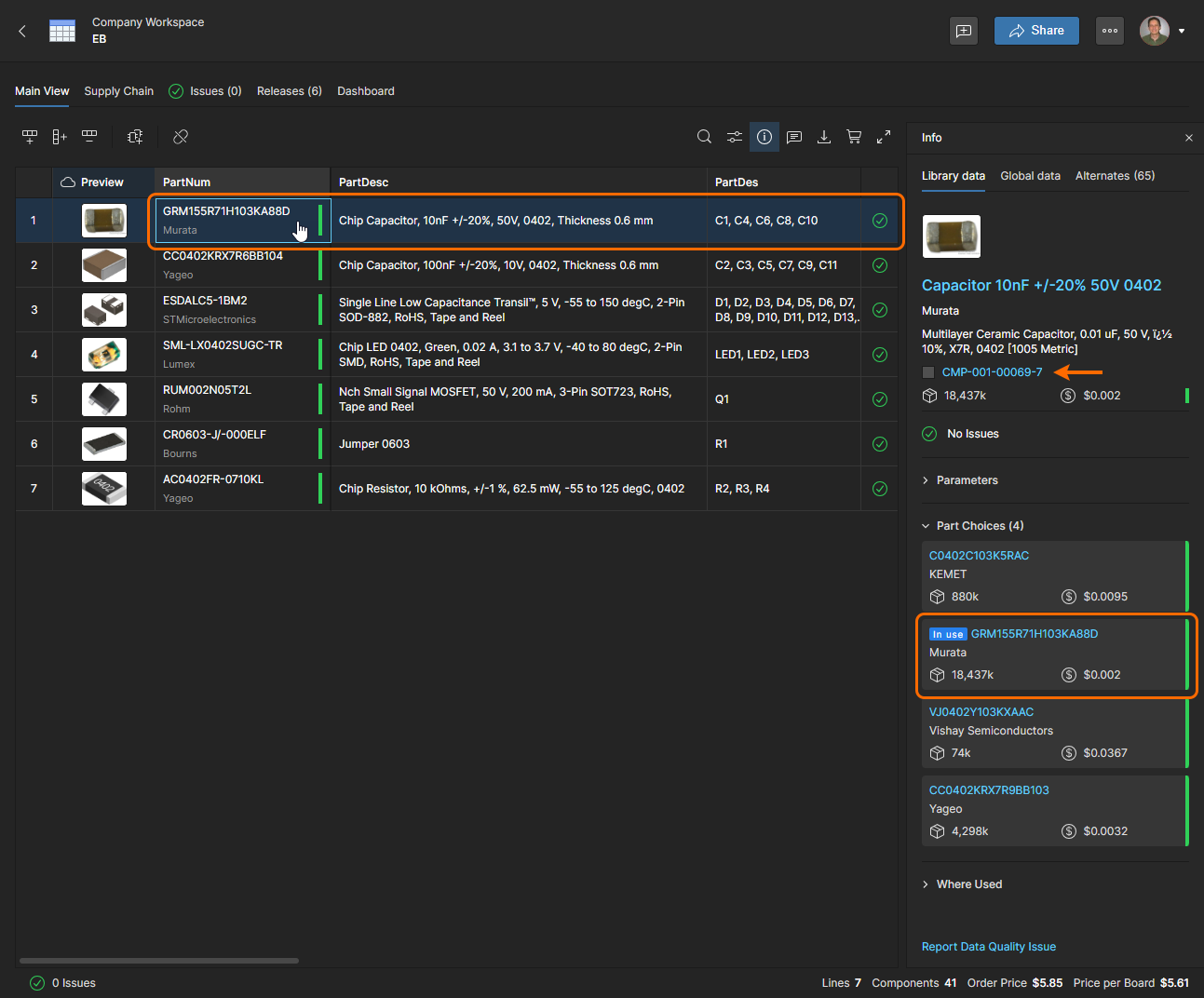
A BOM line entry is linked to a Workspace component where its Manufacturer Part Number matches that of a component's Part Choice - as indicated by the  icon in the Info pane
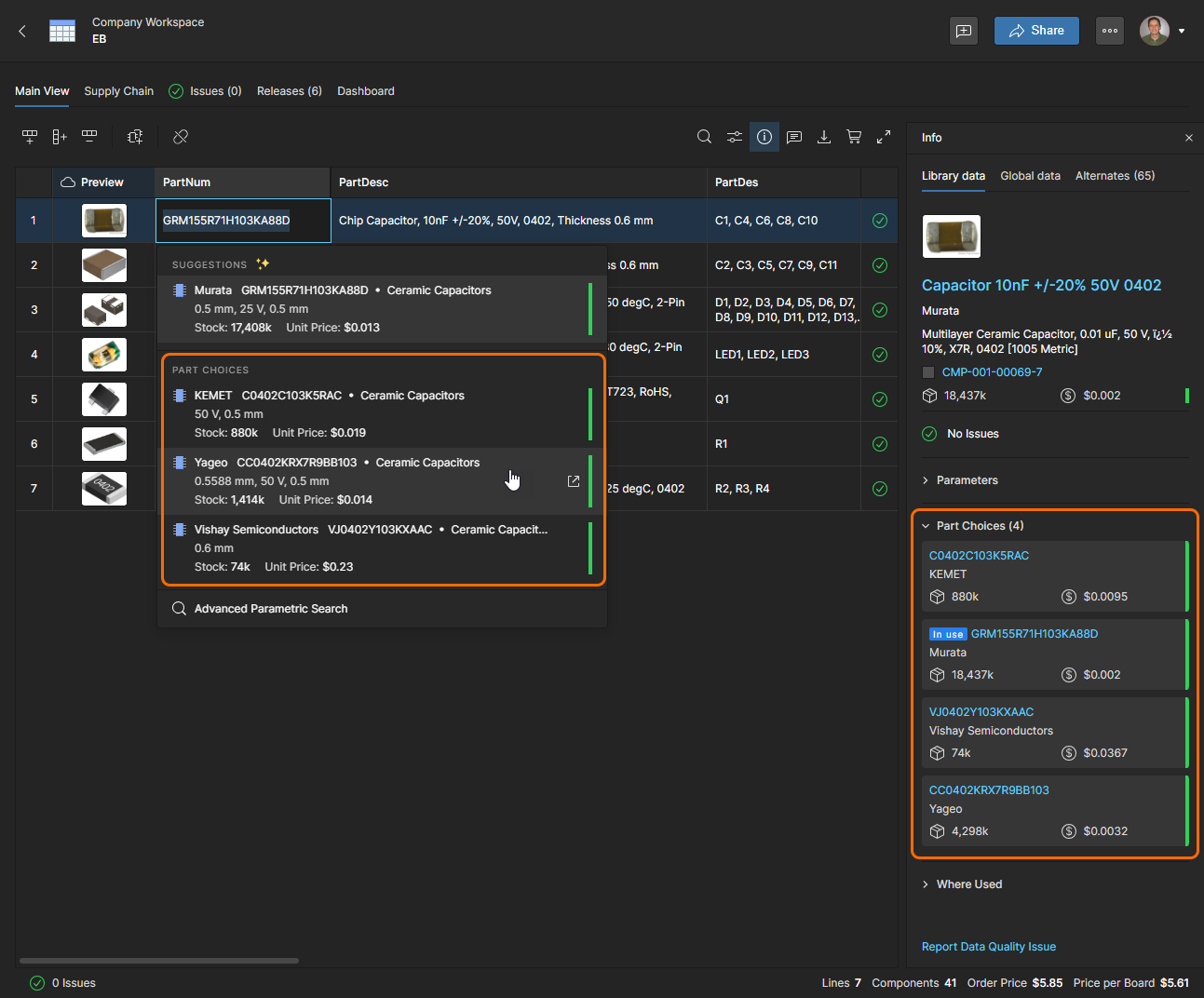
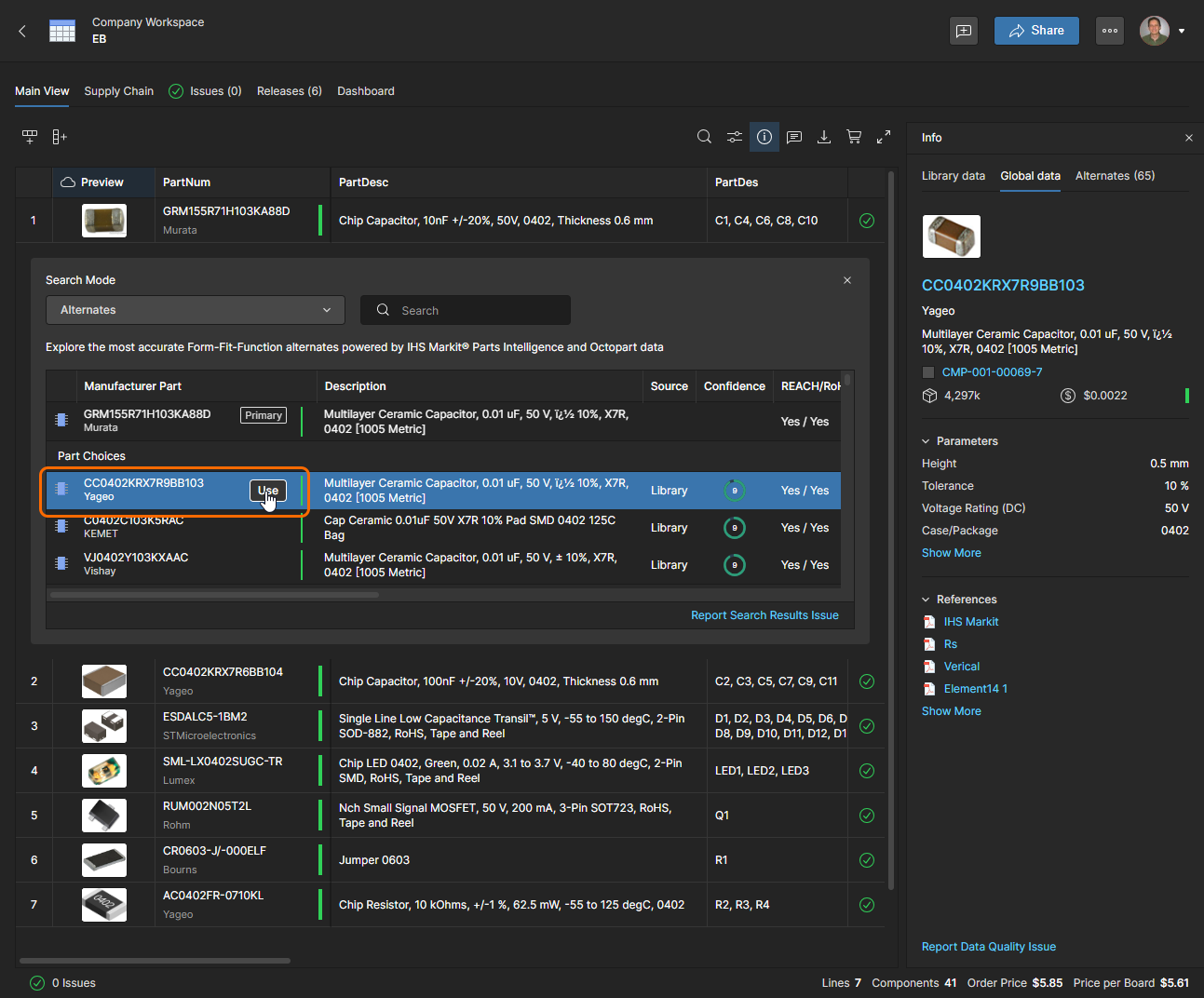
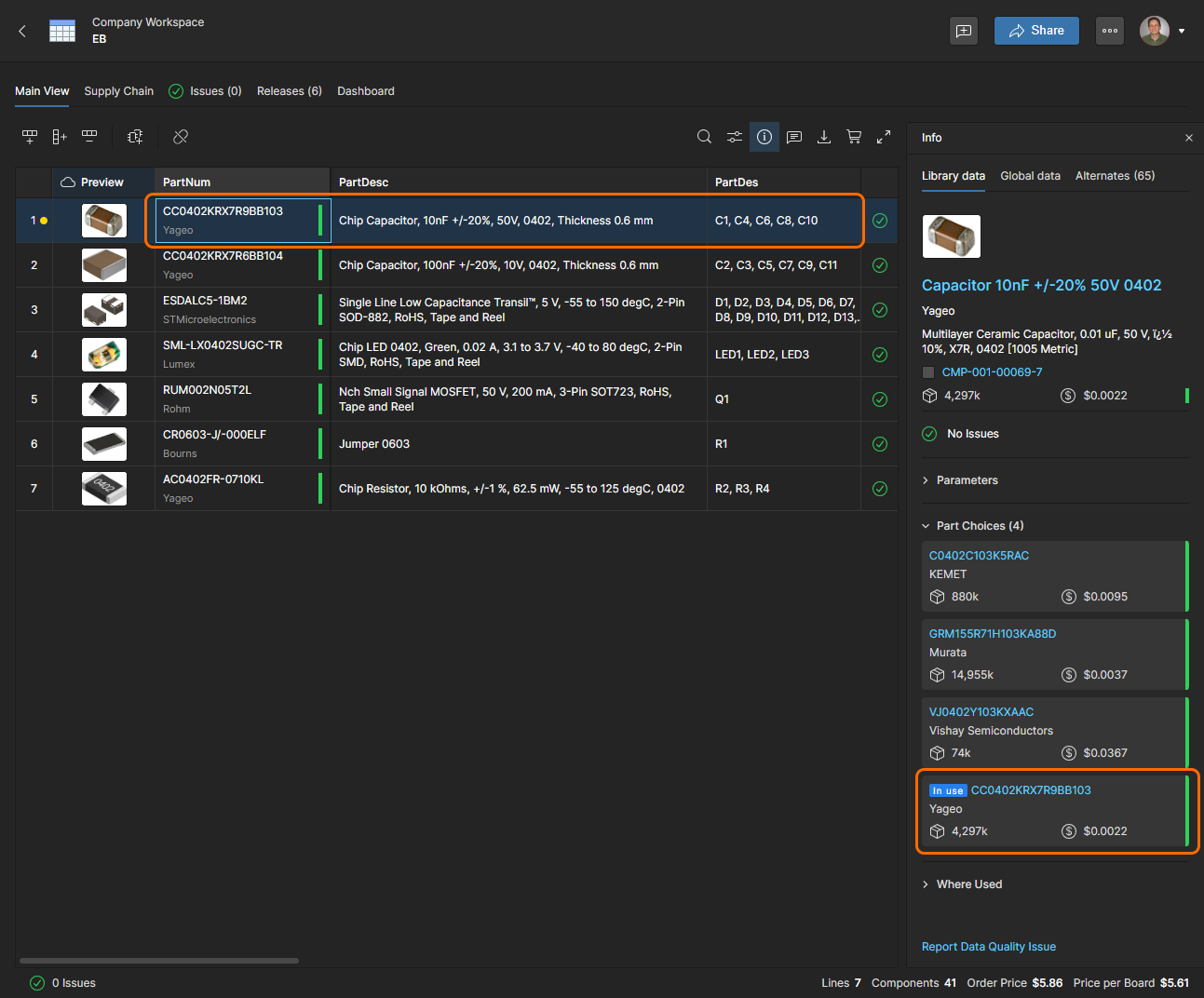
The Manufacturer and Manufacturer Part Number fields in the BOM line will change to the newly selected Part Choice entry, which is also indicated in the part's Info pane entry ().
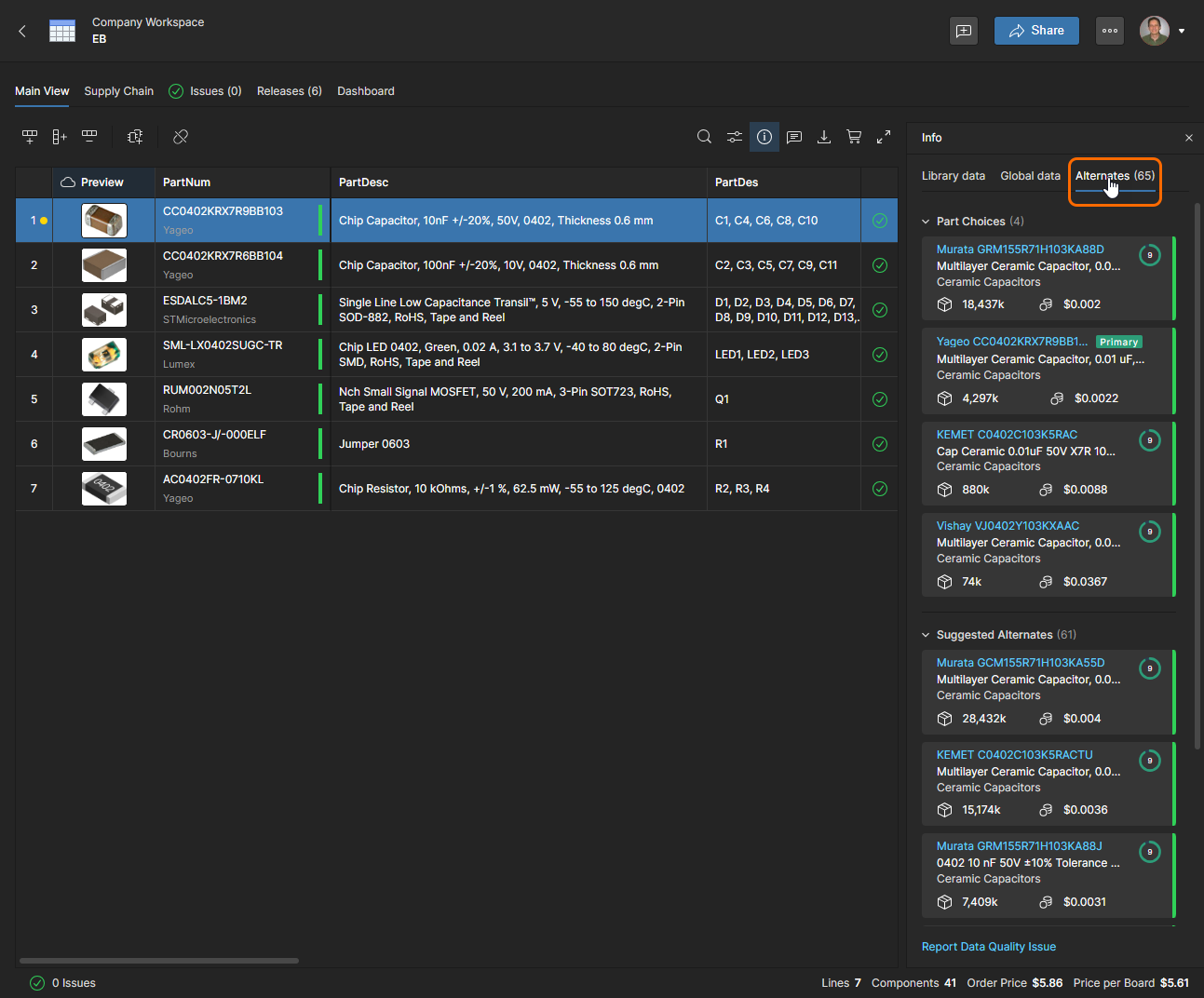
Note that the Alternates tab view in the Info pane also includes the confidence-rated list of Part Choices with the current selection indicated ( ). See the Information pane section for details.