Generate Requirements
Generate Requirements is a feature available in ValiAssistant. It generates a set of requirements from an inputted description of your project or stakeholder requirements. These requirements can then be adjusted before deciding whether to finalize their creation in your project or whether to discard them. This feature accelerates the creation and ideation process by enabling you to generate requirements quickly that you can iterate on and not have to start from scratch.
Access
Currently, the Generate Requirements feature can only be accessed through the ValiAssistant from two locations from within the Requirements Module:
-
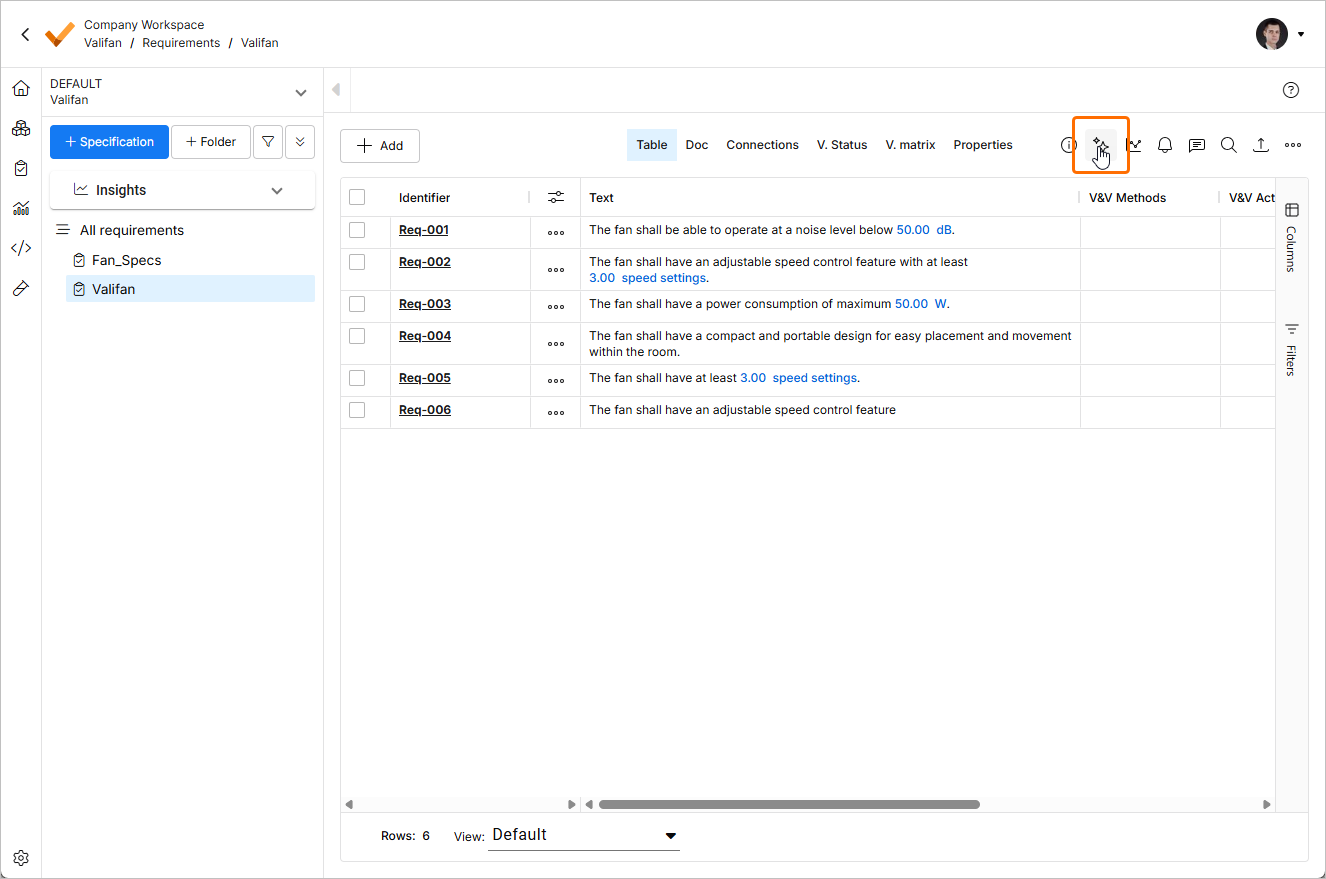
By clicking the ValiAssistant button (
 ) at the top bar.
-
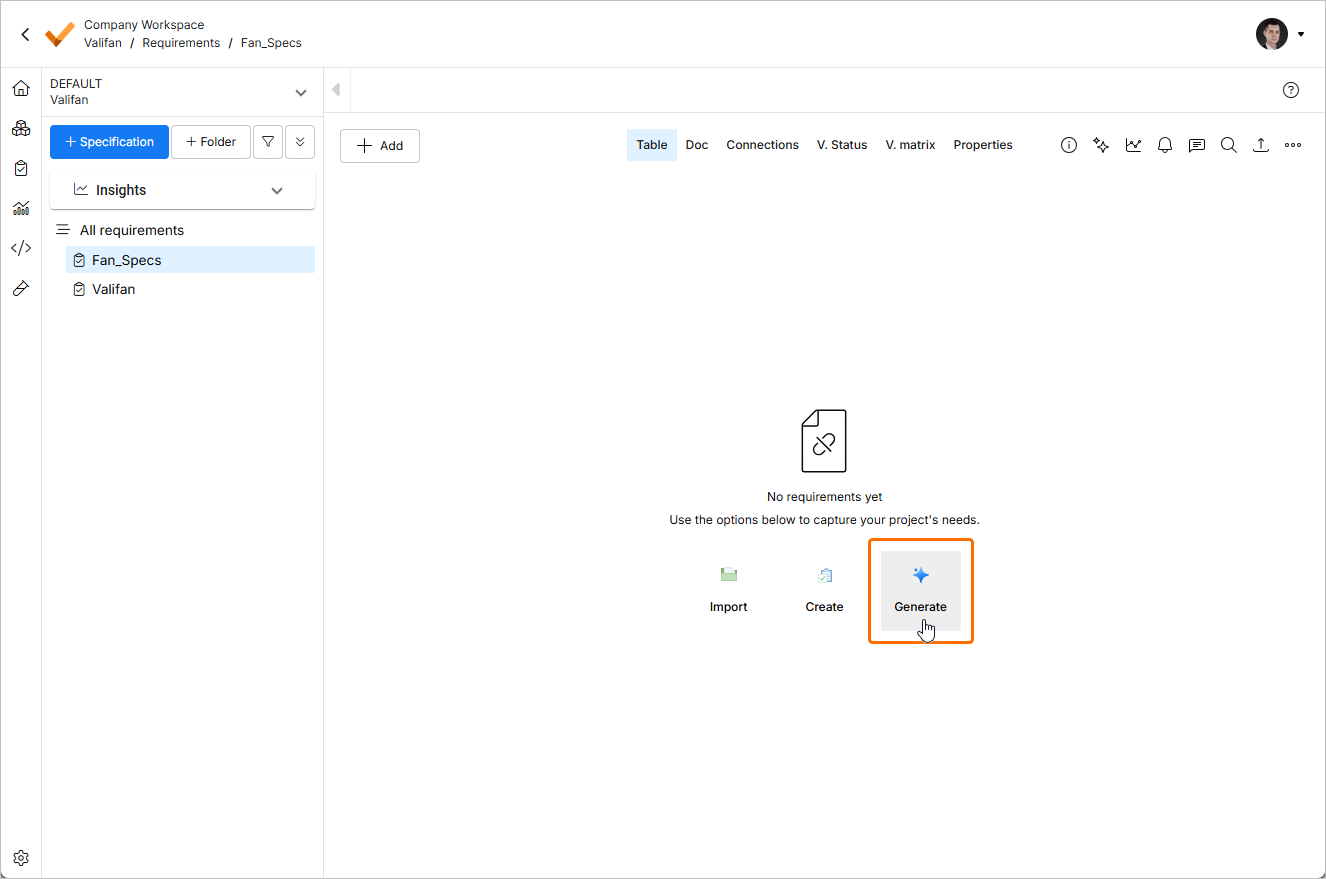
By clicking the Generate button when viewing a specification or section that has no requirements yet.
Steps to Generate
Generating Requirements is composed of three main stages: “Prompt” (System/Project Description), “Requirements Generation & Adjustments” and “Confirmation”. These stages are detailed below.
1 - Prompt
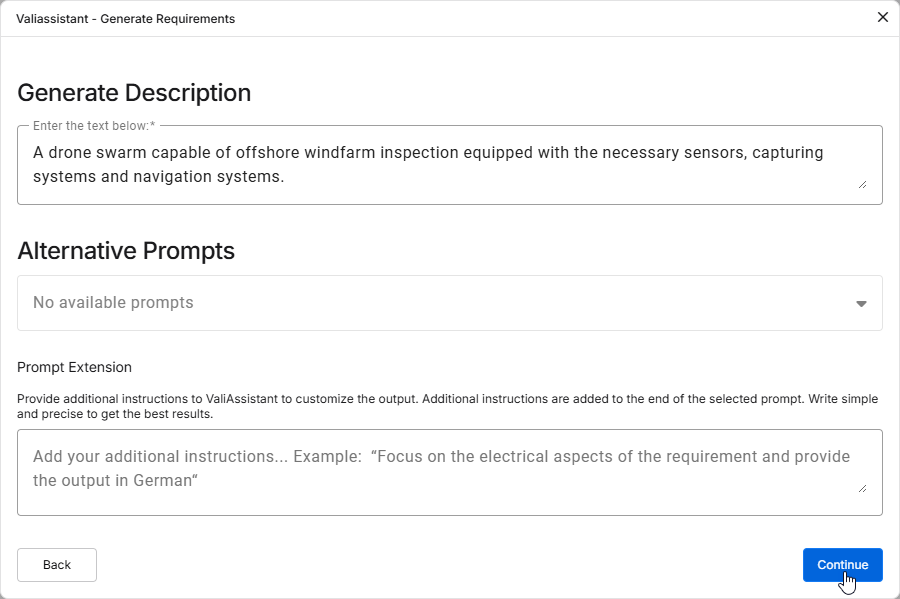
After triggering Generate Requirements, you are brought to a blank text box where you have space to describe your system/subsystem/project. This can be any of the following:
-
Description of your project
-
Stakeholder requirements
-
For example, try inputting:
A drone swarm capable of offshore windfarm inspection equipped with the necessary sensors, capturing systems and navigation systems.
2 - Generated Requirements Review
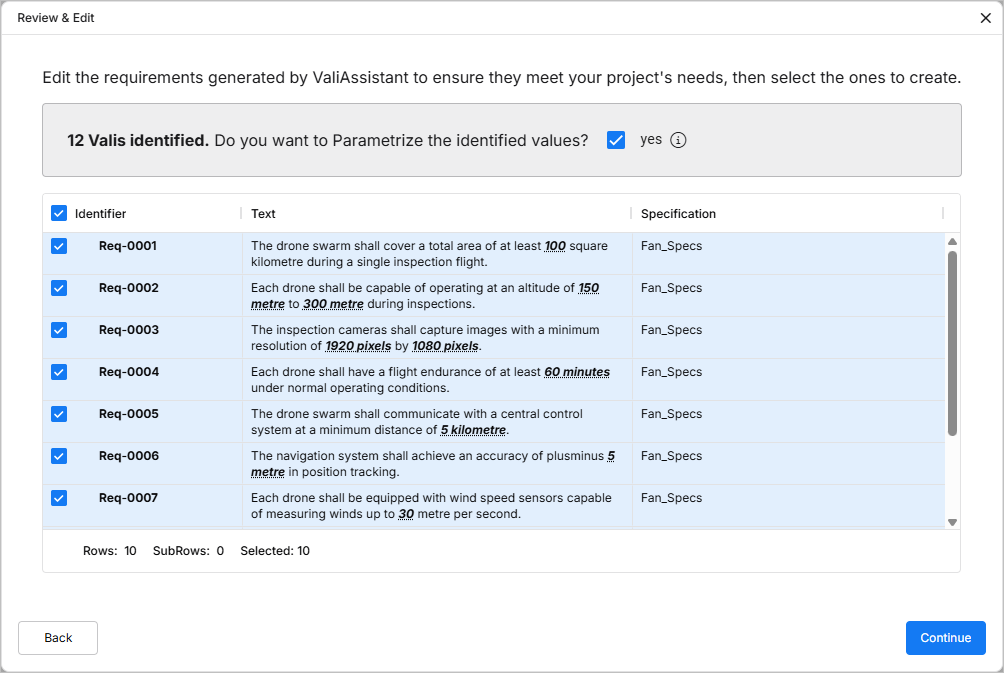
At this stage, the ValiAssistant has created a set of requirements from your text.
You can now edit the identifier and specification/section and further adjust the text of these requirements by double clicking into the respective fields.
You can further decide which requirements you wish to include into the Specification by ticking or unticking the check box on the left at each Requirement.
You can further decide whether to parametrize the Requirements on the check box, which transforms any Values + Units into Parameters (Valis).
Press Continue to finalize the generation of these requirements or cancel to terminate the process and discard any suggestions.
3 - Confirmation
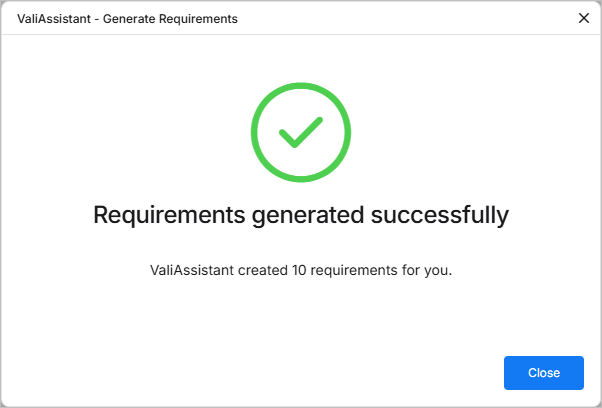
If there are no errors with the requirements, you will see this page signifying that the requirements were successfully created.