
Parametrize Requirements
The Parametrize feature analyzes the requirements text in search for quantifiable properties to convert them to Valis. This aims to facilitate the parameterization of requirements by automatically creating new Valis that can be then used for multiple purposes, reducing the effort and error probability associated with this manual parameterization work.
Access
The Parametrize process can be initiated from five different locations, while at the Requirements Module:
-
The ValiAssistant action button (
 ) at the top bar.
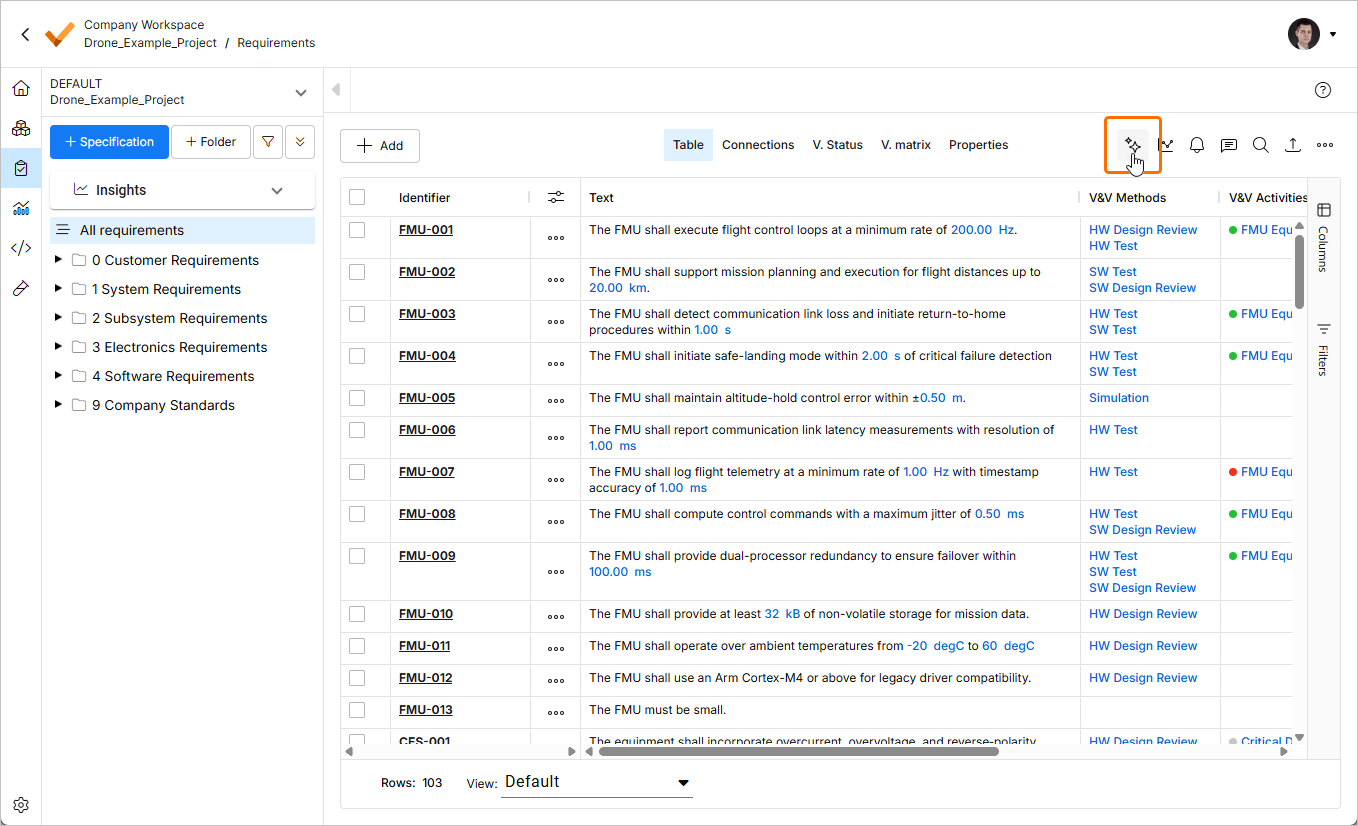
-
The ValiAssistant action button at each line of the requirements table.
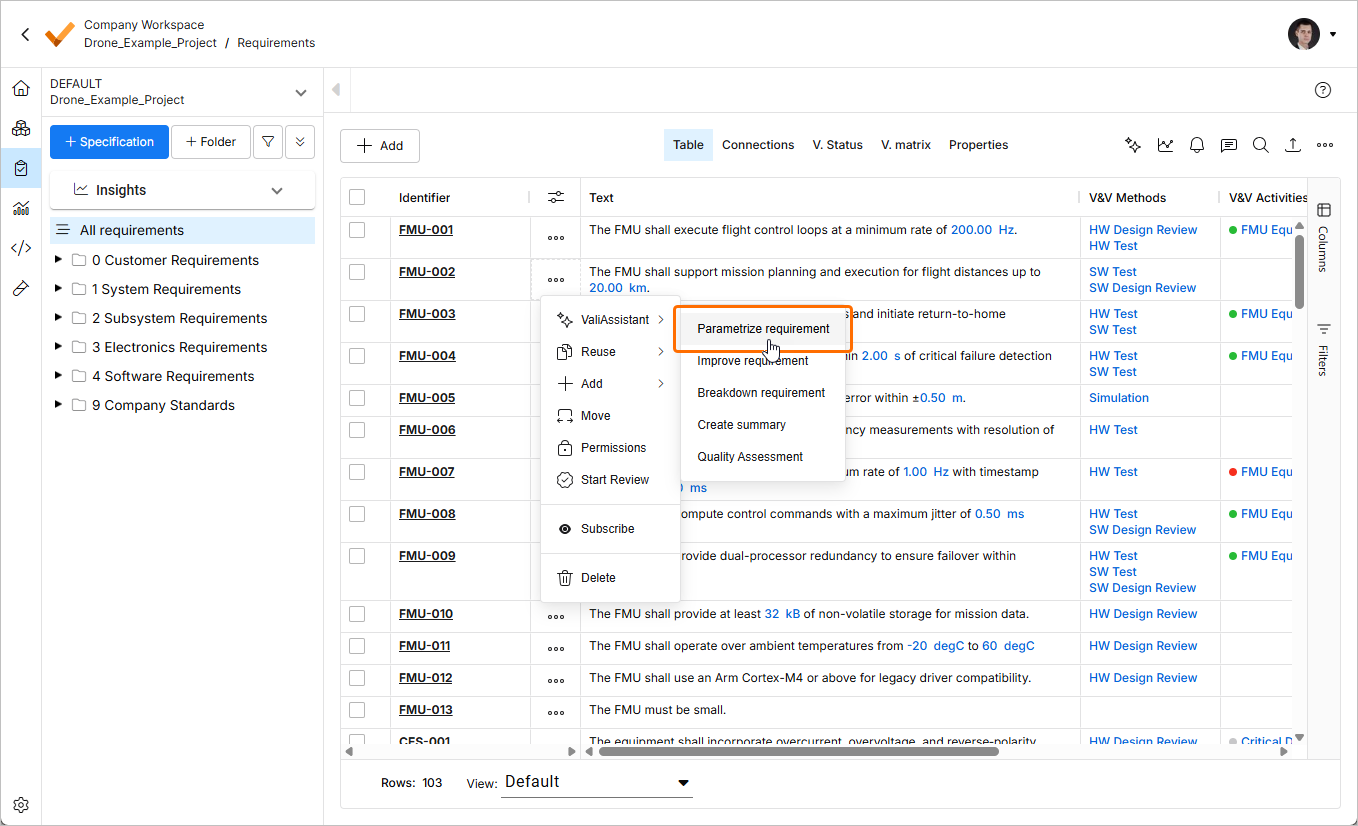
-
The ValiAssistant action button in the connections graph.
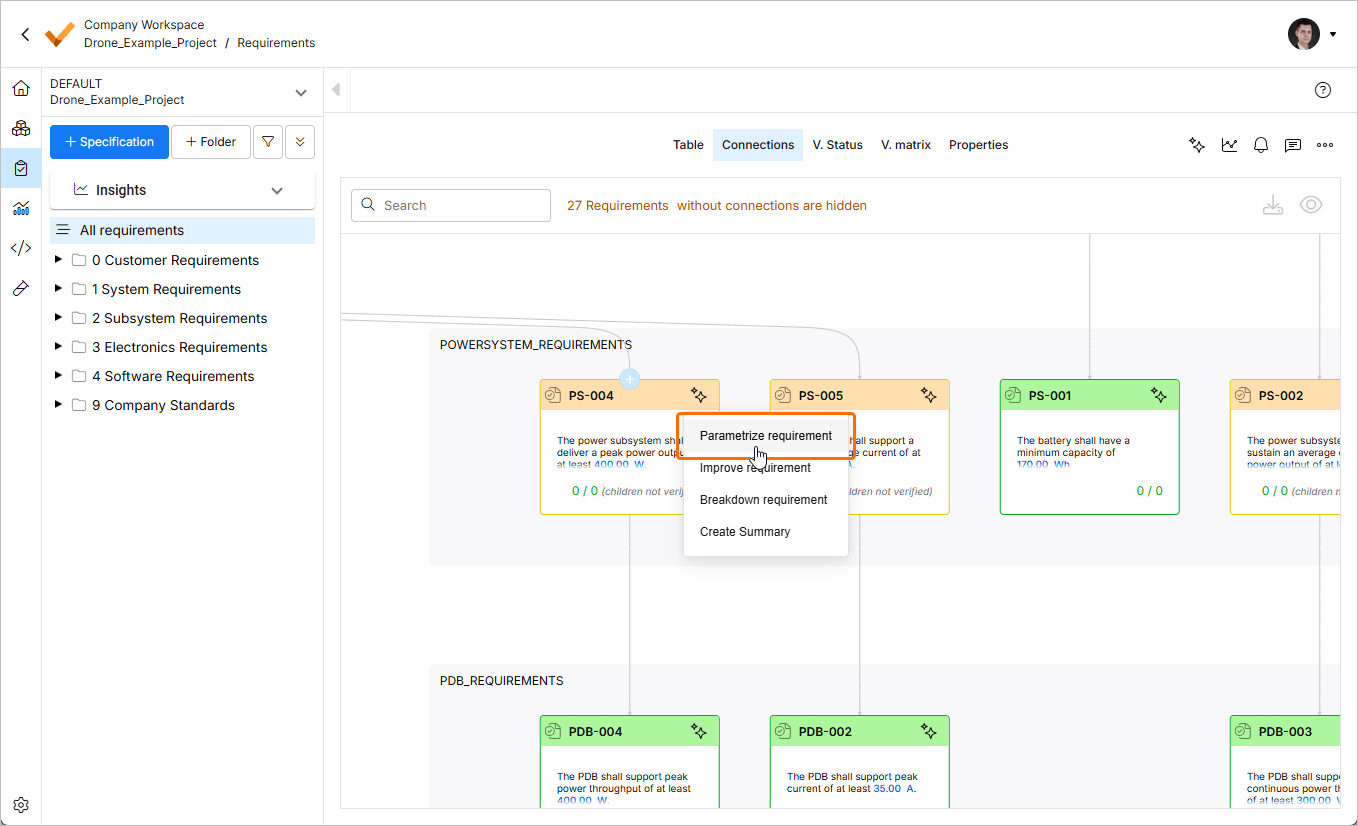
-
The import wizard
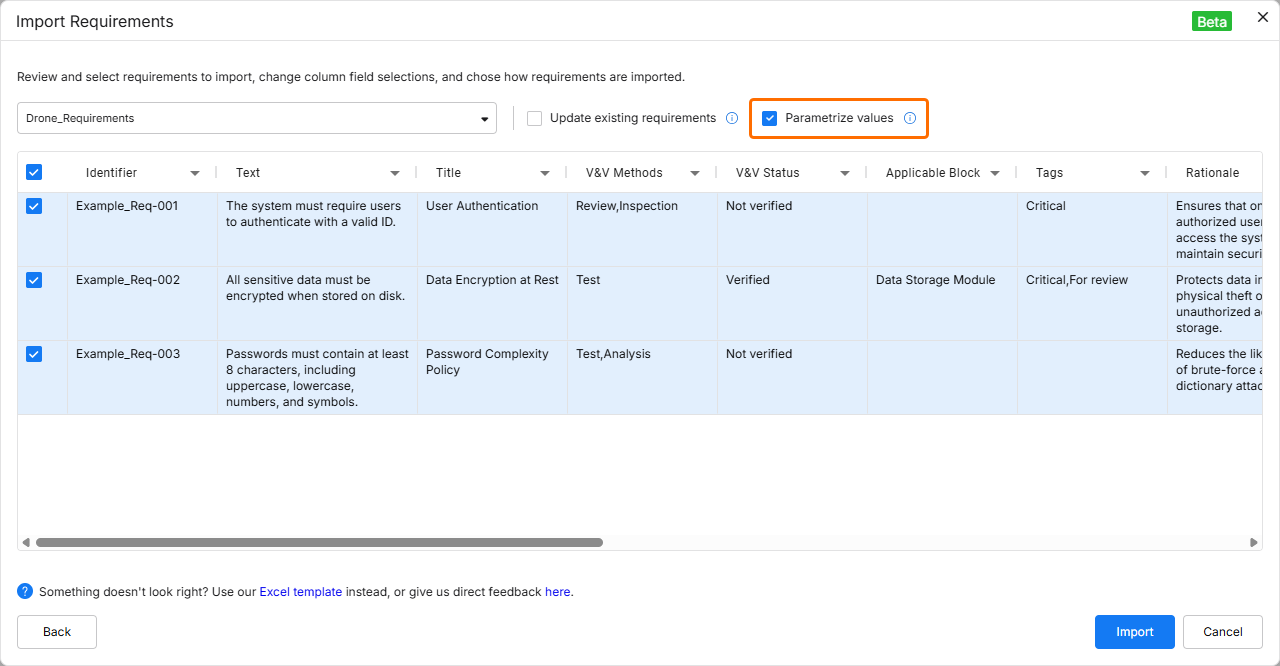
-
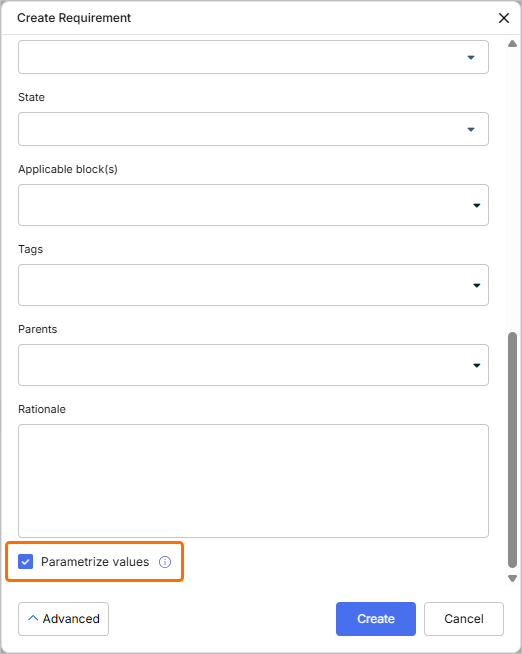
The Create Requirement window
 button in the pop-up that appear at the bottom right of the page for details about the parametrization process
 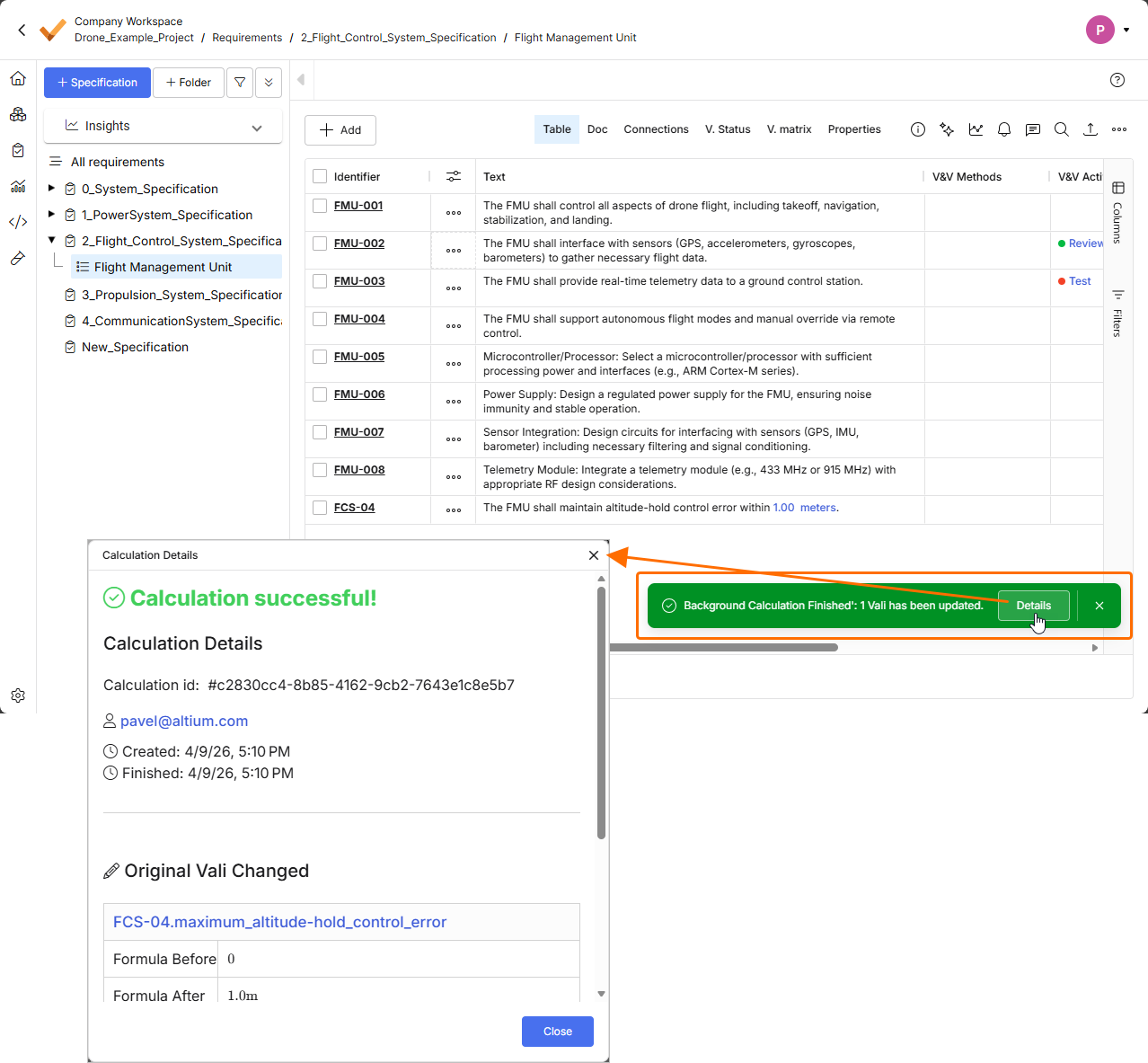 ).
).Steps to Parametrize
The parametrization process is composed by three main stages: 'Pre-loading', 'Loading & Info' and 'Parametrization'. These stages are detailed below.
1 - Pre-loading
After triggering the process, you will be informed of exactly how many requirements will be checked by the process.
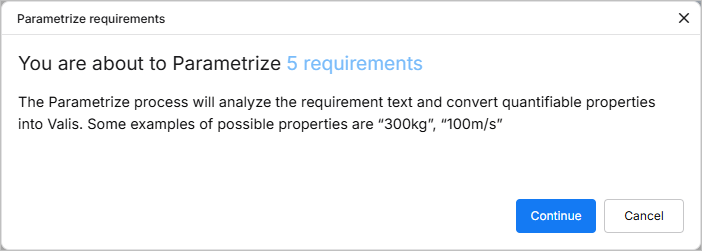
2 - Loading & Info
After confirmation to parametrize, you will be presented with a loading screen while Requirements & Systems Portal searches the selected requirements for possible Valis.
If no possible Valis are found a warning message will inform you of that result and the parametrization process will end.
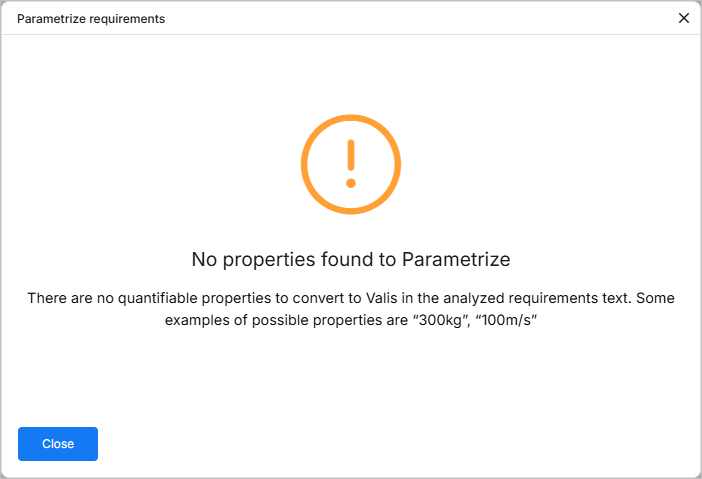
In case potential Valis are found, you will receive information on how many Valis where found, in how many requirements so that you can decide to proceed with the parametrization process or cancel it.
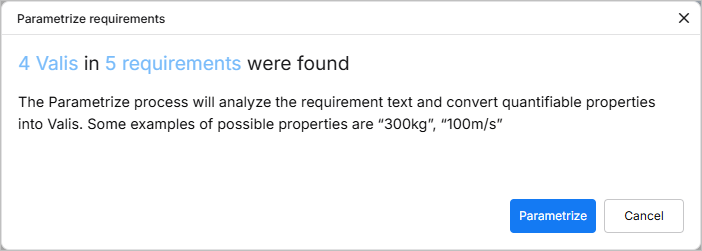
3 - Parametrization
If the decision is to parametrize, you will be presented with a loading screen while Requirements & Systems Portal creates the Valis and updates the requirements. If the creation of Valis is successful, Requirements & Systems Portal will inform you of how many Valis were created and in how many requirements, concluding the automatic Vali creation with the parametrization process.
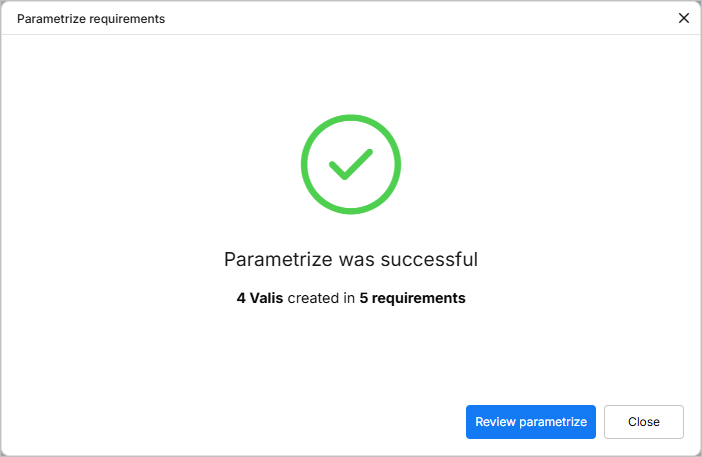
The created Valis will have a naming convention that is based on the Identifier of the Requirement. The user can always hover over the Vali and select the pencil symbol to change the name, value, display unit or decimal places to show. Changing the name to a more meaningful name makes sense for easier reference later on.