
Library
The Library button is used to access the SCH Library and PCB Library panels from their respective library editors.
SCH Library Editor
The Schematic Library editor is used to create and modify schematic symbol models of community components. It is similar to the Schematic Editor and shares the same graphical design objects, with the addition of the Pin tool.
SCH Library Panel
The SCH Library panel enables you to browse through, and make changes to, the components stored in the active schematic library document. The panel is accessed from the schematic library editor by choosing View | Schematic | Library.


Panel Sections
Components
As you click on the component entry, it will be centered and zoomed in the editor design space. Double-click the component entry or click the Edit button below the component list section to open the Component mode of the Inspector panel in which you can view/edit properties associated with the active component.
Pins List

The Pins List region of the panel lists all of the Pins that have been placed and defined for the active component. Each entry in the list contains the pin number, any name that has been defined for the pin, its electrical type, where footprint models have been linked to the component, and the corresponding pin in the model that this pin maps to.
As you click on an entry in the list, the corresponding pin graphic will be centered and selected in the design editor window.
Double-clicking on a pin entry in the list or selecting the entry and clicking the Edit button below the list will open the Pin mode of the Inspector panel, from where you can view/modify the properties of the pin as required.
To add a new pin from the panel, click the Add button beneath the pin list. The pin will appear floating on the cursor within the design editor window. Position the pin as required and click to effect placement. Continue placing additional pins or right-click or press Esc to exit pin placement mode.
To delete one or more pins, select the required entries in the list and press the Delete button. The pins will be removed from the list and deleted from the symbol's graphic.
Notes
- Standard Ctrl+Click and Shift+Click functionality is supported for the selection of multiple pins in the list.
- Ctrl+Click over a selected pin in the list to deselect it.
- The keyboard shortcuts Up Arrow, Home, End, and Down Arrow can be used to display the previous, first, last, and next pin in the list region, respectively.
- In the pin list section of the panel, the data may be sorted by any column by clicking on the header for that column. Click once to sort in ascending order; click again to sort in descending order.
- You can change the order in which columns of data are displayed. To move a column, click on its header and drag it horizontally to the required position. A valid position is indicated by the appearance of two positional arrows.
SCH Library Management Tools
Library
Schematic library management tools are available in the Home | Library region of the schematic library editor ribbon.

- Component Properties - opens the Component mode of the Inspector panel in which you can view and edit properties associated with the active component.
- Options - opens the Library Options mode of the Inspector panel in which you can set the Units, Snap Grid, and Visible Grid.
Modes
The Modes region is used to add or remove additional graphical representation (mode) for the active component.

The Mode command tools are available in the Tools| Modes region.
- Add Mode - click to add an additional graphical representation (mode) for the active component. The addition is called an Alternate.
- Delete Mode - click to remove the current graphical representation (mode) for the active component. A component can have a default representation - called Normal - and up to 255 additional representations, known as Alternates.
- Choose Mode - click to change the graphical representation (mode) of the active component. All components have a Normal mode. Components may, in addition, have anywhere up to 255 Alternate graphical representations (Alternate 1 - Alternate 255).
PCB Library Editor
The PCB Library editor is used to create and modify PCB footprints models of community components. In addition to footprints, company logos, fabrication definitions, and other objects required during board design can also be saved as PCB components.
PCB Library Panel
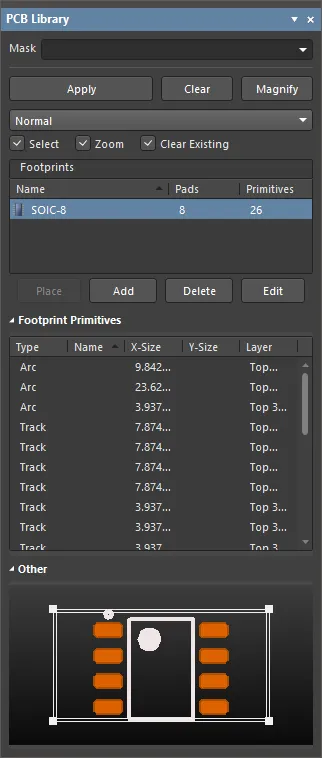
The PCB Library panel enables you to browse footprints stored in the active PCB library document and edit their properties. The panel is accessed from the PCB library editor by choosing View | PCB Library |Library.

Content Browsing
The panel has three main sections, each offering a different scope or view of the footprints in the active PCB Library:
- Footprints - contents the entry for the currently defined footprint model, with its number of pads and primitive objects.
- Footprint Primitives - the primitive objects and their main properties that make up the footprint. Selecting a primitive object in this section causes the corresponding object to be highlighted in the design space.
- Other - a simplified, overall view of the currently selected footprint with the design space indicated by an overlay graphic.
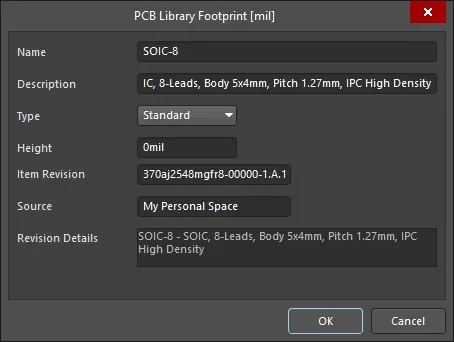
Double-click the footprint entry, click the Edit button below the footprint list section, or right-click the footprint entry and select Footprint Properties to open the PCB Library Footprint dialog to edit footprint properties.
Double-click on a footprint primitive entry to access its corresponding properties in the Inspector panel.
Browsing Footprint Primitives
The Footprint Primitives section lists all primitive objects that constitute the footprint. For each primitive entry, the following information is displayed.

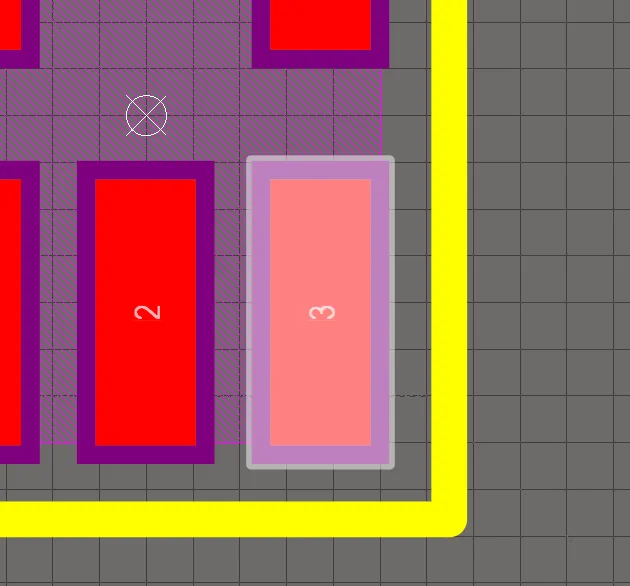
As individual object primitives are selected in the panel, the matching object (track, arc, pad, etc.,) is graphically highlighted in the design space.
Right-Click Menu
Toggle the right-click Show commands to display/not display the specific objects. The commands depend on the types of objects in the selected document. Other Show commands may also be available.
- Select All - quickly select all footprint primitive entries in the list.
- Report - generate a primitive information report for the focused footprint in the Footprints section of the panel. After launching the command, the Report Preview dialog will open containing the primitive information currently displayed in the Footprint Primitives region of the panel. Use the dialog to view, print, and export the report in various file formats.
- Properties - access the corresponding Inspector panel for the focused primitive in which you can view and modify properties as required. The primitive's corresponding Inspector panel also will open when a primitive entry is double-clicked in the panel.
Controlling the Display of Browsed Entries in the Design space
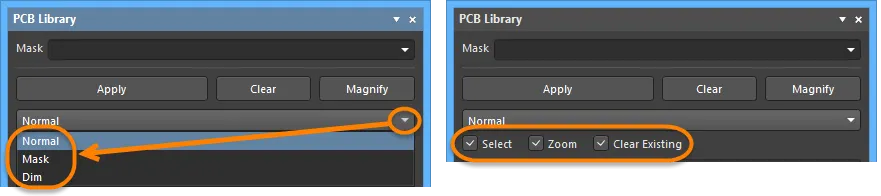
Selecting an entry in the panel's list region applies a filter, essentially using the entry as its scope. The visual result of the applied filtering on the document in the design editor window is determined by a series of highlighting controls located at the top of the panel.
Display Functions
- Mask / Dim / Normal - provides the options for visibly contrasting filtered and unfiltered objects within the design editor window.
- When Mask is selected, filtered objects will appear visible in the design editor window, with all other objects being made monochrome. When this option is applied, unfiltered objects will be unavailable for selection or editing.
- When Dim is selected, filtered objects will appear visible in the design editor window, with all other objects retaining their colors but shaded.
- Select - when enabled (default), the filtered objects will be selected in the design space.
- Zoom - when enabled (default), the filtered objects will be zoomed and centered (where possible) in the design space.
- Clear Existing - when enabled (default), an existing filter will be cleared before applying a new one. Disabling this option allows you to extend an existing filter, essentially refining the filter further by applying a new filter in addition to the existing one.
Any combination of these options can be enabled. For example, you might want to have all filtered objects zoomed, centered, and selected in the design space as well as applying masking to take away the clutter of other design objects. Use the Clear button to clear the currently-applied filter. All objects in the design space will become fully visible and available for selection/editing. If you want to re-apply the filter, click the Apply button.
Using the Panel's Mini-viewer
The bottom section provides a mini-viewer for the document, with an image of the active footprint central to its window. The area currently displayed in the design editor window is denoted by white hash marks as highlighted in the following image.
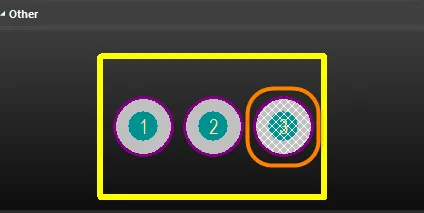
Click the Magnify button at the top of the panel to provide a floating magnifying glass and zoom cursor in the design editor window. As you move these around in the design space, the mini-viewer in the panel will contain the magnified image of the active footprint centered on the cursor. This allows you to browse the document at full size in the design editor window while looking at zoomed detail in the mini-viewer window.
Use the Page Up and Page Down keys to increase or decrease the magnification. Right-click, click or press Esc to exit magnify mode.
Notes
- Standard Ctrl+Click and Shift+Click functionality is supported for the selection of multiple footprint primitives in the list.
- Ctrl+Click over a selected primitive in the list to deselect it. If the entry is the only one selected for that section, performing this action will clear the filter.
- The keyboard shortcuts Up Arrow, Home, End, and Down Arrow can be used to display the previous, first, last, and next footprint primitive, respectively.
- In the footprint primitive section of the panel, the data may be sorted by any column by clicking on the header for that column. Clicking once will sort in ascending order; click again to sort by descending order.
- You can change the order in which columns of data are displayed. To move a column, click on its header and drag it horizontally to the required position. A valid position is indicated by the appearance of two positional arrows.
- The filtering applied when browsing design objects is permanent. If the Mask or Dim highlight method has been selected, all objects not falling under the scope of the filter will become faded (depending on settings) in the design space and are not available for selection or editing. Clicking inside the design editor window will not clear the filter. A permanent filter must be cleared by clicking on the Clear button from within the panel.
PCB Library Management Tools
While most PCB library editing actions are at the primitive object-level (i.e. placing pads and adding lines on the Top Overlay), there are also additional edits that can be performed from the Home tab of the ribbon.
Home Tab
PCB library footprint management tools are available in the Home | Library region from the main menus of the PCB library editor.

The following commands are available to perform library management tasks from the Footprint drop-down menu:
-
Footprint Properties - opens the PCB Library Footprint dialog. The dialog is used to define the component's name, description, type, and height.
- Copy Footprint - copy the current footprint to the clipboard, ready to paste into another library. This command can also be accessed via the PCB Library panel's right-click menu.
- Paste as New Footprint - paste footprint(s) from the clipboard into the current library. Components can be copied onto the clipboard from a PCB library (Copy command) or from an open PCB (select the footprints and Ctrl+C).