
Acquiring Workspace Data Using the Content Cart
A Workspace's Data Acquisition feature provides a streamlined utility with which to essentially copy data between two Workspaces (see compatibility information). The vehicle through which this is done – your interface to the Data Acquisition Service – is the Content Cart. This is control-central for defining what is to be acquired from the source Workspace, and transferred into the nominated target Workspace – a trusty removal van that 'carts' your nominated data between established Workspace residences.
Now there's no better way to illustrate the workings of a feature than by example. So to illustrate the ins and outs of the Content Cart, and its use in acquiring data, this article takes a look at acquiring some components between the following Workspaces:
-
Source Server – a Workspace named
Company Workspace. -
Target Server – a second Workspace named
Secondary Company Workspace.
Accessing the Cart
Access to the Content Cart dialog is made from within the Explorer panel. While browsing the source Workspace from which you wish to obtain data, right-click on an Item Revision that you wish to acquire, and choose the Operations » Add to Content Cart command from the context menu. You can add one or more selected Item Revisions, or even a folder of Items. Initial access to the cart loads it with the Item Revision(s) that are selected in the source Workspace at the time of access:
- A single specific revision of an Item.
- Multiple specific revisions of the same Item.
- The latest revisions of multiple Items.
- The latest revisions of all Items in the selected folder (and its descendent structure). This allows you to load an entire folder onto the cart while preserving its folder structure. To acquire a folder (and its descendant structure), select it in the Server Folders region of the source Workspace (within the Explorer panel), then right-click and choose the Operations » Add to Content Cart command from the context menu.
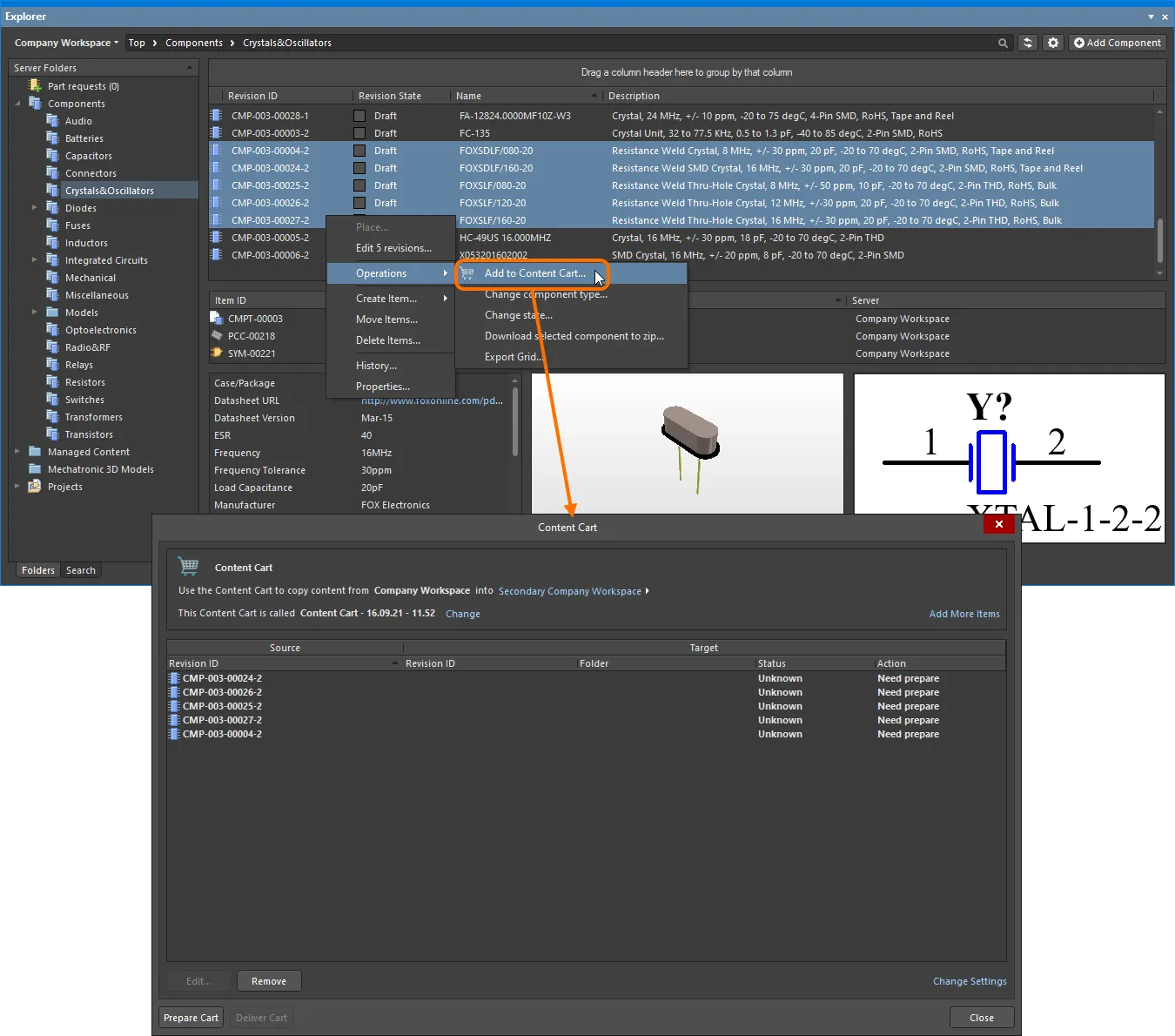
An example of accessing the Content Cart.
Items That Can Be Acquired
The following Item types can be acquired from a source Workspace, into a target Workspace, using the Data Acquisition feature:
- 3D Model
- Altium Designer Preferences
- Component (including associated Part Choices)
- Component Template
- Datasheet
- Footprint
- Managed Schematic Sheet
- Outputjob
- Schematic Template
- Script
- Simulation Model
- Symbol
In addition, when acquiring a folder of items from the source Workspace, the following folder types are supported:
- Components
- Generic Folder
Acquisition Considerations
Things to take into consideration when acquiring data:
- Only data Items in a released state in the source Workspace can be acquired.
- Only the chosen revision of a source Item is acquired, and not all revisions that may exist for that Item.
-
When acquiring a revision of a source Component or Managed Schematic Sheet Item, all linked child Items will also be acquired:
- Component Item – applicable revisions of following linked child objects: Symbol Item, Footprint Item(s), 3D Model Item(s), Simulation Model Item, Component Template Item, Datasheet Item(s), Part Choice associations.
Note that the Component Type parameter is not transferred during the acquisition process, so transferred components will appear in the target's Uncategorized location in both the Altium Designer Components panel and the Workspace Components page. You can apply the desired Component Type to single or multiple component entries using the Change Component Type operation in the Altium Designer Explorer panel.
- Managed Schematic Sheet Item – applicable revisions of following linked child objects: Component Item(s), Symbol Item(s), Footprint Item(s), 3D Model Item(s), Simulation Model Item(s), Component Template Item(s), Datasheet Item(s), Schematic Template Item.
- The lifecycle of an acquired source Item revision will assume the initial 'post-release' state, as determined by the assigned lifecycle definition for the target Item. Any lifecycle history for the source Item revision will simply be ignored.
- If a child Item of a chosen source Component/Managed Schematic Sheet Item can not, for whatever reason, be acquired, then acquisition of that chosen Component/Managed Schematic Sheet Item will not proceed.
Acquiring Data Process - Summary
Use the Content Cart to acquire all the data content you need. The process of acquiring data Items from a source server is straightforward, and can be summarized in the following steps:
-
The source server is automatically determined as the currently active server, but can be changed to another connected server from the selector menu available at the upper left of the Explorer panel.
-
Use the Content Cart's target server name drop down menu (highlighted in blue) to select an alternative target server from the list, which is populated with currently connected servers – choose the Server Administration option to enable/disable server connections. For Components, the target also can be specified as an Integrated Library file (IntLib) saved locally.
-
The original Item Revision is listed in the main grid. Any number of additional Item Revisions can be added to the cart. To do so, click the Add More Items control at the top-right of the dialog and choose the Select entry to access the Choose Item dialog (an incarnation of the Explorer panel). From here you can browse the source server for more Items, adding either one at a time, or in batch-style using standard multi-select tools. Alternatively, choose the Add manually entry to access the Add new items dialog. This dialog allows you to paste an external list of items that you require (one item per line), and which can then be searched for within the source server, using a chosen search criteria (GUID, Item ID, Name, or MPN). Select and remove Item Revisions from the list (click the
 button) if you decide they are not to be acquired after all.
-
Click the Change Settings control at the bottom-right of the Content Cart dialog to access the Content Cart Structure dialog. From here you can define default options for each of the Data Item types supported for acquisition by the feature. This involves specifying a default folder in the target server, as well as default Lifecycle Definition, Item and Revision Naming Schemes, and a starting index. You also have the option to add a note, which can provide useful information about the acquisition to others, when browsing your acquired content.
-
Once the desired source Items have been chosen, click the
 button. This prepares the target server for acquisition, checking the status of the chosen Item revisions involved (in case they have been acquired previously), the parent-child links, and proposing the action required which, for new acquisitions, will be
 Transfer new revision and item. While the previously specified default acquisition options are applied during this preparation phase, properties of proposed target Items can be modified on an individual basis, as and if required. To do so, select an Item in the list and click the button.
-
With preparation complete, clicking on the
 button will proceed with the acquisition. An initial confirmation dialog will appear – click Yes to proceed with transfer of the content between source and target servers. A secondary confirmation dialog will confirm the result of the acquisition – browse the acquired Items in the target server through the Explorer panel.
Acquired data points back to its original source. This ancestral link information can be seen by changing the aspect view tab for the target Item revision to its Origin aspect view tab.
Specifying Source & Target Workspaces
The two Workspaces involved in the acquisition are specified in the top region of the Content Cart dialog. The source Workspace is automatically determined, based on the residence of the Item Revision(s) you have specified to acquire – typically, the Workspace you are currently signed into (Company Workspace in this example). If connected to multiple Workspaces, click on the target Workspace's name, or on the  control to its right, to access a drop-down listing of currently connected Workspaces. Switch Workspaces as required.
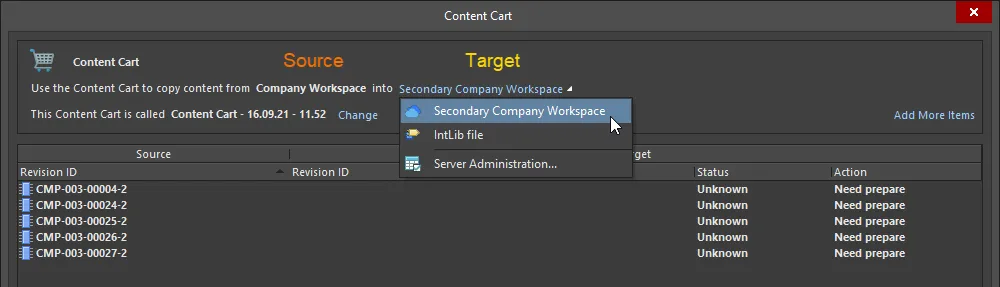
Specification of the source and target Workspaces, involved in the acquisition.


Naming the Cart
Acquired data from the source Workspace will be copied into new revisions of Items in the target Workspace. By default, these Items will be located in a defined, and newly-created folder structure within that target Workspace. The top-level folder for this acquired content is named using the name of the cart itself. The default name is in the format Content Cart - <Current Date> - <Current Time>, and is determined at the moment the cart is accessed. This can be changed to a more meaningful name as required by clicking the Change control, to the right of the cart's name.
Use the subsequent Content Cart Name Selection dialog to directly enter the preferred name for the cart. Alternatively, you can choose a folder in the target Workspace, into which content on the Cart is to be delivered. This can be an existing folder, or a completely new one created on the fly. Browse to, and select an existing folder for the cart, using the Choose Folder dialog – accessed by clicking the  button, at the far right of the Content Cart Name field. Or, create a new folder within the folder structure, using commands from the right-click menu.

A Content Cart can be named as required. Either change the name of the cart (which will be delivered into a top-level folder with that name) or choose to deposit the content of the cart into a specific folder.
Specifying Items to Acquire
The main area of the Content Cart dialog presents an 'acquisition grid' – listing all Item Revisions that you have chosen to acquire from the source Workspace. Any number of Data Item Revisions can be 'loaded' onto the Content Cart for acquisition from the source Workspace. Initial access to the cart loads it with the Item Revision(s) that were selected in the source Workspace at the time of access, but any number of additional Items can be loaded. To do so, click the Add More Items control at the top-right of the dialog and choose the Select entry to access the Choose Item dialog (a 'trimmed-down' version of the Explorer panel). From here you can browse the source Workspace for more Items. Remember, you can choose to add:
- A single specific revision of an Item.
- Multiple specific revisions of the same Item.
- The latest revisions of multiple Items.
- The latest revisions of all Items in the selected folder (and its descendent structure).
Alternatively, choose the Add manually entry to access the Add new items dialog. This dialog allows you to paste an external list of items that you require (one item per line), and which can then be searched for within the source Workspace, using a chosen search criteria (GUID, Item ID, Name, or MPN).

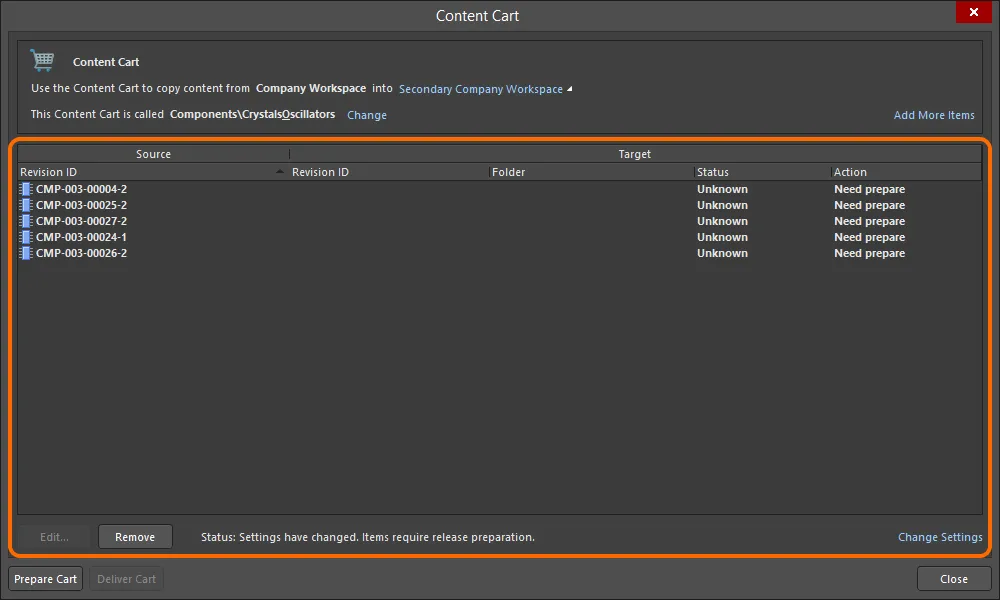
The main acquisition grid, listing all Item Revisions chosen for acquisition from the source Workspace.
 button.
Cart Preparation
With the source Item Revisions chosen, the Content Cart now has to be 'prepared for delivery' to the target Workspace. To do this, click the  button. This prepares the target Workspace for acquisition – checking the status of the chosen Item Revisions involved (in case they have been acquired previously), the parent-child links, and proposing the action to be taken. The results of this preparation phase are presented back in the main acquisition grid.
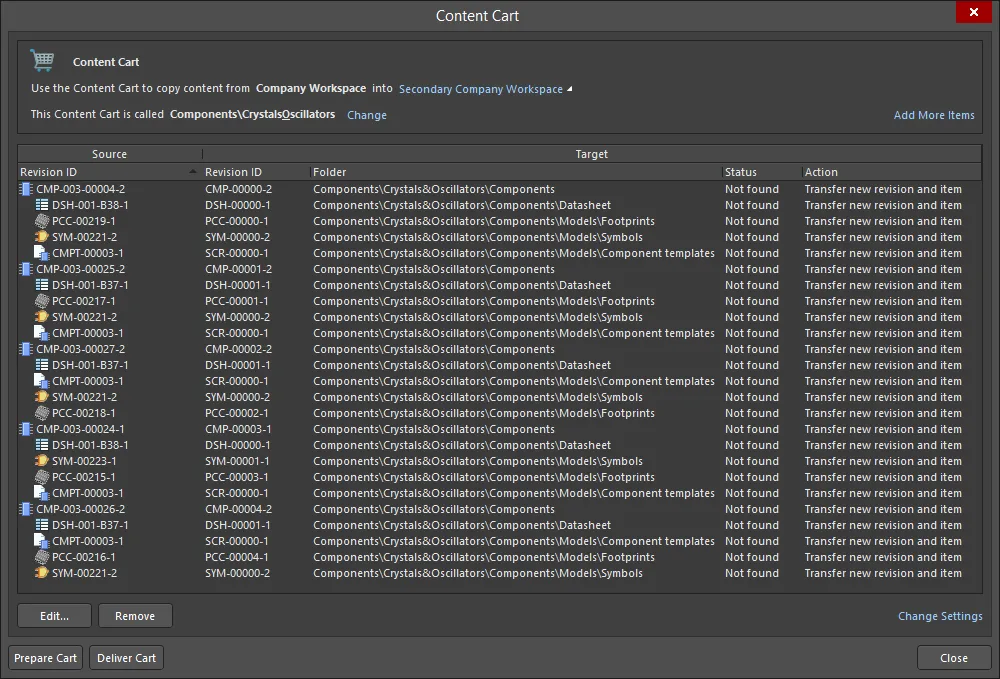
An example Content Cart, prepared ready for delivery to the target Workspace.
For each Item Revision involved in the acquisition, the Source region of the grid expands to present all applicable child Item Revisions and, optionally, the folder in which they reside within the source Workspace. For each Item Revision (parent and child alike) the following information can be presented in the Target region of the grid:
- Revision ID – the full identifier for the Item Revision in the target Workspace, based on the defined Item Naming and Revision Scheme for that Item type.
- Folder – the destination folder in the target Workspace in which the acquired Item Revision will be created/delivered.
- Life Cycle – the lifecycle definition defined for the parent Item.
- Naming Scheme – the revision naming scheme defined for identifying revisions of the parent Item.
- Note – an optional note that can be used to provide useful information about the acquisition to others, when browsing the acquired content in your Workspace.
-
Status – the current state of the Item Revision in the target Workspace. Possible states are:
-
Not found– the Item Revision has never been acquired. -
Already Exists– the Item Revision has been acquired previously.
-
-
Action – the action that needs to be taken in order to achieve synchronization between source and target Workspaces. Possible actions are:
-
Transfer new revision and item– for completely new acquisitions, where the Item has never been acquired before. In other words, create an Item of that type and a new planned revision to accommodate the source data. -
Transfer new revision of existing item– when acquiring another revision of an Item, and a revision of that Item has been acquired previously. -
Nothing to do– the chosen Item Revision has already been acquired previously.
-
Cart Structure
As part of the preparation phase, the cart uses default settings defined for each Item type that can be acquired. These settings are defined in the Content Cart Structure dialog, accessed by clicking the Change Settings control at the bottom-right of the Content Cart dialog.
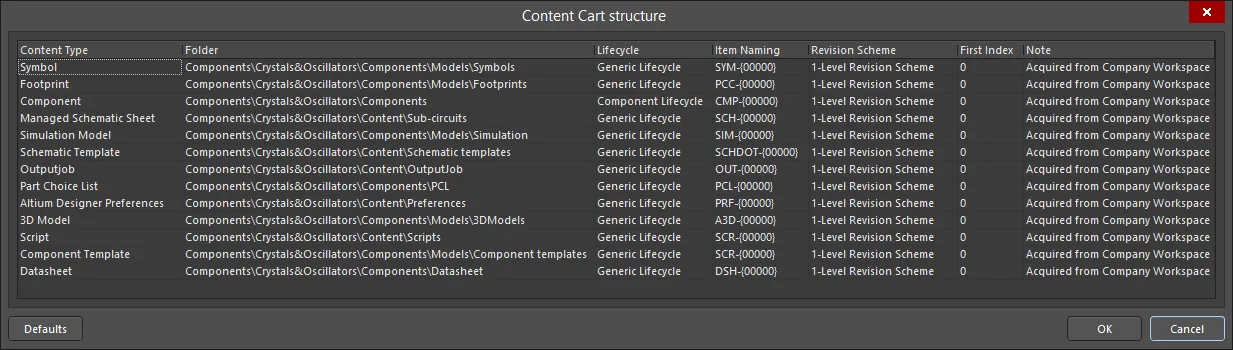
Default acquisition settings are defined in the Content Cart Structure dialog.
These settings are used to determine the properties of newly-created Item Revisions in the target Workspace – created ready, and in the planned state, to receive data from the original Item Revisions in the source Workspace. They include a default folder in the target Workspace, as well as default Lifecycle Definition, Item and Revision Naming Schemes, and a starting index. A default note is also defined, in the format Acquired from <SourceWorkspaceName>.
In terms of destination folders in the target Workspace, each Item type will be acquired into a distinct folder under:
- A parent, top-level folder, named after the Content Cart itself
- An existing folder, defined through the Content Cart Name selection dialog.
Modify these default acquisition settings in-line with schemes employed (and preferred!) for those Item types in your target Workspace. Click on a cell to access edit controls.
 button.
The acquisition settings in the Content Cart Structure dialog are coarse-level defaults. For Items that have never been acquired before – so the parent Item and initial revision are being newly-created (Action is Transfer new revision and item) – properties at the individual Item-level can be defined if needed, giving finer-level control. To do so, select an Item Revision in the main acquisition grid, and click the  button. This will give you access to the Edit Item dialog, from where you can modify Item properties as required – overriding default settings.
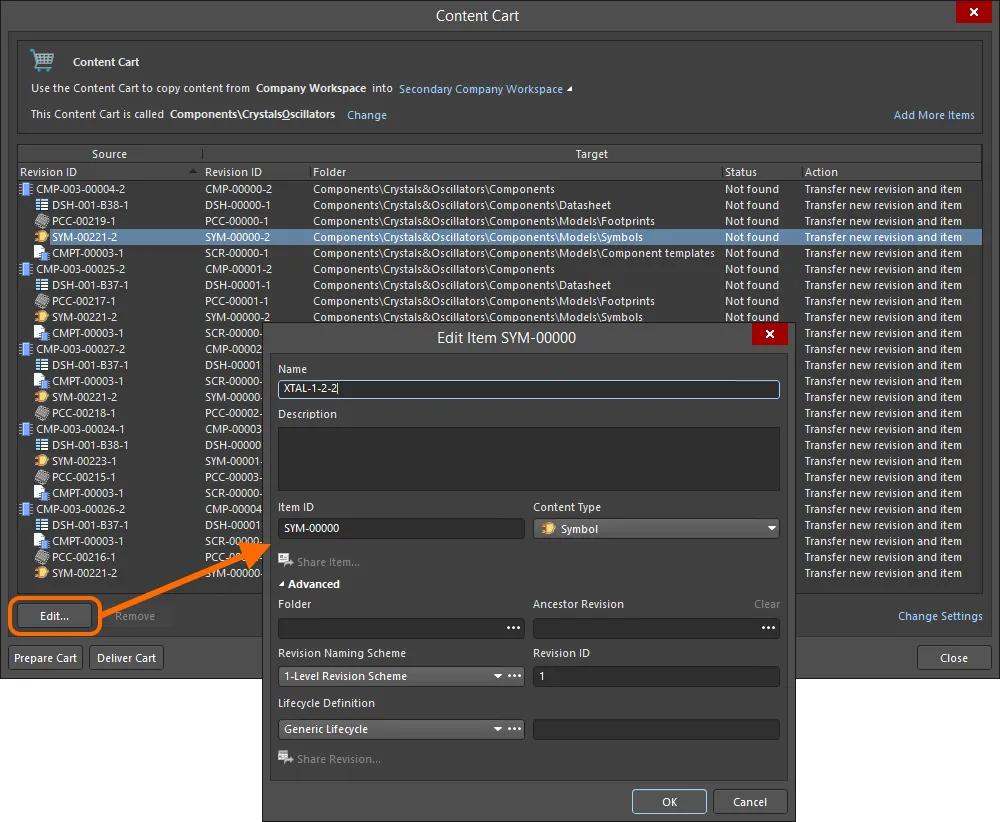
For greater control, you can define properties at the individual Item level.
Cart Delivery
Once preparation is complete, click on the  button to proceed with the acquisition. A confirmation dialog will appear, notifying you that the Content Cart is about to be transferred from source to target Workspaces – click Yes to proceed. A second confirmation dialog will confirm the result of the acquisition, with the acquired Items available to browse in the target Workspace through the Explorer panel.
 button.
Acquiring Data in IntLib Format
You also have the ability to acquire components from your Workspace, into an Integrated Library (*.IntLib). And when placing components from such an Integrated Library, the actual links are back to the components in the Workspace. This gives you the ability to effectively use your company's Workspace components in an offline fashion, while ensuring the design still maintains a true connection to those components in the source Workspace.
Acquisition to an IntLib
From the Content Cart dialog, the process to acquire into an IntLib is as follows:
-
Click on the Select target server link and choose IntLib file from the menu.
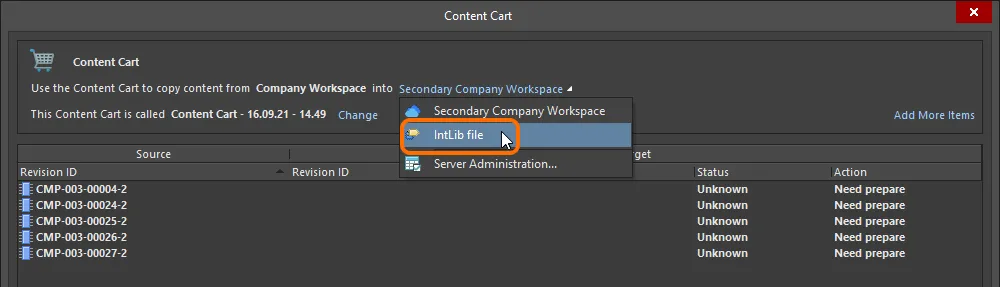
Set the target of the Content Cart to be an IntLib file. -
Specify the name, and location, for the generated IntLib file. By default, the file will be named in the format
Integrated_Library - <Date> - <Time>.IntLib, and generated in the location\Users\Public\Documents\Altium\AD<Version>\Library\ExportCmpLib. Modify this as required through the Save As dialog – accessed by clicking the Change link.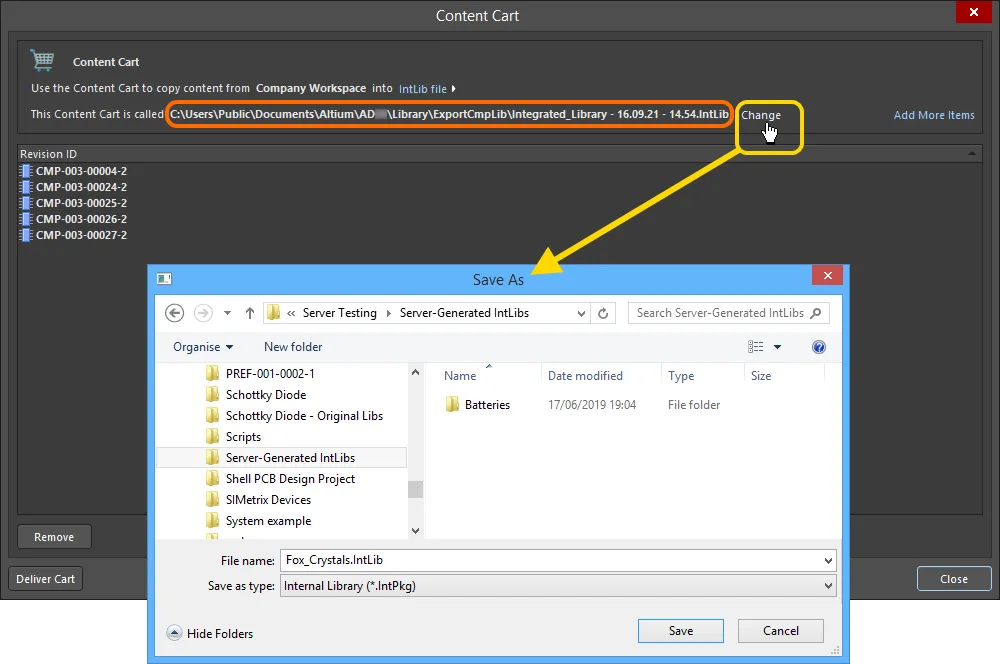
Accept the default target folder and filename, or change as required. - If you need to acquire additional components into the same IntLib, click the Add More Items link, and choose the Select entry to access the Choose Item dialog (a 'trimmed-down' version of the Explorer panel). From here you can browse the source Workspace for more Items. Alternatively, choose the Add manually entry to access the Add new items dialog. This dialog allows you to paste an external list of items that you require (one item per line), and which can then be searched for within the source Workspace, using a chosen search criteria (GUID, Item ID, Name, or MPN).
-
Once ready, click the
button to proceed with generation of the IntLib. A temporary Integrated Library Package (*.LibPkg) will be created, with source SchLib (with symbols, parameters, and model links) and PcbLib (with footprint models) files generated and added. This is then compiled to produce the IntLib file, which is generated in the specified folder. An information dialog will confirm the successful generation of the file.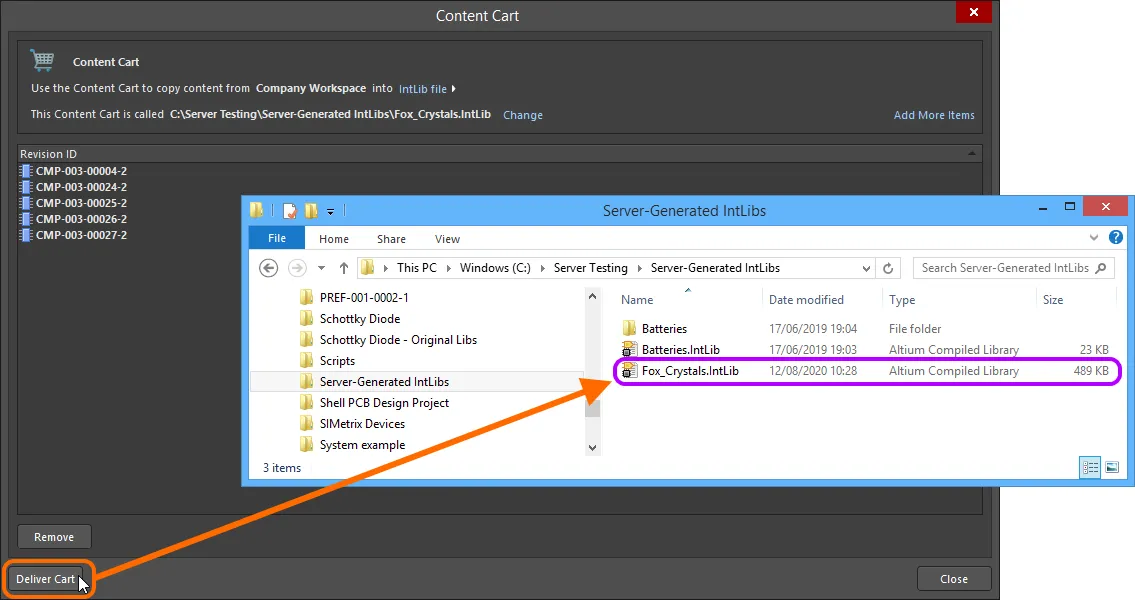
Deliver the cart to the target folder, which will contain the required Integrated Library file.
Use of the IntLib
After generation, the IntLib can be added as part of the available non-Workspace libraries for the software (through the Installed tab of the Available File-based Libraries dialog). It will then be available for use from the Components panel. Place components from the IntLib into your design as required. While effectively working with the components 'offline', the links back to the original Workspace components ensure continuity when you come back to working 'online' directly from your Workspace.