
Organizing Your Workspace
Altium Essentials: Workspace Folder Structure
This content is part of the official Altium Professional Training Program. For full courses, materials and certification, visit Altium Training.
Maintain order within a Workspace by creating a tree of folders for the various Items stored in the Workspace. A number of folder types are available. Use these folders to categorize the Workspace content. Right-click in the Server Folders region of the Explorer panel to add folders and define a storage structure of folders and sub-folders that suits your organization.

The right-click menu includes commands for defining a folder hierarchy. Note that the options change depending on where you click.
Commands for the Server Folders Region

-
Add Top Level Folder – use to add a new top-level folder into the Workspace folder structure. A sub-menu offers folder types
Components,Generic Folder, andOther Folder Type. To browse and choose a different folder type, click Other Folder Type. The Add Folder dialog will appear in which you can define the new folder properties. - Add Subfolder – use to add a new sub-level folder of type of the selected folder into the Workspace folder structure. To browse and choose a different folder type, click Other Folder Type. The Add Folder dialog will appear in which you can define the new folder properties.
-
Operations – use to access a sub-menu of commands including:
- Copy Folder Structure – use to copy the selected folder's structure.
- Paste Folder Structure– use to paste a copied folder's structure.
-
Add To Content Cart (for a
ComponentsorGeneric Foldertype folder) – use to add all Components in the selected folder to the Content Cart using the Content Cart dialog. - Expand – use this command to fully expand all folders in the Workspace folder structure.
- Collapse – use this command to fully collapse all folders in the Workspace folder structure.
- Move Folder – use this command to access the Move Folder dialog, which can be used to change the currently selected folder's location within the overall Workspace folder structure.
- Delete Folder – use this command to delete the currently selected folder.
- Refresh – use this command to refresh the connection with the Workspace currently being browsed.
- Properties – use this command to access the Edit Folder dialog in which related properties for the currently selected folder can be viewed and modified.
Workspace Folder Types
When creating the folder to store Workspace content, you can specify the folder type. This has no bearing on the folder's content – saving a Workspace item will always result in an item of a corresponding type. It simply provides a visual 'clue' as to what is stored in a folder and can be beneficial when browsing a Workspace for particular content. To nominate a folder's use as a container for particular content, set its Folder Type accordingly when defining the folder properties in the Edit Folder dialog.

Specifying the folder type – its intended use – gives a visual indication of the content of that folder when browsing the Workspace.
You have full control over the folder type and it can be changed at any time by right-clicking on a folder then selecting Properties to open the Edit Folder dialog.
Workspace Folder Properties
When you add or edit a folder, the folder properties dialog will appear. The content of the dialog is the same whether a top-level or sub-folder is being added.


Four variations of the Folder Properties dialog: Edit Folder, Add Folder, Edit Folder (with Components Folder Type), and Add Folder (with Components Folder Type)
The dialog presents the following folder-related properties:
- Folder Name – enter a meaningful name for the folder, perhaps an umbrella term that reflects the relationship of the Items that will be stored within it. The name can be a maximum of 160 characters.
- Folder Type – this is already set to the folder type selected on adding the folder, either through a menu entry or through the Choose Folder Type dialog. If you need to change the type, click the arrow at the far right of the field then choose the required type from the drop-down list.
- Description – enter any description for the folder, perhaps describing the content it is to hold. This field has a maximum of 255 characters.
-
Item Naming Scheme – this field provides a set of default naming schemes that can be used to quickly define the unique ID for any item subsequently created within the folder. Using a default naming scheme, the software will automatically assign the next available unique ID based on that scheme, having scanned the entire Workspace and identifiers of existing items. Several default example schemes are available, utilizing the short-form code for either the folder type or the content type. You can create your own scheme for a folder by typing it within the field, ensuring that the variable portion is enclosed in curly braces (e.g.,
SYMBOL-001-{J000}).The Item Naming Scheme employed for the folder can be changed at any time. The modified scheme will then be applied to any subsequent newly created content within that folder.
-
Share – click this link to access the Share For dialog in which you can specify the visibility of the folder in terms of who can 'see' and access it.
- Add (only available in the Add iterations of this dialog) - click to add the defined added or edited folder to the Explorer panel.
-
Component Template - use the drop-down to select the desired template for the component. This option is only available in the Add Folder and the Edit Folder (with Components Folder Type) variations of the dialog.
- Configure Parameters Visibility on Add - enable to configure the component's parameter's visibility after adding. This option is only available in the Add Folder and the Edit Folder (with Components Folder Type) variations of the dialog.
Moving Folders and Items
One or more Workspace folders, or Items within a folder, can be quickly moved using the drag and drop technique:
- Folders – select the folder(s) to be moved (using standard Ctrl+Click, or Shift+Click techniques), then click, drag, and drop the selected folder(s) at the required place in the structure, as indicated by a horizontal indicator.
- Items – select the Item(s) to be moved (using standard Ctrl+Click, Shift+Click, or Ctrl+A techniques), then click, drag, and drop the selected Item(s) onto a different folder in the structure.
Ability to Copy-Paste Workspace Folder Structure
Adding greater flexibility to the management of your Workspace content, the Explorer panel provides the ability to copy and paste a folder (and its descendant structure). This essentially allows you to quickly clone areas of your Workspace folder structure, which can prove a real time-saver when readying your Workspace for a deluge of component data, for example, where the structure is similar to a parent folder and sub-folders for the various domain models.
To use this feature:
- Select a folder in your existing folder structure, whose structure you wish to copy.
- Right-click and choose the Operations » Copy Folder Structure command from the context menu.
- Select the folder under which you want the cloned folder structure to be pasted.
- Right-click and choose the Operations » Paste Folder Structure command from the context menu.
Once pasted, you can make adjustments to the cloned folder structure as required.
Soft Deletion
Your Workspace provides you with flexible functionality for removing content from that Workspace directly from within Altium Designer, from the Explorer panel. This allows you to quickly delete:
- Folders of content
- One or more specific items
- Projects
To delete a folder or project, right-click on that folder's entry in the panel and choose the Delete Folder command from the context menu. To delete a specific item, right-click on that Item's entry in the panel and choose the Delete Item command from the context menu. The Delete Items dialog will appear, in which to confirm the deletion. The action is actually a 'soft delete', whereby the folder/Item will be moved into the Trash area of the Workspace. The Trash is essentially a recycle bin into which any Item within your Workspace can be moved (through a soft delete action). It is isolated from the rest of the Workspace.
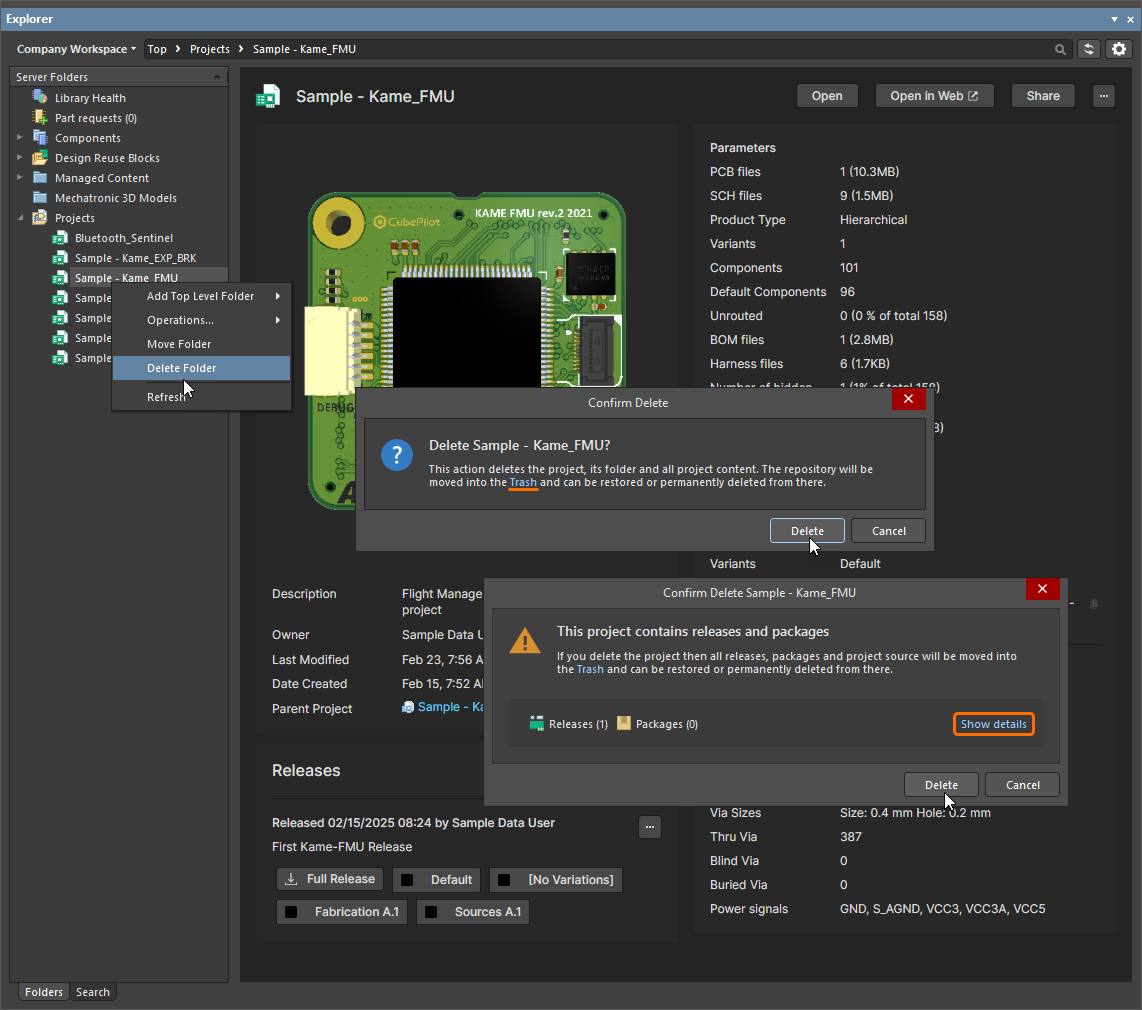
Example soft deletion of a Workspace project

Example soft deletion of a Component Item, along with its associated Symbol and Footprint Items. All Items will be moved to the Workspace's Trash area.
To proceed with the deletion, click the  button. The item will be removed and a Deletion Summary dialog will confirm the successful deletion. If there was an issue with deletion, this will be flagged to you.
All items deleted in this manner can be found on the Trash page of the Workspace's browser interface. Note that you can only view items that you have personally soft deleted. Administrators will be able to see the full content of the Trash page – so all items that have been soft deleted.
Things to consider in relation to a soft-deleted item:
- The item will not be available from Altium Designer or from within the browser interface.
-
Anywhere the item was being used will reflect that the item has been deleted.

Example of a soft deleted component being flagged as such elsewhere in the software. - An item can be restored from the Trash page, provided you have editing rights.
- An item can be permanently deleted from the Trash page, provided you have Delete items operation permission. To learn more about managing operation permissions, refer to the Setting Global Operation Permissions for a Workspace page.
- Permanent deletion is only possible provided it is not being used by a parent item (on a managed schematic sheet, or within a design).