Authoring Access in Altium Designer Develop
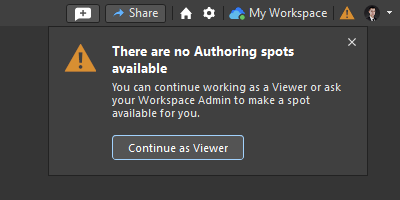
Accessing authoring abilities in Altium Designer Develop is required in order to create and edit projects, components, and other design data. Authoring abilities are available in your Altium Designer Develop instance by providing an author seat. An Altium Designer Develop instance get an author seat automatically when it is connected to your Altium Develop Workspace.
For more information about connecting to a Workspace, refer to the Accessing Your Workspace page.
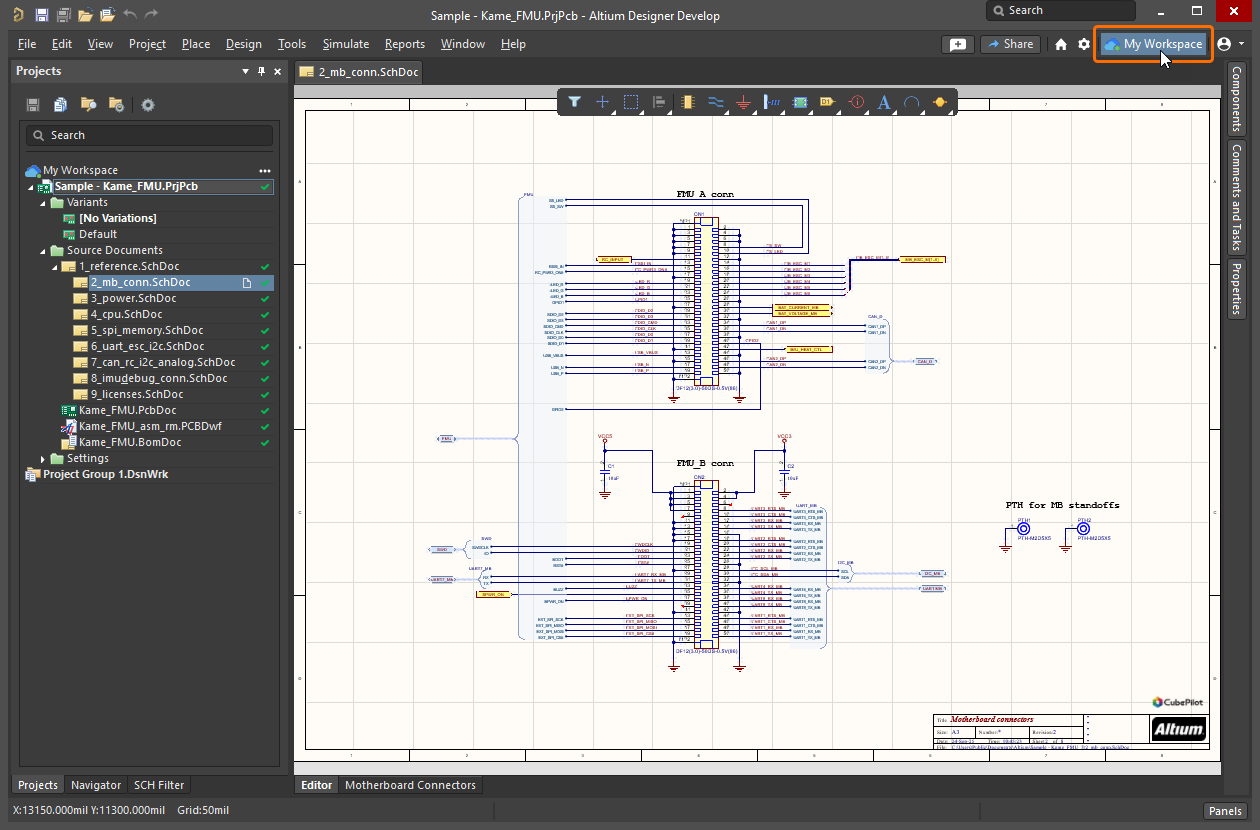
Connect to your Altium Develop Workspace to get an author seat from it and start working in Altium Designer Develop.
An Altium Develop Workspace has a limited number of author seats (up to five, depending on how many seats have been purchased. An author seat is released (freed up) when a user closes their Altium Designer Develop instance.
An administrator of your Altium Develop Workspace can monitor the current usage of author seats from the Admin – Usage and Billing page of the Workspace's browser-based interface. From there, administrators can manage the Altium Develop subscription, add author seats (if still available and up to five maximum) and, if required, force release author seats, thus freeing them for other members of the Workspace who need to edit in Altium Designer Develop.
For more information about the Admin – Usage and Billing page, refer to the Exploring the Browser-based Interface page.
Roaming an Author Seat
An author seat can be roamed, so that you can continue working offline, without being connected to your Altium Develop Workspace or signed in to your Altium Account.
In the Altium Develop Workspace, a Workspace administrator can reserve an author seat for a particular user from the Workspace's browser interface (refer to the Exploring the Browser-based Interface page to learn more). Once an author seat is reserved for you, you can connect to the Workspace from you Altium Designer Develop installation and then disconnect from the Workspace, sign out from your Altium Account, or disconnect from the internet to continue work in offline manner, for the duration of subscription.
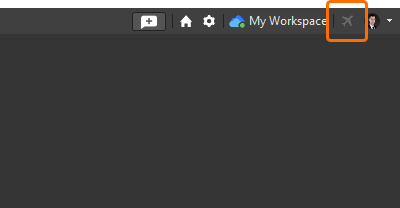
When using an author seat in roaming mode, the  icon will be shown next to the Active Server control.