
Extending Your Altium Designer Installation
Altium Designer's installation management system allows you to handcraft your installation of the software at any time after the initial installation. This covers updates to the core functionality (or system resources) and the ability to install, update, or remove additional functionality. The latter is made possible through the provision of optional Extensions. This functionality could include a new importer or exporter, a tool for schematic symbol generation, or maybe support for mechanical CAD collaboration. In short, any targeted packages of functionality that extend and enhance the feature set of the software.
This document takes a dedicated look at the concept of extensions and, more importantly, their management.
Extensions Explained
The Extension is a key concept of the system to understand. An extension is effectively an add-on to the software, providing extended features and functionality. A core set of features and functions are installed and handled transparently as part of the initial install, referred to as System Resources. In addition, a range of Optional Extensions are available that are packets of functionality that are optionally installed or removed by the user as required. It is the extension concept that enables the installation to be handcrafted in accordance with design needs.
Customization of an Altium Designer installation essentially boils down to management of the available extensions. Install, update, or remove available extensions as and when you need. A range of extensions are available from Altium for use with Altium Designer. In addition, and with the Altium Developer extension, you can extend the functionality of Altium Designer yourself through the use of the Altium Designer SDK (Software Development Kit) - creating your own extensions for the software.
Also inherent to the Altium Developer extension is the dedicated Developer Interface, which is the user interface for managing custom extensions. Part of this interface is a publishing feature that enables you to share those extensions securely with a wider audience through release to a global repository of extensions (a Global Extensions Gallery, if you will). This is a cloud-based Altium Repository that opens up the possibility for third-party developers to offer and trade extensions for Altium Designer through secure distribution, licensing, and installation of the extensions they craft.
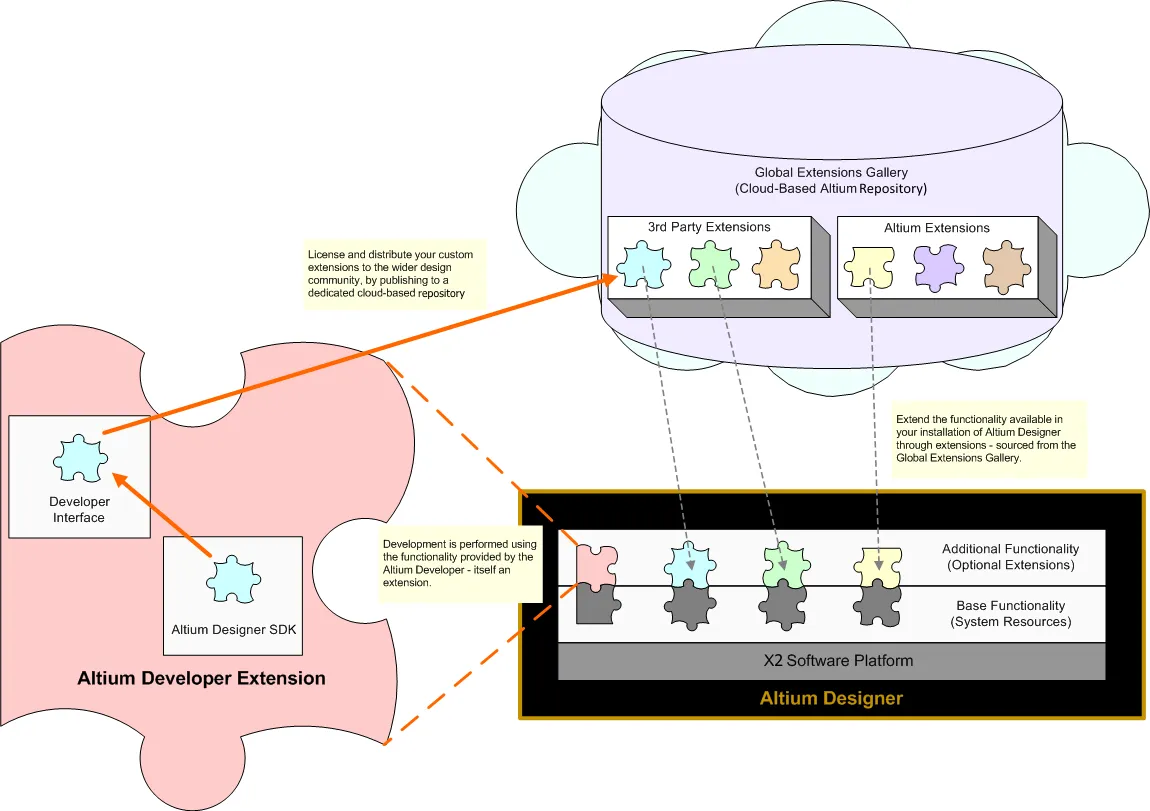
Functionality is added to or removed from Altium Designer through installation and removal of optional extensions.
Types of Extensions
As a concept, an optional extension is a single entity – a package of functionality that installs seamlessly into Altium Designer's wider platform environment. However, from the designer's perspective, optional extensions can be further categorized to provide a greater depth of meaning as to just what is being installed. As a result, an optional extension can be classified into one of the following types:
-
System Extension – a dedicated package of core platform functionality that has been 'brought out' of the platform and delivered in the guise of an extension. By delivering this functionality as an extension, Altium can deliver updates to that core functionality without having to release an update to the entire platform itself. This streamlines delivery of such functionality to the designer using the software and gives Altium's Developers freedom to enhance areas of the core software platform outside of that platform, all while retaining the cohesive delivery of a unified platform.
-
Software Extension – a dedicated add-on for the software that extends its features and functionality in some measurable way. Software extensions can be delivered by Altium itself, or be developed by third parties and traded for a defined purchase price.
Browsing Installed and Available Extensions
Additional software functionality, provided through optional extensions, can be browsed, installed, and managed through the Extensions and Updates page. It is from here that you can see which extensions are currently installed, if additional functionality is available through further extensions, or if there are any updates available for them. Additionally, you are not constrained in any way – you can freely install, update, or remove extension-based functionality at any time as your needs change.
The view is accessed by clicking the Current User control at the top right of the design space and selecting  from the menu.

Accessing the Extensions and Updates page – command central from which to efficiently manage the functionality available to the software.
The view itself consists of the following distinct 'pages' (use tabs at the top of the view to switch between them):
-
Installed – functionality currently installed as part of your Altium Designer installation.
-
Available – system extensions and software extensions that are available for installation to your instance of Altium Designer.
-
Updates – any updates that are available for currently installed extensions (of all types), as well as the main platform itself.
 – at the top right of a page.
Currently installed extensions are listed in the System Extensions and Software Extensions regions of the Installed page.

Browse through a listing of currently installed extensions.
Access the Available tab of the page to browse a listing of all extension-based functionality currently available for your installation of Altium Designer, including system extensions and software extensions. This is functionality that can be optionally added to or removed from your Altium Designer installation.

Browse through a listing of available extensions.
 ).
). icon at the top of the page to open the
 Click on the name of an extension (of any type) on the Installed or Available tab to access a detailed page for that extension.

Examine and manage your installation at the individual extension level.
Information includes:
-
Who created the extension
-
Its version
-
Its release date
-
Where it is sourced from (the Global Repository or the organization's local server, for example)
-
A more detailed description
-
Any pertinent release notes
Installing an Extension
An individual extension can be installed in one of two ways:
-
From the summary-level Available tab of the Extensions and Updates page, hover over the extension and click the
 icon at the top right of its entry. Hover the mouse over the download icon to view details of the version available.
-
From the extension's detailed page, click the
 button.
Alternatively, if you want to install all software extensions, click the Install All control above the Software Extensions region on the summary-level Available tab.

Install an extension from the Extensions and Updates page.
At the summary-level Available tab, a progress bar will appear that shows the progress of the download (getting the file set for that extension from the source repository) and subsequent installation. You can click to install as many extensions as you like; they will be added to a queue, with up to four extensions being downloaded and installed at any given time. Should you need to cancel installation of an extension, click its associated cancel icon ( ).
).

A restart of Altium Designer is required after an extension finishes installing in order for the functionality it provides to take effect. A dialog will open alerting you to this; click Yes to restart at that time, or No if you want to install additional extensions. If you click No, the extension will appear on the Installed page with the  icon to indicate a restart is required for its installation to be completed.
Updating an Extension
Access the Updates page of the Extensions and Updates page to browse a listing of all software elements of Altium Designer, for which there is an update, including system extensions and software extensions. In its System Extensions and Software Extensions regions, the page presents all available extension updates.

Browse whether any currently installed extensions (or the main platform) have an update available.
 ).
).An individual extension can be updated in one of two ways:
-
From the summary-level Updates page of the Extensions and Updates page, hover over the extension and click on the
icon at the top right of its entry. Hover the mouse over the download icon to view details of the version available.
-
From the extension's detailed page, click the
 button.
Alternatively, if you want to update all software extensions, click the Update All control above the Software Extensions region on the summary-level Available tab.

Update an extension to a new version from the Extensions and Updates page.
At the summary-level Updates page, a progress bar will appear that shows the progress of the download (getting the file set for the later version of that extension from the source repository). As with installation, you can click to update as many extensions as you like. They will be added to a queue with up to four extensions being downloaded at any given time. Should you need to cancel the update of an extension, click its associated cancel icon ().
A restart of Altium Designer is required after an extension finishes updating in order for the later functionality it provides to take effect. A dialog will pop up alerting you to this; either click Yes to restart at that time or No if you want to update (or install) additional extensions. If you click No, the extension will appear on the Installed page with the icon to indicate a restart is required for its installation to be completed.
Uninstalling an Extension
A currently installed extension can be uninstalled in one of two ways:
-
From the summary-level Installed page of the Extensions and Updates page, hover over it and click on the
 icon at the top right of its entry.
-
From its detailed page, click the
 button.
Alternatively, if you want to uninstall all currently installed software extensions, click the Delete All control above the Software Extensions region on the summary-level Installed page.
Be sure to restart Altium Designer after you have finished uninstalling the required extensions in order for their functionality to be removed from the installation. A dialog will pop up alerting you to this; click Yes to restart at that time or No if you want to make additional changes to your installation. If you click No, the extension will appear on the Available tab with the icon to indicate a restart is required for its removal to be completed.