
System Preferences
Altium Essentials: Navigating Schematics
This content is part of the official Altium Professional Training Program. For full courses, materials and certification, visit Altium Training.
The System category provides access to preferences relating to the Altium Designer system.
General
The System – General page of the Preferences dialog provides controls relating to the general settings of the software.
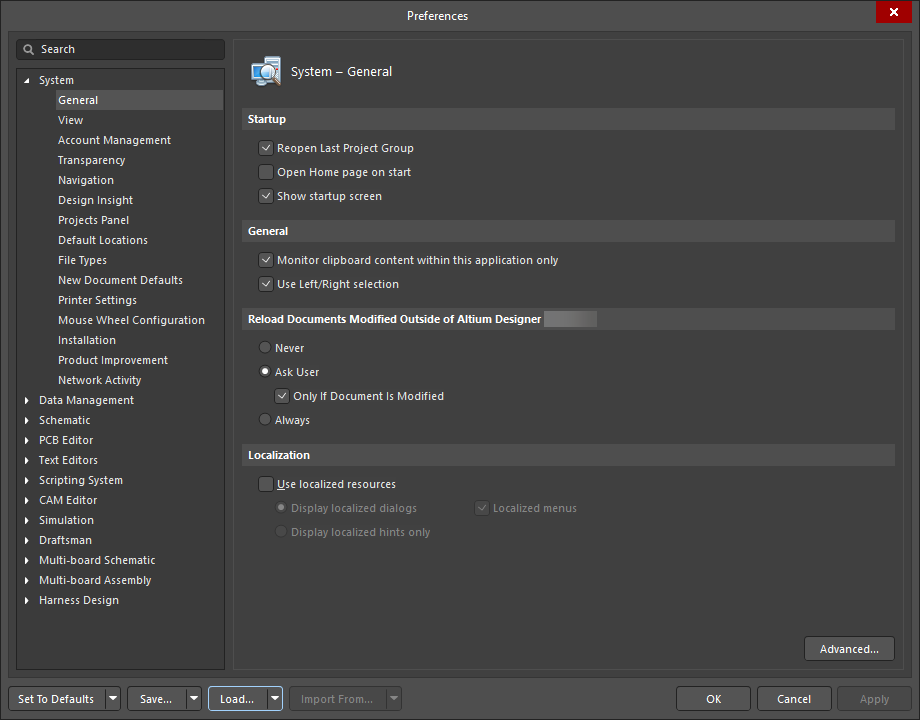
The System – General page of the Preferences dialog
Some of this dialog's options/controls are straightforward and require no further explanation. Those that do are described below.
Startup |
|
| Reopen Last Project Group | Enable to open the last saved project group when the application is started. Disable to start a new project group session when the software is started up. |
| Open Home page on start | Enable to display the Home page when the application is started. Disable to not display the Home page. |
| Show startup screen | Enable if you want to see the startup screen when the software is being loaded into computer memory. This provides visual confirmation that the software is loading. The startup process can take a while, depending on whether previous project groups with projects are being opened or not. Disable this option to not see the startup screen. |
| General | |
| Monitor clipboard content within this application only | Enable to monitor the clipboard when copying and pasting data within the software. With this option enabled, non-compliant data that is copied to the clipboard will not be pasted within the software. Disable this option to not monitor the clipboard data. |
| Use Left/Right Selection | Enable to use right side (inside area) and left side (touching rectangle) selections in all editors. This option is enabled by default. |
| Localization | |
| Use localized resources | Localized resources are the installed local languages used for the software. The software platform supports simplified and traditional language installations. Click to enable localized resources for the software. Items will be translated according to the language that is installed on the machine on which the software is installed. A restart of the software is necessary if this option is selected. The following options are available only if Use localized resources option is enabled:
|
| Additional Control | |
| Advanced | Click to open the Advanced Settings dialog to enable and disable internal optimization options. |

The Advanced Settings dialog
Options and Controls of the Advanced Settings Dialog
- All – click the button to display in the grid all available settings.
- Modified – click the button to display only those settings whose values (the Value column) are different from defaults (the Default Value column).
- Open Beta – click the button to display in the grid only those features that are in Open Beta state.
- Search – enter text to dynamically filter the grid information by the Preference Name or Description.
-
Grid – displays the available settings.
-
Preference Name – the name of the feature.
-
Status – lists the status of the feature, either
Default(the current Value of the setting is the same as its Default Value) orUser Set(the current Value of the setting is different from its Default Value). -
Type – displays the preference type, either
Boolean(a preference that can be enabled or disabled through use of a checkbox in the Value column) orInteger(a preference that requires a value to be entered). -
Value – displays the current values of listed preferences. This column is editable. For a
Booleantype preference, use the associated checkbox to enable or disable the preference. For anIntegertype preference, enter the required value. -
Default Value – displays the default values of listed preferences. This column is not editable. A default value will be applied to the Value field when resetting a selected preference or all preferences in the list.
-
Description – this is a description of the feature. Note that for some
Integertype preferences, the valid range of values that can be entered, and what they signify, is included in the description.
-
-
Reset – click to reset the selected setting, i.e. apply the Default Value of the setting selected in the grid to its current Value. This button is only available if the current Value of the selected setting is different from its Default Value (the setting's Status is
User Set). - Reset All – click to reset all settings, i.e. apply default values of all listed settings to their current values.
View
The System – View page of the Preferences dialog provides controls for the overall look and feel of the general design space, including the behavior of panels and documents.

The System – View page of the Preferences dialog
| Desktop | |
| Autosave desktop | Enable to automatically save the position and size of document windows settings at shut down. The desktop includes the position and visibility of panels and toolbars. |
| Restore open documents | Enable to open documents in the design space when the software is started according to their state in the previous session. Disable this option to start a blank design space when the software is started. |
| Layouts |
|
| Popup Panels | |
| Popup delay | Move the slider to the right to maximize the time it takes for a panel to appear when in 'pop-out' mode. Move the slider to the left to minimize the time it takes for the panel to open. |
| Hide delay | Move the slider to the right to maximize the time it takes for a panel to be hidden when in 'pop-out' mode. Move the slider to the left to minimize the time it takes for the panel to close.
|
| Popup delay | Move the slider to the right to maximize the time it takes for a panel to appear when in 'pop-out' mode. Move the slider to the left to minimize the time it takes for the panel to open. |
| Animation speed | With the Use animation option enabled, move this slider to the left for slower animation or to the right for faster animation of panels in 'pop-out' mode. |
| General | |
| Hide floating panels on focus change | Enable to hide floating panels in the software when you switch focus to a different software application. Disable this option to leave floating panels as they are when switching focus to another application. |
| Remember window for each document kind | Enable to open documents in the same window or in individual windows in the specified locations according to the last placed document of the same kind. For example, when using two monitors, with this option enabled, you can open one schematic, drag it into a new window on the second monitor, and from then on all schematics opened will go to the second monitor. Disable this option to open documents of any kind in the same design space. |
| Auto show symbol and model previews | Enable to automatically display schematic symbol and PCB footprint graphics where they exist on the Components panel. |
| Open internet links in external Web browser | Enable to have Internet-based content open as externally loaded content in your default Web browser. |
| Documents Bar | |
| Group documents if need | Enable to group documents together on tabs on the document bar. Grouped documents are indexed numerically in ascending order. Disable this option for all open documents to have their own visible tab on the documents bar. Two methods of grouping are available:
|
| Use equal-width buttons | Enable to size all open document tabs equally, regardless of the length of the document filenames. Disabling this option will resize each document tab according to the length of the document filename. |
| Multiline documents bar | Enable if there are more separate document type tabs than can fit on a single document bar (i.e. |
| Ctrl+Tab switches to the last active document | Enable to toggle between the currently active document and the previously active document using Ctrl+Tab. Disabling this option will toggle through all open documents sequentially when using Ctrl+Tab. |
| Close switches to the last active document | Enable to make the last active document active again when the currently active document is closed. |
| Middle click closes document tab | Enable to close documents by using the mouse middle button (typically the Scrolling Wheel). You can then middle-click over a document tab to close that document. |
 ).
).| UI Theme | |
| Current | Use the drop-down to select the desired user interface theme. |
| Preview | Displays an example of the chosen theme in the above option. |
Account Management
The System – Account Management page of the Preferences dialog provides controls to configure your Altium account. Altium Designer includes various on-demand style features, made available to you upon signing into your Altium account through the secure Altium portal. Such features include on-demand licensing, access to an Altium 365 Workspace, automatic software updates, retrieval of updated exchange rates for use with live links to suppliers, and streamlined activation of Standalone licensing. These features are all offered in accordance with a singular underlying vision – to enhance your productivity by delivering the information you need, when and where you need it.
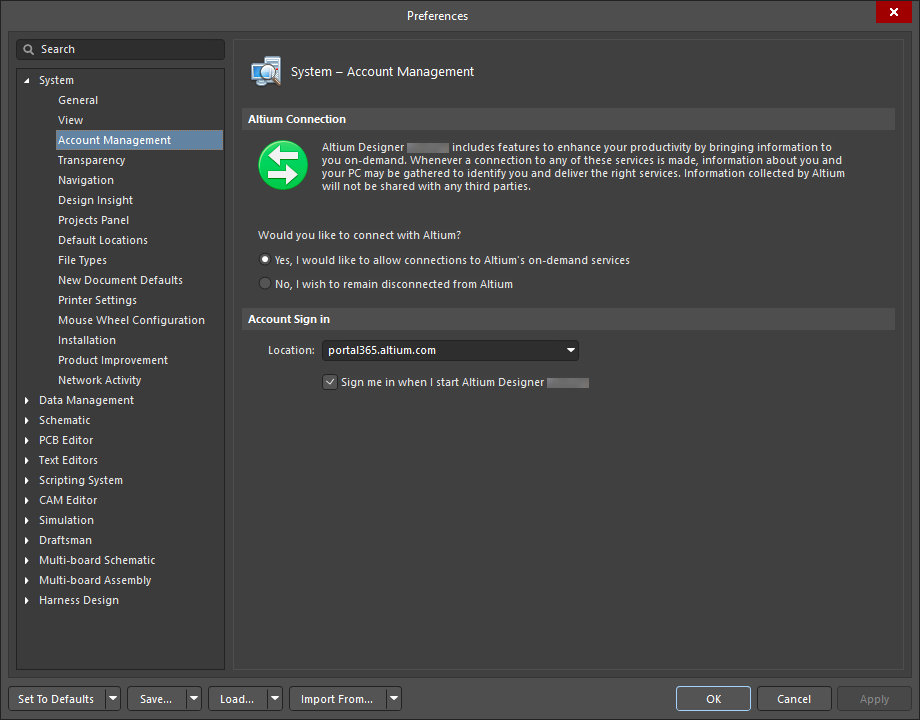
The System – Account Management page of the Preferences dialog
Altium Connection
Altium Designer includes features to enhance your productivity by bringing you information on demand. Whenever a connection to any of these services is made, information about you and your PC may be gathered to identify you and deliver the right services. Information collected by Altium will not be shared with any third parties.
Refer to Altium's Privacy Policy page to learn more.
Information Gathered
When you use a feature that connects Altium Designer to the on-demand services, Altium may collect the following information:
-
MAC Addresses: Altium uses a computer's MAC address to identify a PC. If you sign in on multiple computers, each sign-in request will be recorded uniquely.
-
HDD serial numbers: Along with the MAC addresses, this information provides a robust way to identify a PC for licensing purposes.
-
Altium Designer version: Altium uses the software version to differentiate between products so that the correct services can be delivered for each product.
Altium does not, and shall not, read or gather any information about the designs or files you use within Altium Designer.
All connections to the Altium portal through Altium Designer are secure. Along with the information that is gathered, information that you enter will also be communicated in requests to Altium's portal. When data is recorded with Altium's portal, the data will include a time stamp showing when the data was recorded.
Would you like to connect with Altium?
-
Yes, I would like to allow connections to Altium's on-demand services - by enabling this option, you allow Altium Designer to connect with Altium over its secure portal whenever you want to access one of Altium's on-demand services. Enabling this option does not mean you are instantly and constantly connected to Altium, nor does it mean we are constantly gathering your information. Connection is only made at the time you actually use one of the on-demand-style features that require connection to Altium (through the portal). For example, to sign in to your account from within Altium Designer and manage extensions and updates, you use a feature that requires a connection with Altium – which is only possible if you have enabled this option to allow such a connection. Data may be gathered at the time of using an on-demand service to ensure that you are provided with the right service for you.
-
No, I wish to remain disconnected from Altium - by enabling this option, your installation of Altium Designer will stay completely disconnected from Altium. While disconnected, you will not be able to access or use any of the on-demand services that require a connection with Altium. In essence, this option is a 'full off' switch, with the trade-off of not being able to use any of Altium's on-demand services.
Account Sign in
When you sign in to your account, you do so through an Altium portal. On the Altium side, a portal is simply a secure connection to a specific Altium Account Management Server.
-
Location – enter the required portal. The default portal is portal365.altium.com.
-
Sign me in when I start Altium Designer – enable this option to automatically be signed in to your Altium Account when you start the software.
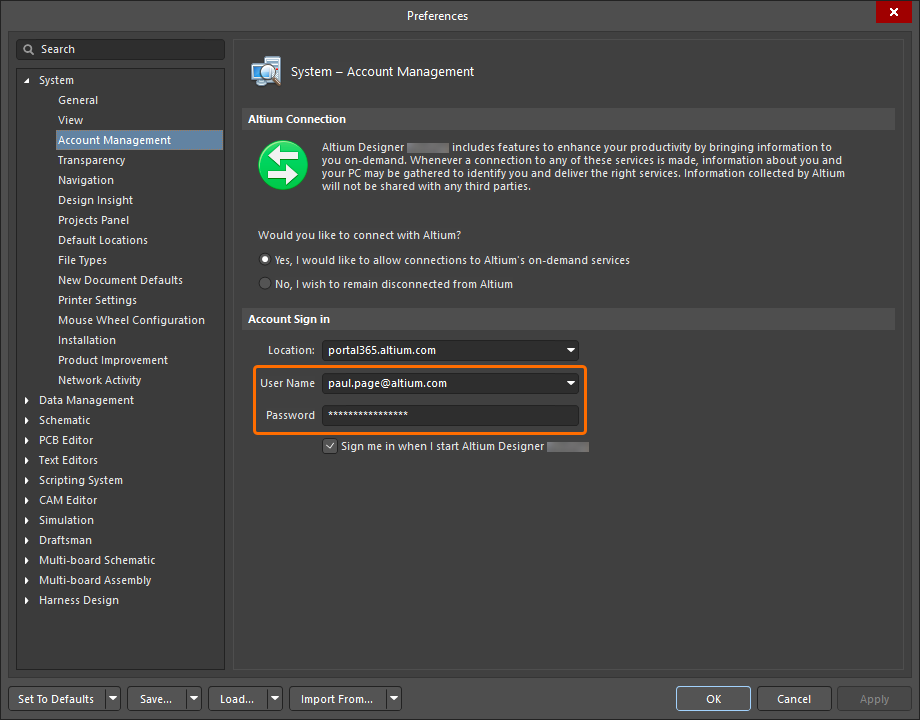 ).
).Transparency
The System – Transparency page of the Preferences dialog allows you to control the transparency of floating windows and toolbars.

The System – Transparency page of the Preferences dialog
| Transparency | |
| Transparent floating windows | Enable to automatically make all floating toolbars and windows over the design space transparent when an interactive process is invoked. If this option is enabled, the Files panel is made transparent. |
| Dynamic transparency | Enable to dynamically set the transparency of floating toolbars and windows. The system uses the distance of each window from the cursor to calculate its transparency. If this option is enabled, whenever the cursor is moved toward a dialog, the dialog becomes transparent. Use the Distance factor slider to determine the distance at which the transparency 'kicks in'.
|
Navigation
The System – Navigation page of the Preferences dialog provides controls relating to navigating actions in the Navigator panel.

The System – Navigation page of the Preferences dialog
| Highlight Methods | Select the desired methods of highlighting graphical objects during navigation, cross-probing, and when exploring differences between documents or compiler messages.
|
| Objects To Display | Enable the objects you want displayed in the Navigator panel. |
| Cross Select Mode | Use the following options to cross-select objects between the schematic and PCB.
|
Design Insight
The System – Design Insight page of the Preferences dialog allows you to control various aspects of design viewing, such as previews of documents, supply chain information, and hyperlinks.
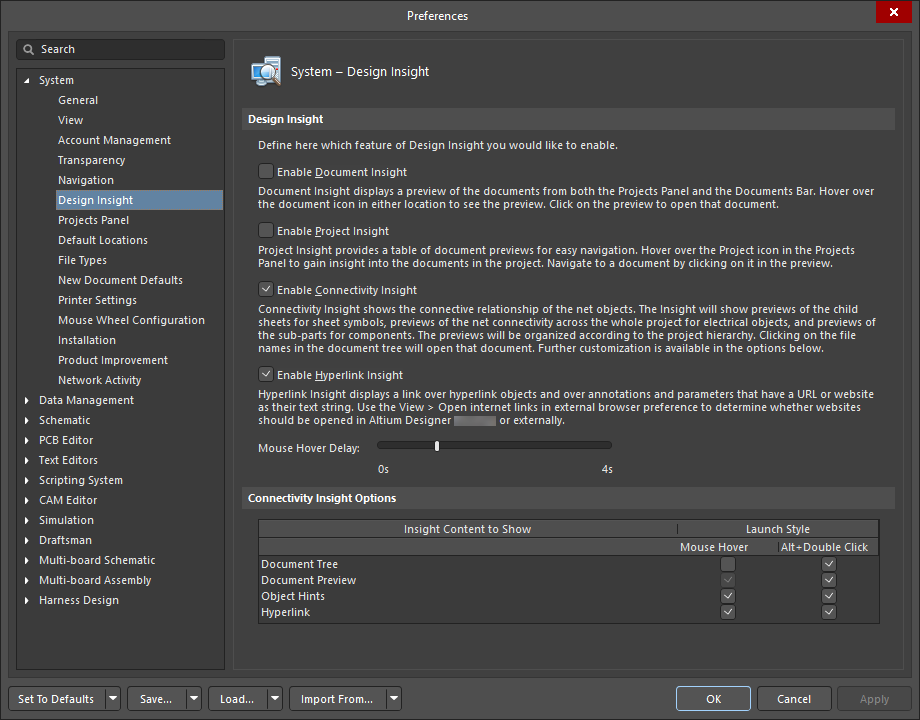
The System – Design Insight page of the Preferences dialog
| Design Insight | |
| Enable Document Insight | Enable the display of a preview of a document when you hover over the document icon in the Projects panel or document bar. |
| Enable Project Insight | Enable the display of a table of document preview when you hover over the project icon in the Projects panel. Schematic, PCB and OpenBus documents are displayed. You can navigate to the document by clicking on it in the preview. |
| Enable Connectivity Insight | Enable the display of the connectivity of net objects when you hover over a net object. Enabling this option will show previews of the child sheets for sheet symbols, net connectivity across the entire project for electrical objects, and sub-parts for components. The selected net is highlighted in the preview with all other objects masked. The previews will be displayed with respect to the project hierarchy. Use Alt+Double Click on any net object to show Connectivity Insight on demand. |
| Enable Hyperlink Insight | Enable the display of a link over hyperlink objects, and annotations and parameters that have a URL or website as their text string. |
| Mouse Hover Delay | Use the slider to control the delay for the Connectivity Insight information to appear, starting with 0s (seconds) on the left to a maximum of 4s on the right. |
Connectivity Insight Options Use the table to further customize Connectivity Insight. |
|
| Insight Content to Show | This is a list of content areas within Connectivity Insight |
| Launch Style | Check any of the options desired for launching Connectivity Insight information.
|
Projects Panel
The System – Projects Panel page of the Preferences dialog provides controls relating to the behavior of the Projects panel.

The System – Projects Panel page of the Preferences dialog
| General | |
| Show VCS status | Enable to show the status of the document with respect to the version control system (checked out or checked in). |
| Show document position in project | Enable to show the document position relative to the project, indexed by a number in parentheses. |
| Show full path information in hint | Enable to include full path information in the hint when the cursor hovers over a document name on the Projects panel. |
| Show Automatic Sheet Numbering | Enable the display of the automatic sheet numbering of documents in the Projects panel. |
| Show Components and Nets folders | Enable the display of the Components and Nets folders, which list a PCB design project's components and nets upon validation of the project. |
| File View | |
| Show Project Structure | Enable to show the structure of intra-projects (consisting of sheets and sheet symbols) and inter-projects (connections between projects and the components that link them) if the File View option is selected on the Projects panel. |
| Show Document Structure | Enable to show the structure of opened projects and sub-projects if the File View option is selected on the Projects panel. |
| Documents Grouping | |
| Do not group | Select if you do not want the project documents within a project listed as groups. |
| By class | Select to list project documents in document classes: source documents, library documents and generated documents. |
| By document type | Select to group project documents according to their document type. For example, output documents will be listed under the Output Job Files folder. |
| Components Grouping | |
| Do not group | Select if you do not want the components within a project listed as groups. |
| By designator's first character | Select to group components by the component designator's first character. |
| By comment | Select to group components by their comments. Any object that is identified numerically will have its numerical identifier incremented by this value, if the value is edited during placement. Examples include parts, net labels, ports, off sheet connectors, sheet entries and component pins. |
| By owner sheet | Select to group components by their owner sheets. |
Sorting |
|
| Project order | Select if you want project documents sorted according to the order they were added to the project. |
| Alphabetically | Select if you want the project documents sorted alphabetically. |
| Open/modified status | Select if you want the project documents sorted according to their status, i.e. opened documents, edited documents, and unopened documents. |
| VCS Status | Select if you want the project documents sorted according to whether they are logged as checked out, checked in, or as standalone documents from a version control system. |
| Ascending | Enable if you want the project documents to appear in ascending order. |
| Single Click | |
| Does nothing | Select to cause a single click on the Projects panel to do nothing. |
| Activates open documents / objects | Select if you want a single click on a document in the Projects panel to bring to the front a currently open design document. |
| Opens and shows documents / object | Select if you want a single click on a document in the Projects panel to open this document in the design space. |
Default Expansion |
|
| Fully contracted | Select to show only project titles. |
| Expanded one level | Select to show only projects and their top-level documents. |
| Source files expanded | Select to show only source documents (i.e. schematic documents) of a project. Other document types, such as output job files and database link file folders, will remain contracted. |
| Fully expanded | Select to show all files of open projects. |
Default Locations
The System – Default Locations page of the Preferences dialog allows you to specify default locations for your documents, libraries, and output job files.
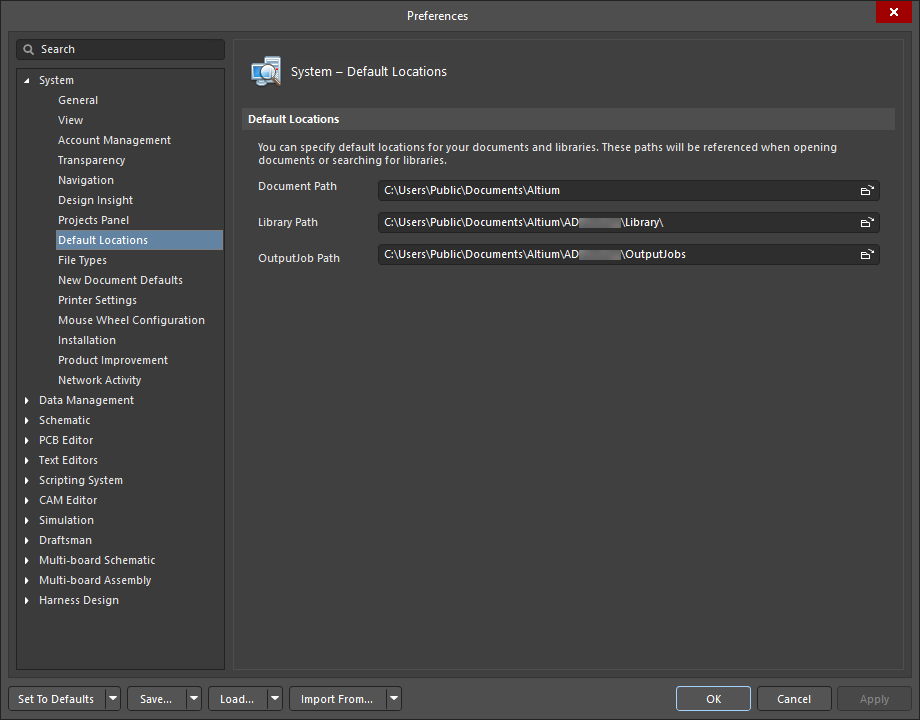
The System – Default Locations page of the Preferences dialog
| Default Locations | |
| Document Path | Use  to open a dialog to search for and choose the desired default document path. to open a dialog to search for and choose the desired default document path. |
| Library Path | Use to open a dialog to search for and choose the desired default library path. |
| OutputJob Path | This is the location for default Output Job files that can be added to a project when using the Project Releaser if the project currently has no Output Job file(s) associated with it. By default, two files are provided with the installation (Fabrication.OutJob and Assembly.OutJob). You can use these default files as they are, edit them to suit your needs, and add additional Output Job files. Define the Outjobs as required within the default folder or specify your own custom folder location by using to open a dialog to search for and choose an alternative folder location. All Output Job files found in the specified location will be added to the project. |
File Types
The System – File Types page of the Preferences dialog allows you to define the file types associated with the software.

The System – File Types page of the Preferences dialog
Many of this dialog's options/controls are straightforward and require no further explanation. Those that do are described below.
Associated File Types |
|
| Supported Extensions | This region lists all the file types supported by the software.
|
New Document Defaults
The System – New Document Defaults page of the Preferences dialog leads to the Data Management - Templates page of the Preferences dialog, where you can manage templates from one place.

The System – New Document Defaults page of the Preferences dialog
File Templates
Go to Templates - click this button to access the Data Management - Templates page of the Preferences dialog.
Printer Settings
The System – Printer Settings page of the Preferences dialog allows you to customize page sizes for exported PDF documents.

The System – Printer Settings page of the Preferences dialog
Custom page sizes for exporting to PDF |
|
| Grid |
|
| Add | Click to add a size then choose from the available list. Choose Custom to add a new page title and size. |
| Edit Page | Click to open the Edit Page dialog in which you can customize the title and size of the selected page size. |
| Remove | Click to remove the selected page size from the list. |
Mouse Wheel Configuration
The System - Mouse Wheel Configuration page of the Preferences dialog is used to configure how the mouse wheel functions. You can configure the mouse wheel functioning for all editors or specifically for PCB and/or schematic documents.

The System – Mouse Wheel Configuration page of the Preferences dialog
Mouse Wheel Configuration |
|
| Action | This is a list of actions for which the mouse wheel can be configured. These configurations are for a mouse with a wheel between two mouse buttons. As noted in the grid, Launch Board Insight and Change Layer are configurations that affect the mouse wheel only in the PCB Editor; Change Channel affects the mouse wheel only in the Schematic Editor. |
| Button Configuration | Use the options to configure any keyboard button combination (Ctrl and/or Shift and/or Alt) that is required to be used along with the mouse wheel function (as listed in the grid) to perform the action. |
Installation
The System – Installation page of the Preferences dialog provides controls relating to updating the installation of the software.

The System – Installation page of the Preferences dialog
Automatic Checking |
|
| Check frequency | Use the drop-down to select how often you want the system to automatically check for updates. |
| Global installation service | Select if you use global installation services. |
| Local installation service | Select if you use local installation services. |
| Offline installation | Click to open a dialog to search for the desired folder for offline installations. |
Product Improvement
The System - Product Improvement page of the Preferences dialog allows you to opt in or out of Altium's Product Improvement Program. This program helps Altium to improve Altium Designer by better understanding user behavior and environments. You can start or stop participation at any time. No personal data or design/IP information will be collected by participating in this program. Participation in this program is strictly voluntary and anonymous, and you are free to stop participating in the program at any time. For the rules that govern the program, click the Read Altium's Privacy Policy link to see the Altium Designer Improvement Program page on the Altium site.

The System – Product Improvement page of the Preferences dialog
 Altium Product Improvement Program dialog
Why Should I Participate?
Similar programs are now standard in the software development industry by companies such as Microsoft®, Google®, Apple®, etc. It is likely you already share your user experience with any number of companies. Your participation in this program will give Altium the ability to fine-tune our products for your specific environment, identify issues you face during your everyday work, and improve Altium Designer to fit your needs.
What Type of Data is Collected?
Some examples of statistical information we collect include but are not limited to:
- Number of outjob files in projects
- Number of pins in a typical board
- Types of installed libraries
- Most frequently used commands
- Duration of full project compilation
- Load times for files.
A few examples of hardware information we collect include, but are not limited to:
- Number of CPUs and monitors
- Screen resolution
- OS platform and version
How is Information Collected?
Information about your computer hardware and how you use Altium Designer will be sent periodically to Altium's servers for analysis.
How will the Information be Used?
The following are just some of the ways in which information obtained and assessed through user participation in the program will be used:
- Identify the most popular features so that focus can be given to their improvement.
- Optimize UI for more commonly used hardware.
- Locate performance obstacles in the software.
- Ensure productivity features are being used.
- Retire unused features.
Network Activity
The System - Network Activity page of the Preferences dialog gives you full control over network connectivity. Altium Designer uses the Internet and third-party servers to connect to Altium Cloud and suppliers, search for updates, etc. In some situations or environments, it may be desired or necessary to work offline. You can disable specific network activity or disable all network activity by selecting/deselecting the listed functions on this page.
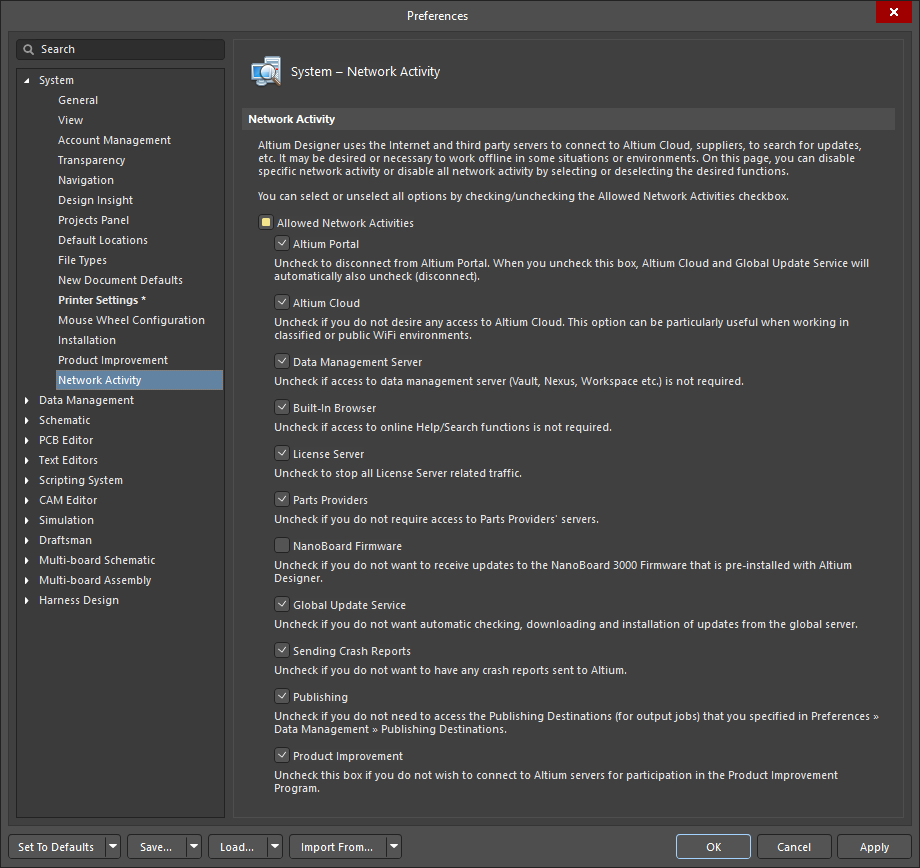
The System – Network Activity page of the Preferences dialog
| Allowed Network Activities | Click to check/uncheck each activity in the list from which you wish to connect/disconnect. |
| Altium Portal | Check to connect to the Altium Portal. When you uncheck this box, Altium Cloud and Global Update Service will also automatically uncheck. |
| Altium Cloud | Check to have access to Altium Cloud. Unchecking this option can be particularly useful when working in classified or public WiFi environments. |
| Data Management Server | Check if access to a connected Workspace is required. If disabled, you will also be disconnected from the Infrastructure server for licensing. |
| Built-In Browser | Check if access to online Help/Search functions is required. |
| License Server | Check to allow all License Server related traffic. |
| Parts Providers | Check if you desire access to Parts Providers' servers. |
| NanoBoard Firmware | Check if you want to receive updates to the NanoBoard 3000 Firmware that is pre-installed with Altium Designer. |
| Global Update Service | Check to allow automatic checking, downloading and installation of updates from the global server. |
| Sending Crash Reports | Check if you want to have crash reports sent to Altium. |
| Publishing | Check to access the Publishing Destinations (for output jobs) that you specified on the Data Management - Publishing Destinations Preferences page. |
| Product Improvement | Check if you want to connect to Altium servers for participation in the Product Improvement Program. |