
Working with Drawing Objects on a Schematic
Altium Essentials: Schematic Graphics
This content is part of the official Altium Professional Training Program. For full courses, materials and certification, visit Altium Training.
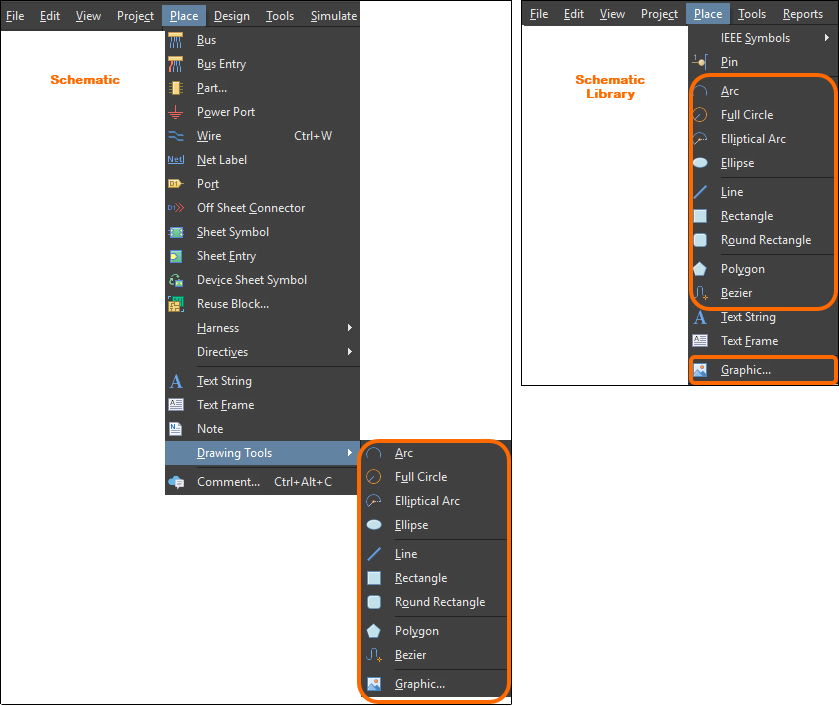
The Schematic and Schematic Library editors provide a range of drawing tools that can be used to place basic, free-form graphical elements in a document. The type of graphical tool to be placed can be selected from the Place menu.
Arc
An arc is a non-electrical drawing primitive. It is essentially a curved line segment that can be used when creating graphical symbols, custom sheet borders, and title blocks, etc. A placed circle is an arc object that spans 360° (i.e. has the same start and end angle).
 Two placed arcs (the one on the right is a full circle arc)
The visual style of a placed arc is configured in the Properties panel when an arc is selected in the design space ( ).
).
When a placed arc is selected, editing handles/nodes are available at its center, perimeter and start/end points.
-
Click and drag the arc's center node to reposition it on the drawing document.
-
Click and drag a start or end point node to alter the arc angle.
-
Click and drag the perimeter node to change the radius of the arc.
Advanced manipulation of an arc is available by pressing the Ctrl key while moving an editing node.
-
Click and drag a start or end point node to alter its location while retaining the arc angle.
-
Click and drag the perimeter node to alter the size of the arc while retaining its start and end points.
Bezier
A bezier curve is a non-electrical drawing primitive. It is a free-form curved line that can be placed on a schematic sheet. The curve is defined by a series of vertex points that 'pull' the line into a curved shape.

A placed bezier curve
The visual style of a placed bezier is configured in the Properties panel when a bezier is selected in the design space ( ).
).
Ellipse
An ellipse is a non-electrical drawing primitive that can be placed on a schematic sheet. It can be filled or unfilled.

A placed ellipse
The visual style of a placed ellipse is configured in the Properties panel when an ellipse is selected in the design space ( ).
).
When an ellipse object is selected, editing handles/nodes are available. Click and drag to change the horizontal and vertical radius as needed.
Elliptical Arc
An elliptical arc is a non-electrical drawing primitive. It is essentially an open circular or elliptical curve that can be placed on a schematic sheet.

A placed elliptical arc
The visual style of a placed elliptical arc is configured in the Properties panel when an elliptical arc is selected in the design space ( ).
).
When an elliptical arc object is selected, editing handles/nodes are available. Click and drag to change the horizontal and vertical radius as needed.
Graphic (Image)
A graphic object is a non-electrical drawing primitive that is essentially a container for an image file that can be imported and placed onto a schematic sheet and can either be linked or embedded. Image formats supported are .bmp, .dcx, .dib, .emf, .jpg, .pcx, .png, .rle, .svg, and .wmf.
 A placed image
The visual style of a placed graphic is configured in the Properties panel when an image is selected in the design space ( ).
).
When an image object is selected, editing handles/nodes are available. Click and drag to change the size of the image horizontally and vertically as needed.
Using Vector Graphics
The majority of supported image formats are raster-based, which, simply put, means they are graphically created (or composed) of a fixed series of dots. While all of these image formats render adequately, their attraction diminishes when the image is scaled. Zoom in to an image in one of these formats and the 'blocky' or 'pixelated' nature of the image's dot composition soon becomes apparent. The solution to this is to use a Vector-based image format. Vector images are composed of graphical shapes rather than dots, which are preserved upon scaling.
The Schematic editor supports vector-based graphics in the form of WMF (Windows Meta File) and SVG (Scalable Vector Graphics) formats.

An example image on a schematic. A PNG version above with its SVG incarnation below. When zoomed in, the quality of the latter becomes very noticeable.
Notes
 |
Enable to lock the image's original aspect ratio. When this option is enabled, the image will be scaled to fit optimally into the frame size specified while maintaining the original aspect ratio of the image. If the option is disabled, the image is stretched to fit exactly into the drawn frame size. |
| Embedded | A copy of a placed image will only be stored inside the schematic sheet if the corresponding Embedded option is enabled in the Properties panel. If this option is disabled, only a link to the image file will be stored. Care should be taken when using linked images – if the location of the image changes, you will need to update the link accordingly using the File Name field in the Properties panel. Alternatively, you can define a relative path to the image by editing the File Name field.
|
Line
A line is a non-electrical polyline drawing primitive. Lines are used to add reference information to a document, such as building graphical symbols, custom sheet borders and title blocks, and annotating the schematic.
 Use lines to annotate and enhance the schematic.
The visual style of a placed line is configured in the Properties panel when a line is selected in the design space ( ).
).
There are five placement modes when placing a line. The mode specifies how corners are created when placing lines and the angles at which lines can be placed. During placement:
-
Press the
Spacebarto cycle through the modes. You can change modes at any time during line placement. -
In all modes other than Any Angle, the line segment attached to the cursor is a look-ahead segment. The segment you are actually placing precedes this look-ahead segment.
When a line object is selected, editing handles are available. Click and drag to change the length of the line as needed.
-
Right-click on a vertex point then choose the
Edit Line Vertex ncommand to access the Vertices tab of the Polyline dialog with the entry for thenthvertex selected and ready for editing. -
Click and hold on a vertex, then press
Deleteon the keyboard to remove that vertex.
With the line selected, click on a segment to individually select that segment. The line sub-selection is distinguished by the associated editing handles changing to a red color.
 Individual segment subselection
The associated vertices for the segment can then be edited directly using the List panel and any changes will appear immediately on the schematic.
Using a Line as an Arrow or Marker
The Properties panel provides several options that can be used to change the style of a line. A variety of arrow and marker designs can be achieved using the options as shown in the following image.
 Some examples of arrow and marker designs that can be achieved.
Vertices
-
Vertices grid - lists all of the vertex points currently defined for the object.
-
Add - click to add a new vertex point. The new vertex will be added below the currently focused vertex entry and will initially have the same X,Y coordinates as the focused entry.
Polygon (Region)
A polygon is a non-electrical drawing primitive. It is a multi-sided graphical object that can be placed on a schematic sheet. A polygon must have at least three sides and can be filled or unfilled.
 A placed polygon
The visual style of a placed polygon/region is configured in the Properties panel when a polygon is selected in the design space ( ).
).
When a polygon object is selected, editing handles (vertices) will appear at each corner.
-
Click and drag on a vertex to move it.
-
Click and drag on an edge to move the edge of the polygon.
-
Right-click on a vertex point, then choose the Edit Polygon Vertex n command to access the Region dialog's Vertices tab, with the vertex entry selected and ready for editing.
-
Click and hold on a vertex, then press
Deleteto remove it.
With the polygon selected, click on an edge to individually select it. This polygon 'sub-selection' is distinguished by the associated editing handles for the edge becoming red in color.

Individual edge sub-selection.
The associated vertices for the edge can then be edited directly using the List panel and any changes will appear immediately on the schematic.
Vertices
-
Grid - lists all of the vertex points currently defined for the object.
-
Add - click to add a new vertex point. The new vertex will be added below the currently focused vertex entry and will initially have the same X,Y coordinates as the focused entry.
Rectangle
A rectangle is a non-electrical drawing primitive. It is a graphic element that can be placed on a schematic sheet and can be filled or unfilled.
 A placed rectangle
The visual style of a placed rectangle is configured in the Properties panel when a rectangle is selected in the design space ( ).
).
When a rectangle object is selected, editing handles are available.
-
Click and drag to simultaneously resize the rectangle in the vertical and horizontal directions.
-
Click anywhere on the rectangle away from editing handles, then drag it to reposition it. While dragging, the rectangle can be rotated (
Spacebar/Shift+Spacebar) or mirrored (XorYkeys to mirror along the X-axis or Y-axis).
Round Rectangle
A round rectangle is a non-electrical drawing primitive and is a rectangle object with rounded corners that can be placed on a schematic sheet and can be filled or unfilled.

A placed round rectangle
The visual style of a placed round rectangle is configured in the Properties panel when a round rectangle is selected in the design space ( ).
).
When a rounded rectangle object is selected, editing handles are available.
 A selected round rectangle
-
Click and drag to simultaneously resize the round rectangle in the vertical and horizontal directions.
-
Click and drag C to change the curvature of the corners. This affects all corners equally regardless which editing handle is chosen.
-
Click anywhere on the round rectangle away from the editing handles then drag to reposition it. While dragging, the round rectangle can be rotated (
Spacebar/Shift+Spacebar) or mirrored (XorYkeys to mirror along the X-axis or Y-axis).