
Validating a Component
At a Glance
- Learn how to run a Component Rule Check through the Component editor, in both its Single Component Editing and Batch Component Editing modes, and review results in the Messages panel.
- Understand which validation failures prevent saving a component to the Workspace.
- Find where to configure user-defined checks and how to resolve common component violations.
Before saving a Workspace Library component defined/edited in the Component editor (in Single Component Editing or Batch Component Editing mode) to the connected Workspace and making the component be available for use in designs, it is essential to make sure that this component meets the requirements in accordance with the configured settings. When you attempt to save a component back to the Workspace, the Component editor runs a validation – a Component Rule Check.
Just as a board project has the validation process to detect any violations, the Component editor has a component validation functionality. Any violations that are found are listed in the Messages panel.
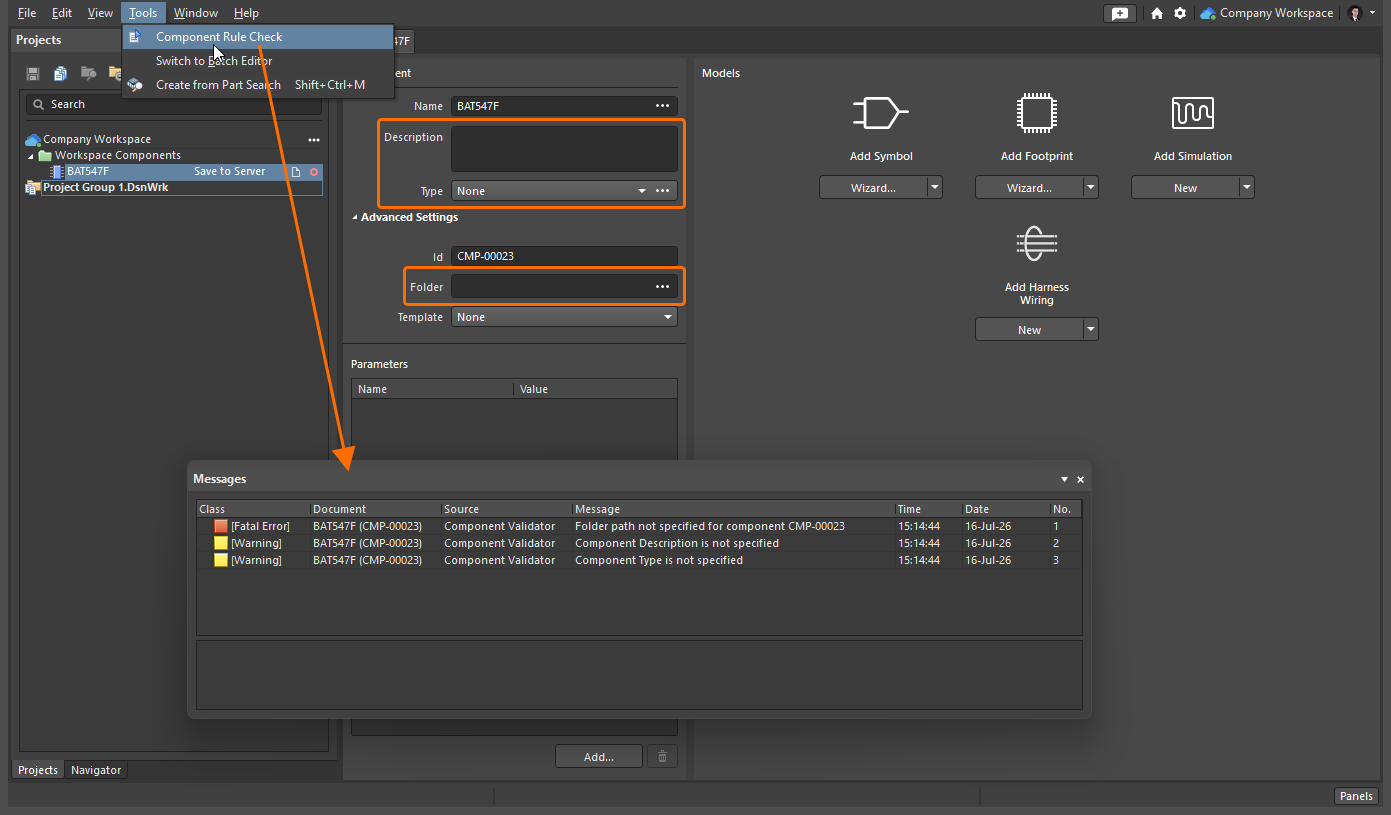
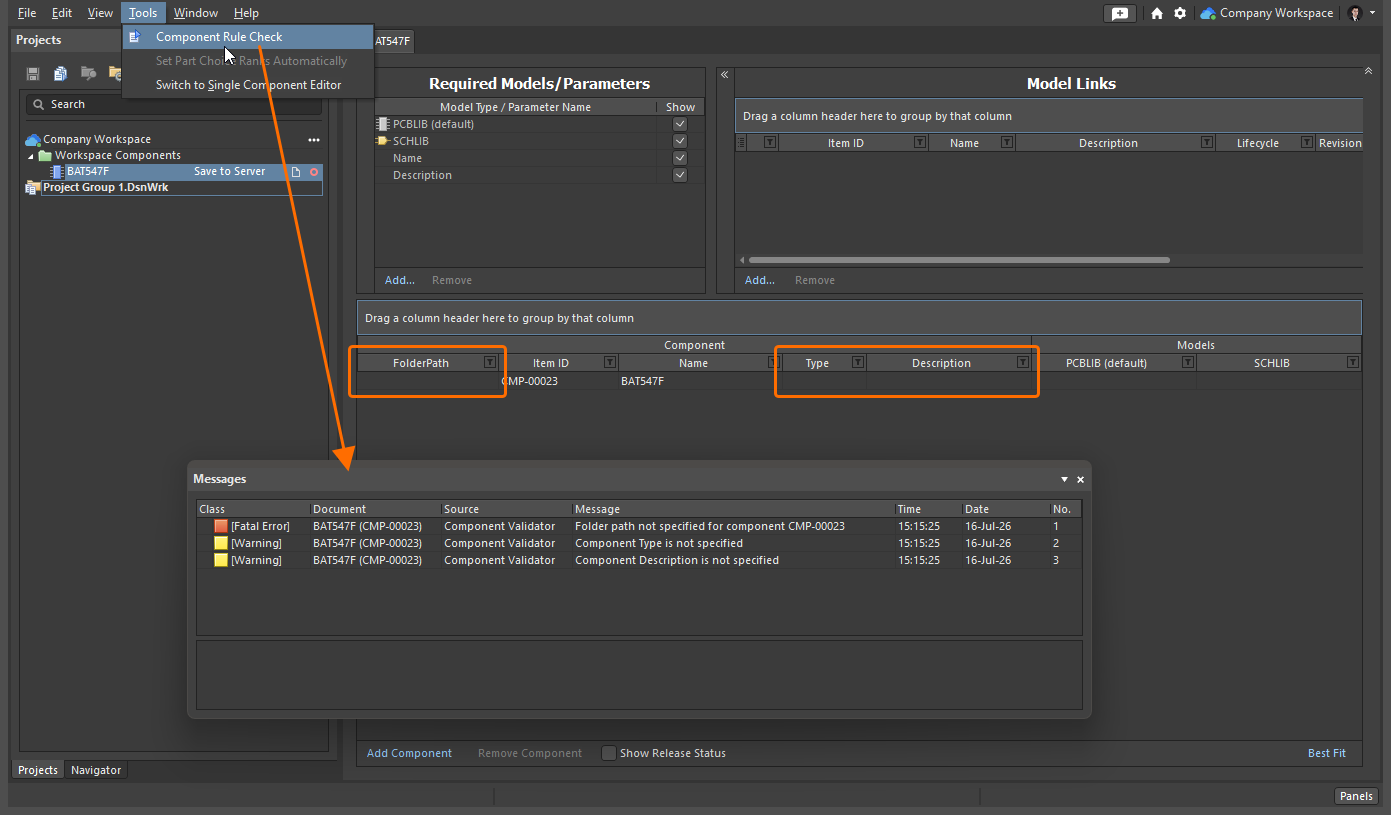
The component validation tests for an array of potential issues with the component and its defined models – both hardwired tests, as well as a range of violation types that can be user-defined at the global level.
The following hardwired validation checks all carry a report mode of  :
:
Folder path not specified for component
| Summary | This violation occurs when a target Workspace folder where a component being defined in the Component editor should be saved is not specified. |
|---|---|
| Notification | A notification will be displayed in the Messages panel in the following format:
where:
|
| Recommendation for Resolution |
|
 button to access the Choose Folder dialog. Browse to, and choose an existing folder, or create a new one on-the-fly.
 button, and click to access the Choose Folder dialog. Browse to, and choose an existing folder, or create a new one on-the-fly.
Component not having a unique Id
| Summary | This violation occurs when the Item ID of a component being defined in the Component editor is the same as the Item ID of another item in the connected Workspace. |
|---|---|
| Notification | A notification will be displayed in the Messages panel in the following format:
where:
|
| Recommendation for Resolution |
|
| Note | This violation typically occurs when an automatically assigned Item ID value of a component is manually overridden. For a new component created through the File » New » Component command or the Components panel (learn more), this field is populated in accordance with the component template defined for the component type chosen in the Create new component dialog. Where a template does not exist, or where the <Undefined> entry is chosen in the dialog, a default naming scheme ( |
User-definable checks are configured on the Data Management – Component Rule Checks page of the Preferences dialog.
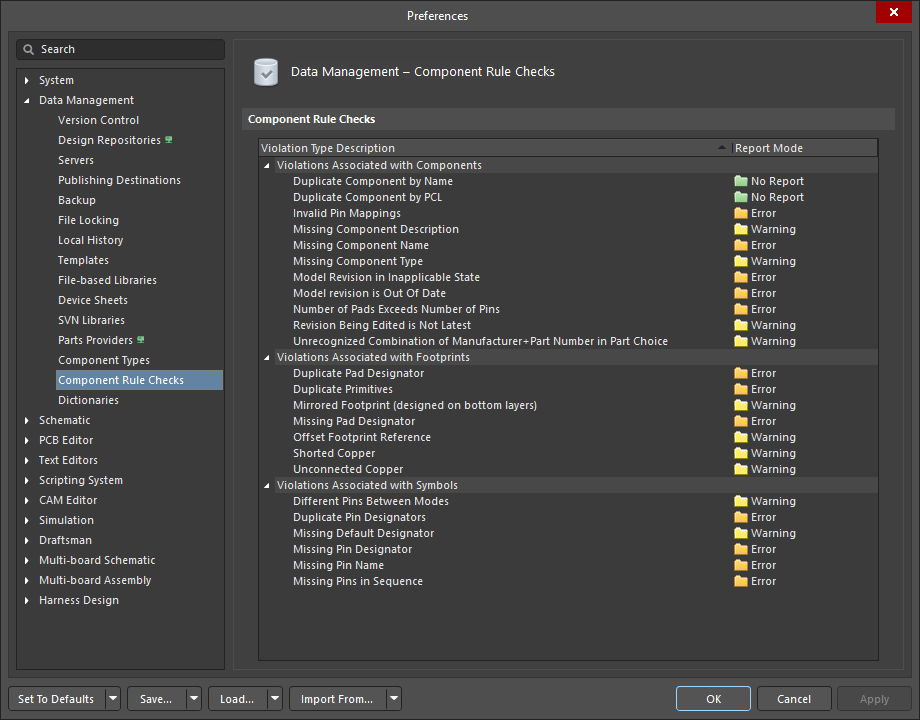
User-definable violation checks that can be configured as part of global preferences, for use when validating a component.
Any of the hardwired tests that fail or user-defined checks at a level of Fatal Error will prevent the saving of the component to the Workspace.
The default settings of the user-defined checks may not suit your components, so it is important to become familiar with the options and how to configure them to suit your designs. Information about each user-defined error check can be found below.
Violations Associated with Components
Duplicate Component by Name
| Summary | This violation occurs when the name of a component being defined in the Component editor is the same as the name of a component in the connected Workspace. |
|---|---|
| Default Report Mode | |
| Notification | A notification is displayed in the Messages panel in the following format:
|
| Recommendation for Resolution | Assign different and unique name(s) to the component(s) as required.
|

Duplicate Component by PCL
| Summary | This violation occurs when a component being defined in the Component editor has a Part Choice that is used by another component in the connected Workspace. |
|---|---|
| Default Report Mode | |
| Notification | A notification is displayed in the Messages panel in the following format:
|
| Recommendation for Resolution | Assign different and unique Part Choice(s) to the component(s) as required.
|
Invalid Pin Mappings
| Summary | This violation occurs when a component being defined in the Component editor has an ambiguous mapping between component symbol and footprint(s). For example, the violation occurs if the symbol has pins defined in their Designator fields as |
|---|---|
| Default Report Mode | |
| Notification |
where:
|
| Recommendation for Resolution | Edit currently added or select another model to make sure that symbol pins have one-to-one matching to footprint pads.
|

 control at the top right of model's preview to modify the model that is currently being used (referenced) by the component in the corresponding temporary editor for that model type.
 control at the top right of model's preview and choose the Select Model entry from the menu to browse for and choose, a different model, or a different revision of that same model.
 control at the top right of symbol's preview to access the
  button to browse for and choose, a different model, or a different revision of that same model.
Missing Component Description
| Summary | This violation occurs when the description of a component being defined in the Component editor is not specified. |
|---|---|
| Default Report Mode | |
| Notification | A notification is displayed in the Messages panel in the following format:
|
| Recommendation for Resolution | Specify a description for the offending component(s) as required.
|

Missing Component Name
| Summary | This violation occurs when the name of a component being defined in the Component editor is not specified. |
|---|---|
| Default Report Mode | |
| Notification | A notification is displayed in the Messages panel in the following format:
|
| Recommendation for Resolution | Specify a name for the offending component(s) as required.
|
Missing Component Type
| Summary | This violation occurs when the type of component being defined in the Component editor is not specified. |
|---|---|
| Default Report Mode | |
| Notification | A notification is displayed in the Messages panel in the following format:
|
| Recommendation for Resolution | Specify a type for the offending component(s) as required.
|
Model Revision in Inapplicable State
| Summary | This violation occurs when a linked model that is being used (referenced) by a component definition is detected to be in an inapplicable state. For example, the model is currently |
|---|---|
| Default Report Mode | |
| Notification | A notification is displayed in the Messages panel in the following format:
where:
|
| Recommendation for Resolution | Choose a replacement model or revision of the same model that is valid for use in the component.
|
 ).
).Model revision is Out Of Date
| Summary | This violation occurs when a linked model that is being used (referenced) by a component definition is detected to be out of date. If there is a later revision of the model available, the Revision State field will reflect this using the text |
|---|---|
| Default Report Mode | |
| Notification | A notification is displayed in the Messages panel in the following format:
where:
|
| Recommendation for Resolution | Update the component model links that are out-of-date to use the latest revision of the models.
|
Number of Pads Exceeds Number of Pins
| Summary | This violation occurs when a footprint model that is being used (referenced) by a component definition includes more pads (SMD pads placed on copper layers and plated thru-hole pads) than pins of its referenced schematic symbol. |
|---|---|
| Default Report Mode | |
| Notification | A notification is displayed in the Messages panel in the following format:
where:
|
| Recommendation for Resolution | Edit currently added or select another symbol/footprint model to make sure that the footprint has a number of pads that does not exceed the number of symbol pins.
|
Revision Being Edited is Not Latest
| Summary | This violation occurs when the component revision being edited is not the latest revision available in the connected Workspace. |
|---|---|
| Default Report Mode | |
| Notification | A notification is displayed in the Messages panel in the following format:
where:
|
| Recommendation for Resolution | Select the latest component revision for editing. To do this, browse for the component in the Components panel, right-click its entry in the panel and choose Edit. |
Unrecognized Combination of Manufacturer+Part Number in Part Choice
| Summary | This violation occurs when an incorrect entry for a component's part choice is added, and the part can not be retrieved by the Workspace. |
|---|---|
| Default Report Mode | |
| Notification | A notification is displayed in the Messages panel in the following format:
where:
|
| Recommendation for Resolution | Specify valid part choice for the offending component(s).
|
Violations Associated with Footprints
Duplicate Pad Designator
| Summary | This violation occurs when a footprint model linked to a component being defined in the Component editor has multiple pad objects with the same value of the Designator property. |
|---|---|
| Default Report Mode | |
| Notification | A notification is displayed in the Messages panel in the following format:
where:
|
| Recommendation for Resolution | Assign different and unique designators to the pads of the linked footprint model.
The footprint model that is currently being used (referenced) by the component will open in the temporary PCB Library editor. Select offending pads and change values of their Designator property in the Properties panel when a pad is selected (learn more). |
Duplicate Primitives
| Summary | This violation occurs when a footprint model linked to a component being defined in the Component editor has identical objects placed in the same location on the same layer. |
|---|---|
| Default Report Mode | |
| Notification | A notification is displayed in the Messages panel in the following format:
where:
|
| Recommendation for Resolution | Remove duplicate objects from the footprint model.
The footprint model that is currently being used (referenced) by the component will open in the temporary PCB Library editor. Select duplicate objects and remove them using the Delete shortcut. |
Mirrored Footprint (designed on bottom layer)
| Summary | This violation occurs when a footprint model linked to a component being defined in the Component editor has significant primitives (pads, tracks, arcs, fills, regions, rectangles, text strings, keepout objects) placed on the In the PCB Library editor, the footprint is built for the top side of the board; it can be flipped to the bottom during the PCB design process if required. |
|---|---|
| Default Report Mode | |
| Notification | A notification is displayed in the Messages panel in the following format:
|
| Recommendation for Resolution | Flip footprint primitives from the
The footprint model that is currently being used (referenced) by the component will open in the temporary PCB Library editor. Select primitives on the |
Missing Pad Designator
| Summary | This violation occurs when a footprint model linked to a component being defined in the Component editor has a Pad object with no value of the Designator property specified. |
|---|---|
| Default Report Mode | |
| Notification | A notification is displayed in the Messages panel in the following format:
where:
|
| Recommendation for Resolution | Specify designator values for the pads of the linked footprint model.
The footprint model that is currently being used (referenced) by the component will open in the temporary PCB Library editor. Select an offending pad and specify the value of its Designator property in the Properties panel when a pad is selected (learn more). |
Offset Footprint Reference
| Summary | This violation occurs when a footprint model linked to a component being defined in the Component editor has its reference point (origin) outside of the bounding rectangle formed by footprint objects. |
|---|---|
| Default Report Mode | |
| Notification | A notification is displayed in the Messages panel in the following format:
|
| Recommendation for Resolution | Change the location of the reference point for it is inside the bounding rectangle formed by footprint objects.
The footprint model that is currently being used (referenced) by the component will open in the temporary PCB Library editor. Use the commands of the Edit » Set Reference sub-menu of the main menus to change the current location of the footprint's reference. |
Shorted Copper
| Summary | This violation occurs when a footprint model linked to a component being defined in the Component editor has pad objects which are connected with each other by objects on a copper layer. |
|---|---|
| Default Report Mode | |
| Notification | A notification is displayed in the Messages panel in the following format:
where:
|
| Recommendation for Resolution | Remove the copper layer objects which connect the pads of the linked footprint model.
The footprint model that is currently being used (referenced) by the component will open in the temporary PCB Library editor. Select the copper layer objects which connect the pads then change them, so they do not connect the pads, or remove these objects. |
Unconnected Copper
| Summary | This violation occurs when a footprint model linked to a component being defined in the Component editor has objects on a copper layer, and these objects are not connected to any pad objects. When such a footprint will be placed in a PCB design, a net will not be assigned to these copper layer objects, and they will become dead copper. |
|---|---|
| Default Report Mode | |
| Notification | A notification is displayed in the Messages panel in the following format:
where:
|
| Recommendation for Resolution | Change the footprint model so the objects which are not currently connected to any Pad object in the footprint model are connected to pads.
The footprint model that is currently being used (referenced) by the component will open in the temporary PCB Library editor. Place objects on copper layer(s) to form a connection between footprint pads and objects which are not currently connected to any pad object or remove these unconnected objects. |
Violations Associated with Symbols
Different Pins Between Modes
| Summary | This violation occurs when one of the display modes for a symbol has an extra pin. |
|---|---|
| Default Report Mode | |
| Notification | A notification is displayed in the Messages panel in the following format:
where:
|
| Recommendation for Resolution | This violation typically arises when an alternate graphical mode is defined for a symbol and either:
Not only must there be an identical number of pins between graphical display modes, but the pins must be also identical in both Designator and Name. Learn more about creating multiple graphical display modes of the same component symbol. Change the Designator and/or Name of offending pin(s) so the number of pins and their Designator and Name properties are the same between the symbol's display modes or remove an extra pin from a display mode.
The symbol model that is currently being used (referenced) by the component will open in the temporary Schematic Library editor. Select offending pins and change values of their Designator and/or Name property in the Properties panel when a pin is selected (learn more), or remove these pins using the |
Duplicate Pin Designators
| Summary | This violation occurs when two or more pins in the component's symbol model have the same designator. |
|---|---|
| Default Report Mode | |
| Notification | A notification is displayed in the Messages panel in the following format:
where:
|
| Recommendation for Resolution | Change the designator of the offending pin(s) accordingly, so that each has a unique assignment.
The symbol model that is currently being used (referenced) by the component will open in the temporary Schematic Library editor. Select offending pins and change values of their Designator property in the Properties panel when a pin is selected (learn more), or remove these pins using the |
Missing Default Designator
| Summary | This violation occurs when the component's symbol model has no default designator specified. |
|---|---|
| Default Report Mode | |
| Notification | A notification is displayed in the Messages panel in the following format:
|
| Recommendation for Resolution | Specify a default designator for the offending symbol model.
The symbol model that is currently being used (referenced) by the component will open in the temporary Schematic Library editor. Open the Properties panel when no object is selected in the design space (learn more) and specify the required designator prefix followed by the |
Missing Pin Designator
| Summary | This violation occurs when a pin in the component's symbol model has no designator specified. |
|---|---|
| Default Report Mode | |
| Notification | A notification is displayed in the Messages panel in the following format:
where:
|
| Recommendation for Resolution | Specify a designator for each pin in the offending symbol model.
The symbol model that is currently being used (referenced) by the component will open in the temporary Schematic Library editor. Select offending pins and specify values of their Designator property in the Properties panel when a pin is selected (learn more), or remove pins using the |
Missing Pin Name
| Summary | This violation occurs when a pin in the component's symbol model has no name specified. |
|---|---|
| Default Report Mode | |
| Notification | A notification is displayed in the Messages panel in the following format:
where:
|
| Recommendation for Resolution | Specify a name for each pin in the offending symbol model.
The symbol model that is currently being used (referenced) by the component will open in the temporary Schematic Library editor. Select offending pins and specify values of their Name property in the Properties panel when a pin is selected (learn more), or remove these pins using the |
| Note | Only one violation instance will be listed in the Messages panel for each distinct component. A component may well have a symbol with more than one pin with no name defined. |
Missing Pins in Sequence
| Summary | This violation occurs when missing pins have been detected in the numerical sequence of the offending symbol's pin designator values. For example, if the symbol has pins with designators |
|---|---|
| Default Report Mode | |
| Notification | A notification is displayed in the Messages panel in the following format:
where:
|
| Recommendation for Resolution | In the offending symbol model, add pins with missing pin designators in the sequence or change pin designators so the pin designators form a continuous sequence of integer values.
The symbol model that is currently being used (referenced) by the component will open in the temporary Schematic Library editor. Using the Place » Pin command from the main menus, add the required number of pins and specify values of their Designator property in the Properties panel when a pin is selected (learn more) so the pin designators in the symbol form a continuous sequence of integer values. You can also edit the Designator property of pins already placed in the symbol. |
| Note | There are components that do not use sequential pin numbering, for example, a BGA with non-sequential pin numbering; A1, A3, A5 (and so on). In this situation, it is suggested to release the component with this violation and note the reason in the Release Notes. Alternatively, set the Missing Pins in Sequence check on the Data Management – Component Rule Checks page of the Preferences dialog to |