
Adding Datasheets to a Component
At a Glance
- Learn how to attach datasheets from local files or web links using drag and drop or file browsing.
- Discover how to open, rename captions, save, and remove attachments, including how duplicate files and updated versions are handled.
- Explore datasheet attachment in single-component editing and the setup for sharing datasheets across component definitions in batch editing.
Altium Designer, in conjunction with your connected Workspace, caters for the ability to store component datasheets within that Workspace and, in doing so, link them to target components. This allows you to more fully describe and support a component, in a centralized fashion, while reducing the reliance on external storage mediums (shared network drives for example). Storing datasheets next to the very components that need to reference them also means you no longer need to have a live internet connection to consult a reference document that can often, and frustratingly, disappear without warning at the whim of the hosting website!
Attaching a Datasheet to a Component Item in the Explorer Panel
For an existing component in a Workspace, one or more datasheets can be attached (uploaded) to that component – essentially creating a link between the component and the datasheet(s) – through the Explorer panel. While browsing the required component, switch to its Data Sheet aspect view tab.

Through the Explorer panel, datasheet management for an existing component is performed from within that component's Data Sheet aspect view tab.
Drag and Drop Attachment
By far the easiest method to attach a datasheet to a component is to select it within your Windows File Explorer, then drag and drop it onto the indicated area of the component's Data Sheet aspect view tab, in the Explorer panel. You can attach any number of datasheets to a component. Once dropped, the file(s) will be uploaded.
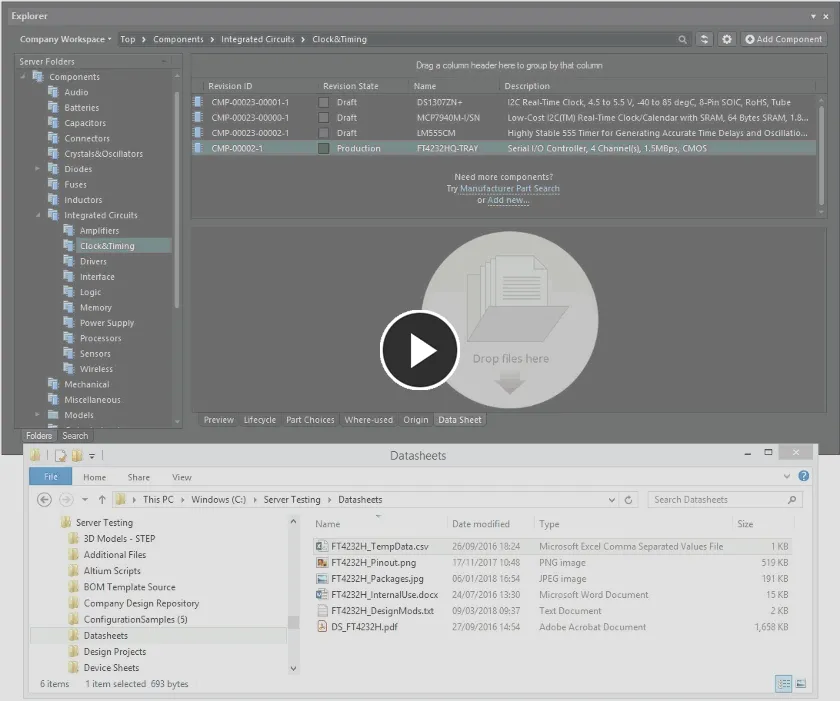
Attach one or more datasheets to an existing component in the Workspace by dragging and dropping the datasheet(s) onto the component's Data Sheet aspect view tab.
Browse for a Datasheet to Attach
Alternatively, you can browse for a datasheet you wish to attach to the component. To do this, right-click within the component's Data Sheet aspect view tab, and choose the Add File command from the context menu. The standard Windows Open dialog will appear, with which to browse to, and open, the required datasheet. After clicking the Open button, the file will be uploaded.
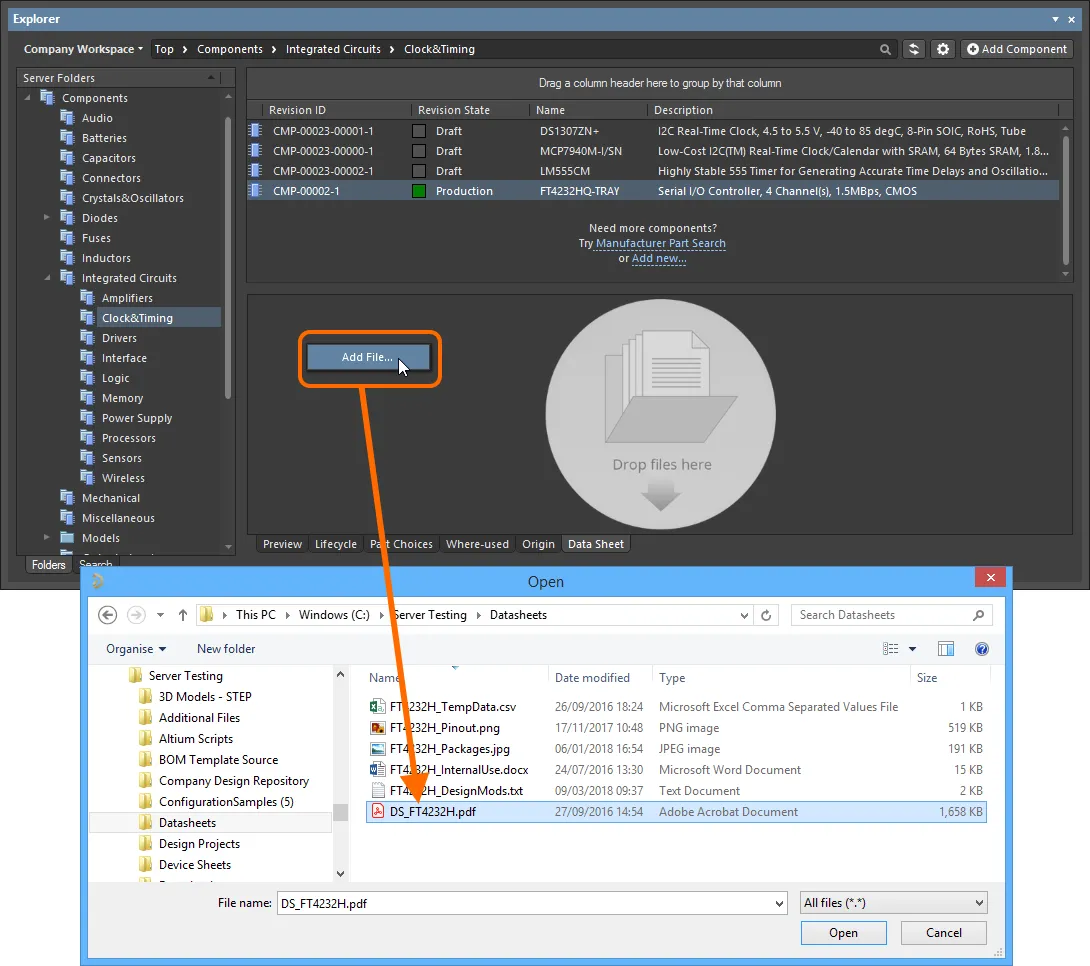
Attach a datasheet to an existing component in the Workspace using the traditional, dialog-based 'browse-and-open' approach.
Post-Attachment Management
Once uploaded and attached to a component, the datasheet will be presented on the Data Sheet aspect view tab in terms of its:
- Caption – this is the user-definable name for the attachment, presented in the Explorer panel, and also in the References sub-menu for a component, after it is placed on a schematic sheet. By default, after initial upload, this will be the filename of the attachment (including extension). Note that the actual filename for the datasheet is not changed in any way.
- File type – the type of file. A file of any format can be attached as a datasheet to the component.
- File size – the size (on disk) of the attached file.
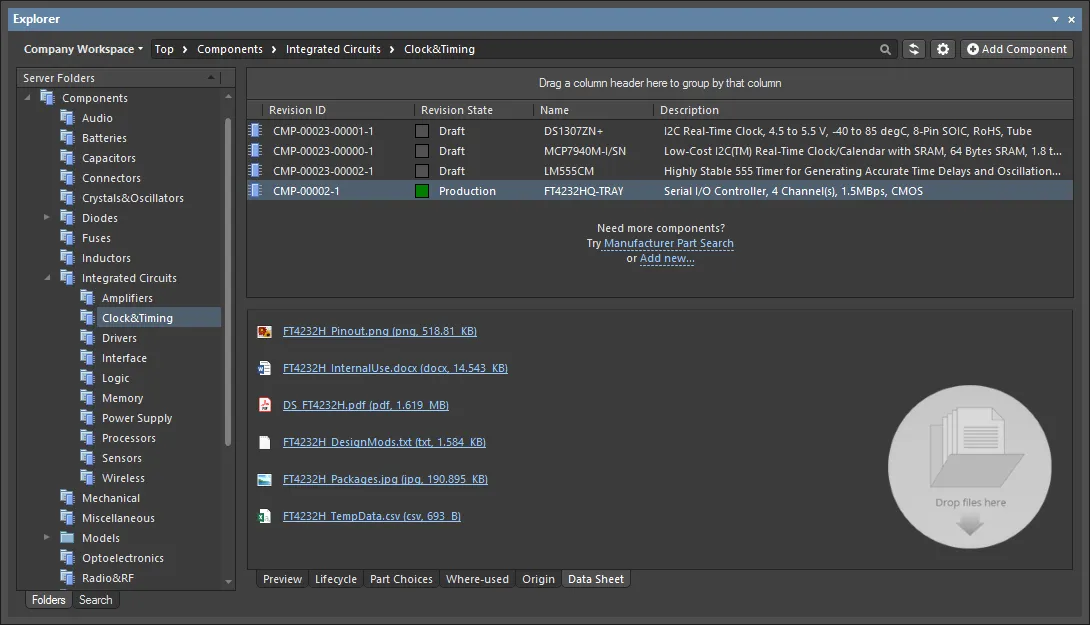
Example datasheets attached to a component, of varying file types.
After attaching a datasheet to a component, all management for that datasheet is performed from within the Data Sheet aspect view tab. This includes being able to quickly open the document by clicking on its entry.
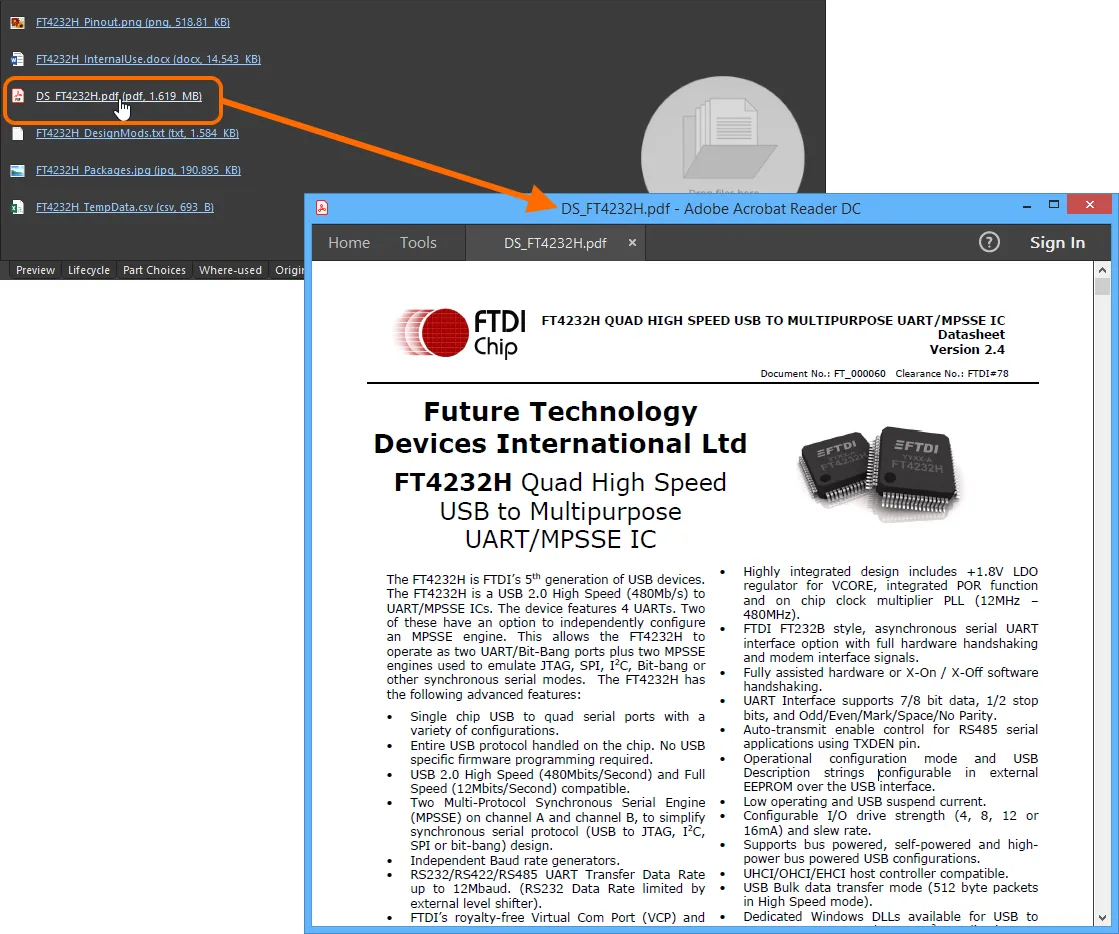
Use the hyperlinked name of the datasheet to quickly access it. In this example, a PDF datasheet is opened in the applicable, external PDF Viewer application.
In addition, the following commands are available on the right-click context menu:
-
Add File – use this command to attach another datasheet to the component. Once attached, the datasheet is available to all revisions of that component, since it is linked at the item level.
- Edit – use this command to access the Caption dialog, with which to modify the caption for the datasheet (its display name within the software) as required.
-
Delete – use this command to effectively remove the datasheet attachment from the component. Only the link between the component and underlying Datasheet Item is deleted. The latter itself is only deleted if no other component is linked to that datasheet.
- Open – use this command to open the datasheet. The attachment will open either within Altium Designer (for example a txt document), or in the applicable external application.
- Save As – use this command to save the attachment to your local media or network drive. Use the standard Windows Save As dialog to determine where, and with what name, the file is saved.
 Caption dialog
The Datasheet Item
Facilitating the ability to attach a datasheet to a component is the Datasheet Item. When a datasheet is attached to a component, the actual datasheet file is uploaded into a single revision of this content type, and the component linked to that Datasheet Item.
When a new datasheet file is attached to a component, and that file has not already been uploaded (attached to a different component), the resulting Datasheet Item will be created in a Datasheets sub-folder of the active folder.
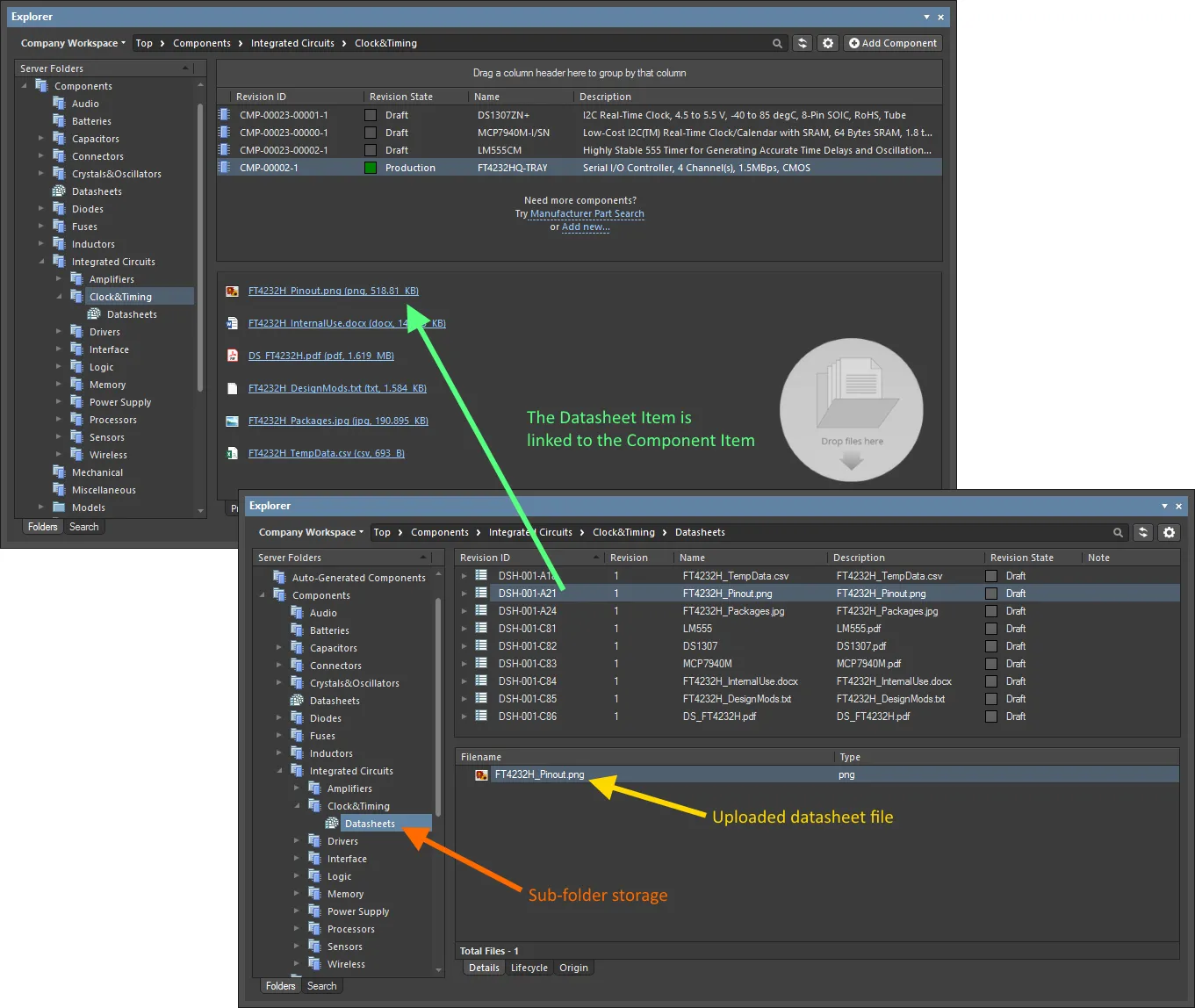
The mechanics of an uploaded datasheet – the Datasheet Item is linked to the component.
Attaching a Datasheet in the Component Editor
One or more datasheets can also be attached to a component when creating/editing that component through the Component Editor. The following sections take a look at how this is done in both operational modes of the editor.
In Single Component Editing Mode
One or more datasheets can be attached to the active component, while defining that component through the Component Editor in its Single Component Editing mode.
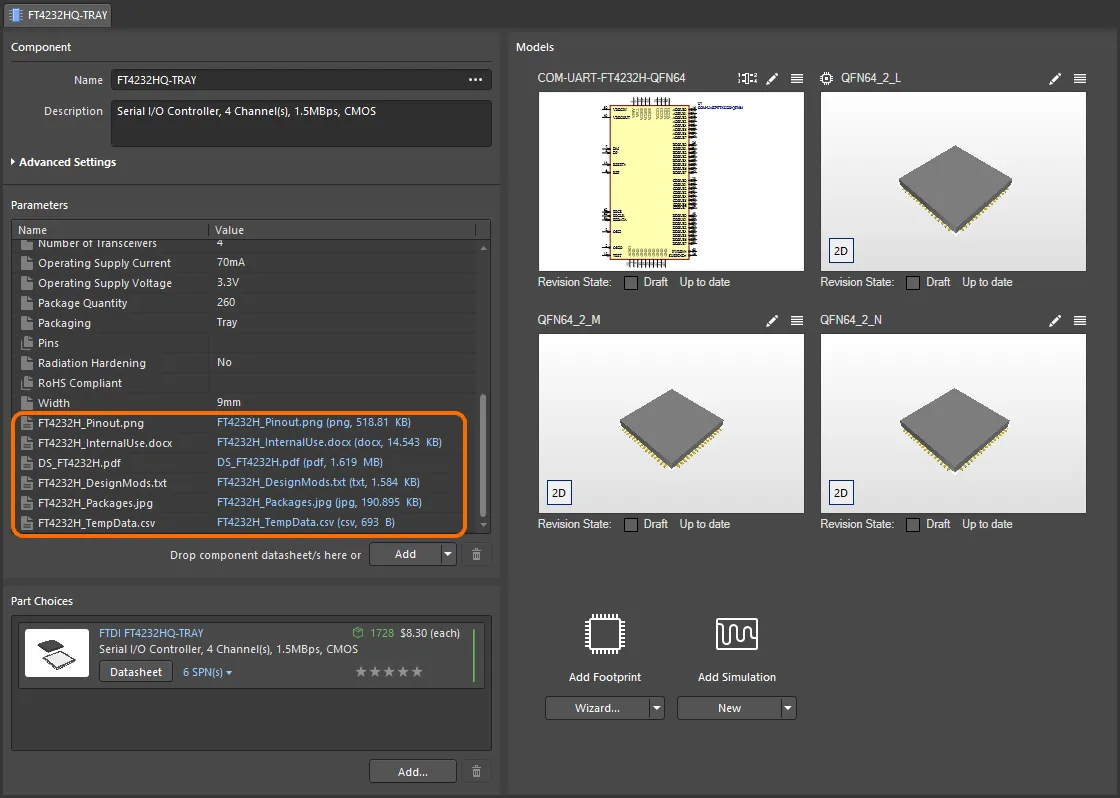
Linking various datasheets, as seen from the perspective of editing a component in the Component Editor (Single Component Editing mode).
With the new (or existing) single component opened in the temporary Component Editor for direct editing, one or more datasheets can be added in the following ways:
- By dragging and dropping from Windows File Explorer to anywhere within the Parameters region.
- By dragging and dropping a datasheet link from a web page in an external web browser, to anywhere within the Parameters region.
-
By clicking the drop-down part of the
 button and choosing Datasheet from the associated menu. Use the Open dialog to browse to, and open, the required datasheet(s).

Example demonstrating attachment of datasheets from a local drive, and then editing the local caption for the main datasheet.
Once uploaded, you can:
- Open a datasheet by clicking on its Value entry in the Parameters region.
- Change the caption for a datasheet, by clicking on its Name entry in the Parameters region and typing the new name as required. Changing a caption for a datasheet is local to that component.
-
Remove the datasheet from the component, by selecting its entry in the Parameters region and clicking the
 button below the region.
In Batch Component Editing Mode
One or more datasheets can be attached to one or more components, while defining component(s) through the Component Editor in its Batch Component Editing mode. This, for example, allows you to quickly attach the same required datasheet(s) to all components in a particular family.

Linking various datasheets, as seen from the perspective of editing a component in the Component Editor (Batch Component Editing mode).
Attaching datasheets to a component definition involves a sequence of steps, summarized here and detailed in the sections thereafter:
- Enabling the use of datasheets.
- Uploading datasheets to a selected component.
- Assigning uploaded datasheets to other component definitions.
Enabling the Use of Datasheets
To be able to attach datasheets to a component definition in the editor, you need to first enable the use of datasheets. This is done from the Required Models/Parameters region of the editor. Click on the Add control at the bottom of the region, and choose Datasheet from the context menu.
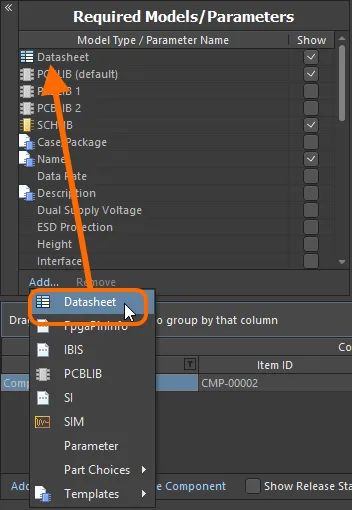
Enable the use of datasheets for components.
Uploading Datasheets to a Selected Component
Having enabled the use of datasheets, you now need to upload them. Essentially, you upload any number of datasheets for the currently selected component, but can then assign all, or specific sheets, across the various components being defined. Once the Datasheet entity has been added to the Required Models/Parameters region, a Datasheet entry will be presented in the Model Links region. Clicking on this will show the list of datasheets currently assigned (linked) to the selected component, in the preview region.
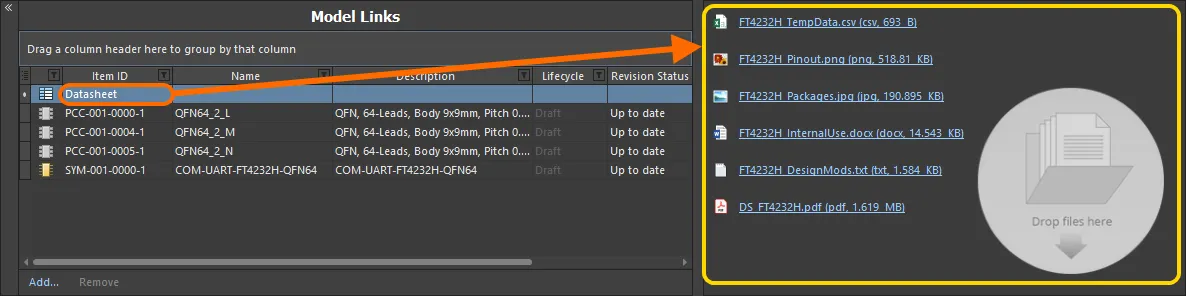
The Datasheet 'bucket', and the available listing of uploaded datasheets. In reality, each datasheet is uploaded into a unique underlying Datasheet Item.
With a component definition selected in the editor, a datasheet can be uploaded to that component in various ways:
- Dragging and dropping from Windows File Explorer to the preview region, or the Datasheets cell for that component definition.
- Dragging and dropping a datasheet link from a web page in an external web browser, to the preview region, or the Datasheets cell for that component definition.
- Right-clicking in the preview region and choosing the Add File command from the context menu. Use the Open dialog to browse to, and open, the required datasheet(s).
Once uploaded, you can:
- Open a datasheet by clicking on its entry in the preview region (or by right-clicking on its entry and choosing Open from the context menu).
- Change the caption for a datasheet, by right-clicking on its entry in the preview region and choosing Edit from the context menu. The Caption dialog will appear with which to do so. Changing a caption for a datasheet is local to that component.
- Remove the datasheet from the component, by right-clicking on its entry in the preview region and choosing Delete from the context menu.
- Download the file by right-clicking on its entry in the preview region and choosing Save As from the context menu.
Assigning Uploaded Datasheets to other Component Definitions
When you initially attach (upload) a datasheet, you are doing so for the currently selected component. But the beauty of the system is that all uploaded datasheets are available for linkage to other components being defined as well. Click the control at the right of the Datasheets cell to access a listing of the available datasheets, and use the associated checkboxes to attach/remove a datasheet to/from the component.

Example demonstrating attachment of datasheets that have already been uploaded, to another component definition.
Accessing a Datasheet from the Placed Component
Once a component is placed onto a schematic document within a design project, you can access any datasheets that are linked to it from the right-click References context sub-menu.
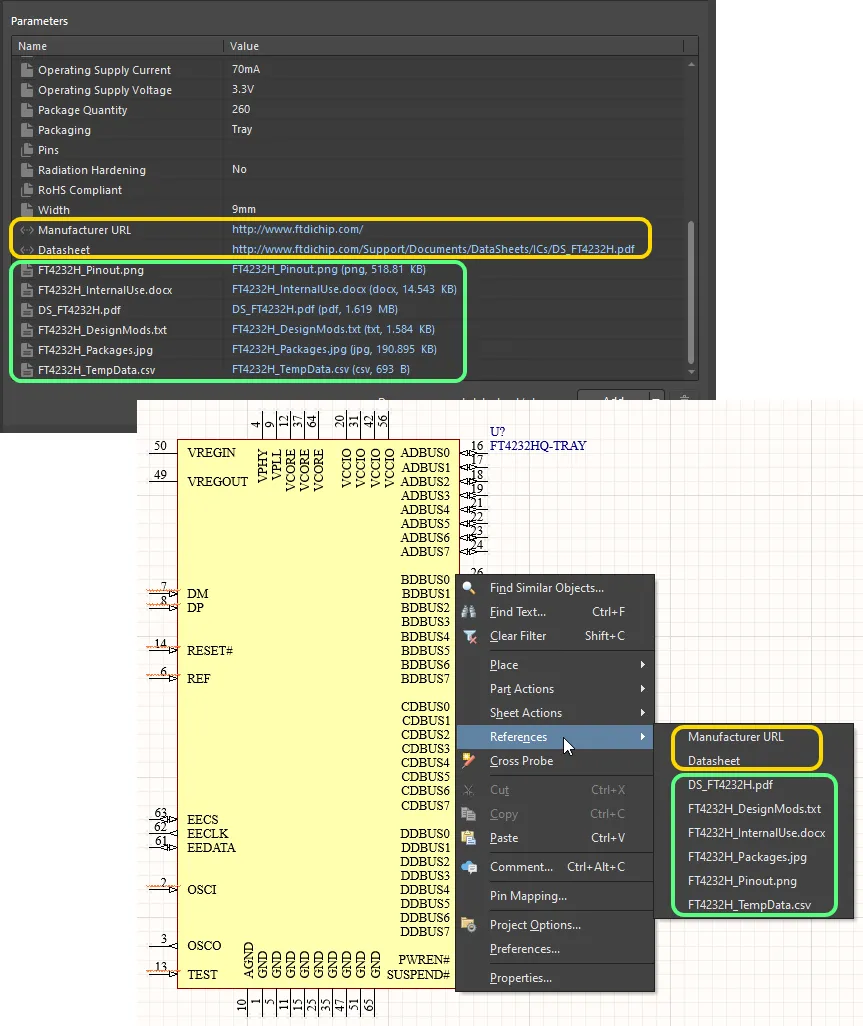
Accessing datasheets for a placed component on a schematic sheet.