
Installation, Licensing & Management
Installation of any software application should be straightforward, intuitive and, perhaps above all, fast. Furthermore, when you have that software installed you want to be able to update it as and when you deem necessary, and in a streamlined fashion.
The Altium On-Prem Enterprise Server is installed through use of an efficient, intuitive installer – an installer that not only expedites the initial installation process, but lets you update with ease to a later version, at any time in the future. In addition, tools are available to monitor the health of your server and to back-up and restore your valuable design data.
Initial Install
Related page: Installing the Altium On-Prem Enterprise Server
Installation of the Altium On-Prem Enterprise Server is performed using the Altium On-Prem Enterprise Server Setup wizard. This is accessed by running an executable – Altium On-Prem Enterprise Server <VersionNumber>.exe – saved on your hard disk.
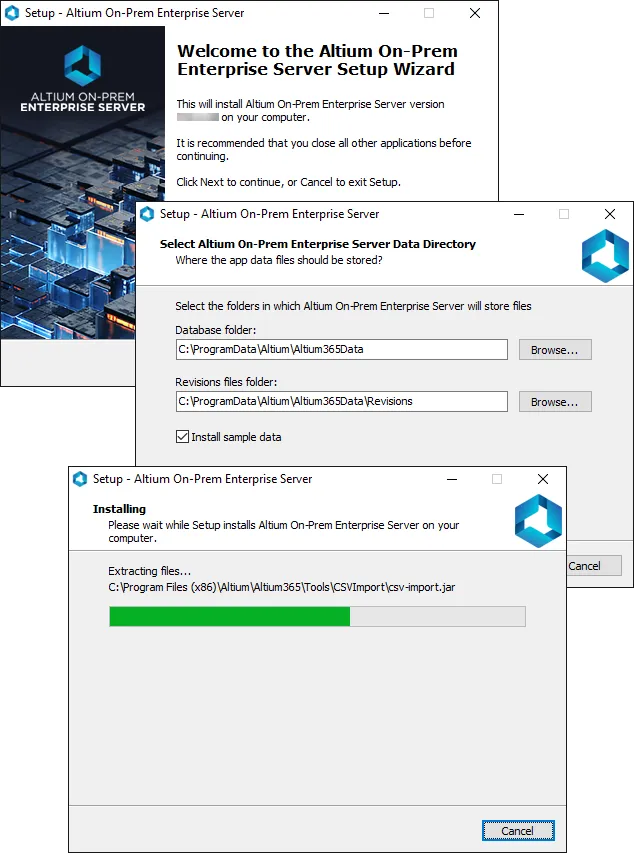
Streamlined installation, courtesy of the Altium On-Prem Enterprise Server Setup wizard.
Licensing the Altium On-Prem Enterprise Server
Related page: Altium On-Prem Enterprise Server Licensing
Licensing for the Altium On-Prem Enterprise Server essentially consists of the following two components that together comprise a two-tiered licensing system:
- Server License (Altium Enterprise Server) – this license makes the features and services of the Altium On-Prem Enterprise Server installation available to the organization.
- Client Access License (Altium Enterprise Server CAL) – this license enables users within an organization to access and sign-in to that organization's Altium On-Prem Enterprise Server.
Licensing for the Altium On-Prem Enterprise Server can be handled through the cloud, or locally through license files (*.alf).
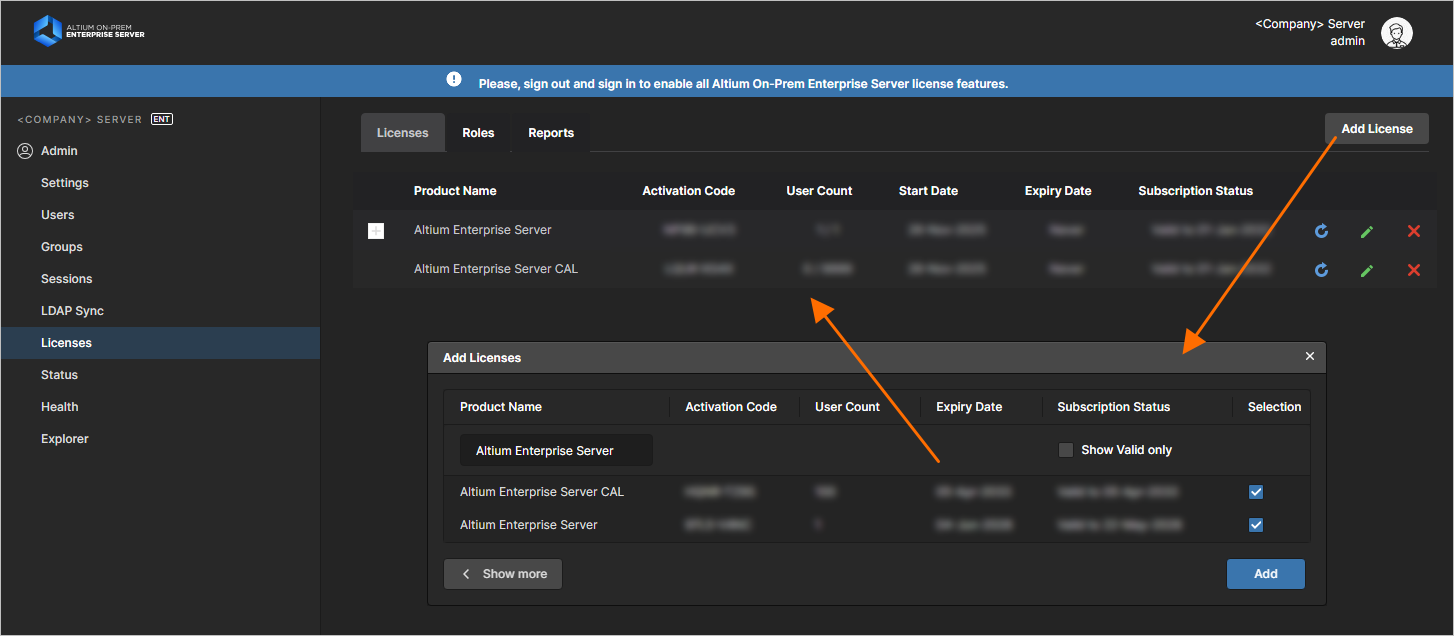
Getting your Altium On-Prem Enterprise Server licensed is a breeze, thanks to self-serve licensing from those licenses available to you through your account.
Updating to a Later Version
When you want to upgrade to a later version of the Altium On-Prem Enterprise Server, the Altium On-Prem Enterprise Server Setup Wizard can handle this automatically for you. Run the installer for the later version. The older version will be detected and you will be asked if you wish to upgrade to the later version – click Yes. As part of the installation process the Installer will make a backup of the current server data, using the Backup & Restore tool. The default backup folder is \ProgramData\Altium\Altium365Data, but can be changed as required. The backup data is stored in a file with the format _Altium365<Version>_backup.zip.
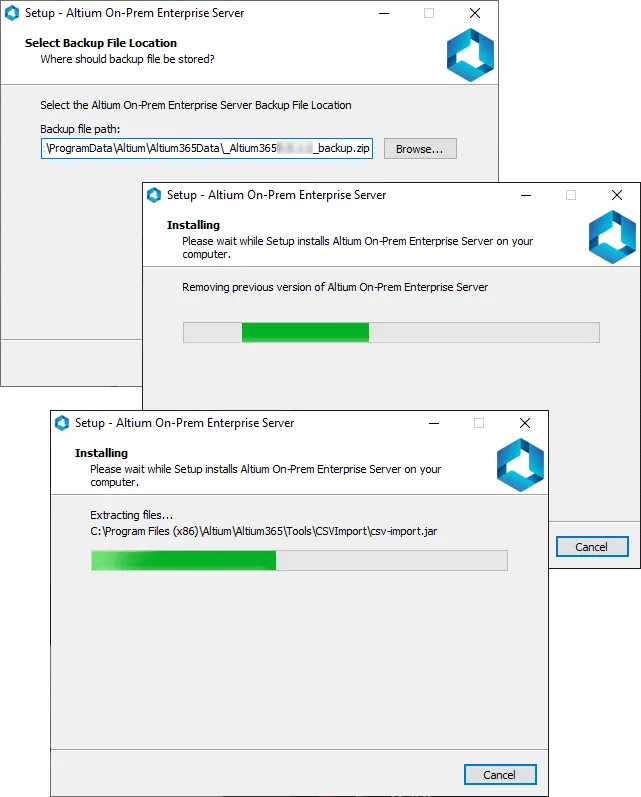
When updating to a later version of the server, a backup of your data will be made, before the old server is removed, and the new one installed.
Upgrading from an Altium Vault 3.0
Switching over from your existing Altium Vault 3.0 to the Altium On-Prem Enterprise Server is a case of upgrading, by running the Altium On-Prem Enterprise Server installer – just as you would have updated your Vault in the past. The existing Altium Vault 3.0 will be detected, and you will be asked if you wish to upgrade to the Altium On-Prem Enterprise Server – click Yes. As part of the installation process, the Installer will make a backup of the existing vault data, using the Backup & Restore tool. The default backup folder is \ProgramData\Altium\VaultServerData, but can be changed as required. The backup data is stored in a file with the format _VaultServer<Version>_backup.zip.
Upgrading from Altium NEXUS Server or Altium Concord Pro
When moving to the Altium On-Prem Enterprise Server from Altium Concord Pro or Altium NEXUS Server, the existing server installation can be upgraded to an Altium On-Prem Enterprise Server directly using its standard installer.
When the Altium On-Prem Enterprise Server installer is run, it will detect the existing installation and ask if you wish to upgrade to the Enterprise Server. After confirmation, it will backup the existing server data to the default location (unless you specify otherwise), and then re-apply that dataset to the new Enterprise Server installation. Thanks to this automated process, your previous design data, user profiles, and server settings are all transferred to the new Enterprise Server installation.
Uninstalling
Uninstalling the Altium On-Prem Enterprise Server is performed from the standard Programs and Features page (accessed from the Control panel in Windows). Right-click on the entry for the Altium On-Prem Enterprise Server <VersionNumber> and use the Uninstall command from the context menu. A couple of dialogs will appear, in turn, asking:
- If you want to completely remove the server – click Yes.
- If you want to delete all your data – click Yes.
- You will be asked to confirm this a second time – click Yes.
A final confirmation dialog will appear once the uninstall is complete.