
Blocks Module
At a Glance
- Understand how Blocks represent your product, subsystems, and their constituent elements.
- Learn what Block information you can record, including descriptions, images, tags, part numbers, and owners.
- Find where to view a Block’s Valis and access guidance on creating Blocks.
The Blocks Module is the place where the user defines the System (or Product) Breakdown in terms of individual Blocks.
Blocks are elements of your final product (it can be a physical part such as a structure or a logical part such as orbit, operations, etc.) that are represented with hierarchical relationships in a Block tree. The top Block is usually your product, for example, a car, satellite, or any other system. It can be further broken down into sub-Block assemblies representing the several physical, functional and logical constituents of the system.
The image below shows an example of what the blocks tab looks like for a mature project. The tree under the Blocks entry at the left shows the blocks, which are the system, subsystem, and its elements in a hierarchical manner. The Info tab shows the information related to the currently selected block. You can add a description, image, tag, and part number and also assign an owner to the block (individual users or groups).
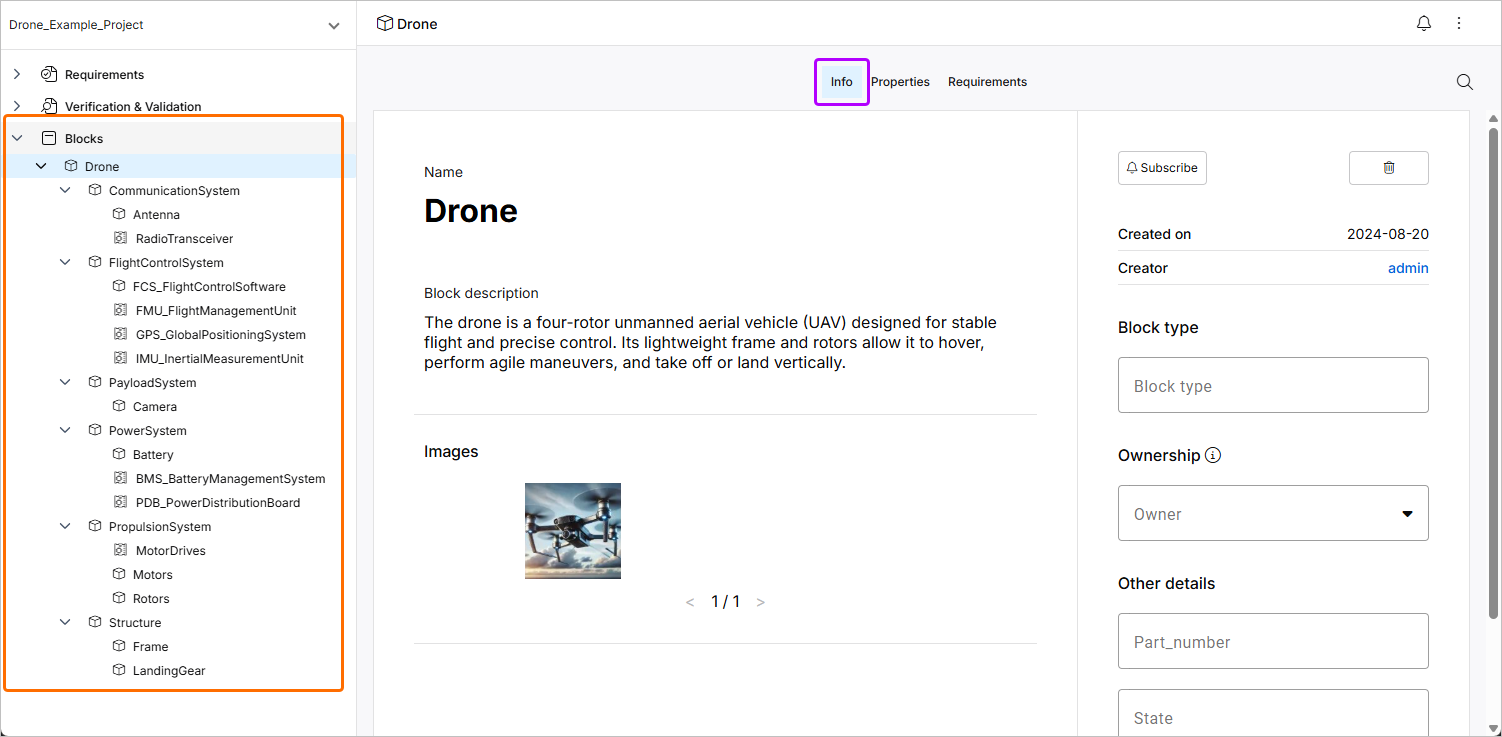
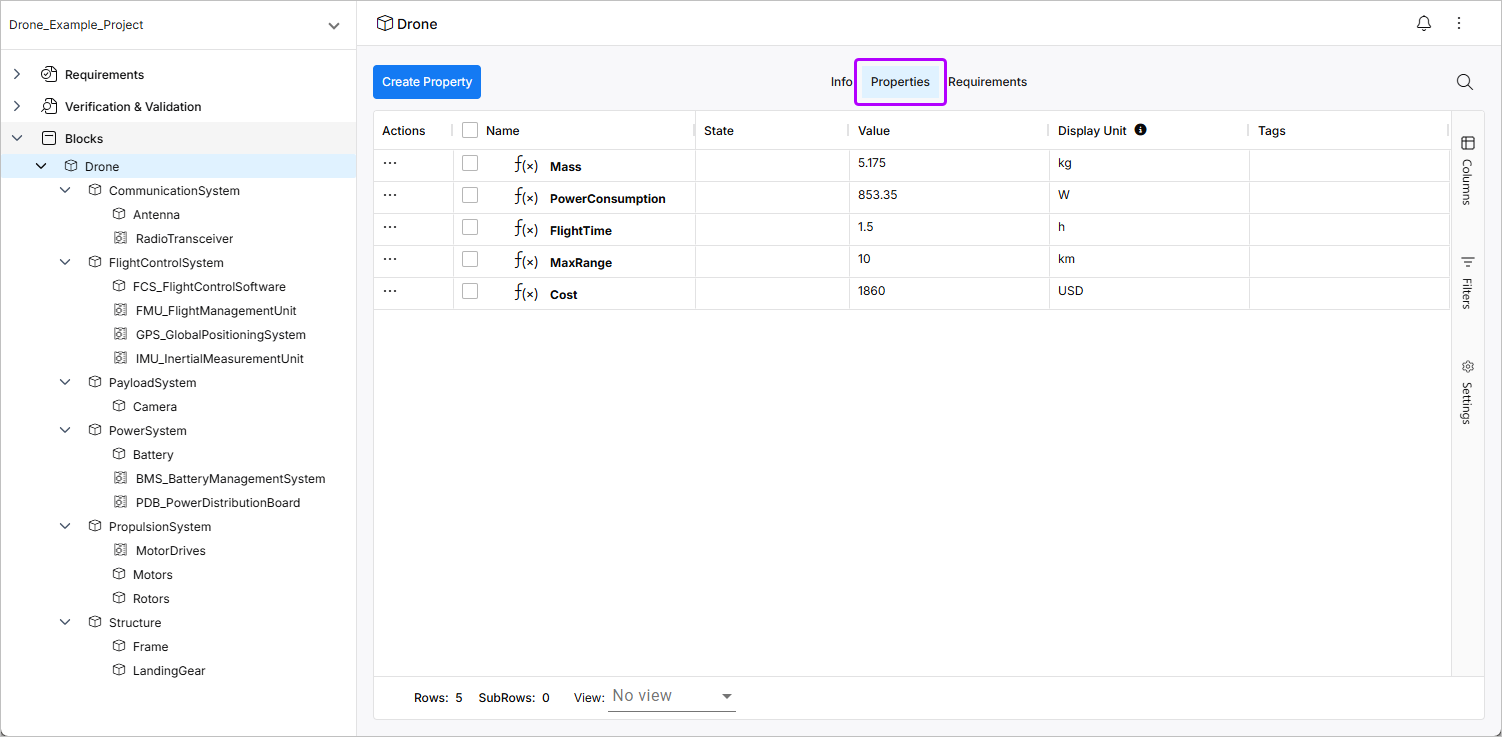
Each Block further contains Valis, which are unique characteristics or properties. Navigate to the Properties tab to see Valis (properties) related to the currently selected block.
Refer to the Creating a Block page for information about how to create blocks.