
Ablauf 1: Verifizierungsaktivitäten planen
Diese Phase umfasst die Beschreibung der Aktivitäten, die erforderlich sind, um die festgelegten Verifikationselemente zu verifizieren. Zusammengefasst beinhaltet dieser Prozess die Identifizierung der Verifikationselemente, die Bestimmung der geeigneten Aktivitäten für jedes Element sowie die Erstellung eines Plans, der die Schritte und Durchläufe beschreibt, die für die effektive Durchführung dieser Aktivitäten notwendig sind. Diese Phase bildet die Grundlage für die anschließende Ausführung von Verifikationsaufgaben, die durch Dateikonformität, Tests oder einen manuellen Verifikationsablauf erfolgen können.
Die wichtigsten Schritte des Workflows werden unten dargestellt.

Verifikationsaktivität planen
Dieser Ablauf bildet die Grundlage für andere Abläufe. Er umfasst das Erstellen einer Verifikationsaktivität im V&V-Modul, das Hinzufügen der Anforderungen und Blöcke zu den Verifikationselementen innerhalb des V&V-Moduls oder aus dem Anforderungsmodul sowie das Erstellen eines vorab geplanten Durchlaufs mit Start- und Enddatum.
Die folgende Diashow zeigt, wie eine neue V&V-Aktivität erstellt und ihr Methoden, Anforderungen, Komponenten und Testläufe zugewiesen werden. Dies bildet die Grundlage für nachfolgende Abläufe.
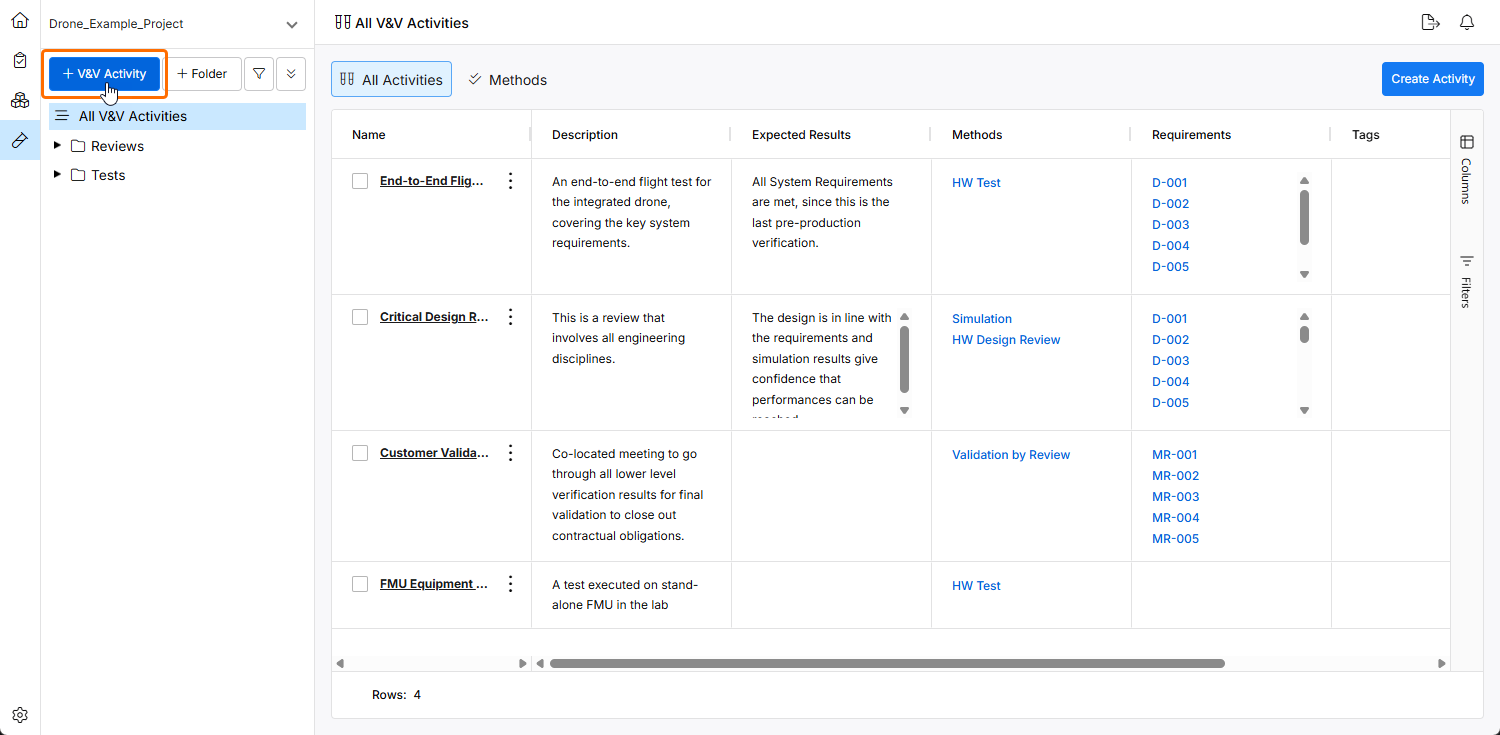
Um eine neue V&V-Aktivität zu erstellen, klicken Sie im V&V-Modul auf die Schaltfläche  .
.
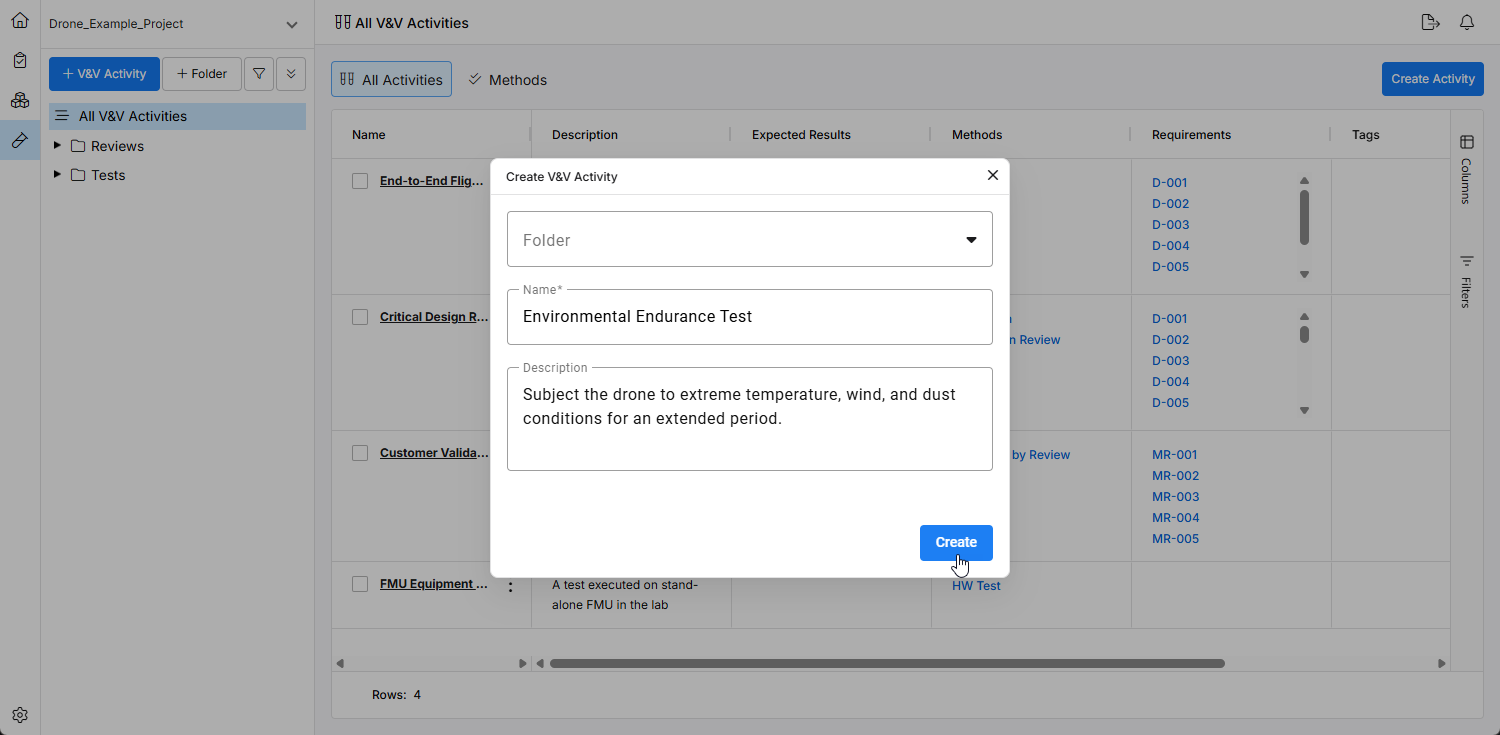
Definieren Sie im sich öffnenden Fenster den Ordner, den Namen und die Beschreibung der neuen V&V-Aktivität und klicken Sie dann auf die Schaltfläche  . Dadurch wird eine neue V&V-Aktivität erstellt, zu der Sie alle Verifikationselemente (Anforderungen und Blöcke) hinzufügen und die verschiedenen V&V-Abläufe durchführen können.
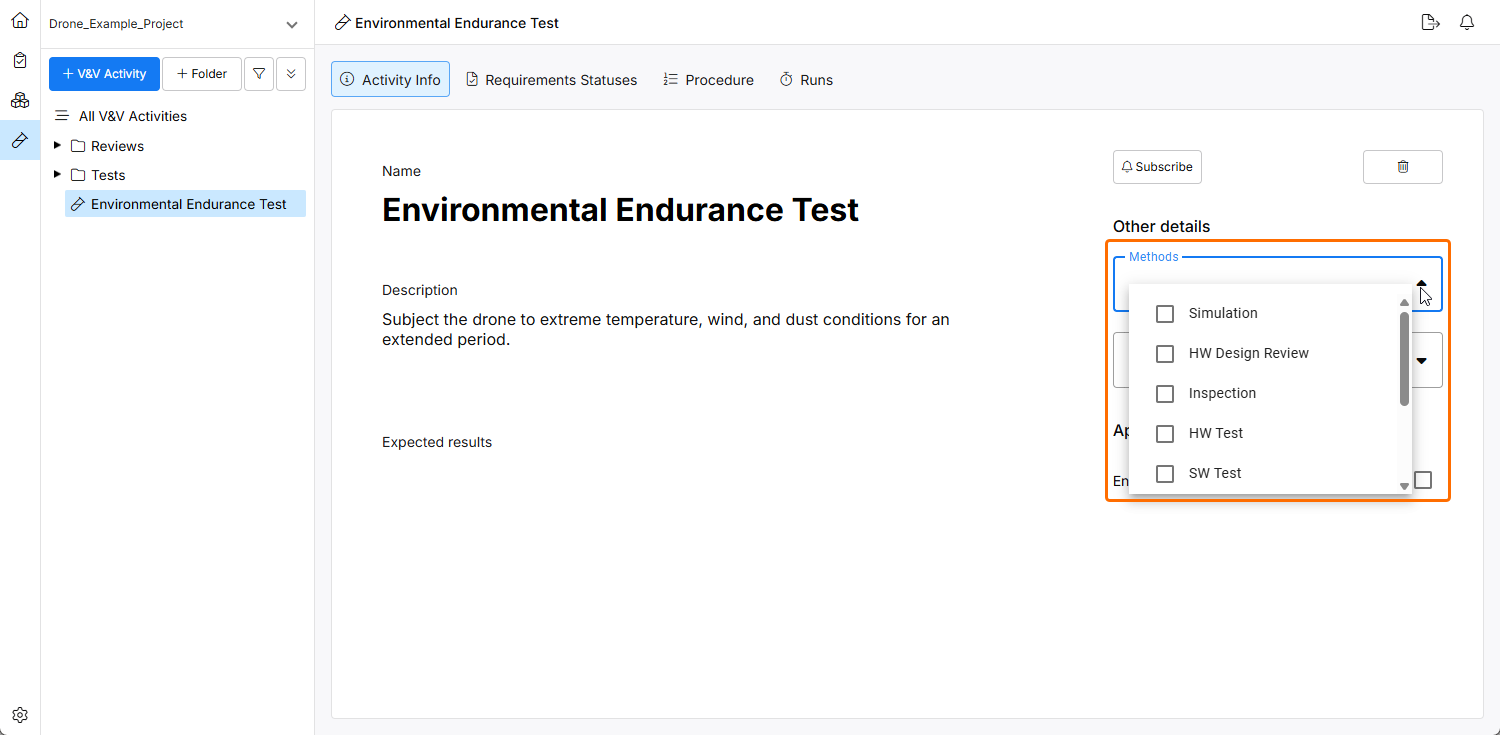
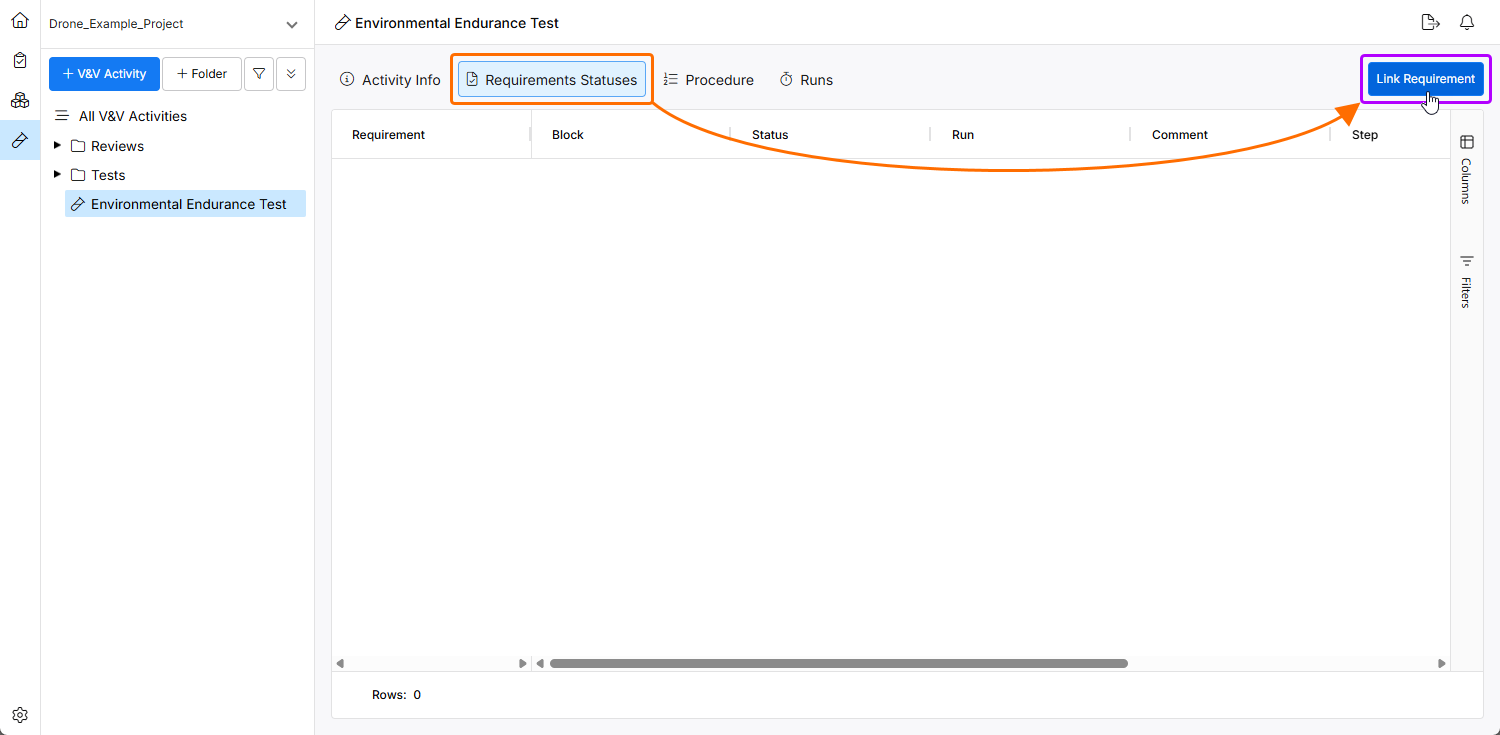
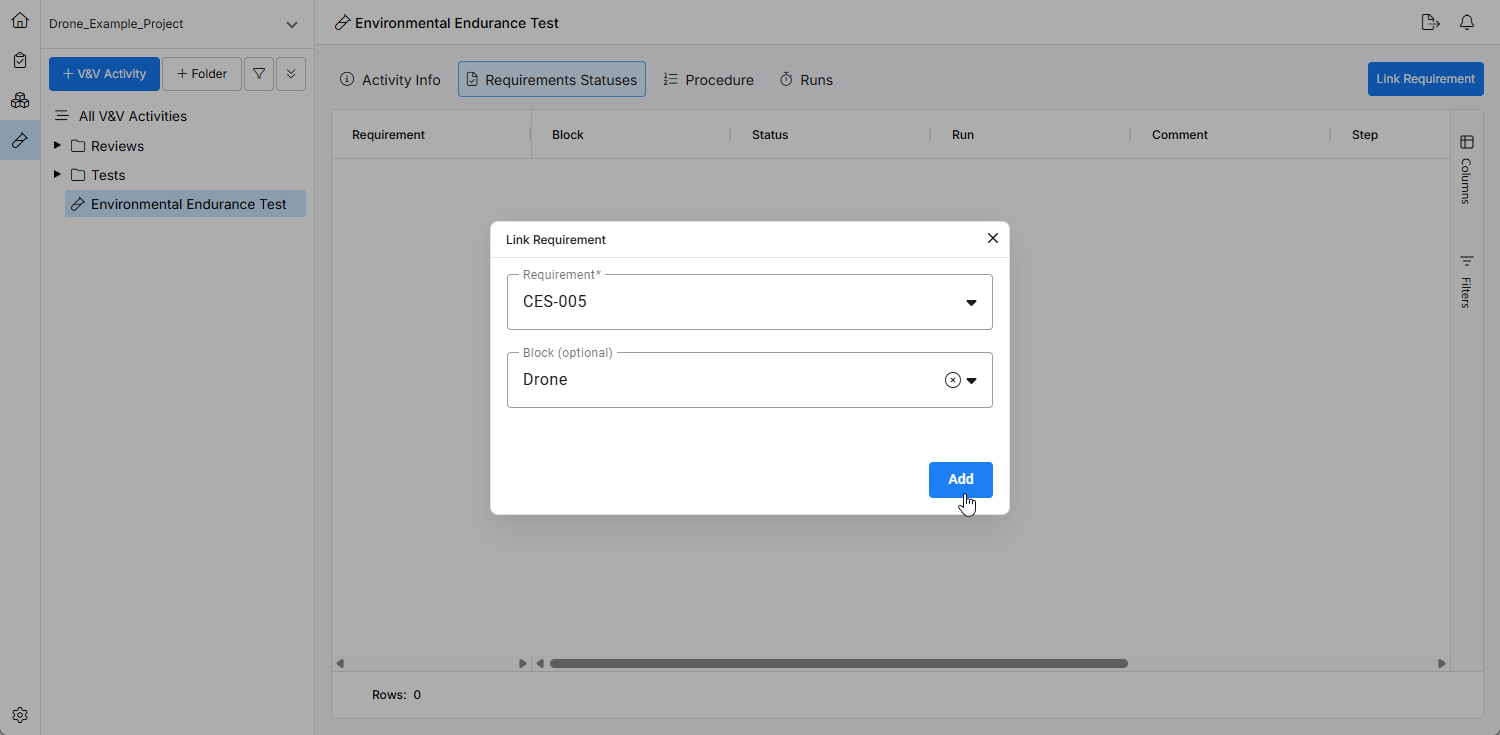
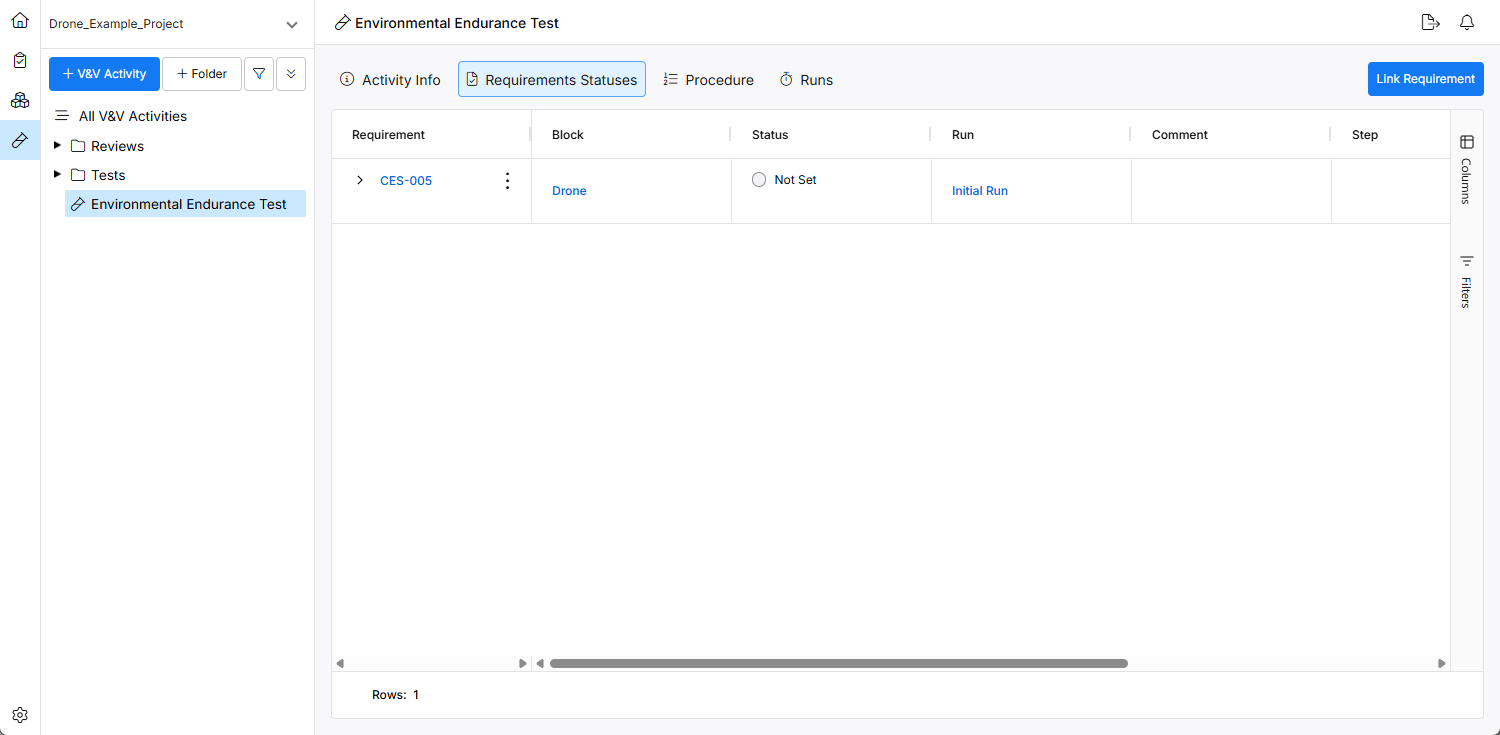
Um die Verifikationselemente, also Anforderungen und Blöcke, hinzuzufügen, wechseln Sie zur Ansicht Requirement Statuses. Klicken Sie auf die Schaltfläche  , um der V&V-Aktivität eine Anforderung hinzuzufügen. Die V&V-Aktivität kann der Anforderung auch im Anforderungsmodul zugewiesen werden.
In den folgenden Abschnitten wird beschrieben, wie Verifikationsaktivitäten durchgeführt werden.
Verifikationsaktivität erstellen
Zunächst müssen Sie im System eine neue Verifikationsaktivität erstellen. Diese Aktivität besteht aus Verifikationsaufgaben, die Sie für die Anforderungen und Blöcke durchführen. Um eine Verifikationsaktivität zu erstellen, wechseln Sie zum Modul Verifications and Validations ( ) und klicken Sie auf die Schaltfläche
  .
.
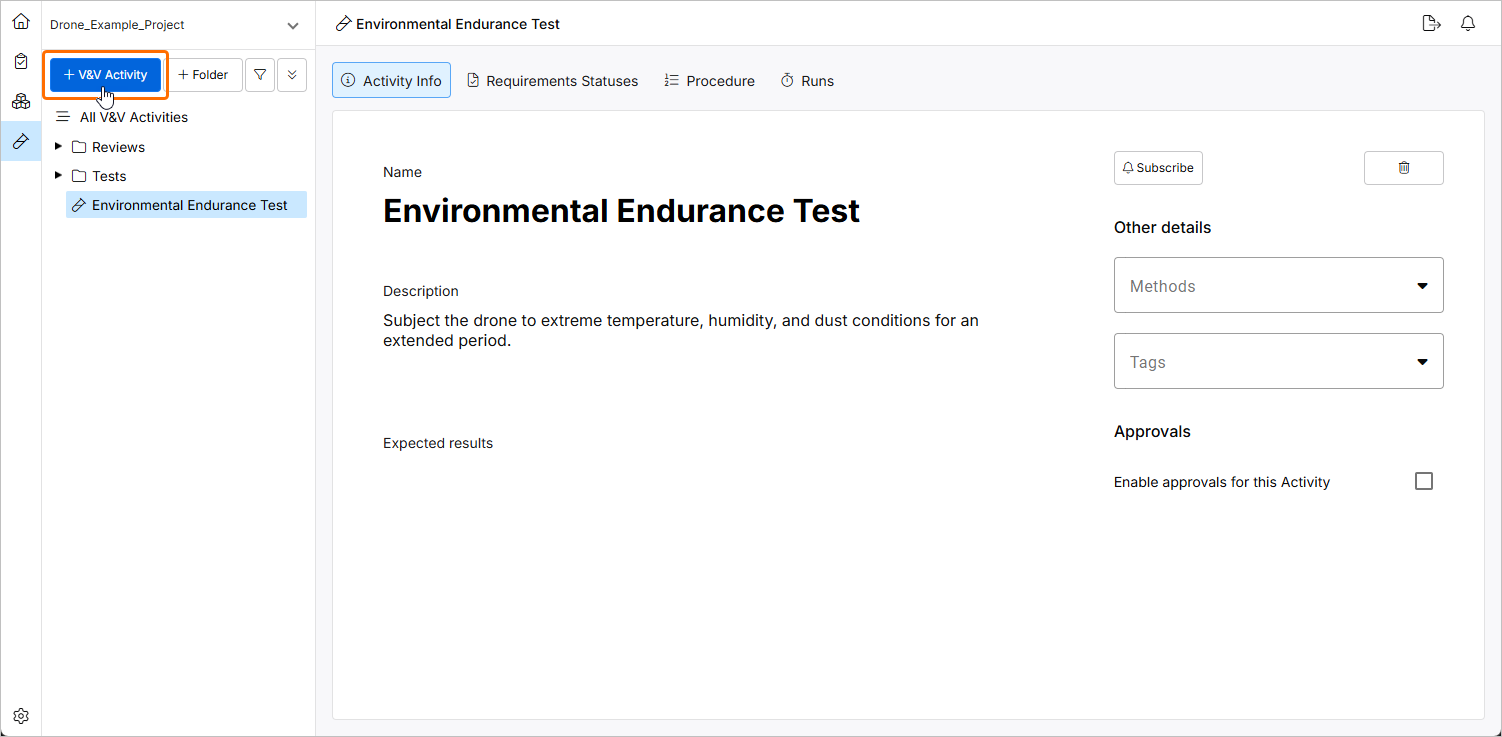
In der Ansicht Activity Info können Sie Beschreibungen, erwartete Ergebnisse und mit der Aktivität verknüpfte Methoden eingeben sowie relevante Tags zuweisen. Zusätzlich können Sie Genehmigungsanforderungen für die Aktivität aktivieren, indem Sie die Option Enable approvals for this Activity aktivieren.
Einen geplanten Durchlauf erstellen
Sobald die V&V-Aktivität erstellt wurde, wird in den Durchlaufabschnitten der V&V-Aktivität automatisch ein „initialer Durchlauf“ erstellt. Wenn der Zeitplan für die geplanten Durchläufe bereits bekannt ist, können Sie die Durchläufe zusammen mit Start- und Enddatum erstellen und sie später für verschiedene Meilensteine verwenden.
Anforderungen und Blöcke zum Verifikationselement hinzufügen
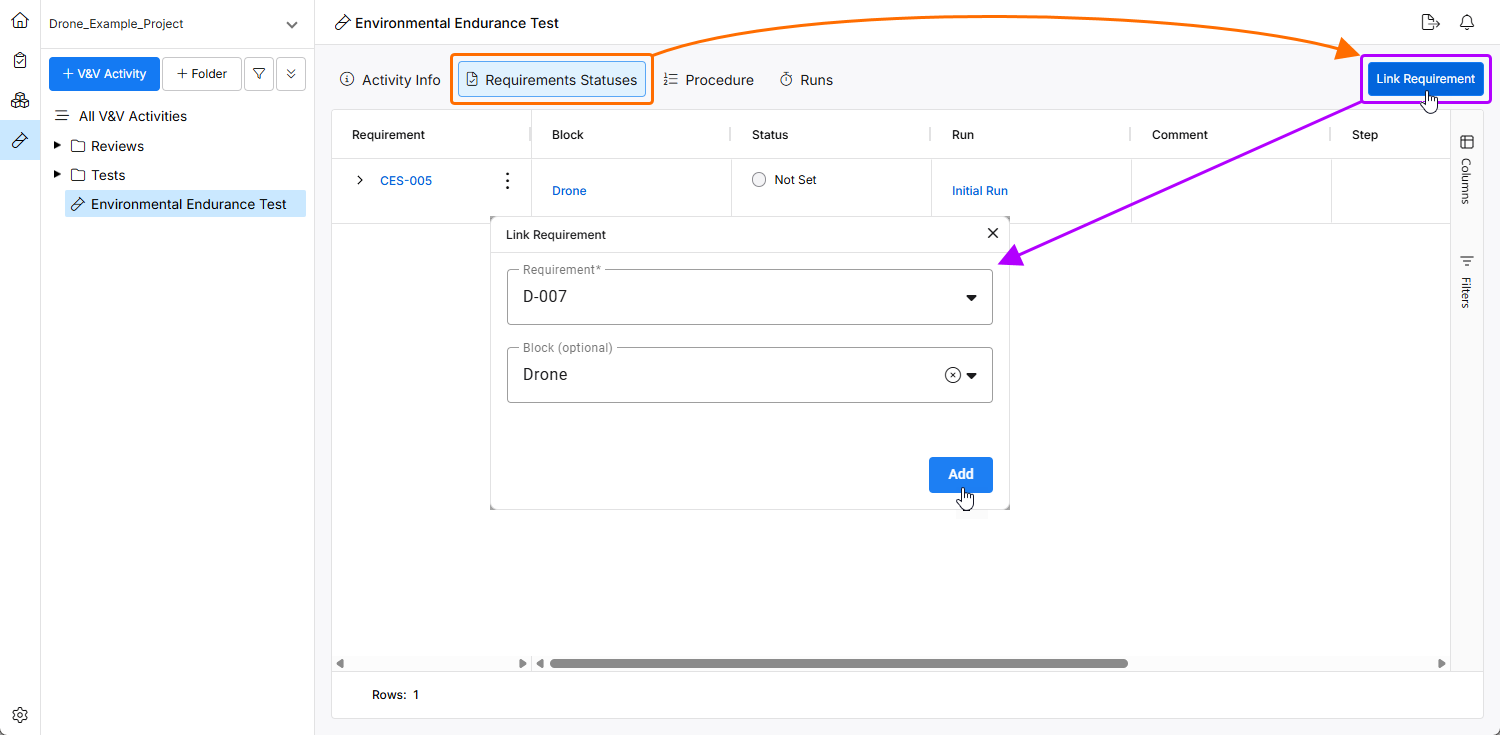
In der V&V-Aktivität können Sie zur Ansicht Requirement Statuses wechseln, um Anforderungen und Blöcke zur Aktivität hinzuzufügen. Um ein V&V-Element zu erstellen, können Sie auf die Schaltfläche  klicken. Dadurch wird ein Fenster geöffnet, in dem Sie die Anforderung und den optionalen Block eingeben können.
Das Dashboard und die Insights-Funktion im Anforderungsmodul zeigen jetzt die Anzahl der Anforderungen an, die keiner Aktivität zugewiesen sind, sowie die Anzahl der Anforderungen mit ihrem aktuellen Verifikationsstatus.
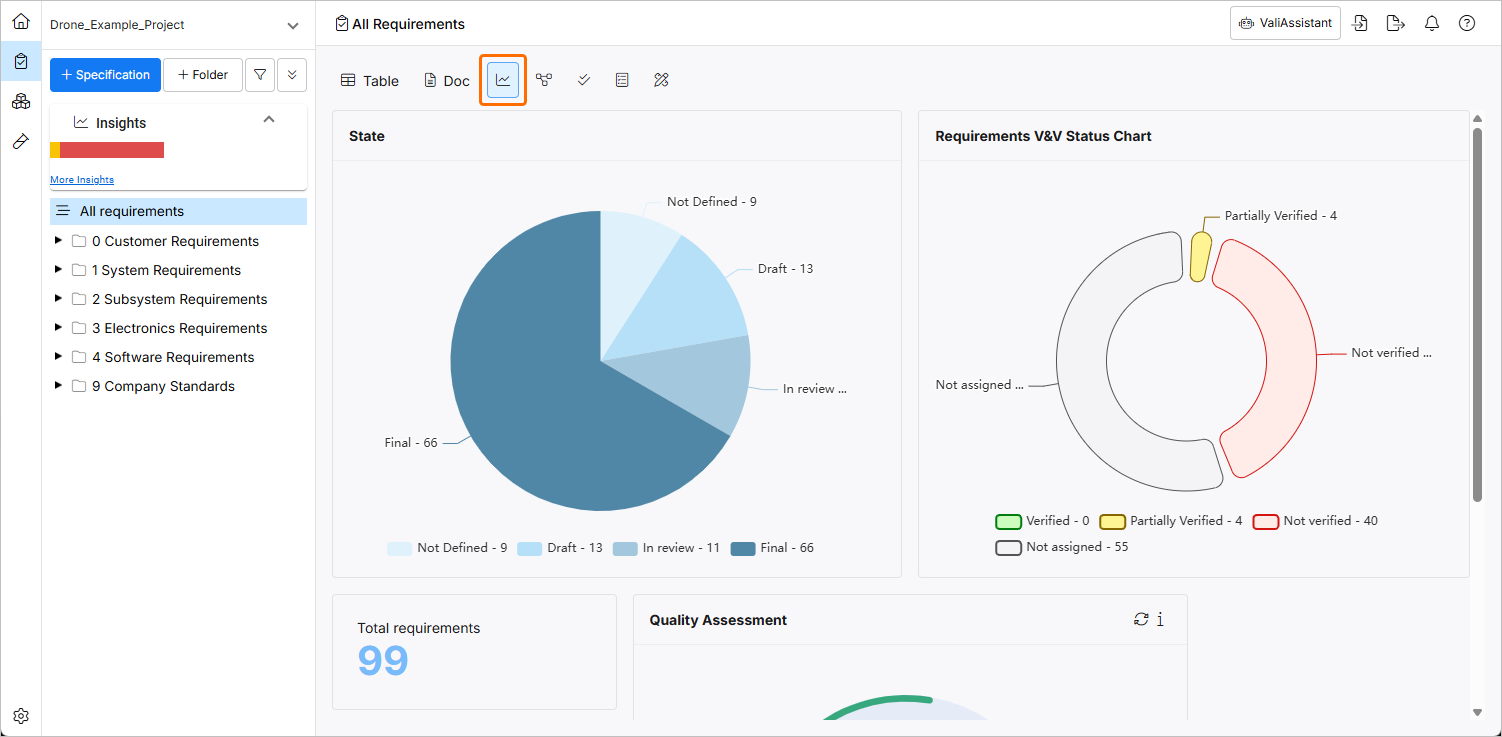
Diagramm zum V&V-Status von Anforderungen
 KI-lokalisiert