
Preparing PTC Creo for CoDesign
Altium CoDesigner is an interface for transferring printed circuit board designs between the ECAD and MCAD design domains. Once the CoDesigner add-in has been added to your MCAD software, CoDesigner can pass design changes back and forth between your MCAD software and your Altium ECAD software. Design changes are passed through an Altium Workspace, which acts as a bridge between the ECAD and MCAD domains.
► Check the version compatibility between your MCAD software and CoDesigner
Installing and Configuring CoDesigner in PTC Creo
To interface from PTC Creo® to Altium Designer, you need to install the Altium CoDesigner for PTC Creo Add-In.
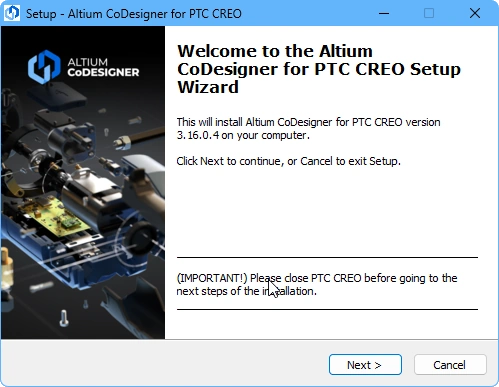 Install the Add-In to access CoDesigner in your MCAD software.
To install the Add-In:
-
Close PTC Creo before installing.
-
Download and install the PTC Creo Add-In (AltiumCoDesignerPtcCreo_<VersionNo>.exe).
-
Launch PTC Creo, the application Ribbon will include an Altium section with a CoDesigner button, click this to show/hide the Altium CoDesigner panel. All collaboration activities are performed through this panel.
Command Line Installation
MCAD CoDesigner for PTC Creo can also be installed via the command line (versions 3.16 and higher).
Learn more about installing CoDesigner for PTC Creo from the command line.
Displaying the Altium CoDesigner Panel
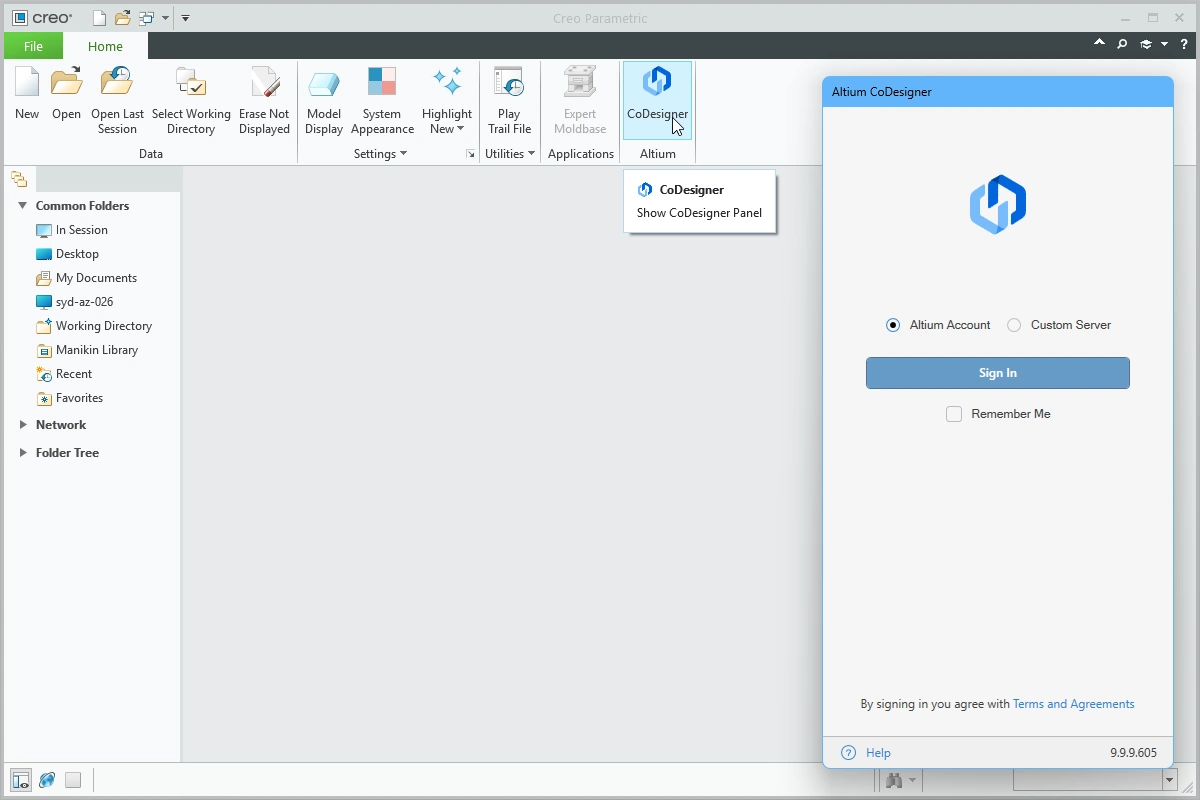 CoDesigner is accessed through a panel in PTC Creo.
If the Altium CoDesigner panel does not appear in PTC Creo:
- Click the CoDesigner button in the Altium section of the Ribbon, as shown above.
- The Altium CoDesigner panel will display, click the button a second time to hide the panel.
Connecting to your Workspace from PTC Creo
MCAD CoDesigner in PTC Creo collaborates with your ECAD software (Altium Designer) through an Altium Workspace, which you must sign in to the first time you use it. When you are not signed in, the Altium CoDesigner panel offers two sign-in modes, one for signing into an Altium 365 Workspace – Altium Account, the other for signing in to a Workspace on an On-Prem Enterprise Server – Custom Server.
From version 3.16 and higher Altium MCAD CoDesigner uses Altium's unified login system, the same system used across other Altium solutions, such as Altium Designer. The system is simple to use, once you've selected the type of Altium Workspace that you'll be connecting to, click the Sign In button. A browser window will open, where you complete the sign in process.
Learn more about Logging in to Altium MCAD CoDesigner.
Once you have signed in, you are ready to start collaborating on board designs through Altium MCAD CoDesigner.
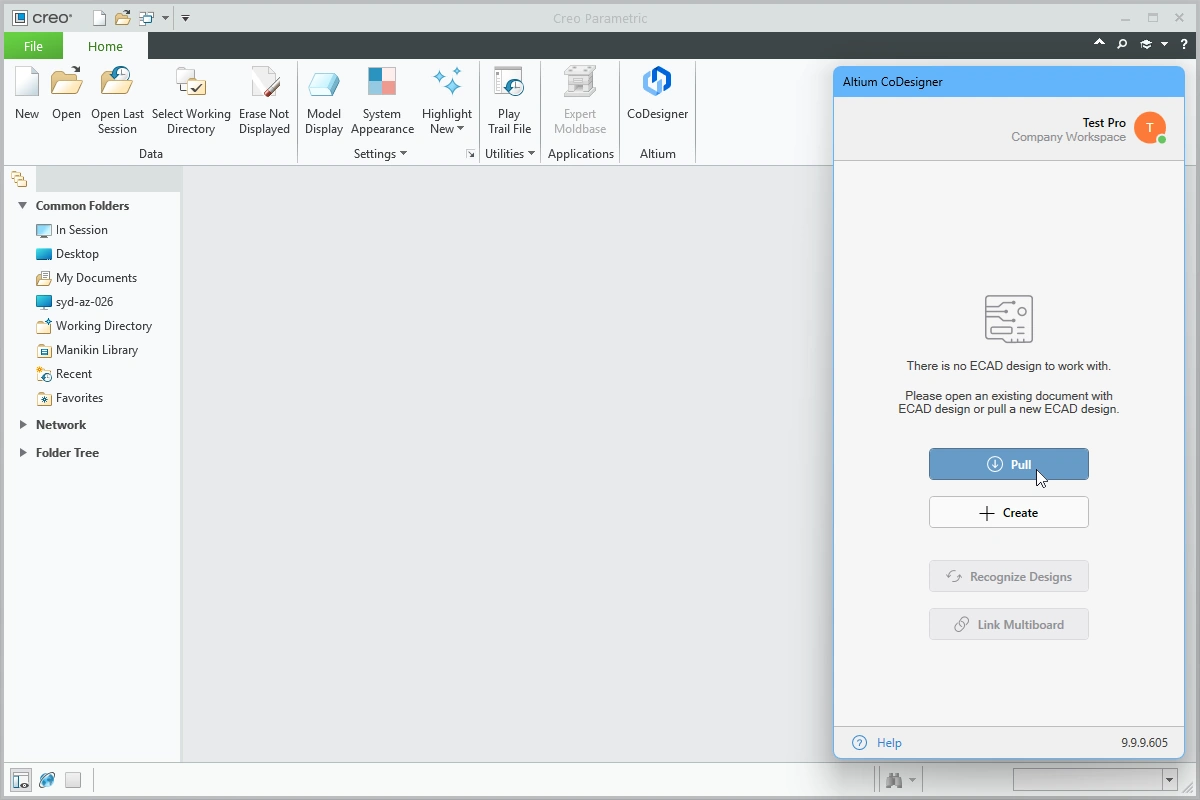 CoDesigner has been installed and is ready to use. Click Pull to pull a board design from ECAD.
Managing MCAD CoDesigner
The top of the Altium CoDesigner panel displays your user name, the Workspace you are currently connected to, and an identity icon. The icon includes a dot that reflects the Workspace connection status.
Click anywhere on the text or icon to display the MCAD CoDesigner menu, as shown below. From here you can: switch to another Workspace (if available), configure your profile, access the collaboration settings, and Sign Out of your Altium Account.
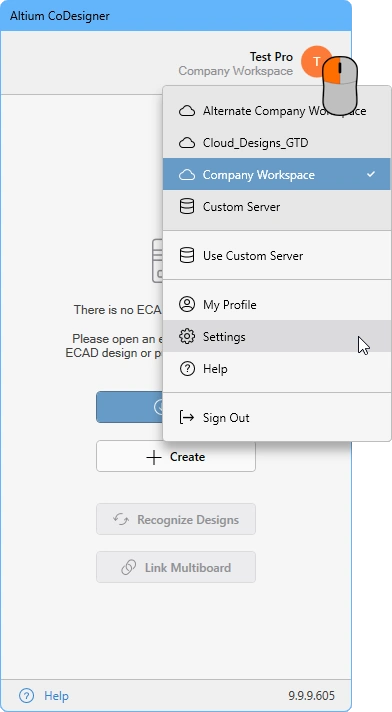 Click anywhere on the text or icon at the top of the panel to display the MCAD CoDesigner menu.
Configuring the PTC Creo Collaboration Settings
Once you have signed in, CoDesigner settings can be configured in the Altium CoDesigner Settings dialog, opened via the Settings menu entry in the CoDesigner menu ( ).
).
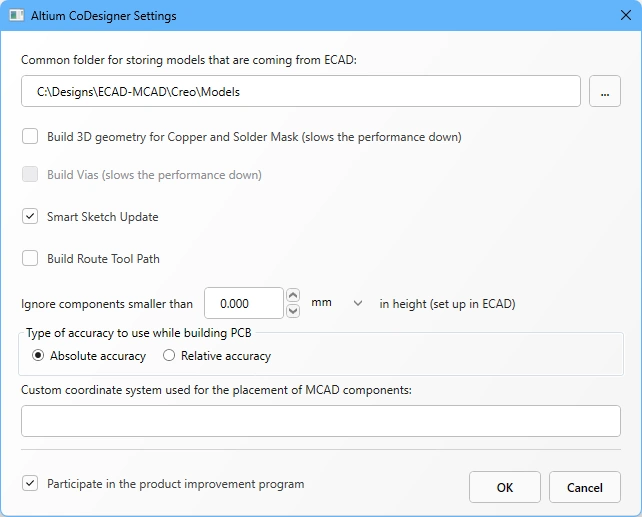 Use the Altium CoDesigner Settings dialog to configure the CoDesigner options.
-
Common folder for storing models that are coming from ECAD – All component models created by CoDesigner are stored in this location, regardless of the project they belong to (note that the board part and board assembly are created by CoDesigner in the project folder specified during the initial pull into PTC Creo). If no location is specified, all component models will be created in the project folder and will be unavailable for reuse in other projects.
-
Build 3D geometry for Copper – Top and bottom layer copper layers are always represented as decals on the surfaces of the board part. When this option is enabled, CoDesigner will also create extruded features to represent all copper layers, as well as thruhole pads. Note that enabling this option can create a large amount of data that significantly impacts performance.
-
Build Vias – enable this option to also include the Via barrels. Note that enabling this option can create a large amount of data that significantly impacts performance.
-
Smart Sketch Update – when enabled, during a Pull MCAD CoDesigner only redraws the elements of a sketch that were changed in ECAD, keeping dimensions and constraints related to non-changed elements as they were. Disable this option if it produces undesirable results. Learn more about Smart Sketch Change support.
-
Build Route Tool Path – The Route Tool Path is an outline defined for milling the board out of the panel that it is fabricated on. Disable this option if the path is not required in MCAD. Learn more about the ECAD Route Tool Path.
-
Ignore components smaller than
<Value><Units>in height – Smaller components can be excluded from the synchronization process. Configure this option to exclude components less than<Value><Units>when a Pull is performed. Note that the component height is defined in ECAD as a property of the component (footprint), it is not the height of the 3D model placed on the footprint. Learn more about configuring CoDesigner to ignore smaller components -
Type of accuracy to use while building PCB - Creo supports two types of accuracy, Absolute and Relative. Select the accuracy as required. Learn more about part accuracy in PTC Creo.
-
Custom coordinate system used for the placement of MCAD components - if the Creo components use a custom coordinate system, enter the name here. Note that on the ECAD side, the models used in the footprints of the corresponding components should be built on the same coordinate system (origin and orientation). If you are exporting the model from Creo to use in ECAD, enable the Customize Export option during export and select the correct Coordinate system. (
 )
)
-
Participate in the product improvement program - enable this option to automatically share technical information with Altium about your use of CoDesigner. Learn more about the product improvement program.
Working in PTC Creo
This section details Creo-specific settings that are important when working with Altium MCAD CoDesigner.
Working with Creo Templates
CoDesigner uses the default Creo templates, as defined in the Creo configuration file, config.pro.
From the configuration file, CoDesigner uses:
-
template_solidpart- for creating the bare board and the components, -
template_sheetmetalpart- for creating flex parts, and -
template_designasm- for creating the PCB assembly and comp assemblies for flex boards.
Using Custom Templates
Alternatively, custom templates can be used by defining the templates in the registry.
Registry key: HKEY_CURRENT_USER\SOFTWARE\Altium\CoDesigner
Add the following String Values to this key:
| Value Name | Value Data |
|---|---|
CreoAssemblyTemplate |
<TemplateName(including path)> |
CreoModelTemplate |
<TemplateName(including path)> |
CreoSheetmetalTemplate |
<TemplateName(including path)> |
Definition of the Datum Planes in the Default Creo Templates
MCAD CoDesigner has specific requirements about the definition of the datum planes in the Creo template:
-
CoDesigner requires that the planes in the Part (and Sheetmetal Part) template and the Assembly template use the default names.

 The Part/Sheetmetal Part planes (left image) and Assembly planes (right image) must use the default names.
- Note that the FRONT plane must be perpendicular to the Z axis. Or, to say that another way, CoDesigner expects the FRONT plane to lie in the XY plane.
- MCAD CoDesigner 3.8.x or later will display an error dialog if the planes are not correctly defined in the template, older versions will build the PCB assembly incorrectly.
- The coordinate system is required for the Part template only. While there are no requirements for the name of the coordinate system, the default names (as shown above) are recommended.

If the CoDesigner Panel does not appear in Creo
There are certain situations when the button that is used to display/hide the CoDesigner panel does not appear in Creo. Use the following steps to resolve this.
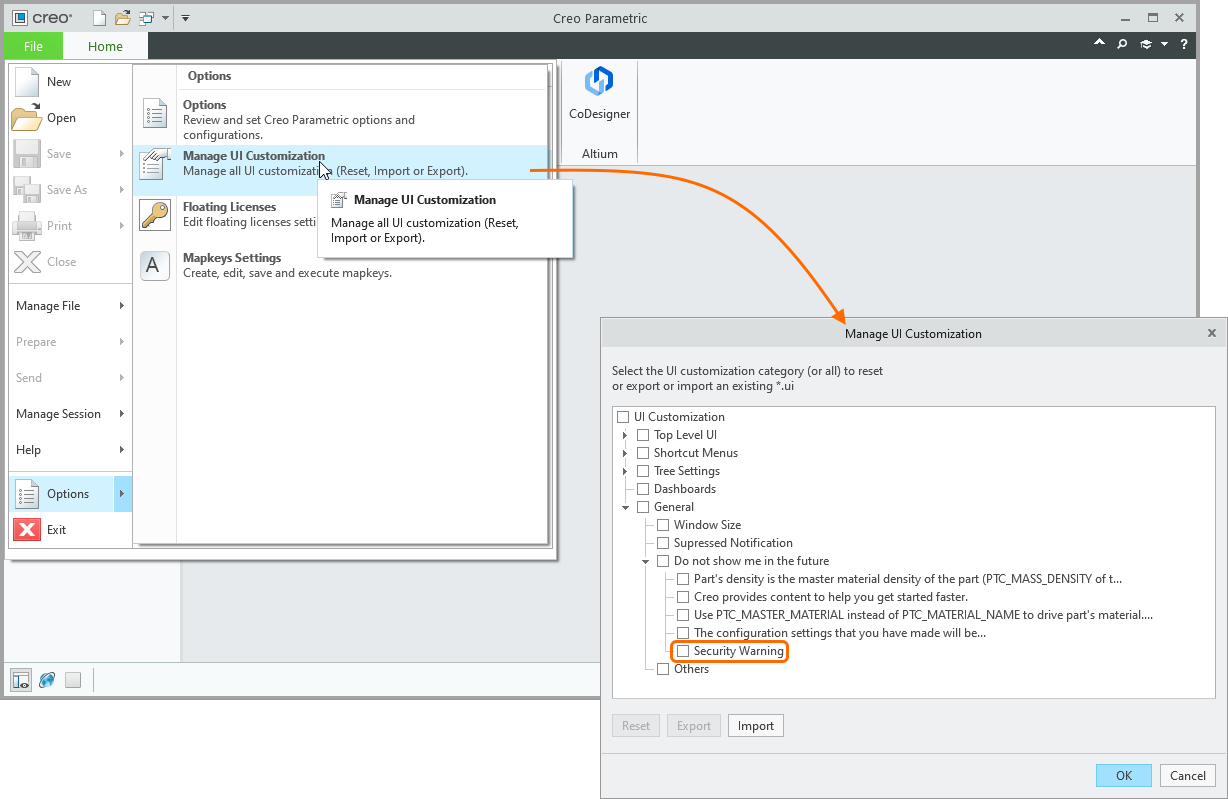 ).
).Check if the CoDesigner panel Display Button is Hidden
The visibility of the button that you click on to display the CoDesigner panel is configured in the Creo Parametric Options dialog. The dialog can be accessed by right-clicking on the Ribbon in Creo and selecting the Customize the Ribbon command from the context menu.
-
Confirm that the Altium (Custom) option is enabled, as shown below.
 Confirm that the Altium (Custom) option is enabled.
- If the Altium (Custom) option is enabled and the CoDesigner button is still not visible in the Creo Ribbon, click the Reset button in the dialog and run the Reset only selected Ribbon tab command, as shown above.
Add-In has Failed to Initialize
If the CoDesigner Add-In does not appear in the Creo Parametric Options dialog, it may have failed to initialize. The best way to resolve this is to reinstall the Add-In.
Add-In has Failed to Load
If the Add-In does not appear after completing the steps just described, it may have failed to register correctly in Creo. In this situation:
- Open the Auxilary Applications dialog, as shown below.
 CoDesigner installs as an Auxiliary Application, it may not have loaded correctly.
- Click the Info button in the dialog to display an information window, which will include Altium CoDesigner if it has successfully loaded.
 Check if Altium CoDesigner has successfully loaded.
- If Altium CoDesigner is not listed, close the information dialog and click the Register button in the Auxilary Applications dialog.
- The Register Auxiliary Applications dialog will appear, navigate to the location where the Add-In installation files are located for your version of Creo. The image below shows this for Creo 5.0.
 CoDesigner is registered through the Altium.dat file.
-
Select the
Altium.datfile and click Open. If the Add-In has already been successfully registered, the following dialog will appear:
 A message will appear to let you know if CoDesigner has registered successfully.
When Creo is Installed in a Custom Location
If the previous steps have failed because the Altium.dat file was not present, it might be that Creo has been installed in a custom location that was not detected by the CoDesigner installer. In this situation:
- Shut PTC Creo down.
-
Run the executable
Altium.Designer.PtcCreo.InstallUI.exe. The default location for this file isC:\Program Files (x86)\Altium CoDesigner PTC Creo Plugin\register\.

Run the Installer manually so that CoDesigner knows where PTC Creo is installed.
The Altium CoDesigner PTC Creo Plugin Installer will open, as shown above. If your installation of Creo is not listed in the Select Creo Installations list, click the Add button to locate it manually. The Add Creo Installation dialog will open.

-
The Altium CoDesigner PTC Creo Plugin Installer needs access to the Creo file,
config.pro. Click the browse button ( ) in the Add Creo Installation dialog to locate the folder that it is stored in. The default location for PTC Creo 8.0.4.0 is shown in the image above.
- When you return to the Creo Plugin Installer, click the Install button to complete the installation process.
- Restart PTC Creo.
Controlling the Display of Decals
If the CoDesigner option to Build 3D Geometry for Copper and Solder Mask is disabled in Creo, then CoDesigner loads a top-side decal and a bottom-side decal for these layers instead (the top-side decal combines the top copper, top solder mask and top overlay, and the bottom-side decal combines the bottom copper, bottom solder mask and bottom overlay).
In Creo, there is a global control for the display of decals, textures and bump maps. Toggle the Show textures on shaded model option in the Model Display page of the Creo Parametric Options dialog to hide/display these decals.
 The display of the top-side and bottom-side copper+soldermask+silkscreen decals can be toggled in the Options dialog.
Where to Next?
Now that CoDesigner is installed in your MCAD software and connected to your Workspace, the next step is to configure the relevant Workspace settings.
► Learn more about Configuring your Workspace Settings