
Preparing SOLIDWORKS for CoDesign
Parent page: Installing & Configuring Altium CoDesigner
Altium CoDesigner is an interface for transferring printed circuit board designs between the ECAD and MCAD design domains. Once the CoDesigner add-in has been added to your MCAD software, CoDesigner can pass design changes back and forth. Design changes are passed through an Altium Workspace, which acts as a bridge between the ECAD and MCAD domains.
► Check the version compatibility between your MCAD software and CoDesigner
Installing and Configuring CoDesigner in SOLIDWORKS
To interface to and from SOLIDWORKS®, you need to install the Altium CoDesigner for SOLIDWORKS Add-In.
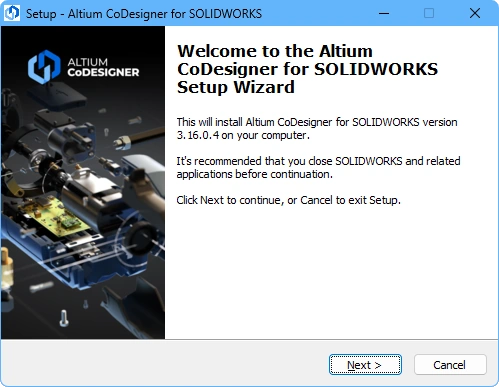 Install the Add-In to access CoDesigner in your MCAD software.
To install the Add-In:
-
Close SOLIDWORKS before installing.
-
Download and install the SOLIDWORKS Add-In (AltiumCoDesignerSolidWorks_<VersionNo>.exe).
-
Launch SOLIDWORKS and enable the Add-In via the Add-Ins dialog (
 ).
).
-
Once the Add-In has been enabled, the Altium CoDesigner Tab can be added to the Taskpane Tabs in the usual way. All collaboration activities are performed through this Tab.
Displaying the CoDesigner Taskpane Tab
In SOLIDWORKS, MCAD CoDesigner is accessed through the Altium CoDesigner Taskpane Tab (often referred to as a panel). Click the CoDesigner button ( ) to make the panel active.
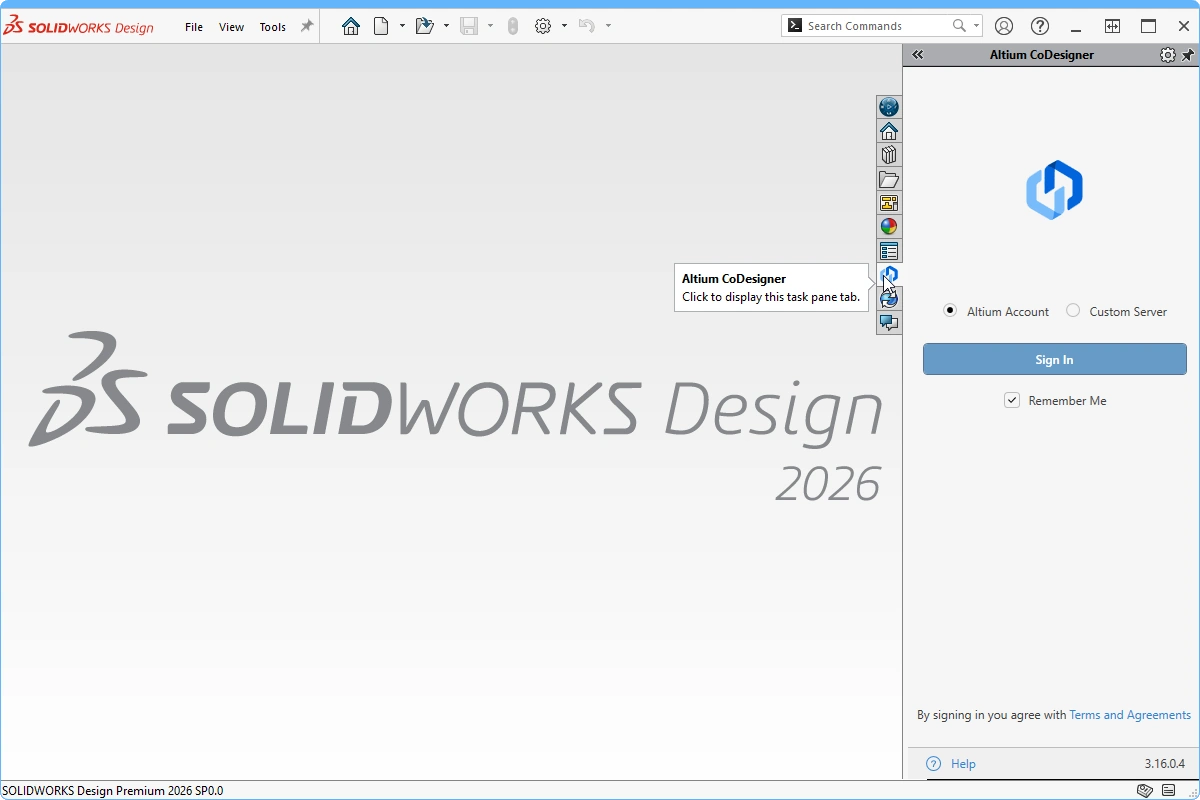 CoDesigner is accessed through a SOLIDWORKS Taskpane Tab.
If the Altium CoDesigner Taskpane Tab () does not appear in SOLIDWORKS:
-
Click the Setup cog at the top of the Taskpane (
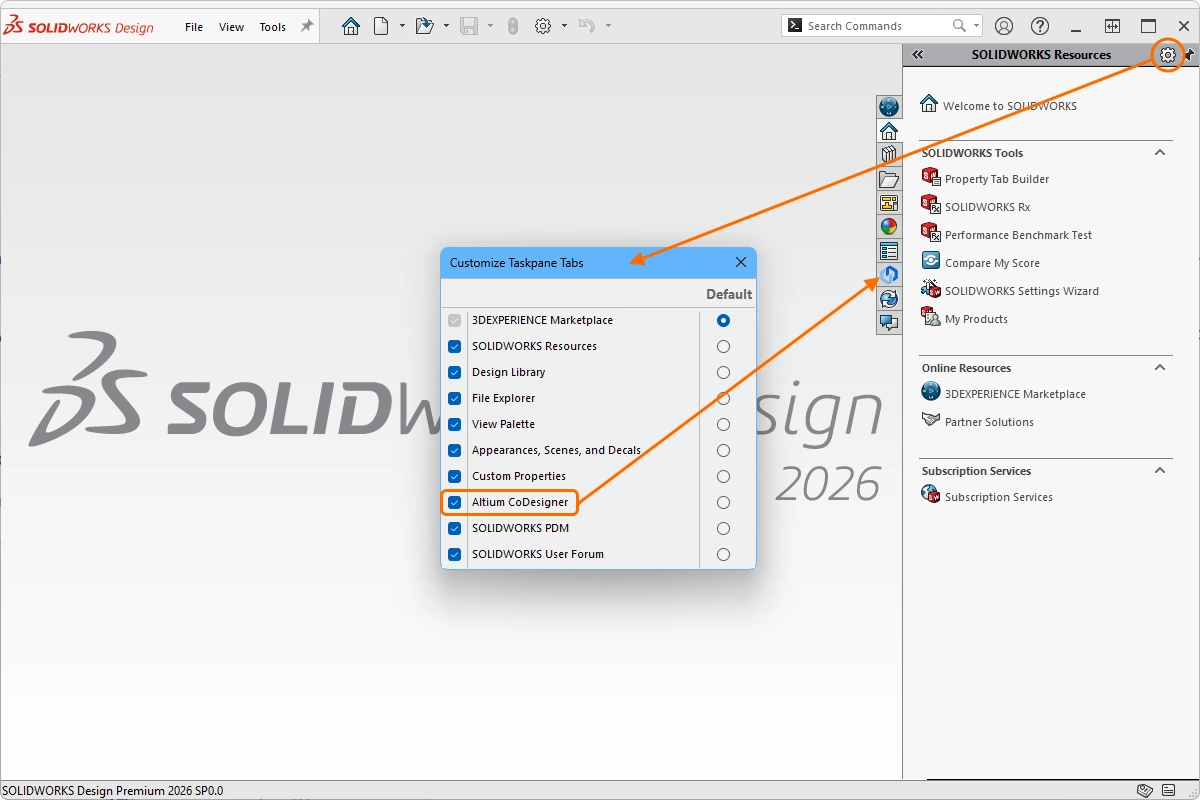 ). The Customize Taskpane Tabs dialog will open.
-
In the dialog, enable the Altium CoDesigner Tab.
Connecting to your Workspace from SOLIDWORKS
MCAD CoDesigner in SOLIDWORKS collaborates with your ECAD software (Altium Designer) through an Altium Workspace, which you must sign in to the first time you use it. When you are not signed in, the Altium CoDesigner panel offers two sign-in modes, one for signing into an Altium 365 Workspace – Altium Account, the other for signing in to a Workspace on an On-Prem Enterprise Server – Custom Server.
From version 3.16 and higher Altium MCAD CoDesigner uses Altium's unified login system, the same system used across other Altium solutions, such as Altium Designer. The system is simple to use, once you've selected the type of Altium Workspace that you'll be connecting to, click the Sign In button. A browser window will open, where you complete the sign in process.
Learn more about Logging in to Altium MCAD CoDesigner.
Once you have signed in, you are ready to start collaborating on board designs through Altium MCAD CoDesigner.
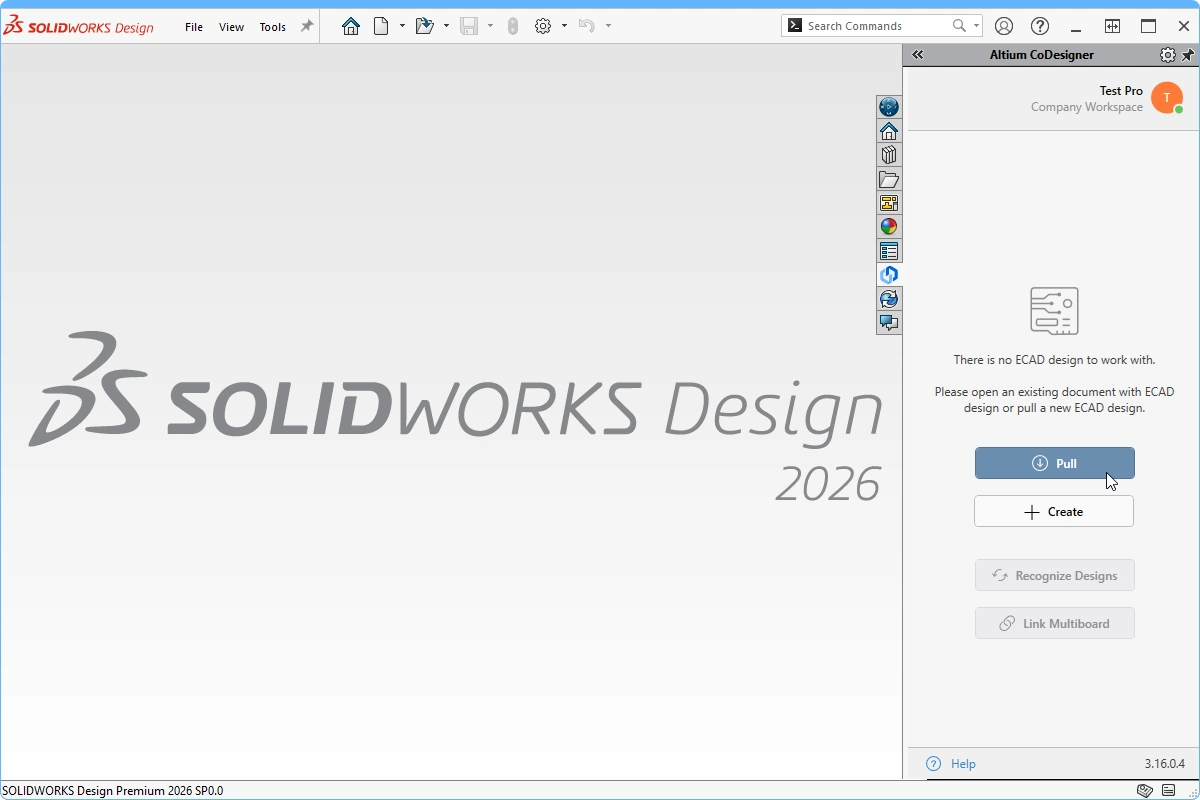 CoDesigner has been installed and is ready to use. Click Pull to pull a board design from ECAD.
Managing MCAD CoDesigner
The top of the Altium CoDesigner panel displays your user name, the Workspace you are currently connected to, and an identity icon. The icon includes a dot that reflects the Workspace connection status.
Click anywhere on the text or icon to display the MCAD CoDesigner menu, as shown below. From here you can: switch to another Workspace (if available), configure your profile, access the collaboration settings, and Sign Out of your Altium Account.
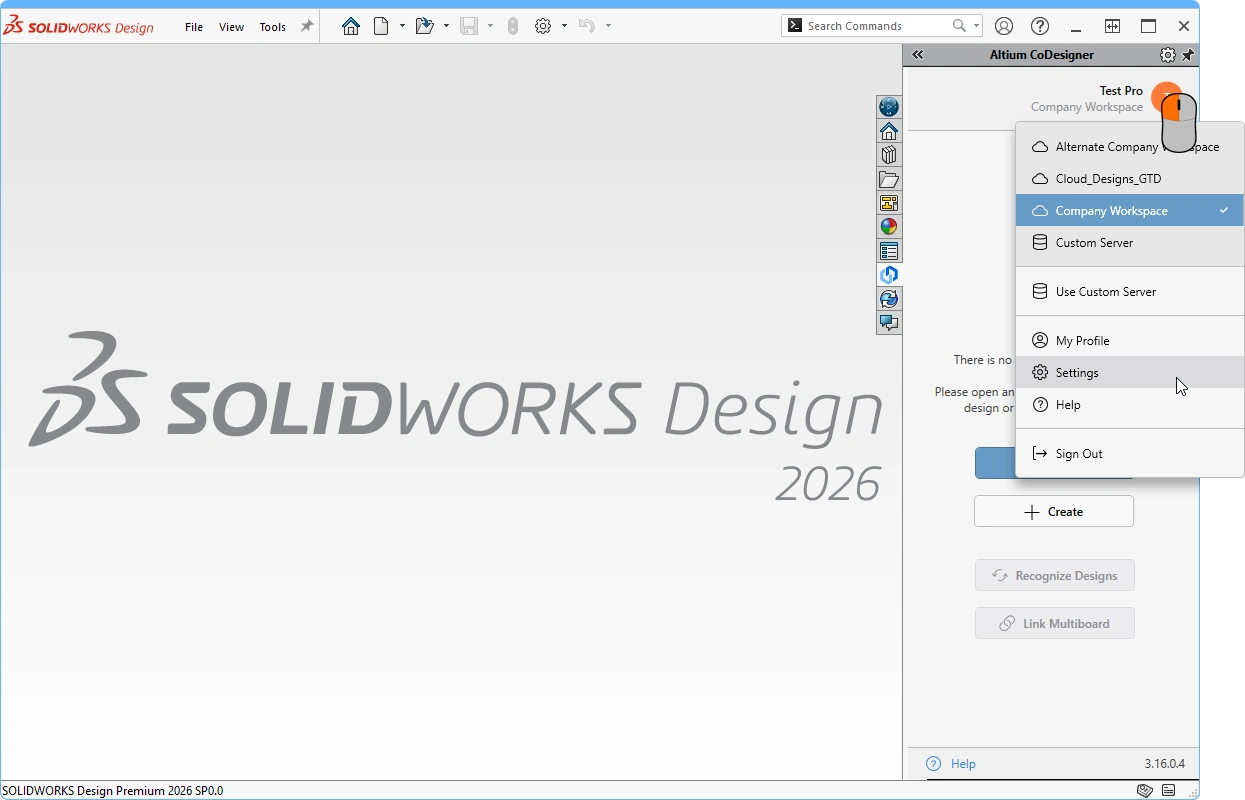 Click anywhere on the text or icon at the top of the panel to display the MCAD CoDesigner menu.
Configuring the SOLIDWORKS Collaboration Settings
Once you have signed in, CoDesigner settings can be configured in the Altium CoDesigner Settings dialog, opened via the Settings menu entry in the CoDesigner menu, as shown above.
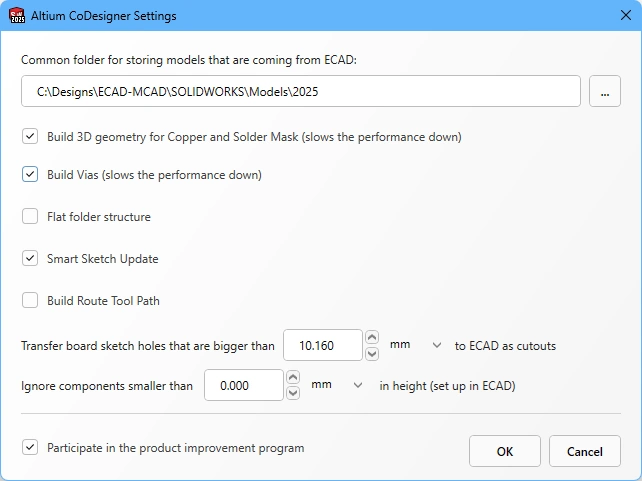 Configure the CoDesigner options in the Settings dialog.
-
Common folder for storing models that are coming from ECAD - All component models created by CoDesigner are stored in this location, regardless of the project they belong to (note that the board part and board assembly are created by CoDesigner in the project folder specified during the initial pull into Solidworks). If no location is specified, all component models will be created in the project folder and will be unavailable for reuse in other projects.
-
Build 3D geometry for Copper - Top and bottom layer copper layers are always represented as decals on the surfaces of the board part. When this option is enabled, CoDesigner will also create extruded features to represent all copper layers, as well as thruhole pads. Note that enabling this option can create a large amount of data that significantly impacts performance.
-
Build Vias - enable this option to also include the Via barrels. Note that enabling this option can create a large amount of data that significantly impacts performance.
-
Flat Folder Structure - When this option is enabled, child part and assembly files are stored in the same folder as the main assembly file. When the option is disabled, all child part and assembly files are stored in the sub-folder
\<McadAssyName>-EDM. A flat folder structure is recommended if you use SOLIDWORKS with Windchill as the Product Data Management system. -
Smart Sketch Update - when enabled, during a Pull MCAD CoDesigner only redraws the elements of a sketch that were changed in ECAD, keeping dimensions and constraints related to non-changed elements as they were. Disable this option if it produces undesirable results. Learn more about Smart Sketch Change support.
-
Build Route Tool Path – The Route Tool Path is an outline defined for milling the board out of the panel that it is fabricated on. Disable this option if the path is not required in MCAD. Learn more about the ECAD Route Tool Path.
-
Transfer board sketch holes that are bigger than <Size><Units> to ECAD as cutouts - Any hole included in the board profile sketch that can be interpreted as a pad in ECAD (including circular, square, or slotted holes), with a hole size (or slot width) equal to or less than this value, will be converted into a free pad in ECAD. Holes with a size larger than this value will be converted to a board cutout. Non-circular holes that do not correspond to a square or slot shape are always converted to a board cutout, regardless of size.
-
Ignore components smaller than
<Value><Units>in height - Smaller components can be excluded from the synchronization process. Configure this option to exclude components less than<Value><Units>when a Pull is performed. Note that the component height is defined in ECAD as a property of the component (footprint), it is not the height of the 3D model placed on the footprint. Learn more about configuring CoDesigner to ignore smaller components. -
Participate in the product improvement program - Enable this option to automatically share technical information about your use of MCAD CoDesigner with Altium. Learn more about the product improvement program.
Working in SOLIDWORKS
This section details SOLIDWORKS-specific settings that are important when working with Altium MCAD CoDesigner.
SOLIDWORKS Default Templates
To avoid being prompted for a component template each time a new component is created, it is recommended to configure and use default templates for parts, as shown below. These can be the supplied SOLIDWORKS templates, or your own company templates. Define the location of the templates for Parts, Assemblies, and Drawings, and select the Always use these default document templates, as shown below.
 Configure your preferred SOLIDWORKS templates.
Display of the PCB Copper, Masks and Silkscreen in SOLIDWORKS
CoDesigner combines images of the top copper, top soldermask and top silkscreen into a single top-side decal, and repeats this process for the same bottom-side layers of the board. These top-side and bottom-side decals are applied when the board is pulled into MCAD.
 The Top decal is a combination of the top copper layer, the top solder mask layer, and the top silkscreen layer.
Notes about decals:
-
If the decals do not display correctly, it may be a rendering issue in SOLIDWORKS. For more information on certified video cards and the latest video driver software updates, refer to https://www.solidworks.com/support/system-requirements. Note that the page includes a link to Certified Cards and Drivers, where you may be able to download an update patch for your video card.
-
If the previous step does not resolve the display of decals, try toggling the Enhanced graphics performance option in the Performance page of the SOLIDWORKS System Options dialog (
 ). For some video cards, disabling this option will help, for other video cards enabling it will help.
-
If the Build 3D Geometry for Copper and Solder Mask mode is enabled in the CoDesigner settings, each copper and solder mask layer is transferred as an individual layer, they are not combined into a decal. In this mode, the Silkscreen detail is applied to the Solder Mask layer as a decal. Learn more about How CoDesigner Handles Copper, Mask and Overlay Layers
Decal Storage in SOLIDWORKS
To better support designers who use SOLIDWORKS with a PDM system, CoDesigner saves the decals (image files that represent the copper, silkscreen and soldermask layers) directly into the board part file. This simplifies the management of the PCB-related files when a PDM system is used on the MCAD side.
 Decals are stored in the SOLIDWORKS prt file, simplifying the process of working with SOLIDWORKS and a PDM system.
Working with Multiple Versions of SOLIDWORKS
If your company works with multiple versions of SOLIDWORKS, then you'll be aware that SOLIDWORKS does not support opening newer files in an older version of SOLIDWORKS. If you have CoDesigner configured to use a Common folder for storing models then this can become an issue, as an engineer working with a newer version of SOLIDWORKS might overwrite shared models, making them unusable to an engineer running an older version of SOLIDWORKS.
CoDesigner stores the Common model folder path in a configuration (config) file:
-
File:
SolidworksAddin.config -
Location:
%localappdata%\Altium\Altium CoDesigner\Config\
This file is loaded when SOLIDWORKS is launched and saved when you exit SOLIDWORKS. If you need to work with multiple versions of SOLIDWORKS and want to configure Altium MCAD CoDesigner to support a different Common model folder location for each version, you can create a unique config file for each version of SOLIDWORKS that you wish to run.
 This install of Altium CoDesigner has been configured to run with SOLIDWORKS 2023 and SOLIDWORKS 2024.
To achieve this:
- Create a copy of the config file for each version of SOLIDWORKS that you will be working with.
-
Include the SOLIDWORKS version in the filename of each copy of the config file; for example
SolidworksAddin.2023.config. -
The unique Model path needed in each version of SOLIDWORKS can then be defined by: editing the
Valueof theSolidWorksPartsLibraryFolderPathkey in the config file (as shown below), or by running SOLIDWORKS and editing the path in the Altium CoDesigner Settings dialog.
 Configure a config file to launch each version of SOLIDWORKS with a unique CoDesigner Model path.
Configuring SOLIDWORKS PDM for CoDesign
SOLIDWORKS PDM Client
A useful addition when you work with SOLIDWORKS PDM is the SOLIDWORKS PDM Client. The Client provides access to the PDM Vault (Server), allowing you to browse and explore the contents of your PDM Vault.
-
The PDM client is installed via the SOLIDWORKS Installation Manager (
 ).
).
-
You will also need a Vault View, which allows the Vault contents to be displayed in the Windows File Explorer. The Vault Viewer will be available for installation once the PDM Client has been installed (
 ).
).
PDM Settings
-
Disable the Prompt to check out file if opened in read-only mode option in the SOLIDWORKS PDM settings (accessible from the Tools menu in SOLIDWORKS) as shown below. Doing this means that existing components will not need to be checked out, so there will be no inconvenience to other mechanical engineers. However, when it is necessary to change component properties, the corresponding components should be checked out.

SOLIDWORKS Product Data Management (PDM) is an on-premise data management solution supporting team management and collaboration during product development.
Recommended to Keep Under PDM Control
- The Common folder where CoDesigner stores models. Configure the folder specified in the Common folder for storing models option in the Altium CoDesigner Settings dialog to be under SOLIDWORKS PDM control and synchronize that folder with the local storage before collaborating with ECAD.
-
For MCAD CoDesigner 3.7 or older, include the
\Origand\Exptsub-folders. - For MCAD CoDesigner 3.8 and newer, it is recommended to enable the Flat Folder Structure option in the Altium CoDesigner Settings dialog if Windchill is being used as the Product Data Management system.
- Assemblies and parts related to the PCB project.
Not Necessary to Keep Under PDM Control
- PNG files are used for generating the decals (pictures that represent the copper, silkscreen, and soldermask). These image files are stored in the same folder where the board part is stored.
Where to Next?
Now that CoDesigner is installed in your MCAD software and connected to your Workspace, the next step is to configure the relevant Workspace settings.
► Learn more about Configuring your Workspace Settings