
Searching for Manufacturer Parts
Altium Essentials: Schematic Capture
This content is part of the official Altium Professional Training Program. For full courses, materials and certification, visit Altium Training.
The fundamental design task of searching for and choosing the most suitable component parts for PCB designs can be performed in a single, advanced panel available from within Altium Designer – the Manufacturer Part Search panel. The Manufacturer Part Search panel offers a sophisticated search feature based on categories and parametric filtering that allows you to zero in on the exact manufactured components you need, and also select a preferred supplier of that physical part based on cost and availability.
A selected manufactured part can be saved to a connected Workspace or downloaded as a library, or its parameters and datasheets can be added to an existing part in the design space. The preferred supplier(s) of that manufactured part may also be selected and added, as Supplier Link parameters, to an existing design part. Saving to your own connected Workspace involves creating a new component using the Component editor in its Single Component Editing mode, pre-filled with information from the searched part.
Manufacturer Part Search Panel Access
To open the Manufacturer Part Search panel, select View » Panels » Manufacturer Part Search from the main menu or the Manufacturer Part Search option from the  button menu at the bottom right of the design space. Use the button at the top right of the panel to toggle its layout between normal mode (
 ) and compact mode (
 ).
).
|
The Manufacturer Part Search panel in its normal mode The Manufacturer Part Search panel in its compact mode |


The panel harnesses the manufacturer and supplier data resources of the Altium Parts Provider service to source the most pertinent and up-to-date component data. A selected manufactured part can be saved to a connected Workspace or downloaded as a file-based library, or its parameters and datasheets added to an existing part in the design space. The preferred supplier(s) of that manufactured part may also be selected and added, as Supplier Link parameters, to an existing design part.

 ).
).Manufacturer and Supplier Data
The first time the Manufacturer Part Search panel is opened and before performing a search, it will display a list of component categories as shown below.

The panel’s advanced search engine allows it to be used in a straightforward search mode by entering a query in the main Search field, in its advanced parametric mode by progressively refining the search criteria using component type category choices and smart Filters, or indeed, by using both capabilities together.
To perform a straightforward search, type a search description into the Search field at the top of the panel and press Enter. For example: LED green clear 0603 SMD ( ). Click the small x next to the search string to clear it, click the search string to reload it into the Search field for editing, click a component description in the results list for details on that component and to access the list of Supplier Part Numbers (SPNs).
Use the selection options in the categories drop-down menu ( ) to restrict the list to a particular component type (indicated by number 1 in the image –
  ) and click the
  icon to show or hide the Filters pane (number 2 in the image). The contents of the Filters list changes to suit the category of the component being searched.
When using the parametric search options, which is ideal for researching suitable manufactured parts for a design, the panel's filter options will dynamically adapt to the most relevant parameter choices based on the existing category/filters selections. This allows you to quickly narrow the listed choices to the most suitable manufactured parts, which in turn are ordered by a combination of model availability, supplier stocks and price. Note that multiple options may be selected for a given (checkbox-based) filter attribute, and the filters also include unit-aware (text to number) search options for specifying a range of acceptable parameter values. For the Filter fields that include text boxes to enter numeric values, press Enter on the keyboard to apply the value. For example, first select a Category, such as LEDs, then Filter the LEDs category by the Color, Packaging, Mount, and so on.
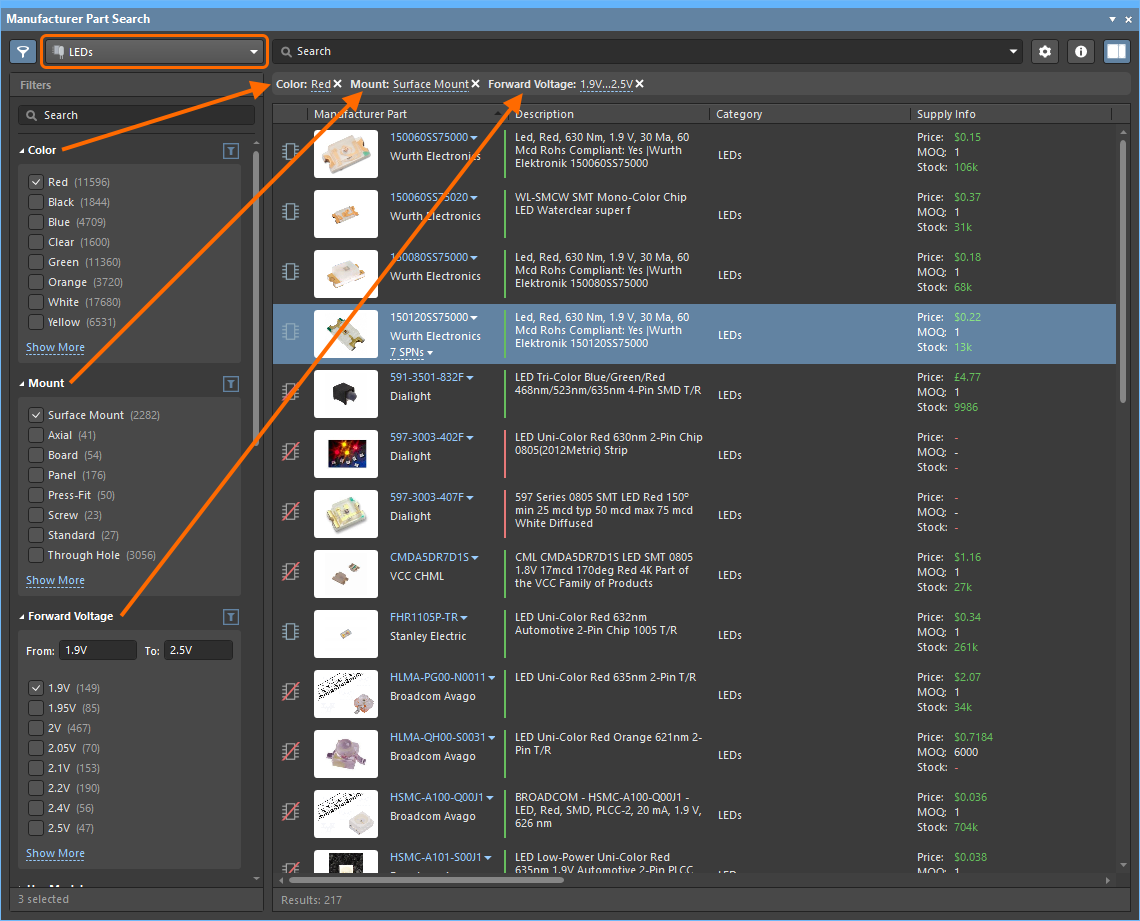
Use the provided categories and filters to quickly refine the component list.
The currently selected filter options are shown just below the search bar and above the parts list and may be removed (via their associated x icon) to modify the active search filtering. Similarly, individual choices in the Filters list may be removed by unchecking an entry or deselecting an option button.
Note that the contents of the Filters search box apply to these results too, so if it has not been cleared, you will only be able to remove the search criteria that was last entered into the search box. Clear the search box to resolve this.

The panel Filters options can be tailored to your needs by selecting particular parameter types as favorites, which then shift to the top of the list for the current component category. Hover to the right of a parameter filter’s name and click the star icon to set the filter as a Favorite. Favorite filter settings apply to and are saved for individual component Categories.


A selected manufacturer part in the list is summarized by its column data, where all available parameter columns are active by default. Within the component listing, the content that is included may be managed by:
-
Setting the component listing sort order – click a column heading to sort the component listing by that column data. Click the heading again to reverse the sort order.
-
Setting the order of the displayed columns – drag and drop a column heading to a new position.
-
Specifying which parameter columns are shown – right-click in a column header and choose Select Columns to open the Select Columns dialog, then toggle a parameter column’s visibility and move its positional order with the Up/Down buttons.
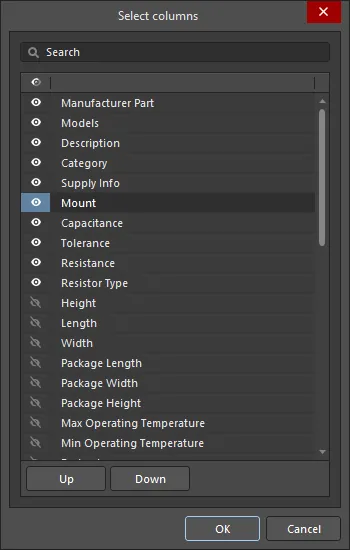
The Select columns dialogOptions and Controls of the Select Columns Dialog
- Search - enter characters by which you want the list filtered.
-
List - this is a list of all possible columns that can be displayed in the Manufacturer Part Search panel. When an item displays
 , that column will be displayed in the Manufacturer Part Search panel. When an item displays
  , that column will not be displayed in the Manufacturer Part Search panel. Click the symbols to toggle the show/hide function. Use the icon in the column header to toggle visibility of all items.
-
 icon - hover the cursor over the list column header and click the icon that appears to open a pop-up where you can configure the filter. Use the Filter Rules and Filter Values tabs of the pop-up to switch between filter modes. Use the Clear Filter button to reset the filter.
- Up/Down - click to move the selected item up or down in the list. Only items that are checked may be moved. This determines the order in which the columns will appear in the Manufacturer Part Search panel.
-
Filtering the listing by a specific column entry – hover the cursor over a column header and click the
icon to display a list of its unique parameter entries, then select one or more entries to constrain the listed parts to those that include the specified parameter (e.g., the Case/Packagecode). Select the blank line to show the parts that have no value for the parameter. Select the (Select All) option to reset the filter. When a filter is applied to a column, its icon will turn blue .
.
Based on the data of any part in the panel, a new component can be created in your connected Workspace – that effectively means that any listed manufacturer part can be saved to your Workspace as a component. Use one of the following controls to save a component to your connected Workspace:
-
the
 button;
-
the Save to My Workspace (when connected to an Altium 365 Workspace) / Save to My Server (when connected to an Enterprise Server Workspace) command of the
button menu ( );
);
-
the Save to My Workspace / Save to My Server command of the component entry's right-click menu;
-
the
 button that appears on the component entry's image when the mouse cursor hovers over the entry.
The Create new component dialog will open. Select a component type from those that are currently defined in your connected Workspace and click OK. The component editor in its Single Component Editing mode and the Use Component Data dialog will open where you can select the component data (parameters, models, datasheets) you would like to add to the new component. After saving the component in the component editor, it will be available for placement from your connected Workspace to a design through the Components panel.
Parts with associated models are ready for use in designs and may be attained by downloading the selected component(s) to a zipped Integrated Library Package – select the Download as File Library command from the button menu or the component entry's right-click menu. Use the Save As dialog that opens to specify the name and location of the zip file. By default, the file will be named in the format Components - <Date> - <Time>.zip and generated in the location \Users\Public\Documents\Altium\<Solution/Version>\Library\ExportIntLib.
Parts located through the panel are saved to your Workspace and then reused in designs as Workspace Library components. Alternatively, a part may be placed in an active design directly from the panel using the Place option in the right-click menu or button menu. Note that with this approach, however, the placed component’s data source will be the Altium Content Vault rather than your own Workspace.
Supplier Data
The search results region of the panel displays a list of manufacturer parts that wholly or partly match the search criteria. If the manufacturer provides an image of the part, it will be displayed. Next to the image is the Manufacturer Part Number (MPN), which is also a link to detailed information about the part on the manufacturer's website (indicated by the number 1 in the image below).
Click anywhere on a row to select that part. The row will highlight and a second link will appear indicating the number of suppliers who can deliver that part (number 2 in the image below). Click the SPNs link located in the Manufacturer Part column to display detailed supply chain information about the suppliers that carry that part in the form of a tabular list of supplier choices ordered by availability and price. Each supplier's details about that part are presented on a tile with a colored banner. These tiles are also referred to as SPNs (Supplier Part Numbers).
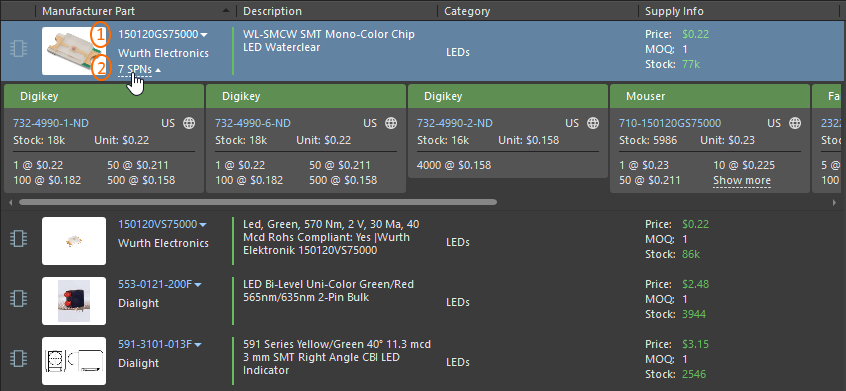
The panel provides supplier data for available components.
Learn more about the information provided by a supplier tile.
 button (top right) to set supplier data options such as specifying the displayed Currency and restricting the supplier cells to those that contain valid data. When the Exclude invalid SPNs option is checked, only cells that show suitable Stock levels and up-to-date data are included. The Part Providers Preferences link that opens the
Manufacturer Part Search Panel Right-click Menu

-
Save to My Workspace / Save to My Server – use to save the selected component to a connected Workspace.
-
Download as File Library – use to download the selected part(s) to a zipped compiled Integrated Library (
*.IntLib), with its source library package (*.LibPkg) and library files. Select multiple part entries to download those parts in a single session. -
Place - use to place a part in the active design.
-
Submit Request – use to access the active part request process definitions. If no active process definitions are available for the Part Requests process theme, the Submit Request button will be grayed out (not available). You may need to sign out of the Workspace and back in again or restart Altium Designer to refresh.
-
Refresh – use to refresh the panel's contents.
-
Copy – use to copy all or selected parameter data as a tab-delimited text list.
-
Copy With Header – use to copy and paste the selected component into an external spreadsheet such as Microsoft Excel.
-
Select Columns – use to open the Select columns dialog to choose which columns to show or hide in the panel.
-
Preferences – click to open the Data Management - Parts Providers page of the Preferences dialog to configure parts providers.
Part Details
Full details of the selected manufacturer part, including models if available, are presented in the panel’s Details pane. Use the panel's  button at the top right of the panel (or the
  control at the bottom of the panel if the panel is in its compact mode) to toggle the visibility of the pane.
The information and options presented in this section depend on the available component data, where a part may be saved to your connected Workspace, saved as an integrated library package or placed in the design (the button menu), and datasheets viewed from the  menu or from the pane's Datasheets list.

The drop-down menu offers options to save the component to a connected Workspace (via the Create new component dialog and Component Editor in its Single Component Editing mode) or download the component locally as an Integrated Library Package in a zip archive. Alternatively, a new Part Request can be created.
Further options in the part Details section include:
-
Add selected parameters to a schematic component part using mouse cursor targeting (drag and drop, or from right-click menu).
-
Copy all or selected parameter data as a tab-delimited text list – right-click menu options.
-
View alternative part suggestions in a list ordered by a suitability rating (Alternatives), where each entry links to its online part data.
-
Select multiple component entries to enable the data comparison feature, where the parameter differences between the selected parts are highlighted as red text.
Model Data
Many parts available through the Manufacturer Part Search panel have assigned models (schematic symbol, PCB footprint, and/or simulation model). The quality level of models is denoted by icons at the left of part entries listed in the panel's search results region:
-
Generic (
 ) – considered to be ‘unqualified’, these may be draft models with unverified parametric data and may have been created from datasheets that were community-sourced and not directly from the manufacturer.
-
ECAD Ready (
 ) – considered to have been 'qualified' by the manufacturer themselves as being directly ready for use in CAD designs, with qualification the result of following a dedicated verification flow (from Altium), in combination with adherence to a specific manufacturer datasheet, IPC standard, and applicable revision of the publicly available CAD Model Style Guide.
Parts without models have the  icon.
icon.
When viewing the detailed information for a selected part in the panel's Details pane, the Model Info tab provides more information on the models.

Use the Models filter in the Filters pane of the Manufacturer Part Search panel to restrict the listing to those parts that have models of the corresponding level. Also, you can use the Model Type filter to restrict the listing to those parts that have models of the corresponding type ( ).
).
For components with Generic models, you have the ability to vote to get qualified models made/added by clicking the Vote to Add Qualified Model control in the Model Info tab ( ).
).
Alternatives
Component replacement is often performed when a part is obsolete or no longer recommended. The Alternatives region of the Manufacturer Part Search panel provides a list of available alternatives for the currently selected manufacturer part. The number next to an alternative part indicates the confidence score of this part as a replacement for the selected part.

Community-based data for part alternatives are provided, with the confidence scores aggregated from distributors' data. If you have access to advanced part alternative data provided by IHS Markit®, the confidence score reflects the following:
-
9 – an alternative identified by component engineers through detailed analysis of device characteristics as having identical form, fit, and functionality.
-
8 – an alternative identified as having identical form, fit, and functionality based on internal rules.
-
6 – an alternative that is functionally equivalent, meaning that it has the same functionality but may have a different form or fit.
-
2 – an alternative that has similar functionality but may have a different form or fit.
You can open a drop-down menu at the right of an alternative part's MPN to access the following commands:
-
Open in Manufacturer Part Search – uses the Manufacturer Part Number and Manufacturer Name as a search request in the Manufacturer Part Search panel so you can further investigate this alternative part.
-
Open in Octopart – opens the Octopart site, providing detailed information on that manufacturer part.

The data of a found alternative (the manufacturer part number and the manufacturer name) can be copied from the panel (which might be helpful if you need, for example, to add this alternative part as a part choice for a component). Hover the cursor over the MPN or manufacturer name of an alternative part and click the  icon that appears at the right of the MPN.

Data Sources
The search engine behind the Manufacturer Part Search panel will source parts data from the Altium Parts Provider service and where possible, access matching schematic, PCB and Sim models from the Altium Content Vault. The match between a part listed in the Manufacturer Part Search panel and models from the content server is based on the manufacturer name and the manufacturer part number. In a Workspace, this is determined by the Part Choices associated with a Workspace library component.
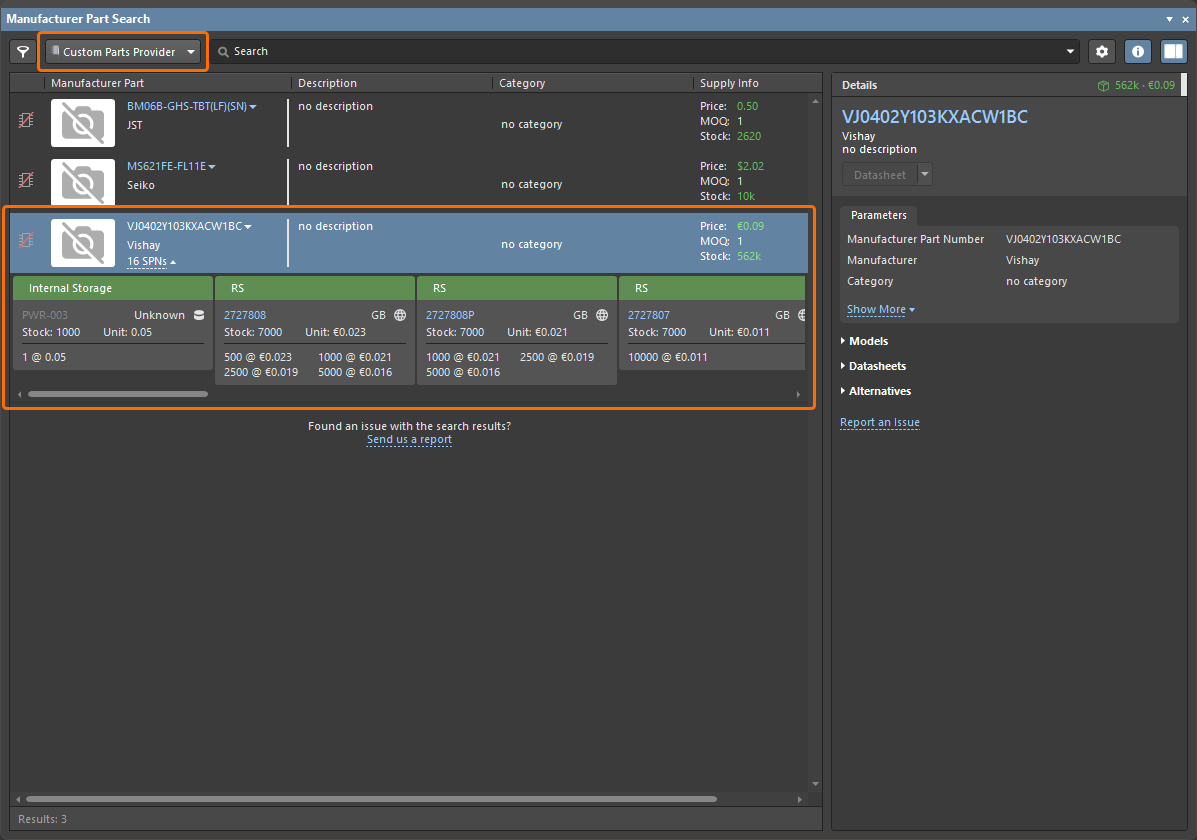 )
)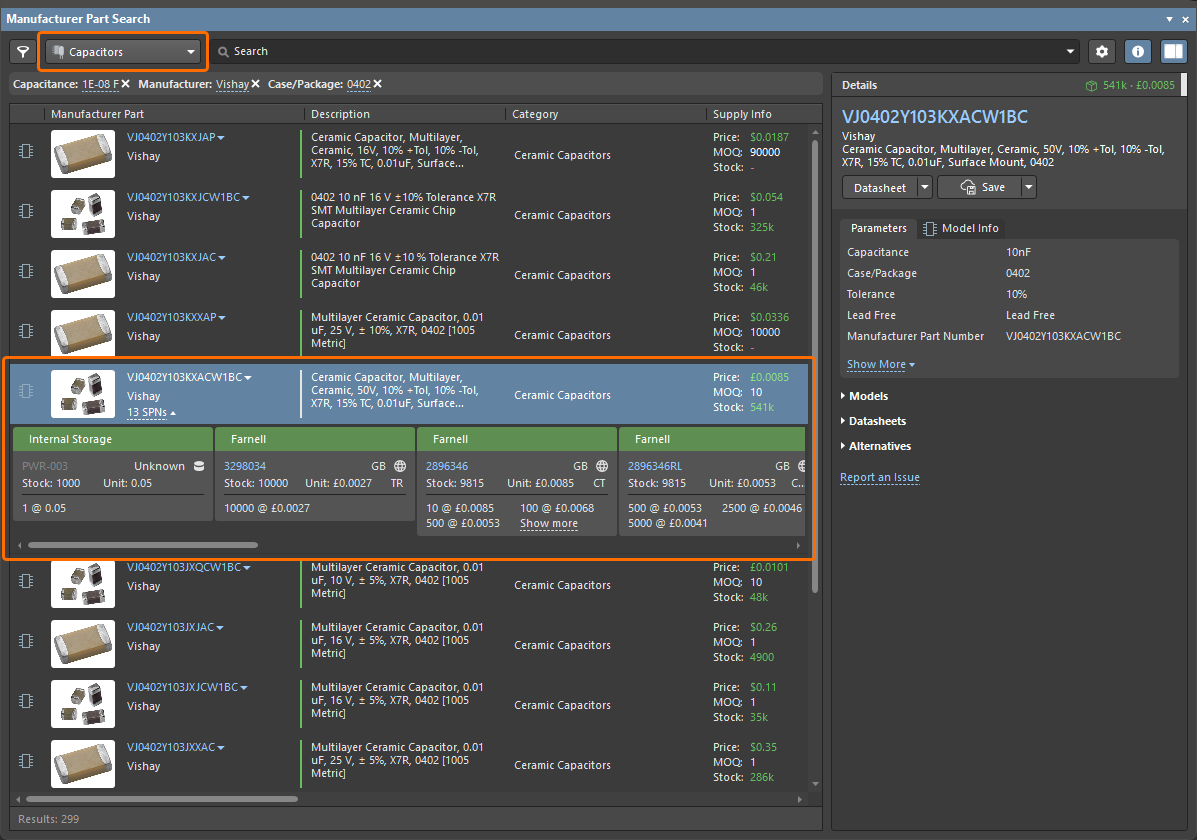 ).
).In the example shown below, models from the Altium Content Vault are sourced by the panel because that particular LED component can be found in the content server, based on its Part Choices entry. All other data is sourced live from the Altium Parts Provider, giving you the latest Manufacturer and Supplier information for the selected component.
The selected component has assigned models as indicated by its associated  symbol.

Parameter data
When a component part is saved to a Workspace/integrated library from the Manufacturer Part Search panel, the component data (both models and parameters) are sourced from the Altium Content Vault. In practice, the found component is matched to an Altium component, which will include its parameters when placed.
As an adjunct to this, the panel offers a rich source of parameter data with each part entry, courtesy of the Altium Parts Provider service – see the parameter list in the selected part Details section. These parameters represent the current manufacturer data for that part, and therefore relevant, up-to-date information that can be added to a component in a Workspace/integrated library or board design.
Part Search Dialogs
The search engine and view used in the Manufacturer Part Search panel are also applied in other Altium Designer applications where component data is sourced. The Part Search functionality is included in these (modal) dialogs, along with an OK confirmation button and minor variations in the available action commands.
Manufacturer Part Choices:
-
Single Component Editor – the Part Search engine and view are used when adding to the Part Choices List or when creating the component through a part search (such as from the Component – Name field via the ellipsis button).
-
Explorer panel – the Part Search engine and view are used when adding a manufacturer part to the Part Choices List for a selected Workspace component (from the Part Choices tab).
-
Components panel – the Part Search engine and view are used when adding a manufacturer part to the Part Choices List for a selected component; available under Operations from the right-click menu.
-
ActiveBOM document – the Part Search engine and view are used when creating/editing a Manufacturer Link list or a Part Choices List for Workspace components, available from the Add Solution menu.
Supplier Links:
- Schematic editor – the Part Search engine and view are used when adding Supplier Links to a placed component (via its right-click options menu).
- Library editor – the Part Search engine and view are used when adding Supplier Links to a selected component in the SCH Library panel.
Part Compare Feature
The Compare feature allows you to compare the parameters of two selected parts (components). This feature is accessed by selecting two parts in the grid region with the  icon enabled (blue). The Selected Part Details region opens to the right of the grid region. The upper region (region 1 in the image below) displays the selected parts side-by-side. Click the Datasheet button to open the manufacturer's datasheet (if available) for the associated component.
The lower region (region 2 in the image below) displays a side-by-side view of the components' parameters, with differences highlighted in red text for easy comparison.
