
Controlling Access to Workspace Content
A connected Workspace provides secure handling of data with high integrity while providing both Design Team and Supply Chain access to that data as needed. This latter aspect, of whom can access a Workspace, and more importantly what data they are allowed to access, is facilitated by the Workspace's user access control and sharing capabilities. These can be broken down into the following key areas:
User Management
Which people are able to connect to the Workspace (through Altium Designer or an external browser). Management of users, as well as defined groups, is performed using the Workspace's browser-based interface. This can be done from an external browser. For detailed information, read more about managing your Workspace membership (Altium 365 Workspace, Enterprise Server Workspace).
Folder-level Sharing
Providing the ability to control who is able to see what content in the Workspace by sharing Workspace folders. This allows control over whether other users can simply view a folder and its content, or also edit it (effectively releasing/committing/uploading design data into it). A single connected Workspace can be partitioned into various effective 'zones' of content, but with controlled folder-level permissions, the content can be made selectively visible, or hidden, as required, giving the right people, the right access, to the right data.
Item-level Sharing
Providing the ability to control who is able to see which Items in a shared folder. Think of this as a finer level of sharing, in contrast to the coarser level of sharing provided through folder access control. Provided a user has access to the folder itself, they will then be able to view/edit (as permitted) Items within that folder that are shared with them.
Item Revision-level Sharing
Providing the ability to control who is able to see which revisions of a shared Item. Think of this as the finest level of sharing. Provided a user has access to a parent Item itself, they will then be able to view/edit (as permitted) revisions of that Item that are shared with them.
This document takes a look at the sharing capabilities of a connected Workspace from within Altium Designer. For sharing capabilities through the Workspace's browser interface, see Managing Content Structure & Access (Altium 365 Workspace, Enterprise Server Workspace).
 ).
).Folder-Level Sharing
A connected Workspace supports the ability to 'share' Workspace folders – facilitating connection to, and access of, Workspace content of a particular nature. By sharing folders, design content in a Workspace can be easily partitioned and shared with others.
A folder in a Workspace can be shared on a number of different levels, in effect defining both the level of visibility of that folder and the level of security for access to it. This can range from being strictly private access by specified individuals or groups, through to levels for allowing anyone in the same organization to view or change content respectively.
Accessing Folder Sharing Controls
Sharing permissions for a folder can be set up at the time of adding the folder, or at any stage after its creation. Sharing controls are accessed through the Explorer panel, from the folder's associated properties dialog (right-click on the folder and choose Properties from the menu), by clicking the Share link at the bottom-left of the dialog. The Share For dialog will open in which you can configure sharing as required.
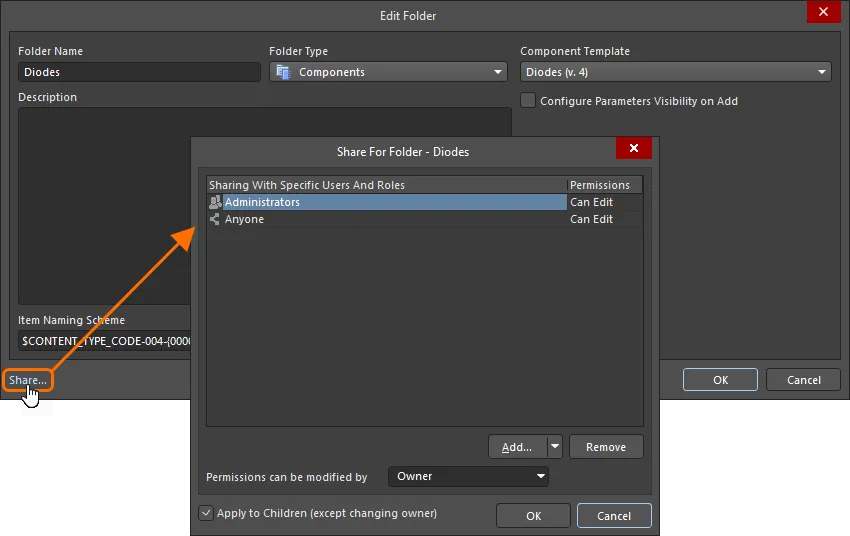
Accessing the controls for sharing a Workspace folder.
Sharing with Specific Users and Groups
Use the Share For dialog to determine exactly who is allowed to access and 'see' that folder. Use the Add User and/or Add Role controls to access dialogs with which to add users and/or groups respectively – ultimately creating a specific access list for sharing folder content. Enter the target user name/email or group name for the search. The results from your search will be shown below.
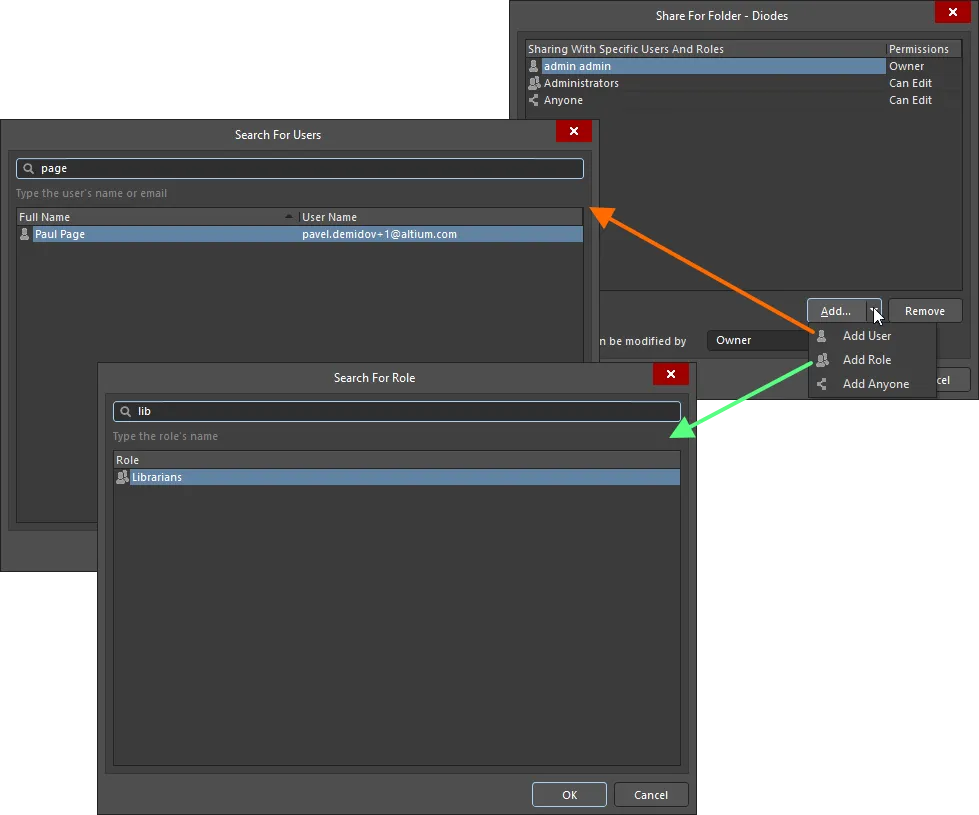
Example of adding a user and a group.
Things to be aware of:
- In terms of permissions, a user/group has Read/Write access when the Can Edit option is enabled. If this option is disabled, they have Read access only.
-
To remove an existing user/group from having access to the folder, select the user/group in the Share For dialog, then click the
 button.
-
If you want all users of the connected Workspace to have access to the folder add the
Anyoneentity, by clicking the Add button, then choosing the Add Anyone command from the menu.
Descendant Permissions
Permissions defined for a folder can be applied to sub-folders and the Items (and revisions) they contain, by enabling the Apply to Children (except changing owner) option – in the Share For dialog.
This allows a specified user (or group) to be able to see all content under the folder being shared. Conversely, by having this option disabled, a user will only be able to see the root folder – the content in any sub-folders will be unavailable unless explicitly shared.
Specifying who can Change Permission Settings for a Folder
When configuring folder-level sharing through the Explorer panel, the owner of the folder, or an administrator for the Workspace, can specify the Sharing Control for that folder – who is allowed to change the permissions for that folder. This is performed from the Share For dialog, using the Permissions can be modified by field.
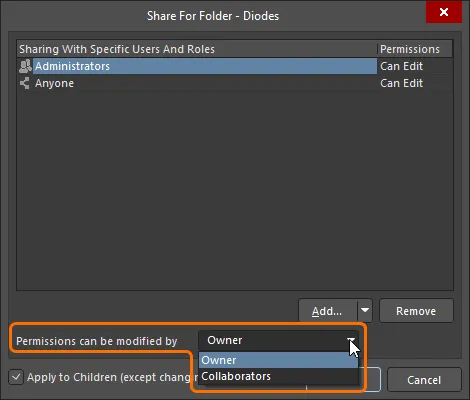
Specify sharing control for a folder.
The following levels of control are supported:
- Owner – only the owner of the folder can change the permissions. Editors cannot change access permissions.
- Collaborators – editors have full control to manage access permissions for the folder.
Item-Level Sharing
Sharing a folder within a connected Workspace is one thing, but sharing the data within that folder is another altogether. For example, a folder may be in use by two teams, with content from one team not intended for general consumption, while the other team's data is public-facing. Certain data – more specifically the Items and revisions thereof – is therefore required to be hidden, while still allowing applicable users to see the remaining content. In support of this, a connected Workspace supports the ability to share Items within Workspace folders, offering a finer level of sharing when it comes to the actual data in a Workspace.
Sharing permissions for an Item can be set up at the time of creating the Item, or at any stage after its creation. Sharing controls are accessed through the Explorer panel, from the Item's associated properties dialog (right-click on Item and choose Properties from the menu), by clicking the  link, located below the Item ID field. The Share For dialog will open in which you can configure sharing as required.
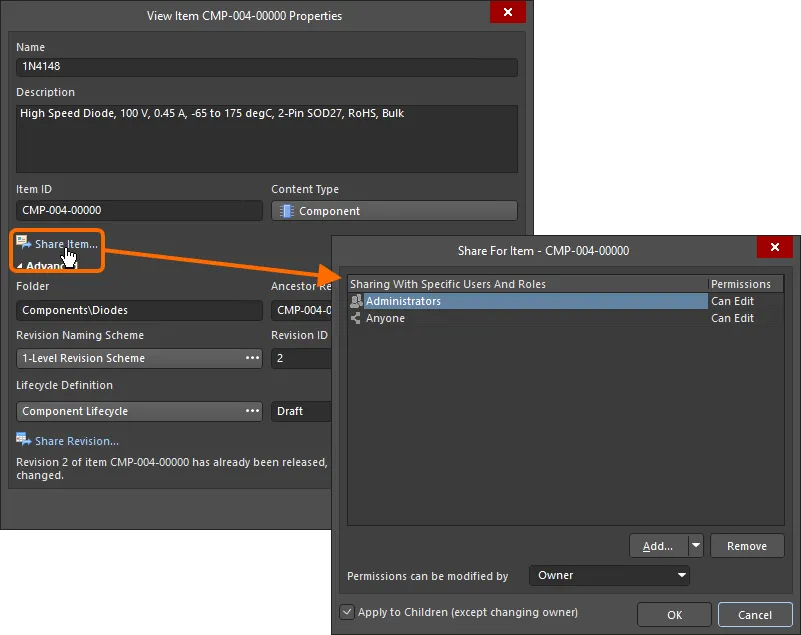
Access the Share For dialog, with which to control how the Item is shared with others.
Controls for working with permissions at the Item-level are much the same as for defining permissions at the folder level.
Item Revision-Level Sharing
As with folders and Items, an Item Revision in a connected Workspace can also be shared with permitted users/groups.
Controls for working with permissions at the Item Revision-level are much the same as for defining permissions at the folder- or Item-level. Sharing permissions for an Item Revision can be set up at the time of creating the parent Item, or at any stage after its creation. Sharing controls are accessed through the Explorer panel, from the Item's associated properties dialog (right-click on Item and choose Properties from the menu). Click the Advanced control to expand the dialog to see the Item's advanced properties, then click the  link, located below the Lifecycle Definition field. The Share For dialog will open in which you can configure sharing as required.
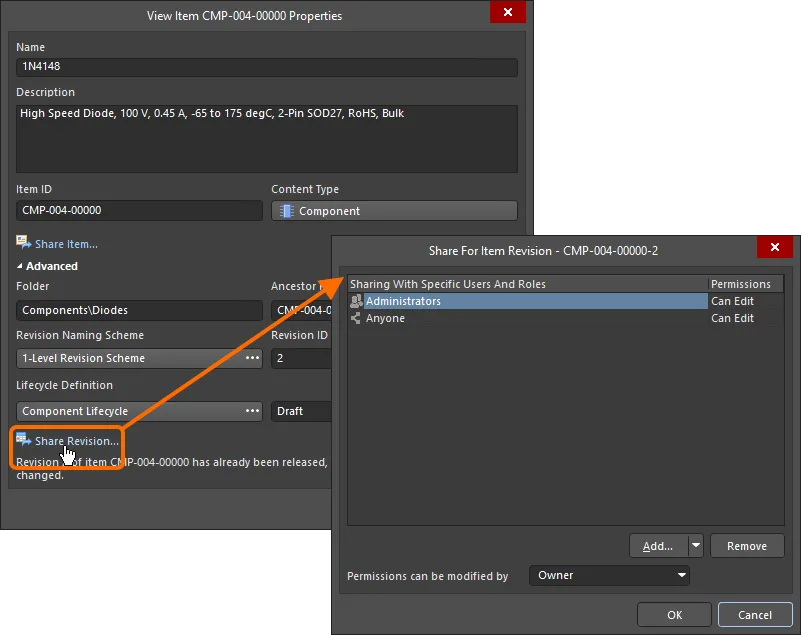
Access the Share For dialog, with which to control how the Item Revision is shared with others.
Transferring Workspace Content Ownership
The owner of a folder, Item, or Item Revision in a Workspace can be changed by the current owner or an administrator of the Workspace. When the folder, Item, or Item Revision is shared with a user, use the Owner option from the drop-down in the Permissions column for the user's entry and confirm the change in the Transfer Ownership dialog that appears. The transferee will receive an email notification.

Global Sharing of Design Data with Altium 365
Related page: Global Sharing of Data through the Altium 365 Platform
One of the most powerful aspects of the Altium 365 infrastructure platform is its support for collaboration on a global scale. At the heart of this is the platform's support for Global Sharing. With Altium 365, you can effortlessly share your current design progress with management, or purchasing, or a potential manufacturer, in a way that is also easy for them – simplified, interactive collaboration, from any device.
Data can be shared with anyone, anywhere in the world. What you share, and with whom, is down to you, and could include:
- Sharing your electronic designs and CAM manufacturing data through your Web Browser using the free, web-based Altium 365 Viewer. This level of sharing supports viewing of designs only – no commenting.
- Sharing live (WIP) designs with people outside of your Workspace – for viewing and commenting only, or for editing – without the need to invite them into that team. This allows invited stakeholders to view/edit (as applicable) a live, work-in-progress design project, without gaining access to your full Workspace of design data.
- Sharing 'snapshots' of your designs – uploaded to the Altium 365 Platform – with anyone on a permanent basis. This level of sharing supports viewing and commenting of the shared snapshot, but keep in mind it is just that – a static snapshot of the design at a particular point in time, and not the live (WIP) design.
- Sharing design data with members of your Workspace. Share projects, folders, and items as required. With projects, for example, you might share read-only access to garner comment and feedback. Or perhaps grant read/write access to allow full, global collaboration by a geographically dispersed team (with editing performed through Altium Designer).
- Sharing of release data with your manufacturer through a defined Manufacturing Package, which they can then peruse through the Altium 365 platform's dedicated Manufacturing Package Viewer – without them having access to your Workspace and therefore keeping your design data out of sight. They can then download the Build Package with which to get your board fabricated and assembled.