
Extracting Data from a Workspace
Data can be extracted from your connected Workspace in the following ways:
-
Batch download of components and models. For components, they are essentially exported to
*.IntLibformat. Components can also be acquired into an IntLib through the use of the Content Cart. -
Checking out designs (if under the own version control of the connected Workspace and you do not have a local working copy already).
-
Stopping synchronization for designs that have been made available in (registered with) your Altium 365 Workspace.
-
Downloading release packages.
The following sections take a look at how these various actions are performed.
Batch Download of Items
The Explorer panel in Altium Designer supports the ability to select multiple Items in your connected Workspace and have the source entities for those Items downloaded, en masse, into a newly created single source library or folder, as applicable. The following Item types are supported by this feature:
-
Component Items – with the selected components downloaded into a Zip archive file containing source symbol and model libraries, and a source Integrated Library Package (
*.LibPkg). -
Symbol Items – with the selected symbols downloaded into a Schematic Library (
*.SchLib). -
Footprint Items – with the selected 2D/3D component models downloaded into a PCB Library (
*.PcbLib). -
Simulation Model Items – with the released data applicable to each Item in the selection (
*.SimModel,*.mdl,*.ckt) downloaded to a separate sub-folder.
Batch Download of Component Items
To download multiple Component Items:
-
Browse to the Workspace folder containing the Component Items you want to download.
-
Select the revision of the Component Item(s) you want to include in the download. You can only choose one revision of a particular Component Item (typically the latest revision), but can include as many different Component Items in the download as required.
-
Right-click on an entry in the selection and choose the Operations » Download selected component to zip command from the context menu.
-
In the Save As dialog, specify the name and location for the generated Zip file. By default, the file will be named in the format
Components - <Date> - <Time>.zip. -
Once ready, click the Save button to proceed with the download and generation of the Zip file. An Integrated Library Package (
*.LibPkg) will be created with source SchLib (with symbols, parameters, and model links) and PcbLib (with footprint models) files generated and added. This is then compressed into the Zip file, which is generated in the specified folder. An information dialog will confirm successful generation of the file.
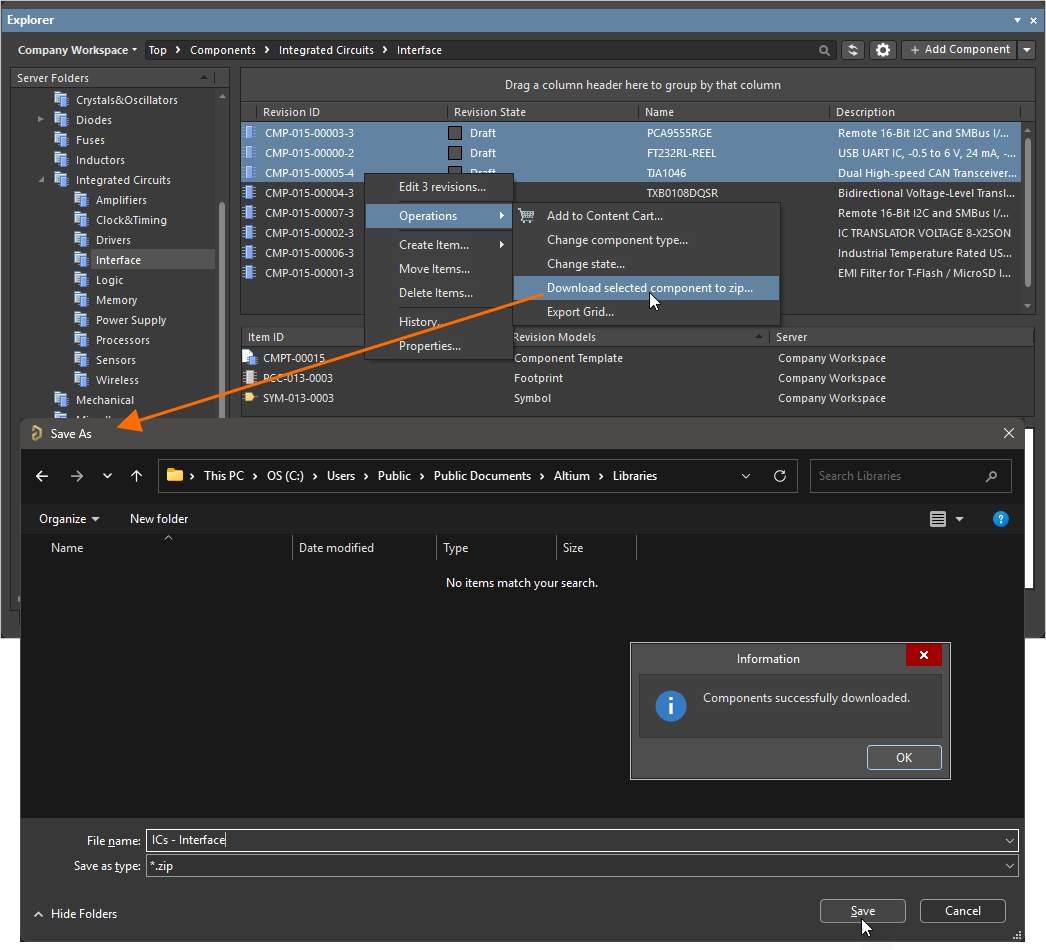
Example download of multiple selected components into a ZIP archive
Use the source in the Zip archive to quickly generate an integrated library containing your chosen component(s).
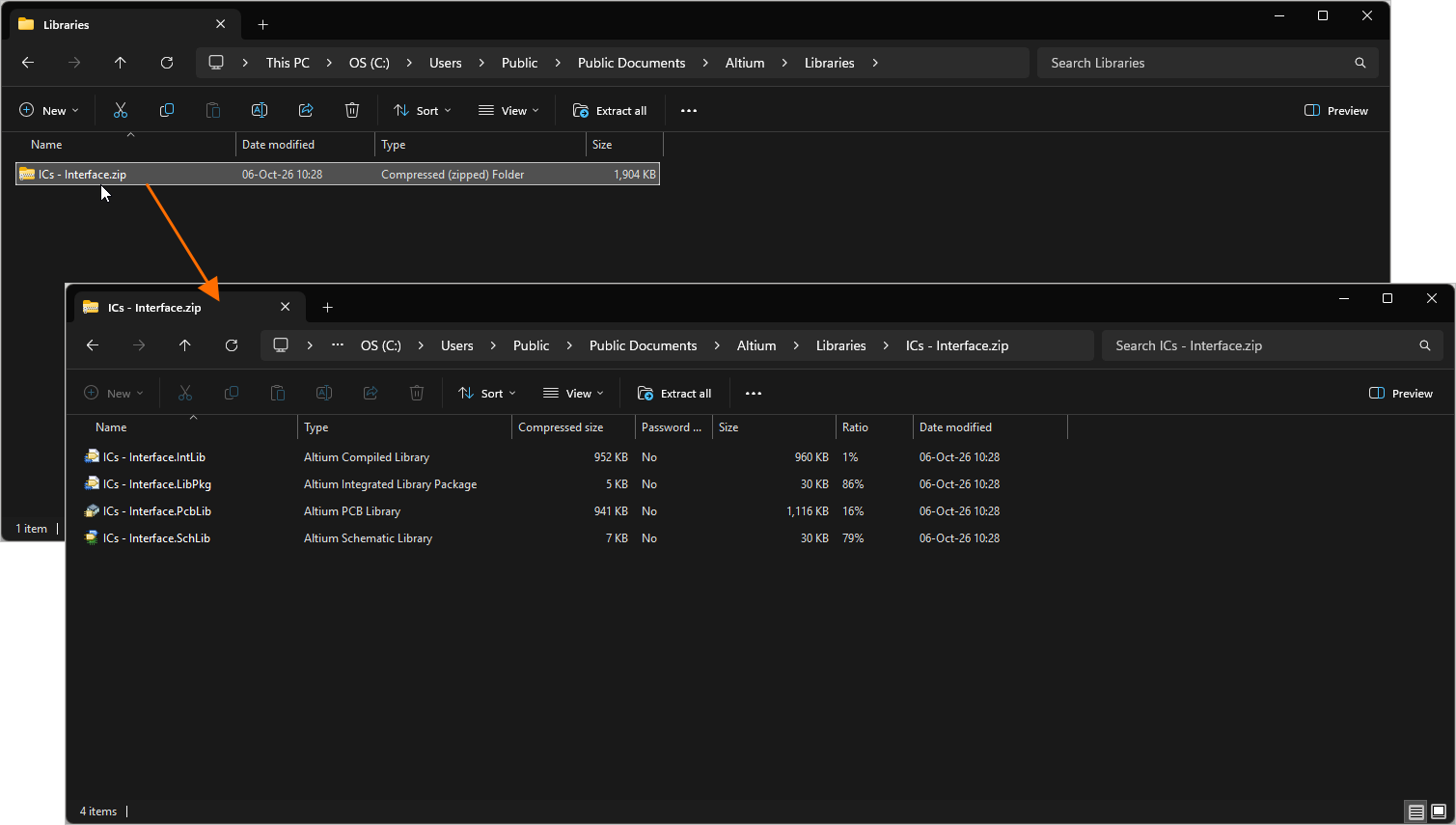
Resulting Zip archive with the source for the downloaded components
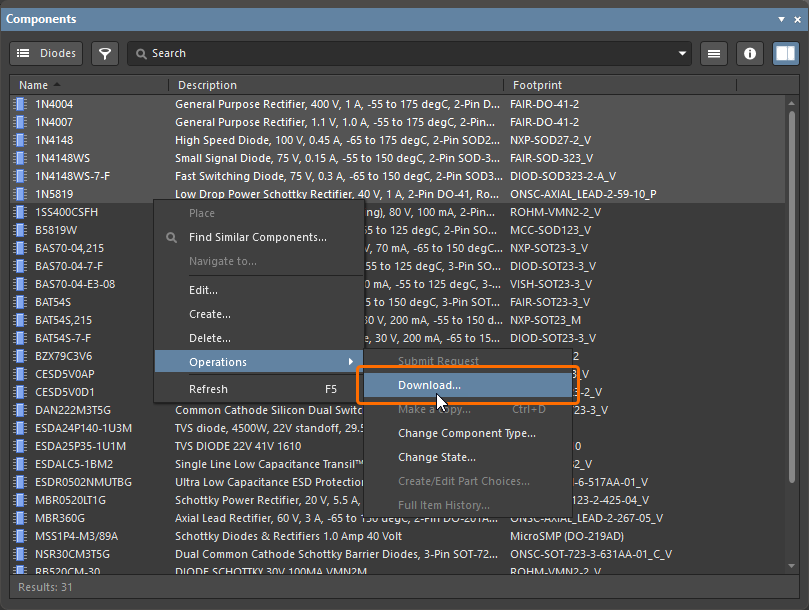 ).
).Batch Download of Symbol Items
To download multiple Symbol Items:
-
Browse to the Workspace folder containing the Symbol Items of interest.
-
Select the Items required for download using standard multi-select controls (
Ctrl+Click,Shift+Click). -
Right-click on the selection and choose the Operations » Download selected symbol in library command.
-
Use the Choose destination file dialog to determine where, and with what name, the new Schematic Library file is to be generated.
-
Click Save – the SchLib will be created, with progress displayed in a dedicated Downloading dialog.
Once the download is complete, the Downloading dialog provides the ability to explore the downloaded content within Windows Explorer (click Explore), or to open the library within Altium Designer (click Open).
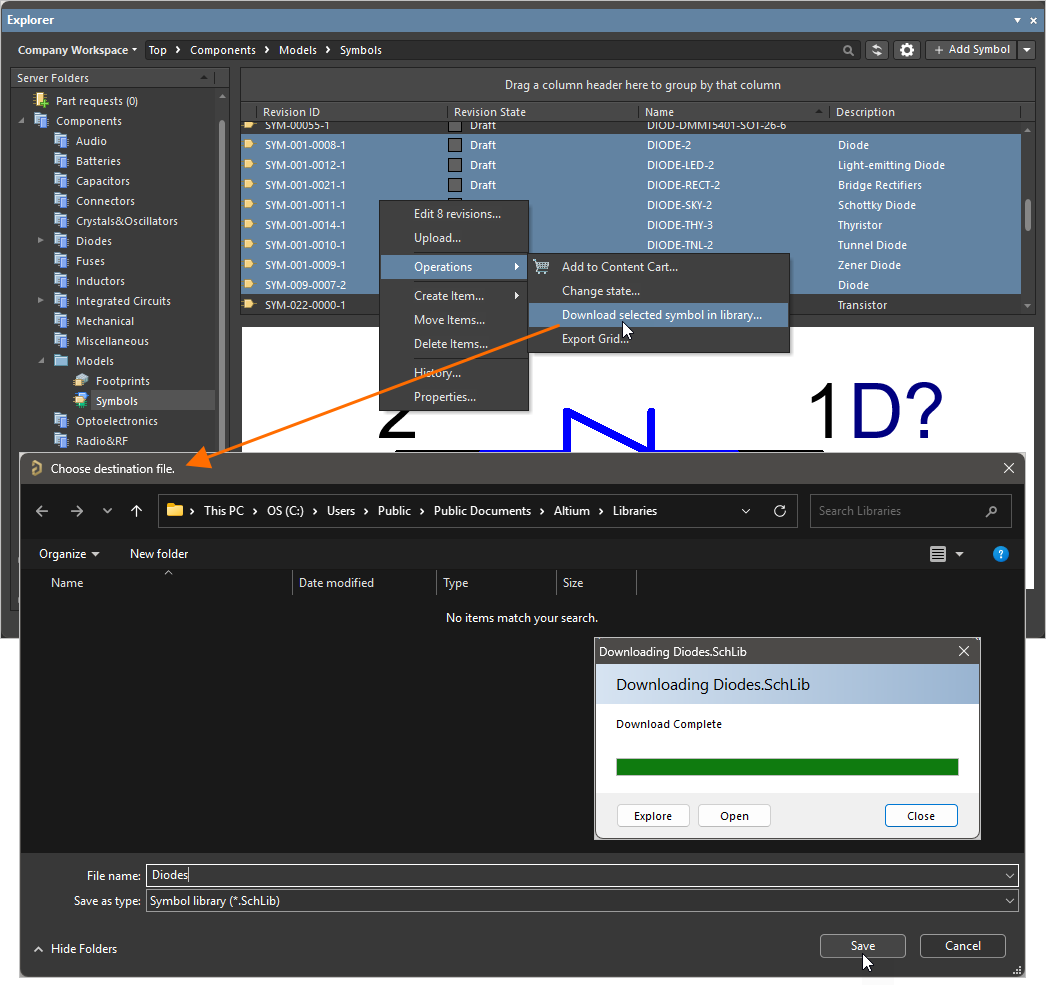
Example download of multiple selected Symbol Items into a Schematic Library document
Each symbol is named using the source symbol's Name field.
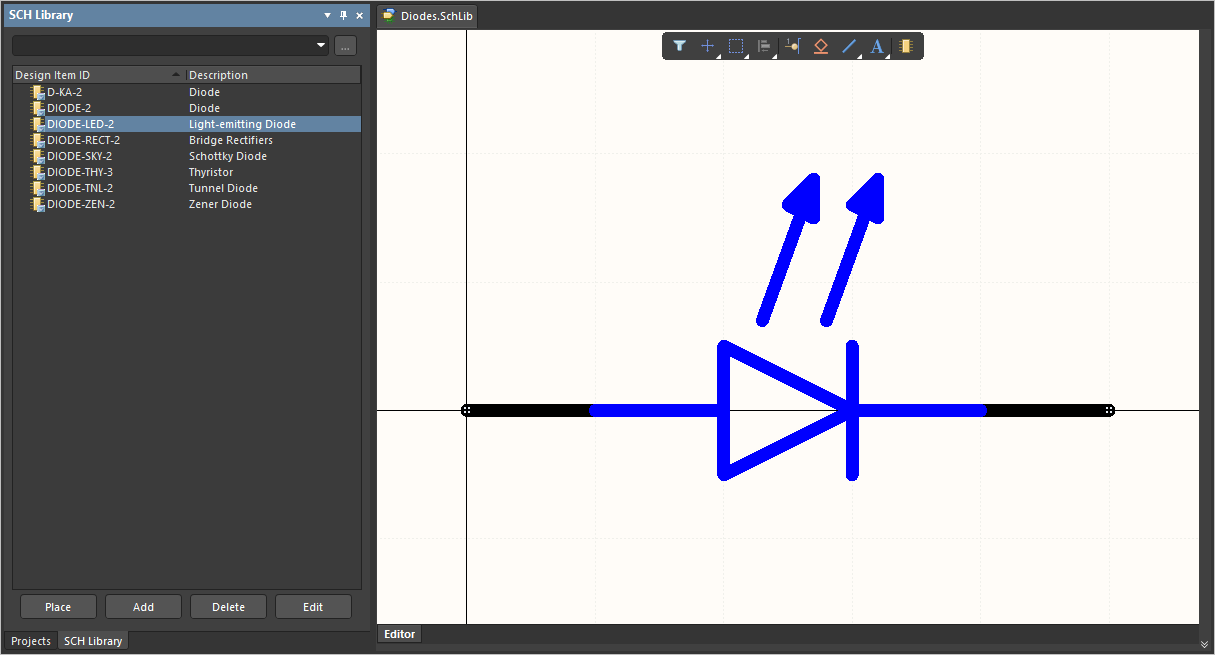
Resulting Schematic Library document with the downloaded symbols
Batch Download of Footprint Items
To download multiple Footprint Items:
-
Browse to the Workspace folder containing the Footprint Items of interest.
-
Select the Items required for download, using standard multi-select controls (
Ctrl+Click,Shift+Click). -
Right-click on the selection and choose the Operations » Download selected footprint in library command.
-
Use the Choose destination file dialog to determine where, and with what name, the new PCB Library file is to be generated.
-
Click Save – the PcbLib will be created, with progress displayed in a dedicated Downloading dialog.
Once the download is complete, the Downloading dialog provides the ability to explore the downloaded content within Windows Explorer (click Explore), or to open the library within Altium Designer (click Open).
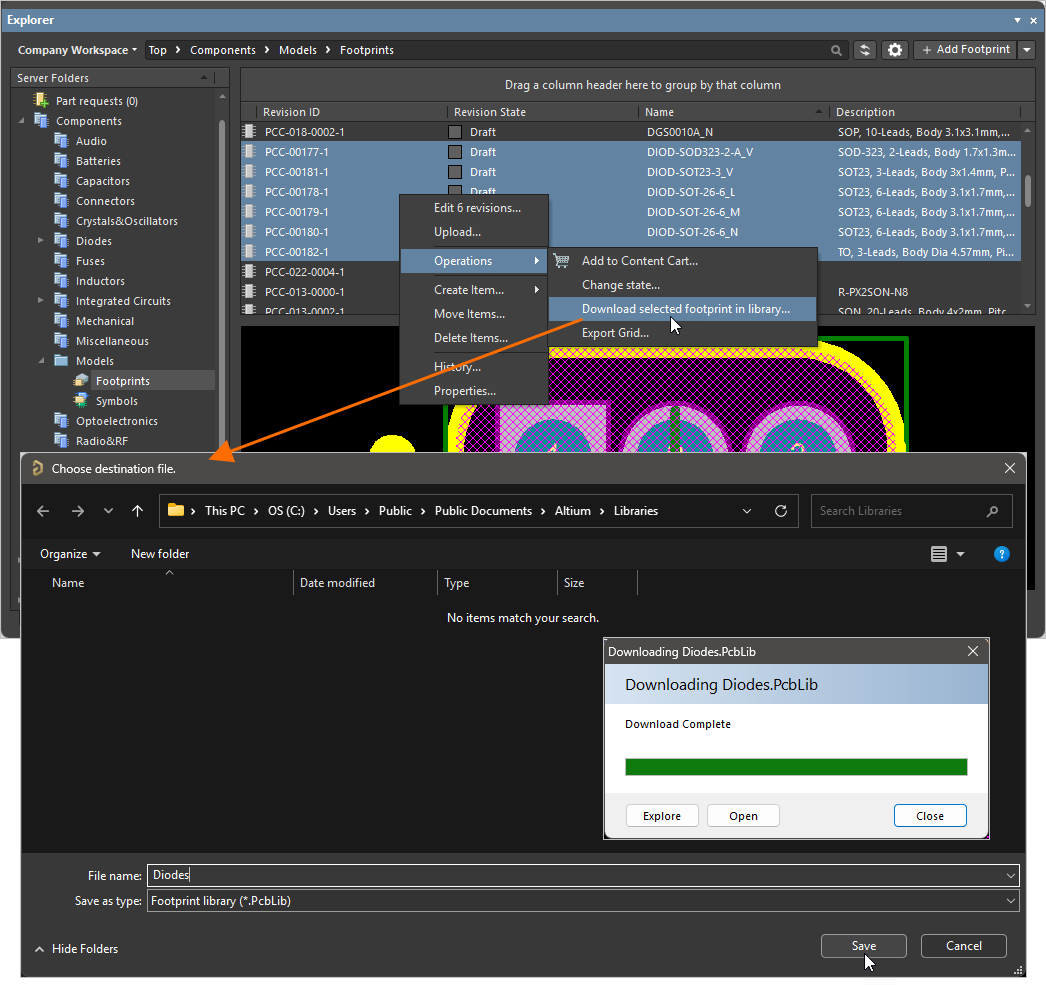
Example download of multiple selected footprints into a PCB Library document.
Each footprint is named using the source footprint's Name field.
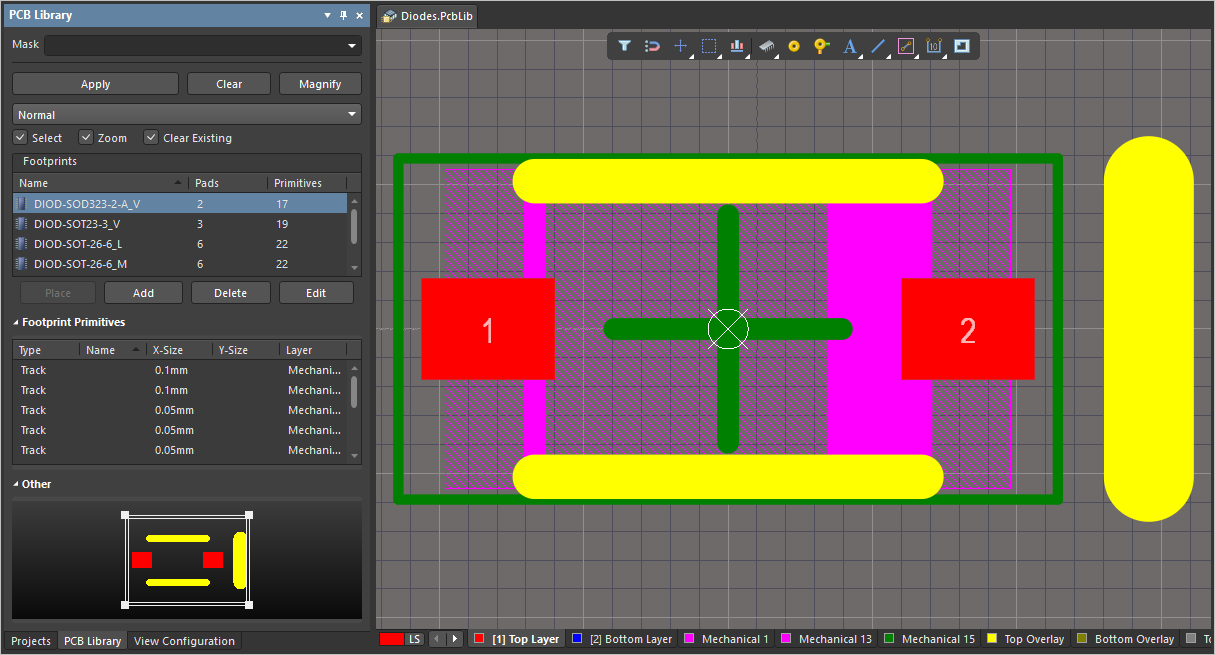
Resulting PCB Library document with the downloaded footprints
Batch Download of Simulation Model Items
To download multiple Simulation Model Items:
-
Browse to the Workspace folder containing the Simulation Model Items of interest.
-
Select the Items required for download, using standard multi-select controls (
Ctrl+Click,Shift+Click). -
Right-click on the selection and choose the Operations » Download selected sim model to folder command.
-
Use the Choose destination folder dialog to determine the parent download folder for the models.
-
Click Select Folder – the download will proceed, with progress displayed in a dedicated Downloading dialog.
Once the download is complete, the Downloading dialog provides the ability to explore the downloaded content within Windows Explorer (click Explore).
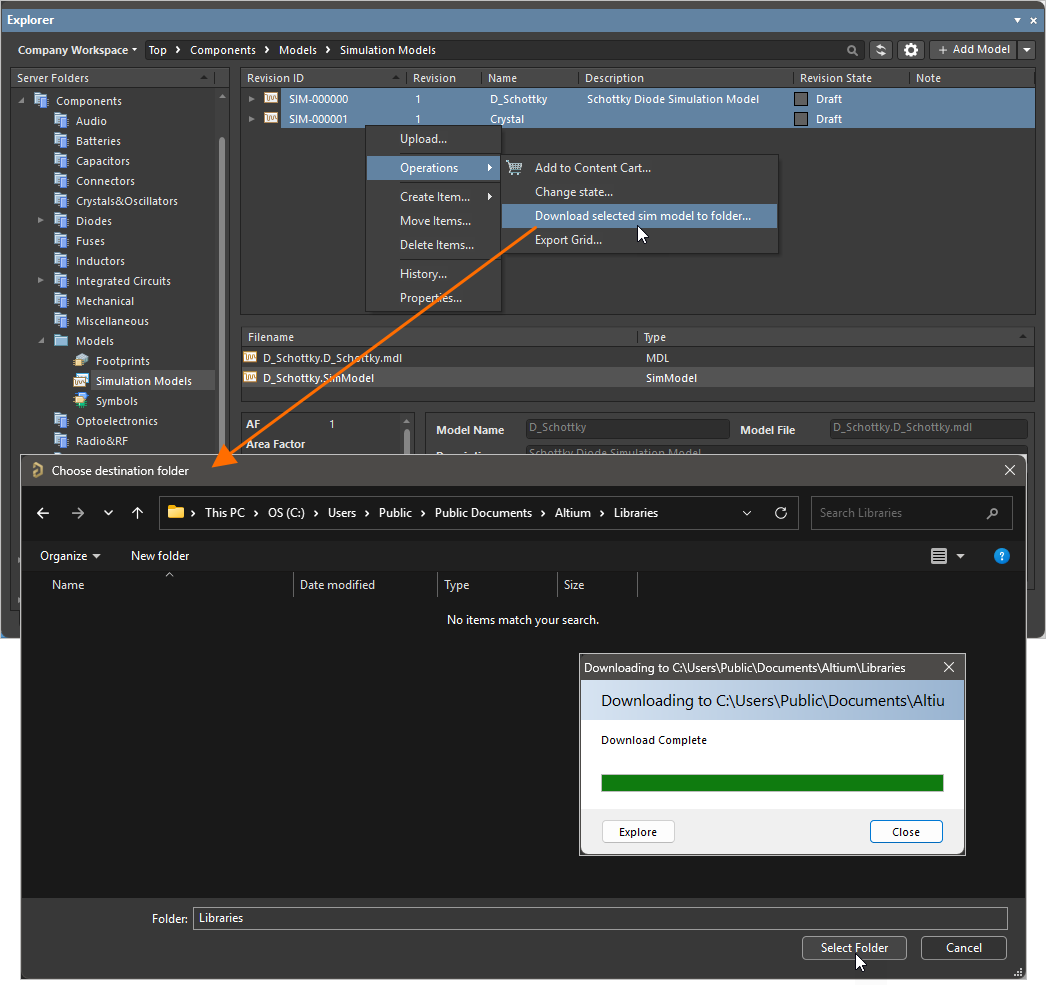
Example download of multiple selected Simulation Model Items into a designated folder
Within the destination folder, a sub-folder for each Item in the selection will be created, named using the Item-Revision ID. The release data can be found in the Released sub-folder therein.
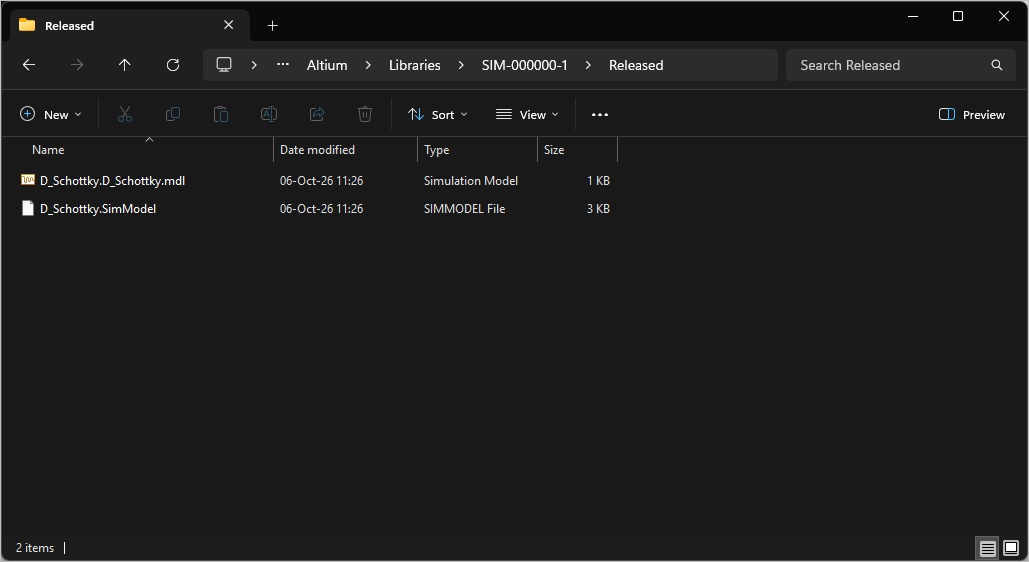
Accessing the data for a Simulation Model Item included in a batch download
Component Extraction Using the Content Cart
You also have the ability to acquire components from your connected Workspace into an Integrated Library (*.IntLib). The vehicle through which this is done – your interface to the Workspace's Data Acquisition Service – is the Content Cart. Access to the Content Cart dialog is made from within the Explorer panel in Altium Designer. While browsing your Workspace from which you wish to obtain data, right-click on an Item Revision that you wish to acquire and choose the Operations » Add to Content Cart command from the context menu.
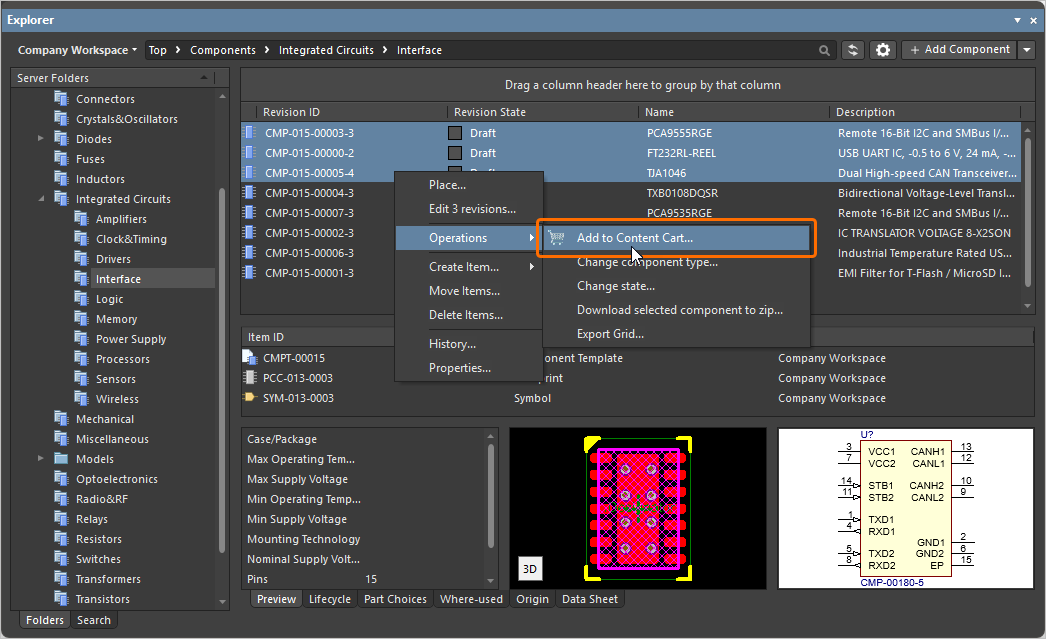
For more information about the process to acquire into an IntLib from the Content Cart dialog, refer to the Acquiring Workspace Data Using the Content Cart page.
Checking Out Designs under a Workspace's Native Version Control
For a design project under the Workspace's native version control – created and stored within the connected Workspace's Versioned Storage Git design repository – extraction from your Workspace is a case of checking out the design as a local working copy. This is performed directly from within Altium Designer using the File » Open Project command. The Open Project dialog will appear, from where you can choose which project to open from your Workspace – when connected to a Workspace, that Workspace will appear in the Locations region of the dialog. Once opened, the project will appear under an entry for your Workspace, within the Projects panel in Altium Designer.
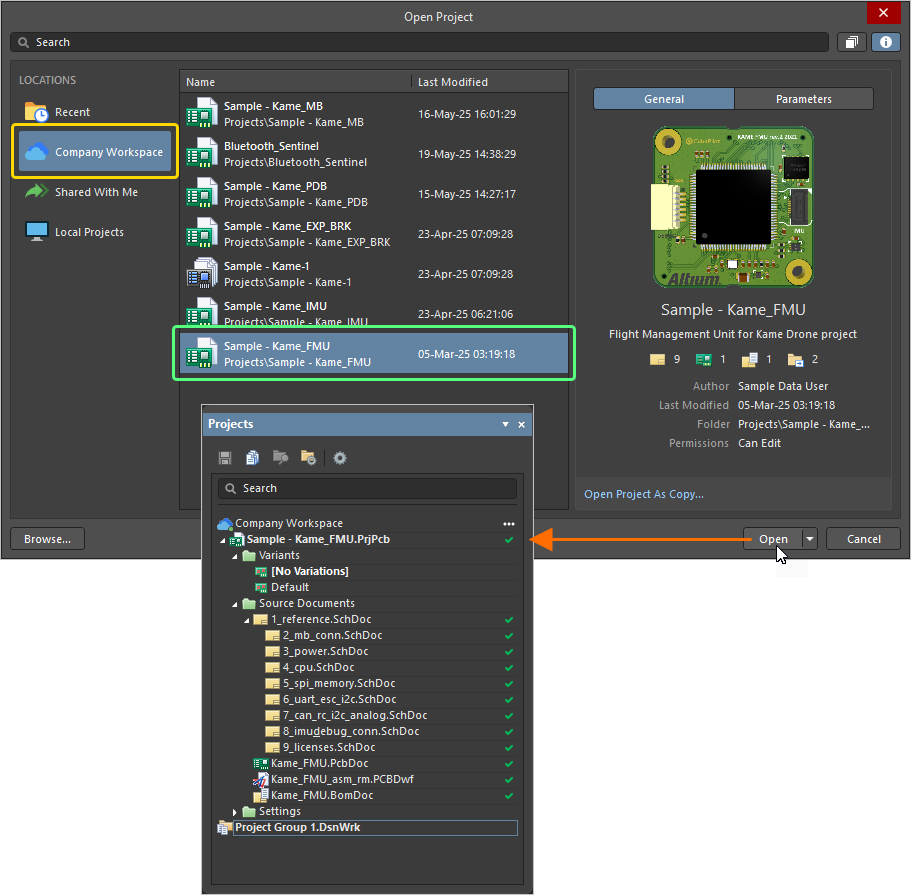
Obtain a local copy of a project by opening it (essentially, checking it out of your connected Workspace)
For more information about opening a Workspace project, refer to the Opening Projects and Documents page.
Stopping Synchronization for Registered Designs
If you have 'registered' an existing project (local project, or a project currently under external version control) with your Workspace through use of the Make Project Available Online feature, without bringing it under the Workspace's native version control (learn more), then you already have the project. The version in the Workspace is a 'mirror' of it – a synchronized copy that allows you to enjoy the collaborative features available through the Altium 365 platform. If made available and are under full management of the Workspace's version control, then you can open the project (if not already) to get a local copy of it.
Should you wish to stop the synchronization between your local project and the incarnation of it that was made available in the Workspace – therefore removing all linkage to the Workspace – click the  button, provided on the General tab of the Project Options dialog. The Turn off project synchronization window will appear. Click on the Unlink option, then click OK back in the Project Options dialog. The local project will no longer be associated with the project in the Workspace.
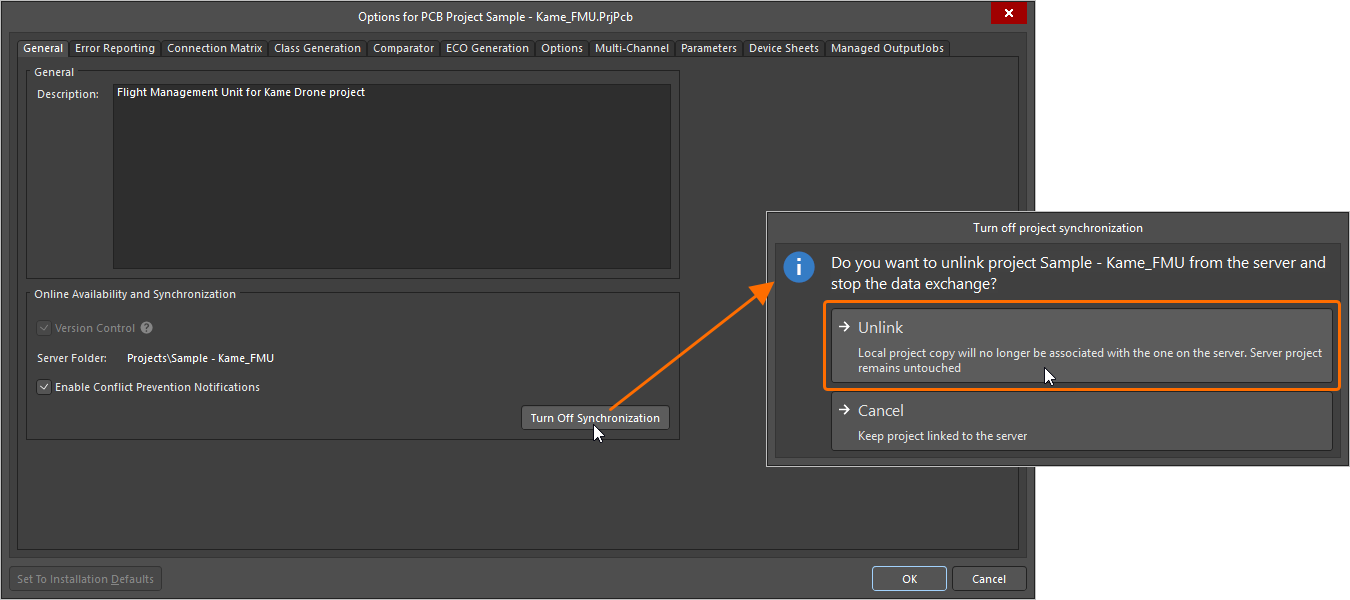
You can sever the connection between your local project and the incarnation of it made available in the Workspace.
For more information about controlling project synchronization, refer to the Making an Existing Project Available in the Workspace page.
Downloading Release Packages
Extraction of any and all releases of design projects – released into your connected Workspace using the Project Releaser in Altium Designer (learn more) – is a case of downloading those release packages from within the Workspace's browser interface.
Release packages are presented in the Releases view when browsing a specific design project through the detailed management page for the project – a detailed, CAD-centric view of the project. Any and all of the data sets included in a release can be downloaded. Data can also be downloaded when viewing a release package through the Manufacturing Portal.
For more information, refer to the Management of a Specific Project (Altium 365 Workspace, Enterprise Server Workspace) and Viewing Manufacturing Packages pages.