
Releasing to a Workspace
At a Glance
- Identify which source, fabrication, assembly, variant, and custom data sets to include, and how to assign the required Output Jobs.
- Understand release target options, Workspace item naming schemes, and controls for target revisions.
- Follow the release stages and learn how automated release commands affect review, reporting, and PLM publishing.
With the Release view in Online Mode, the release process is a staged flow, with the entries on the left-hand side of the view showing you at-a-glance, which stage you are currently at:
-
Configure Server Release – this stage of the release process is where you specify the type(s) of data that you wish to generate: Source Data (always generated), Fabrication Data, Assembly Data (for base design and each detected variant).
-
Validate Project – this next stage of the release process is run automatically when one or more Validation-type reports are detected in assigned OutJob file(s). All defined validation output generators, defined in an Output Job file assigned to the data item being released, are run.
-
Generate Data – this next stage of the release process is run automatically. This is where all other outputs – defined in the OutJob file(s) assigned to the included Data Items – are run, to generate the data to be released into the relevant target items in the Workspace.
-
Review Data – with all validation checks passed, and output data generated, this stage of the release process allows you to review the generated data.
-
Upload Data – after confirming the release in the previous stage, this next stage is automatically entered. It simply presents progress of data upload into the revisions of the relevant data Items in the target Workspace.
-
Execution Report – this is the final stage of the process, providing a summary of the release. Navigation links are provided to quickly browse to the generated Item Revisions in the Explorer panel. If you have accessed the Project Releaser as part of a process to release and publish to a PLM, then the
 button will be presented. Click this to continue the underlying workflow for the process, to publish to the PLM.
-
Publish to PLM – this stage is only present when running the release under the relevant activated process (for releasing and then publishing to a PLM). This stage is entered automatically when the
button is clicked in the previous stage (or entered directly if the Prepare & Release & Publish to PLM command (from the menu associated with the  button), was used). The Login Credentials dialog will appear. Enter the Username and Password for your PLM instance, and select the PLM Template you want to use (which appears in the form
 <PLMInstance>:<PublishingTemplate>).
Online Stage 1 – Configure Server Release
This stage of the release process is where you specify the type(s) of data that you wish to generate. Data Items that can be released are:
- Source Data – a snapshot of the source design.
- Fabrication Data – the data required by a Fabrication House to create the bare board.
- Assembly Data for the Base Design (no variations) – the data required by an Assembly House to fully populate the bare board in accordance with a Bill of Materials, and for the non-varied base design.
-
Assembly Data for Design
Variant n– the data required by an Assembly House to populate the bare board in accordance with a Bill of Materials, and forVariant nof the base design.
The number of assembly data sets will correspond to the base (non-varied) design, and all detected variants defined for that design.

Stage 1 of the project release process – configuring what is to be included in the release (what data to generate).
The Source Data item is always included for a release. The other data items can be optionally included.
Assignment of Output Jobs
For the Fabrication Data and Assembly Data items to be included in a release requires, at least one OutputJob file to be assigned to them. If you have Output Job files with names that start with the sub-strings 'fab' and 'ass', those OutJobs will be assigned automatically to the Fabrication Data and Assembly Data sections respectively, when the Release view is first accessed. If not, you will need to assign the applicable OutJobs in each case manually. This can be done from the Release Options tab of the Project Release Options dialog (click the  button at the bottom-left of the view to access).
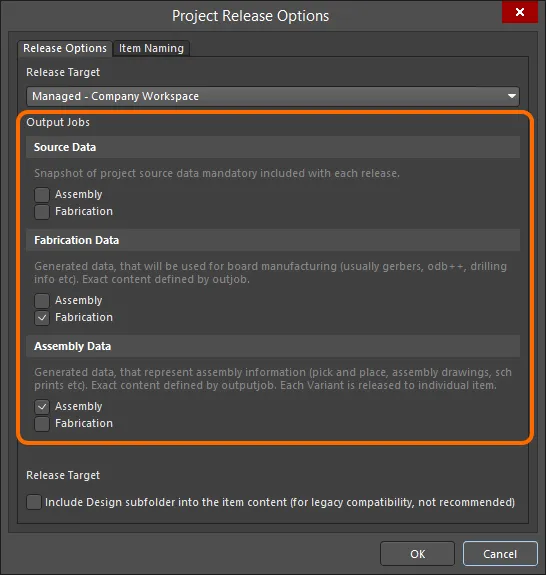
Assign OutJobs to the applicable data sets as required.
Switching Release Target
The Release Options tab of the Project Release Options dialog can also be used to change the release target – switching between managed (Online) and unmanaged (Offline) modes of operation. Three options are available:
-
Unmanaged - Folder(Offline): set this option to release generated data to a local folder. The root folder path is specified on the Output Path tab of the dialog. By default, this is set to[OutputPath](using the path defined in the Output Path field, on the Options tab of the Project Options dialog). -
Unmanaged - Zip(Offline): set this option to release generated data to a local folder. The data will be packed into a single Zip file. The Zip path/name is specified on the Output Path tab of the dialog. By default, this is set to[OutputPath][ProjectName].zip(using the path defined in the Output Path field on the Options tab of the Project Options dialog). -
Managed - <WorkspaceName>(Online): set this option to release to the Workspace (withWorkspaceName) to which you are actively connected.
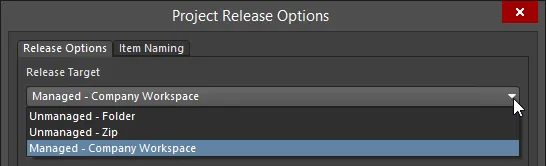
Switch release target – where the generated data is to be sent – as part of the release options for the project.
Setting Workspace Item Naming Schemes
When releasing a project to the target Workspace for the first time, you can define how the target data items in that Workspace (whose revisions receive the generated data) are named. This is done on the Item Naming tab of the Project Release Options dialog, which is accessed by pressing the button at the bottom-left of the view (or by clicking on the Target Revision link for a data set to be released and choosing Edit from the context menu). Use this tab to:
- Define the name for the project. By default, this will be filled with the actual name of the project.
-
Define default naming schemes for the various data items that can be generated as part of the release. Click within a field in the Item ID column then click the
 button at the right of the field to access the Choose Item dialog (an incarnation of the Explorer panel), which allows you to target an existing Item in the actively connected Workspace.
To change any of the naming schemes, click the Settings button to access the Naming Template Settings dialog.
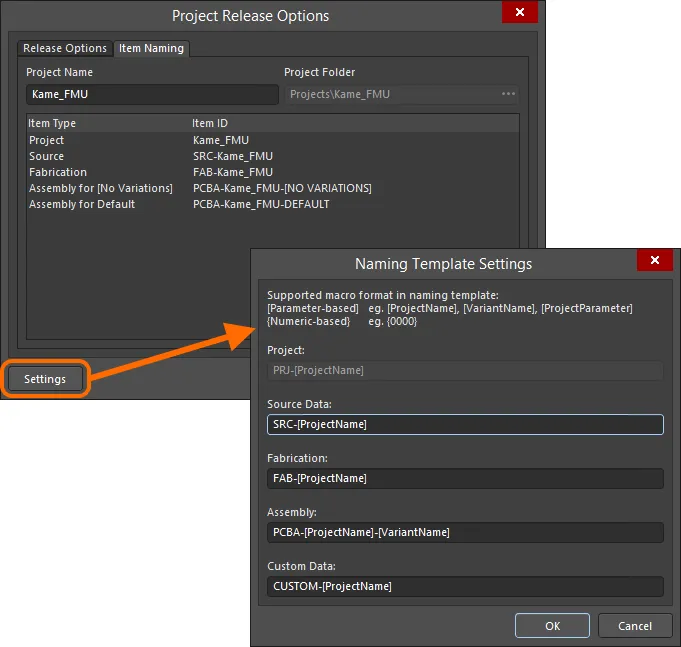
Set the project name and define the naming for generated data items in the target Workspace. Here, fields are editable because the project has not yet been released.
The following macro formats are supported for use in a naming template:
-
Parameter-based – supporting the use of parameters enclosed in square braces (e.g.
[ProjectName],[VariantName],[ProjectParameter]). -
Numeric-based – supporting the use of numerical quantifiers enclosed in curly braces (e.g.
{0000},{9000}).
Controlling the Target Revision
Click on the link next to a Target Revision entry, back in the main view, to access a menu of commands, illustrated in the following image:
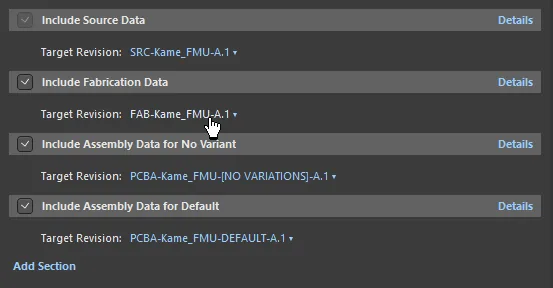
Accessing controls to specify the target revision for a data set that is to be generated as part of the release – hover over the image to see.
The commands available will depend on whether the item has been initially released or not. The following is a listing of all possible commands:
-
Auto <RevisionID> – this entry lets the system handle the revisions, so that you don't need to create planned revisions where they do not currently exist. The
RevisionIDshows the next revision of the Item at the same level within the assigned revision naming scheme (e.g. if the current revision isA.1, this command would show the target to beA.2). -
Next <RevisionID> – this entry is only available after the initial release of the item. Use it to quickly increment the target revision at the next level within the assigned revision naming scheme. The
RevisionIDshows the next revision (e.g. if the current revision isA.1, this command would switch the target to beB.1). -
Custom – use this entry to target a specific revision of a target item, by defining a custom Revision ID through the Custom Revision ID dialog. Depending on the revision naming scheme employed, there may be up to three Level ID fields in the dialog. Note that the ID of the item's first planned revision can be changed at any point after the Item is created and before data is released into that initial revision (i.e. it is still in the
Plannedstate). - Browse – use this entry to point to an existing target Item-Revision in which to release. The Choose Target Item dialog (an incarnation of the Explorer panel) will appear with which to do so.
- Edit – use this entry to access the Item Naming tab of the Project Release Options dialog, from where you can change the name of the target Item (and initial revision) that will be created.
- Navigate – use this entry to quickly navigate to the Item in the Explorer panel (where it has already been released, and the next revision exists in a planned state).
 Custom Revision ID dialog
The entry at the top of the menu will reflect the current target revision chosen/defined.
Accessing Data Generation Details
Click on the Details control – at the far right of a data set's header – to access details of what exactly is going to be generated by that data set. Collapse this extended view by clicking on the Hide Details control. With the exception of the Source Data set, the data generated will come from one or more assigned Output Job files. You can quickly access the source OutJob by clicking the Configure control.
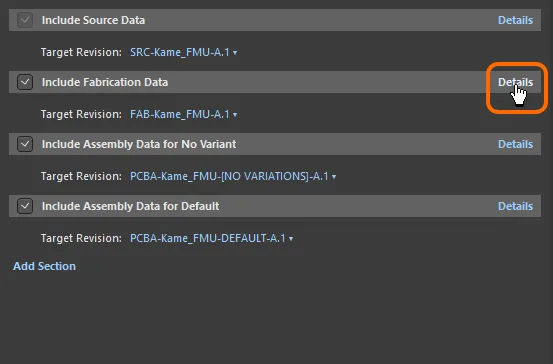
Access the detailed view for a data set to see what data will be generated – hover over the image to see.
Additional Settings
There are additional settings that can be defined, relating to project release, on the Data Management – Servers page of the Preferences dialog:
-
The folder used to temporarily store generated files prior to uploading to the actively connected Workspace can be set to the automated location (
\Users\<ProfileName>\AppData\Local\Temp\Releasesfor a default installation), or manually overridden with a folder of your choice. - Enable the Delete contents after exiting release mode option to have the temporary storage folder effectively flushed after finishing the release process.
-
The name of each generated output can be optionally prefixed with the Item ID and Revision ID (e.g.
[FAB-Kame_FMU-A.1] Validation.PDF). To do so, enable the Prepend revision HRID to file names option.
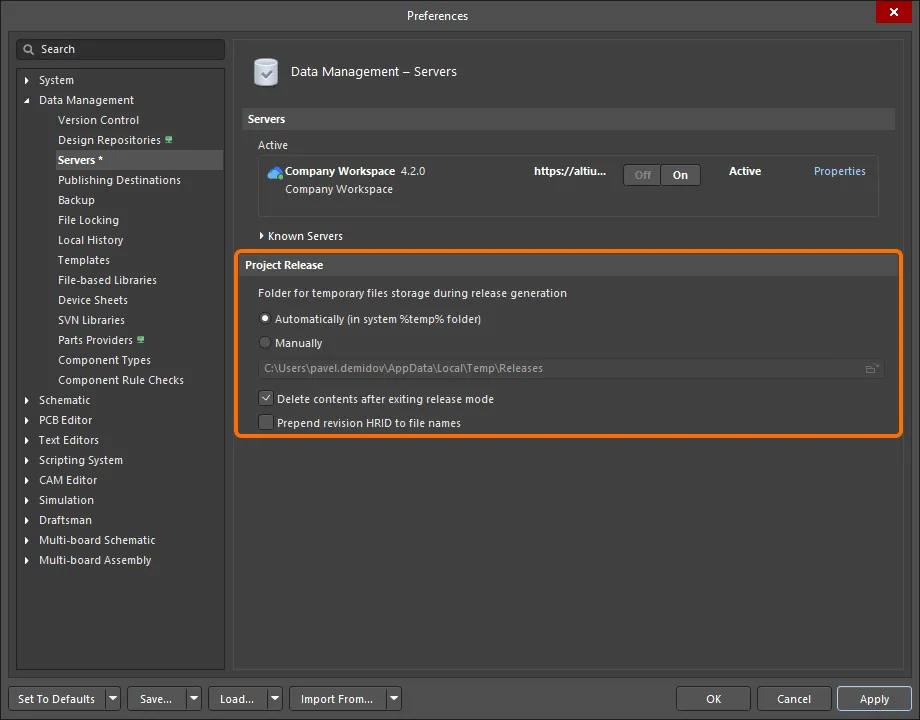
Additional preferences relating to the project release process.
With the data items that are to be created as part of the release configured as required, click the button at the bottom-right of the view to proceed.
Several pre-release checks are performed as part of the preparation, including:
- Making sure that the project and all files have been saved.
- Making sure that the project and all relevant file(s) are committed to VCS if applicable.
- Making sure that each enabled data item has been given a name.
- Ensuring that the user has rights to create the target item (and revision).
- Creating the required target Items (and planned revisions) in the Workspace, where they do not currently exist, and ensuring the next revision is used for those items that do.
If any issues are found, you will be offered solutions with which to resolve them (such as saving locally modified files and committing to VCS).
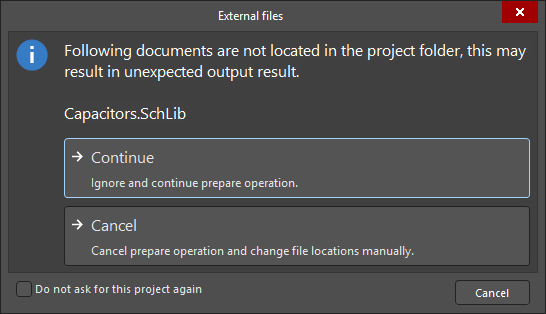 ).
).The Source Data Item is generated at this time – with a snapshot of the source design project files released to the target item revision.
Online Stage 2 – Validate Project
After Stage 1 completes without issue, this next stage of the release process is run automatically when one or more Validation-type reports are detected in assigned OutJob file(s). All defined validation output generators, defined in an Output Job file assigned to the data item being released, are run. This includes running any of:
- Differences Report – using the comparator to determine if the source and PCB design documents are correctly in-sync.
- Electrical Rules Check – checking the electrical/drafting validity of the captured source design.
- Design Rules Check – checking the validity of the PCB document in relation to specified board-level design constraints.
-
BOM Checks – checking for possible violations associated with Design Items or Part Choices in the source BOM document (
*.BomDoc), where available. - Footprint Comparison Report – comparing footprints on the board against their source library to ensure they are up-to-date, and matched.
- Component State Checking – checking for components that are in restricted states. As part of configuration, you determine the action to be taken for each currently defined state, of each currently defined Lifecycle Definition in the target Workspace; no action, a warning, or generate an error. The latter will prevent release of the design. In addition, running the check will generate a handy HTML-based report, allowing you to see at-a-glance which design components are not in valid states.
- Environment Configuration Compliance Check – checking that only data items permitted through the environment configuration available for use by your assigned role (if applicable), are being used. This check can also ensure that all design items are sourced from a Workspace.
If validation is successful, the  icon is presented, with the text
 Passed. If not, the  icon will be displayed, with the text
 Failed.
Online Stage 3 – Generate Data
After Stage 2 completes without issue, this next stage of the release process is run automatically. This is where all other outputs – defined in the OutJob file(s) assigned to the included Data Items – are run, to generate the data to be released into the relevant target items in the Workspace.
As with the other stages, but more noticeable with this stage, since it takes longer to run, icons are used to present the progress of generation:
 – not yet run/generated.
 – being run/generated.
– generated successfully.
– generation failed.
Online Stage 4 – Review Data
With all validation checks passed, and output data generated, this stage of the release process allows you to review the generated data.
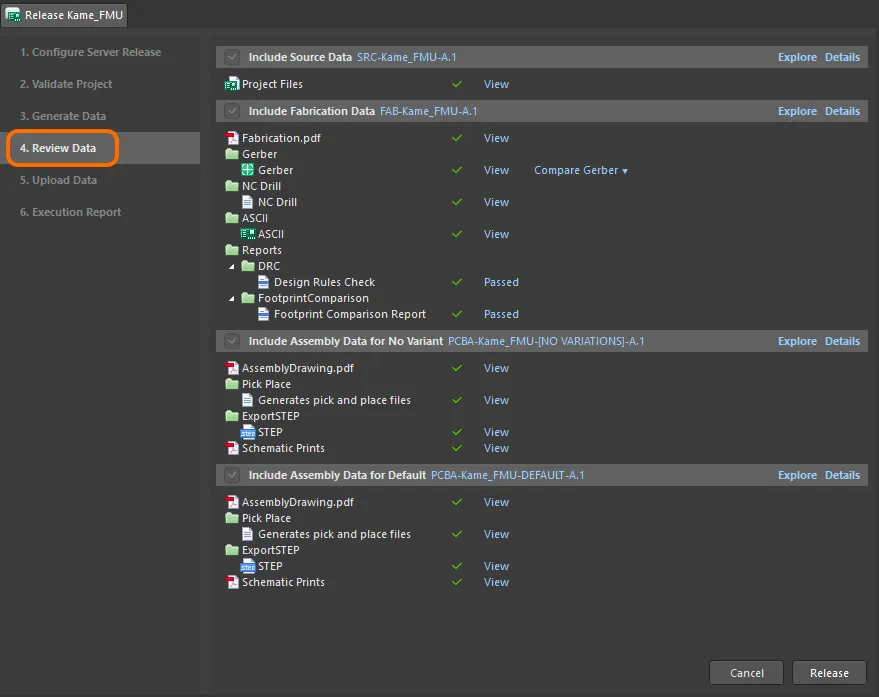
Review generated data, checking that all is as it should be, prior to committing to the release, and uploading the data to the Workspace.
The page defaults to present a simple (compact) view of the generated data. Switch to a more detailed view by clicking the Details control associated with a section of interest.

Click on a Details control to switch from simple to detailed view of the generated data for the associated section. Switch back again by clicking the Hide Details control.
Output Generation States in Detailed View
The following table lists the possible output states when data is being generated and observed from the detailed view:
State |
Description |
|---|---|
|
Output has not yet been generated/does not exist. |
|
Output has been generated, but changes have since happened on the design side, making the validity of this data no longer current. |
|
The output is currently in the process of being generated. |
|
The output is validation-based and has generated a report free of any errors. For an ERC report, there are either no errors, or the level of those errors falls within the specified maximum tolerated error level for that report. |
|
The output (excluding validation-based outputs) has been generated successfully. |
|
The output has not been generated successfully. For a validation-based output, this means errors exist within the source design documents that are causing certain check(s) to fail. For a standard output, the output could not be generated successfully. Perhaps Fatal Errors exist when performing a pre-generation validation, or something is amiss in the configuration of the associated output generator, in the Output Job file. |


In the compact view of the generated data, click a View link to open the associated data file or file set, either within the relevant editor within Altium Designer (e.g., the CAM editor for Gerber files or compressed/uncompressed ODB++ files) or within the relevant external application (e.g., Microsoft Excel for a Bill of Materials). In the detailed view, double-click on an entry to view just that file.
A common ready-for-release test used by many designers is to compare the Gerber files generated from the current release with the Gerber files from the previous release. Click the Compare Gerber link next to a Gerber output and select a previous release from the drop-down menu to compare prepared Gerber data with that from the chosen release. Your default browser will open your Company Workspace and display the results.
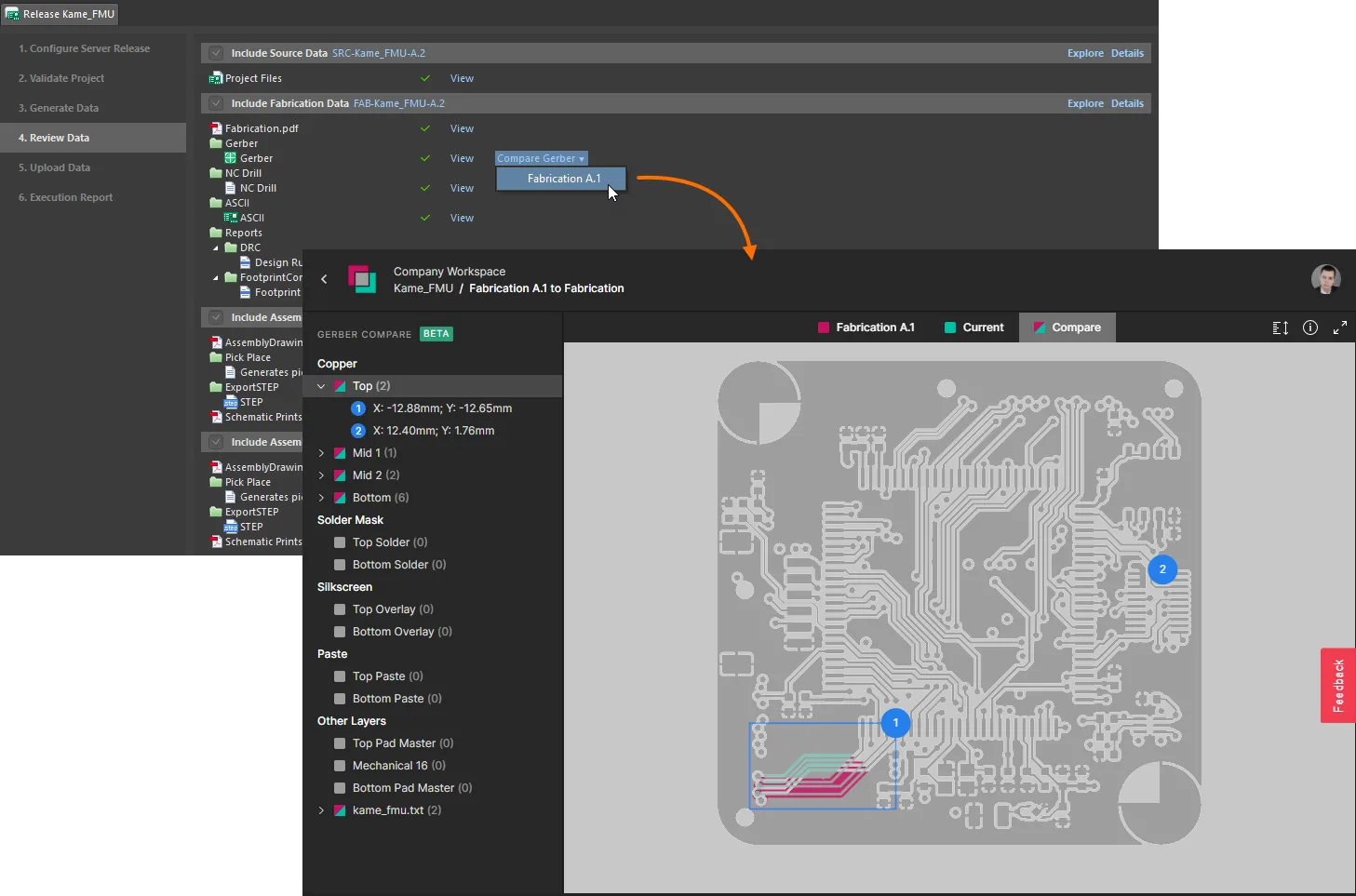
Accessing the Gerber comparison feature from the Project Releaser, prior to releasing the data to a Workspace.
► Learn more about the Gerber Comparison feature (Altium 365 Workspace, Enterprise Server Workspace).
If, after reviewing the data, you find you need to make modifications, click the  button at the bottom-right of the view. A confirmation dialog will appear, alerting you to the fact that all generated data will be lost – clicking OK will cancel the release and you will be returned to Stage 1 of the process.
If the generated data all looks good, proceed with the release by clicking the  button (also at the bottom-right of the view). The Confirm Release dialog will appear, summarizing the configurations of the project that will be released to the Workspace. You also have the opportunity here to add a Name (by default the entry here is
 [ProjectName]), Description, and to add any pertinent release notes.
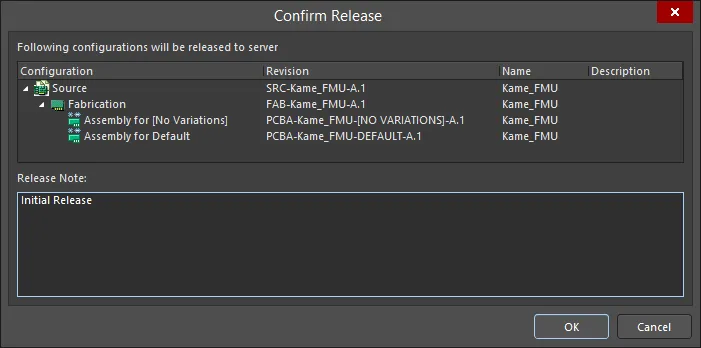
Confirmation of what will be released, in terms of the Item-Revisions generated, and the ability to change Name/Description and add release notes.
Online Stage 5 – Upload Data
After confirming the release in the previous stage, this next stage is automatically entered. It simply presents progress of data upload into the revisions of the relevant data Items in the Workspace.
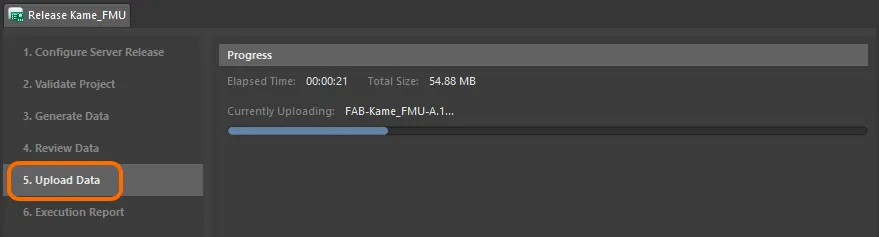
This stage simply reflects progress of the upload of generated data to the linked Item-Revisions in the Workspace.
Online Stage 6 – Execution Report
This is the final stage of the process, providing a summary of the release.
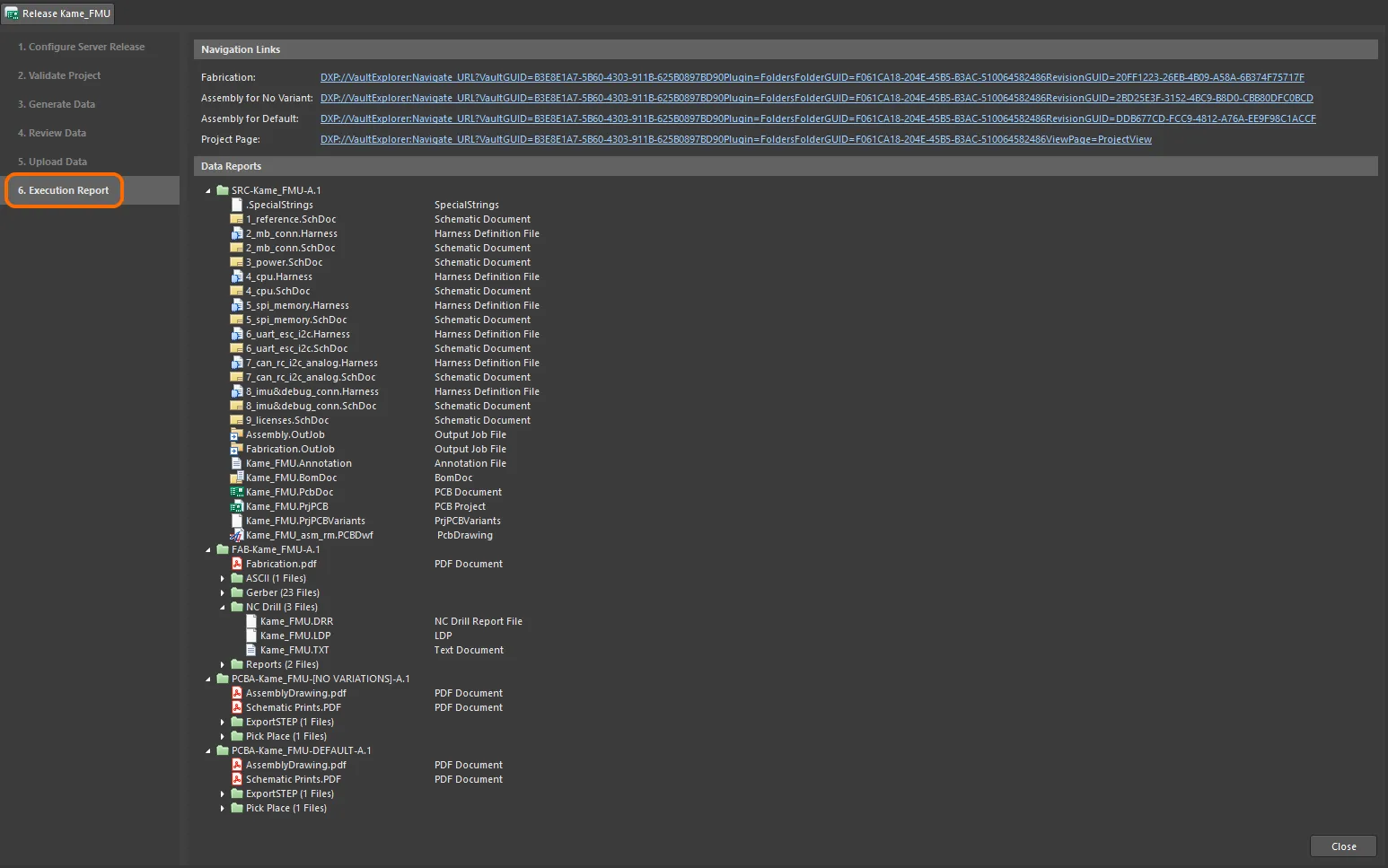
The final report for the release.
Use the Navigation Links to quickly access the associated Item Revision, containing the released data (Fabrication Data, Assembly Data, and any Custom Data sets), in the Explorer panel – your portal to your Workspace.

Viewing the released data for the project, directly in the Workspace, courtesy of the Explorer panel.
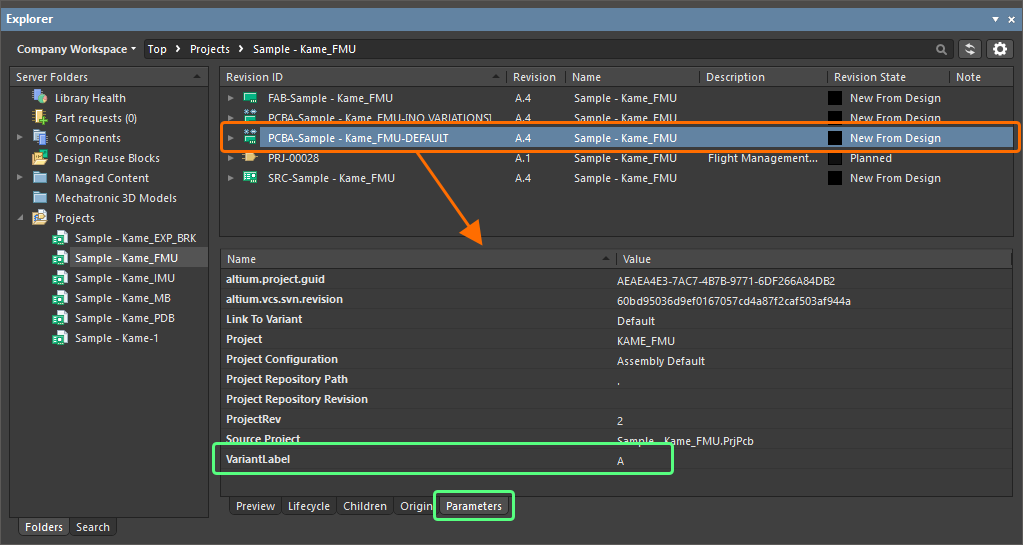
Viewing the Released Project
For a Workspace project, you have one extra piece of functionality available to you after the release is complete. By clicking on the Project Page link, the last of the Navigation Links at the top of the Execution Report page, you will open the Explorer panel, presenting the project in the Project View – only available for Workspace Projects.
 button, at the top-right of the Explorer panel.
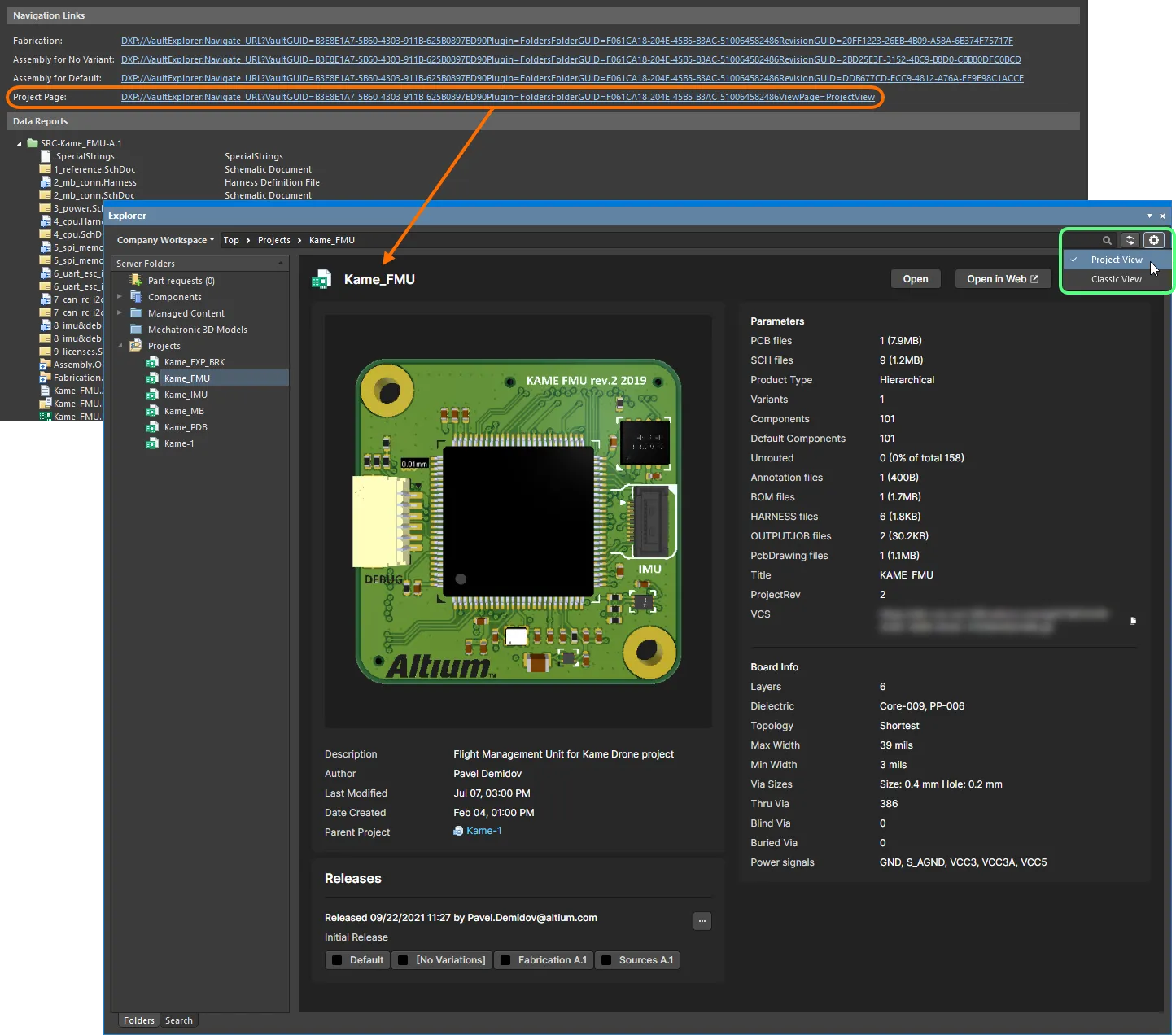
You can explore a Workspace project in the Explorer panel in more detail, courtesy of the Project View.
The Releases region (at the bottom left of the view) will display a compilation of the project release(s) associated with the project, which includes a summary of each release and its constituent packages. Click the  button in this region to open the Batch state change dialog, which you may use to change the lifecycle state of multiple items related to the same release, at once in a single batch process.
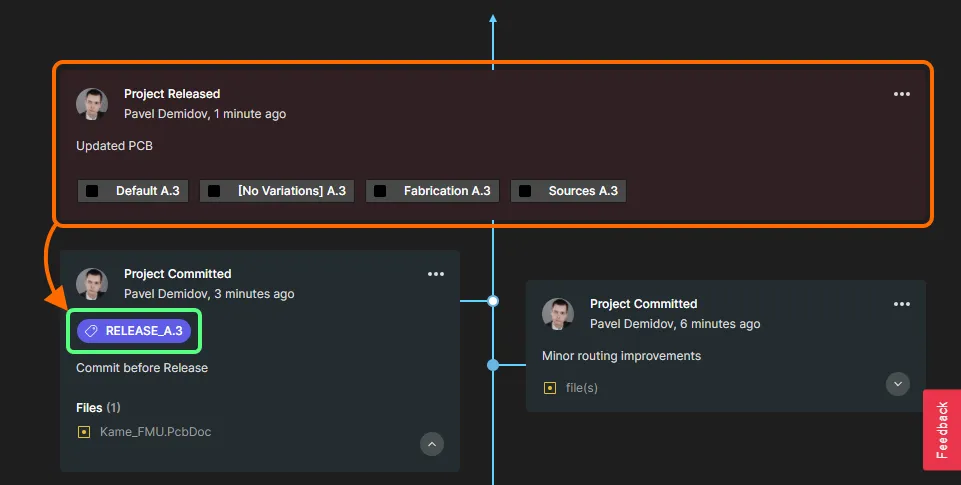
Further access to project Release information is available in the targeted Workspace's Web Viewer, opened via the Explorer panel's  button. Within a Workspace's Web Viewer, all releases associated with the project can be accessed in the Releases view – or in the Manufacture view for Workspace provided by an on-site server. The page lists all project releases, with the newest entry at the top, where an individual release can be opened in the Workspace's Manufacturing Portal from its open button (
 ). The Manufacturing Portal view provides more detailed information on the selected Release, which includes its constituent release package files, the full set of design documents, and component Manufacturer and Supplier details. Note that the Send to Manufacturer feature is available in an Altium 365 Workspace only. ► See the Altium 365 Workspace Releases View page for more information.
That's it – with your project released, you can simply close the Release view (using the  button at the bottom-right of the view). And when you need to re-release the same project in the future, the Project Releaser facilitates this quickly and easily, and increments the target Item-Revisions automatically.
Publishing to a PLM Instance
Related pages: PLM Integration (Altium 365 Workspace, Enterprise Server Workspace), Publishing to a PLM
You have the ability to publish a design to a PLM instance, as part of running the Project Releaser in Altium Designer. The publishing operation uses a publishing template – defined as part of that PLM instances' integration configuration – to control how data should be propagated to the PLM. This feature is available through an appropriately configured process. A sample process definition is provided as part of the installation – Project Releaser with Publish – whose underlying workflow enables publishing to the integrated PLM instance as an additional stage of the Project Releaser. The workflow diagram is shown below.
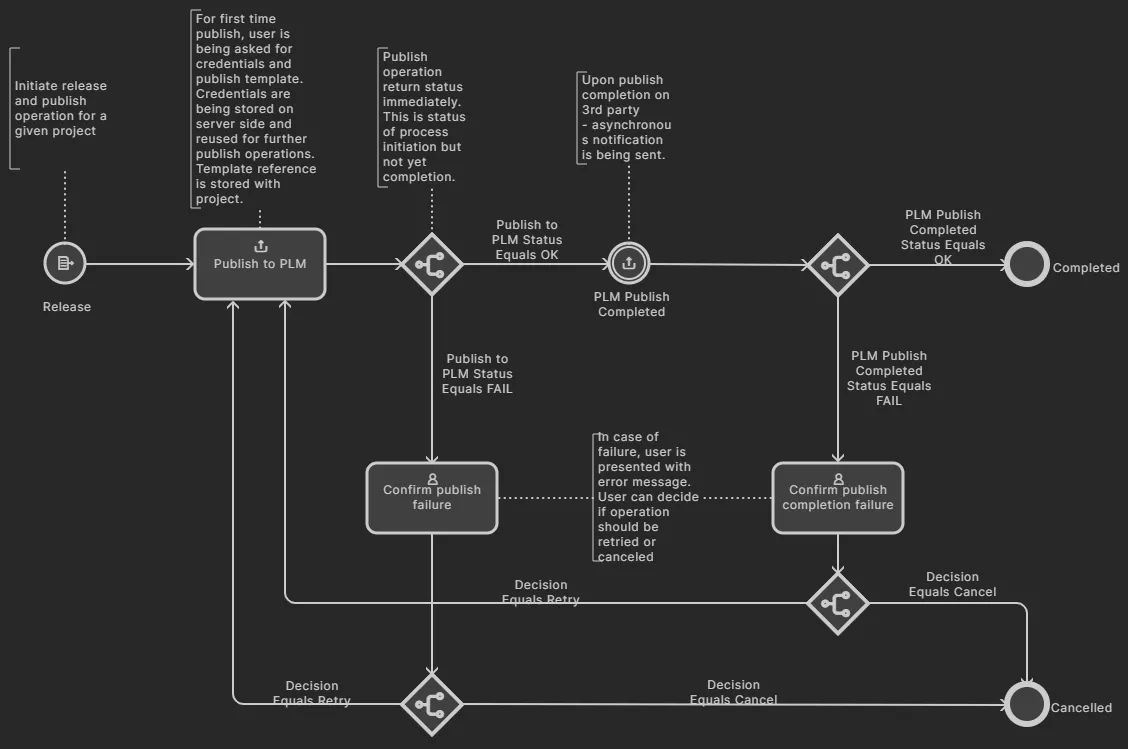
The workflow diagram of the default Project Releaser with Publish sample process definition
Once activated, the process for publishing to a PLM instance as part of the Project Releaser can be accessed from within Altium Designer from the Project » Project Releaser sub-menu for the active project or from the Project Releaser context sub-menu, accessed by right-clicking on the entry for the design project in the Projects panel.
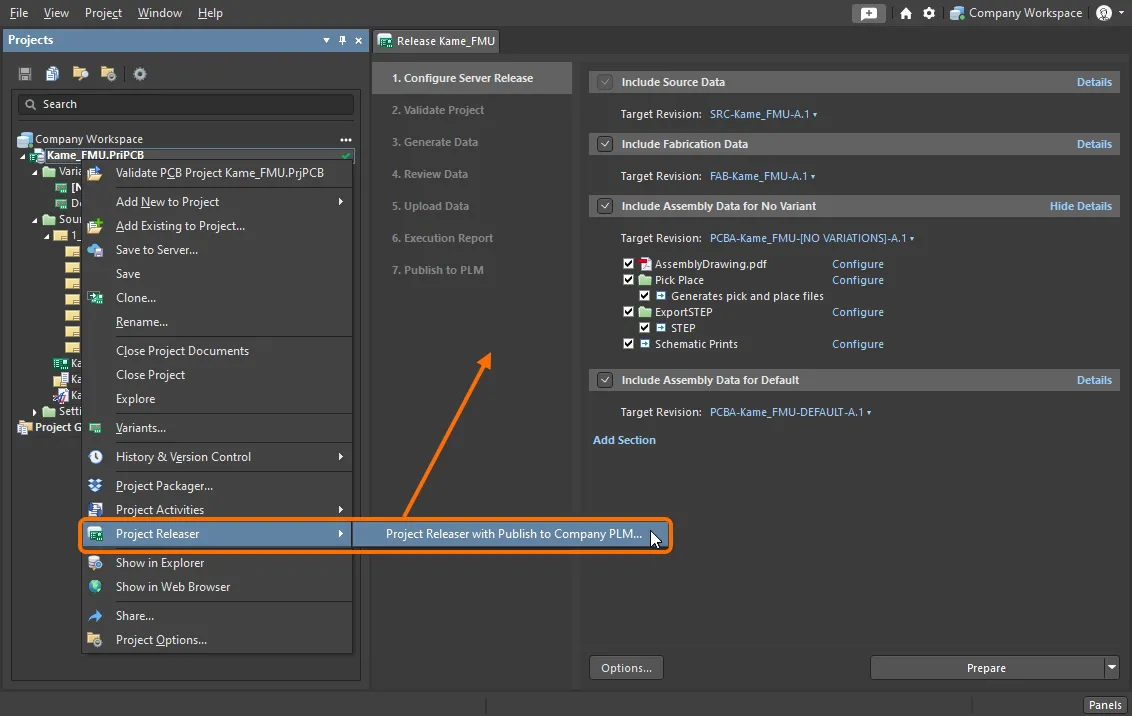
Accessing the process for publishing to a PLM instance as part of the Project Releaser
The Project Releaser will appear, with an additional stage – 7. Publish to PLM. In addition, a command is available from the menu associated to the button – Prepare & Release & Publish to PLM – should you wish to run the Project Releaser without stopping to review the generated data and execution report.
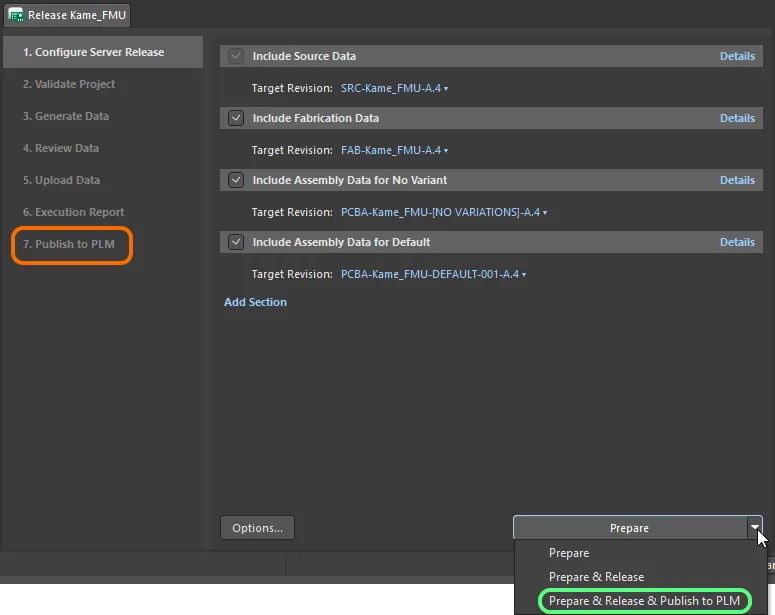
An additional command for running the Project Releaser without stopping to review the generated data and execution report
If you run the Project Releaser with the standard Prepare command, after reviewing and releasing the data, the button will be presented at the Execution Report stage. Click this to continue the underlying workflow for the process, to publish to the PLM. The Login Credentials dialog will appear. Enter the Username and Password for your PLM instance, and select the PLM Template you want to use (which appears in the form <PLMInstance>:<PublishingTemplate>).
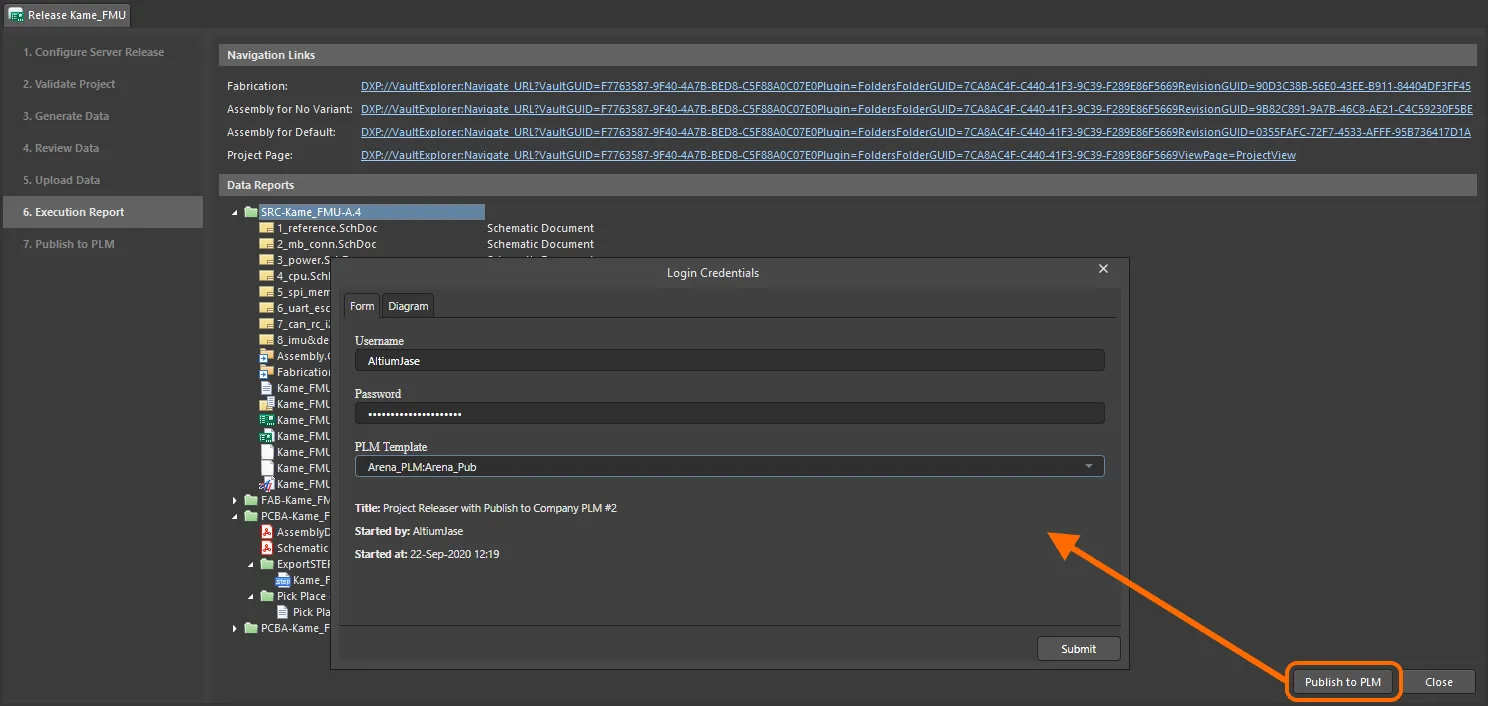
The Login Credentials dialog accessed during the first publishing to the PLM instance.
Click on the Diagram tab to see the underlying workflow for the process.

The Diagram tab of the Login Credentials dialog
Click the  button to proceed with the publishing process, in accordance with that workflow.
 control above the listing of projects, and choosing the Open entry on the associated menu. Alternatively, double-click directly on the required project entry in the list. The page will open in a new browser tab. You will always be able to see exactly what has been created, such as part numbers in the PLM instance, as part of the process workflow's history (History tab).