Controlling Access to Workspace Content
A connected Workspace provides secure handling of data with high integrity while providing your team access to that data as needed. This aspect, of whom can access a Workspace, and more importantly what data they are allowed to access, is facilitated by the Workspace's user access control and sharing capabilities. These can be broken down into the key areas described below.
| User Management | Which people are able to connect to the Workspace (through Altium Designer or an external browser). Management of users, as well as defined groups, is performed using the Workspace's browser-based interface. This can be done from an external browser. For detailed information, read more about managing your Workspace membership (Altium 365 Workspace, Enterprise Server Workspace). |
|---|---|
| Folder-level Sharing | Providing the ability to control who is able to see what content in the Workspace by sharing Workspace folders. This allows control over whether other users can simply view a folder and its content, or also edit it (effectively releasing/committing/uploading design data into it). A single connected Workspace can be partitioned into various effective 'zones' of content, but with controlled folder-level permissions, the content can be made selectively visible, or hidden, as required, giving the right people, the right access, to the right data. |
| Item-level Sharing | Providing the ability to control who is able to see which Items in a shared folder. Think of this as a finer level of sharing, in contrast to the coarser level of sharing provided through folder access control. Provided a user has access to the folder itself, they will then be able to view/edit (as permitted) Items within that folder that are shared with them. |
| Item Revision-level Sharing | Providing the ability to control who is able to see which revisions of a shared Item. Think of this as the finest level of sharing. Provided a user has access to a parent Item itself, they will then be able to view/edit (as permitted) revisions of that Item that are shared with them. |
This document takes a look at the sharing capabilities of a connected Workspace from within Altium Designer. For information about sharing capabilities through the Workspace's browser-based interface, see Managing Content Structure & Access (Altium 365 Workspace, Enterprise Server Workspace).
Accessing Sharing Controls
Controls for sharing a Workspace folder, Item, or Item Revision from within Altium Designer are accessed through the Explorer panel, from the associated properties dialog. Refer to the sections below for more information.
Accessing Folder Sharing Controls
A connected Workspace supports the ability to 'share' Workspace folders – facilitating connection to, and access of, Workspace content of a particular nature. By sharing folders, design content in a Workspace can be easily partitioned and shared with others.
A folder in a Workspace can be shared on a number of different levels, in effect defining both the level of visibility of that folder and the level of security for access to it. This can range from being strictly private access by specified individuals or groups, through to levels for allowing anyone in the same organization to view or change content respectively.
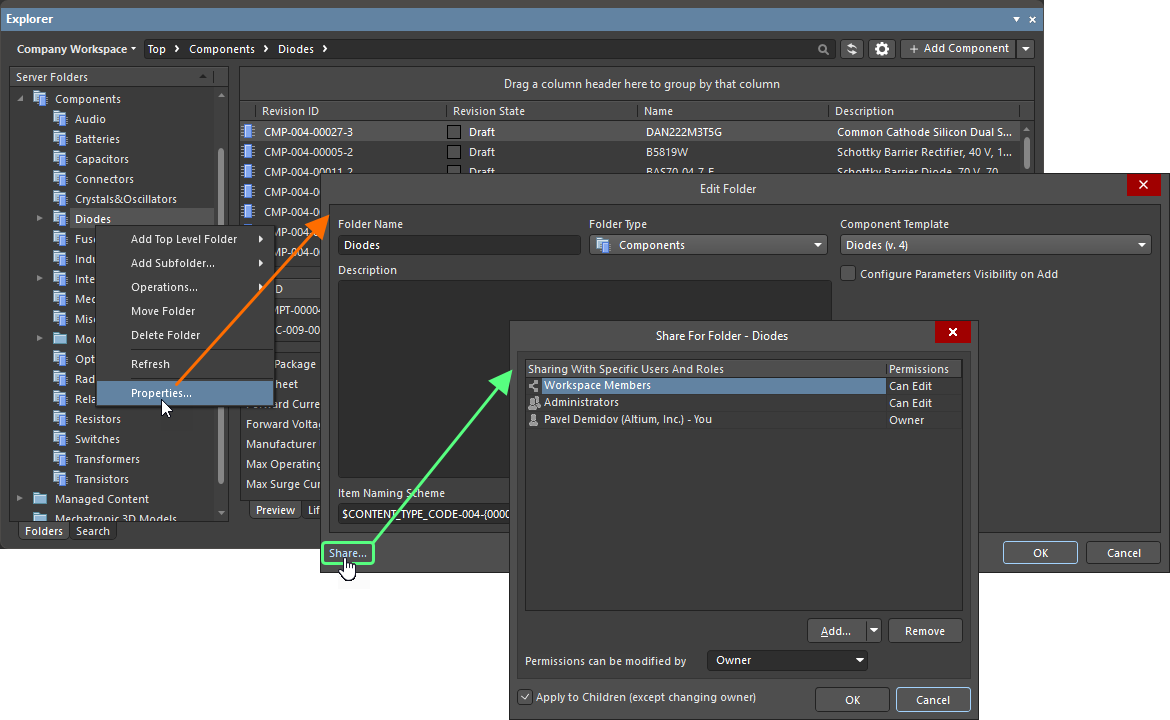
Sharing permissions for a folder can be set up at the time of adding the folder, or at any stage after its creation. Sharing controls are accessed through the Explorer panel, from the folder's associated properties dialog (right-click on the folder and choose Properties from the menu), by clicking the Share link at the bottom left of the dialog. The Share For dialog will open in which you can configure sharing as required.
Accessing Item Sharing Controls
Sharing a folder within a connected Workspace is one thing, but sharing the data within that folder is another altogether. For example, a folder may be in use by two teams, with content from one team not intended for general consumption, while the other team's data is public-facing. Certain data – more specifically the Items and revisions thereof – is therefore required to be hidden, while still allowing applicable users to see the remaining content. In support of this, a connected Workspace supports the ability to share Items within Workspace folders, offering a finer level of sharing when it comes to the actual data in a Workspace.
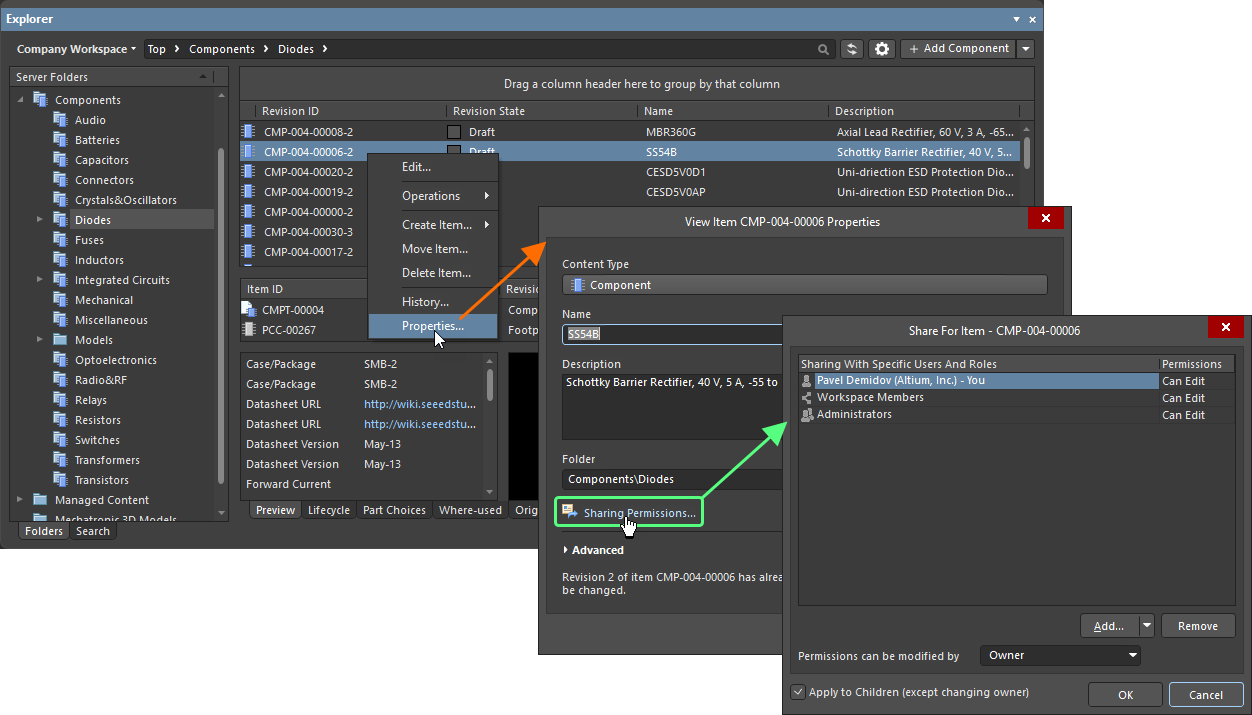
Sharing permissions for an Item can be set up at the time of creating the Item, or at any stage after its creation. Sharing controls are accessed through the Explorer panel, from the Item's associated properties dialog (right-click on Item and choose Properties from the menu), by clicking the Sharing Permissions control located below the Folder field. The Share For dialog will open in which you can configure sharing as required.
Accessing Item Revision Sharing Controls
As with folders and Items, an Item Revision in a connected Workspace can also be shared with permitted users/groups.
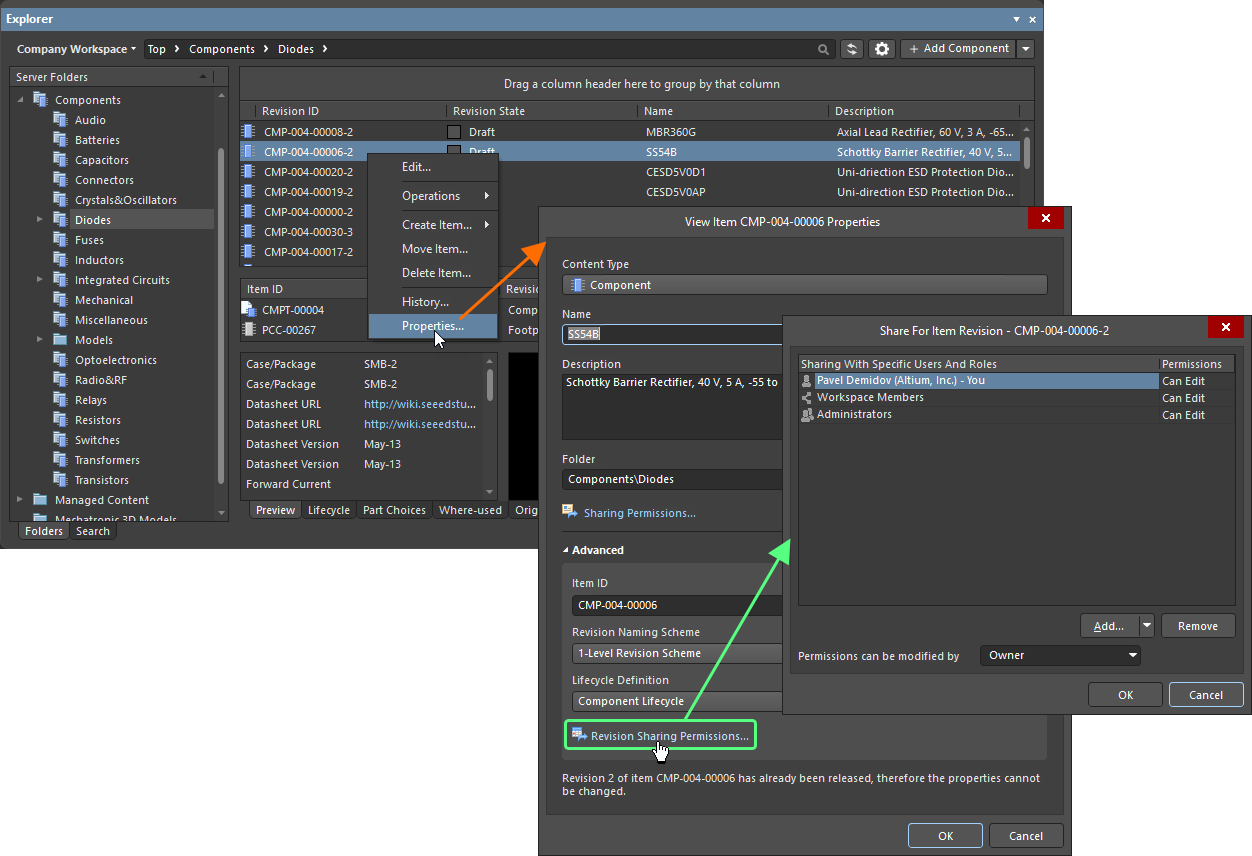
Sharing permissions for an Item Revision can be set up at the time of creating the parent Item, or at any stage after its creation. Sharing controls are accessed through the Explorer panel, from the Item's associated properties dialog (right-click on Item and choose Properties from the menu). Click the Advanced control to expand the dialog to see the Item's advanced properties, then click the Revision Sharing Permissions link located below the Lifecycle Definition field. The Share For dialog will open in which you can configure sharing as required.
Sharing with Specific Users and Groups
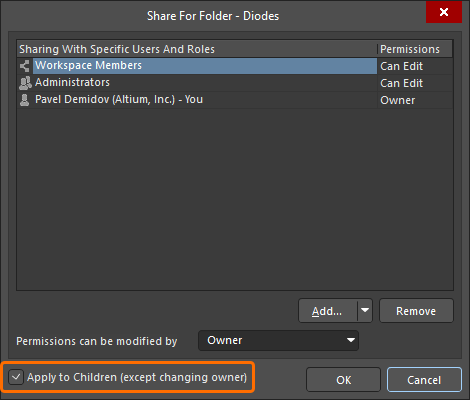
Use the Share For dialog to determine exactly who is allowed to access and 'see' that folder / Item / Item Revision.
The Sharing With Specific Users And Roles column in the grid area of the Share For dialog displays the users and groups with access to the folder / Item / Item Revision. The Permissions column displays the owner and permission rights of other entities. Use the drop-down associated with each user to specify the permissions for that user:
-
Can Edit – has read and write permissions.
-
Can View – has read-only access.
-
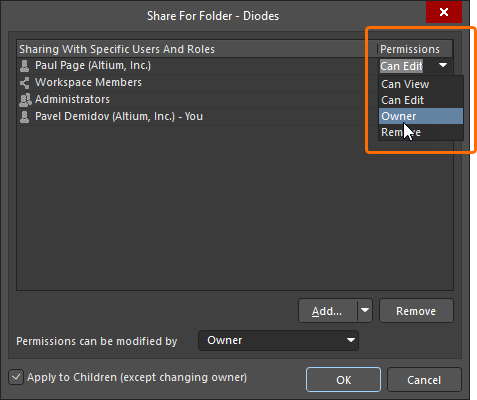
Choose Owner to transfer ownership of the content (learn more).
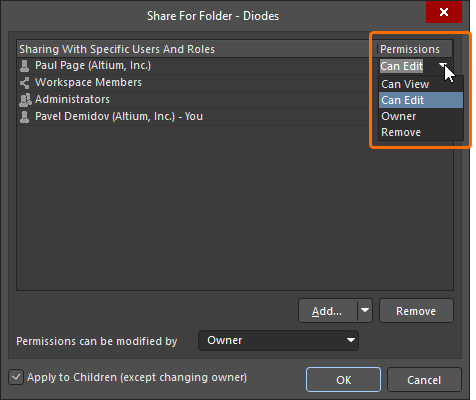
To add a new entity to the list of those who has access to the folder / Item / Item Revision, click the  button and use the Add User and/or Add Role options to access dialogs with which to search for and select an existing user/group to add it – ultimately creating a specific access list for sharing the content. Enter the target username/email or group name for the search. The results from your search will be shown below.
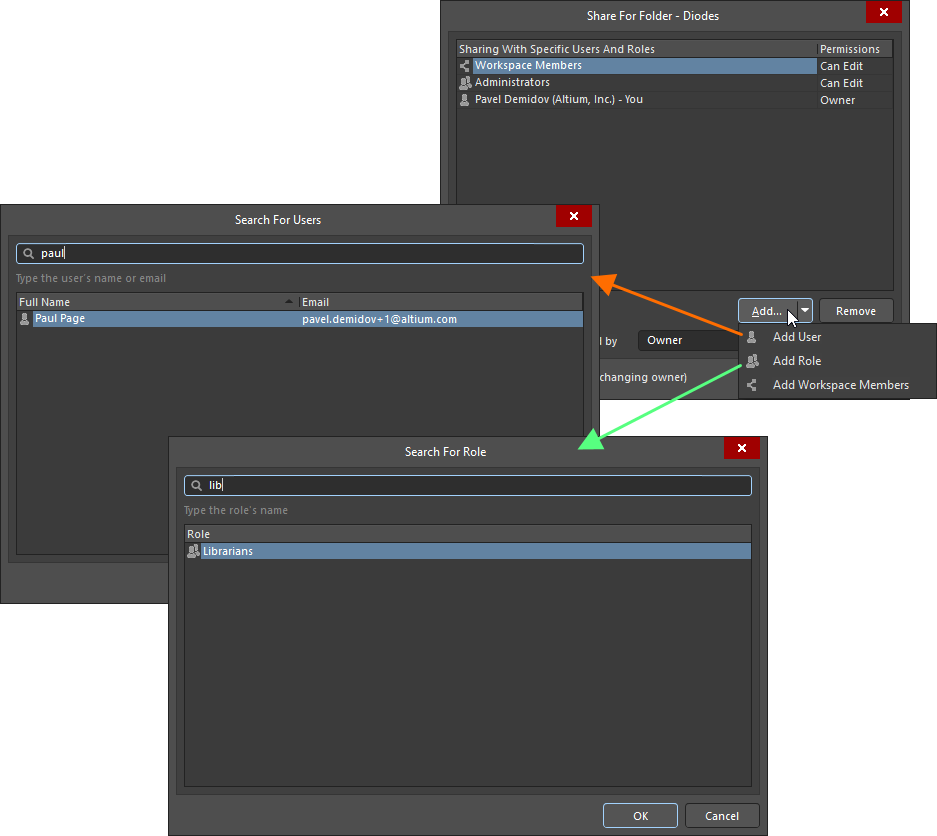
Example of adding a user and a group
By default, an added user/group will have Can Edit permission, giving users/groups Read/Write access.
Things to be aware of:
-
The owner of the folder (the user who created it) will always have full access to all content that the folder holds. Similarly, the owner of the Item or Item Revision will always have full access to the Item or Item Revision. As such, an entry for the
Owneris added by default to the list of specific users and groups and cannot be removed. If required, the owner can be changed to another user – learn more. -
To remove a listed entity, select it in the list and click the
 button. Alternatively, select Remove from the entity's drop-down in the Permissions column.
-
If you want all users of the connected Workspace to have access to the folder / Item / Item Revision, use the Add Workspace Members (Altium 365 Workspace) / Add Anyone (Enterprise Server Workspace) option of the
button. Adding anyone indicates that there are virtually no permission restrictions on this folder / Item / Item Revision.
-
If an Item in a Workspace folder is shared with a given user, but the folder itself is not, then the user will not be able to 'see' that Item when browsing the Workspace's content.
-
When configuring sharing through the Explorer panel, users and groups that are newly added will not be finalized (saved) until clicking OK in both the Share For dialog AND the Add Folder / Edit Folder / Item Properties dialog.
 ).
).Transferring Workspace Content Ownership
The owner of a folder, Item, or Item Revision in a Workspace can be changed by the current owner or an administrator of the Workspace. When the folder, Item, or Item Revision is shared with a user, use the Owner option from the drop-down in the Permissions column for the user's entry and confirm the change in the Transfer Ownership dialog that appears. The transferee will receive an email notification.
Specifying Who Can Change Permission Settings
When configuring sharing through the Explorer panel, the owner of the folder, Item, or Item Revision or an administrator for the Workspace can specify the sharing control for that folder / Item / Item Revision – who is allowed to change the permissions for it. This is performed from the Share For dialog, using the Permissions can be modified by field.
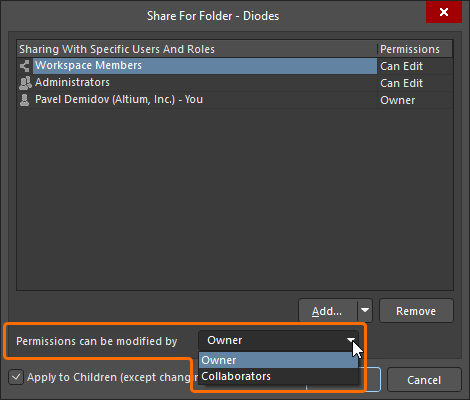
The following levels of control are supported:
-
Owner – only the owner of the folder / Item / Item Revision can change the permissions. Editors cannot change access permissions.
-
Collaborators – editors have full control to manage access permissions for the folder / Item / Item Revision.
Descendant Permissions
Permissions defined for a folder or Item can be applied to children (sub-folders, Items, and Item Revisions) by enabling the Apply to Children (except changing owner) option in the Share For dialog. When this option is enabled, the same users, groups and permissions (except changing the owner) will be applied to any children. This allows a specified user (or group) to be able to see all content under the folder/Item being shared. Conversely, by having this option disabled, a user will only be able to see the folder/Item – child entities will be unavailable unless explicitly shared. Adjustments can always be made for specific Items (or revisions) at those lower levels.