Design Rule Check (DRC)
Updated: October 08, 2026
Design Rule Checking (DRC) is a powerful automated feature that checks both the logical and physical integrity of a design. Checks are made against the Design Rules in real-time as you design, or as a batch process.
Design Rule Checking is an integral part of the design process and should be used on every finished board design. It is particularly recommended that a batch mode design rule check is always performed prior to generating final artwork.
Elements of the Design Rule System
The design rules system is a core part of the PCB editor. It is this system that controls how the design translates from a logical concept into a physical entity. To achieve this, the design rules system includes: a mechanism to define the design requirements, features for testing the design against those requirements, techniques for displaying any violations detected, and features to report on and locate those violations.
To deliver this, the design rules system includes these elements:
Elements of the Design Rule System
|
| Design rules |
Collectively the design rules define the constraints for a board, ensuring that objects remain within design requirements and tolerances. There are two approaches to defining the design constraints; either by working directly with the design rules in the PCB Rules and Constraint Editor, or by configuring them in the spreadsheet-like Constraint Manager.
|
Online DRC
(Design Rule Check) |
By default, the design rules are checked as you work, using a feature known as online DRC. For online DRC to function:
-
The overriding Online DRC option must be enabled in the preferences (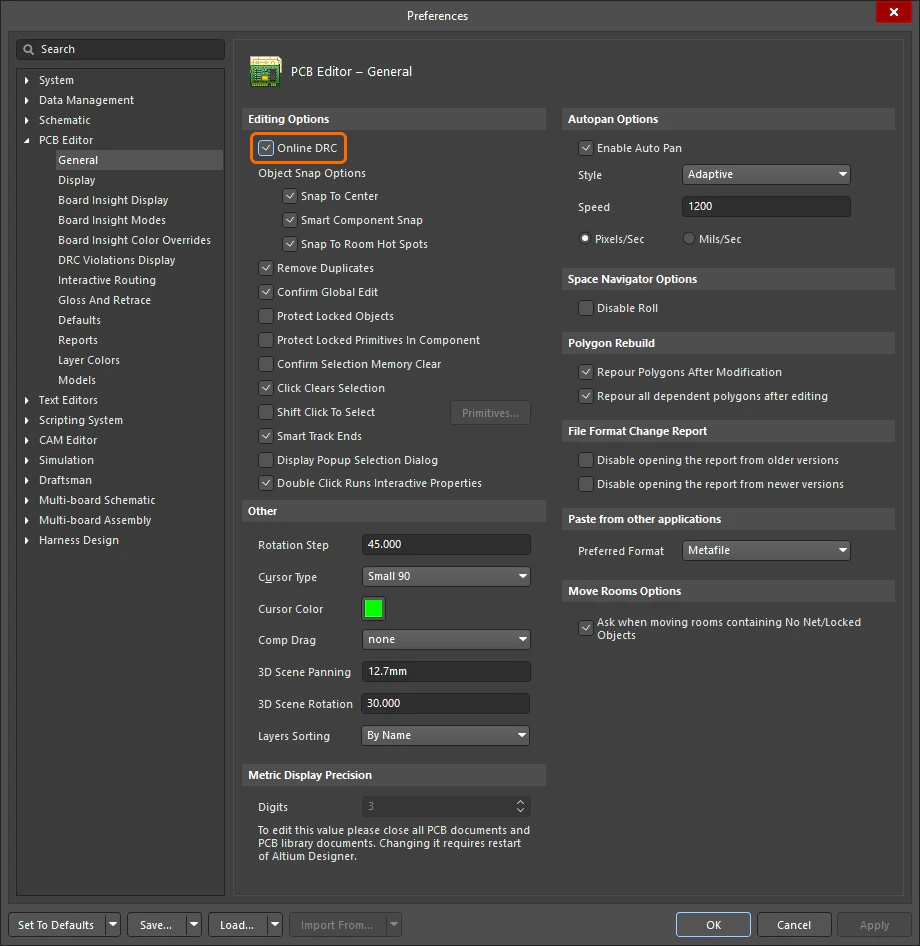 ). ).
-
The on/off switch for each rule to be monitored online is configured in the Design Rule Checker dialog. Learn more about Setting Up & Running a DRC.
|
| Batch DRC |
Batch DRC is the name given to the process of running a design rule check on the entire PCB. As well as checking enabled rules it can also perform a number of other tests, and also generate a report.
-
Perform a batch DRC from the Design Rule Checker dialog at any point in the design process, enabling and disabling the rules to check as required. Learn more about setting up and Performing a Batch DRC page.
-
A batch DRC can also be performed by an Output Job Configuration file (*.OutJob), by adding a new Design Rules Check in the Validation Outputs grouping of outputs ( ). Note that there is no separate configuration dialog for a Design Rules Check performed as part of an OutJob validation report. The checking is performed using the settings currently defined for the PCB document in the Design Rule Checker dialog. Learn more about Output Job Configuration files. ). Note that there is no separate configuration dialog for a Design Rules Check performed as part of an OutJob validation report. The checking is performed using the settings currently defined for the PCB document in the Design Rule Checker dialog. Learn more about Output Job Configuration files.
-
A batch DRC can also be performed during Design Release. Using validation reports defined in an assigned Output Job file, the software provides the ability to validate the design as an integral part of its design release process. These validation checks will be performed on every release, and the release will fail if any validation checks are not passed successfully ( ). Learn more about Design Project Release. ). Learn more about Design Project Release.
-
DRC (and ERC) violations can also be examined in the Altium 365 Web Viewer. Note that the DRC violations reported in the web viewer are based on the enabled design rules, not the enabled online or batch DRC settings configured in the Design Rule Checker dialog. Learn more about DRC and ERC reports in the Web Viewer (Altium 365 Workspace, Enterprise Server Workspace).
|
| Displaying violations |
Altium Designer supports two distinct methods of displaying violations in the graphical editing space, using either an icon at the location of the violation, or by highlighting the entire primitive in violation.
-
Violation Detail Marker – a small violation-specific graphic marker is placed on or adjacent to the location of the violation. Each violation type has a unique graphic to indicate what that violation is (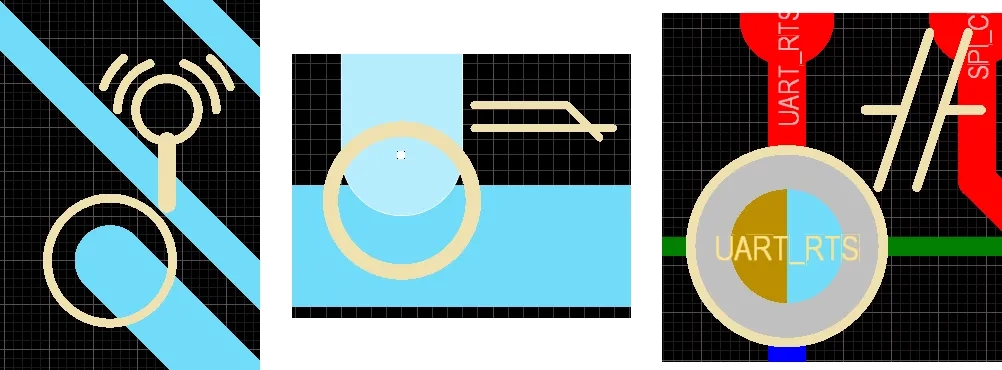 ), and where practical, includes information about the violation ( ), and where practical, includes information about the violation (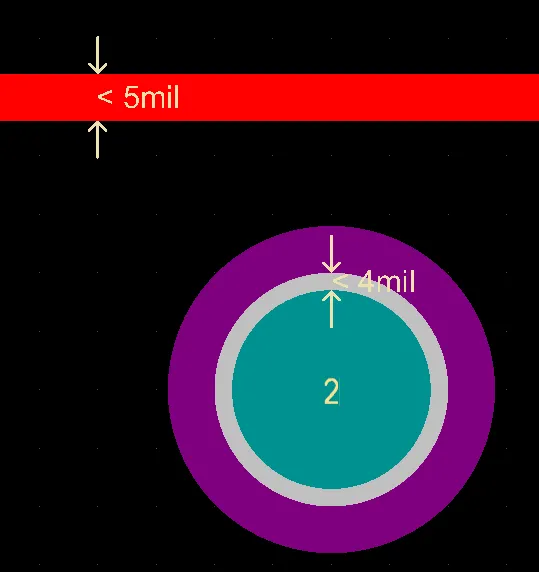 ). ).
-
Violation Overlay – the entire primitive in violation is marked with a colored overlay (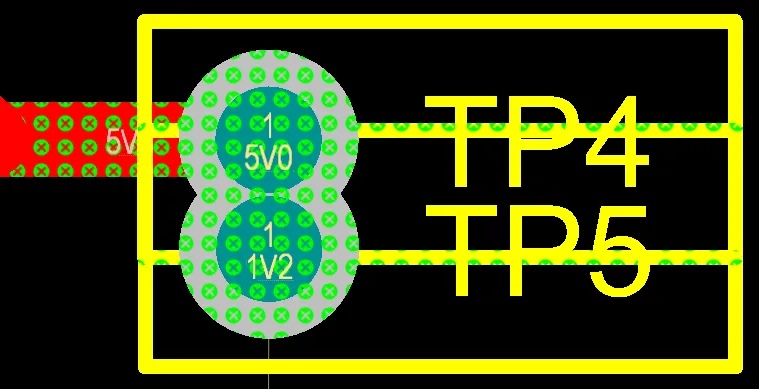 ). You can also configure how strongly the overlay displays as you zoom in and out. ). You can also configure how strongly the overlay displays as you zoom in and out.
These options are configured in the PCB Editor – DRC Violations Display page of the Preferences dialog (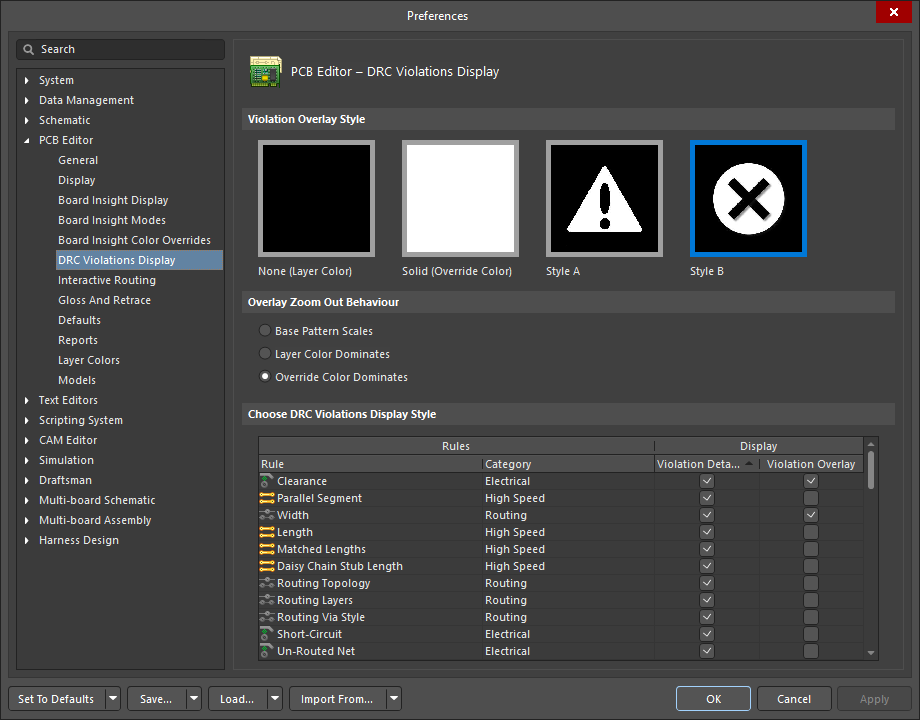 ). Learn more about the violation display preferences. ). Learn more about the violation display preferences.
|
| Resolving violations |
There are multiple places that violations are detailed:
-
PCB Rules and Violations panel – purpose-built for managing design rules and examining violations in the board design space. From the panel you can browse and edit rules, run a design rules check, jump to a violation in the design space, and access more details about the violation. Learn more about the PCB Rules and Violations panel.
-
In the design space – right-click on a violation in the design space to access details about that violation in the Violations submenu, or press Shift+V when the cursor is over a violation to display the Board Insight panel. The panel details the rule being violated and the primitive(s) involved. Learn more about working with violations in the design space.
-
Messages panel – all detect violations are detailed in the Messages panel, double-click on a violation to cross-probe to it.
-
DRC Report – a report file can be generated as part of the batch DRC process, detailing all detected violations. Learn more about setting up the DRC report.
Learn more about interrogating and resolving design violations.
|
If you find an issue, select the text/image and pressCtrl + Enterto send us your feedback.
