
PCB Design Rule Types
At a Glance
- Understand what the PCB design rules system does, how it guides the editor, and why rules are central to object behavior and design checking.
- See how Altium Designer organizes rule types into distinct categories, making it easier to locate the constraints relevant to your layout work.
- Learn the difference between using the PCB Rule and Constraints Editor dialog and the Constraint Manager, and why understanding the underlying rules system still matters.
 Underlying the PCB editor is the design rules system, which uses the concept of rules, or constraints, to define the requirements of a design. Collectively known as the design rules or design constraints, they collectively form an instruction set for the PCB editor to follow. The design constraints cover every aspect of the design – from routing widths, to clearances, to power plane connection styles, to routing via styles, and so on.
There is a total of 65 different types of design rules or constraints, divided into 10 categories. Note that design rules have different purposes, some are used to define the properties of the object during placement as well as during design rule checking, such as the routing via style, while others are simply instructions for the autorouter (routing layers). Each rule description includes a Rule Application section that details when that rule is applied.
Each time you place or edit an object in the graphical design space, the PCB editor checks with the rules system to find out what constraints apply to that object – how wide it should be, how far it must be placed from adjacent objects, and so on. At the lowest level these requirements are defined as design rules (or constraints), not as attributes of the objects.
Altium Designer supports two approaches to defining the design constraints, either by working directly with the individual design rules in the PCB Rule and Constraints Editor dialog, or by configuring the constraints in the object-centric Constraint Manager.
How the Constraints (Rules) are Defined |
|
| Using the PCB Rule and Constraints Editor | The advantage of the PCB Rule and Constraints Editor approach is that it is rule-centric – focus first on the requirement, then what objects you want those requirements to apply to. Note that the design rules must be defined in the PCB editor, with limited support for defining them during schematic capture. Another advantage of the PCB Rule and Constraints Editor approach is that it supports reusable Rule Sets. Rule sets can be created, duplicated, enabled or disabled, renamed, deleted, imported, and exported, making it easier to manage rules for specific interfaces, manufacturing requirements, or unique design constraints. |
| Using the Constraint Manager | The advantage of the Constraint Manager approach is two-fold. Firstly, it supports an object-centric approach in a spreadsheet-like editor – for this set of nets, I want to apply these requirements. Secondly, because the design constraints are stored outside of the PCB file, the Constraint Manager supports defining the design requirements as soon as you start drawing the schematic. |
| Choosing the approach | The approach used to define the design requirements – either the Constraint Manager or the PCB Rule and Constraints Editor – is chosen when the project is first created, when you select (or not select) the option to use the Constraint Manager in the Create Project dialog. Learn more about Defining Design Requirements Using the Constraint Manager. |
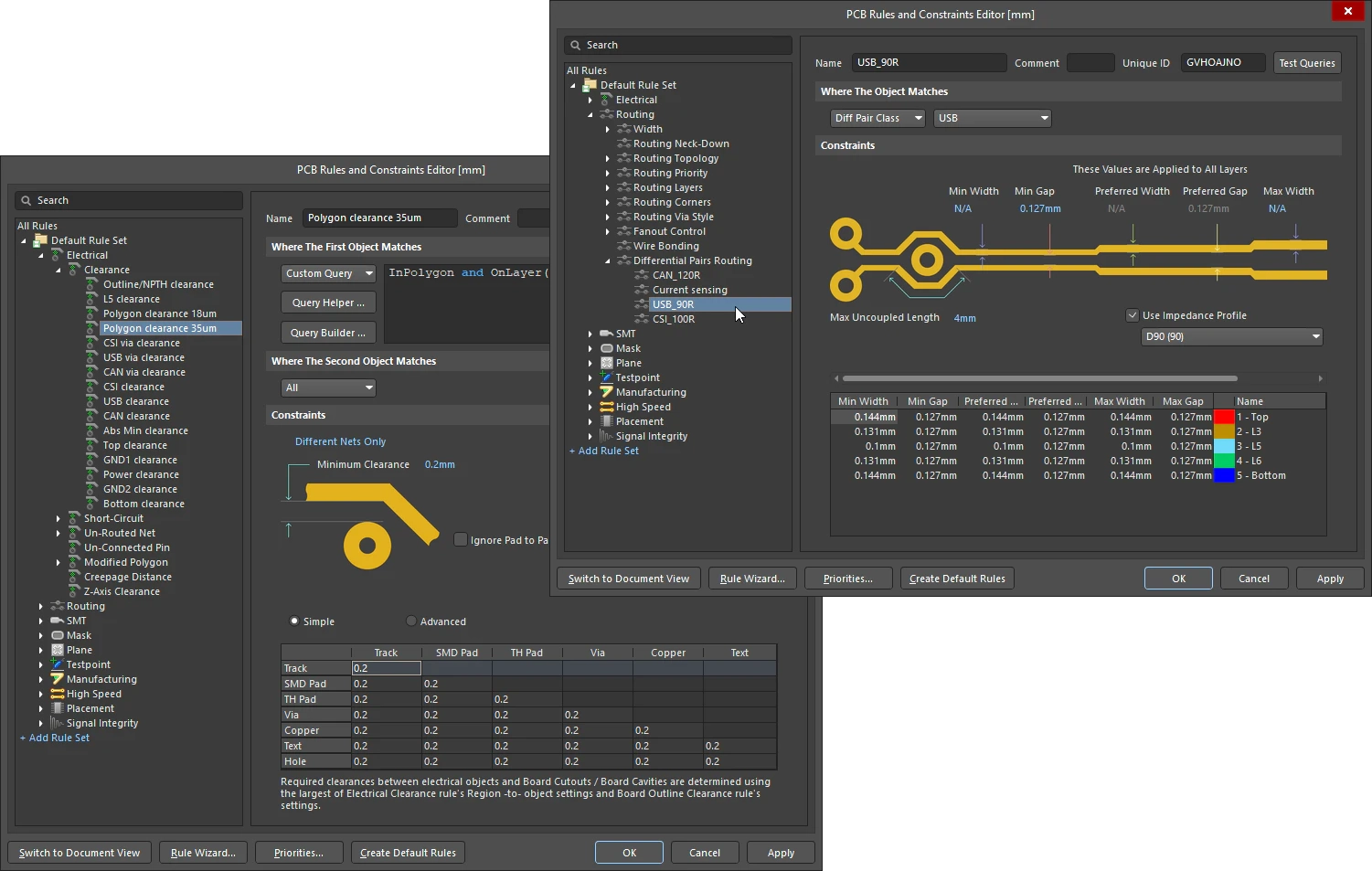
| How are the rules defined? | Need to check which approach is being used for a PCB? Open the Design menu where you will see either the Rules command ( |
| Do I need to understand the rules? | Even if you plan to use the Constraint Manager to define and manage the design requirements, it is still important that you understand how the underlying rules system works because ultimately, the constraints you configure in the Constraint Manager are translated into design rules before they are interpreted by the underlying PCB editor rules system. |
 )
)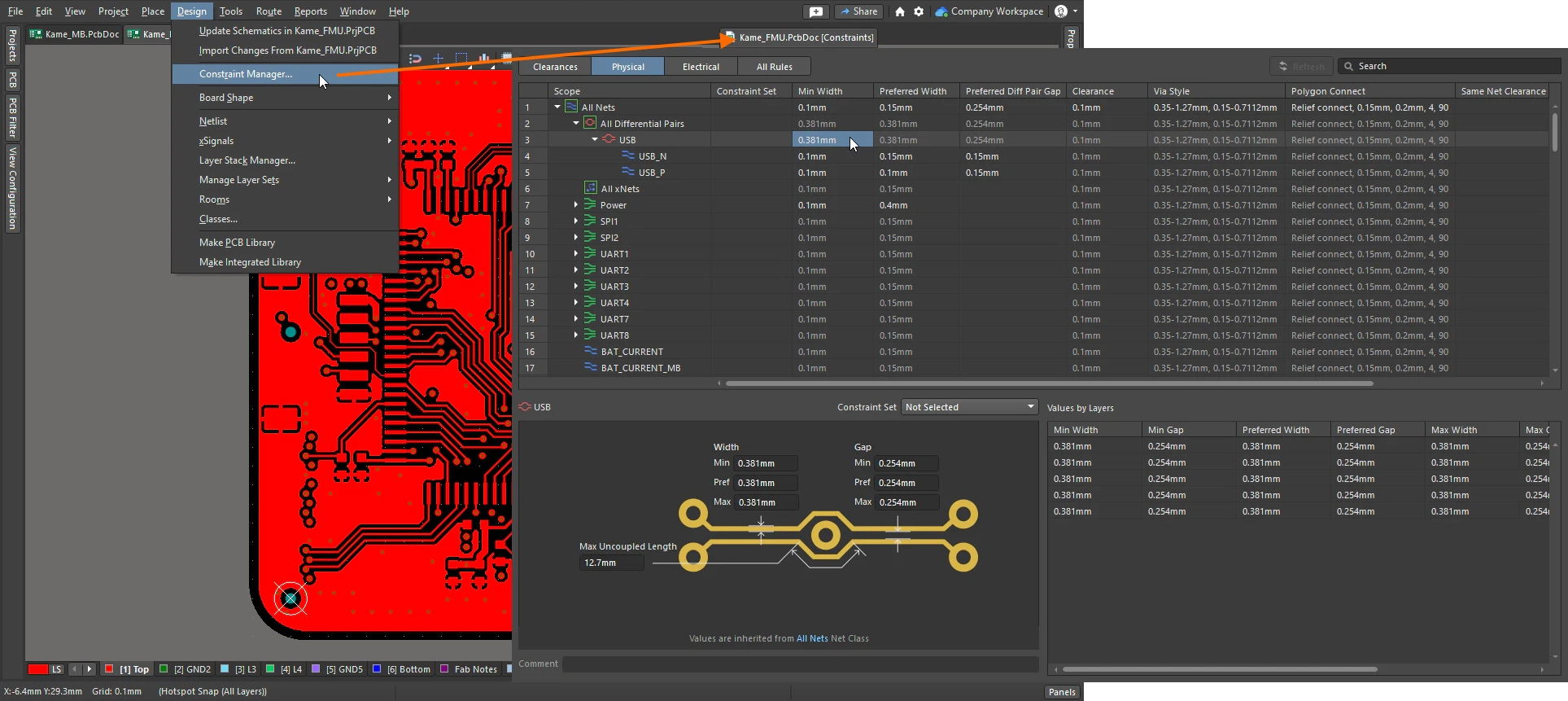 ).
). 
The Design Rules are divided into logical categories to make it easier to locate and configure the required rule(s). The individual rules are described on the following pages: