Mirroring a Project in the Workspace Using Simple Sync
Updated: September 08, 2023
The recommended and most powerful method to work with projects is to create a new project directly within the connected Workspace or make an existing project available in the Workspace while opting to enable the Workspace's version control. In this case, the project will be stored and managed through the Workspace’s native Version Control System (VCS).
However, a new project or an existing project that is not under version control or is under external version control can also be registered with your Workspace using a methodology called Simple Sync. In this case, a mirror of your project is created in the Workspace and synchronized. The strength of Simple Sync comes when you do want to take advantage of Altium 365's Global Sharing paradigm and be able to share that design with multiple other people for viewing and commenting while keeping your original project right where it is. However, bear in mind that for a local design project (not under external VCS), that project can be edited by a single person only (the owner of that project – the one who created it or made it available to the Workspace).
-
Note that the ability to mirror a project in a Workspace (Simple Sync) is available only when connected to an Altium 365 Workspace.
-
Note that projects larger than 200 MB cannot be made available in the Workspace using the Simple Sync feature.
Mirroring a Project
To mirror a project in the connected Altium 365 Workspace using the Simple Sync arrangement, use the following approaches:
-
When creating a new project – disable the Version Control option in the Create Project dialog. When the project is created, its entry will be shown in the Projects panel with the  icon only. Saved local files are automatically synchronized with their mirrored project counterparts in the Workspace.
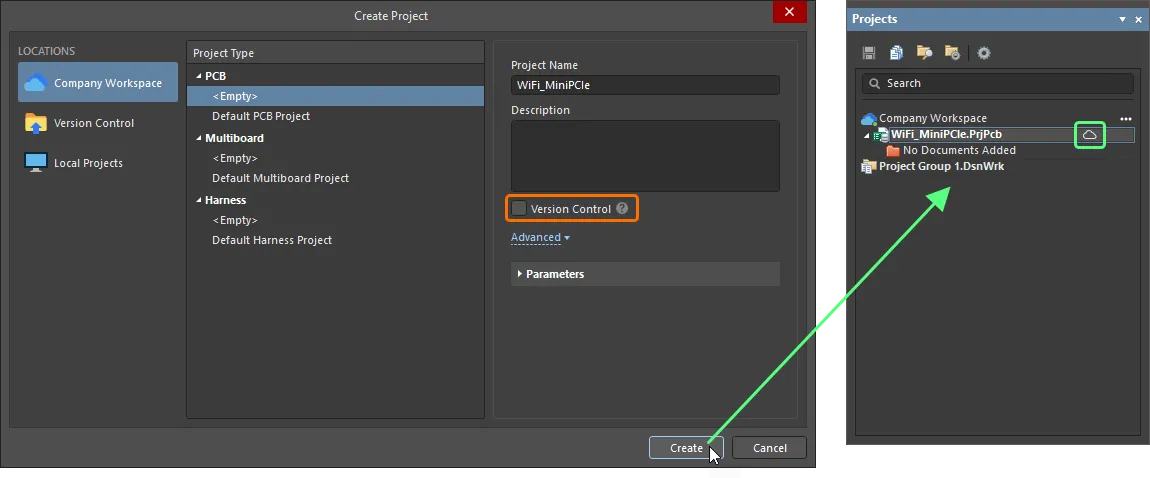
-
When making an existing project that is not under external version control available in the Workspace – disable the Version Control option in the Make Available Online dialog. When the project is made available in the Workspace, its entry will be shown in the Projects panel with the icon only. Saved local files are automatically synchronized with their mirrored project counterparts in the Workspace.
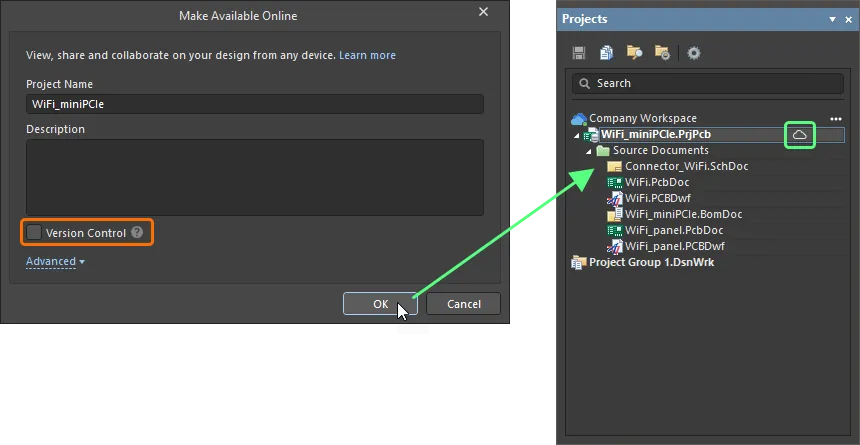
-
When making an existing project that is under external version control available in the Workspace – disable the Migrate to Altium 365 Versioned Storage option in the Make Available Online dialog. When the project is made available in the Workspace, its entry will be shown in the Projects panel with the icon, along with the  icons associated with the project and its documents reflecting the fully synchronized state that exists between the external design repository and the local working copy. Once local file changes are saved and committed/pushed to the external design repository, those changes are automatically synchronized with their mirrored project counterparts in the Workspace.
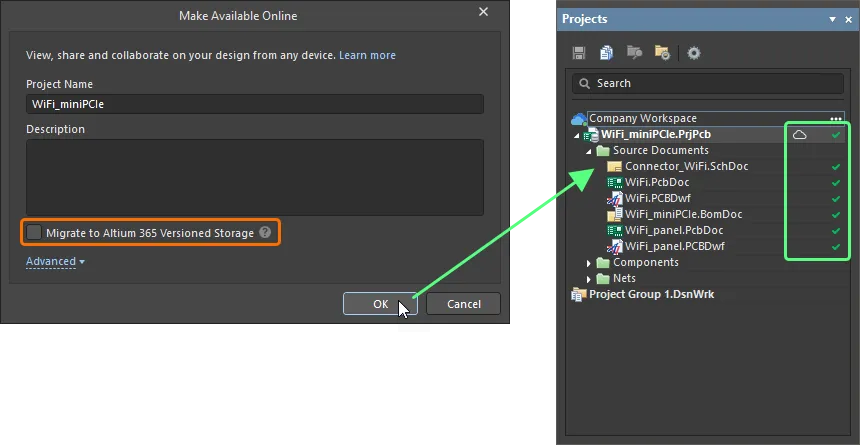
-
The icon indicates the project as being registered with the Workspace, that a mirrored project exists, and that the two are synchronized using the Simple Sync methodology. For information on the various states used by Simple Sync, see Simple Sync States.
-
The mirrored project will subsequently be available from the Projects page of the Workspace's browser interface.
-
The mirrored project will initially be shared for Read/Write access with the designer who created it (Owner) and all Administrators for the Workspace. For more information on configuring project access permissions, see Sharing a Design.
Simple Sync States
Where a project is stored in an Altium 365 Workspace using the Simple Sync approach, the current state of the synchronization between local and Workspace-side projects is presented in the Projects panel through a range of icons. The icons, and their meaning, are as follows:
 |
Synchronized |
The local project and the mirrored project in the Workspace are synchronized. |
 |
Sync-in-progress |
Changes made to the local project are being synchronized to the mirrored project in the Workspace. For a local project not under external VCS, this occurs when saving a local file. For a local project under external VCS, this occurs when saving and committing local file changes to the external design repository.
|
 |
Project is Read-only |
The project has been shared with you, but you have Read-only access to it. Under the Simple Sync methodology, the design project can be edited by a single person only (the owner of that project – the one who made it available online to the Workspace).
|
 |
Not Synchronized |
Changes have been made locally, but these have not been synchronized yet with the mirrored project in the Workspace. This can happen, for example, when the same project is open for editing by the owner/author on two computers (PC1 and PC2). On PC1, the Workspace is subsequently disconnected. On PC2, connection to the Workspace remains and changes are made. On saving the local file(s) the project remains unsynchronized. If you attempt to close the project on PC2, the Closing unsynchronized projects dialog will appear alerting you to this fact. If you choose to close the project, changes will not be available on PC1. To remedy the situation, disconnect from and then reconnect to, the Workspace on PC2. The project will be synchronized with the Workspace. The synchronized data will be reflected on PC1 once the Workspace is connected there too. Alternatively, right-click on the project and choose the Resolve Project Clone Conflict command. The Location of local projects has changed dialog will open. You will have the option to register the existing project as a New Project, where the data from the mirrored project in the Workspace will be used and local modifications will be lost, Move Project, where the data from the local project will be used and synced to overwrite the current data for the mirrored project in the Workspace, or Unregister, which unlinks the project and the data will not be sent to the Workspace.
|
 |
Conflict |
There is a conflict between the data for the local project and the data for the mirrored project in the Workspace. This can happen, for example, when the same project is opened for editing by the owner/author on two computers (PC1 and PC2). On PC1, the project is opened and the Workspace is subsequently disconnected. Changes are then made and local files saved. Later, on PC2, the same project is opened and, while still connected to the Workspace, changes are made and saved. Later still, connection is made to the Workspace back on PC1. A conflict exists because there are changes locally on PC1, but the Workspace contains the updated data from changes made and synced on PC2.
To remedy the situation, on PC1 right-click on the project and choose the Resolve Conflicts command. The Resolve Conflicts dialog will open. You have the option to Use Server files (the data from the mirrored project in the Workspace will be used and local modifications will be lost), or Use Local files (the data from the local project will be used and synced to overwrite the current data for the mirrored project in the Workspace).
|
If you find an issue, select the text/image and pressCtrl + Enterto send us your feedback.
