
Creating & Editing Content
The Items are created directly within a connected Workspace, and all of the data needed to manufacture/represent an Item is then stored in that Workspace against that Item number. Depending on the content type, an Item can be created manually or automatically as part of a save/upload/release process. All content types can be created within Altium Designer through the Explorer panel. When working with components, creation is also possible through the Components panel.

Items are created in a connected Workspace. From within Altium Designer, the Explorer panel provides the full interface to your Workspace.
Creating an Item
Once you have defined the required folders, you can proceed to create the content in the Workspace. To create an Item, select the appropriate folder, then right-click in the Items grid region of the panel and choose one of the commands from the Create Item sub-menu. Alternatively, if the folder is empty, use the Add an item control in the center of the region to access the menu.

Right-click within the Items grid region of the Explorer panel to access commands relating to content creation.
The Create New Item dialog will appear, providing all controls necessary to fully define the Item.

Specify the details of the new Item in the Create New Item dialog.
Options and Controls of the Create New Item Dialog
- Name – enter the name of the new Item.
- Description – use this field to enter a meaningful description of what is represented by this Item.
- Item ID – the unique ID for this Item. The default format of this ID is defined by the Item Naming Scheme employed for the parent folder. The Item ID cannot be changed after the Item is released.
- Content Type – this field lists the content type. A different content type can be selected from the drop-down menu.
- Share Item – click to open the Share For dialog in which you can specify permissions for this new item.
-
Advanced – click to open the advanced version of the dialog to access additional options.
-
Folder – the Workspace folder in which this item is stored. Click
 to open the Choose Folder dialog to select or create a different folder.
-
Ancestor Revision – the preceding revision from which this Item is created/branched. Click to open a dialog to navigate to and select an existing revision. Click Clear to remove the current Ancestor Revision.
-
Revision Naming Scheme – this field determines the scheme employed when assigning Revision IDs. Use the drop-down to choose from the schemes currently defined for the Workspace. Schemes are defined in the Edit Revision Naming Schemes dialog, which is accessed by clicking on the right side of the field. Since schemes are chosen at the Item-level, you can have different schemes applied to different Items. The chosen Revision Naming Scheme cannot be changed after the Item is released.
- Revision ID – the revision of the Item in accordance with the chosen revision naming scheme. This field is read-only.
-
Lifecycle Definition – this field determines which lifecycle definition is used to model the state transitions that an Item-Revision may undergo over time. Use the drop-down to choose from the definitions currently defined for the Workspace. The definitions are defined in the Edit Lifecycle Definitions dialog, which is accessed by clicking on the right side of the field. Since lifecycle definitions are chosen at the Item-level, you can have different definitions applied to different Items. The chosen Lifecycle Definition cannot be changed after the Item is released. The field to the right displays the state of the revision of this Item specified in the Revision ID field. This field is read-only and newly-created Items will always be set to
Planned. - Share Revision – click to open the Share For dialog in which you can specify permissions for this new item revision.
-
Folder – the Workspace folder in which this item is stored. Click
-
Open for editing after creation – enable to open the new item after clicking OK. Doing so allows you to take advantage of the option to edit and release the associated data entity into the initial revision of that item, after creation. Therefore, instead of creating the source data outside of the Workspace and releasing it, you may start working on the source directly from the moment the empty Item is created, courtesy of direct editing. When that editing is complete, the entity is released into the initial planned revision of its parent Item, and the temporary editor closed.
For many content types, you have the option to edit and release the applicable design document into the initial revision of that content, after creation. To do so, enable the option Open for editing after creation, at the bottom of the Create New Item dialog (which is enabled by default). The Item will be created and the relevant temporary editor will open, ready for you to create the data for that Item. For more information on working with a particular content type, read its dedicated page, a link to which is provided in the table.
 button at the top of the Explorer panel) or switch the view for the folder from Components View to Classic View (available from the same menu). Note, however, since the Item is created first, the information in the template (i.e. naming scheme, revision scheme and lifecycle definition) is not assigned since the Component Item is already created.
A Word About the Item ID...
An important aspect of the parent folder in which content is created is the Item Naming Scheme employed for it. This defines the format of the unique ID for each Item created in that particular folder. By defining the Item Naming Scheme at the folder level, content can be created quickly within that folder, while adhering to the correct ID naming scheme. This is especially the case when Items are being created automatically 'on-the-fly', rather than releasing to existing Items that have been manually created directly within the target Workspace.
Several default example schemes are available, utilizing the short-form code for either the folder type or the content type (refer back to the table earlier in this document for a list of codes). Using a default naming scheme, the software will automatically assign the next available unique ID, based on that scheme, having scanned the entire Workspace and identifiers of existing content.
Alternatively, should there be a need to have full, manual control over the naming of an Item, select the [NO ITEM NAMING SCHEME] entry. A unique Identifier must then be defined for an Item as part of its creation. Note that the system will not allow creation of an Item with a duplicated identifier, so manually assigning an identifier requires knowledge of which identifiers have been used.

The Item Naming Scheme of the parent folder is applied to the Unique ID for each Item created within that folder.
Irrespective of the setting for the Item Naming Scheme at the folder level, you are free to override any automatically determined ID at the Item level. Modify any such ID as required, through the Create New Item dialog.
Choosing a Scheme for Item IDs
There is an infinite number of possible name/numbering schemes that can be used for Items, the ones shown in images within the documentation are just examples. There are numerous discussions you can read about what is the best numbering scheme to use. Generally, the experts agree that a short, non-significant, numeric-only numbering scheme is best. Non-significant means that there is no information encoded into the numbering scheme, such as the product category, sub-category, location, etc, each new Item is simply issued the next number in the sequence.
The length is important because the longer the identifier, the greater the chance of a human making an error when they record or recall the Item ID. Experience and academic study have shown that data entry errors increase as the number of characters increase. Seven digits is believed to be the magic number in terms of being easily and reliably recalled by a human. Beyond a certain length errors increase at an increasing rate – at 15 characters, the error probability is close to 100%.
If it is important in your organization to create identity in the Item ID, then a composite identifier could be the answer. In this case, a simple alpha/numeric commodity prefix code is recommended. For example, consider the ID D-820-0001. Here the D in the code could denote Design, meaning this is an Item used for designs. In the next 3 digits, the first digit could denote the product category, such as Peripheral Boards, the second and third digits in the block of three could be used to denote bare boards (1X) or assemblies (2X and up). The final four digits in the Item ID are a simple, non-significant, next-in-the-queue type number.
Setting the ID for the Initial Revision of a Workspace Item
Changing from a local design paradigm to a Workspace one requires migrating existing data to a Workspace. Such data may well have passed through multiple iterations, and have revision numbering assigned that is recognized across the organization. For example, rev.3 of a Magno-Synthetic Digitizer board may well have passed out the door already, with enhancements to be delivered in rev.4. On releasing to the Workspace, having an initial revision that started back at 1 would be confusing to say the least – not just within the organization but, more importantly, to its customer base (who are expecting a later version than their current rev.3!).
To this end, Altium Designer provides the ability to manually set the ID for the initial revision of a newly-created Item in a Workspace.
Setting the Initial Revision's ID
Create the required new Item in the Workspace as usual. After creation, right-click on the Item and choose Properties – giving access to the Edit Item dialog. Expand the Advanced region of the dialog and click the  button, to the right of the Revision ID field. The Set Initial revision Id values dialog will appear, from where you can set the ID to meet your requirements. Fields will be provided, as applicable, to modify the various levels of the ID, in accordance with the chosen Revision Naming Scheme.
 button, at the top-right of the panel.

Set the various levels of the ID (as applicable to the Revision Naming Scheme employed).
Creating & Editing Content Directly through a Workspace
Your connected Workspace provides a flexible and secure method of centralizing the storage and management of all types of design data used in Altium Designer. From the schematic model to the component, from managed schematic sheets through to completed PCB designs, the Workspace delivers an ideal method of storing and managing your electronic design data.
A powerful aspect of a Workspace is its support for Direct Editing. Just what does that mean, 'Direct Editing'? It means you can right-click on a model, or a component, or even a managed sheet in the Workspace and select Edit. Sure, a file opens in Altium Designer ready for you to edit – opened in a temporary editor – but when you are finished, you simply save it back to the Workspace. As for the file you just edited, well you don't have to worry about it, it is no longer needed since your edits are securely stored back in the Workspace, so it is destroyed, and the temporary editor instance is closed.
Direct editing frees you from the shackles of separate version-controlled source data. You can simply edit a supported Item type using a temporary editor loaded with the latest source direct from the Workspace itself. And once editing is complete, the entity is released (or re-released) into a subsequent planned revision of its parent Item, and the temporary editor closed. There are no files on your hard drive, no questioning whether you are working with the correct or latest source, and no having to maintain separate version control software. The Workspace handles it all with great integrity and in a manner that greatly expedites changes to your data.
Content Types Supported for Direct Editing
The following Workspace content types are supported with respect to Direct Editing:
Editing the Initial Revision of an Item
From the Explorer panel, when you create an Item of one of the supported content types, you have the option to edit and release the associated data entity into the initial revision of that item, after creation. So instead of creating the source data outside of the Workspace and releasing it, you can start working on the source directly from the moment the empty Item is created, courtesy of direct editing. And when that editing is complete, the entity is released into the initial planned revision of its parent Item, and the temporary editor closed.
To take advantage of this feature, enable the Open for editing after creation option, found at the bottom of the Create Item dialog. Pre-empting the usefulness of this functionality, the option is enabled by default. The Item will be created and the relevant temporary editor will open, presenting the relevant document as the active document in the main design window. This document will be named according to the Item-Revision, in the format: <Item>-<Revision>.<DocumentExtension>.
The image below shows this in action for the creation of a new Symbol Item (SYM-001-0031). A temporary Schematic Symbol editor is opened, presenting a document to define the symbol as required.

Example of editing the initial revision of a Symbol Item, directly from the Workspace – the temporary Schematic Symbol editor provides the document with which to define your schematic symbol.
Direct Editing Controls
There are three relevant controls when direct editing, readily available from the Quick Access Bar (at the top-left of the main application window), or from the Standard toolbar for the active temporary editor (where available):
-
 – Save Active Document. Use this button to save any changes made to the document. This allows you to save current changes if you want to return later to make further changes before ultimately releasing to the Workspace.
-
 /
/ – Save to Server. Use this button to release (effectively save and release) the document to the Workspace, storing it within the initial (planned) or next revision of the target Item. The Create Revision dialog (or Edit Revision dialog) will appear, in which you can change the Name and Description, and add release notes as required. The document and editor will close after the release.
-
 /
/ – Discard Local Changes. Use this button if you wish to cancel editing. The temporary file (used purely to facilitate the editing) will be deleted, with its entry removed from the Projects panel, and nothing will be released to the target Item.

These controls can also be accessed as commands from the right-click menu of the document entry in the Projects panel. For many editors, these controls are also available as commands – Save (shortcut: Ctrl+S), Save to Server (shortcut: Ctrl+Alt+S), and Discard Local Changes – from the main File menu.
Editing an Existing Revision of an Item
At any stage, you can come back to any revision of an Item of a supported content type in the Workspace (through the Explorer panel) and edit it directly. Right-click on the revision and choose the Edit command from the context menu. Once again, the temporary editor will open, with the document contained in the revision opened for editing. Make changes as required, then commit the release of the document into the next revision of the item.

Example of accessing the command to launch direct editing of an existing Draftsman Document Template.
The Behavior of the Temporary Files
To be able to edit Workspace data, something must be created for you to edit in Altium Designer. What happens is that temporary files are created. For example, when you right-click on a Symbol Item and select Edit, a temporary SchLib file is created and opened in Altium Designer. When you finish and perform a Save to Server, this file is destroyed as soon as the Workspace data is updated.
However, if you do not release it and instead Save and Close the file, it will remain in the Projects panel. This is done so that you do not have to complete the updating process in a single editing session – you can save your work and close the file if you wish, Altium Designer understands that this is a special file so it retains it under the <WorkspaceName> entry in the Projects panel (e.g.,  /
/ ) so that you can re-open it when you are ready and complete the updating and re-releasing process.

The temporary documents remain accessible so that you do not have to complete your changes in a single editing session.
Direct Editing of Components from the Components Panel
In the day-in, day-out management of your components, direct editing is available from the Components panel – which you will tend to use more than the Explorer panel with respect to that particular content type. Browse for the required component, select it, then right-click and choose the Edit command from the context menu. A temporary instance of the Component Editor – in its Single Component Editing mode – will be opened, ready for you to make changes as needed.

An example of direct editing from the Components panel.
Direct Editing of Models from the Component Editor
When editing a component using the Component Editor in its Single Component Editing mode, you are able to edit the linked domain models using the direct editing paradigm. To modify a model that is currently being used (referenced) by the component, click the  control at the top-right of its preview. The corresponding temporary editor for that model type will open, ready for you to make changes to the model as required. Once ready, just save and close the editor – the modified model will appear linked back in the Models region. Upon release of the component, the modified model will automatically be released to the Workspace also, into the next revision of its parent Item.

An example of direct editing an existing model that is being referenced by a component that is itself being directly edited, using the Component Editor in its Single Component Editing mode.
Updating Parent Components when Saving a Domain Model
When you make a change to a Workspace domain model – be it a schematic symbol, footprint model, simulation model, harness wiring model, or harness entity model – the moment you save that change into a new revision of the model, any Workspace components that use that model will become effectively out of date, still using the previous revision. In most cases, you will no doubt want to re-save those Workspace components, with the respective model links updated to use the latest revisions available. To streamline this process, a Workspace, in conjunction with Altium Designer, facilitates the ability to update parent components – at the point of re-saving a Workspace model – after having made any modifications to that model through the direct editing feature.
The option to perform this update to the parent components can be found in the Create Revision dialog that appears when saving the modified Workspace model back to the target Workspace. This option – Update items related to <ModelItemRevision> – is enabled by default.
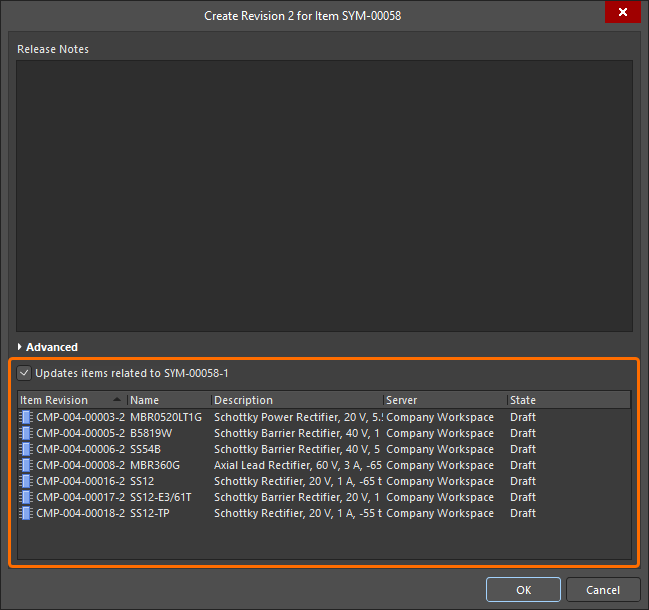
Accessing the option to update Workspace components that are referencing the Workspace model (in this case, a symbol) being re-saved.
Once you click OK in the Create Revision dialog, the modified model is saved back to the Workspace, and its associated temporary editor is closed. All Workspace components referencing that Workspace model will be re-saved to use its new revision automatically (the next revision of each component is automatically created and the save performed).
Uploading Data into a New Revision of an Item
Most content types support the creation of a new revision by uploading the applicable data file.
Uploading data into a new revision of an Item can be performed in a couple of ways.
Upload Menu
A file can be uploaded by right-clicking on the required Item in the Explorer panel and choosing the Upload command from the context menu. The Create New Revision dialog will appear, in which you can change Name, Description, and add release notes as required. Use the Sources region of the dialog to load the required file. This can be performed by dragging and dropping the file from Windows Explorer, onto the region. Alternatively, click the  button – the Add Files dialog (a standard Windows open-type dialog) will appear. Use this to browse to, and open, the required file.

Example upload. In this case, manually specifying a 3D model file to be uploaded to a target 3D Model Item.
Once the desired file is dropped in, or selected and the Open button clicked, an entry for it will appear back in the Sources region.
 button) as required. The Sources area supports selection of multiple files using standard multi-select techniques (Ctrl+Click, Shift+Click, and click-and-drag).


Proceed with the upload by clicking the OK button. As applicable to the content type, information regarding the uploaded file(s) will be presented on the Details and/or Preview aspect view tabs for the Item Revision, in the Explorer panel.

Browse the saved revision of the Item (shown here for a 3D Model Item), back in the Explorer panel. Switch to the Preview aspect view tab to see its graphical depiction (where applicable).
Drag and Drop from Windows Explorer
The relevant data file(s) can also be uploaded by dragging the selected file(s) from a source folder in your Windows Explorer and dropping onto the required target Item in the Explorer panel. The Create New Revision dialog will appear, with the dragged file listed in the Sources region. Add any Release Notes as required, then click the OK button.

Uploading using the drag and drop method, shown here for a 3D Model.
Cloning the Workspace Content
The Explorer panel provides the ability to clone a variety of Workspace Items. So rather than creating that required component, domain model, schematic sheet, or template from scratch, you can simply clone it. Direct Editing ensures any required changes – to a copy of the source data from the original Item Revision – is a streamlined affair, with the resulting changes released into an initial revision of a new Item of the same type. Done and dusted in record time, you can quickly expand your Workspace content without facing a blank canvas.
The following content types can be cloned:
- Component
- Footprint
- Symbol
- Simulation Model
- Component Template
- Managed Schematic Sheet
- Schematic Template
- Project Template
- Draftsman Document Template
- Draftsman Sheet Template
- Layerstack
- OutputJob
The command to clone one of the supported content types is accessed from the Explorer panel in the following ways:
- By right-clicking over the entry for the source Item-Revision, and choosing the Operations » Clone command from the context menu.
- By selecting the entry for the source Item-Revision and using the Ctrl+D keyboard shortcut.
The Clone command is available throughout the Explorer panel, wherever the applicable Item-Revision is presented, including:
- The main Item listing within a folder.
- Children aspect view tab (when viewing a Managed Schematic Sheet Item).
- Where-used aspect view tab (when viewing a Component Item, Symbol Item, Footprint Item, Simulation Model Item, Component Template Item, or Schematic Template Item).
- Preview aspect view tab (when viewing a Component Item, Managed Schematic Sheet Item, or Schematic Template Item).
Cloning Process
Once the required source Item-Revision has been located, and the Clone command launched, the process flow is as follows:
- A direct editing session is launched, with a copy of the source document – stored with the chosen Item-Revision – opened in the associated (and temporary) editor. For a Project Template Item revision, the temporary editable copy of the project will be opened in the Projects panel, ready for editing.
- Make changes as required.
- Save the document locally.
-
Click the
 button on the Quick Access Bar, to save the document to the Workspace (shortcut Ctrl+Alt+S). For a Project Template, choose the Save to Server command, available from the right-click context menu for the project's entry in the Projects panel. Alternatively, use the Save to Server control next to the document entry in the Projects panel. The Create New Item dialog will appear. By default, the clone Item will adopt the same revision naming and lifecycle definition schemes as the original Item, and will be created in the same folder. These properties can be changed if required. Be sure to give the new Item a Name and Description.
- Once the Item properties are set as required, click OK. The new Item and its initial revision will be created, the document released, and the temporary editor closed. Browse the fruits of your cloning labor back in the Explorer panel.