
Working with Managed Schematic Sheets
At a Glance
- Understand what managed schematic sheets are, how they support reuse, and why Workspace storage adds version control, traceability, and content integrity.
- Learn the different ways to create and save managed schematic sheets, including direct editing, saving the current sheet, and uploading a schematic document to a revision.
- See how setup details like folder type, content type, naming schemes, and lifecycle settings help organize and manage reusable schematic content.
Being able to re-use design content is something that all product development companies want, and can greatly benefit from. Not only does reuse save time, being able to easily reuse a section of a previous design means that all the qualification and testing of that part of the design is done. Design reuse is much more than copy and paste, though, true reuse requires the content to be locked down so you're guaranteed that it is the same as before. No quick edits to change the color of a component or a tweak to a resistor value, working with reusable content must be like working with off-the-shelf components; place the content, wire it in, and it works just like it did last time.
Altium Designer, in conjunction with a connected Workspace, caters for the ability to create managed schematic sheets (Managed Schematic Sheet Items) in that Workspace. Such sheets can be created:
-
Through Direct Editing.
-
Through saving of the current schematic sheet to the Workspace.
-
By uploading the relevant schematic document (
*.SchDoc) to a revision of a target managed schematic sheet.
Once a managed schematic sheet has been created (and data saved into a revision of it), it can be reused in future board-level design projects.
Just What is a Managed Schematic Sheet?
A managed schematic sheet is a standard Altium Designer schematic sheet containing components and wiring, that has been stored in a Workspace, so it can be reused in other designs. It is edited like any other schematic sheet. The managed schematic sheet concept is not limited to a single schematic sheet either, you can place a managed schematic sheet in your design that is the top of a tree of other managed schematic sheets.
The decision to move from device sheets to managed schematic sheets comes when there is a desire to make the transition from reusable content to Workspace reusable content – that is, when there is a desire or need to be able to control the release of that design content and provide a single source of this content for the entire team.
By making it Workspace content you can be sure that the revision of a managed schematic sheet that you use in a design can be easily identified and traced back to its source whenever needed. And because it is Workspace content it can be revised and updated when needed, and the usage relationships can all be traced – both down to the components on that sheet, and up to the designs that use that sheet. This ensures you have all the information needed to decide if that revised sheet must be pushed through to existing designs, or if a particular design must continue to use the previous revision.
Folder Type
When creating the folder in which to store managed schematic sheets, you can specify the folder's type. This has no bearing on the content of the folder – saving a schematic sheet will always result in a corresponding Managed Schematic Sheet Item. It simply provides a visual 'clue' as to what is stored in a folder and can be beneficial when browsing a Workspace for particular content. To nominate a folder's use as a container for managed schematic sheets, set its Folder Type as Managed Schematic Sheets, when defining the folder properties in the Edit Folder dialog.
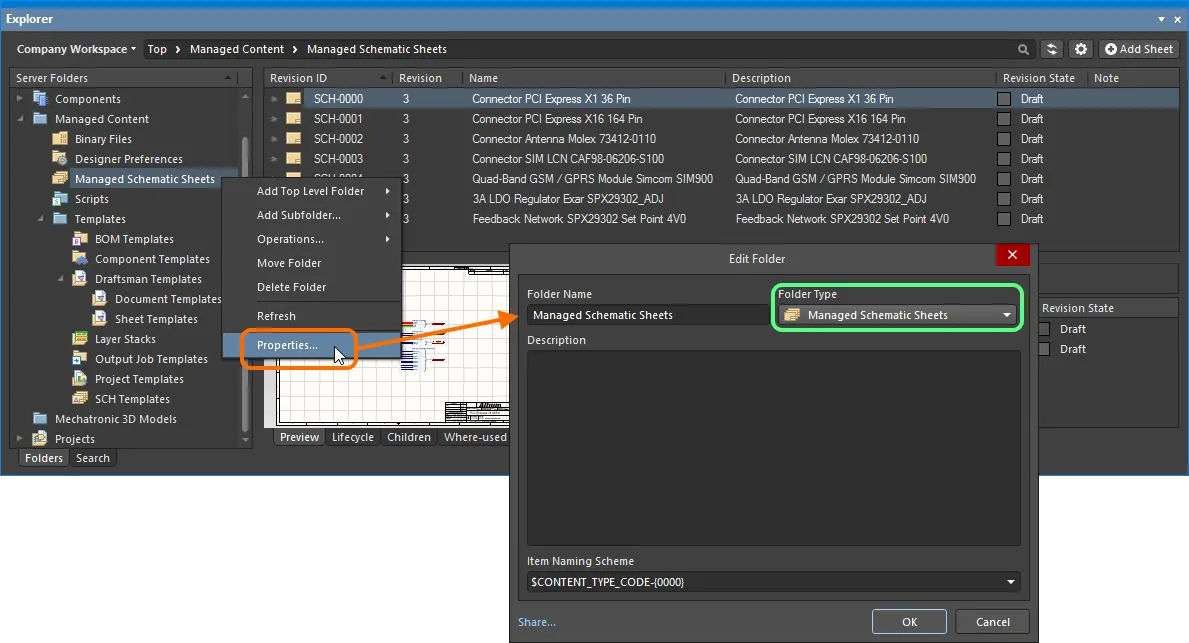
Specifying the folder type – its intended use – gives a visual indication of the content of that folder when browsing the Workspace.
Item Naming Scheme
Another important aspect of the parent folder is the Item Naming Scheme employed for it. This defines the format of the unique ID for each Item created in that particular folder. Several default example schemes are available, utilizing the short-form code for either the folder type (SSC – Schematic Sheet Collection) or the content type (SCH – Schematic Document):
-
$CONTENT_TYPE_CODE-001-{0000}– for example,SCH-001-0001. -
$CONTENT_TYPE_CODE-001-{A00}– for example,SCH-001-A01. -
$FOLDER_TYPE_CODE-001-{0000}– for example,SSC-001-0001. -
$FOLDER_TYPE_CODE-001-{A000}– for example,SSC-001-A001.
Using a default naming scheme, the software will automatically assign the next available unique ID, based on that scheme, having scanned the entire Workspace and identifiers of existing content. This can be a great time-saver when manually creating managed schematic sheets.
A custom scheme can also be defined for a folder, simply by typing it within the field, ensuring that the variable portion is enclosed in curly braces (e.g. SHEET-001-{0000}).
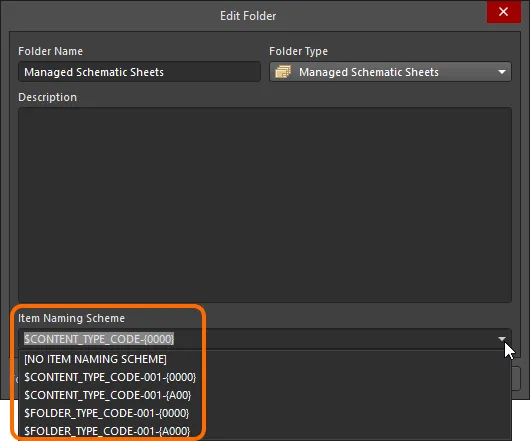
The Item Naming Scheme of the parent folder is applied to the Unique ID for each Item created within that folder.
Content Type
When creating a target Managed Schematic Sheet Item in which to store your schematic sheet, ensure that its Content Type is set to Managed Schematic Sheet, in the Create New Item dialog. If you are creating the Item in a Managed Schematic Sheets type folder, this content type will be available from the right-click context menu when creating the Item.
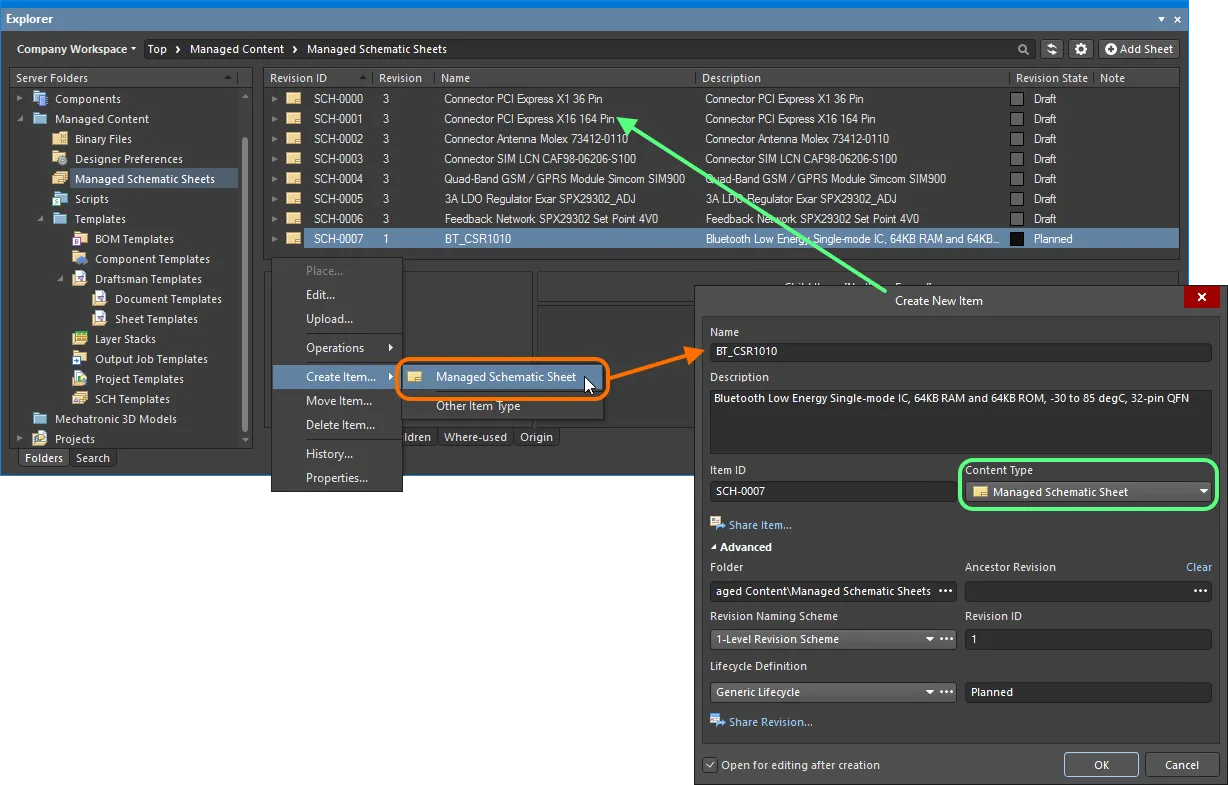
Creating a managed schematic sheet within a Managed Schematic Sheets folder – the correct Content Type is available on the context menu.
Item Lifecycle Definition and Revision Naming
When defining a managed schematic sheet, be sure to specify the type of lifecycle management to be used for the sheet, and the naming scheme employed for its revisions, respectively.
Control over which content types can use a particular lifecycle definition or revision naming scheme can be defined and enabled at a global level from within the Content Types dialog when defining each schema. The default schemes assigned for use by a managed schematic sheet are: Generic Lifecycle and 1-Level Revision Scheme, respectively.
Specify the required schemes in the Create New Item dialog, using the Lifecycle Definition and Revision Naming Scheme fields respectively.
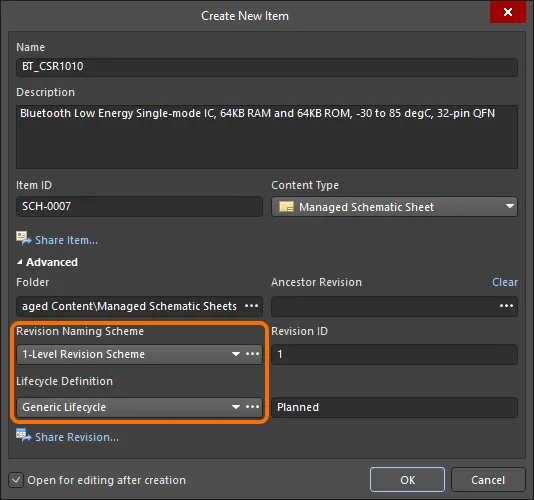
Selecting the Lifecycle Definition and Revision Naming schemes for a manually created managed schematic sheet.
Saving a Schematic Sheet
Related page: Creating & Editing Content
So far, we've discussed the support for a managed schematic sheet in the Workspace, in terms of related folder and content types. Saving an actual defined schematic sheet into a revision of such a Managed Schematic Sheet Item can be performed in a couple of ways, as outlined in the below sections.
Direct Editing
A schematic sheet can be edited and saved into the initial revision of a newly-created Managed Schematic Sheet Item, courtesy of the Workspace's support for direct editing. Direct editing frees you from the shackles of separate version-controlled source data. You can simply edit a supported content type using a temporary editor loaded with the latest source direct from the Workspace itself. And once editing is complete, the entity is saved (or re-saved) into a subsequent planned revision of its parent Item, and the temporary editor closed. There are no files on your hard drive, no questioning whether you are working with the correct or latest source, and no having to maintain separate version control software. The Workspace handles it all, with great integrity, and in a manner that greatly expedites changes to your data.
When you create a Managed Schematic Sheet Item, you have the option to edit and save a schematic sheet into the initial revision of that Item, after creation. To do so, enable the option Open for editing after creation, at the bottom of the Create New Item dialog (which is enabled by default). The Item will be created and the temporary Schematic Editor will open, presenting a .SchDoc document as the active document in the main design window. This document will be named according to the Item-Revision, in the format: <Item><Revision>.SchDoc (e.g. SCH-0007-1.SchDoc).
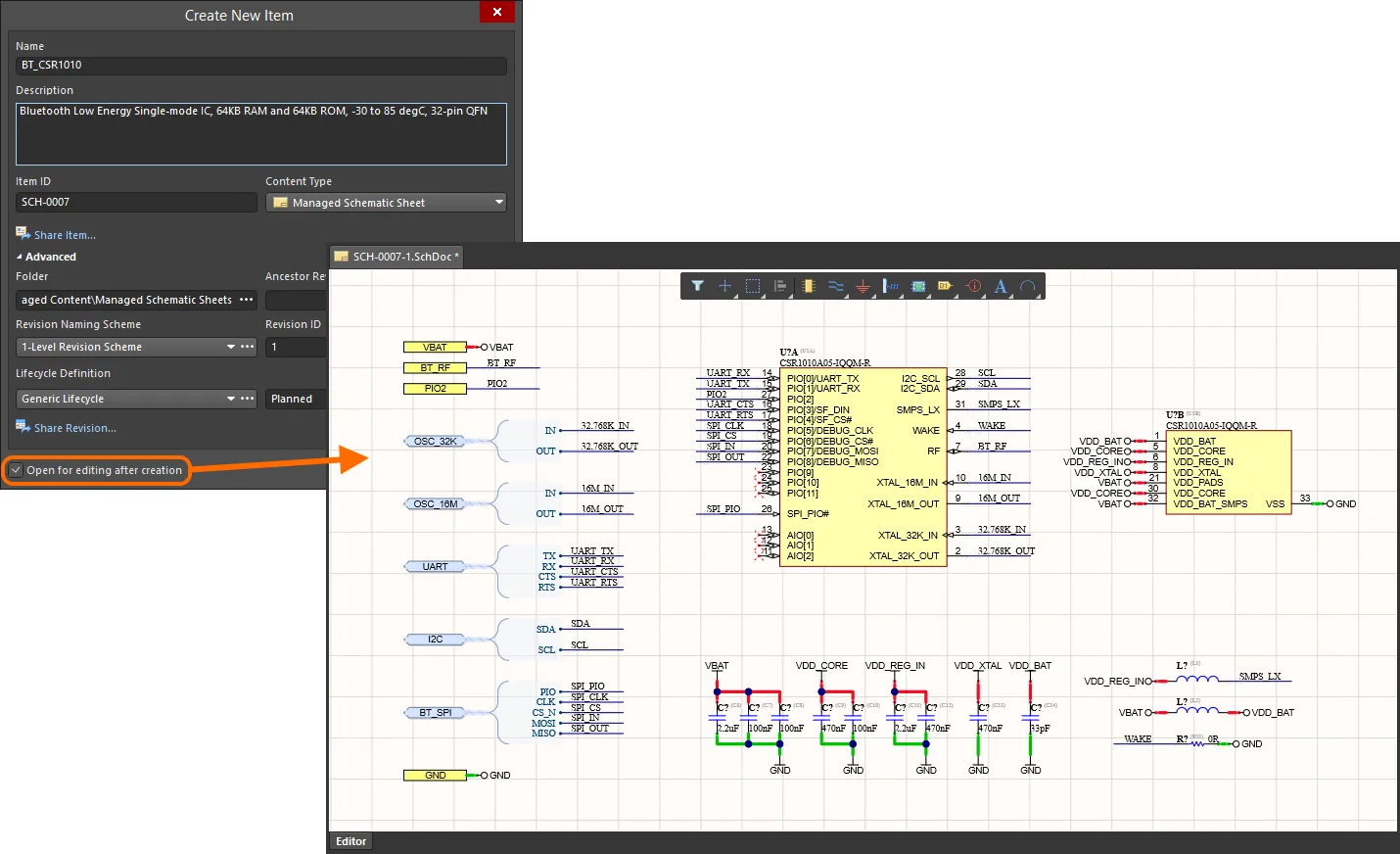
Example of editing the initial revision of a managed schematic sheet, directly from the Workspace – the temporary Schematic Editor provides the document with which to define your schematic sheet.
Use the document to define the schematic sheet as required. Because managed schematic sheets are stored in a Workspace, the components on them should also be stored in the Workspace. That way, you get the full benefit of the content system that the Workspace provides, including being able to identify and locate all the components used on the managed schematic sheet (the children), and also being able to identify and locate which designs the managed schematic sheet has been used in (where-used). For more information see Building & Maintaining Your Components and Libraries.
Considerations when Creating a Managed Schematic Sheet
When it comes to the design of a managed schematic sheet, the application of tuned standards not only aid in readability of the sheet but bring a strong level of design consistency and uniformity. So not only a consistency presentation-wise but also adherence to certain best-practice design principles. The following sections take a closer look at a suggested naming convention for managed schematic sheets, as well as some of the key standards that might be followed in their design.
Naming Convention
In terms of naming, one suggestion is that each managed schematic sheet is named according to the primary, or key component that it features. This name is the part's order code (the code used when ordering it from a vendor). Example managed schematic sheet file names might be:
-
MAX3062EEKA.SchDoc– featuring a MAX3062EEKA 20Mbps RS-485 Transceiver, from Maxim. -
BMP085.SchDoc– featuring a BMP085 Digital Barometric Pressure Sensor, from Bosch. -
RTL8201CL.SchDoc– featuring an RTL8201CL Single-Port 10/100M Fast Ethernet PHYceiver, from Realtek.
The sheet title can be used to concisely describe the functionality of the circuit captured by the sheet. Typically, the key component name will also be included in this title.
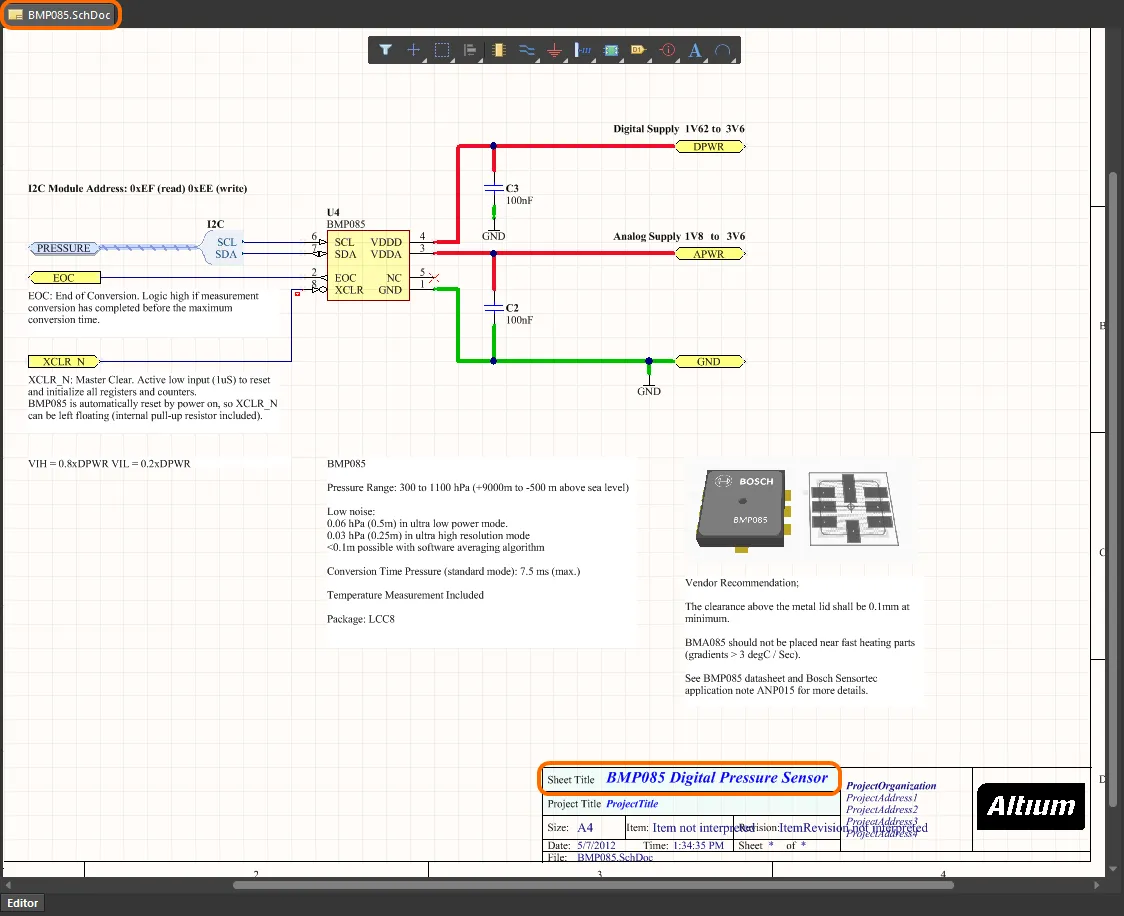
Example managed schematic sheet, featuring a BMP085 component.
Design Standards
When it comes to populating a blank schematic sheet, designers are rather chef-like in nature – each having their own signature way of doing things. Presentation-wise, for example, different designers will adopt different styles, layout preferences, use of color, and so on. After all, if all designers across the planet presented schematic circuitry in the exact same fashion, the design world would take on a mundane, monochromatic-like appearance! The key is to adopt a method of capture and presentation that is consistent across your own design teams.
Now, in saying that, there are some key design principles that, when adopted, really do aid not only the consistency of the managed schematic sheets produced, but are fundamental to the concept of design for reuse itself. The following are some suggested principles:
- Each managed schematic sheet features a single or small group of key components focusing on a specific function.
- All possible supporting circuitry will be included in the sheet.
- Parts of the design that can be configured in multiple ways can be refactored to parent or sub-sheet within reason, allowing the sub-sheet behavior to be configured from the parent without adding unnecessary structural overhead.
- Multi-purpose signals are passed to parent sheets using reasonable and generic signal naming, allowing them to be re-mapped to their specific purpose.
- Ensure readability of the single standalone managed schematic sheet is preserved, while allowing a designer to easily understand how it would be implemented as an element in their design.
- Use of consistent naming, presentation and design standards.
In terms of designing for reuse, the following suggested items are particularly relevant and important to capture at the managed schematic sheet level:
- The use of signal harnesses where possible, since the standard harness is itself a reusable design element.
- No labeling of local nets – so avoiding the use of Net Labels – since doing so actually makes it harder to manage connectivity through the design in which the managed schematic sheet is used. The most common exception to this, however, is the requirement of such labeling when creating buses.
- All power ports connected to a port sheet interface and passed to the parent sheet – local power ports are avoided to prevent confusion.
-
Port direction and I/O type is strictly set according to the signal direction with the exception of Power nets (these will be
unspecified). Where signal direction is not specified,Bidirectionalis used. -
Using a standard set of signal names, using generic names where possible (e.g.
5V0instead of5.0V/5V/5Volts). There is a certain degree of flexibility here as well, since connections are explicit through the use of strict hierarchy across all design projects. This allows names to be defined differently for any two connected objects, at different levels of the design hierarchy, because their connection is explicit. - Using a standard set of sheet-level parameters.
Another suggested addition to a managed schematic sheet is that of a section to highlight the key component on the sheet, in terms of its manufacturer, and an at-a-glance listing of its key features. This can prove invaluable to a designer when assessing its merit for inclusion into a new design.
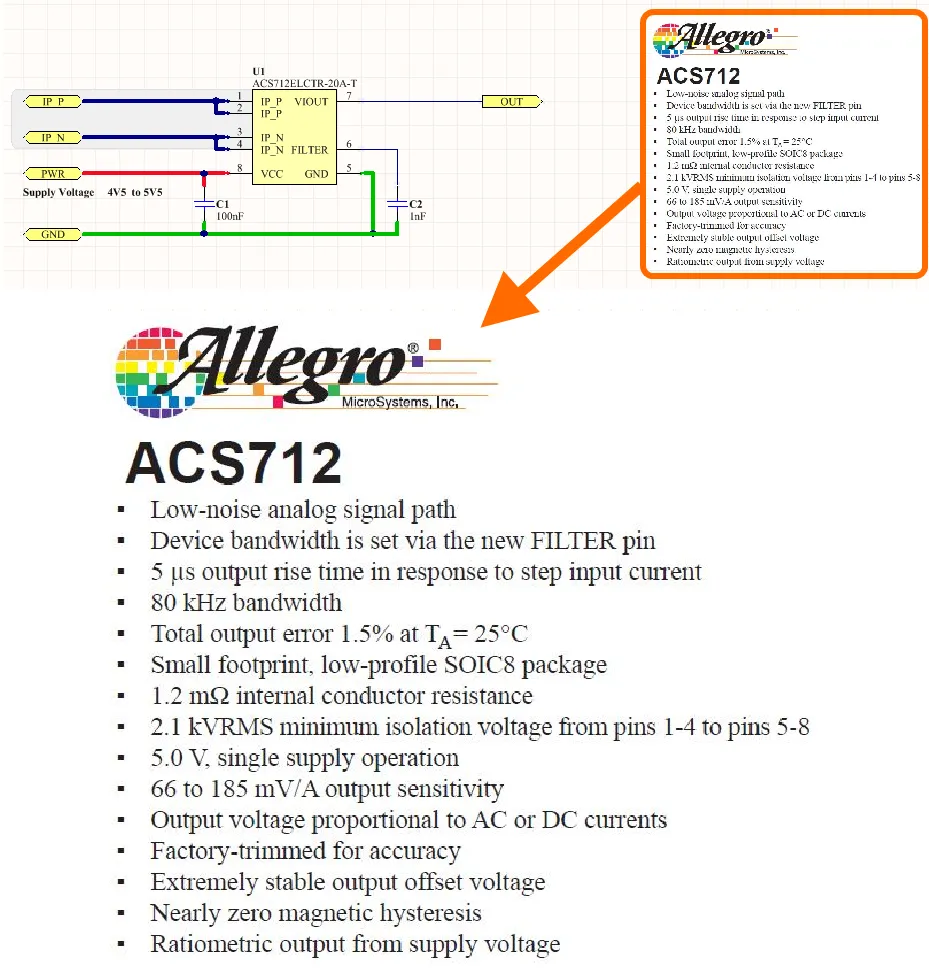
Features of the key component listed alongside the design circuitry.
There are three relevant controls when direct editing, readily available from the Quick Access Bar (at the top-left of the main application window), or from the Schematic Standard toolbar:
-
 – Save Active Document. Use this button to locally save any changes made to the document. This allows you to save current changes, should you wish to come back at a later stage to make further changes before ultimately saving to the Workspace.
-
 /
/ – Save to Workspace. Use this button to save the defined schematic sheet to the Workspace, storing it within the initial (planned) revision of the target Managed Schematic Sheet Item. The Edit Revision dialog will appear, in which you can change Name, Description, and add release notes as required. The document and editor will close after the save. The document containing the source schematic sheet (
*.SchDoc) will be stored in the revision of the Item. -
 /
/ – Discard Local Changes. Use this button if you wish to cancel editing and discard any changes made. The document and editor will close, and nothing will be saved to the target Managed Schematic Sheet Item.
These controls are also available as commands – Save (Shortcut: Ctrl+S), Save to Server (Shortcut: Ctrl+Alt+S), and Discard Local Changes – from the main File menu and from the right-click menu of the schematic sheet's entry in the Projects panel.
The saved data stored in the Workspace consists of the source schematic sheet, defined in the Schematic Document file (<Item><Revision>.SchDoc), as well as any associated harness definition files (*.Harness). In the Explorer panel, switch to the Preview aspect view tab to see a graphical representation of the sheet, along with a listing of its constituent components (and managed schematic sheet template if applicable).
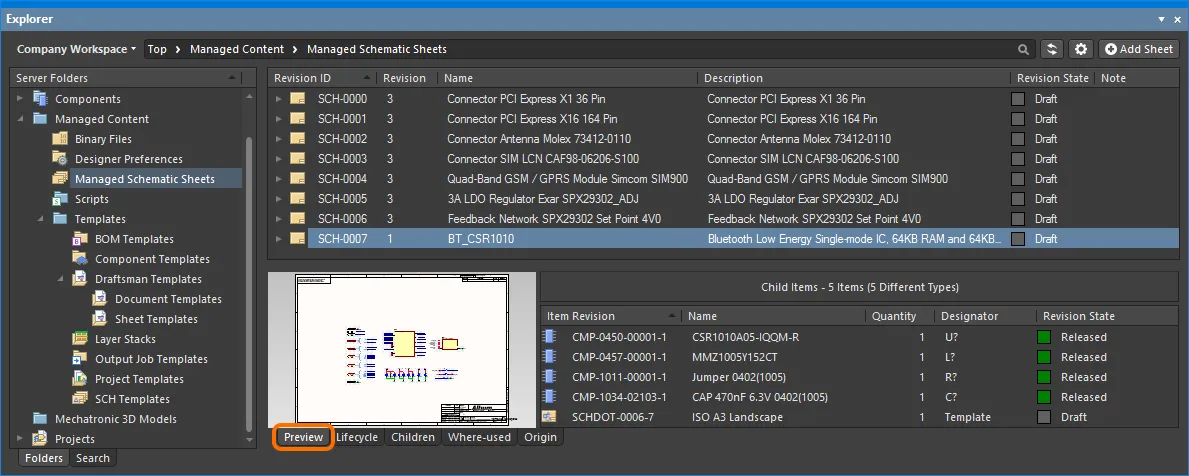
Browse the saved revision of the managed schematic sheet, back in the Explorer panel. Switch to the Preview aspect view tab to see a graphical representation, and a listing of the child component revisions.
The child components used on the sheet can also be browsed from the Children aspect view tab. Double-click an entry to cross-probe, right-click to access a set of component-related commands.
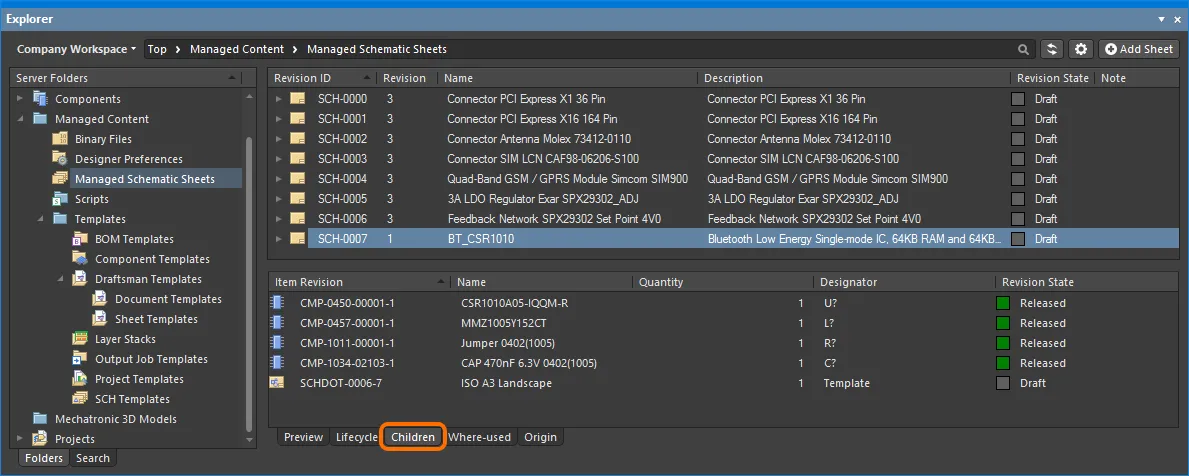
Browse the constituent components on the managed schematic sheet, through the Children aspect view.
Saving an Existing Sheet to the Workspace
While direct editing is the preferred approach for most design content that can be stored in a Workspace, when it comes to existing schematic sheets (or device sheets for that matter), you also have the ability to save a sheet directly to the Workspace. This requires that you have a planned revision of an existing Managed Schematic Sheet Item, into which the sheet will be saved. The process is as follows:
-
Create a new Managed Schematic Sheet Item and initial planned revision, or have a planned revision of another existing Item, as required.
-
Open the schematic sheet, or device sheet, within Altium Designer.
-
Choose the File » Save as Managed Sheet to Server command from the main menus.
-
The Choose Planned Item Revision dialog will appear. Use this to choose the target revision of the required Managed Schematic Sheet Item (which must be in the
Plannedstate), then click OK. -
The Edit Revision dialog will appear, in which you can change Name, Description, and add release notes as required.
-
After clicking OK, the sheet will be saved and stored in the revision of the Item.
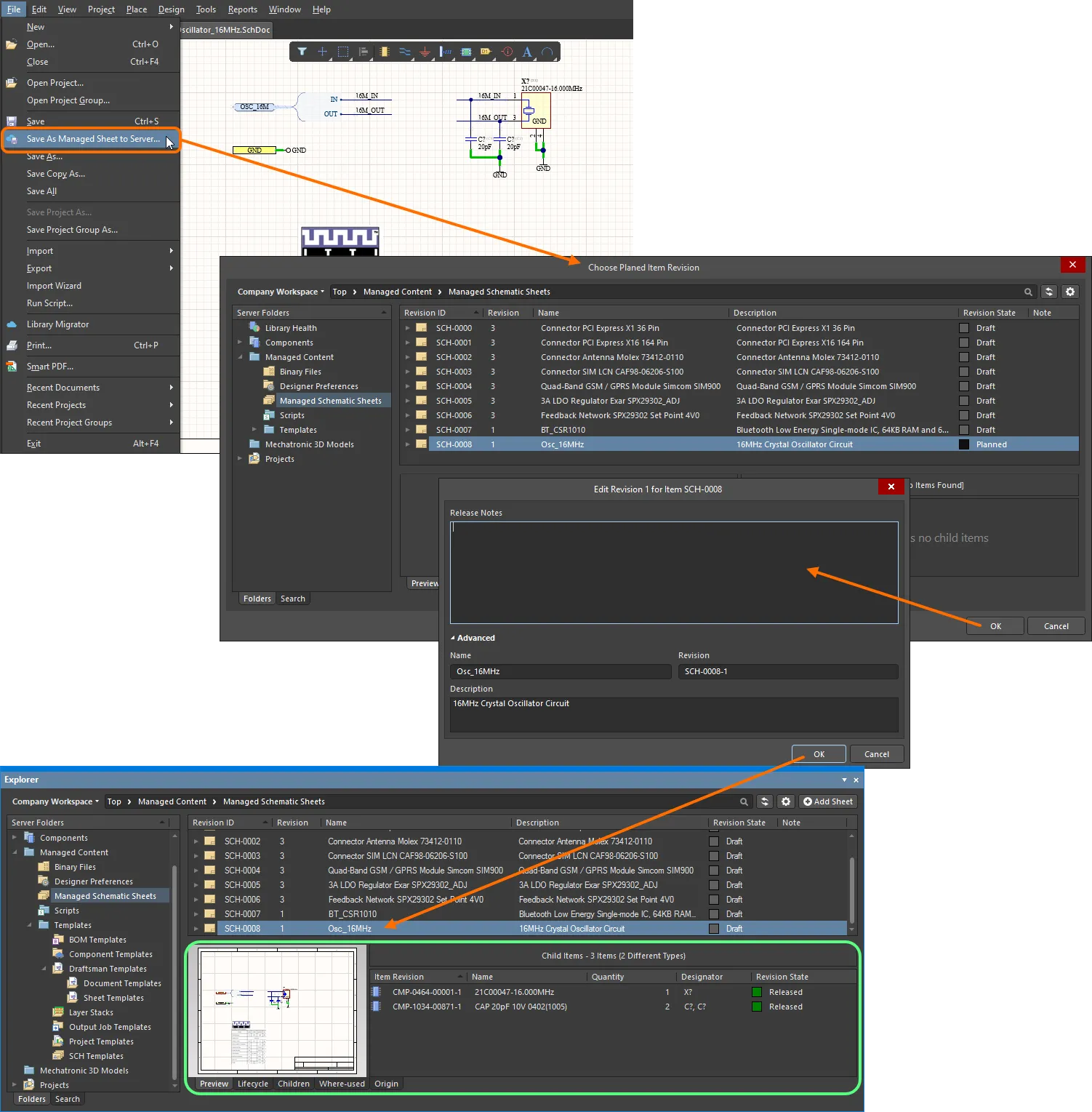
Example of sending an existing device sheet to the Workspace to which you are actively connected. The saving must be to an existing revision of a managed schematic sheet, and that revision must be in the Planned state.
Searching for and Placing a Managed Schematic Sheet
Managed schematic sheets stored in your connected Workspace can be browsed and used from the Design Reuse panel when it is set to display Workspace resources ( ).
).
You can browse the Workspace folders to find the required managed schematic sheet. Alternatively, use the Search field at the top of the Design Reuse panel to search for a managed schematic sheet by its name or description.
 button at the top right of the panel, then enable the Show Hidden Revisions option on the associated menu.
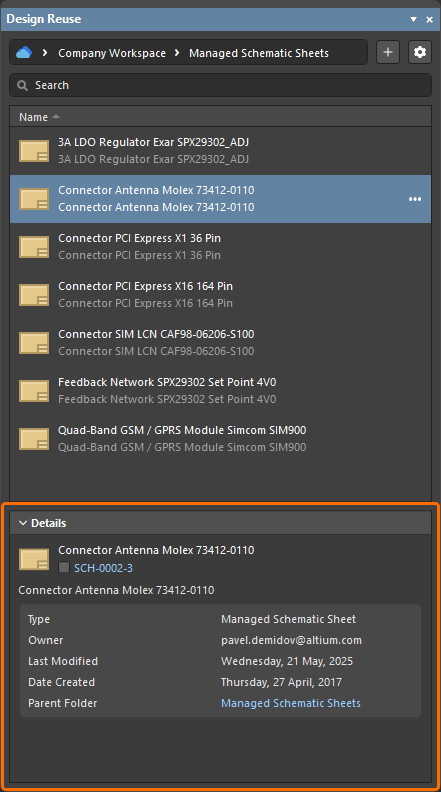
Click the Details control at the bottom of the panel to expand the Details pane that displays details for the selected managed schematic sheets, including:
-
Managed schematic sheet name.
-
The lifecycle state icon and revision (click the link to open the detailed History view of the Managed Schematic Sheet Item with the latest revision selected).
-
Managed schematic sheet description.
-
Managed schematic sheet general information.
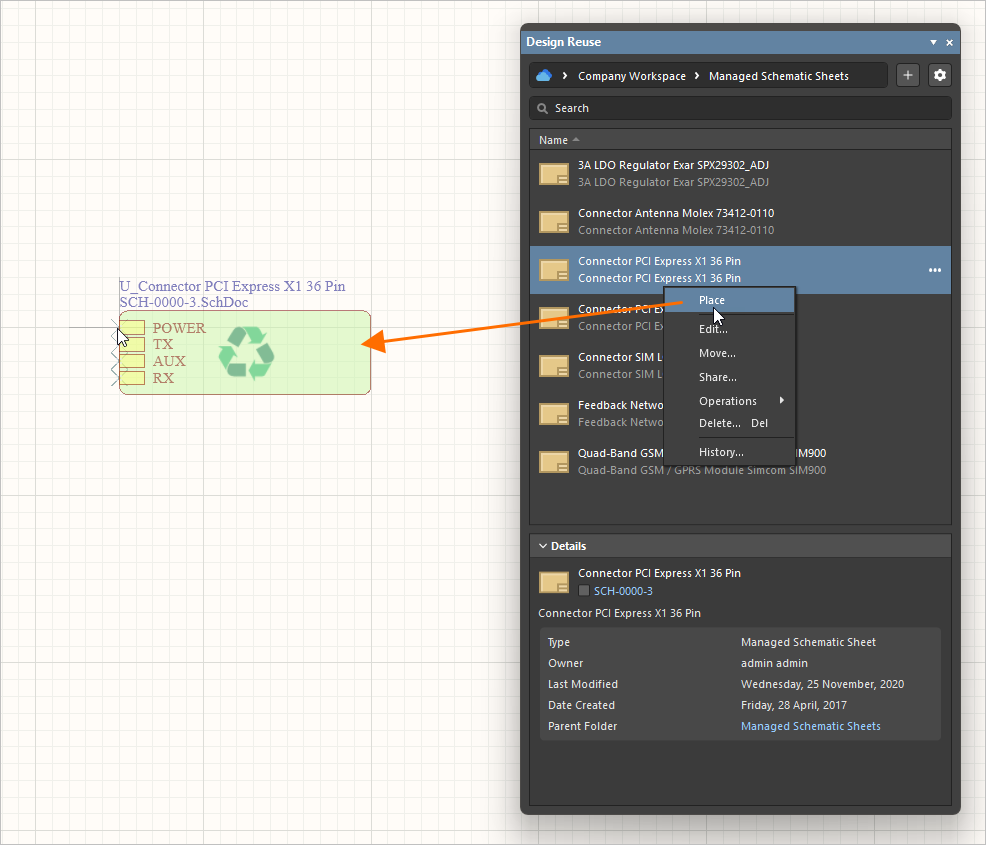
To place a managed schematic sheet in a design, hover the cursor over its entry in the Design Reuse panel, click the  button (or right-click the entry), and select the Place command from the menu. A sheet symbol that references the sheet will float attached to the cursor – click the required place in the schematic sheet to effect placement.
Annotating the Components and Sheets
To guarantee the integrity of the circuitry used in a managed schematic sheet, that sheet cannot be edited during normal design use. That means the sheet number and designator assignments cannot be modified on the sheet. So just how do you number all the sheets in the project and annotate all of the components?
These tasks are managed by two commands: sheets are numbered using the Tools » Annotation » Annotate Compiled Sheets command and components are annotated using the Tools » Annotation » Board Level Annotate command. Sheet number and designator assignments are stored in a separate file, <ProjectName>*.annotation.
The Annotating Components and Sheets principles are the same as when using local Device Sheets. For more information on annotating designs that include managed schematic sheets, see the following sections on the Device Sheets page:
Editing a Managed Schematic Sheet
To edit a managed schematic sheet, hover the cursor over its entry in the Design Reuse panel and click the  button (or right-click the entry) and select the Edit command from the menu. The temporary editor will open, with the schematic sheet contained in the latest revision of the Managed Schematic Sheet Item opened for editing. Make changes as required, then save the document into the next revision of the Item (File » Save to Server).
Other Managed Schematic Sheet Actions
The button menu (and the right-click menu) of a managed schematic sheet entry in the Design Reuse panel also provides access to the following commands:
-
Move – use to change the location of the Managed Schematic Sheet Item in the Workspace folder structure. Launching a command will give access to the Move Item dialog in which to select the target folder under which the Item should be placed into.
-
Share – use to define the sharing permissions for the managed schematic sheet. After selecting the command, the Share For Item dialog will open in which you can configure sharing as required. Learn more about Item-level sharing.
-
Operations – use to access a drop-down menu of additional functions for managed schematic sheets as described below.
-
Make a Copy – use to copy the managed schematic sheet. A temporary editor of the managed schematic sheet will open, with the same content as in the original managed schematic sheet. Make required changes and save the managed schematic sheet to the Workspace.
-
Change Revision State – use to change the revision state of the managed schematic sheet's latest revision. After selecting the command, the Batch state change dialog opens, which allows you to change the revision state of the managed schematic sheet.
-
Download – use to download data stored in the managed schematic sheet. The associated data will be downloaded into a sub-folder under the chosen directory, named using the Managed Schematic Sheet Item Revision ID. The file can be found in the Released folder(s) therein.
-
-
Delete – use to delete the managed schematic sheet from your connected Workspace. After selecting the command, the Delete Items dialog will appear, in which to confirm the deletion.
-
History – use to access a detailed view for the managed schematic sheet, opened as a new tabbed view within Altium Designer.