Accessing Your Workspace
At a Glance
- Learn how to select an Altium 365 Workspace you own or one shared with you.
- Understand Enterprise Server Workspace connection options, including custom connections and supported authentication methods.
- Discover how automatic sign-in and known Workspace connections can simplify repeat access.
Interaction with your connected Workspace can be made from different places in Altium Designer. This page takes a look at accessing your Workspace from within Altium Designer.
Connecting to Your Altium 365 Workspace
First, ensure that you are signed in to your Altium account through Altium Designer. To sign in, click the Current User control at the top right of the design space (shown as  when not signed in) and use the Sign in entry of the associated menu. Refer to the Signing in to Your Altium Account page to learn more.
When signed in, you can connect to your Altium 365 Workspace. To do so, click on the Active Server control at the top right of the design space (shown as  when Altium Designer is not connected to a Workspace). In the subsequent menu, all Altium 365 Workspaces that are available to you will be listed across two sections:
-
My Workspaces – these are Altium 365 Workspaces that you have activated for your own organization and for which you are the owner.
-
Shared With Me – these are Altium 365 Workspaces to which you have been invited and subsequently added as a member (i.e., you are not the owner of these Workspaces).
Click the entry for the specific Altium 365 Workspace you wish to connect to.
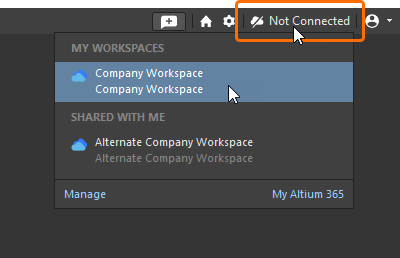 Click to access a Workspace from all those available to you.
After connecting, the Active Server control will change to reflect you are having connected to the Altium 365 Workspace – refer to the Checking Connection Status section below for more information.
 ).
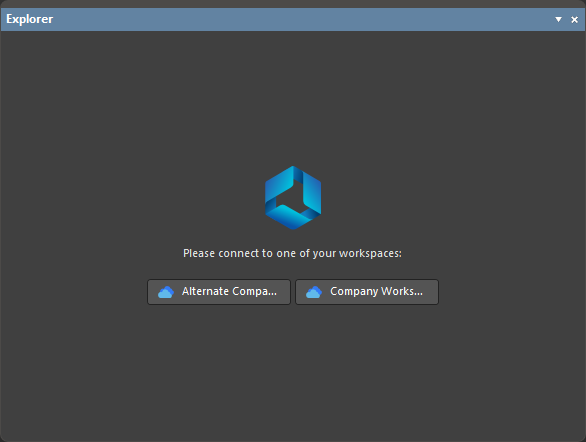 ).
 button associated with the required Workspace and selecting the Set as default option from the associated menu (the
 label will be shown in the Workspace's tile on the page).

 ).
Connecting to Your Enterprise Server Workspace (Altium Designer Agile, Altium Designer)
Connect to your Enterprise Server Workspace from within Altium Designer by clicking the Current User control, at the top right of the design space (e.g.,  when signed in to your Altium account or when not signed in). In the subsequent menu choose the Custom connection command.
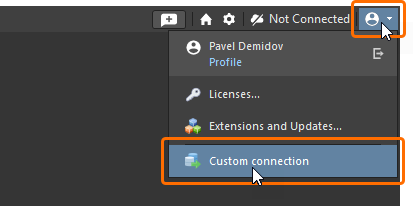
The Custom Connection dialog will appear, with which to connect to the target Workspace. The dialog has two modes – Default and Legacy. To switch between these modes, use the Default Mode / Legacy Mode control at the bottom left of the dialog.
-
In Default mode of the dialog, enter the location URL of the Enterprise Server Workspace to which you want to connect into the Server Address field. The format
https://<ComputerName>:<PortNumber>(e.g.https://sme-impala.altium.biz:9785for an Enterprise Server installed using the default port assignment).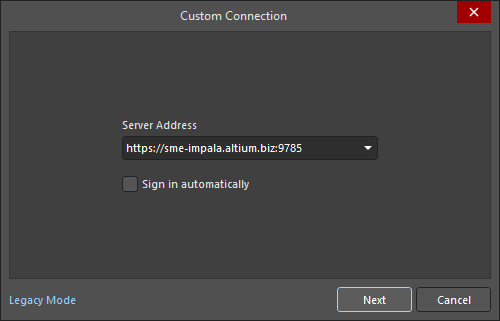
Click the
 button and use the page that opens in your default browser to sign in to your Altium account using your preferred (and accessible) method: user name and password credentials, Windows Session credentials, or SSO.
-
In Legacy mode of the dialog, enter the URL for the Enterprise Server Workspace into the Server Address field and your Workspace access credentials (Username and Password), then click the
 button to connect to the Workspace.
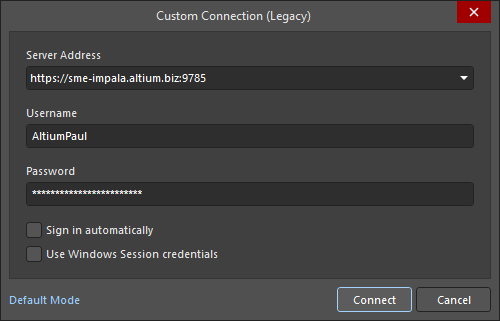
After connecting, the Active Server control will change to reflect you are having connected to the Enterprise Server Workspace – refer to the Checking Connection Status section below for more information.
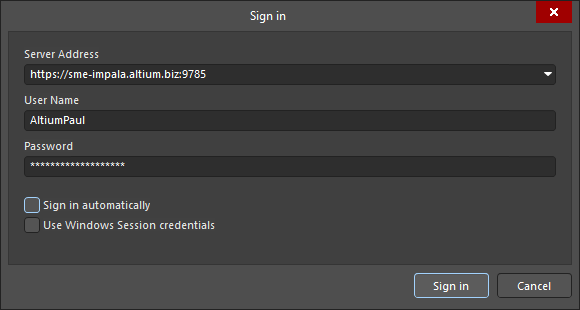
Connecting to a 'Known' Enterprise Server Workspace
If you have previously connected to your Enterprise Server Workspace from within the same instance of Altium Designer, it will become a Known Server. If this is the case, you can connect to that Workspace in a more streamlined fashion. To do so, click on the Active Server control at the top right of the design space. In the subsequent menu, choose the entry for your Workspace, in the Custom Connections grouping. If you enabled the Sign in automatically option when accessing that Workspace previously, you will be connected straight away. If this option was not enabled, the Sign in dialog will appear, with which to connect to the target Workspace. Enter the URL for the Workspace, and your Workspace access credentials, then click the  button.
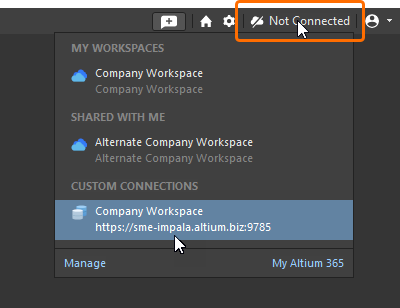 Connecting to your Enterprise Server Workspace when that Workspace is already known.
 ).
Connecting to an Enterprise Server Workspace from Different Computers
Support is provided for connecting to your Enterprise Server Workspace using the same credentials but from different computers (other than the computer on which the Enterprise Server is installed). If you attempt to connect to a Workspace that you are already connected to from another computer – either through the design software or the Workspace's browser-based interface – a pop-up dialog will alert you to this. You can choose from two options offered in the dialog:
- Terminate existing session – close the existing session that you have on the other computer and continue to login to the Workspace from the current computer.
- Start new session – login to the Workspace from the current computer by using an additional connection license and thereby keep logged into the Workspace from the other computer as well.
Application of Environment Configurations
When connecting to a Workspace that has defined Environment Configurations, the configuration service determines the environment configuration to be used for that user, and changes the relevant areas of the Altium Designer environment to enforce the permitted data elements of that configuration.
If the user is assigned to several roles, and multiple environment configurations can apply, the user will be given the choice of which environment configuration to be applied when they sign-in. Choice is made from the Select a Configuration dialog.

If multiple environment configurations apply to a user, that user will be presented with the choice at the time of connecting to the Workspace, through the Select a configuration dialog
Options and Controls of the Select a Configuration Dialog
-
Name / Description - the name and description of the configuration that you created in the browser-based interface. Select the desired configuration.
-
Remember my choice - enable to remember the selected configuration when signing in. When this is enabled, the dialog will not appear for any future sign in.
-
Work as administrator - enable to work as an administrator, which allows you to work within the software and with a server without any restrictions.
If the user is also an Administrator for the Workspace, they have the option to Work as administrator. This allows them to work within Altium Designer, and with the Workspace, without any restrictions.
If no configuration is available for a user, then their working environment will simply be configured with the latest revision of all released Items that are supported by an environment configuration - as though a default configuration were being applied. If there is at least one released revision of a particular Data Item in the Workspace, then that Item Revision will be used - no local file-based entities (e.g., templates) will be available for use.
Checking Connection Status
You can check whether you are currently connected to a Workspace from the following places:
-
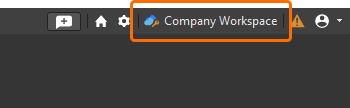
The menu associated with the Active Server control, at the top right of the design space. When actively connected to a Workspace, the control will reflect the name of that Workspace (e.g.,
 ). The currently connected Workspace will also be highlighted in the associated menu (and is distinguished by the
 icon). Clicking the entry provides access to browse the content of that Workspace through Altium Designer's Explorer panel. Clicking the
 icon provides access to the Workspace's browser interface (through your default browser).

Verification of being connected to your Altium 365 WorkspaceWhen actively connected to an Enterprise Server Workspace, the Active Server control will also reflect the name of the Workspace (e.g.,
 ), and the currently connected Workspace will be highlighted in the associated menu (and is distinguished by the
 icon).

Verification of being connected to your Enterprise Server Workspace -
The Data Management – Servers page of the Preferences dialog. When connected to the Workspace, that Workspace will be presented as the Active Server. You can only be actively connected to one Workspace through the software at a time. If you have previously connected to other Workspaces from that instance of Altium Designer, they will be listed as Known Servers. While actively connected to one Workspace, you could also be connected to another (it will not be the active Workspace).
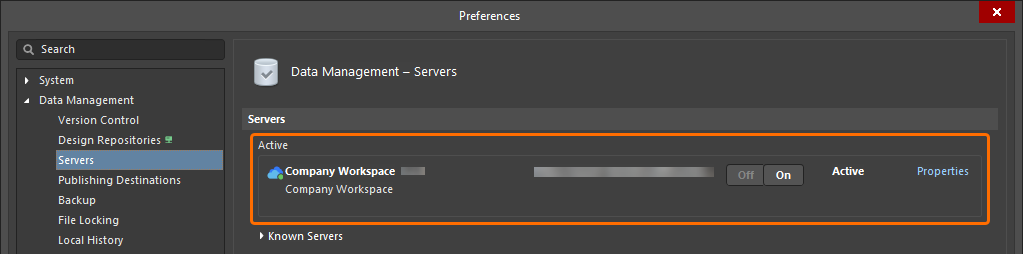
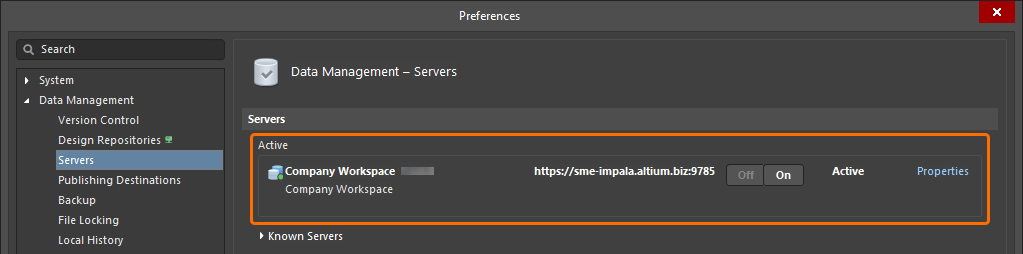
-
The Explorer panel. When connected, the Workspace will be available from the menu associated with clicking on the name of the Workspace currently being browsed.
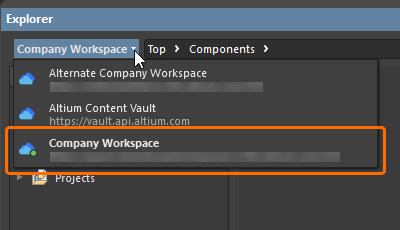

 icon and its name in bold.
Switching Workspaces
You can quickly switch between any of the Workspaces available to you. To do so, click the Active Server control, at the top right of the design space. In the subsequent menu choose the entry for the Workspace you wish to switch to. You will be disconnected from the current Workspace, then connected to the chosen Workspace.


 ).
Disconnecting from Your Workspace
You can disconnect from your Workspace from within Altium Designer, in the following ways:
-
By clicking the Active Server control, at the top right of the design space. In the subsequent menu, click the disconnect control (
 ) at the far right of the entry for the currently connected Workspace.
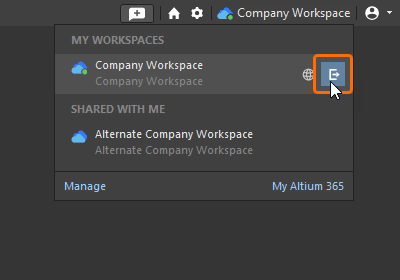
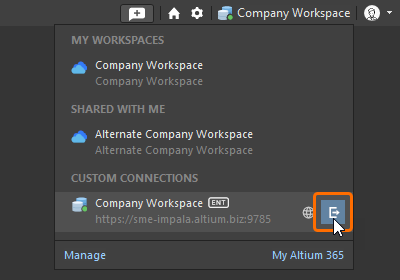
-
By clicking the
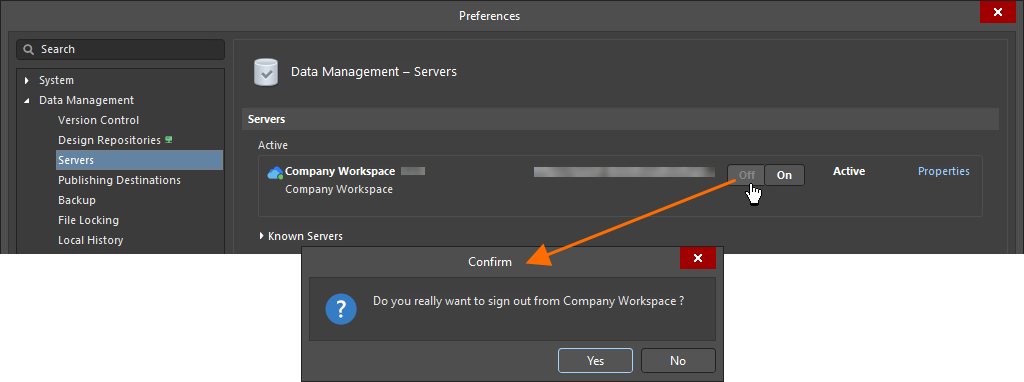
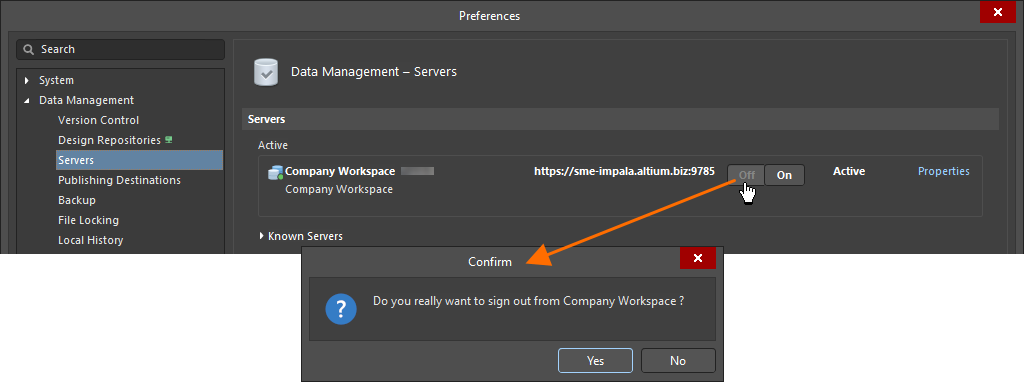
 button, associated with the Active Server, on the Data Management – Servers page of the Preferences dialog. A confirmation dialog will appear – click Yes.